Why Chrome –print-to-pdf Prints HTML Too Quickly and How to Fix It
Chrome captures as soon as a page loads. Learn when to use --timeout, virtual time, Puppeteer readiness checks, and ScreenshotNeo.

Chrome’s --print-to-pdf usually captures promptly after the page reaches its load milestone. If JavaScript renders a table later, a timer reveals a section, an API response fills a component, or fonts and images finish after that milestone, the PDF can contain incomplete HTML. The renderer is usually doing what it was asked to do; the capture happened before the application was ready.
Use a bounded --timeout for a predictable delay, --virtual-time-budget for timer-driven pages, or browser automation that waits for a page-specific readiness signal before calling page.pdf(). The right choice depends on what is late: timers, network requests, client rendering, fonts, or an export step.
What “too quickly” means in Headless Chrome
Chrome’s Headless command-line reference says that when neither --timeout nor --virtual-time-budget is supplied, page content is captured as soon as it is loaded. “Loaded” is a browser lifecycle milestone, not a promise that every application task has finished. A single-page app can still be fetching data or mounting components after that point.
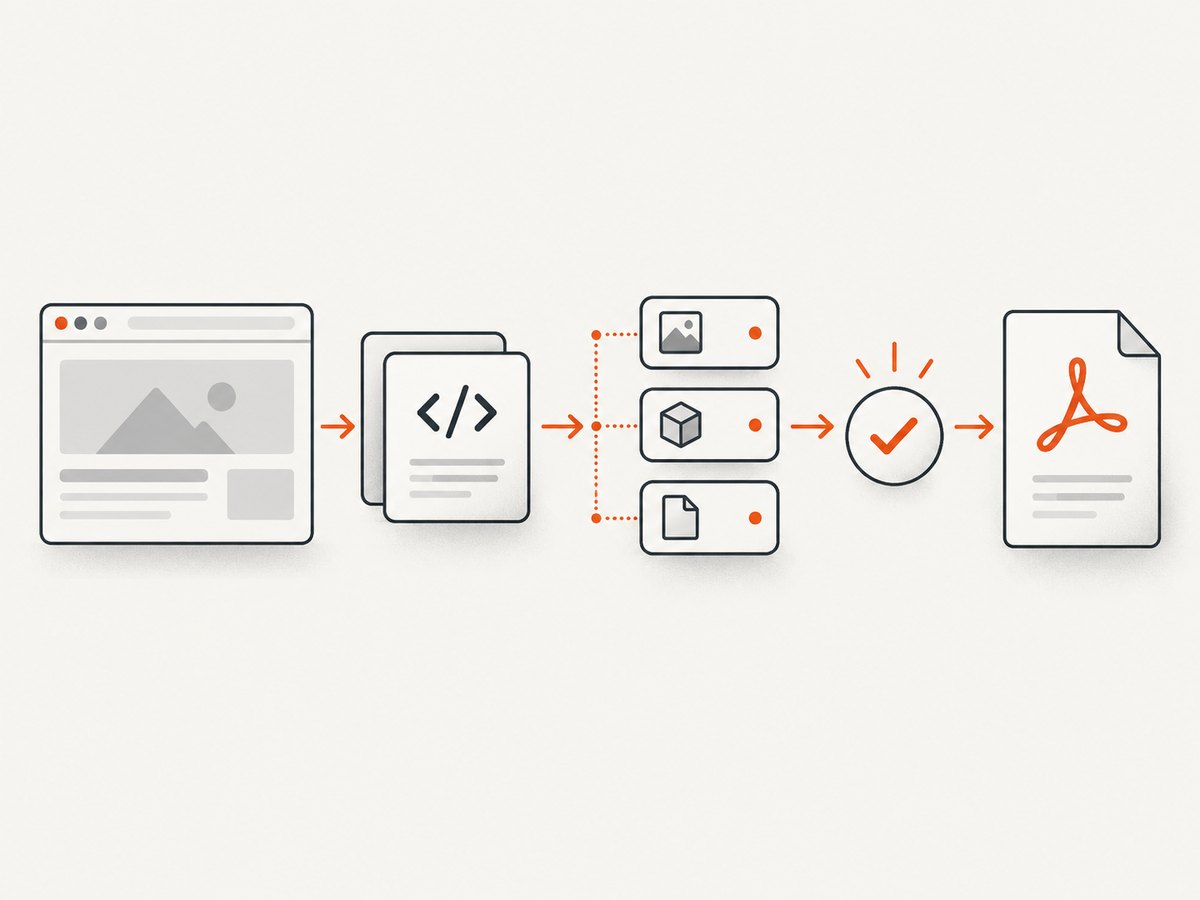
That distinction explains common symptoms:
- The PDF has the shell, headings, and navigation, but an empty data grid.
- A chart container is present while the chart itself appears only in a later screenshot.
- A delayed cookie notice or modal is printed even though the page removes it for normal visitors.
- Images, web fonts, or syntax highlighting are missing from the first export.
- A “Generate report” route returns a loading state because its own export flag was not reached.
Chrome’s flags control when capture is attempted. They do not infer your application’s definition of “ready.”
Choose the right waiting strategy
| Method | Use it when | Limit |
|---|---|---|
--timeout=5000 |
The page normally settles after a short, known interval. | It is a maximum real-time wait, not a readiness check. It can be too short or unnecessarily slow. |
--virtual-time-budget=5000 |
Important work is driven by JavaScript timers and can run under virtual time. | Virtual time does not prove that network requests or custom application work completed. |
| Puppeteer readiness wait | You know a selector, flag, or application event that means the export is ready. | Requires code and a reliable condition. networkidle2 alone is not a universal guarantee. |
The values in Chrome’s documentation, such as 5,000 milliseconds, are starting points rather than measured guarantees. Page behavior, browser build, network conditions, and the application’s own code determine the appropriate wait.
Fix 1: add a bounded real-time timeout
For a page that predictably finishes shortly after navigation, add --timeout:
google-chrome \
  --headless \
  --no-sandbox \
  --disable-gpu \
  --print-to-pdf=report.pdf \
  --timeout=5000 \
  https://example.com/report
On systems where the executable is named chromium or chromium-browser, substitute that name. The timeout is an upper bound before capture. If the page becomes available earlier, do not assume every asynchronous component is complete; if it remains busy, Chrome can still capture an unfinished state when the bound is reached.
When this is appropriate
- A dashboard has a known, stable startup delay.
- You are exporting a static site that performs one short client-side render.
- You need a simple shell command for a batch job and can tolerate occasional retries.
When it is not enough
If the page waits for an API call that can take 500 milliseconds on one run and 12 seconds on another, a fixed delay either misses slow responses or wastes time on fast ones. If the page can expose a “ready” element, use that signal instead.
Fix 2: fast-forward timer-driven code with virtual time
--virtual-time-budget gives eligible page code a virtual amount of time while Chrome advances as quickly as possible. A timer scheduled for five seconds can run without making the process sleep for five real seconds:
google-chrome \
  --headless \
  --no-sandbox \
  --disable-gpu \
  --print-to-pdf=report.pdf \
  --virtual-time-budget=5000 \
  https://example.com/report
This is useful for pages that reveal content with setTimeout, animate into a final state, or use a clock-driven demo. It is not a universal “wait until done” switch. A fetch still depends on its response, and application code may deliberately wait for a server signal or user interaction.
Combining flags
Use the smallest set that matches the page. A real-time timeout and a virtual-time budget solve different problems. Combining them can make a command harder to reason about, so document why both are present when you do use both:
google-chrome \
  --headless \
  --no-sandbox \
  --print-to-pdf=report.pdf \
  --timeout=10000 \
  --virtual-time-budget=5000 \
  https://example.com/report
Validate the output on a representative page before adopting those numbers for every URL.
Fix 3: wait for application readiness with Puppeteer
When you control the page or know its readiness contract, browser automation is more precise. Puppeteer’s PDF guide demonstrates navigating with waitUntil: 'networkidle2' and then calling page.pdf(). The guide also states that PDF generation waits for fonts by default.
Install and run
npm install puppeteerconst puppeteer = require('puppeteer');
(async () => {
const browser = await puppeteer.launch({
headless: true,
args: ['--no-sandbox']
});
try {
const page = await browser.newPage();
await page.goto('https://example.com/report', {
waitUntil: 'networkidle2',
timeout: 30000
});
// Replace this with a selector your application sets only when ready.
await page.waitForSelector('[data-export-ready="true"]', {
visible: true,
timeout: 15000
});
await page.pdf({
path: 'report.pdf',
format: 'A4',
printBackground: true,
preferCSSPageSize: true
});
} finally {
await browser.close();
}
})();A readiness selector is strongest when the application owns it. For example, the page can set data-export-ready="true" only after data, charts, and images have rendered. Avoid waiting for a generic element such as body; it exists long before the report is complete.
Waiting for a JavaScript flag
If the page exposes a global promise or boolean, wait for it directly:
await page.waitForFunction(
  () => window.reportReady === true,
  { timeout: 15000 }
);
For a report that renders a chart onto a canvas, wait for the chart library’s own completion event or for a canvas size that your application sets after drawing. A selector should represent a state transition, not merely the existence of a container.
Navigation and idle behavior
networkidle2 waits until there are no more than two active network connections for a short period. It helps with pages that fetch data during navigation, but analytics beacons, long polling, WebSockets, or advertisements can keep connections open. Conversely, a page can become network-idle before a queued render task finishes. Pair it with an application signal when possible.
Make the PDF itself deterministic
Readiness is only one part of repeatable PDF output. Set the PDF options explicitly:
await page.pdf({
  path: 'report.pdf',
  format: 'A4',
  landscape: false,
  printBackground: true,
  margin: {
    top: '16mm',
    right: '16mm',
    bottom: '16mm',
    left: '16mm'
  },
  preferCSSPageSize: true,
  displayHeaderFooter: false
});- Fonts: Let Puppeteer’s PDF call wait for fonts, and verify that your font files return successfully.
- Backgrounds: Set
printBackground: truewhen color blocks or chart fills matter. - CSS page rules: Use
@pageandbreak-before/break-afterto control pagination. - Responsive layout: Set a viewport before navigation if the report changes at mobile breakpoints.
- Authentication: Set cookies, headers, or an authenticated context before loading the report.
Diagnose what is actually late
- Confirm the executable and version. Run
google-chrome --versionorchromium --version. Reproduce with the same binary used in production. - Compare a screenshot and the PDF. If both are incomplete, the page is not ready. If only the PDF differs, inspect print CSS and PDF options.
- Identify the missing dependency. Is it a timer, API response, client render, font, image, or export endpoint?
- Add observability. In Puppeteer, capture console messages, failed requests, and a final HTML snapshot when a job fails.
- Wait for a semantic signal. Prefer an export-ready selector or flag over increasing a fixed delay indefinitely.
For interactive debugging, Chrome’s Headless documentation describes attaching DevTools with --remote-debugging-port. Use that to inspect console errors and network activity in the same headless session.
Troubleshooting common failures
| Symptom | Likely cause | Fix |
|---|---|---|
| Empty table or loading spinner | Capture occurred before the API response and render. | Wait for a table row, ready flag, or application event. Use --timeout only when the delay is predictable. |
| Timer content is missing | Delayed code had not run. | Try --virtual-time-budget or wait for the component’s completed state. |
| Images are absent | Lazy loading, blocked requests, or capture before layout. | Scroll or trigger lazy loading in automation, check failed requests, then wait for image completion. |
| Fonts change pagination | Font files failed or were not ready. | Verify font responses and allow the PDF call to complete its font wait. |
| PDF contains a cookie banner or chat widget | The page displayed visitor UI during capture. | Hide or remove those elements in page code, or use a capture service that handles consent and overlays before capture. |
waitForSelector times out |
The selector is wrong, hidden, or only appears after an error. | Check the final DOM, selector spelling, visibility, and console/network errors. Make the readiness marker explicit. |
| Chrome exits immediately | Sandbox restrictions, bad executable path, or invalid flags. | Use the correct binary, inspect stderr, and apply --no-sandbox only in an environment where that trade-off is understood. |
| Different output in CI | Different Chrome version, fonts, viewport, locale, or network. | Pin the browser image, install required fonts, set viewport and locale, and record the version with each artifact. |

Or skip the browser setup
ScreenshotNeo provides a website screenshot API and MCP server. A single GET request returns PNG, JPEG, WebP, or PDF output. Its capture options include full-page screenshots with lazy images loaded, element selectors, custom JavaScript and CSS, click actions, waits for selectors or network idle, device presets, viewport and retina scale, PDF paper size and margins, headers, cookies, user agents, authorization, timezone, geolocation, request blocking, caching, asynchronous jobs, bulk capture, signed links, and usage reporting.
Use the ScreenshotNeo API documentation for the complete parameter list. The basic request is:
cURL
curl -G "https://api.screenshotneo.com/v1/shot" \
  -d access_key=YOUR_API_KEY \
  --data-urlencode url=https://stripe.com \
  -o shot.webp
Python
import requests

r = requests.get(
    "https://api.screenshotneo.com/v1/shot",
    params={"access_key": "YOUR_API_KEY", "url": "https://stripe.com"},
    timeout=90,
)
r.raise_for_status()
open("shot.webp", "wb").write(r.content)
Node.js
const q = new URLSearchParams({
  access_key: 'YOUR_API_KEY',
  url: 'https://stripe.com'
});
const res = await fetch(`https://api.screenshotneo.com/v1/shot?${q}`);
if (!res.ok) throw new Error(`HTTP ${res.status}`);
const data = Buffer.from(await res.arrayBuffer());
require('fs').writeFileSync('shot.webp', data);
Cookie banners, newsletter popups, and chat widgets are removed before the shot; each cleanup step can be turned off. Bot checks or CAPTCHAs, blank pages, timeouts, failed loads, and cache hits are not billed, and the response identifies the result with X-Page-Verdict and X-Billed headers. An MCP server provides take_screenshot, get_page_info, and capture_pdf tools for Claude, Cursor, and other MCP clients.
The Free plan includes 1,000 screenshots per month with no card. Paid plans start at $5 for 3,000 shots; every feature is available on every plan. Create a free ScreenshotNeo account to try the API.
Performance, reliability, and cost notes
Performance
- Prefer a readiness selector to a large fixed delay; it avoids waiting after fast renders while still handling slow ones.
- Use virtual time only for timer-driven work. It can reduce wall-clock time, but it does not eliminate network latency.
- Reuse a Puppeteer browser process for batches while creating isolated pages or contexts per job.
- Block unnecessary ads, trackers, and resource types when they are not part of the document.
- Cache stable assets and avoid loading a dashboard’s live polling endpoints during export.
Reliability
Record the URL, browser version, viewport, locale, wait condition, and failure reason with each artifact. Retry transient navigation failures with a limit and backoff, but do not retry a deterministic selector timeout without inspecting the page state. For long-running jobs, an asynchronous workflow with a signed webhook can separate capture from request timeouts.
Cost
Self-hosted Chrome costs compute time, memory, browser maintenance, and operational work. A hosted API converts that work into request usage. ScreenshotNeo bills only clean shots; failed loads and cache hits are not billed. Its plans are Free (1,000/month), Starter ($5 for 3,000), Growth ($15 for 15,000), Pro ($39 for 60,000), Scale ($99 for 250,000), and Business ($249 for 1,000,000). Yearly billing gives two months free.
FAQ
Does --timeout=5000 always wait five seconds?
No. It is a maximum wait before capture. The resulting state still depends on when navigation and page work settle.
Is virtual time the same as sleeping?
No. Virtual time lets eligible timer-driven code advance quickly. It does not guarantee that network requests or application-specific work have completed.
Should I always use networkidle2?
Use it when it matches the page’s behavior, then add a semantic readiness condition for important content. Idle network activity alone cannot certify every render.
Why is the PDF missing a font even though the page looks correct?
Check the font request, print CSS, and the browser’s final computed styles. A failed or late font can change both appearance and pagination.
Can I debug a headless PDF without opening a visible browser?
Yes. Attach DevTools to a headless process with the documented remote debugging port, then inspect console and network activity while reproducing the export.
When should I replace Chrome CLI with automation or an API?
Use automation when readiness is application-specific and repeatability matters. Use an API when you want managed browser setup, cleanup of visitor overlays, PDF options, retries, and usage accounting without maintaining Chrome workers.
Summary checklist
- Confirm whether missing content is timer-, network-, render-, font-, or export-related.
- Try
--timeoutfor a bounded predictable delay. - Try
--virtual-time-budgetfor eligible timer-driven code. - Prefer a page-owned ready selector or flag with Puppeteer.
- Set PDF format, margins, backgrounds, viewport, and CSS page rules explicitly.
- Pin the browser and fonts in CI, and log failures with the final page state.
- For managed captures, use ScreenshotNeo’s waits, cleanup, PDF controls, MCP tools, and usage headers.
The practical fix is to align capture timing with the page’s real readiness condition. A larger delay can mask the problem, but a known signal makes the export faster to operate and easier to trust.


