Why Chrome Won’t Let You Take Screenshots and How to Fix It
Chrome’s screenshot warning usually means Android Incognito or an organization policy is blocking capture. Learn the supported fix and what to check next.

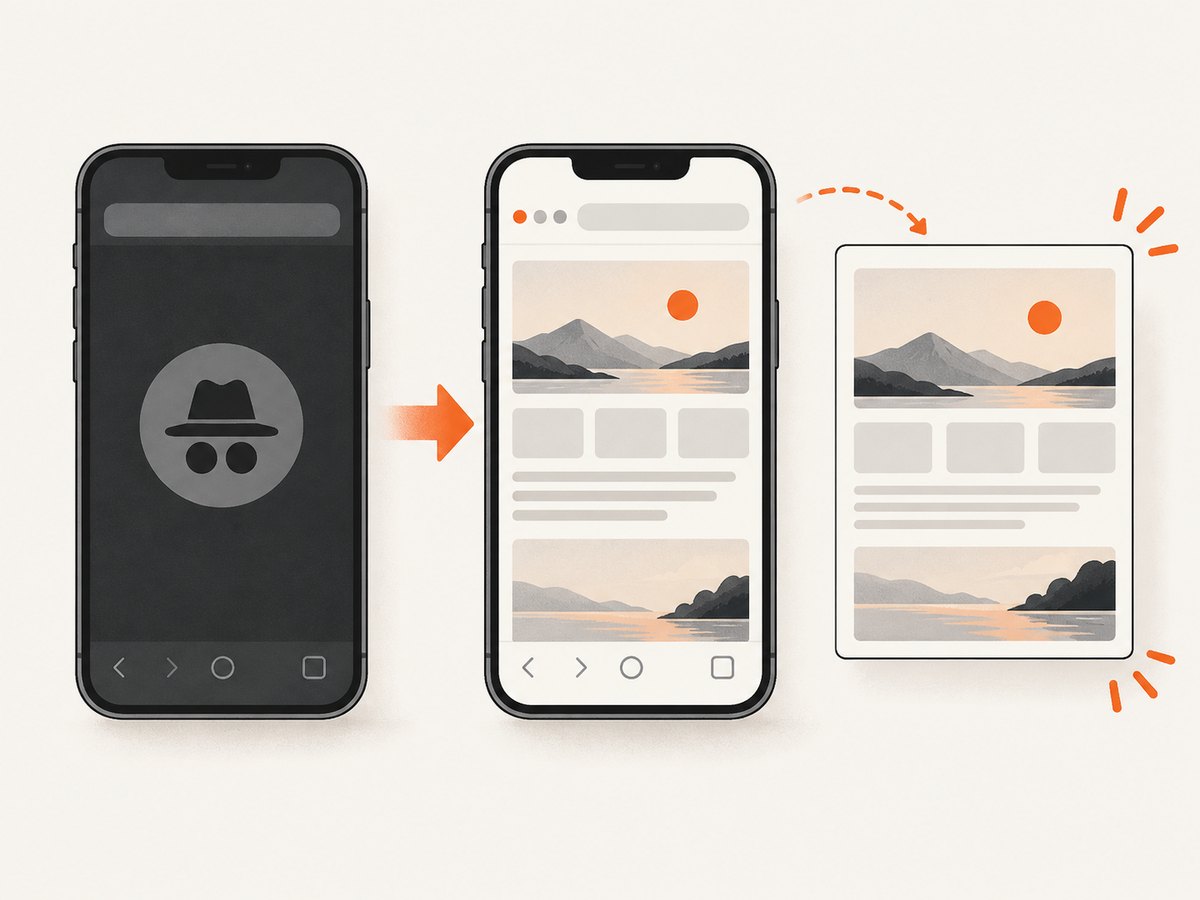
Short answer: On Android, Chrome shows “Taking screenshots isn’t allowed by the app or your organisation” when the page is open in Incognito mode. Open the same page in a regular tab and try again. If a regular tab is also blocked on a work or school device, an administrator may have enabled Chrome’s managed screenshot-prevention policy.
Those are different restrictions. A regular-tab workaround can fix the Incognito case; only your organization’s administrator can review or change a managed policy.
What the warning means
Google documents the exact warning for Chrome on Android in Incognito mode. Incognito tabs prevent screenshots, so Chrome displays the app-or-organisation message. The supported consumer fix is to open the page in another tab, outside Incognito. Google’s Android Incognito help documents this behavior and workaround.
Chrome does not block every screenshot in every situation. The documented explanation is conditional: Android Incognito, or a separate policy applied by an organization-managed browser or device.
Fix the Incognito screenshot block on Android
- Look for Chrome’s Incognito indicator on the tab or tab-switcher screen.
- Open the same URL in a regular Chrome tab. You can copy the address, close the Incognito page, or use the page’s link in a normal tab.
- Take the screenshot again with Android’s normal screenshot gesture or hardware buttons.
Moving the page to a regular tab changes its privacy context. Do this only when that is appropriate for the content you are viewing.
If the regular tab still cannot be captured
Do not assume the Incognito workaround applies. Check whether the phone, Chrome profile, or account belongs to an employer, school, or other organization.
Check for a managed Chrome policy
Chrome Enterprise can apply screenshot prevention to managed users and browsers with a Chrome Enterprise Premium license. Administrators can target specified websites and configure URL exceptions. Ask your administrator whether screenshot prevention is enabled for the site or your account; a local Chrome setting cannot reliably remove an administrator-enforced restriction. See Google’s Chrome Enterprise screenshot-prevention documentation.
| Situation | Likely cause | Who can change it |
|---|---|---|
| Android Incognito tab with the exact warning | Incognito screenshot protection | You: open a regular tab |
| Regular tab on a work or school device | Managed screenshot-prevention policy | Your organization’s administrator |
| No warning, but capture or rendering fails | General browser, page, extension, or hardware issue | You or the site administrator, depending on the cause |
Google’s policy documentation distinguishes platform coverage. Screenshot prevention is available on Windows and Mac devices; screen-share prevention is supported on Windows only, and the setting is not available on Linux. The policy documentation also lists Android, ChromeOS, and iOS among platforms where it can apply to managed users and browsers. Screenshot prevention and screen-share prevention do not have identical availability.
General Chrome troubleshooting when there is no policy warning
Use these checks only when the symptom looks like a browser or rendering problem. They do not override Incognito protection or an administrator policy.
Turn off hardware acceleration
- Open Chrome Settings.
- Open System.
- Turn off Use hardware acceleration when available.
- Restart Chrome and retry the page.
Google recommends this for hardware-related Chrome problems. It is not documented as a fix for the Android Incognito warning. See Google’s Chrome troubleshooting guidance.
Disable extensions one at a time
On desktop, temporarily disable extensions individually and reload the page after each change. This can identify an extension that interferes with loading or rendering. Google presents extension disabling as general troubleshooting, not as a way to bypass screenshot restrictions. Review Google’s connection and loading troubleshooting steps.
Compare another browser or network
If the website fails in another browser too, the website or network may be involved. Record whether the problem is an explicit screenshot restriction, a blank page, a failed load, or a page that renders incorrectly; each points to a different owner.
Protected media is a separate issue
Some music and movies use protected content. Chrome has settings that let it check device content capabilities before showing protected media, but Google’s documentation describes playback and device recognition. It does not describe changing Protected Content settings as a general way to enable screenshots. Do not treat that setting as a reliable screenshot fix. Read Google’s protected-content help.
What not to rely on
- Do not present an Incognito flag found in community advice as an official or durable fix; flags can change or disappear.
- Do not promise that clearing data, installing a capture app, using an accessory, or disabling hardware acceleration bypasses a managed policy.
- Do not describe Chrome as universally blocking screenshots; the sourced cases are Android Incognito and managed policy controls.
When you need a screenshot outside Chrome
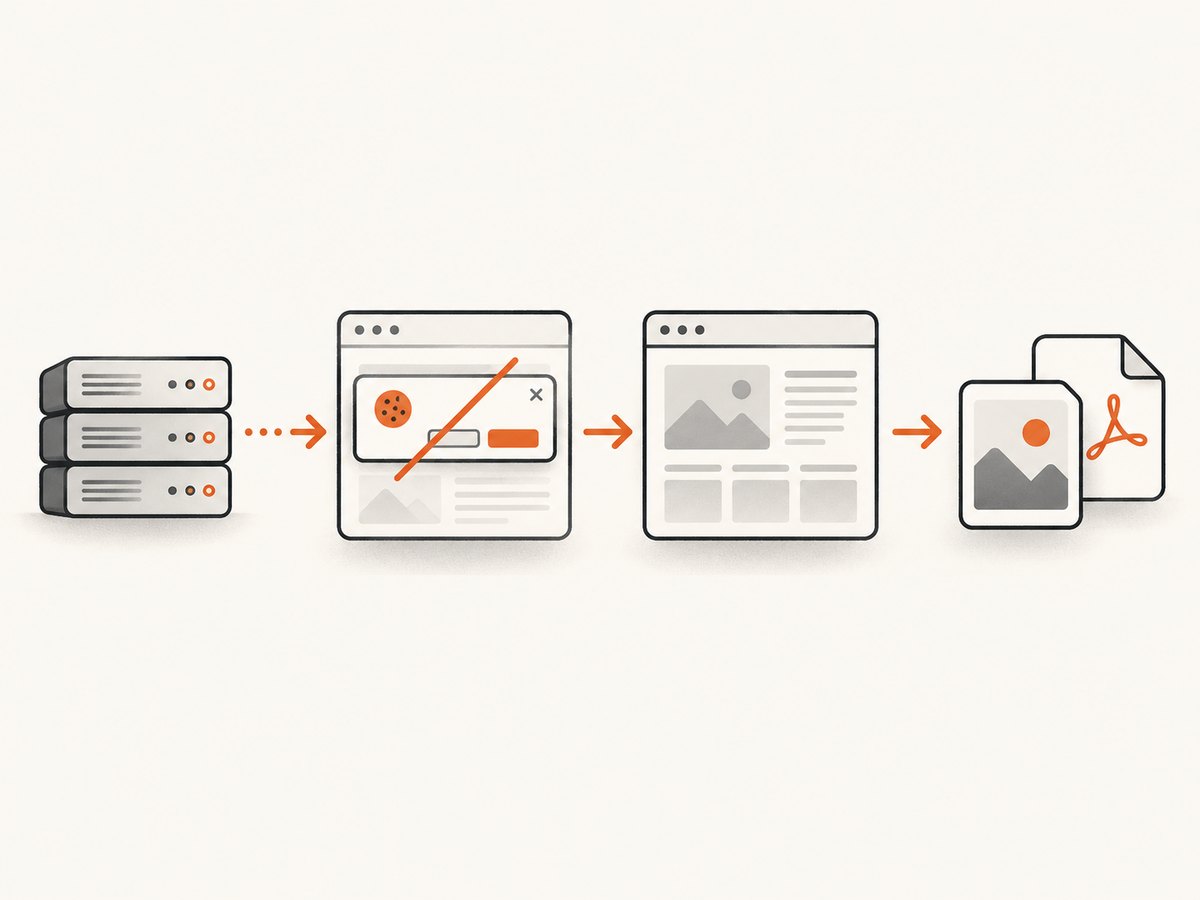
If you own the page or have permission to capture it, a server-side browser can render a URL without relying on the local Chrome tab. This is useful for documentation, visual regression jobs, reports, and batch captures. You still need authorization to capture private or restricted content, and a server-side request cannot grant access to a page your credentials cannot reach.
Or skip the browser setup
ScreenshotNeo is a website screenshot API and MCP server. It accepts one GET request and returns a PNG, JPEG, WebP, or PDF. Before capture, it accepts cookie or consent banners and removes more than 60 known consent platforms, newsletter popups, and chat widgets; each step can be turned off. Bot checks or CAPTCHAs, blank pages, timeouts, failed loads, and cache hits cost nothing, and the response identifies the result with X-Page-Verdict and X-Billed headers. Its MCP server provides take_screenshot, get_page_info, and capture_pdf tools for Claude, Cursor, and other MCP clients.
See the ScreenshotNeo API documentation for authentication and options.
cURL
curl -G "https://api.screenshotneo.com/v1/shot" -d access_key=YOUR_API_KEY --data-urlencode url=https://stripe.com -o shot.webpPython
import requests
r = requests.get("https://api.screenshotneo.com/v1/shot", params={"access_key": "YOUR_API_KEY", "url": "https://stripe.com"}, timeout=90)
open("shot.webp", "wb").write(r.content)
Node.js
const q = new URLSearchParams({ access_key: 'YOUR_API_KEY', url: 'https://stripe.com' });
const res = await fetch(`https://api.screenshotneo.com/v1/shot?${q}`);
ScreenshotNeo supports full-page capture with lazy images loaded, CSS-selector element capture, dark mode, 12 device presets and custom viewports, retina scale, PDF paper sizes and page ranges, HTML/CSS rendering, custom CSS and JavaScript, pre-capture clicks, selector hiding, selector or delay or network-idle waits, ad/tracker/request/resource blocking, custom headers, cookies, user agents and Authorization, timezone and geolocation, transparent backgrounds, resizing, selectable cache TTLs, signed image links, asynchronous jobs with signed webhooks, bulk capture of 100 URLs per call, a usage API, and an OpenAPI specification. Common parameter names used by other screenshot APIs also work, which can simplify migration.
The Free plan includes 1,000 shots per month with no card. Paid plans start at $5 for 3,000 shots; yearly billing gives two months free, and every feature is available on every plan. [Create a free ScreenshotNeo account].
Performance, reliability, and cost considerations
- Waits: Use a selector, delay, or network-idle wait when a page renders asynchronously; avoid unnecessarily long delays.
- Full pages: Full-page capture loads lazy images, which can take longer than a viewport shot.
- Caching: Choose a TTL when repeated captures can reuse an unchanged result. Cache hits are not billed.
- Failures: Check
X-Page-VerdictandX-Billedso your job can distinguish a clean billed capture from a bot check, blank page, timeout, failed load, or cache hit. - Batching: Bulk capture supports up to 100 URLs per call; asynchronous jobs and signed webhooks help keep long runs out of request timeouts.
- Access: Pass the required cookies, headers, user agent, Authorization, timezone, or geolocation for pages that depend on them. Never expose an API key in a public page; use signed links for public image tags.
FAQ
Can I screenshot Chrome Incognito on Android?
Google’s documented workaround is to open the page in a regular tab and capture it there. The Incognito tab itself blocks screenshots.
Does Chrome block screenshots on every device?
No. The documented cases are Android Incognito mode and administrator-controlled policies on managed environments.
Can I remove a work or school screenshot restriction?
Ask the organization’s administrator. Managed screenshot prevention is an administrative policy, not a normal user preference.
Will Protected Content settings enable screenshots?
Google documents those settings for protected-media playback and device recognition, not as a general screenshot switch.
What is the simplest API alternative?
ScreenshotNeo’s one-call API can render an authorized URL and return an image or PDF. It removes known consent banners, popups, and chat widgets before capture, does not bill bot checks or failed loads, and includes 1,000 free shots monthly with no card.


