How to Fix Chromium’s Missing or Unreadable Manifest Error in Selenium
Diagnose Chromium’s “Manifest file is missing or unreadable” error in Selenium by checking extension paths, manifest files, remote browsers, and startup policies.
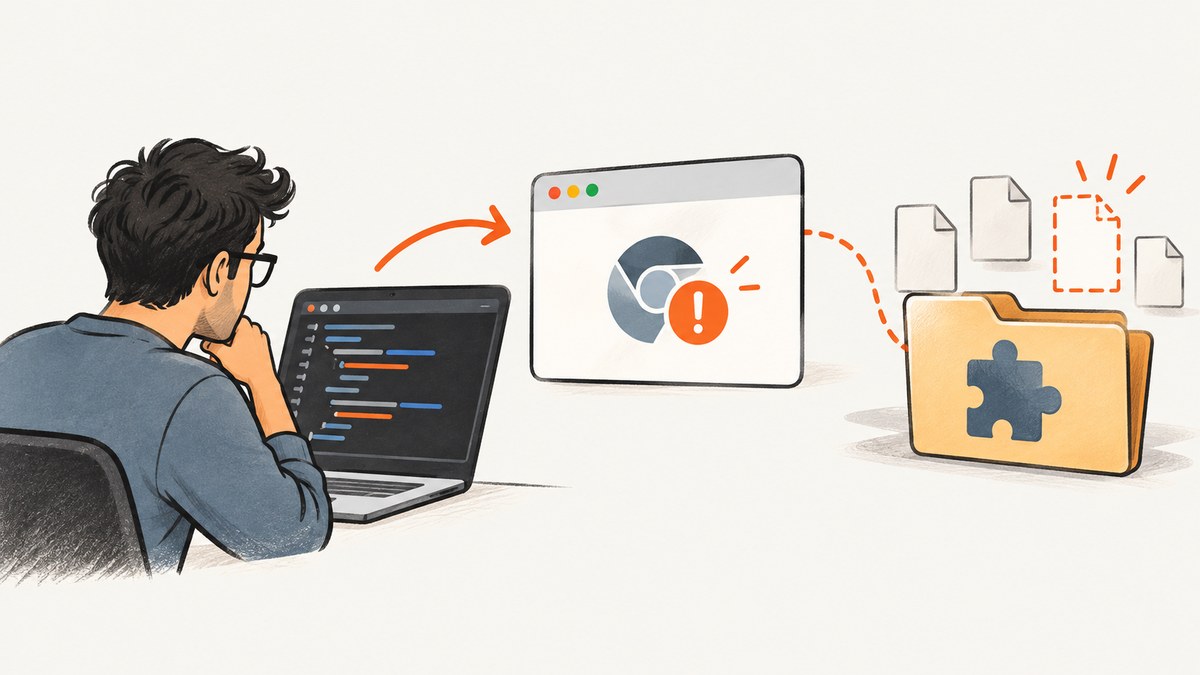
Short answer: Chromium’s “Manifest file is missing or unreadable” message means its extension loader could not read an extension’s manifest.json. First check whether your Selenium setup actually asks Chromium to load an extension. If it does, verify the extension path and manifest from the browser process’s environment. If it does not, inspect startup configuration, the active profile, and managed extension policies. The message alone does not establish that Selenium itself is defective.
Chromium reports a missing or unreadable manifest separately from invalid manifest JSON. That distinction helps narrow the investigation: first establish that the correct file is present and readable, then validate its contents. There is no single fix supported across every Selenium binding, Chromium package, driver version, and local or remote setup.
1. Record the failing setup before changing it
Capture the details that determine where Chromium looks for the extension and which browser binary Selenium launches. This makes the diagnosis reproducible and avoids changing unrelated browser state.
- Operating system and distribution, including whether Chromium came from a snap or another package.
- Selenium language binding and exact version.
- Chromium or Chrome version and ChromeDriver version.
- Local, containerized, Selenium Grid, or other remote execution.
- The complete exception and browser or driver log around startup.
- Whether your code calls an extension-loading API or sets extension-related capabilities.
Keep the exact path passed to Selenium. In a remote session, record both the path on the test runner and the path intended for the browser node. Those may not refer to the same filesystem.
2. Check whether Selenium explicitly loads an extension
Search the test and its shared setup code for extension-loading calls and capabilities. The relevant API varies by Selenium binding; configuration may also come from a framework wrapper or a helper that creates the driver. Look beyond the test method itself: fixtures, base classes, environment-specific configuration, and CI startup scripts can all add browser arguments.
# Search your project for likely extension configuration
rg -n -i 'extension|load-extension|add_extension|extensions' .
If an extension is deliberately configured, continue with the path and manifest checks below. If your code does not request one, skip to the section on unexpected extension loading. A stale path embedded in a shared ChromeOptions setup can trigger an extension error even when the individual test never mentions extensions.
3. Verify the extension path and manifest
Make sure the configured location is the extension itself, not a parent repository, an unrelated project directory, or the parent of an extracted extension. At the extension root, confirm that manifest.json exists and that the browser process can read it.
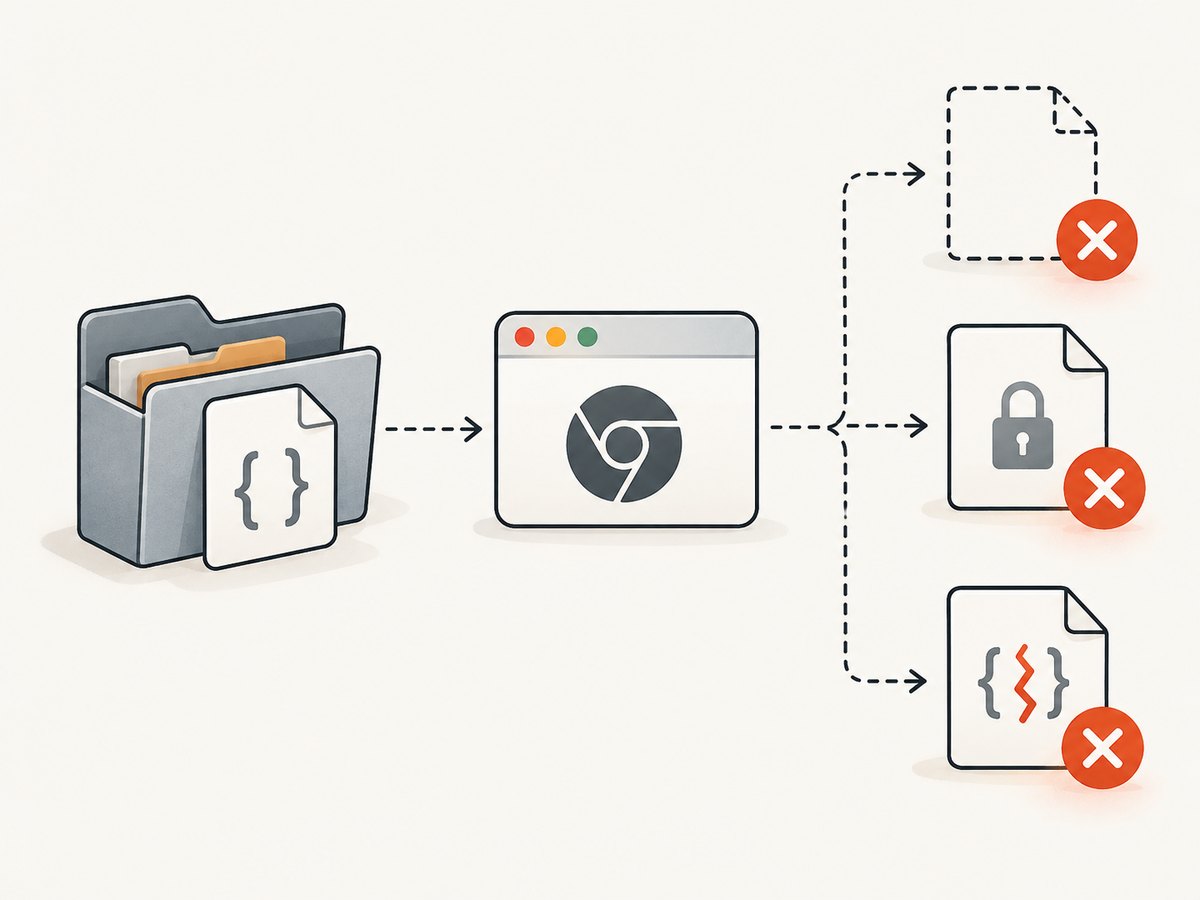
- Print or log the exact configured path immediately before creating the WebDriver session.
- Check that the path exists in the environment where Chromium runs.
- List the directory contents and confirm
manifest.jsonis at that directory’s root. - Check file permissions and, in a container, mounts and user identity.
- Validate the JSON separately, then review the manifest’s structure if Chromium reports a different manifest error.
# Linux or macOS: replace this with the exact configured extension path
EXTENSION_DIR="/absolute/path/to/extension"
ls -la "$EXTENSION_DIR"
test -r "$EXTENSION_DIR/manifest.json" && echo "manifest is readable"
python -m json.tool "$EXTENSION_DIR/manifest.json" > /dev/null
# Windows PowerShell
$extensionDir = 'C:\path\to\extension'
Get-Item "$extensionDir\manifest.json"
Get-Content "$extensionDir\manifest.json" -Raw | ConvertFrom-Json | Out-NullThese commands test filesystem access and JSON parsing; they do not prove that every field meets Chromium’s extension requirements. Keep the distinction clear: a missing or unreadable file is different from a present file with invalid JSON or an invalid extension manifest.
If you use a packaged extension, check the package layout and the API’s documented input format for your Selenium binding and version. One community report found that zipping an extension resolved its case, but that is not a universal Selenium requirement. Do not assume that passing a repository archive, a nested folder, or an arbitrary ZIP will work in every setup.
4. Check remote, Grid, and container paths
For a remote WebDriver session, the browser runs on a node, not necessarily on the machine executing the test. A path such as C:\work\extension on a Windows test runner is not automatically available to a Linux Grid node. The configured path must be valid where Chromium actually runs, or the extension must be staged using the file-distribution mechanism supported by your deployed Grid setup.
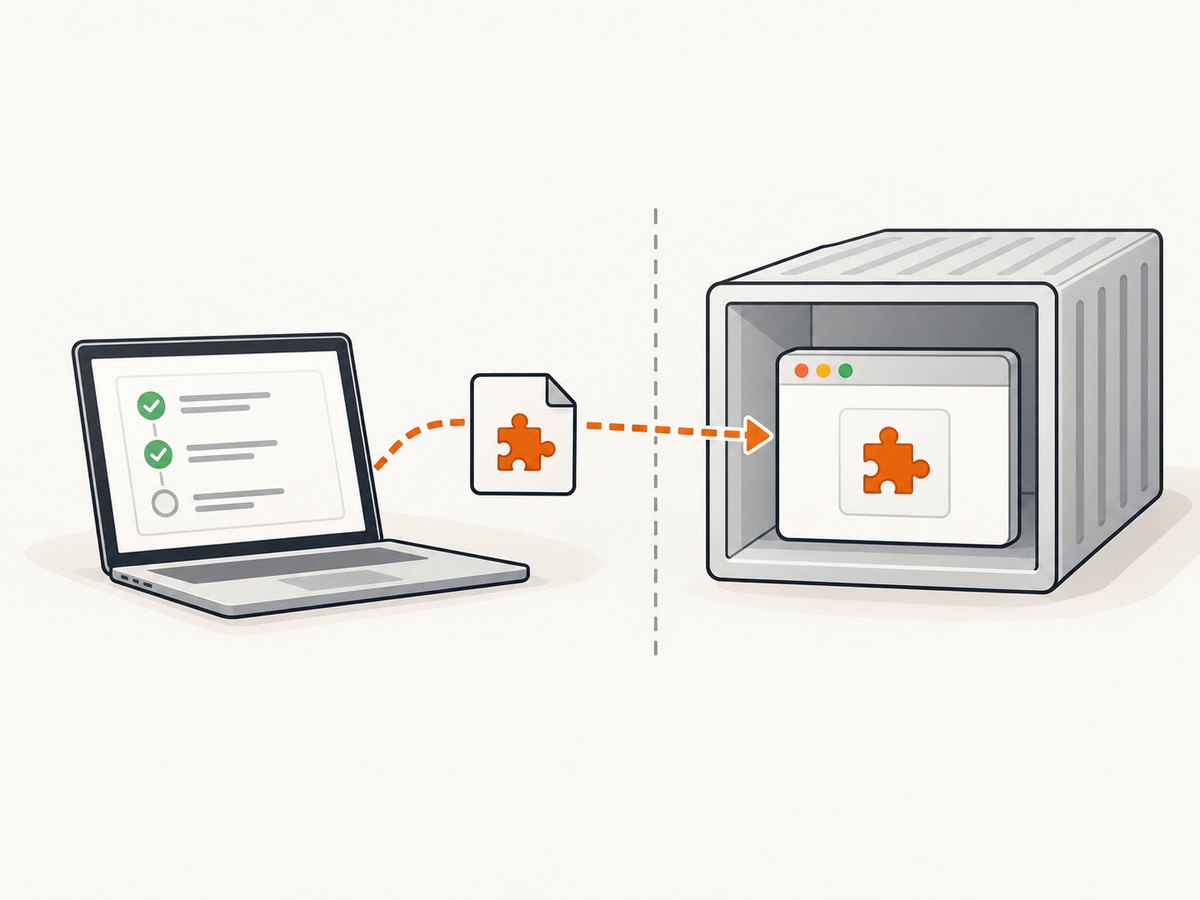
- Identify the browser node, container, or remote host assigned to the session.
- Check whether the extension directory is mounted or transferred there.
- Verify the path and file permissions from that environment, under the browser’s user account.
- Use the staging and extension-installation configuration documented for your deployed Selenium and Grid versions.
- Retry with the path that exists on the browser node, then inspect the node-side logs if it still fails.
A Selenium issue describes a BiDi extension installation attempt in a Grid context where a Windows-local path was supplied and installation failed with the manifest message. Treat it as an example of a remote-path mismatch, not evidence that all Grid extension installation is broken.
The same rule applies to containers: a path on the host is useful only if it is mounted at the expected location inside the browser container. Check the container’s mounts, working directory, and user permissions rather than relying on the test runner’s view of the filesystem.
5. Check Chromium packaging and profile access
Confirm which browser executable Selenium launches. Distribution packages, snap confinement, custom driver configuration, and environment-specific paths can make the launched browser differ from the one you inspected manually. Check the executable path, the active profile location, and temporary directories in the same environment and under the same user as the browser process.
A historical Selenium report concerned Ubuntu 19.10, Chromium 78, and ChromeDriver 78 packaged with snap. It described path and profile visibility issues. Those versions are a reason to check confinement and paths when relevant, not proof that current snap packages generally fail.
For a diagnostic, run once with a fresh, isolated browser profile if your setup allows it. If the error disappears, compare the original profile’s extension and policy configuration with the clean profile. Do not start by deleting the user’s profile: that can remove useful evidence and is not established as a general fix.
6. If your test does not load an extension
Look for browser-managed configuration and indirect startup settings. In one Chrome support thread, a community expert recommended checking chrome://policy for extension policies. This is community guidance for that case, not a universal official diagnosis.
- Open
chrome://policyin the browser profile used by the failing session, where access is available. - Review forced-install extension policies and any configured extension paths or identifiers.
- Inspect startup flags, browser arguments, profile contents, and automation framework defaults.
- Compare the failing setup with a clean, isolated profile to see whether the behavior follows the profile.
- Check organization-managed settings with the administrator responsible for the browser policy if the device is managed.
Change one setting at a time and retain the original configuration. This helps identify whether the extension request comes from test code, a framework, the profile, or browser management.
7. A minimal Selenium launch for comparison
Temporarily remove extension-specific arguments and capabilities to check whether a plain browser session starts. The following Python example uses Selenium 4’s standard Chrome driver setup and intentionally does not add an extension. Install the Selenium package and ensure the matching browser and driver setup is available in your environment.
from selenium import webdriver
from selenium.webdriver.chrome.options import Options

options = Options()
# Add only the arguments your environment requires.
# Do not add --load-extension or extension capabilities for this diagnostic.

driver = webdriver.Chrome(options=options)
try:
    driver.get("https://example.com")
    print(driver.title)
finally:
    driver.quit()
If this starts but your normal setup fails, compare the options and capabilities one by one. If the minimal launch fails with the same message, inspect managed policies, profile state, executable selection, and wrapper configuration; the absence of an extension option in this short example does not rule out configuration outside the script.
For other Selenium languages, apply the same diagnostic principle with that binding’s Chrome options: create a session without extension arguments, then restore the normal configuration incrementally. Keep the exact Selenium, browser, and driver versions with the result so others can reproduce it.
8. Troubleshooting by symptom
| Symptom | Likely cause | Next check |
|---|---|---|
| Extension path works locally but fails in Grid | The path exists only on the test runner | Stage or mount the extension on the browser node and verify its node-side path. |
manifest.json is not listed |
Wrong directory, incomplete extraction, or stale path | Point to the extension root and confirm the file is present there. |
| File exists but cannot be read | Permissions, container mount, or confinement issue | Check access as the browser process user and inspect mounts and confinement. |
| Manifest file is present but JSON parsing fails | Malformed JSON or the wrong file was supplied | Validate JSON and confirm this is the extension’s root manifest. |
| No extension appears in the test code | Shared setup, startup flags, profile, or managed policy adds one | Search the project and inspect browser arguments, profile settings, and policies. |
| Only a packaged extension fails | Unsupported input format or unexpected archive layout | Check the Selenium API’s supported format and package structure for your version. |
| Failure occurs only with snap-packaged Chromium | Executable, profile, temporary path, or confinement visibility mismatch | Inspect those paths in the actual snap and browser execution context. |
If you ask for help, include the full error, versions, operating system, extension-loading code or capabilities, and whether execution is local, in a container, or remote. Redact secrets and private URLs, but preserve path structure where possible.
9. Reliability, runtime, and cost considerations
Extension diagnosis is mostly about making the browser’s inputs predictable. Pin and record the browser, driver, Selenium, and extension versions used by the job. Keep extension files in a known build artifact or staged location, validate the expected root manifest before session creation, and avoid relying on a developer’s personal browser profile in CI.
Remote environments add transfer and startup work: a node must receive or already contain the extension before Chromium can load it. Large or changing packages can make setup slower and less reproducible. Cache or stage only where your deployment’s security and versioning practices allow it, and log the resolved browser-side path without exposing credentials.
There is no source-backed universal compatibility matrix or benchmark for this error. A clean diagnostic run can reduce variables, but compare it with production configuration before drawing conclusions. For screenshot jobs that do not need Selenium automation or browser-side interaction, a screenshot API may remove the need to manage a local browser and extension package. That is a different workflow and does not fix an extension your application specifically requires.
Or skip the browser setup
If the task is simply to capture a website image or PDF, ScreenshotNeo is a website screenshot API and MCP server. One GET request returns an image or PDF, so you do not need to set up Selenium and Chromium for that capture. See the ScreenshotNeo API documentation for request options.
curl -G "https://api.screenshotneo.com/v1/shot" \
  -d access_key=YOUR_API_KEY \
  --data-urlencode url=https://stripe.com \
  -o shot.webp
import requests
r = requests.get(
"https://api.screenshotneo.com/v1/shot",
params={"access_key": "YOUR_API_KEY", "url": "https://stripe.com"},
timeout=90,
)
r.raise_for_status()
with open("shot.webp", "wb") as f:
f.write(r.content)const q = new URLSearchParams({
access_key: 'YOUR_API_KEY',
url: 'https://stripe.com'
});
const res = await fetch(`https://api.screenshotneo.com/v1/shot?${q}`);
if (!res.ok) throw new Error(`Screenshot request failed: ${res.status}`);
await Bun.write('shot.webp', res);ScreenshotNeo accepts cookie and consent banners like a visitor and removes 60+ known consent platforms, newsletter popups, and chat widgets before capture; each cleanup step can be turned off. Bot checks and CAPTCHAs, blank pages, timeouts, failed loads, and cache hits cost nothing, and response headers report the page verdict and billing status. Its MCP server offers take_screenshot, get_page_info, and capture_pdf for Claude, Cursor, and other MCP clients. The Free plan includes 1,000 screenshots per month with no card; paid plans start at $5 for 3,000. Every feature is on every plan.
Sign up for 1,000 free screenshots a month, with no card required.
FAQ
Does this message mean Selenium is broken?
No. The wording comes from Chromium’s extension manifest loading path. Check what is asking the browser to load an extension and whether the browser can read its manifest.
Should I always ZIP the extension?
No universal ZIP requirement is established here. Check the input format supported by your Selenium API and confirm the archive layout matches it.
Can I use a local path with Selenium Grid?
Only if that path is valid in the browser’s execution environment or your Grid setup stages the file there. A runner-local path is not automatically shared with a remote node.
What information should I include in a bug report?
Provide the full error, OS, Selenium and browser/driver versions, extension-loading configuration, and whether the session is local, containerized, or remote. Include relevant logs and redact secrets.


