How Chromium Converts Web Pages into Shareable PDFs
Learn how Chromium renders a page, waits for JavaScript, and prints it to PDF with CLI flags or Page.printToPDF automation.
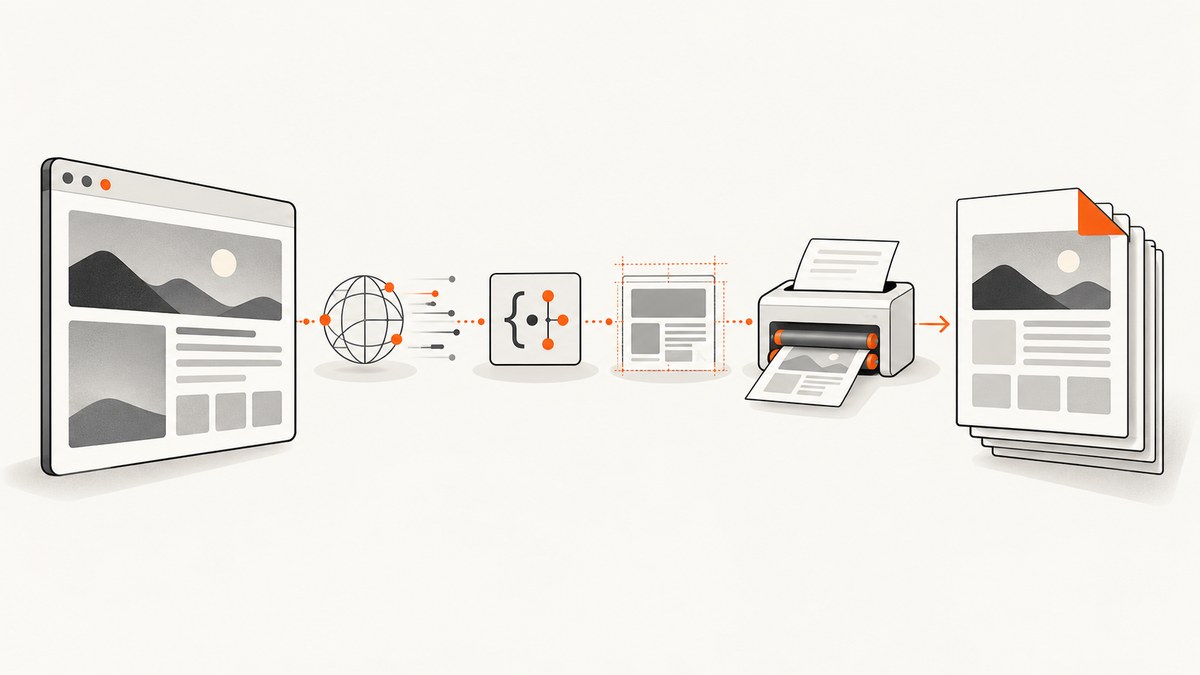
Short answer: Chromium converts a web page to PDF by loading it in a browser process, executing its JavaScript, resolving network requests, laying out the resulting document, and sending that rendered state through the print pipeline. Headless Chrome exposes the simple --print-to-pdf command, while automation clients call the Chrome DevTools Protocol method Page.printToPDF for control over paper size, margins, headers, backgrounds, page ranges, and delivery.
The PDF is therefore a print of the page state Chromium has reached. It is not a download of the original HTML source. If data, fonts, images, or components have not finished loading when printing starts, they may be absent from the PDF.
1. What happens inside Chromium
A navigation begins in Chromium’s browser and network architecture. Resource loading runs through Chromium’s multiprocess system, while a renderer process parses HTML and CSS, runs JavaScript with V8, and builds the document layout. Painting and graphics use Skia; Chromium’s architecture documentation describes Skia as the cross-platform graphics library that handles images and graphics primitives other than text. See the Chromium architecture documentation.
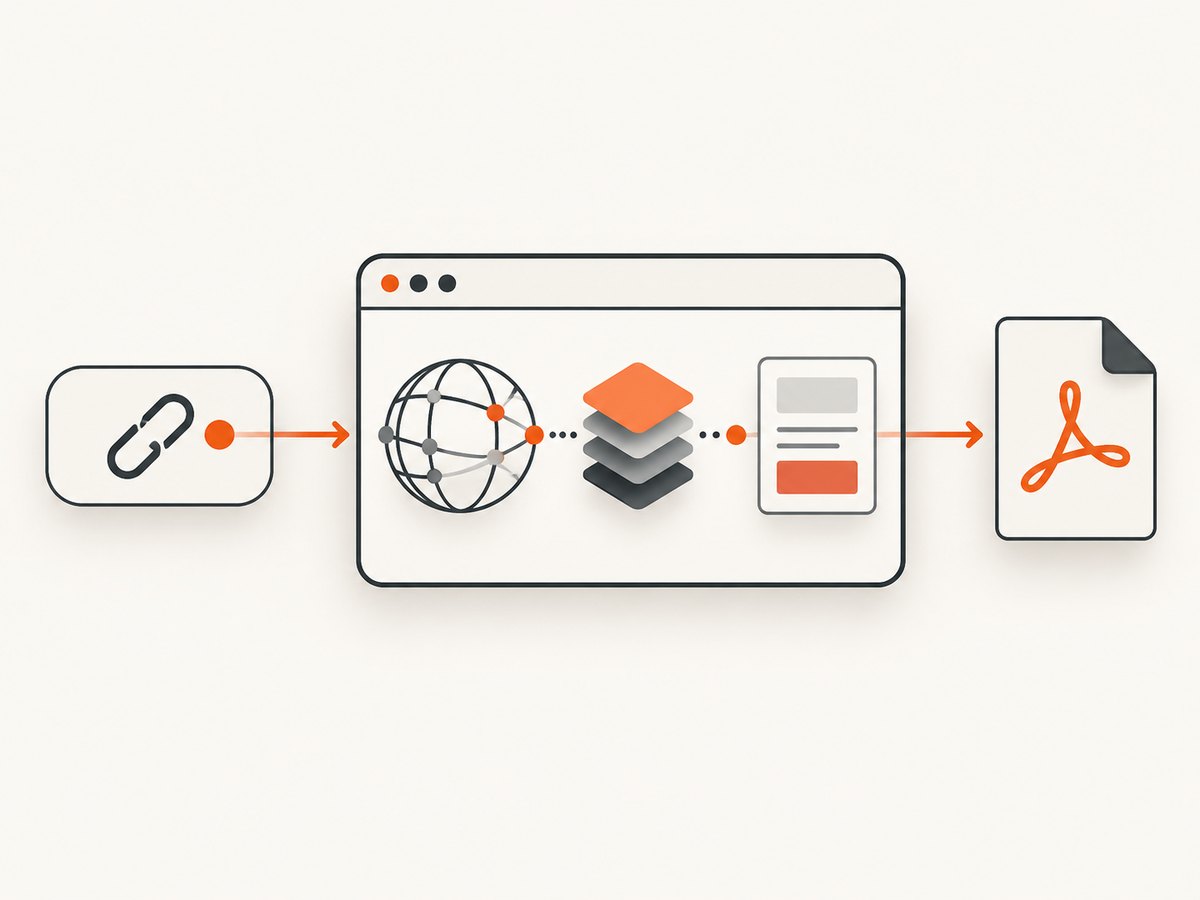
- Navigation and network: Chromium resolves the URL, follows redirects, negotiates TLS, and requests HTML, CSS, JavaScript, fonts, images, and other resources.
- Parsing and execution: The renderer builds the DOM and CSSOM, then V8 executes scripts that may fetch data or modify the DOM.
- Style and layout: Chromium computes styles, line wrapping, pagination opportunities, and the geometry of every element.
- Paint: The renderer records drawing operations for text, borders, images, backgrounds, and other graphics.
- Print: The print subsystem applies paper dimensions, margins, scale, page ranges, and header/footer settings to that rendered state.
- Serialization: Skia’s PDF backend writes page resources and drawing operations into PDF objects, embeds fonts for portability, and closes the document with its cross-reference data. Skia’s PDF documentation explains this serialization process.
Because printing uses the current rendered state, a page that displays a loading spinner at print time produces a PDF containing that spinner. Readiness is the first problem to solve in reliable PDF generation.
2. The quickest method: headless Chrome CLI
Install a Chromium or Chrome build that supports headless mode, then run:
chrome --headless --print-to-pdf https://example.com/Chrome writes output.pdf in the current working directory. The official headless documentation describes this behavior and the related flags.
Useful CLI flags
| Flag | Purpose | Example |
|---|---|---|
--print-to-pdf |
Print the target URL to a PDF file. | --print-to-pdf=report.pdf |
--no-pdf-header-footer |
Remove Chrome’s generated date, URL, and page-number furniture. | --no-pdf-header-footer |
--timeout |
Cap how long Chrome waits for capture. | --timeout=5000 |
--virtual-time-budget |
Advance timer-driven page code before printing. | --virtual-time-budget=42000 |
A practical command for a clean document is:
chrome --headless \
  --no-pdf-header-footer \
  --timeout=15000 \
  --virtual-time-budget=10000 \
  --print-to-pdf=report.pdf \
  https://example.com/
--timeout limits the capture wait; it does not make a slow application ready. The virtual-time budget lets timer-driven code advance, but it cannot supply data that a failed request never returned. For applications with a known readiness signal, DevTools automation is more precise.
3. Page.printToPDF: the automation interface
Chrome DevTools Protocol (CDP) exposes Page.printToPDF. A client first creates a browser target, navigates to the page, waits for readiness, and then calls the method. The protocol reference lists controls including paper dimensions, margins, scale, backgrounds, templates, page ranges, outlines, and two result-delivery modes: base64 data or an IO stream. Read the Page.printToPDF protocol definition.
Node.js example with Puppeteer
import puppeteer from 'puppeteer';

const browser = await puppeteer.launch({headless: 'new'});
try {
  const page = await browser.newPage();
  await page.goto('https://example.com/', {waitUntil: 'networkidle2', timeout: 60000});
  await page.emulateMediaType('print');
  await page.pdf({
    path: 'report.pdf',
    format: 'A4',
    printBackground: true,
    displayHeaderFooter: false,
    margin: {top: '16mm', right: '14mm', bottom: '16mm', left: '14mm'},
    preferCSSPageSize: true,
    scale: 1,
    outline: true
  });
} finally {
  await browser.close();
}
Install dependencies with npm install puppeteer. Puppeteer manages a compatible browser binary; in a controlled deployment you can point it at an existing Chromium executable.
Direct CDP result handling
At the protocol level, Page.printToPDF returns a base64-encoded data field by default. For large documents, request transferMode: "ReturnAsStream", then read the returned stream through the IO domain until the eof flag is true. Streaming avoids holding the complete encoded document in one application string.
4. Print options that change the result
| Concern | Options and effects |
|---|---|
| Paper | Use paperWidth and paperHeight in inches, or a convenience format such as A4 in a library. preferCSSPageSize honors the page’s @page rule when available. |
| Margins | Set top, right, bottom, and left margins. Large margins reduce usable width and can create extra pages. |
| Scale | Values below 1 fit more content; values above 1 enlarge it. Scaling changes line wrapping and pagination. |
| Backgrounds | Enable printBackground when colored sections, images, or gradients are part of the document’s meaning. |
| Orientation | Use landscape for wide tables or charts. It changes the printable width and page count. |
| Headers and footers | displayHeaderFooter enables templates. Templates can include page-number and date placeholders; keep their HTML small and style it inline. |
| Page ranges | Print selected pages such as 1-3,5. Validate ranges when the document’s page count is dynamic. |
| Outlines | Request document-outline generation when your viewer benefits from navigable headings. Verify the browser version and library support. |
5. Waiting for JavaScript and asynchronous data
networkidle2 is a useful baseline, but it is not a universal definition of readiness. Analytics, WebSockets, polling, and advertisements can keep a page active indefinitely. Prefer a page-specific signal:
await page.goto(url, {waitUntil: 'domcontentloaded', timeout: 60000});
await page.waitForSelector('[data-report-ready="true"]', {timeout: 30000});
await page.evaluate(() => document.fonts.ready);
await page.pdf({path: 'report.pdf', format: 'A4', printBackground: true});
Other reliable techniques include waiting for a known API response, calling an application function that resolves after rendering, or adding a bounded delay for animations. Disable transitions during capture when motion changes layout:
await page.addStyleTag({content: `
  *, *::before, *::after {
    animation: none !important;
    transition: none !important;
  }
`});
Fonts deserve special attention. Wait for document.fonts.ready, ensure the font requests are allowed, and provide a fallback stack. A missing web font changes glyph widths and can move headings or tables onto later pages.
6. Python example with Playwright
from playwright.sync_api import sync_playwright

with sync_playwright() as p:
    browser = p.chromium.launch(headless=True)
    page = browser.new_page()
    page.goto("https://example.com/", wait_until="domcontentloaded", timeout=60000)
    page.wait_for_selector("[data-report-ready='true']", timeout=30000)
    page.evaluate("document.fonts.ready")
    page.emulate_media(media="print")
    page.pdf(
        path="report.pdf",
        format="A4",
        print_background=True,
        display_header_footer=False,
        margin={"top": "16mm", "right": "14mm", "bottom": "16mm", "left": "14mm"},
        prefer_css_page_size=True,
    )
    browser.close()
Install with pip install playwright and then run playwright install chromium. Keep browser and library versions pinned in production so rendering changes are deliberate.
7. Common failures and fixes
| Symptom | Likely cause | Fix |
|---|---|---|
| Blank or nearly blank PDF | Printing occurred before the app rendered, or navigation failed. | Check the response status, wait for a readiness selector, and save a screenshot or HTML dump for diagnosis. |
| Loading spinner in the PDF | Asynchronous data was still pending. | Wait for the data-driven element, not just a fixed short delay. |
| Missing images | Lazy loading depends on viewport intersection, or requests are blocked. | Scroll through the page, wait for image completion, and inspect failed network requests. |
| Wrong fonts or text wrapping | Font files were not loaded before print. | Await document.fonts.ready; check CORS, CSP, and font response status. |
| Headers overlap content | Template height exceeds the configured margin. | Increase the corresponding margin and simplify template CSS. |
| Unexpected extra pages | Margins, scale, long unbreakable content, or CSS page breaks. | Set preferCSSPageSize, review @page, and allow table rows or cards to break where appropriate. |
| CLI exits before output | Timeout or browser startup failure. | Increase the timeout, capture stderr, and verify the executable path and sandbox permissions. |
| PDF differs between machines | Different Chromium, fonts, locale, timezone, or device scale. | Pin versions, install the same fonts, and set locale/timezone explicitly. |
8. Reliability, performance, and cost considerations
Rendering cost is driven by page complexity, resource count, JavaScript execution, and PDF size. Reuse a browser process for a batch of jobs, but create an isolated page or context per request. Reusing a process avoids repeated startup while isolation prevents cookies, local storage, and service workers from leaking between customers.
- Set navigation and readiness timeouts separately so a fast navigation does not skip a slow data fetch.
- Limit concurrency to the CPU and memory available; too many renderer processes cause contention and timeouts.
- Block nonessential analytics and video requests when the document does not need them.
- Cache stable assets and use deterministic input data for repeatable documents.
- Record URL, browser version, elapsed stages, final page count, and failure reason for each job.
- Retry transient navigation or network failures with a cap and backoff. Do not blindly retry deterministic JavaScript errors.
PDF output is binary and can be large when it contains high-resolution images or many embedded fonts. If delivery is an API, stream bytes to object storage or the HTTP response rather than converting repeatedly between base64 and buffers. Validate generated files by checking that they begin with the PDF signature and, for critical workflows, opening them with a PDF parser.
9. Or skip the browser setup
If you need a PDF or screenshot service without maintaining Chromium, ScreenshotNeo accepts one GET request and returns a clean screenshot or PDF. The API supports PDF paper size, margins, landscape mode, and page ranges, along with the waiting, authentication, cookies, headers, timezone, geolocation, custom JavaScript, and CSS controls needed for application pages. See the ScreenshotNeo API documentation.

curl -G "https://api.screenshotneo.com/v1/shot" \
  -d access_key=YOUR_API_KEY \
  --data-urlencode url=https://stripe.com \
  -d format=pdf \
  -o page.pdf
import requests
r = requests.get(
"https://api.screenshotneo.com/v1/shot",
params={"access_key": "YOUR_API_KEY", "url": "https://stripe.com", "format": "pdf"},
timeout=90,
)
r.raise_for_status()
open("page.pdf", "wb").write(r.content)const q = new URLSearchParams({
access_key: 'YOUR_API_KEY',
url: 'https://stripe.com',
format: 'pdf'
});
const res = await fetch(`https://api.screenshotneo.com/v1/shot?${q}`);
if (!res.ok) throw new Error(`HTTP ${res.status}`);
const pdf = Buffer.from(await res.arrayBuffer());
await import('node:fs/promises').then(fs => fs.writeFile('page.pdf', pdf));Cookie banners, newsletter popups, and chat widgets are removed before the shot. Bot checks, blank pages, timeouts, failed loads, and cache hits are never billed, and response headers identify the page verdict and billing state. An MCP server lets Claude, Cursor, and other MCP clients call take_screenshot, get_page_info, and capture_pdf. The Free plan includes 1,000 screenshots each month with no card; paid plans start at $5 for 3,000 shots. Create a free ScreenshotNeo account.
10. A production checklist
- Pin Chromium and your automation library versions.
- Set an explicit viewport, locale, timezone, and color scheme.
- Wait for a semantic readiness signal and for web fonts.
- Choose paper, margins, scale, backgrounds, and orientation deliberately.
- Disable animations and handle lazy-loaded content.
- Capture diagnostics when a job fails: console, network errors, URL, and browser logs.
- Use bounded retries and isolate each job’s browser context.
- Validate PDF bytes and page count before publishing or sending.
FAQ
Does Chromium save the original HTML in the PDF?
No. It prints the rendered document state after parsing, scripting, styling, and layout.
When should I use the CLI instead of CDP?
Use the CLI for a one-off or simple scheduled export. Use Page.printToPDF when you need readiness logic, templates, page ranges, streams, or per-job settings.
Why does a page look different in print mode?
Sites can define print-specific CSS with @media print and @page. Emulate print media intentionally and inspect those rules.
Can I generate only selected pages?
Yes. CDP exposes page ranges, and libraries such as Puppeteer pass that option through to Chromium.
Are fonts embedded?
Skia embeds fonts because a PDF viewer cannot be assumed to have the source fonts installed. The exact embedded resources still depend on what loaded successfully before printing.
Chromium’s model is straightforward once readiness and print presentation are treated as separate concerns: load and render the page, wait for the state you actually want, then invoke the print pipeline with explicit paper and delivery settings.


