How to Clear MS Word Content When Printing to PDF with Pechkin
Clean Word-pasted text before Pechkin converts HTML to PDF, with UTF-8 handling, sanitization code, troubleshooting, and rendering checks.

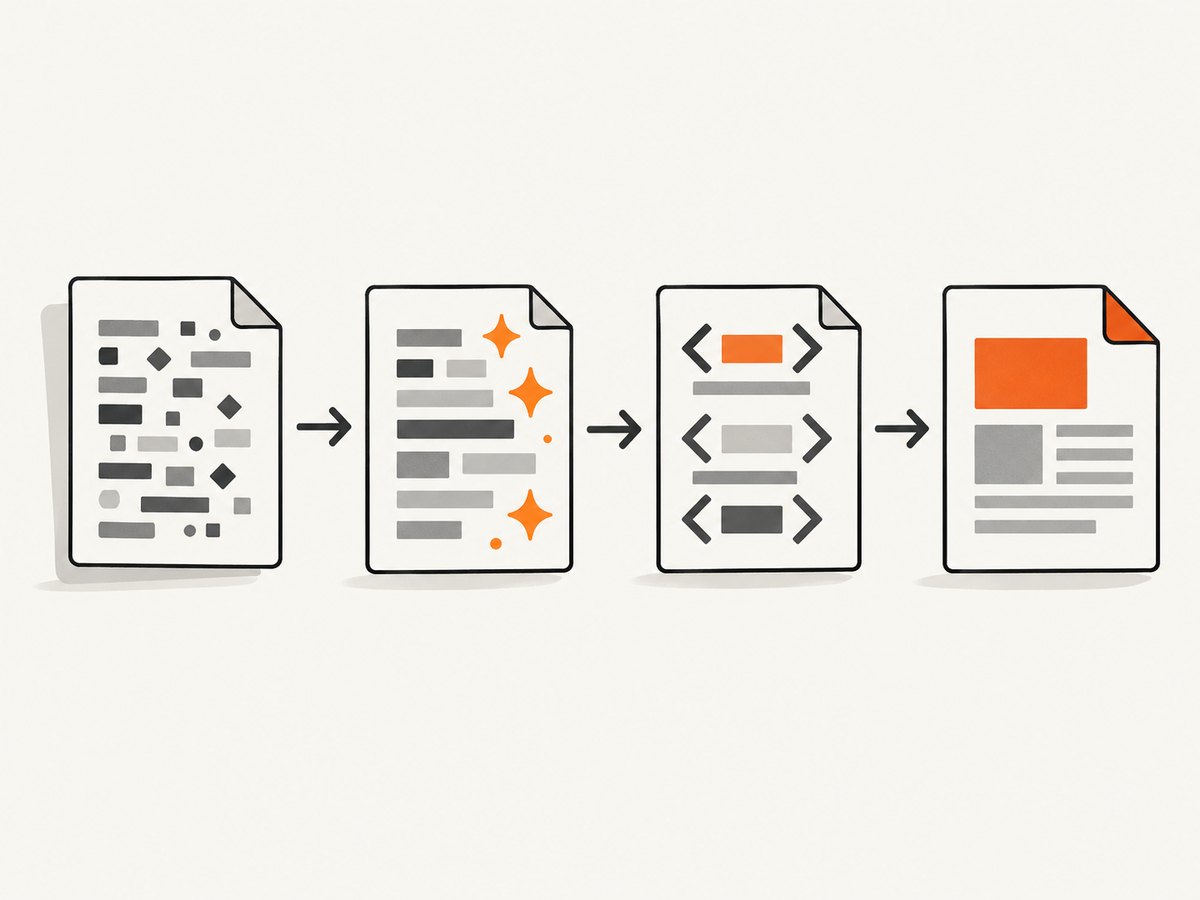
Word-pasted text can look normal in a textarea and still produce strange characters after HTML is converted to PDF with Pechkin. Clean and normalize the text before inserting it into HTML, encode it for the HTML context, declare UTF-8, verify the HTML in a browser, then convert the same document with Pechkin.
1. The reliable fix
- Read the textarea as text.
- Normalize Unicode and remove unsafe control characters.
- HTML-encode the cleaned text before placing it in a text element.
- Add
<meta charset="utf-8" />to the generated document. - Open the generated HTML in a normal browser and inspect the characters.
- If the browser is correct but the PDF is wrong, review Pechkin/wkhtmltopdf encoding and rendering options.
- Convert the HTML and save the returned byte array as a PDF.
The important boundary is the HTML context. Text copied from Word may contain smart quotes, non-breaking spaces, em dashes, private-use characters, or control characters. A textarea displays the value as text; an HTML document must parse that value as markup and bytes using a declared character encoding.
2. A complete C# example
The following example accepts plain text, cleans it, safely inserts it into HTML, and converts the result with Pechkin. The exact Pechkin package and constructor can vary, so keep the same processing order when adapting it to your installed version.
using System;
using System.IO;
using System.Net;
using System.Text;
using System.Text.RegularExpressions;
using Pechkin;
using Pechkin.Synchronized;

public static class WordPdf
{
    public static byte[] CreatePdf(string pastedText)
    {
        string cleaned = CleanWordText(pastedText ?? string.Empty);
        string encoded = WebUtility.HtmlEncode(cleaned);

        string html = $@"<!doctype html>
<html>
<head>
  <meta charset="utf-8" />
  <style>
    body {{ font-family: Arial, sans-serif; font-size: 12pt; }}
    p {{ white-space: pre-wrap; }}
  </style>
</head>
<body>
  <p>{encoded}</p>
</body>
</html>";

        var global = new GlobalConfig
        {
            PaperSize = PaperKind.A4,
            Margins = new Margins(20, 20, 20, 20),
            DocumentTitle = "Word content"
        };

        var page = new ObjectConfig
        {
            HtmlContent = html,
            WebDefaultEncoding = "utf-8",
            PrintBackground = true
        };

        var converter = new SynchronizedPechkin(global);
        return converter.Convert(page);
    }

    private static string CleanWordText(string value)
    {
        value = value.Normalize(NormalizationForm.FormC);

        // Remove NUL and other disallowed control characters while keeping
        // tabs, line feeds, and carriage returns.
        value = Regex.Replace(value, @"[\u0000-\u0008\u000B\u000C\u000E-\u001F\u007F]", "");

        // Word commonly uses a non-breaking space. Convert it to a normal
        // space when layout does not require non-breaking behavior.
        value = value.Replace('\u00A0', ' ');
        return value;
    }
}

class Program
{
    static void Main()
    {
        var text = "Copied from Word: “quoted text” — with a non-breaking space.";
        byte[] pdf = WordPdf.CreatePdf(text);
        File.WriteAllBytes("clean-word-content.pdf", pdf);
    }
}
If your Pechkin version uses different property names, map the same concepts: UTF-8 fallback/default encoding, HTML content, paper size, margins, background printing, and output bytes. The cleanup and HTML-encoding steps are independent of those API differences.
When the input is intended to contain HTML
Do not run HtmlEncode over trusted markup that you deliberately want rendered. Instead, sanitize the allowed HTML, remove unsafe elements and attributes, and encode every value inserted into an attribute or text node according to its context. If the textarea is supposed to contain ordinary pasted text, treat it as text and encode it as shown above.
3. Why each cleanup step matters
| Step | Purpose | Typical symptom when omitted |
|---|---|---|
| Unicode normalization | Gives canonically equivalent characters a consistent representation. | Visually identical text compares differently or renders inconsistently. |
| Control-character removal | Removes bytes that can confuse HTML or PDF rendering. | Missing glyphs, boxes, or unexpected spacing. |
| NBSP handling | Converts Word’s non-breaking spaces when ordinary spacing is desired. | Odd wrapping or apparently extra spaces. |
| HTML encoding | Prevents &, <, quotes, and similar characters from being interpreted as markup. |
Text disappears, changes structure, or creates malformed HTML. |
| UTF-8 declaration | Tells WebKit/wkhtmltopdf how to decode the document. | Accented characters become mojibake or replacement glyphs. |
4. Validate HTML before blaming Pechkin
Write the generated HTML to a temporary file and open it in a normal browser. Inspect the exact characters, whitespace, line breaks, and any images or CSS used by the document.
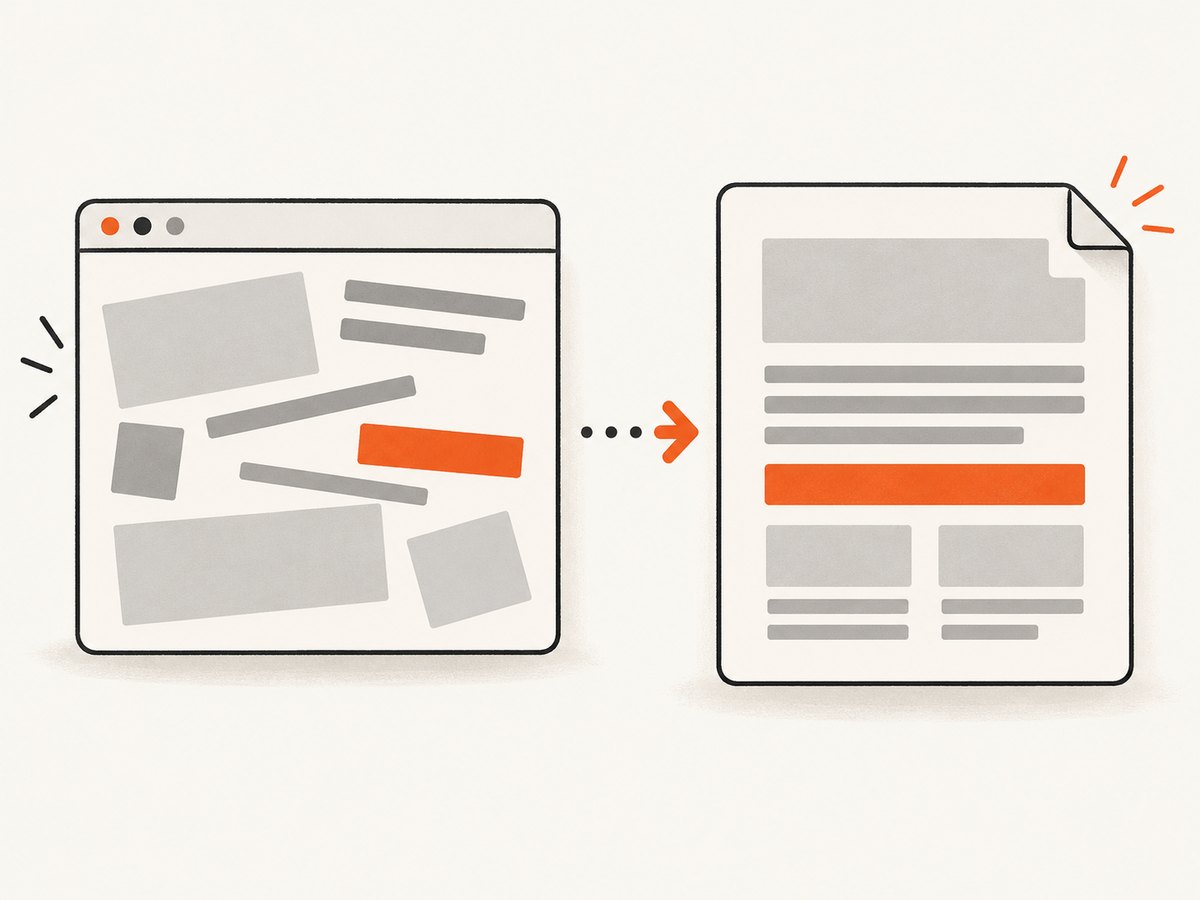
File.WriteAllText("debug.html", html, new UTF8Encoding(false));If the browser already shows strange characters, fix the input cleanup or HTML construction. If the browser is correct but the PDF differs, inspect the converter’s fallback encoding, page settings, image loading, margins, and background options. Pechkin uses WebKit through wkhtmltopdf, so browser validation isolates malformed HTML from converter-specific rendering behavior.
5. Pechkin configuration checklist
- Encoding: set the document’s default or fallback encoding to UTF-8 and include the meta declaration.
- Page URI: set a valid page URI when the document references relative images, stylesheets, or fonts.
- Images: enable image loading and confirm that each source is reachable by the converter.
- Print backgrounds: enable this when background colors or images are part of the design.
- Margins and paper: choose paper size and margins explicitly so line wrapping is repeatable.
- Output: treat
Convert‘s returned byte array as the PDF and write it without text conversion.
6. Handling pasted Word HTML
Some editors place HTML on the clipboard instead of plain text. Word HTML can include proprietary markup, conditional comments, XML namespaces, style attributes, and references to unavailable resources. If you need only the words, read the plain-text value and use the text pipeline above. If formatting must survive, allow-list the tags and CSS you need, remove Word-specific metadata, then validate the resulting HTML in a browser before conversion.
7. Common errors and fixes
| Symptom | Likely cause | Fix |
|---|---|---|
| Curly quotes or accented letters become boxes | Wrong or missing character encoding, or a font without the glyph. | Declare UTF-8, set Pechkin’s fallback/default encoding, and use a font that contains the characters. |
| Text after an ampersand disappears | Raw text was inserted as HTML. | HTML-encode plain text before interpolation. |
| Literal tags appear in the PDF | Markup was encoded even though it was intended to render. | Sanitize intended HTML separately and encode only text and attribute values. |
| Browser and PDF both look wrong | Cleanup or HTML generation produced invalid content. | Inspect the saved HTML, log the Unicode code points if necessary, and fix preprocessing first. |
| Browser is correct, PDF is wrong | Converter encoding or rendering configuration differs from the browser. | Review fallback encoding, page URI, image loading, backgrounds, margins, and paper size. |
| Images or CSS are missing | Relative URLs cannot be resolved or resources are inaccessible. | Provide a valid page URI, use reachable URLs, and enable image loading. |
| Unexpected blank lines or wrapping | Non-breaking spaces, copied line endings, or CSS whitespace rules. | Normalize line endings, decide how to treat NBSP, and set white-space deliberately. |
| PDF file is corrupt | Returned bytes were converted to a string or altered before saving. | Write the byte array directly with File.WriteAllBytes. |
8. Performance, reliability, and cost considerations
- Clean and encode once per request, then reuse the resulting HTML for browser inspection and PDF conversion.
- Keep external resources deterministic. Unavailable fonts, images, or stylesheets can change layout or make a conversion appear incomplete.
- Set explicit paper, margin, encoding, and background options rather than relying on defaults.
- Log the generated HTML (with sensitive data removed) and converter settings when diagnosing intermittent output.
- Do not claim that a successful conversion means the content is semantically correct; compare representative characters and page breaks in the resulting PDF.
9. Or skip the browser setup
If your requirement is a clean image or PDF of a web page rather than a custom Pechkin document, ScreenshotNeo provides a single request to its screenshot API. It removes cookie banners, newsletter popups, and chat widgets before the shot; bot checks, blank pages, and failed loads are never billed; and its MCP server lets AI agents take screenshots. The free plan includes 1,000 screenshots a month with no card, and paid plans start at $5 for 3,000 shots. See the ScreenshotNeo API documentation for all options.
curl -G "https://api.screenshotneo.com/v1/shot" -d access_key=YOUR_API_KEY --data-urlencode url=https://stripe.com -o shot.webpimport requests
r = requests.get("https://api.screenshotneo.com/v1/shot", params={"access_key": "YOUR_API_KEY", "url": "https://stripe.com"}, timeout=90)
open("shot.webp", "wb").write(r.content)const q = new URLSearchParams({ access_key: 'YOUR_API_KEY', url: 'https://stripe.com' });
const res = await fetch(`https://api.screenshotneo.com/v1/shot?${q}`);Create a free ScreenshotNeo account with 1,000 screenshots each month and no card required.
10. FAQ
Should I delete every non-ASCII character?
No. Properly encoded Unicode is valid. Remove only characters that are unsafe or unwanted for your document, and ensure the selected font supports the remaining glyphs.
Is replacing smart quotes enough?
It can hide one symptom, but it does not solve malformed HTML or a wrong document encoding. Normalize, encode for the HTML context, and declare UTF-8.
Why does the textarea look fine?
A textarea displays text directly. The PDF path adds HTML parsing, WebKit decoding, fonts, CSS, and conversion settings, each of which can expose characters that the textarea displayed without issue.
Can Pechkin repair Word content automatically?
Do the cleanup before conversion. The converter renders the HTML it receives; preprocessing gives you control over characters, markup, and encoding.


