How to Click One Button in a Grid of Matching Elements with Puppeteer
Learn how to identify and click the intended button in a Puppeteer grid, using stable selectors, scoped locators, safe positional choices, and navigation waits.
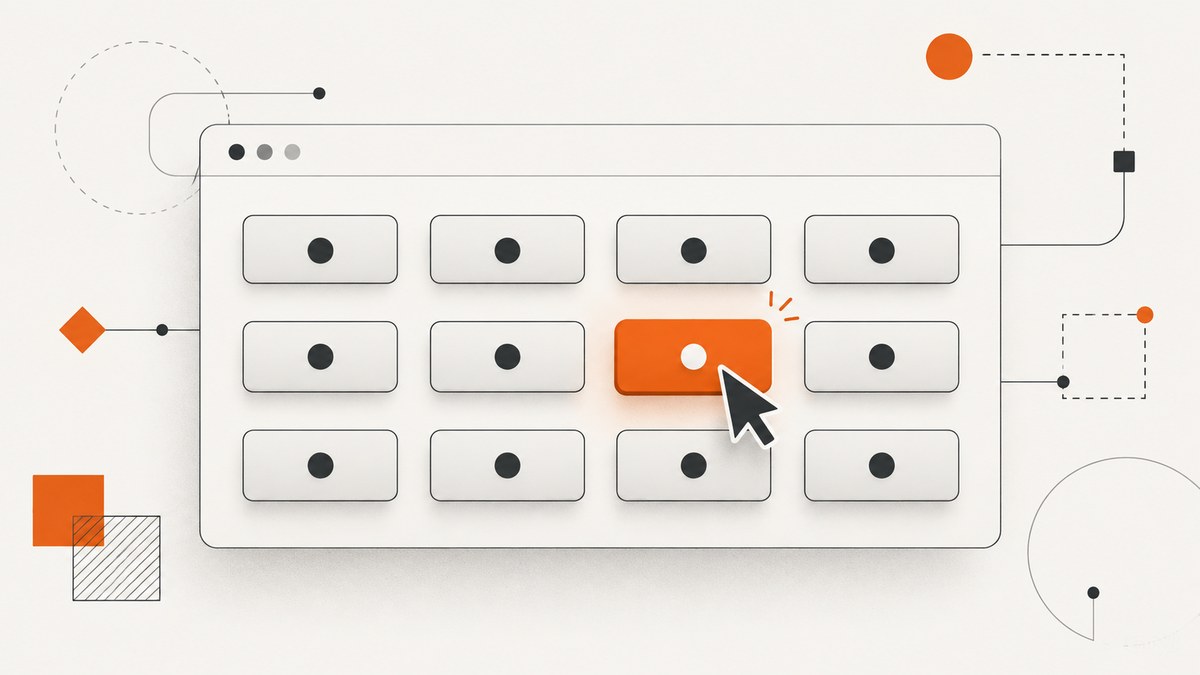
To click one button in a grid of matching elements with Puppeteer, first identify what makes the intended grid item different, then locate its button and click it. Prefer a stable ID, data-* attribute, accessible name, or a selector scoped to a uniquely identified card. Use an index only when the grid order is verified and stable.
For example, if the button has a unique test attribute:
await page.locator('[data-testid="save-item-42"]').click();Replace that selector with one that matches your page’s actual markup. A selector such as button identifies a class of elements, not which item in the grid you mean. Puppeteer locators help wait for an element to be actionable; they cannot infer your intent from repeated buttons. See Puppeteer’s page interaction guide.
1. Inspect the grid and choose a distinguishing feature
Before writing the click, inspect the relevant HTML and answer two questions: how can you identify the intended card or row, and how can you identify its button? A rendered grid might have repeated “Save” buttons but different product IDs, headings, or links. Use that stable difference to express the target.
Good clues, roughly in order of preference:
- A unique, stable ID or test attribute on the button itself.
- A unique attribute on the card, with the button located inside it.
- A meaningful accessible name or button text, if it distinguishes the target.
- A verified position in the match list, only if ordering is part of the page’s reliable behavior.
Avoid generated class names and long chains of parent-child selectors when a stable attribute is available. Styling and markup can change during a redesign; intent-bearing attributes are generally easier to maintain. The exact selector cannot be chosen without the target page’s DOM and ordering behavior.
2. Set up a runnable Puppeteer script
Install Puppeteer in a Node.js project, then save this example as click-grid.js. Substitute a page you are authorized to automate, its actual selector, and—if needed—the target URL.
const puppeteer = require('puppeteer');

(async () => {
  const browser = await puppeteer.launch({ headless: true });
  try {
    const page = await browser.newPage();
    await page.goto('https://example.com/catalog', {
      waitUntil: 'domcontentloaded',
      timeout: 30000,
    });

    // Use a selector that uniquely identifies the intended button.
    await page.locator('[data-testid="save-item-42"]').click();

    // Add an assertion or wait for the result expected on your page.
    await page.waitForSelector('[data-testid="saved-item-42"]', {
      timeout: 10000,
    });
    console.log('The target item was saved.');
  } finally {
    await browser.close();
  }
})().catch((error) => {
  console.error(error);
  process.exitCode = 1;
});
The final wait is illustrative: replace it with a state that indicates success in your application, such as a changed button label or a confirmation element. If the click is meant to open a new page, use the navigation pattern below instead.
3. Use a unique button selector when the markup provides one
A direct selector is the clearest case. It identifies the action and the item in one expression:
await page.locator('[data-testid="save-item-42"]').click();Other examples might use #save-42, button[aria-label="Save item 42"], or another stable attribute present in your own DOM. These are examples of selector shapes, not claims that a particular site has those attributes.
Puppeteer’s locator click performs action-readiness checks: locators ensure the target is in the viewport, wait for visibility and enabled state, and wait for a stable bounding box across two animation frames. This helps with timing and interaction readiness, but a selector matching several buttons still needs disambiguation. [Puppeteer page interactions]
4. Scope the button to a uniquely identified card
When the button itself has no unique attribute, identify the card first and search within it. This ties the click to the intended item instead of every button on the page. The exact scoping syntax depends on the page’s markup and the selector facilities you choose.
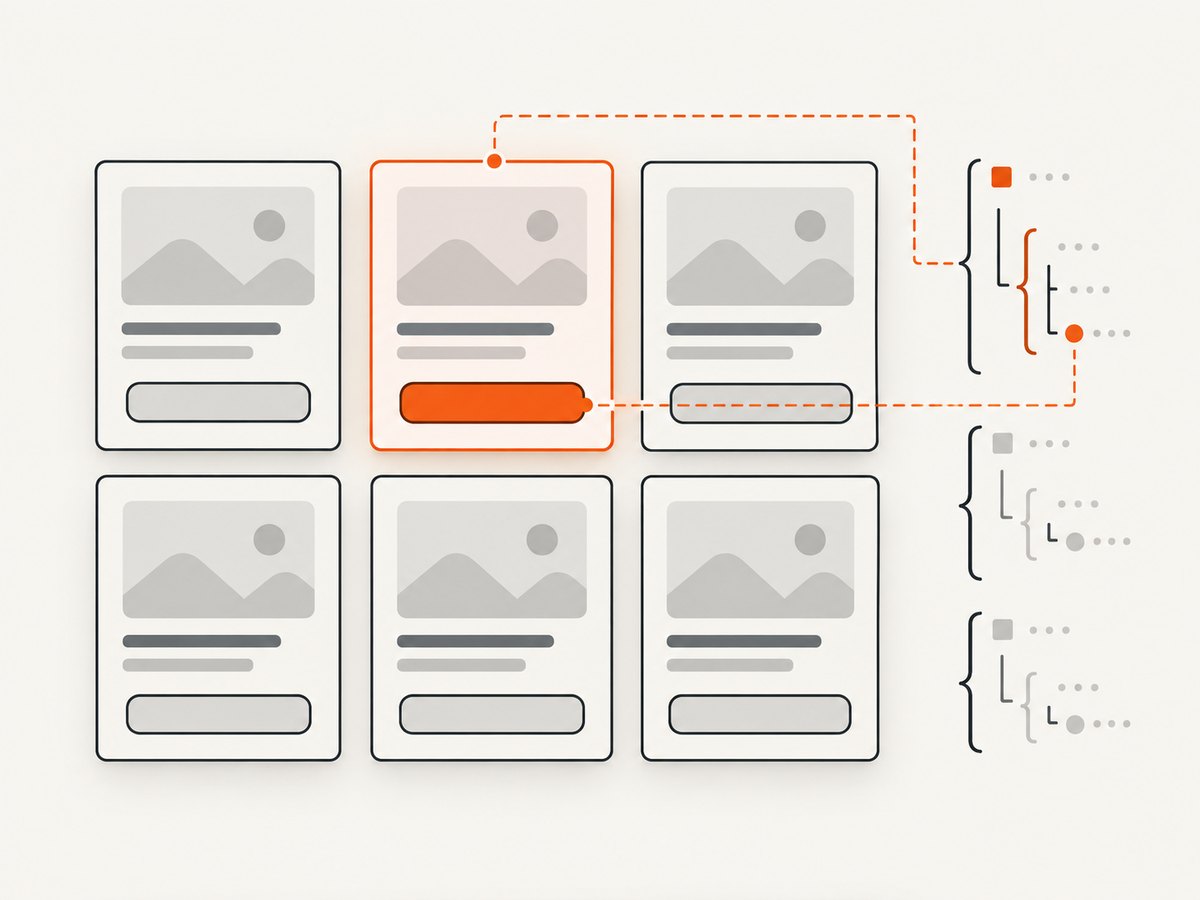
For a DOM whose cards have a stable data-item-id attribute, one option is to find the card, then find and click its button:
const card = await page.$('[data-item-id="42"]');
if (!card) {
  throw new Error('Could not find item 42');
}

const button = await card.$('button');
if (!button) {
  throw new Error('Item 42 has no button');
}
await button.click();
This uses the card’s actual relationship to its descendant button. If a card has multiple buttons, refine the inner selector by accessible name, text, or a stable attribute rather than assuming its first button is the right one. Puppeteer supports CSS and additional selector strategies; check its selector guide for the syntax supported by your installed version.
5. Select by text or accessible name carefully
Text and accessibility attributes can be useful when they distinguish the target. They are especially helpful when markup lacks test IDs but exposes meaningful names. Puppeteer supports custom selector syntax for text and accessibility attributes, XPath, and queries across open shadow roots. [Page interactions]
Do not assume that a text selector necessarily resolves to the button. A text selector can select the minimal, deepest element containing that text, such as a nested span. Inspect the DOM and choose the actionable button or scope the text match to the right card. If every button says “Save,” the text alone does not identify a grid item.
6. Inspect all matches before choosing a position
Sometimes the page exposes no distinguishing attribute, text, or accessible name. In that case, inspect the matches and their labels before deciding whether a positional choice is appropriate. Puppeteer’s page.$$() returns all matching elements (or an empty array); page.$() returns only the first (or null). First-match behavior is not a reliable way to express a particular grid item unless you know the first match is the intended one. [Page API]
const buttons = await page.$$('button.save');
console.log(`Found ${buttons.length} matching buttons`);

const labels = await page.$$eval('button.save', elements =>
  elements.map((element, index) => ({
    index,
    text: element.innerText.trim(),
    itemId: element.closest('[data-item-id]')?.getAttribute('data-item-id'),
  }))
);
console.log(labels);
$$eval passes all matching elements to a function running in the page, which is useful for reading labels and attributes before choosing. [Puppeteer $$eval API]
If inspection establishes that the desired item is consistently the third matching button, a positional choice can work:
const buttons = await page.$$('button.save');
if (buttons.length < 3) {
  throw new Error(`Expected at least 3 buttons; found ${buttons.length}`);
}
await buttons[2].click(); // Zero-based index: third match.
This is safe only if the match order is stable for your use case. Sorting, filtering, pagination, personalization, or inserted cards can change it. Prefer adding or using a distinguishing attribute whenever possible. Avoid presenting [2] or buttons[2] as a universal selector.
7. Wait correctly when the click navigates
If the button triggers navigation, register the navigation wait and click concurrently so the event is not missed:
const [response] = await Promise.all([
  page.waitForNavigation({ waitUntil: 'domcontentloaded', timeout: 30000 }),
  page.locator('[data-testid="open-item-42"]').click(),
]);
console.log('Navigation response:', response?.status());
The Puppeteer Page API documents this Promise.all pattern for waiting on navigation and clicking. Adjust the selector and wait condition to the application. [Page API]
If the interaction updates the current page without navigation, wait for the specific result instead: a changed attribute, a visible confirmation, or a known URL change. A fixed sleep can be slow when the page responds quickly and unreliable when it responds slowly; a condition tied to the expected state is usually clearer.
8. Common errors and fixes
| Symptom | Likely cause | What to change |
|---|---|---|
| The wrong card’s button is clicked | The selector matches repeated buttons and silently resolves to the first or a positional match. | Identify the target with a stable attribute, or scope the button to the uniquely identified card. Inspect all matches before relying on order. |
| No element found, or the locator times out | The selector is wrong, the grid has not rendered, or the target is not present on this page state. | Check the live DOM and selector spelling. Wait for the grid or target to appear, and verify filtering, pagination, and login state. |
| Click fails because the target is hidden or disabled | The control is not ready, is covered, or is disabled by application state. | Wait for the intended state, inspect overlays and disabled attributes, and use the locator interaction. Do not bypass the UI by triggering a DOM click unless the task explicitly requires that behavior. |
| Text selector matches a nested span | The text selector resolves to the deepest element containing the text. | Inspect the matching node and select the button, or scope the text within a card and target its actionable control. |
| Navigation wait hangs or is missed | The click may not navigate, or the wait was registered after the click. | Use the concurrent Promise.all pattern only for navigation; for in-page updates, wait for the resulting UI state. |
| Positional click changes after a page update | Grid order changed due to sorting, filtering, inserted results, or personalization. | Replace index selection with a stable item identifier or verify the ordering immediately before clicking. |
9. Reliability and performance considerations
For a single click, selector clarity matters more than micro-optimizing the lookup. A locator with a meaningful target makes the script easier to review and less fragile than a long chain of assumptions. If you need to inspect many elements, read the relevant labels and identifiers in one $$eval call, then select based on the data you observed.
Wait for the narrowest useful condition. Waiting for an entire page load can be excessive for a client-rendered grid, while clicking before the grid appears creates avoidable failures. Choose navigation waits only when the action actually navigates; otherwise wait for the resulting element or state. Use explicit timeouts that match your environment and handle failures with context, as in the runnable example.
For reliability, verify the result after clicking. A click completing means the interaction was dispatched; it does not prove the application saved the item or completed the action. Check a success indicator, changed state, or destination. Keep selectors close to stable product identifiers and revisit them if the site’s DOM changes.
10. Or skip the browser setup
If your task is to capture a page rather than interact with its controls, ScreenshotNeo is a website screenshot API and MCP server. One GET request can return a PNG, JPEG, WebP, or PDF. For a screenshot, call the API with your key and target URL:
curl -G "https://api.screenshotneo.com/v1/shot" \
  -d access_key=YOUR_API_KEY \
  --data-urlencode url=https://stripe.com \
  -o shot.webp
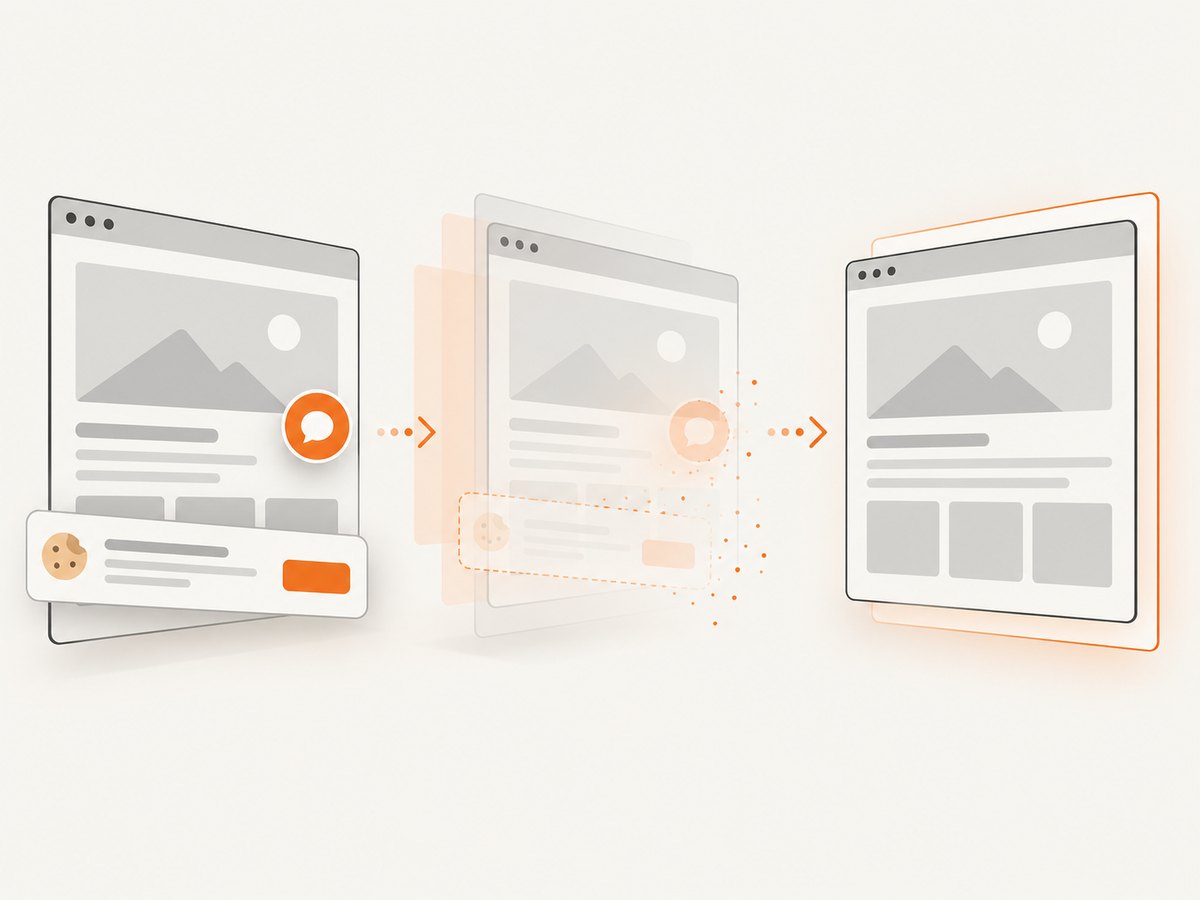
See the ScreenshotNeo API documentation for the available parameters. Cookie banners, newsletter popups, and chat widgets are removed before the shot; each cleanup step can be turned off. Bot checks, blank pages, timeouts, failed loads, and cache hits cost nothing, and response headers identify the page verdict and billing status. An MCP server gives Claude, Cursor, and other MCP clients tools to take screenshots, get page information, and capture PDFs. The free plan includes 1,000 screenshots per month with no card; paid plans start at $5 for 3,000 shots. Sign up for 1,000 free screenshots a month, with no card.
11. Short FAQ
Can I just use page.$('button')?
That returns the first matching button. Use it only when the first match is known to be the intended target; otherwise disambiguate or inspect all matches.
Does a locator choose the right card automatically?
No. Locators help ensure a selected element is ready for interaction. Your selector must still identify the intended item.
What if the grid is inside a shadow root?
Puppeteer supports selector queries across open shadow roots. Choose a selector appropriate to the page’s actual structure and confirm the syntax against your installed Puppeteer version.
Should I use an index?
Only when ordering is verified and stable, and the script checks that the expected number of matches exists. A stable item identifier is more resilient.
12. Practical checklist
- Inspect the rendered DOM and identify the target item.
- Prefer a stable attribute, accessible name, or uniquely identified card.
- Confirm the selector resolves to the actionable button, not a nested text node.
- Use a positional match only after verifying order and guarding the match count.
- Wait for navigation concurrently with the click, or wait for the in-page result.
- Verify the action succeeded and handle missing elements with a useful error.
The most reliable click is the one whose selector explains which item you mean. A grid of identical controls needs an identifier, a meaningful scope, or a verified stable position; Puppeteer can perform the click once your code supplies that distinction.


