How to Click a Button Inside an Iframe With Pyppeteer
Use Pyppeteer’s iframe element handle and contentFrame() to reach a button in the frame, wait for it, and click it reliably.
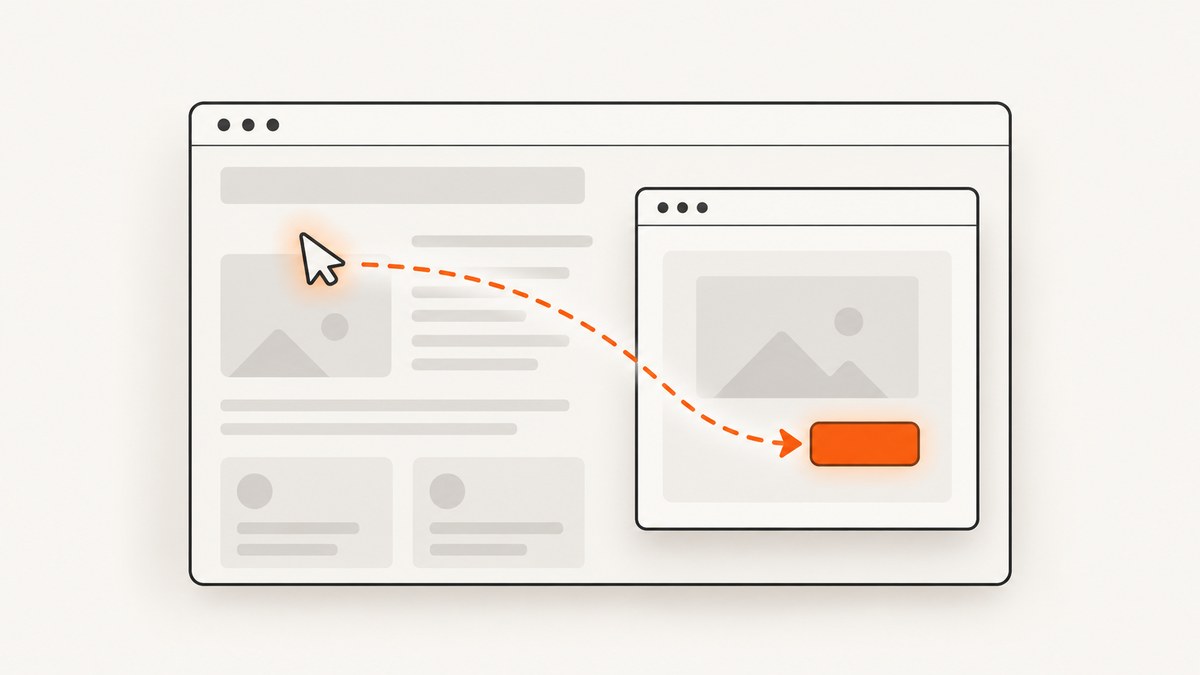
To click a button inside an iframe with Pyppeteer, first locate the <iframe> element in the page, then call contentFrame() on its element handle. That gives you a frame object; use that object to wait for and click the button. A page-level selector searches the main document, so it will not find elements inside a child frame.
iframe_handle = await page.waitForSelector("iframe#payment-frame")
frame = await iframe_handle.contentFrame()

if frame is None:
    raise RuntimeError("The selected element is not an iframe")

await frame.waitForSelector("button#submit")
await frame.click("button#submit")
Replace the example selectors with ones that match the page. The frame may load asynchronously, and the button may appear later still, so wait at both steps. Pyppeteer’s documentation describes ElementHandle.contentFrame(), frame-level waits, and Frame.click() in its API reference.
1. Why iframe buttons need a frame context
An iframe embeds a separate document inside the parent page. A selector used through page operates on the page’s main frame; it does not automatically cross into an iframe’s document. Pyppeteer exposes the boundary explicitly: find the iframe element, obtain its content frame, then perform DOM operations on that frame.
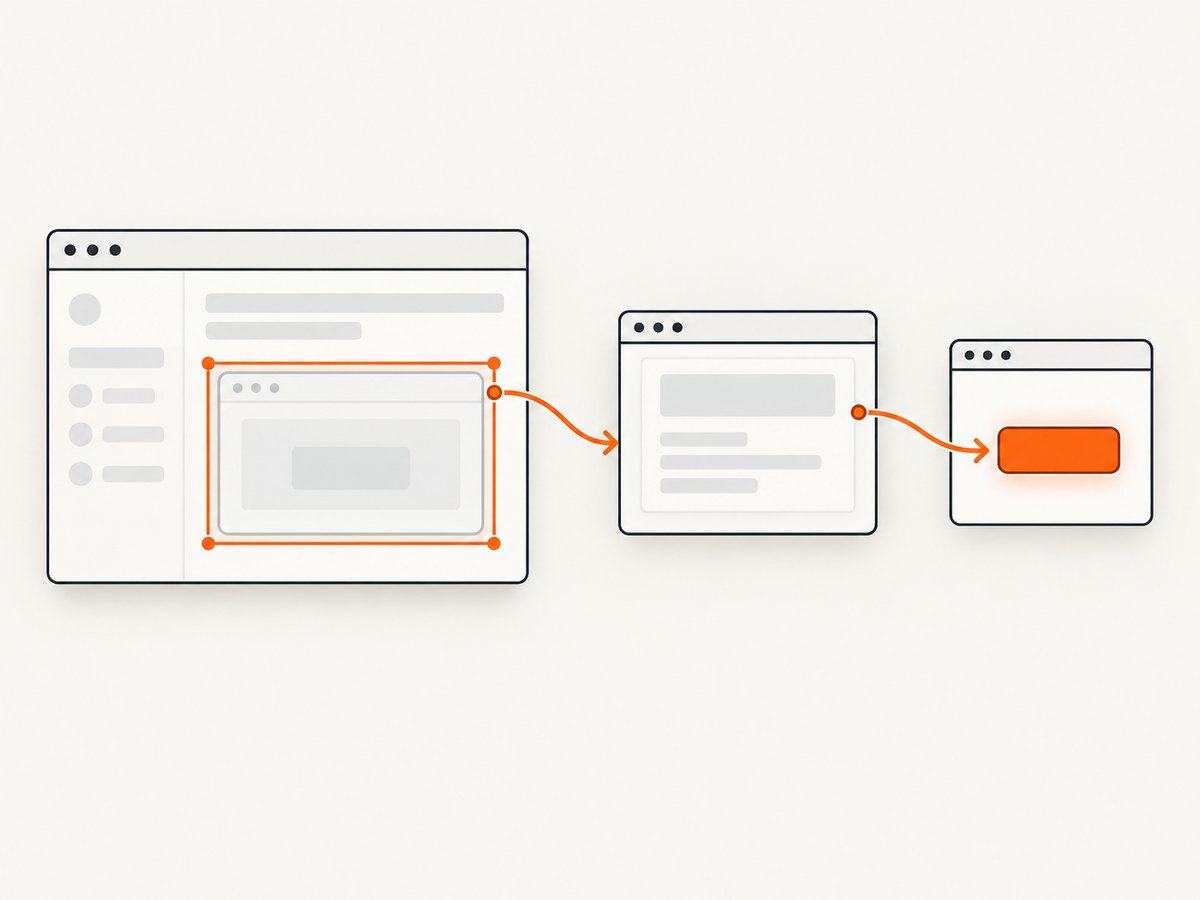
This distinction matters even when the iframe is visually part of the page. A payment widget, embedded form, video control, or identity-provider button can look like an ordinary page element while belonging to a different document. The click target’s visual position does not change which document owns it.
Pyppeteer’s reference says contentFrame() returns None if the handle does not reference an iframe. Treat that as a useful diagnostic: the selector may have matched the wrong element, or the page may have changed.
2. Complete runnable example
This script launches Chromium, opens a page, waits for a specific iframe, enters its frame, waits for the button, and clicks it. Set TARGET_URL and the two selectors for the page you control or are authorized to automate.
import asyncio
from pyppeteer import launch

TARGET_URL = "https://example.com/checkout"
IFRAME_SELECTOR = "iframe#payment-frame"
BUTTON_SELECTOR = "button#submit"

async def main():
    browser = await launch(headless=True)
    try:
        page = await browser.newPage()
        await page.goto(TARGET_URL, {"waitUntil": "domcontentloaded"})

        iframe_handle = await page.waitForSelector(
            IFRAME_SELECTOR,
            {"timeout": 15000},
        )
        if iframe_handle is None:
            raise RuntimeError(f"Iframe not found: {IFRAME_SELECTOR}")

        frame = await iframe_handle.contentFrame()
        if frame is None:
            raise RuntimeError(
                f"Element matched by {IFRAME_SELECTOR} is not an iframe"
            )

        await frame.waitForSelector(BUTTON_SELECTOR, {"timeout": 15000})
        await frame.click(BUTTON_SELECTOR)
        print("Clicked the button inside the iframe")
    finally:
        await browser.close()

asyncio.run(main())
Install Pyppeteer in the Python environment where you run the script, and make sure its Chromium download or configured browser is available. The project describes its API as almost the same as Puppeteer, while also documenting differences. The published API reference is for Pyppeteer 0.0.25 and is old, so confirm method names and option shapes against your installed version if code behaves differently. See the Pyppeteer documentation.
Choose a selector for the iframe
Prefer a stable ID or a distinctive attribute that identifies the intended iframe, such as iframe#payment-frame or iframe[src*="checkout"]. Avoid relying on a broad selector like iframe when a page embeds multiple frames. If the page is outside your control, inspect its markup and verify the selector after navigation.
Some pages insert an iframe only after a script runs or after the user takes an action. In that case, wait for the condition that creates it, then call waitForSelector(). A selector timeout is preferable to silently attempting a click on a missing frame.
Choose a selector for the button
The button selector is evaluated inside the frame. Use a stable ID, data attribute, or other unique locator when available. A selector that matches a button in the parent page will not help if the intended control lives in the iframe. If there are multiple matching buttons within the frame, make the selector more specific so the automation does not click an unintended control.
3. Handle multiple and nested iframes
If a page has several iframes, identify the one that contains the target before clicking. One practical approach is to inspect the page’s iframe elements and their attributes, then select by a distinguishing property. Pyppeteer’s page and frame APIs expose the page’s frame structure; consult the version-specific reference for the methods available in your installation.
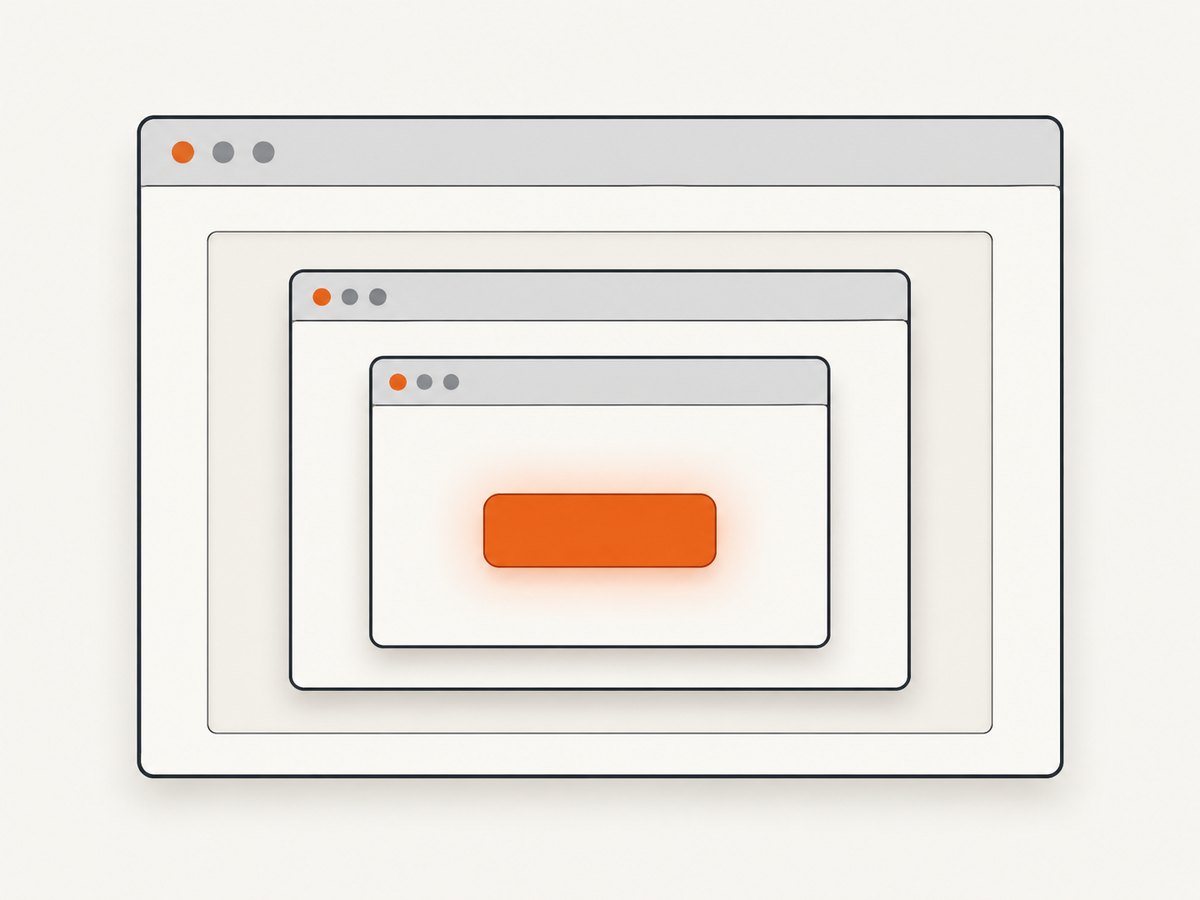
For a nested iframe, repeat the same transition at each level: find the child iframe element within the current frame, call contentFrame() on that handle, check the result, and then select within the returned frame.
parent_frame = await iframe_handle.contentFrame()
if parent_frame is None:
    raise RuntimeError("Could not enter the parent iframe")

nested_handle = await parent_frame.waitForSelector("iframe#nested-widget")
nested_frame = await nested_handle.contentFrame()
if nested_frame is None:
    raise RuntimeError("Nested element is not an iframe")

await nested_frame.waitForSelector("button#confirm")
await nested_frame.click("button#confirm")
Keep each frame handle associated with the iframe element that produced it. If the page replaces an iframe during a rerender or navigation, an earlier handle may no longer point to the current document. Locate the iframe again after such a change.
4. Coordinate clicks with navigation
A click may submit a form or cause the page or frame to navigate. If the next step depends on navigation completing, coordinate the click with a navigation wait. Otherwise, code can race: the click triggers navigation before the script starts waiting for it.
Current Puppeteer documentation recommends starting the click and navigation wait together. That is useful guidance for the race, but Pyppeteer’s older API may use different method names or option shapes. Check your installed Pyppeteer reference before copying current JavaScript Puppeteer syntax. The upstream explanation is in the Puppeteer Page API.
# Adapt the navigation method and options to your installed Pyppeteer version.
click_task = frame.click("button#submit")
navigation_task = page.waitForNavigation({"waitUntil": "domcontentloaded"})
await asyncio.gather(click_task, navigation_task)
Use a navigation wait only when navigation is expected. A button may update content through JavaScript without navigating; in that case, wait for a success message or another outcome selector in the relevant frame instead.
5. Troubleshooting
| Symptom | Likely cause | What to do |
|---|---|---|
contentFrame() returns None |
The handle matched an element other than an iframe, or the page changed before the call. | Inspect the matched element, narrow the iframe selector, and reacquire the handle after page updates. |
| Timeout waiting for the iframe | The selector is wrong, the iframe is added later, or navigation has not reached the point where it exists. | Verify the selector and page state. Wait for the action or load condition that inserts the iframe, then wait for the iframe. |
| Timeout waiting for the button | The button selector is wrong, the frame is still loading, or the control appears only after another interaction. | Check the selector in the iframe document, wait for the relevant state, and confirm you entered the intended frame. |
| Page-level click cannot find the button | The query runs in the main frame, while the button belongs to a child frame. | Call contentFrame() and use frame.waitForSelector() and frame.click(). |
| The wrong control is clicked | The selector matches more than one element or the page contains multiple similar frames. | Use a more specific iframe and button selector; confirm the match before clicking. |
| Click succeeds but the next step fails | The click caused navigation or a dynamic update that the script did not wait for. | Wait concurrently for expected navigation, or wait for a post-click element that confirms the update. |
| Method or argument error | Examples copied from modern Puppeteer may not match the installed Pyppeteer version. | Check the installed package’s API and the older Pyppeteer reference; adapt names and options rather than assuming full parity. |
6. Reliability, performance, and cost
Reliability
- Wait for both the iframe and the target control. A fixed sleep can be too short on a slow page and unnecessarily long on a fast one.
- Use selectors tied to stable page attributes, and fail clearly when the iframe or button is absent.
- Reacquire frame handles after navigation or a page rerender that replaces the iframe.
- When a click should change state, wait for an observable result rather than assuming that issuing the click means the workflow completed.
- Keep timeouts finite and report which selector timed out. This makes failures easier to diagnose in scheduled jobs.
Performance
Launching a browser is usually the setup step to account for when running many independent captures or automation tasks. Reuse a browser process when that suits your isolation and lifecycle requirements, while creating pages or contexts appropriate to each job. Avoid adding long fixed delays after every action; wait for the specific frame, selector, or navigation condition the next step needs.
Cost and operational limits
Pyppeteer is a browser automation library, so this approach requires a runtime that can launch or connect to a compatible browser and enough resources for the pages being processed. Factor browser hosting, concurrency, retries, and maintenance into a production workflow. This method does not make a third-party iframe accessible if the page or browser environment prevents it from loading; diagnose the actual frame and page state rather than treating every click failure as a selector problem.
7. Or skip the browser setup
If the task is to capture a page image rather than automate its controls, ScreenshotNeo is a website screenshot API and MCP server. A single request returns a screenshot or PDF. Its API has many capture options; see the ScreenshotNeo documentation.
curl -G "https://api.screenshotneo.com/v1/shot" \
  -d access_key=YOUR_API_KEY \
  --data-urlencode url=https://stripe.com \
  -o shot.webp
import requests
r = requests.get(
"https://api.screenshotneo.com/v1/shot",
params={"access_key": "YOUR_API_KEY", "url": "https://stripe.com"},
timeout=90,
)
open("shot.webp", "wb").write(r.content)const q = new URLSearchParams({ access_key: 'YOUR_API_KEY', url: 'https://stripe.com' });
const res = await fetch(`https://api.screenshotneo.com/v1/shot?${q}`);ScreenshotNeo accepts cookie and consent banners and removes more than 60 known consent platforms, newsletter popups, and chat widgets before capture; each step can be turned off. Bot checks, blank pages, timeouts, failed loads, and cache hits cost nothing, and response headers report the page verdict and billing status. Its MCP server provides take_screenshot, get_page_info, and capture_pdf for Claude, Cursor, and other MCP clients. The free plan includes 1,000 screenshots a month with no card; paid plans start at $5 for 3,000, and every feature is on every plan.
Sign up for 1,000 free screenshots a month, with no card.
8. FAQ
Can I click an iframe button with page.click()?
Not when that selector refers to an element inside the iframe. Get the iframe’s content frame and click through the frame object.
What does contentFrame() return?
It returns the frame associated with an iframe element handle, or None if the handle does not reference an iframe, as described in the Pyppeteer API reference.
Can I use current Puppeteer examples unchanged?
No. Pyppeteer says its API is almost the same as Puppeteer, but documents differences, and its reference is for an older release. Verify methods and options against your installed version.
Does this technique work for nested frames?
Yes: locate each nested iframe within its parent frame, obtain its content frame, and repeat the frame-scoped wait and click pattern.
9. Implementation checklist
- Wait for the intended iframe using a distinctive selector.
- Call
contentFrame()and fail clearly if it returnsNone. - Wait for the target button in that frame.
- Click through the frame, not the page’s main frame.
- Wait for navigation or a visible success condition when the workflow needs confirmation.
- Check Pyppeteer’s installed-version API when an example uses a method or option from modern Puppeteer.


