How to Click a Checkbox with PhantomJS
Learn how to click native and custom checkboxes in PhantomJS, verify the result, handle async pages, and debug events that do not fire.
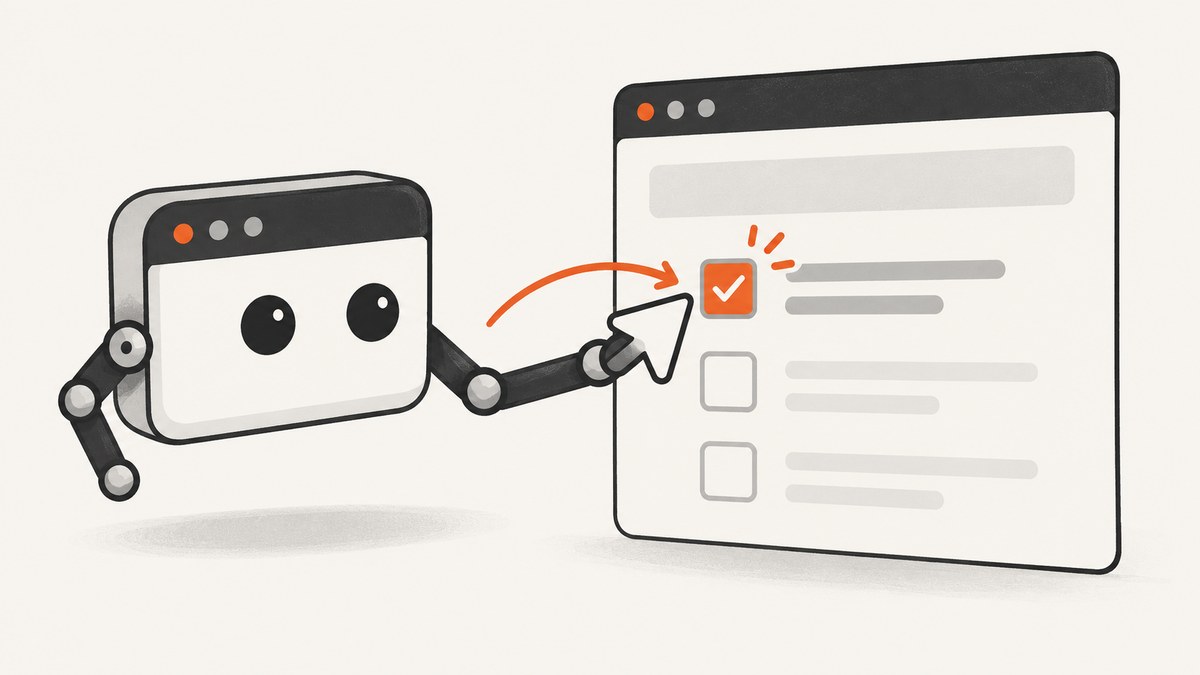
To click a checkbox in PhantomJS, run the DOM operation inside page.evaluate(). The outer PhantomJS script cannot directly access the page’s document. Select the actual <input type="checkbox">, call click(), and return a primitive value such as checked so the outer script can verify the result.
var result = page.evaluate(function (selector) {
    var checkbox = document.querySelector(selector);
    if (!checkbox) {
        return { found: false, checked: false };
    }

    checkbox.click();
    return { found: true, checked: checkbox.checked };
}, '#acceptTerms');

if (!result.found || !result.checked) {
    console.log('Checkbox was not checked');
    phantom.exit(1);
} else {
    console.log('Checkbox checked');
    phantom.exit(0);
}
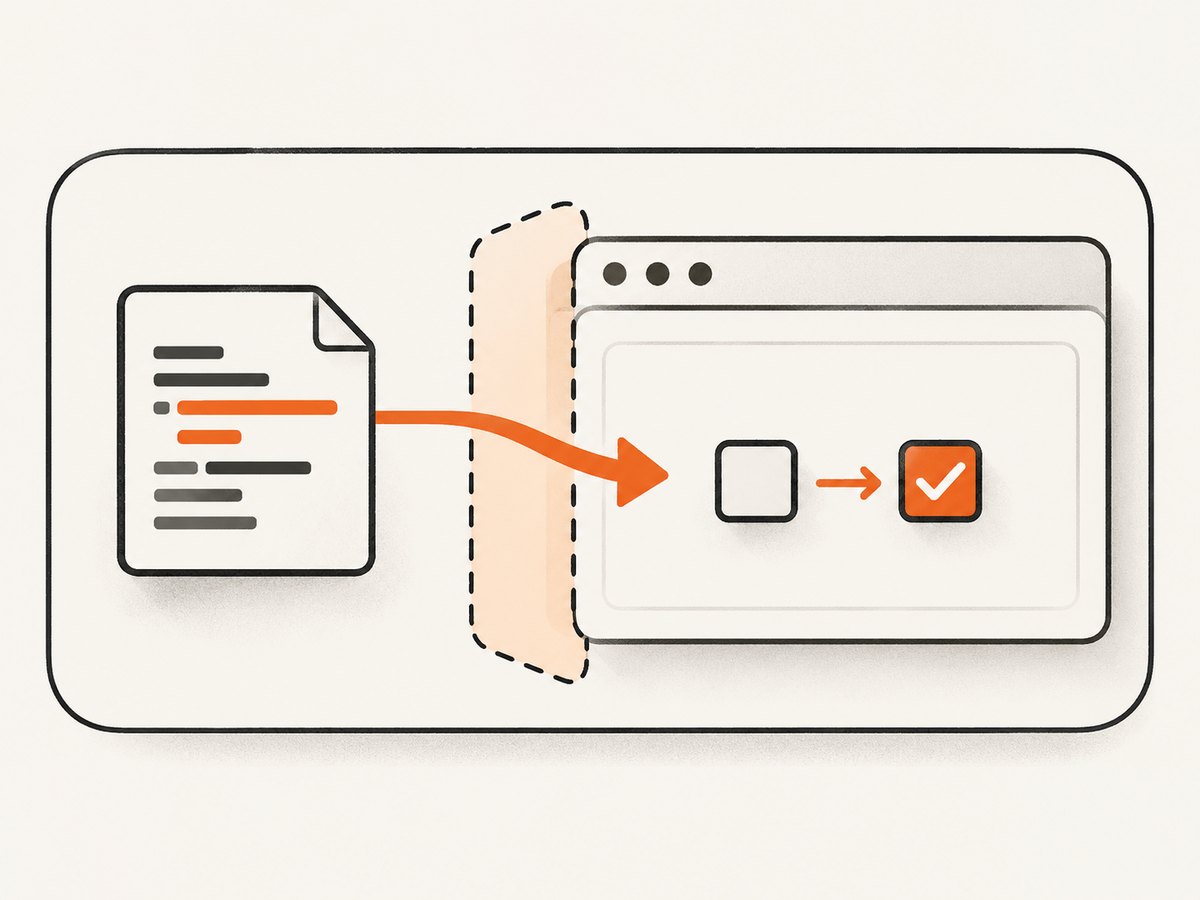
page.evaluate() creates a boundary between your PhantomJS code and the JavaScript running in the loaded page. Only code in the page context can use document, query the DOM, construct browser events, or trigger a synthetic click. Keep selectors and return values JSON-serializable; a DOM node returned from evaluate() cannot be used later in the outer script. See the PhantomJS evaluate documentation and the HTMLElement.click() reference.
1. A complete PhantomJS script
The following file loads a page, waits for it to finish loading, clicks the checkbox, verifies the checked state, and writes a screenshot. Replace the URL and selector with your page’s values.
// click-checkbox.js
var system = require('system');
var webpage = require('webpage');

var page = webpage.create();
var targetUrl = system.args[1] || 'https://example.com/form';
var selector = system.args[2] || '#acceptTerms';
var finished = false;

page.viewportSize = { width: 1280, height: 900 };

page.onConsoleMessage = function (message) {
    console.log('[page] ' + message);
};

page.open(targetUrl, function (status) {
    if (status !== 'success') {
        console.log('Unable to load ' + targetUrl + ' (status: ' + status + ')');
        phantom.exit(1);
        return;
    }

    // Give page scripts a chance to render dynamic form controls.
    window.setTimeout(function () {
        var result = page.evaluate(function (checkboxSelector) {
            var checkbox = document.querySelector(checkboxSelector);
            if (!checkbox) {
                return {
                    found: false,
                    checked: false,
                    count: document.querySelectorAll(checkboxSelector).length
                };
            }

            checkbox.click();
            return {
                found: true,
                checked: checkbox.checked,
                disabled: checkbox.disabled
            };
        }, selector);

        console.log(JSON.stringify(result));

        if (!result.found) {
            console.log('No checkbox matched: ' + selector);
            phantom.exit(1);
            return;
        }
        if (result.disabled) {
            console.log('The checkbox is disabled');
            phantom.exit(1);
            return;
        }
        if (!result.checked) {
            console.log('The click did not produce checked=true');
            phantom.exit(1);
            return;
        }

        page.render('checkbox-checked.png');
        console.log('Saved checkbox-checked.png');
        phantom.exit(0);
    }, 250);
});
Run it with:
phantomjs click-checkbox.js https://example.com/form '#acceptTerms'The delay is intentionally small and page-specific. If the checkbox is inserted after an API call, wait for a selector or application state instead of relying on a fixed delay. The important sequence is load, locate, click, verify, then allow any asynchronous work to complete before calling phantom.exit().
2. Why element.click() can be undefined
A common error is trying to do this outside page.evaluate():
var checkbox = page.evaluate(function () {
    return document.querySelector('#acceptTerms');
});
checkbox.click(); // Wrong: this is not a usable DOM element in the outer script.
The value crossing the context boundary must be serializable. Return a boolean, string, number, or small object instead:
var state = page.evaluate(function () {
    var el = document.querySelector('#acceptTerms');
    return el ? { checked: el.checked, disabled: el.disabled } : null;
});
If document.querySelector(...).click() itself reports that click is undefined, or the click does not activate the site’s handler, use an explicitly constructed mouse event in the page context.
3. Fallback: dispatch a mouse event
var dispatched = page.evaluate(function (selector) {
    var el = document.querySelector(selector);
    if (!el) {
        return false;
    }

    var ev = document.createEvent('MouseEvents');
    ev.initMouseEvent(
        'click', true, true, window, 0,
        0, 0, 0, 0,
        false, false, false, false,
        0, null
    );
    el.dispatchEvent(ev);
    return true;
}, '#acceptTerms');

if (!dispatched) {
    console.log('Checkbox was not found');
}
The event is dispatched with bubbling and cancelation enabled, which helps pages that attach a click listener to the checkbox or an ancestor. Verify the state after dispatch; a dispatched event does not guarantee that application code accepted it.
When to click a label or wrapper
Native checkboxes are usually the best target. Custom controls may hide the input and attach their handler to a <label>, a wrapper, or a role-based element. Inspect the markup and select the element that owns the handler:
var result = page.evaluate(function () {
    var label = document.querySelector('label[for="acceptTerms"]');
    if (!label) return { found: false };

    label.click();
    var input = document.querySelector('#acceptTerms');
    return { found: true, checked: !!input && input.checked };
});
If the wrapper uses a framework-specific listener, return a state value from the page and test the visible class, ARIA attribute, or hidden input value that the application actually changes.
4. Coordinate fallback with page.sendEvent()
Some pages distinguish a DOM-generated click from a pointer event. In that case, calculate the element’s rectangle in the page context and send a click at its center from PhantomJS:
var rect = page.evaluate(function (selector) {
    var el = document.querySelector(selector);
    if (!el) return null;

    var r = el.getBoundingClientRect();
    return {
        left: r.left,
        top: r.top,
        width: r.width,
        height: r.height
    };
}, '#acceptTerms');

if (rect) {
    page.sendEvent(
        'click',
        rect.left + rect.width / 2,
        rect.top + rect.height / 2
    );
}
Coordinates are viewport-relative. Make sure the element is visible, the page has the expected viewport size, and no overlay is covering the center point. A coordinate click can also be affected by scrolling, responsive layout changes, or a sticky header.
5. Waiting for dynamic forms and navigation
Finding an element before it exists is one of the most frequent causes of a failed click. Use a polling helper when the checkbox is rendered asynchronously:
function waitForCheckbox(selector, callback) {
    var started = Date.now();
    var timer = window.setInterval(function () {
        var present = page.evaluate(function (s) {
            return !!document.querySelector(s);
        }, selector);

        if (present) {
            window.clearInterval(timer);
            callback(true);
        } else if (Date.now() - started > 10000) {
            window.clearInterval(timer);
            callback(false);
        }
    }, 100);
}

page.open('https://example.com/form', function (status) {
    if (status !== 'success') {
        phantom.exit(1);
        return;
    }

    waitForCheckbox('#acceptTerms', function (found) {
        if (!found) {
            console.log('Timed out waiting for checkbox');
            phantom.exit(1);
            return;
        }

        var checked = page.evaluate(function () {
            var el = document.querySelector('#acceptTerms');
            el.click();
            return el.checked;
        });
        console.log('checked=' + checked);
        phantom.exit(checked ? 0 : 1);
    });
});
If clicking submits a form or starts navigation, use page.onLoadFinished to observe the next page and delay exit until the callback runs. For AJAX handlers, poll for a deterministic result such as a success message, changed URL, enabled submit button, or updated checkbox state.
6. Debugging checklist
- Confirm the selector. Return
document.querySelectorAll(selector).lengthfrompage.evaluate(). Check spelling, escaping, frames, and whether the element is generated later. - Keep DOM code in the page context. Selection,
document.createEvent, dispatch, and state reads belong insideevaluate(). - Return primitives. Pass only selectors, IDs, flags, and other JSON-safe values across the boundary. Do not return a DOM node for later use.
- Check disabled state. A disabled native input will not behave like an enabled control. Inspect
disabledand any application-specific readiness flag. - Target the real handler. Try the input, then its label or custom wrapper, based on the page’s markup.
- Verify after clicking. Read
checked, an ARIA attribute, a class, or another state that proves the application accepted the interaction. - Wait for asynchronous effects. Do not render immediately or call
phantom.exit()while a handler is still making a request or changing the DOM. - Try the event fallback. Use
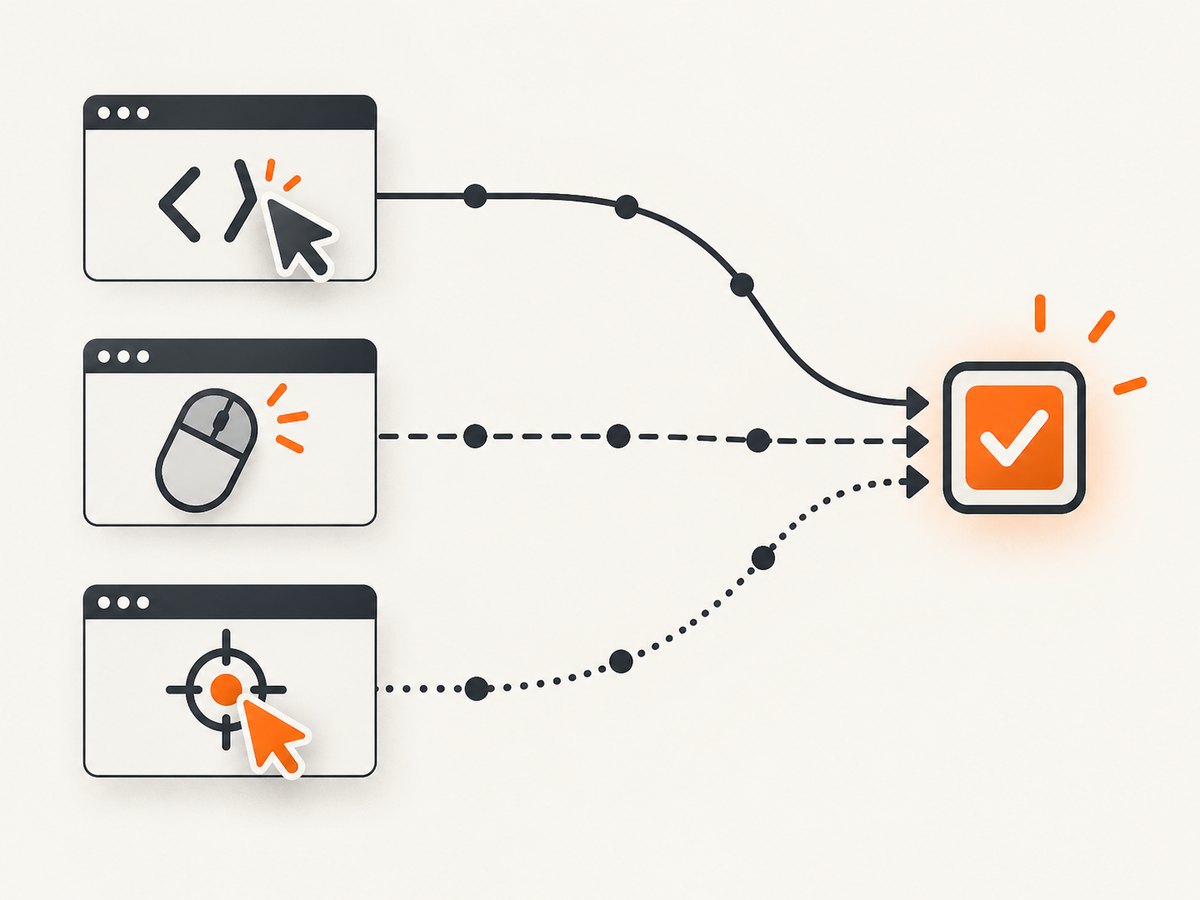
dispatchEventif directclick()is missing or ineffective, then usepage.sendEventat the element center if the site needs a user-like pointer event.
7. Common errors and fixes
| Error or symptom | Likely cause | Fix |
|---|---|---|
document is not defined |
DOM code ran in the outer PhantomJS context. | Move it into page.evaluate(). |
Cannot call method 'click' of null |
The selector matched nothing at that moment. | Check the selector and wait for the element to be inserted. |
click is undefined |
Older or incompatible PhantomJS behavior, or the value is not a page DOM element. | Use document.createEvent('MouseEvents') and dispatchEvent inside evaluate(). |
| Click runs but state stays unchecked | The visible widget is controlled by a label, wrapper, or framework listener. | Inspect the handler target, click that element, and verify the application’s state. |
| Handler never runs | The page expects a pointer event or the element is covered. | Use getBoundingClientRect() plus page.sendEvent(); ensure the element is visible. |
| Navigation happens before verification | The click submits a form or changes location. | Listen for load completion or wait for a post-click DOM condition before exiting. |
| Works in one PhantomJS version but not another | Click behavior differs between reported 1.9 and 2.x environments. | Keep the direct-click path, then provide the dispatched-event and coordinate fallbacks. |
8. Reliability, performance, and security considerations
Use the smallest reliable wait. A selector poll normally finishes sooner than a long fixed delay, while a fixed timeout can be useful as a final upper bound. Avoid repeated screenshots or repeated clicks: each extra page load increases runtime and can trigger duplicate submissions.
Set a consistent viewport when using coordinates, screenshots, or responsive forms. If the page has cross-origin frames, the top-level document cannot query a frame’s DOM directly; the checkbox must be handled in the relevant browsing context, and PhantomJS page APIs do not make an arbitrary cross-origin frame same-origin.
Do not put credentials in page source, logs, or command-line arguments that are recorded by your process supervisor. Treat URLs and checkbox handlers as untrusted page code, and validate the resulting state before performing a consequential action.
9. Or skip the browser setup
If your goal is a clean capture after interacting with a page, ScreenshotNeo provides a one-request screenshot API and an MCP server. Its capture options include custom JavaScript and clicking an element before capture, so you can keep the browser orchestration out of your application. Read the ScreenshotNeo API documentation for the complete parameter list.
cURL
curl -G "https://api.screenshotneo.com/v1/shot" \
  -d access_key=YOUR_API_KEY \
  --data-urlencode url=https://example.com/form \
  -o shot.webp
Python
import requests

r = requests.get(
    "https://api.screenshotneo.com/v1/shot",
    params={"access_key": "YOUR_API_KEY", "url": "https://example.com/form"},
    timeout=90,
)
r.raise_for_status()
open("shot.webp", "wb").write(r.content)
Node.js
const q = new URLSearchParams({
  access_key: 'YOUR_API_KEY',
  url: 'https://example.com/form'
});
const res = await fetch(`https://api.screenshotneo.com/v1/shot?${q}`);
if (!res.ok) throw new Error(`HTTP ${res.status}`);
const data = Buffer.from(await res.arrayBuffer());
require('fs').writeFileSync('shot.webp', data);
ScreenshotNeo removes cookie and consent banners, newsletter popups, and chat widgets before the shot. Bot checks, blank pages, timeouts, failed loads, and cache hits are not billed, and response headers identify the page verdict and billing result with X-Page-Verdict and X-Billed. Its MCP tools—take_screenshot, get_page_info, and capture_pdf—work with Claude, Cursor, and other MCP clients. One thousand screenshots per month are free with no card; paid plans start at $5 for 3,000 shots. Create a free ScreenshotNeo account.
10. FAQ
Can PhantomJS click a checkbox by ID?
Yes. Pass '#id' to page.evaluate(), select the input, call click(), and return checked.
Should I return the checkbox element from evaluate()?
No. Return primitive state or a JSON object. The DOM node belongs to the page context and cannot be used as an outer-script object.
When should I use page.sendEvent?
Use it when direct and dispatched DOM clicks do not activate code that expects a pointer-like event. Send the event to the visible element’s center.
Why does the screenshot show an unchecked box after my script clicked it?
The page may reset state during an asynchronous render, navigation may have started, or the clicked element may not own the application state. Verify after the final DOM update and wait before rendering.
Does the same approach work for custom checkbox widgets?
The context rule is the same, but the target may be a label or wrapper. Inspect the widget and verify the state it exposes, such as aria-checked or a class.


