How to Click a Chrome Extension With Playwright
Load an unpacked extension in Playwright’s Chromium, open its popup reliably, and understand why toolbar-icon clicks are a different problem.

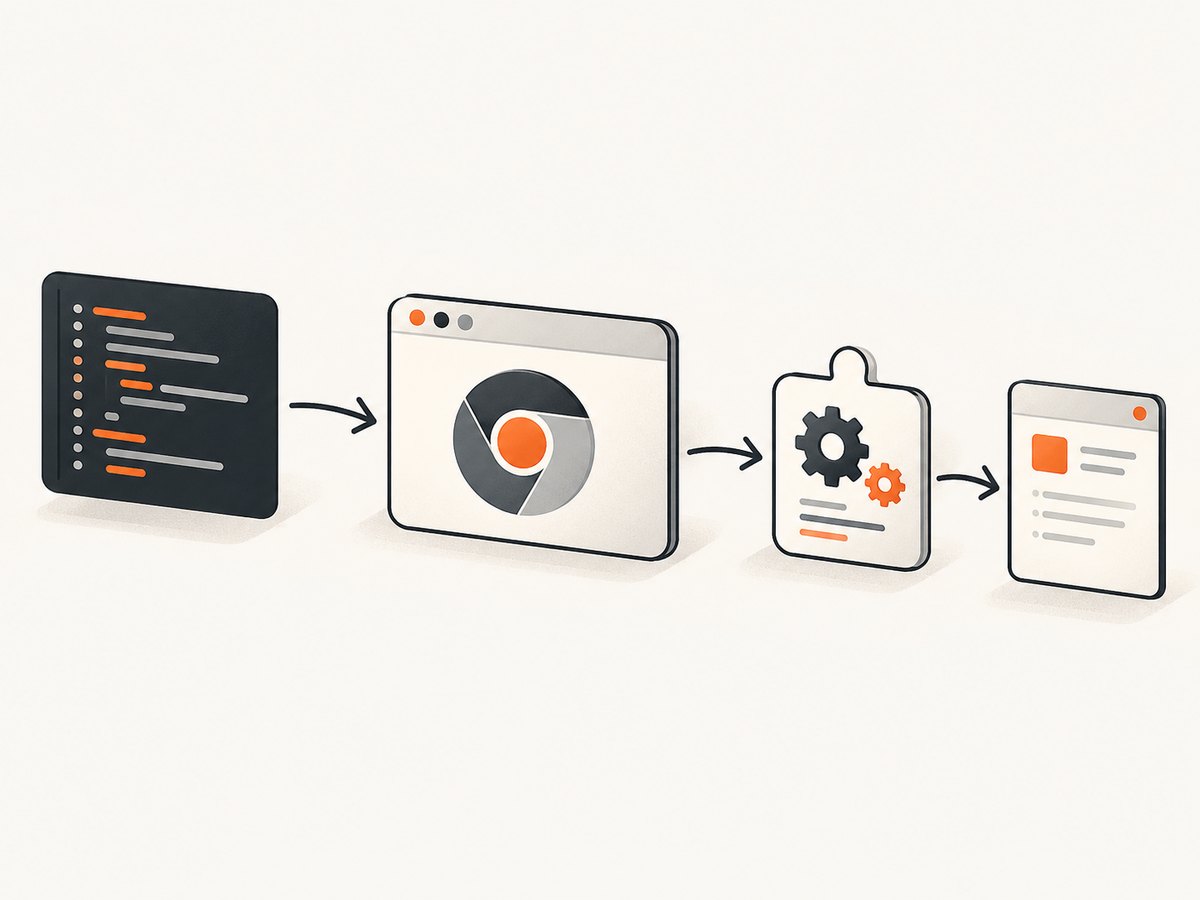
Short answer: for an unpacked local extension, launch Playwright’s bundled Chromium with a persistent context, load the extension with --disable-extensions-except and --load-extension, obtain the extension ID from its Manifest V3 service worker, then navigate to the extension popup at chrome-extension://<id>/<popup-file>. Once the popup is a normal Playwright Page, use locators and assertions as usual.
This documented workflow tests the popup page. It does not demonstrate clicking the extension icon in Chrome’s toolbar. Toolbar chrome is a separate interaction target, and the official Playwright extension guide does not document a direct API for clicking that browser UI. See the official extension guide before choosing an approach.
What you are actually automating
“Click the extension” can describe three different things:
| Target | Recommended Playwright method | What it proves |
|---|---|---|
| Controls inside the extension popup | Open the popup URL, then use locators | Your popup HTML, scripts and UI behavior work |
| A page-created popup or new tab | Start page.waitForEvent('popup') before the page click |
A webpage action opened another page |
| The browser toolbar icon | No documented direct API in the cited extension workflow | Requires a different browser-chrome strategy or a product-level test seam |
Do not confuse a direct visit to chrome-extension://... with a toolbar click. The first opens the extension page directly; it does not exercise the browser’s extension button.
Prerequisites and extension layout
- Install Playwright and its bundled Chromium:
npm install -D playwright npx playwright install chromium - Build or unpack your extension into a directory such as
my-extension/. - Confirm the popup filename in the extension manifest. The examples below use
popup.html; replace it with the path declared by your project. - Use Chromium supplied by Playwright. Google Chrome and Microsoft Edge removed the command-line flags needed by this sideloading workflow, so a system browser may fail to load the extension.
A minimal Manifest V3 manifest might contain:
{
  "manifest_version": 3,
  "name": "Example extension",
  "version": "1.0.0",
  "action": { "default_popup": "popup.html" }
}
Node.js: load the extension and open its popup
This complete script creates a temporary persistent profile, loads the unpacked extension, discovers its ID from the service worker URL, opens the popup, clicks a control, and closes the browser.
const { chromium } = require('playwright');
const path = require('path');

(async () => {
  const extensionPath = path.resolve(__dirname, 'my-extension');
  const context = await chromium.launchPersistentContext('', {
    channel: 'chromium',
    headless: false,
    args: [
      `--disable-extensions-except=${extensionPath}`,
      `--load-extension=${extensionPath}`,
    ],
  });

  try {
    let [serviceWorker] = context.serviceWorkers();
    if (!serviceWorker) {
      serviceWorker = await context.waitForEvent('serviceworker');
    }

    const extensionId = serviceWorker.url().split('/')[2];
    const popup = await context.newPage();
    await popup.goto(`chrome-extension://${extensionId}/popup.html`);
    await popup.waitForLoadState('domcontentloaded');

    // Replace these selectors with controls in your popup.
    await popup.getByRole('button', { name: 'Enable' }).click();
    await popup.getByText('Enabled').waitFor();
  } finally {
    await context.close();
  }
})();
The empty string passed to launchPersistentContext asks Playwright to create a temporary user-data directory. Closing the context closes the browser and removes the temporary profile. For debugging, supply a dedicated directory path instead, but never reuse the profile from your everyday Chrome installation.
Using a known extension ID
If your test environment assigns a stable ID, you can set it in the URL directly. Deriving it from the service worker is safer for unpacked extensions because the ID can differ between projects and profiles:
const popup = await context.newPage();
await popup.goto(`chrome-extension://${extensionId}/popup.html`);
Playwright Test fixture
With @playwright/test, put the persistent context and discovered ID in a fixture. Each worker should receive its own user-data directory so parallel browser processes do not collide.
const base = require('@playwright/test');
const { chromium } = require('playwright');
const path = require('path');
const fs = require('fs');
const os = require('os');

const test = base.test.extend({
  extensionContext: async ({}, use, workerInfo) => {
    const extensionPath = path.resolve(__dirname, 'my-extension');
    const profile = fs.mkdtempSync(
      path.join(os.tmpdir(), `pw-extension-${workerInfo.workerIndex}-`)
    );
    const context = await chromium.launchPersistentContext(profile, {
      channel: 'chromium',
      headless: false,
      args: [
        `--disable-extensions-except=${extensionPath}`,
        `--load-extension=${extensionPath}`,
      ],
    });
    await use(context);
    await context.close();
    fs.rmSync(profile, { recursive: true, force: true });
  },
  extensionId: async ({ extensionContext }, use) => {
    let [worker] = extensionContext.serviceWorkers();
    if (!worker) worker = await extensionContext.waitForEvent('serviceworker');
    await use(worker.url().split('/')[2]);
  },
});

exports.test = test;
exports.expect = base.expect;
A test can then open the popup:
const { test, expect } = require('./fixtures');

test('popup enables the feature', async ({ extensionContext, extensionId }) => {
  const page = await extensionContext.newPage();
  await page.goto(`chrome-extension://${extensionId}/popup.html`);
  await page.getByRole('button', { name: 'Enable' }).click();
  await expect(page.getByText('Enabled')).toBeVisible();
});
Python Playwright equivalent
The same Chromium and persistent-context requirements apply to Python. Install the package and browser first:
pip install playwright
playwright install chromium
from pathlib import Path
from playwright.sync_api import sync_playwright
with sync_playwright() as p:
extension_path = str(Path(__file__).parent / "my-extension")
context = p.chromium.launch_persistent_context(
"",
channel="chromium",
headless=False,
args=[
f"--disable-extensions-except={extension_path}",
f"--load-extension={extension_path}",
],
)
try:
workers = context.service_workers
worker = workers[0] if workers else context.wait_for_event("serviceworker")
extension_id = worker.url.split("/")[2]
page = context.new_page()
page.goto(f"chrome-extension://{extension_id}/popup.html")
page.get_by_role("button", name="Enable").click()
page.get_by_text("Enabled").wait_for()
finally:
context.close()Waiting for a page-created popup
If the thing you call a “popup” is opened by a normal webpage click, use Playwright’s page popup event. Register the wait before clicking so the new window cannot be missed:
const [newPage] = await Promise.all([
  page.waitForEvent('popup'),
  page.getByRole('button', { name: 'Open details' }).click(),
]);
await newPage.waitForLoadState();
await newPage.getByRole('heading', { name: 'Details' }).waitFor();
This event pattern is for a webpage opening a new window or tab. It is not evidence that Playwright can activate a Chrome toolbar button.
Toolbar-icon clicks: limits and practical choices
The official extension example navigates to the popup page directly. It does not provide a locator for Chrome’s toolbar, puzzle-piece menu, or extension icon. Browser chrome is outside the web document that Playwright normally controls, so selectors such as getByRole('button') cannot target it.

Use one of these designs:
- Test popup behavior directly. Put the extension’s meaningful behavior behind a popup control and navigate to the popup URL in automated tests.
- Test the page integration. If the extension changes a regular website, open that website in a Playwright page and assert on the resulting DOM, network behavior, or messages.
- Use a product-level seam. Expose a test-only command or message that exercises the same code path as the toolbar action, while keeping the browser-chrome click itself out of the Playwright test.
- Attach to an existing browser only when required. Playwright documents a separate connection mode for reusing an already-running browser and its installed extensions. That is a connection workflow, not the bundled-Chromium sideloading example.
Manifest V3 service-worker behavior
Manifest V3 background workers can be suspended after roughly 30 seconds of inactivity and restarted when needed. A worker handle can remain usable across a restart, but an evaluation already in flight can fail with Service worker restarted. Avoid long, fragile evaluations in the worker. Move assertions to the popup or page where possible, and retry a short worker operation when a restart is expected.
async function evaluateWithRestartRetry(worker, callback) {
  try {
    return await callback(worker);
  } catch (error) {
    if (!String(error).includes('Service worker restarted')) throw error;
    return await callback(worker);
  }
}

const version = await evaluateWithRestartRetry(worker, w =>
  w.evaluate(() => chrome.runtime.getManifest().version)
);
Configuration and reliability checklist
- Use
launchPersistentContext, notbrowser.newContext(), for the loading workflow. - Use Playwright’s
chromiumchannel and install the matching bundled browser. - Resolve the extension path to an absolute path before placing it in launch arguments.
- Use the popup path from your manifest;
popup.htmlis only an example. - Give concurrent workers separate user-data directories. Multiple browser instances cannot share one directory.
- Wait for the
serviceworkerevent when the worker is not available immediately. - Wait for popup DOM state or a specific control instead of relying on arbitrary sleeps.
- Close every persistent context in a
finallyblock. - Do not point automated tests at a developer’s daily Chrome profile.
- Run headed while diagnosing extension loading; switch to the documented headless Chromium channel only after your extension supports that mode.
Troubleshooting
| Symptom | Likely cause | Fix |
|---|---|---|
| No service worker is found | The extension did not load, or startup is still in progress | Check the absolute path, both loading flags, and wait for context.waitForEvent('serviceworker'). |
ERR_FILE_NOT_FOUND for the popup |
The URL uses the wrong popup filename | Read action.default_popup in the manifest and use that exact relative path. |
| Extension works manually but not in tests | Tests launched system Chrome or a non-persistent context | Install and use Playwright’s bundled Chromium with launchPersistentContext. |
| Two workers fail with profile-lock errors | They share one user-data directory | Create one temporary directory per worker or process. |
| Toolbar selector is never found | The selector targets browser chrome, outside the page DOM | Open and test the popup URL, or create a test seam for the toolbar action. |
Service worker restarted |
Manifest V3 suspended the worker during evaluation | Keep evaluations short and retry the operation after reacquiring the worker if necessary. |
| Popup closes unexpectedly | A real toolbar popup has browser-specific focus behavior | Test the popup as a dedicated extension page; reserve toolbar behavior for a separate manual or browser-level check. |
Performance, isolation and cost
Launching a persistent Chromium process is slower than creating an ordinary page, but it is the setup required for extension loading. Reuse one context for related tests, while keeping profiles isolated across parallel workers. Loading only the extension under test reduces startup work and makes failures easier to diagnose.
For deterministic runs, avoid depending on the developer’s profile, installed extensions, cached permissions, or browser state. A temporary profile trades persistence for repeatability. If a test needs state, seed it explicitly in that dedicated profile and remove the directory after the run.
Playwright itself is local automation software; your main costs are browser CPU, memory, CI minutes, and any external pages your extension visits. There is no screenshot-service charge for opening a popup locally.
Or skip the browser setup
If your actual goal is to capture a website or extension-generated page for documentation, regression artifacts, or an AI workflow, ScreenshotNeo provides a single HTTP request instead of maintaining Chromium launch code. Read the ScreenshotNeo API documentation for all options.
cURL
curl -G "https://api.screenshotneo.com/v1/shot" -d access_key=YOUR_API_KEY --data-urlencode url=https://stripe.com -o shot.webpPython
import requests
r = requests.get("https://api.screenshotneo.com/v1/shot", params={"access_key": "YOUR_API_KEY", "url": "https://stripe.com"}, timeout=90)
open("shot.webp", "wb").write(r.content)
Node.js
const q = new URLSearchParams({ access_key: 'YOUR_API_KEY', url: 'https://stripe.com' });
const res = await fetch(`https://api.screenshotneo.com/v1/shot?${q}`);
ScreenshotNeo removes cookie and consent banners, newsletter popups, and chat widgets before capture. Bot checks, blank pages, failed loads, timeouts, and cache hits are not billed; response headers identify the page verdict and billing result. Its MCP server gives Claude, Cursor, and other MCP clients take_screenshot, get_page_info, and capture_pdf tools. The free plan includes 1,000 screenshots each month with no card, and paid plans start at $5 for 3,000 shots.
Create a free ScreenshotNeo account and get 1,000 screenshots a month without a card.
FAQ
Can Playwright click the Chrome extension toolbar icon?
The cited official extension workflow does not document a direct API for browser-toolbar clicks. It documents opening the popup page by its chrome-extension:// URL.
Why must the context be persistent?
Playwright’s extension-loading example uses a persistent context so Chromium starts with a user-data directory and extension launch arguments. A regular non-persistent context is not the same workflow.
Can I use Google Chrome instead of bundled Chromium?
The guide recommends Playwright’s bundled Chromium because Chrome and Edge removed the command-line flags used to sideload unpacked extensions.
What if my extension has no popup?
Test its content scripts, service worker, options page, or page integration directly. There is no popup URL to open if the manifest does not declare one.
Does a service-worker handle become invalid after suspension?
Playwright documents that the handle can remain usable across a restart, although an evaluation in progress during suspension can fail. Keep evaluations short and handle that specific error.


