How to Click a Div Checkbox with Selenium WebDriver in Python
Learn how to locate, click, verify, and troubleshoot native and custom div checkboxes with Selenium WebDriver in Python.
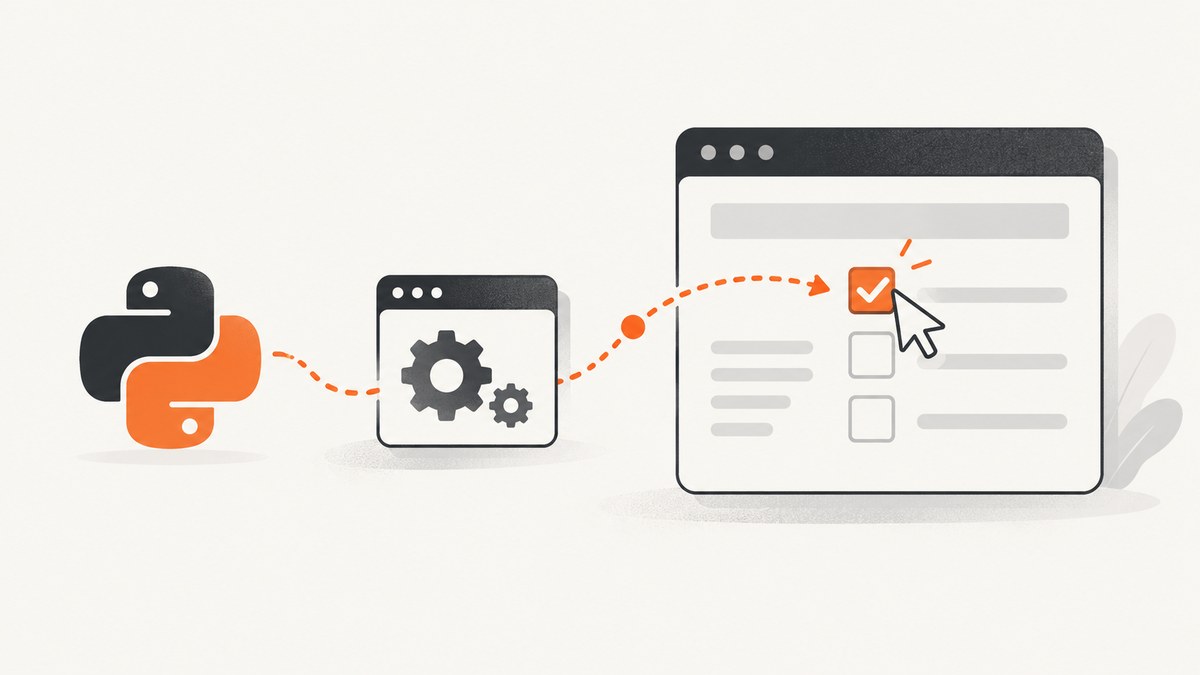
Direct answer: inspect the page to find the element that actually handles the checkbox interaction, wait until it is ready, call Selenium’s .click(), and verify the resulting state. A visible div may only wrap a native input type="checkbox" or a label; in that case, click the input or label. If the div is a custom widget, target the element with role="checkbox" and verify its aria-checked value or the application state.
This guide shows complete Python examples, locator strategies, waits, keyboard alternatives, iframe and shadow DOM cases, troubleshooting, and production reliability practices.
1. Understand what “div checkbox” means
HTML has native checkbox controls, but many design systems replace their appearance with a div, button, or other element. The visual square is not necessarily the interactive element.
- Native checkbox: an
input type="checkbox", sometimes visually hidden, with a styled wrapper. - Label-controlled checkbox: a
labelassociated with an input throughfor/id. - ARIA custom checkbox: an element such as
div role="checkbox" aria-checked="false"that implements its own click and keyboard behavior. - Non-semantic widget: a clickable
divwith no role or state attribute. You must inspect the application’s DOM or resulting state to know whether it worked.
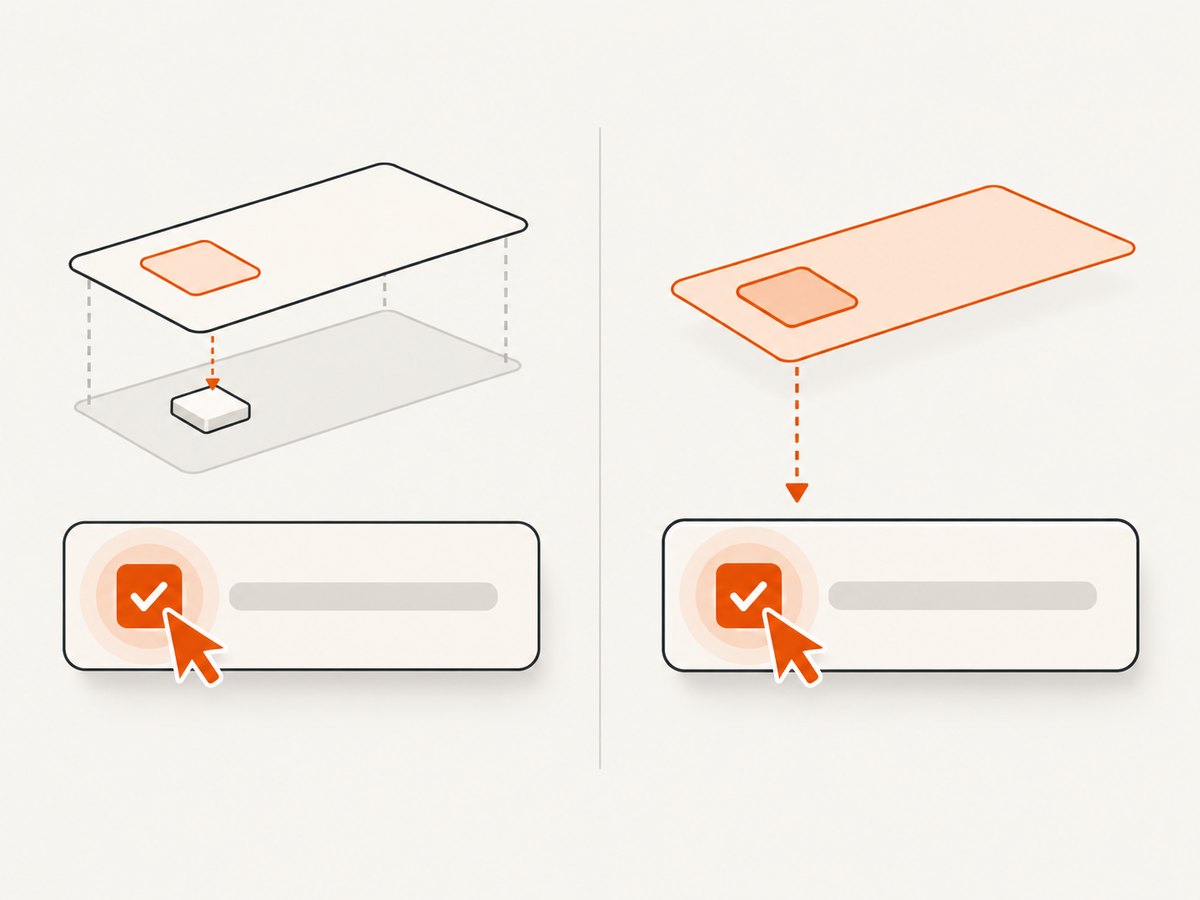
Selenium’s element click command operates on the element’s center point and checks whether the element is interactable. An overlay covering that point can cause an intercepted-click error. See the official Selenium element interaction documentation.
2. Set up Selenium WebDriver
Install Selenium in the same Python environment as your test:
python -m pip install -U seleniumRecent Selenium versions can manage browser drivers automatically when a supported browser is installed. This example uses Chrome:
from selenium import webdriver

options = webdriver.ChromeOptions()
options.add_argument("--headless=new")
options.add_argument("--window-size=1440,1000")

driver = webdriver.Chrome(options=options)
try:
    driver.get("https://example.com")
    print(driver.title)
finally:
    driver.quit()
Use a real test URL and a stable selector from that page. Do not guess a selector from the visual appearance alone.
3. Locate and click a native checkbox
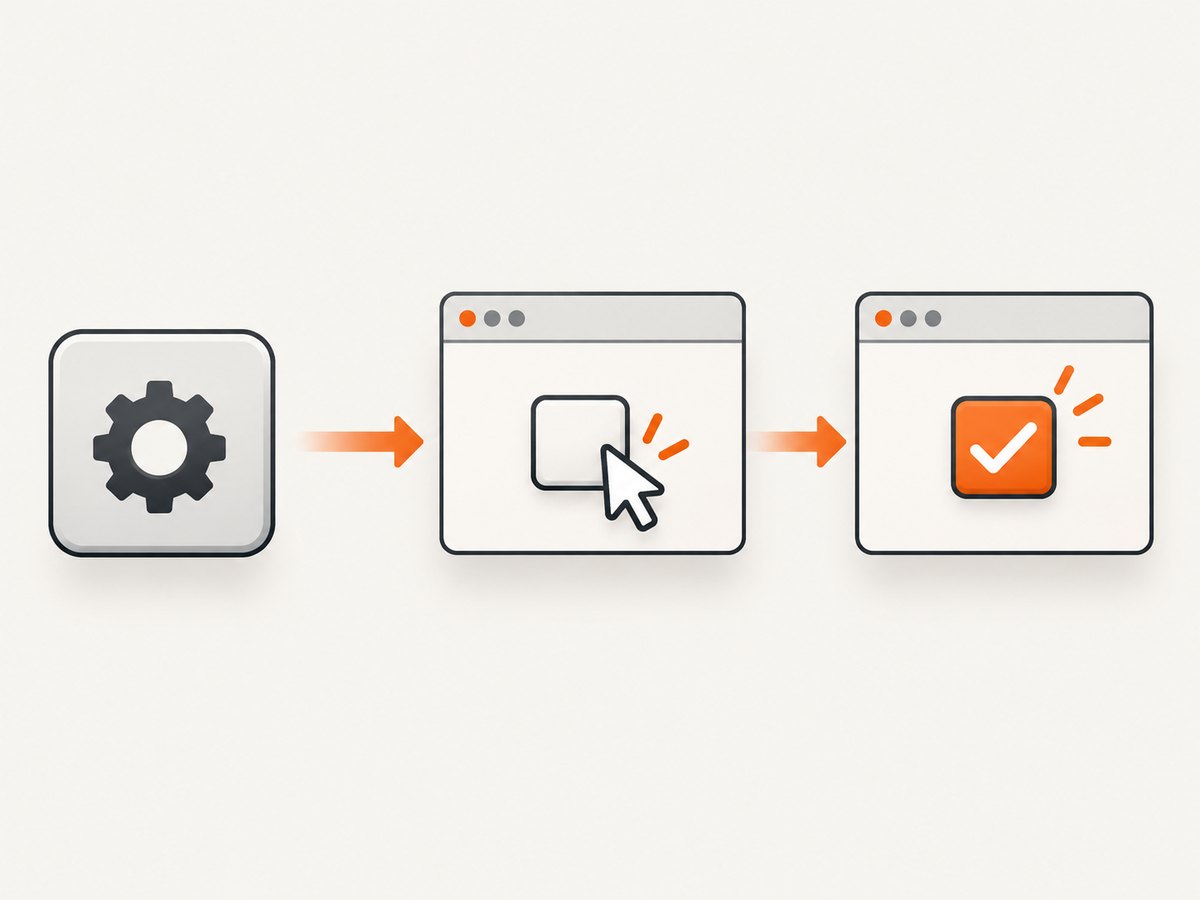
If inspection shows a native input, use a stable id, name, data attribute, or a narrowly scoped CSS selector. Selenium’s Python binding provides is_selected() for native selectable controls.
from selenium import webdriver
from selenium.webdriver.common.by import By
from selenium.webdriver.support.ui import WebDriverWait
from selenium.webdriver.support import expected_conditions as EC

options = webdriver.ChromeOptions()
options.add_argument("--headless=new")
driver = webdriver.Chrome(options=options)

try:
    driver.get("https://your-site.example/settings")

    locator = (By.ID, "my_checkbox")
    checkbox = WebDriverWait(driver, 10).until(
        EC.element_to_be_clickable(locator)
    )
    checkbox.click()

    assert checkbox.is_selected(), "The checkbox was not selected"
finally:
    driver.quit()
element_to_be_clickable means the element is visible and enabled. It does not prove that an overlay will stay away from the click point or that the application finished processing the event. After clicking, wait for the state or outcome you actually need.
Click the associated label
A visually hidden input is often easier and more reliable to activate through its label:
label = WebDriverWait(driver, 10).until(
    EC.element_to_be_clickable((By.CSS_SELECTOR, 'label[for="my_checkbox"]'))
)
label.click()

checkbox = driver.find_element(By.ID, "my_checkbox")
assert checkbox.is_selected()
Clicking the label follows the browser’s native label behavior and avoids relying on a zero-sized or hidden input.
4. Click a custom ARIA checkbox made from a div
For a custom widget, target the element that owns the checkbox role and accessible name. The WAI-ARIA checkbox pattern defines aria-checked="true", "false", or "mixed". A typical locator is:
from selenium.webdriver.common.by import By
from selenium.webdriver.support.ui import WebDriverWait
from selenium.webdriver.support import expected_conditions as EC

custom_locator = (
    By.CSS_SELECTOR,
    'div[role="checkbox"][aria-label="Remember me"]'
)
custom_checkbox = WebDriverWait(driver, 10).until(
    EC.element_to_be_clickable(custom_locator)
)
custom_checkbox.click()

WebDriverWait(driver, 10).until(
    lambda d: custom_checkbox.get_attribute("aria-checked") == "true"
)
assert custom_checkbox.get_attribute("aria-checked") == "true"
The exact accessible name may come from visible text or aria-labelledby. Replace the example selector with the markup on your page. If the widget has no role or state attribute, verify the visible result, a changed class, a hidden input value, or the network-backed application state.
Set a desired state without accidental toggling
A checkbox click toggles the current state. Clicking an already checked control can uncheck it. Read first, then click only when the desired state differs:
def set_aria_checkbox(driver, locator, desired=True, timeout=10):
    wait = WebDriverWait(driver, timeout)
    element = wait.until(EC.presence_of_element_located(locator))

    def current_state(_):
        value = element.get_attribute("aria-checked")
        return value if value in ("true", "false", "mixed") else False

    state = current_state(driver)
    if state != str(desired).lower():
        wait.until(EC.element_to_be_clickable(locator)).click()
        wait.until(lambda d: element.get_attribute("aria-checked") == str(desired).lower())
    return element.get_attribute("aria-checked")
For a native input, use is_selected() instead of reading aria-checked.
5. Choose robust locators
Prefer selectors that describe the control’s identity or semantics:
| Priority | Example | Why |
|---|---|---|
| 1 | By.ID, "terms" |
Simple and usually stable. |
| 2 | input[name="terms"] |
Uses a meaningful form attribute. |
| 3 | div[role="checkbox"][aria-labelledby="terms-label"] |
Targets semantics and accessible name relation. |
| 4 | label[for="terms"] |
Uses native label behavior. |
| Avoid | div:nth-child(7) |
Breaks when layout or ordering changes. |
Selenium documents supported locator strategies, including ID, name, CSS selector, XPath, tag name, link text, and class name, in its locator guide. Scope a selector to a component container when several checkboxes share the same label.
6. Wait for the right condition
Use explicit waits for dynamic pages. Match the wait to the operation:
from selenium.webdriver.support import expected_conditions as EC

# Exists in the DOM
el = WebDriverWait(driver, 10).until(
    EC.presence_of_element_located(locator)
)

# Visible
el = WebDriverWait(driver, 10).until(
    EC.visibility_of_element_located(locator)
)

# Visible and enabled
el = WebDriverWait(driver, 10).until(
    EC.element_to_be_clickable(locator)
)

# A custom state changed
WebDriverWait(driver, 10).until(
    lambda d: d.find_element(*locator).get_attribute("aria-checked") == "true"
)
Do not mix long implicit waits with explicit waits without understanding the compounded delays. Keep a consistent explicit-wait strategy and use a timeout appropriate for the application and environment.
7. Use the keyboard when the widget supports it
The WAI-ARIA checkbox pattern specifies that pressing the Space key changes the state when the checkbox has focus. This is useful when a custom widget handles keyboard input correctly or when a mouse click is blocked.
from selenium.webdriver.common.keys import Keys

checkbox = WebDriverWait(driver, 10).until(
    EC.element_to_be_clickable(custom_locator)
)
checkbox.send_keys(Keys.SPACE)

WebDriverWait(driver, 10).until(
    lambda d: checkbox.get_attribute("aria-checked") == "true"
)
Use this only when the element is focusable and the page implements the expected keyboard behavior. Sending JavaScript events or changing attributes directly can bypass the application’s real event handlers and should not be the default approach.
8. Handle iframes and shadow DOM
Checkbox inside an iframe
You must switch into the frame before locating its contents:
frame = WebDriverWait(driver, 10).until(
    EC.presence_of_element_located((By.CSS_SELECTOR, "iframe#preferences"))
)
driver.switch_to.frame(frame)
try:
    checkbox = WebDriverWait(driver, 10).until(
        EC.element_to_be_clickable((By.ID, "marketing"))
    )
    checkbox.click()
finally:
    driver.switch_to.default_content()
Checkbox inside shadow DOM
Locate the shadow host, obtain its shadow root, and then search inside it:
host = WebDriverWait(driver, 10).until(
    EC.presence_of_element_located((By.CSS_SELECTOR, "settings-widget"))
)
shadow_root = host.shadow_root
checkbox = shadow_root.find_element(By.CSS_SELECTOR, '[role="checkbox"]')
WebDriverWait(driver, 10).until(lambda d: checkbox.is_enabled())
checkbox.click()
For nested shadow roots, repeat the process for each host. Component libraries may expose a different test hook; prefer an official component API or stable test attribute when available.
9. Troubleshooting common failures
| Error or symptom | Likely cause | Fix |
|---|---|---|
NoSuchElementException |
Wrong selector, page, frame, or timing. | Confirm the URL, inspect the current DOM, switch to the correct iframe, and wait for the element. |
ElementNotInteractableException |
Element is hidden, disabled, off-screen, or not the real control. | Target the label or clickable widget, wait for visibility and enabled state, and check CSS visibility. |
ElementClickInterceptedException |
Overlay, sticky header, animation, cookie banner, or another element covers the center. | Wait for the obstruction to disappear, close it through its real control, scroll the component into a stable position, or target the unobscured child. |
| Click runs but state is unchanged | Wrong element, event handled by a child, or state update is asynchronous. | Inspect event handlers and markup, click the semantic control, then wait for aria-checked, is_selected(), or the application result. |
| State flips back | Clicking twice, a rerender replacing the node, or application validation resetting it. | Set the desired state once, reacquire the element after rerenders, and wait for the final state. |
| Works headed but fails headless | Different viewport, timing, or responsive layout. | Set a realistic window size, use explicit waits, and capture screenshots or page source on failure. |
| Stale element reference | The framework replaced the element after interaction. | Locate it again after the rerender instead of reusing the old WebElement. |
10. Reliability, performance, and test design
- Use stable test hooks: Ask developers to add
data-testidor accessible labels rather than coupling tests to generated class names. - Assert outcomes: A successful WebDriver command only means the browser dispatched the interaction. Assert selection, ARIA state, saved form state, or the resulting page.
- Keep waits local: Wait for the specific control and state transition instead of adding large sleeps. Fixed sleeps slow every run and still fail under variable load.
- Capture diagnostics: On failure, save the current URL, page source, browser console logs where available, and a screenshot. This distinguishes a selector defect from an overlay or application defect.
- Reuse a driver carefully: Reusing one session is faster, but isolate tests that mutate login, cookies, or preferences. Always quit the driver in a
finallyblock. - Make retries conditional: Retrying a stale element lookup can help after a known rerender; blindly retrying every click can toggle the checkbox twice.
11. Or skip the browser setup
If your goal is to obtain a clean screenshot after a checkbox interaction or document a page state, ScreenshotNeo provides a website screenshot API and MCP server. It can capture PNG, JPEG, WebP, or PDF output through one request. Its capture options include custom JavaScript, clicking an element before capture, waiting for a selector or network idle, custom headers and cookies, device presets, full-page screenshots, and element capture.
Cookie and consent banners, newsletter popups, and chat widgets are removed before the shot. Bot checks, blank pages, failed loads, timeouts, and cache hits are not billed, and response headers identify the page verdict and billing result. An MCP server provides take_screenshot, get_page_info, and capture_pdf tools for Claude, Cursor, and other MCP clients.
See the ScreenshotNeo API documentation for the current parameter reference.
cURL
curl -G "https://api.screenshotneo.com/v1/shot" -d access_key=YOUR_API_KEY --data-urlencode url=https://stripe.com -o shot.webpPython
import requests

r = requests.get(
    "https://api.screenshotneo.com/v1/shot",
    params={"access_key": "YOUR_API_KEY", "url": "https://stripe.com"},
    timeout=90,
)
r.raise_for_status()
open("shot.webp", "wb").write(r.content)
Node.js
const q = new URLSearchParams({ access_key: 'YOUR_API_KEY', url: 'https://stripe.com' });
const res = await fetch(`https://api.screenshotneo.com/v1/shot?${q}`);
if (!res.ok) throw new Error(`Screenshot failed: ${res.status}`);
const fs = await import('node:fs/promises');
await fs.writeFile('shot.webp', Buffer.from(await res.arrayBuffer()));
ScreenshotNeo includes 1,000 screenshots per month on the free plan with no card. Paid plans start at $5 for 3,000 shots; every feature is available on every plan. Create a free ScreenshotNeo account.
12. FAQ
Should I click the div or the input?
Click the element that receives the user interaction. If the div wraps a native input, prefer the input or its associated label. If the div owns role="checkbox", click that widget.
Can I use XPath?
Yes, but CSS selectors, IDs, names, and accessible attributes are often easier to read and maintain. Use XPath when the page structure or text relationship genuinely requires it.
Why does is_selected() return false?
It is intended for native selectable controls. Custom div widgets commonly expose state through aria-checked or application-specific state instead.
Is JavaScript click acceptable?
Use it only as a last resort for diagnosing a site-specific issue. A JavaScript-triggered click may bypass hit testing and user interaction behavior, so it can hide the problem your test should detect.
How do I test an indeterminate checkbox?
For a custom ARIA widget, assert aria-checked="mixed". For a native checkbox, inspect the DOM property through JavaScript because indeterminate is a property rather than the normal selected state.


