How to Click Dropdown Items in a Python Selenium Loop
Learn how to loop through native and custom dropdowns in Selenium, handle rerenders and waits, and avoid stale elements and intercepted clicks.
To click every dropdown item in a Python Selenium loop, first determine whether the control is a native HTML <select> or a custom menu made from buttons, divs, or ARIA elements. Use Selenium’s Select helper for a native select. Save stable option values or labels before the loop, find the select again on every iteration, select one option, and wait for the page’s post-selection state before continuing.
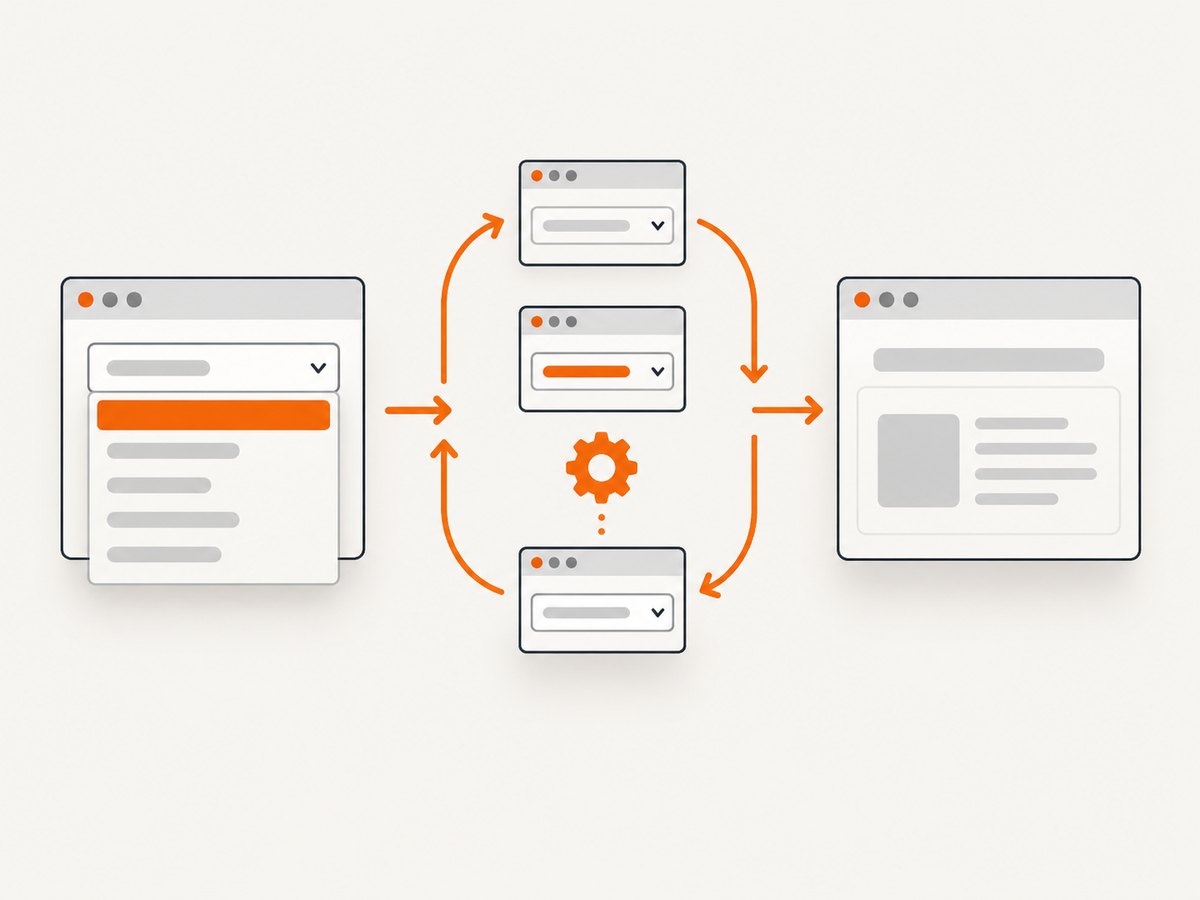
That last part matters because selecting an item often triggers navigation, an AJAX request, or a framework rerender. A WebElement saved before that update can become invalid. The reliable pattern is: snapshot data, locate fresh elements, perform one selection, wait for a measurable result, then repeat.
1. Native select: the reliable loop
Here is a complete example for a native control such as <select id="country">. It records non-empty values, re-finds the element for each pass, and waits for the old element to become stale after a replacement. Replace the final wait with a condition that represents your page’s actual result.
from selenium import webdriver
from selenium.webdriver.common.by import By
from selenium.webdriver.support.ui import Select, WebDriverWait
from selenium.webdriver.support import expected_conditions as EC
from selenium.common.exceptions import TimeoutException

URL = "https://example.com/form"
select_locator = (By.ID, "country")
result_locator = (By.ID, "country-result")

options = webdriver.ChromeOptions()
options.add_argument("--headless=new")
driver = webdriver.Chrome(options=options)
wait = WebDriverWait(driver, 10)

try:
    driver.get(URL)

    # Read stable values before any selection can rerender the control.
    select_element = wait.until(
        EC.presence_of_element_located(select_locator)
    )
    option_values = [
        option.get_attribute("value")
        for option in Select(select_element).options
        if option.get_attribute("value")
    ]

    for value in option_values:
        # Never reuse a WebElement that may have been replaced.
        select_element = wait.until(
            EC.element_to_be_clickable(select_locator)
        )
        Select(select_element).select_by_value(value)

        # Prefer a result, URL change, or other page-specific signal.
        wait.until(EC.text_to_be_present_in_element(result_locator, value))

finally:
    driver.quit()
Selenium’s Python API supports selection by visible text, value, and index, and exposes the selected options through Select. The official API reference documents those methods in the Python support API. Explicit waits use expected conditions such as presence, visibility, staleness, and clickability; see Selenium’s Expected Conditions documentation.
Choose values, labels, or indexes
| Method | Use it when | Example |
|---|---|---|
select_by_value |
The value attribute is stable and unique. | Select(el).select_by_value("uk") |
select_by_visible_text |
The displayed label is the stable contract. | Select(el).select_by_visible_text("United Kingdom") |
select_by_index |
Order is deliberately fixed and part of the test. | Select(el).select_by_index(2) |
Values and labels are usually safer than indexes. Indexes change when a product team inserts a new option or a placeholder. If labels contain extra whitespace, normalize them before storing them:
select_element = wait.until(EC.presence_of_element_located(select_locator))
labels = [
    option.text.strip()
    for option in Select(select_element).options
    if option.text.strip()
]

for label in labels:
    current = wait.until(EC.element_to_be_clickable(select_locator))
    Select(current).select_by_visible_text(label)
    wait.until(EC.text_to_be_present_in_element(result_locator, label))
2. When a literal option click is required
Select.select_by_* changes the native control’s selected option and dispatches the browser’s normal selection behavior. Most tests should use it. If the requirement specifically says to click each <option>, capture labels first and locate the option again during every pass.
from selenium.webdriver.common.by import By
from selenium.webdriver.support.ui import Select, WebDriverWait
from selenium.webdriver.support import expected_conditions as EC

select_locator = (By.ID, "country")
wait = WebDriverWait(driver, 10)

select_element = wait.until(EC.presence_of_element_located(select_locator))
labels = [option.text.strip() for option in Select(select_element).options]

for label in labels:
    current = wait.until(EC.presence_of_element_located(select_locator))
    # Compare in Python so arbitrary label text is not injected into XPath.
    option = next(
        option for option in Select(current).options
        if option.text.strip() == label
    )
    driver.execute_script("arguments[0].scrollIntoView({block: 'center'});", option)
    option.click()
    # Replace with a result, URL, or staleness condition for your page.
    wait.until(EC.staleness_of(current))
A native option may not behave like a visible button in every browser or headless configuration. If the page only needs the value changed, the selection API is clearer and less fragile. Use a literal click when your application specifically listens for click events or your test is validating the user interaction itself.
3. Custom dropdowns are not Select controls
Modern design systems often render a dropdown as a button plus a popup list. There is no native <select> for Selenium to wrap. Calling Select(element) on such a widget raises an error or silently leads you toward the wrong locator strategy.
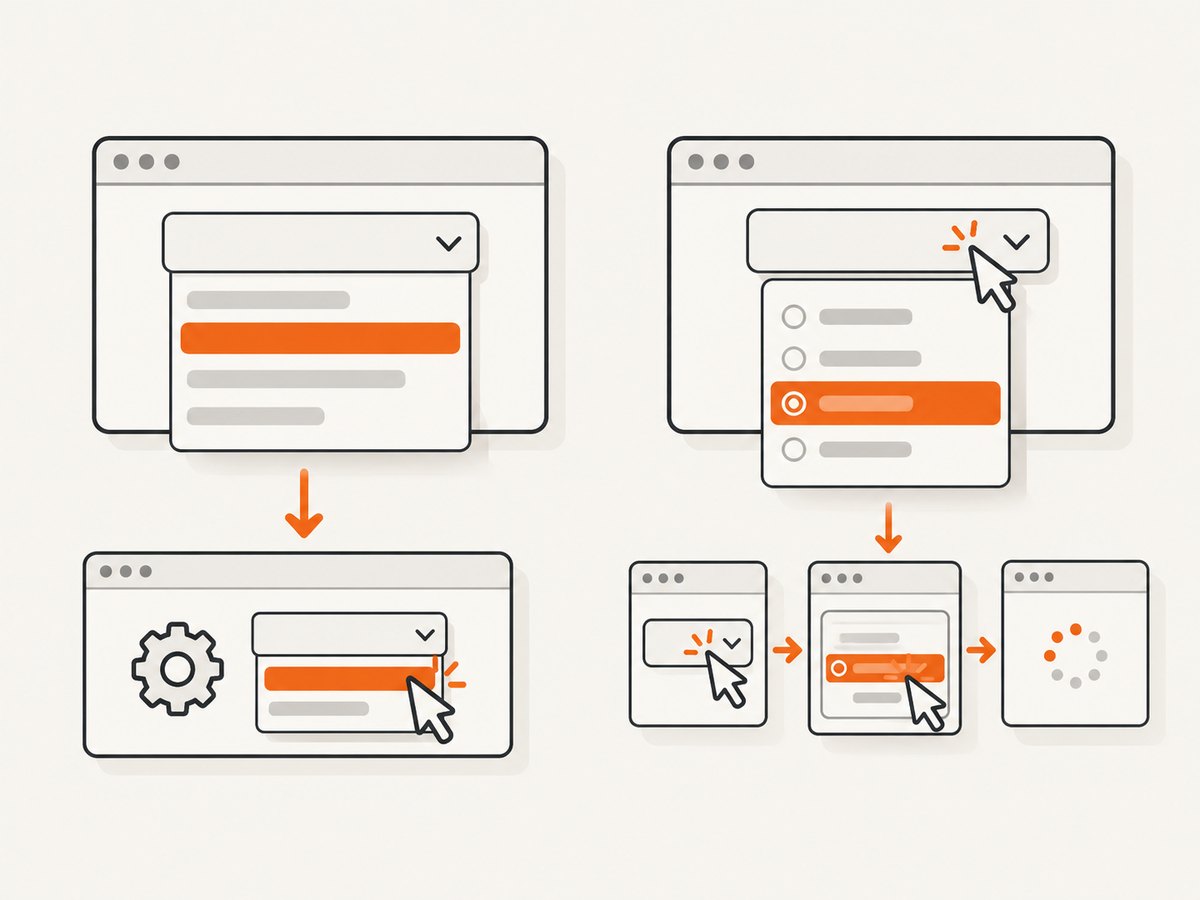
Open the toggle, locate the visible option by a semantic attribute, click it, and wait for the selected value to update:
from selenium.webdriver.common.by import By
from selenium.webdriver.support.ui import WebDriverWait
from selenium.webdriver.support import expected_conditions as EC

wait = WebDriverWait(driver, 10)
toggle = (By.CSS_SELECTOR, "[data-testid='country-menu']")
selected = (By.ID, "selected-country")
values = ["us", "ca", "gb"]

for value in values:
    wait.until(EC.element_to_be_clickable(toggle)).click()
    item = (
        By.CSS_SELECTOR,
        f"[role='option'][data-value='{value}']"
    )
    wait.until(EC.element_to_be_clickable(item)).click()
    wait.until(EC.text_to_be_present_in_element(selected, value))
Prefer id, name, data-testid, data-value, or ARIA roles over positional XPath such as “the third div.” Filtered and virtualized menus can change their child order and may render only the visible portion of a long list.
Menus that close or rerender after every choice
Some widgets close after a choice, replace the menu, and require the toggle to be opened again. Put the open action inside the loop, as in the example above. If the list is rebuilt after opening, wait for its visibility before finding an item:
menu = (By.CSS_SELECTOR, "[role='listbox']")

for value in values:
    wait.until(EC.element_to_be_clickable(toggle)).click()
    wait.until(EC.visibility_of_element_located(menu))
    item = (By.CSS_SELECTOR, f"[role='option'][data-value='{value}']")
    wait.until(EC.element_to_be_clickable(item)).click()
    wait.until(EC.invisibility_of_element_located(menu))
4. Waiting correctly after each selection
Explicit waits poll until a condition succeeds or the timeout expires. Selenium describes an expected condition as a predicate used with an explicit wait; element_to_be_clickable checks that an element is visible and enabled. Choose a condition tied to the state your application promises:
- AJAX result: wait for expected text, a changed attribute, or a result row.
- Navigation: wait for a URL or title change.
- DOM replacement: wait for
staleness_of(old_element), then locate the new control. - Loading overlay: wait for its invisibility before clicking again.
- Animation: wait for clickability and scroll the target into view only when necessary.
# URL change
old_url = driver.current_url
Select(current).select_by_value(value)
wait.until(EC.url_changes(old_url))

# A replaced result node
old_result = driver.find_element(By.ID, "results")
Select(current).select_by_value(value)
wait.until(EC.staleness_of(old_result))
wait.until(EC.presence_of_element_located((By.ID, "results")))
A fixed time.sleep(2) can pass on a fast run and fail on a slow one. Use a short polling wait for a real state transition instead. Increase the timeout only after identifying the expected state and checking whether the page is actually making progress.
5. Handling dependent and dynamic dropdowns
When the first selection repopulates a second dropdown, snapshot the first list, select one value, wait for the second list to be populated, and snapshot that list. Do not hold references to options from before the update.
parent = (By.ID, "category")
child = (By.ID, "product")

parent_el = wait.until(EC.presence_of_element_located(parent))
parents = [
    o.get_attribute("value")
    for o in Select(parent_el).options
    if o.get_attribute("value")
]

for parent_value in parents:
    current_parent = wait.until(EC.element_to_be_clickable(parent))
    Select(current_parent).select_by_value(parent_value)

    def child_has_real_options(driver):
        element = driver.find_element(*child)
        return any(
            option.get_attribute("value")
            for option in Select(element).options
        )

    wait.until(child_has_real_options)
    child_el = driver.find_element(*child)
    child_values = [
        o.get_attribute("value")
        for o in Select(child_el).options
        if o.get_attribute("value")
    ]

    for child_value in child_values:
        fresh_child = wait.until(EC.element_to_be_clickable(child))
        Select(fresh_child).select_by_value(child_value)
        # Assert or collect the dependent result here.
6. Common errors and fixes
| Error | Likely cause | Fix |
|---|---|---|
StaleElementReferenceException |
The framework replaced the select or option. | Store labels or values, then locate the element again inside the loop. |
ElementClickInterceptedException |
A modal, sticky header, animation, or overlay covers the target. | Wait for the overlay to disappear, wait for clickability, and scroll to the element if needed. |
NoSuchElementException |
The menu is not rendered yet, or the locator assumes a native select. | Inspect the markup, wait for presence or visibility, and use custom-menu locators when appropriate. |
TimeoutException |
The chosen condition never becomes true. | Verify the selector and choose a condition that reflects the actual completion state. |
UnexpectedTagNameException |
Select was applied to a div or button widget. |
Use the custom dropdown sequence: open, locate visible option, click, wait. |
| Correct click, wrong result | An asynchronous update is still running. | Wait for changed text, a new URL, staleness, or a result element before the next pass. |
7. Performance and reliability checklist
- Read the option list once per stable DOM state instead of repeatedly scanning it.
- Use values or semantic test IDs so small visual changes do not break the loop.
- Keep the browser session alive for the whole batch; creating a driver per option is expensive.
- Collect a result or assertion for each choice so a silent failure cannot look like success.
- Log the option value, iteration number, current URL, and exception when a pass fails.
- Take a diagnostic screenshot or save page source only on failure to reduce I/O.
- For long lists, confirm that options are not virtualized. Scroll the menu and process visible batches if the DOM contains only a window of items.
- Use a bounded timeout and fail with the option value that timed out; this makes retries targeted.
Retries should re-find the control and repeat the failed iteration, rather than reusing an element captured before the error. If selection has side effects, make the operation idempotent or record completed values so a retry does not duplicate an action.
8. Or skip the browser setup
If your goal is a clean screenshot of each resulting page rather than a browser interaction test, ScreenshotNeo can capture the URL directly. Its API accepts one GET request and returns PNG, JPEG, WebP, or PDF. Read the complete option list in the ScreenshotNeo documentation.
cURL
curl -G "https://api.screenshotneo.com/v1/shot" \
  -d access_key=YOUR_API_KEY \
  --data-urlencode url=https://stripe.com \
  -o shot.webp
Python
import requests

r = requests.get(
    "https://api.screenshotneo.com/v1/shot",
    params={"access_key": "YOUR_API_KEY", "url": "https://stripe.com"},
    timeout=90,
)
r.raise_for_status()
open("shot.webp", "wb").write(r.content)
Node.js
const q = new URLSearchParams({
  access_key: 'YOUR_API_KEY',
  url: 'https://stripe.com'
});
const res = await fetch(`https://api.screenshotneo.com/v1/shot?${q}`);
if (!res.ok) throw new Error(`HTTP ${res.status}`);
const fs = await import('node:fs/promises');
await fs.writeFile('shot.webp', Buffer.from(await res.arrayBuffer()));
ScreenshotNeo removes cookie and consent banners, newsletter popups, and chat widgets before capture; each cleanup step can be turned off. Bot checks or CAPTCHAs, blank pages, timeouts, failed loads, and cache hits are not billed, and response headers report the page verdict and billing status. It also provides an MCP server with take_screenshot, get_page_info, and capture_pdf tools for Claude, Cursor, and other MCP clients. Free accounts include 1,000 screenshots per month without a card; paid plans start at $5 for 3,000 screenshots. Create a free ScreenshotNeo account.
9. FAQ
Should I use visible text or values?
Use whichever is stable in the page contract. Values are usually less affected by label changes; visible text is useful when the label is the requirement being verified.
Why does the second loop iteration fail?
The first selection probably rerendered the control. Snapshot primitive values, re-find the select inside the loop, and wait for the update before the next iteration.
Can I use Select with a React dropdown?
Only if the rendered markup contains a real <select>. A button and listbox need ordinary locators and explicit waits.
Is JavaScript clicking a good fallback?
Use it only when you understand the event behavior you are bypassing. A normal Selenium click better represents a user action and exposes overlays and disabled states.
How do I know the loop completed?
Count the captured option values and record a result or assertion for each one. A completion report should identify successes, failures, and the value associated with every failure.


