How to Click a Dynamically Generated Button with Puppeteer
Click dynamically generated buttons in Puppeteer with locators, explicit waits, navigation-safe code, iframe and Shadow DOM fixes, and troubleshooting.
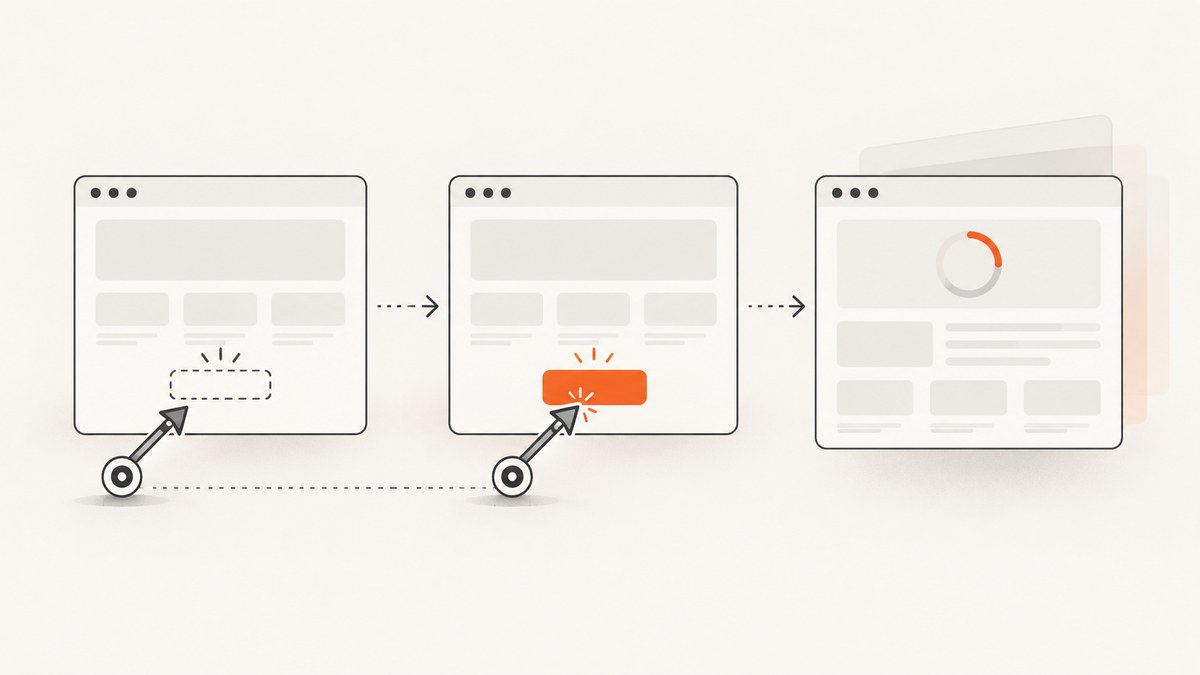
Use a Puppeteer locator and click it: await page.locator('button[data-testid="load-more"]').click(); Locators can be created before a dynamically inserted button exists. When the click runs, Puppeteer waits for the element to be visible, enabled, in the viewport, and stable, then retries locator operations when the target is not ready.
Use a selector that uniquely identifies the intended control. The official guide calls locators the recommended way to select and interact with elements.
1. Install Puppeteer
npm install puppeteerconst puppeteer = require('puppeteer');
(async () => {
const browser = await puppeteer.launch({headless: true});
try {
const page = await browser.newPage();
await page.goto('https://example.com', {
waitUntil: 'domcontentloaded',
timeout: 30_000,
});
await page.locator('button[data-testid="load-more"]').click();
} finally {
await browser.close();
}
})();2. Choose a reliable locator
Stable attributes
await page.locator('button[data-testid="load-more"]').click();
await page.locator('button[name="continue"]').click();
Prefer a test ID or meaningful attribute supplied by the application. Avoid styling classes that change during redesigns.
Text and accessibility selectors
await page.locator('button').filter(
  button => button.textContent.trim() === 'Load more'
).click();

await page.locator('::-p-text(Load more)').click();
await page.locator('::-p-aria(Load more)').click();
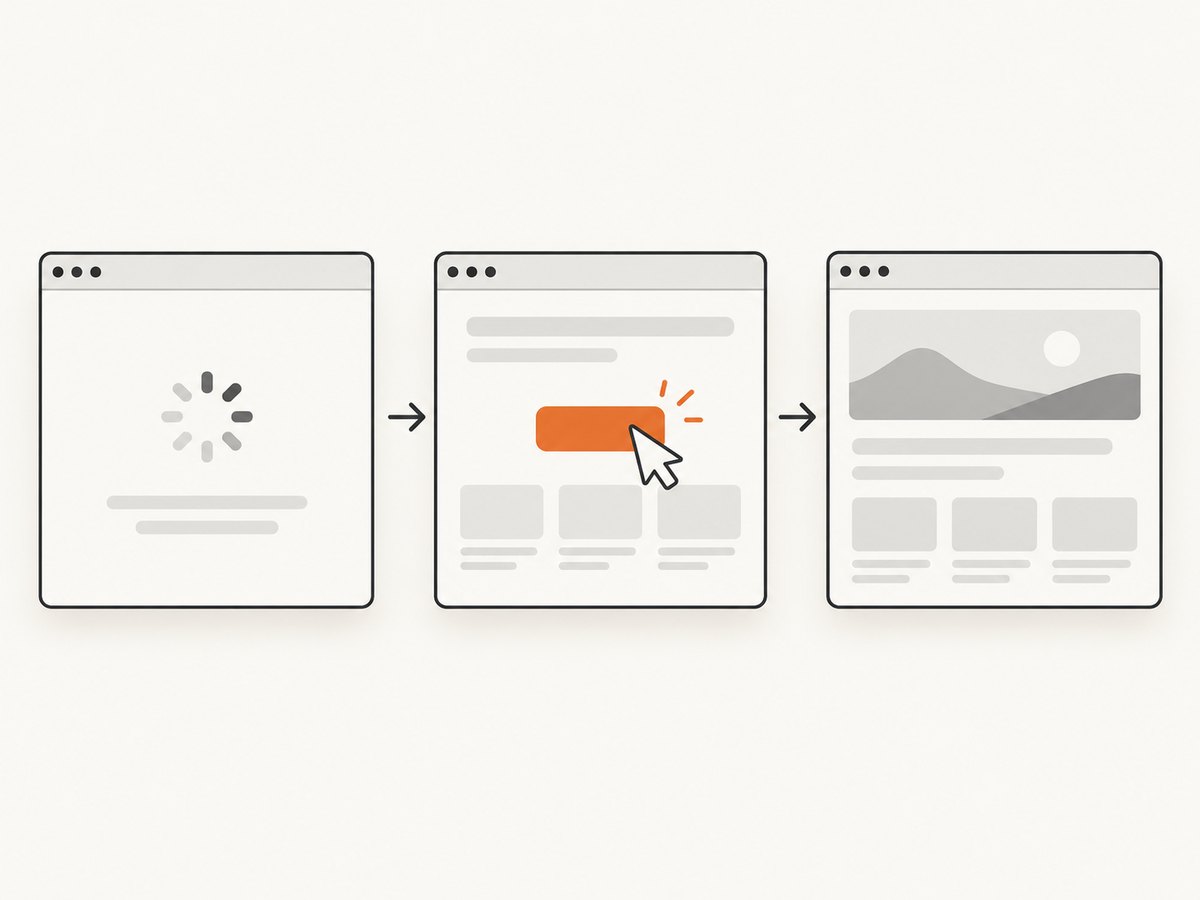
Text is useful when the label is stable. Accessibility selectors are useful when the control’s accessible name is the reliable contract. If multiple elements match, scope the locator to a specific container.
Why a broad selector is risky
await page.click('button');Generic page-click selectors can act on the first matching button, which may be a menu, cookie control, or hidden duplicate. Narrow the selector before automating it.
3. Complete dynamic-button example
const puppeteer = require('puppeteer');

(async () => {
  const browser = await puppeteer.launch({headless: true});
  try {
    const page = await browser.newPage();
    await page.setViewport({width: 1440, height: 900});
    await page.goto('https://example.com/products', {
      waitUntil: 'domcontentloaded',
      timeout: 30_000,
    });

    const loadMore = page.locator('button[data-testid="load-more"]');
    await loadMore.click();

    // Wait for evidence that the asynchronous action finished.
    await page.locator('[data-testid="new-products"]').wait();
    console.log('New products are visible');
  } finally {
    await browser.close();
  }
})();
The final wait checks the result of the click. A successful click only means the event was dispatched; the application may still be fetching and rendering data.
4. Wait for a condition instead of sleeping
await page.locator('.loading').wait();
await page.locator('button[data-testid="load-more"]').click();
await page.locator('[data-testid="results"]').wait();
Use a locator wait when you need to observe a condition separately. Fixed sleeps are guesses: they can be too short on a slow run and unnecessarily slow on a fast one.
5. Lower-level waitForSelector approach
const button = await page.waitForSelector(
  'button[data-testid="load-more"]',
  {visible: true, timeout: 30_000},
);

if (!button) {
  throw new Error('Button was not found');
}

await button.click();
await button.dispose();
waitForSelector resolves immediately when the selector already matches and waits when it does not. Puppeteer documents a 30-second default timeout, configurable per call or through the page default timeout. This method returns an ElementHandle; it does not automatically retry a click after the node is replaced, so reacquire the handle or use a locator when a framework frequently re-renders the control.
| Method | Best for | Important behavior |
|---|---|---|
| Locator | Normal interaction | Recommended; waits for action preconditions and retries locator operations. |
waitForSelector plus handle |
Explicit visibility waits and handle APIs | More manual control; dispose the handle and handle click failures yourself. |
6. If clicking causes navigation
const [response] = await Promise.all([
  page.waitForNavigation({waitUntil: 'domcontentloaded'}),
  page.locator('button[data-testid="continue"]').click(),
]);

console.log('Navigated to', response.url());
Start both promises together. Waiting for navigation only after the click can race with a fast navigation. If the button updates the current page through fetch or client-side routing, wait for the resulting locator, URL, or application state instead.
7. Buttons inside iframes
const frame = page.frames().find(frame =>
  frame.url().includes('/checkout')
);

if (!frame) {
  throw new Error('Checkout frame not found');
}

await frame.locator('button[data-testid="pay"]').click();
An iframe has its own document. A selector run against the main page cannot reach a button inside it. Wait for the iframe to attach, identify the correct frame, then use that frame’s locator.
8. Buttons inside Shadow DOM
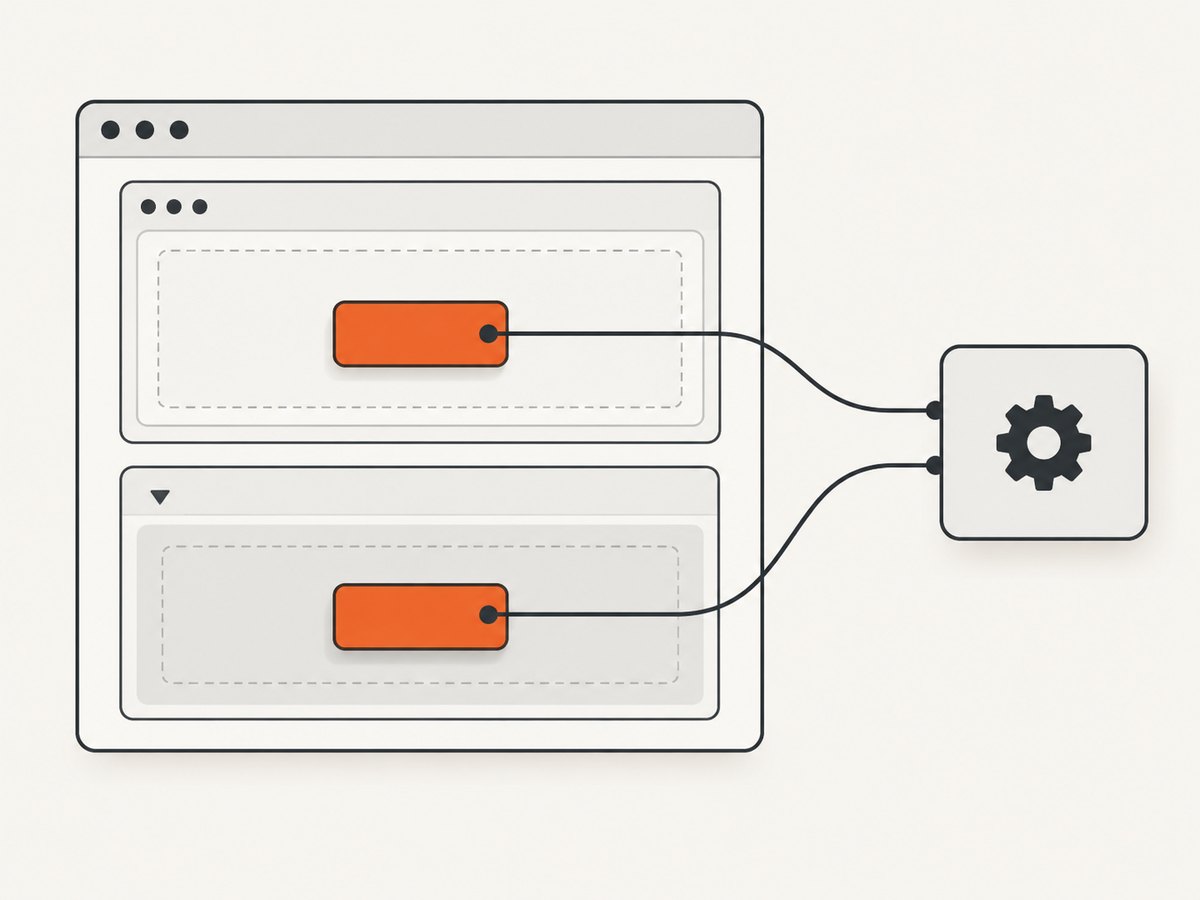
await page.locator('my-dialog >>> button.confirm').click();Normal CSS selectors do not cross a shadow root. Puppeteer supports deep combinators such as >>> for open Shadow DOM. Closed roots require an application-provided hook or another integration point.
9. Configuration options that affect clicking
- Selector: use a unique attribute, exact label, accessibility name, or scoped container.
- Visibility: locators require the target to be visible and actionable; hidden overlays and disabled buttons must be resolved in the page.
- Timeout: configure per operation or with the page’s default timeout. Keep it below the overall job deadline.
- Viewport: set an explicit viewport when responsive layouts change which button is rendered.
- Navigation: pair navigation waits with the click in
Promise.all. - Result condition: wait for the new element, changed text, URL, response, or other state that proves success.
10. Troubleshooting
| Symptom | Cause | Fix |
|---|---|---|
| Timeout waiting for the button | Wrong selector, the app never rendered it, or it is in a frame or shadow root. | Inspect the final DOM, verify the selector, and query the owning document tree. |
| Wrong button clicked | The selector matched multiple controls. | Use a unique attribute, parent scope, text filter, or accessibility selector. |
| Element is not clickable | It is hidden, disabled, covered, moving, or outside the viewport. | Wait for the real ready state, remove the overlay in the application, or correct the selector. |
| Click succeeds but content is missing | The click started asynchronous work. | Wait for the resulting locator, text, URL, or response. |
| Navigation wait hangs | The button updates the page without full navigation. | Use a result condition instead of waitForNavigation. |
| Works headed but fails headless | Viewport, timing, authentication, or overlays differ. | Set an explicit viewport and capture page HTML or a screenshot on failure. |
| Detached node error | A framework replaced the button between waiting and clicking. | Prefer a locator or reacquire the handle immediately before clicking. |
11. Reliability and performance checklist
- Use condition-based waits instead of arbitrary delays.
- Set explicit navigation and selector timeouts.
- Reuse a browser for batches, but create a separate page for independent jobs.
- Close browsers and pages in
finallyblocks. - Use deterministic viewport, locale, and authentication state when they affect rendering.
- Log the URL, selector, and last observed state on failure.
- Do not blindly retry non-idempotent clicks such as purchases or deletions.
- For navigation controls, wait for the navigation and then the destination’s data-ready condition when necessary.
12. Or skip the browser setup
If your goal is a clean screenshot after a page interaction, ScreenshotNeo provides a GET endpoint that returns PNG, JPEG, WebP, or PDF. See the ScreenshotNeo API docs for the full option set.
curl -G "https://api.screenshotneo.com/v1/shot" -d access_key=YOUR_API_KEY --data-urlencode url=https://stripe.com -o shot.webpimport requests
r = requests.get("https://api.screenshotneo.com/v1/shot", params={"access_key": "YOUR_API_KEY", "url": "https://stripe.com"}, timeout=90)
open("shot.webp", "wb").write(r.content)const q = new URLSearchParams({ access_key: 'YOUR_API_KEY', url: 'https://stripe.com' });
const res = await fetch(`https://api.screenshotneo.com/v1/shot?${q}`);ScreenshotNeo removes cookie and consent banners, newsletter popups, and chat widgets before capture. Bot checks or CAPTCHAs, blank pages, timeouts, failed loads, and cache hits are not billed; response headers identify the page verdict and billing result. Its MCP server exposes take_screenshot, get_page_info, and capture_pdf for Claude, Cursor, and other MCP clients. The Free plan includes 1,000 screenshots per month with no card, and paid plans start at $5 for 3,000 shots.
Create a free ScreenshotNeo account.
13. FAQ
Can I create a locator before the button exists?
Yes. The element is resolved when the action runs, so dynamically inserted controls can be clicked without a custom polling loop.
Should I use page.click()?
Use it only when a selector is unique and you need the lower-level API. Locators are the recommended interaction method and handle readiness more robustly.
What is Puppeteer’s documented default selector timeout?
waitForSelector documents a 30-second default, configurable per call or through page timeout settings.
How can I verify that a click worked?
Wait for an observable result such as a new locator, changed text, URL, navigation response, or application state.
Why does the same selector fail only on some pages?
The control may be rendered in an iframe, open Shadow DOM, responsive layout, authentication state, or a different application state. Inspect the final rendered page and query the correct document tree.
Sources: Puppeteer Page interactions, Page.waitForSelector, Page.click, and Locator class.


