How to Click an Email Link with Selenium WebDriver
Learn how to locate, wait for, click, and verify email links in Selenium WebDriver with reliable Python examples and troubleshooting.
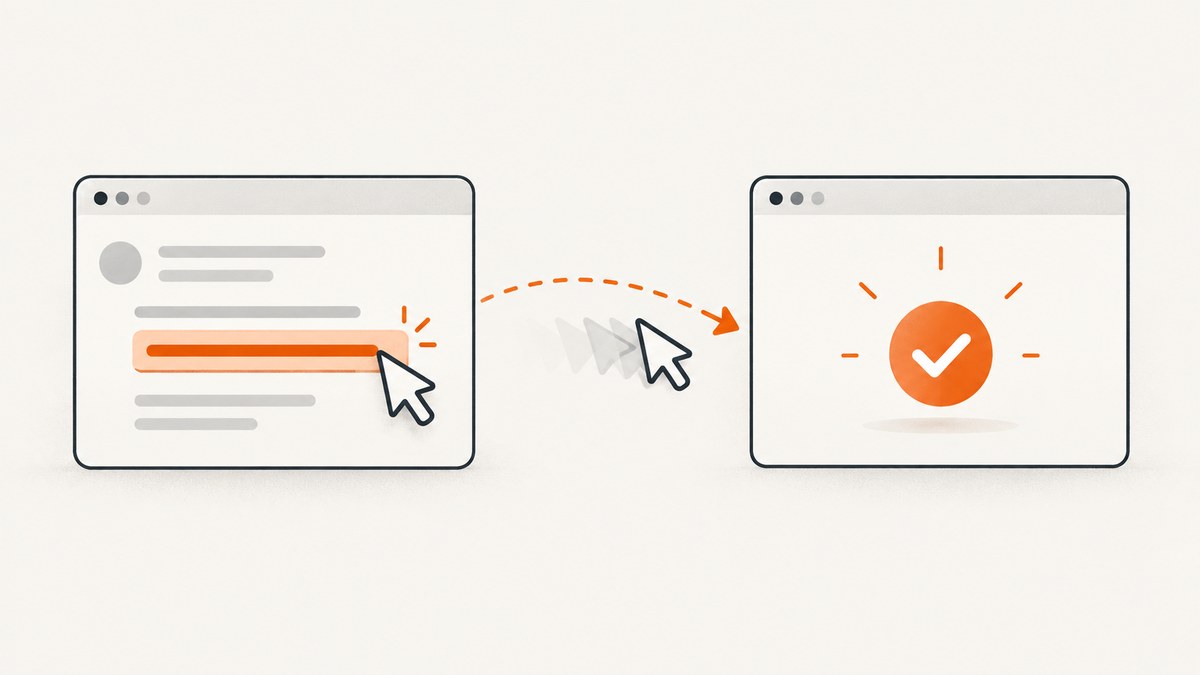
To click an email link with Selenium WebDriver, find the link with a locator that uniquely identifies it, wait until it is visible and enabled, click it, and then verify the result your test requires. In Python, Selenium’s usual pattern is an explicit WebDriverWait with expected_conditions.element_to_be_clickable:
from selenium.webdriver.common.by import By
from selenium.webdriver.support.ui import WebDriverWait
from selenium.webdriver.support import expected_conditions as EC

wait = WebDriverWait(driver, 10)
email_link = wait.until(
    EC.element_to_be_clickable((By.LINK_TEXT, "Verify your email"))
)
email_link.click()
The locator and the assertion after the click depend on the application. A verification link might open a confirmation page, redirect to a dashboard, or open a new tab. A successful click() call only means Selenium performed the interaction; it does not prove that the email workflow completed.
1. Set up Selenium and a browser
Install the Python binding in the environment used by your test runner:
python -m pip install seleniumRecent Selenium versions can manage a compatible browser driver automatically when the browser is installed. You can also provide a driver explicitly if your CI image requires a pinned path.
from selenium import webdriver

options = webdriver.ChromeOptions()
# options.add_argument("--headless=new")  # useful in CI

driver = webdriver.Chrome(options=options)
driver.get("https://example.test/account/verify")

try:
    # test steps go here
    pass
finally:
    driver.quit()
Use a fresh browser for each independent test when possible. A clean profile prevents an old session, cookie, or open tab from changing the outcome.
2. Choose a locator that will survive page changes
Selenium supports link text, partial link text, IDs, CSS selectors, XPath, and other locator strategies. The best choice is the one that is unique and stable in the application under test.
| Strategy | Example | Use it when | Risk |
|---|---|---|---|
| Exact link text | By.LINK_TEXT, "Verify your email" |
The wording is stable, visible, and unique. | Copy edits or localization can break the test. |
| Partial link text | By.PARTIAL_LINK_TEXT, "Verify" |
A distinctive phrase identifies one link. | Another link may contain the same phrase. |
| ID | By.ID, "verify-email" |
The product exposes a deliberate, stable ID. | Generated IDs may change between builds. |
| CSS selector | By.CSS_SELECTOR, "a[data-testid='verify-email']" |
A test attribute or semantic class is stable. | Styling classes often change during redesigns. |
| XPath | By.XPATH, "//a[@aria-label='Verify email']" |
You need a relationship or attribute CSS cannot express easily. | Long DOM paths are brittle. |
Prefer a dedicated data-testid, an accessible label, or a stable ID when link text changes with language or product copy. Selenium documents link-text and partial-link-text locators alongside CSS and other strategies in its locator documentation.
Exact versus partial link text
# Exact and readable when the text is unique
locator = (By.LINK_TEXT, "Verify your email")

# Acceptable only when “Verify” cannot match another action
locator = (By.PARTIAL_LINK_TEXT, "Verify")
Do not use partial text merely because it is shorter. If a page has “Verify your email,” “Verify phone,” and “Verify billing,” a partial locator can select the wrong element or make the test fail when the DOM order changes.
CSS examples for common markup
# Stable test attribute
(By.CSS_SELECTOR, "a[data-testid='email-verification-link']")

# Semantic href pattern, when the token is not sensitive
(By.CSS_SELECTOR, "a[href^='/verify-email']")

# Accessible name supplied by the application
(By.CSS_SELECTOR, "a[aria-label='Verify your email']")
Avoid embedding a real one-time token in a selector. Tokens can expire, expose test data in logs, and change on every message. Locate the anchor by its stable attributes, then let the browser follow its current href.
3. Wait for the link to be ready
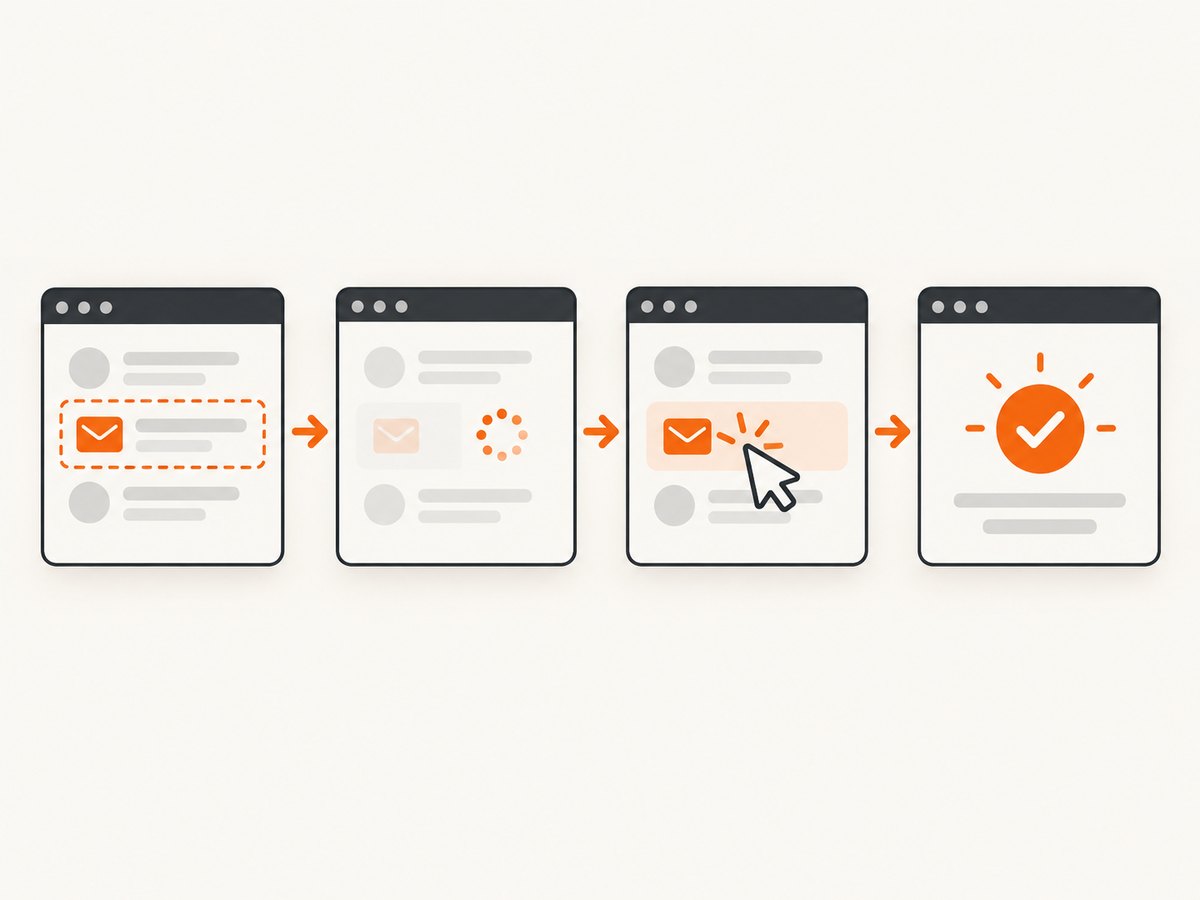
Page-load completion does not guarantee that JavaScript has rendered or enabled the email link. Selenium’s waits guide describes explicit waits as polling for a specific condition before continuing; this prevents races between your test and the application.
from selenium.webdriver.common.by import By
from selenium.webdriver.support.ui import WebDriverWait
from selenium.webdriver.support import expected_conditions as EC

wait = WebDriverWait(driver, 10)
link = wait.until(
    EC.element_to_be_clickable(
        (By.CSS_SELECTOR, "a[data-testid='email-verification-link']")
    )
)
link.click()
In the Python API, element_to_be_clickable checks that the element is visible and enabled. It does not prove that an overlay will not intercept the pointer, nor does it verify the business result. Add a separate wait for the condition that matters after the click.
Do not replace a condition with a fixed sleep
# Fragile: the right delay varies by machine and network
import time
time.sleep(3)
link.click()
A fixed sleep always waits the same amount, even when the link is ready sooner, and can still be too short on a slow run. Use an explicit wait with a meaningful timeout instead. Selenium warns that mixing implicit and explicit waits can produce unpredictable timing, so choose one synchronization model for a test suite unless you have a specific reason to combine them.
Wait for a container, then locate the link
When an email panel is injected dynamically, waiting for its container can make failures easier to diagnose:
panel = wait.until(
    EC.visibility_of_element_located((By.ID, "email-message"))
)
link = panel.find_element(By.CSS_SELECTOR, "a[data-testid='verify-email']")
wait.until(lambda d: link.is_enabled())
link.click()
If the element itself is replaced by a framework render, reacquire it inside the wait rather than retaining a stale reference:
def verification_link_is_clickable(browser):
    try:
        element = browser.find_element(
            By.CSS_SELECTOR, "a[data-testid='verify-email']"
        )
        return element if element.is_displayed() and element.is_enabled() else False
    except StaleElementReferenceException:
        return False

link = WebDriverWait(driver, 10).until(verification_link_is_clickable)
link.click()
Import StaleElementReferenceException when using this pattern. The callback returns a new element after each DOM replacement.
4. Click the link and verify the intended outcome
Verify a URL
from selenium.webdriver.support import expected_conditions as EC

link.click()
wait.until(EC.url_contains("/verified"))
assert "/verified" in driver.current_url
Verify a confirmation element
link.click()
confirmation = wait.until(
    EC.visibility_of_element_located((By.CSS_SELECTOR, "[role='status']"))
)
assert "verified" in confirmation.text.lower()
Prefer an application-specific status, heading, or server-side state over a generic assertion such as “the click did not raise an exception.” The URL can remain unchanged in a single-page application, and a visible toast can disappear quickly, so choose a durable postcondition when one exists.
Handle a new tab or window
original = driver.current_window_handle
old_handles = set(driver.window_handles)

link.click()

wait.until(lambda d: len(d.window_handles) > len(old_handles))
new_handle = (set(driver.window_handles) - old_handles).pop()
driver.switch_to.window(new_handle)

wait.until(EC.visibility_of_element_located((By.TAG_NAME, "body")))
assert "verified" in driver.page_source.lower()

driver.close()
driver.switch_to.window(original)
Capture the original handle before clicking. After switching, assert the new document’s content, then close the extra window and restore the original context so later tests do not act on the wrong tab.
Wait for a redirect chain
Some verification endpoints redirect more than once. Wait for the final application marker rather than assuming the first URL is permanent:
link.click()
wait.until(EC.visibility_of_element_located((By.ID, "account-home")))
assert driver.current_url.startswith("https://app.example.test/")
5. Deal with overlays, scrolling, and intercepted clicks
ElementClickInterceptedException usually means another element, such as a consent banner, modal, sticky header, or loading layer, is over the target. First wait for that element to disappear or close it through the same user-visible path as a real user.
consent_close = (By.CSS_SELECTOR, "button[data-testid='cookie-accept']")
try:
    WebDriverWait(driver, 3).until(
        EC.element_to_be_clickable(consent_close)
    ).click()
except TimeoutException:
    pass  # banner was not present

link = wait.until(EC.element_to_be_clickable(
    (By.CSS_SELECTOR, "a[data-testid='verify-email']")
))
driver.execute_script(
    "arguments[0].scrollIntoView({block: 'center'});", link
)
link.click()
Using JavaScript to invoke click() can bypass the browser’s normal pointer-interaction checks and hide a real usability defect. Reserve it for applications where the click handler itself is what you need to exercise, and document why it is required.
6. Complete runnable Python example
This example opens a test page, finds a uniquely labelled verification link, waits for readiness, clicks it, and checks a confirmation heading. Replace the URL and locators with those from your application.
from selenium import webdriver
from selenium.common.exceptions import TimeoutException
from selenium.webdriver.common.by import By
from selenium.webdriver.support.ui import WebDriverWait
from selenium.webdriver.support import expected_conditions as EC

START_URL = "https://example.test/email-preview"
LINK = (By.CSS_SELECTOR, "a[data-testid='verify-email']")
CONFIRMATION = (By.CSS_SELECTOR, "h1[data-testid='verification-success']")

driver = webdriver.Chrome()
wait = WebDriverWait(driver, 15)

try:
    driver.get(START_URL)

    # Close an optional consent layer if this test environment displays it.
    try:
        wait_short = WebDriverWait(driver, 3)
        wait_short.until(EC.element_to_be_clickable(
            (By.CSS_SELECTOR, "button[data-testid='cookie-accept']")
        )).click()
    except TimeoutException:
        pass

    email_link = wait.until(EC.element_to_be_clickable(LINK))
    email_link.click()

    success = wait.until(EC.visibility_of_element_located(CONFIRMATION))
    assert "verified" in success.text.lower()
finally:
    driver.quit()
7. Troubleshooting common failures
| Error or symptom | Likely cause | Fix |
|---|---|---|
NoSuchElementException |
The locator is wrong, the link is inside an iframe, or rendering has not finished. | Inspect the live DOM, wait for the container, and switch into the correct iframe before locating the link. |
TimeoutException |
The condition never became true within the timeout. | Confirm the selector, inspect screenshots and page source, and determine whether the link is disabled, hidden, or absent for this account. |
ElementClickInterceptedException |
An overlay or sticky element covers the target. | Close or wait for the overlay, scroll the link into view, and retry a normal click. |
ElementNotInteractableException |
The matched node is hidden, disabled, or not the clickable child. | Target the visible anchor or button and wait for visibility and enabled state. |
StaleElementReferenceException |
A framework re-render replaced the node after you found it. | Find the element again inside an explicit wait instead of reusing the stale object. |
| Click returns but nothing changes | The click triggered JavaScript that failed, opened another tab, or requires a later network response. | Check browser console logs, wait for the application postcondition, and inspect window handles. |
| Wrong link is clicked | Partial text or a broad selector matched multiple links. | Use exact text, a test ID, an accessible label, or scope the search to the email component. |
| Works locally, fails in CI | Different viewport, headless behavior, browser version, timing, or missing fonts. | Pin the browser image where practical, set a predictable window size, capture diagnostic artifacts, and use condition-based waits. |
| Verification token is expired | The email fixture is reused or the message was generated too early. | Create a fresh test account or token per run and assert the application’s expired-token message explicitly. |
If the link is inside an iframe
frame = wait.until(EC.presence_of_element_located((By.CSS_SELECTOR, "iframe.email")))
driver.switch_to.frame(frame)
wait.until(EC.element_to_be_clickable(
    (By.CSS_SELECTOR, "a[data-testid='verify-email']")
)).click()
driver.switch_to.default_content()
Locators are evaluated in the current document. Switch back to the default content before checking a page outside the frame.
8. Email-specific test design
A browser test can click a link only after the link is available in a page or email preview. If your system sends real mail, keep mail retrieval separate from the browser interaction: obtain the message through a test mailbox API or fixture, extract the message URL, then navigate Selenium to that URL. Avoid relying on a personal inbox, because delivery delays, tracking redirects, and one-time tokens make tests nondeterministic.
- Generate a unique recipient and verification token for each test.
- Assert the link’s destination belongs to the expected environment before opening it.
- Do not log full verification URLs if they contain credentials or reusable tokens.
- Test expired, already-used, malformed, and wrong-account links as separate cases.
- Keep the click test focused: mailbox retrieval, browser navigation, and account-state assertions should have clear failure boundaries.
9. Performance, reliability, and cost considerations
Most time is spent waiting for the application, browser startup, network, and email delivery rather than executing .click(). Reuse a driver within a small test fixture when isolation allows it, but reset state between cases. Set explicit timeouts based on the slowest supported environment and fail with diagnostics instead of increasing the timeout indefinitely.
For reliable runs, record the current URL, page source, browser console output, and a screenshot when a wait fails. Keep locators short and semantic. A selector tied to a deliberate test attribute is usually less expensive to maintain than an XPath that mirrors the entire DOM tree.
Headless mode can change viewport size and timing. Set the window dimensions explicitly, for example with options.add_argument("--window-size=1440,1000"), and validate that the link remains visible at that size. Use retries only for known transient infrastructure failures; retrying an expired token or a genuine application defect can hide the problem.
10. Or skip the browser setup
If your goal is to create a screenshot of the page reached by the email link rather than exercise the click itself, ScreenshotNeo can capture the destination with one HTTP request. The API accepts a URL and returns PNG, JPEG, WebP, or PDF. See the ScreenshotNeo documentation for the complete parameter reference.
cURL
curl -G "https://api.screenshotneo.com/v1/shot" \
  -d access_key=YOUR_API_KEY \
  --data-urlencode url=https://stripe.com \
  -o shot.webp
Python
import requests

r = requests.get(
    "https://api.screenshotneo.com/v1/shot",
    params={"access_key": "YOUR_API_KEY", "url": "https://stripe.com"},
    timeout=90,
)
r.raise_for_status()
open("shot.webp", "wb").write(r.content)
Node.js
const q = new URLSearchParams({
  access_key: 'YOUR_API_KEY',
  url: 'https://stripe.com'
});
const res = await fetch(`https://api.screenshotneo.com/v1/shot?${q}`);
if (!res.ok) throw new Error(`Screenshot failed: ${res.status}`);
const buffer = Buffer.from(await res.arrayBuffer());
await import('node:fs/promises').then(fs => fs.writeFile('shot.webp', buffer));
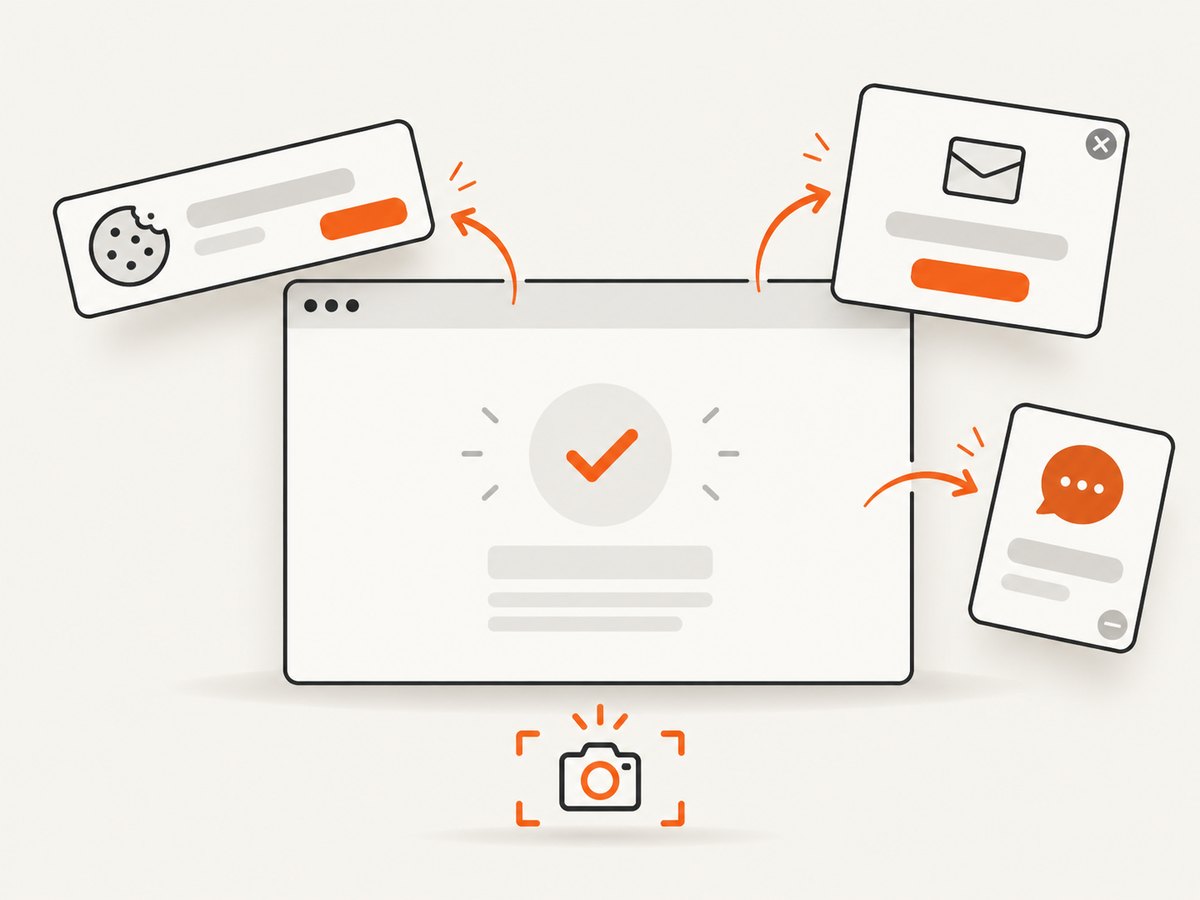
ScreenshotNeo removes cookie and consent banners, newsletter popups, and chat widgets before capture. Bot checks, blank pages, timeouts, failed loads, and cache hits are not billed, and response headers report the page verdict and whether the shot was billed. Its MCP server provides take_screenshot, get_page_info, and capture_pdf tools for Claude, Cursor, and other MCP clients. You can also set a viewport or device preset, capture a full page or CSS-selected element, wait for a selector or network idle, run custom CSS or JavaScript, provide cookies and headers, block resources, choose dark mode, resize images, cache with a chosen TTL, create signed links, submit asynchronous jobs, and capture up to 100 URLs in one bulk call. There are 1,000 free screenshots each month with no card; paid plans start at $5 for 3,000. Create a free ScreenshotNeo account.
11. Short FAQ
Should I use By.LINK_TEXT or CSS?
Use exact link text when it is unique and stable. Use a CSS selector tied to a test attribute or accessible attribute when copy, localization, or duplicate labels make text unreliable.
Does element_to_be_clickable guarantee success?
No. It checks visibility and enabled state. An overlay can still intercept the click, and the application can reject the action. Wait for and assert the expected result separately.
Why should implicit and explicit waits not be mixed?
Selenium documents different timing behavior for the two mechanisms. Combining them can create unpredictable total wait times, so use explicit waits consistently for this interaction.
How do I click a link in a new tab?
Save the original window handle, click, wait for a new handle, switch to it, and assert the new page. Close it and restore the original handle afterward.
Can Selenium click a link in an actual email client?
Only if the client is exposed to the WebDriver-controlled browser or desktop automation environment. A common web-test design is to retrieve a test message separately and open its URL in Selenium.


