How to Click JavaScript Links with href=”javascript:void(0)” in Pyppeteer
Use Pyppeteer’s selector click for javascript:void(0) links, wait for the real result, and handle navigation, dialogs, and missing elements safely.
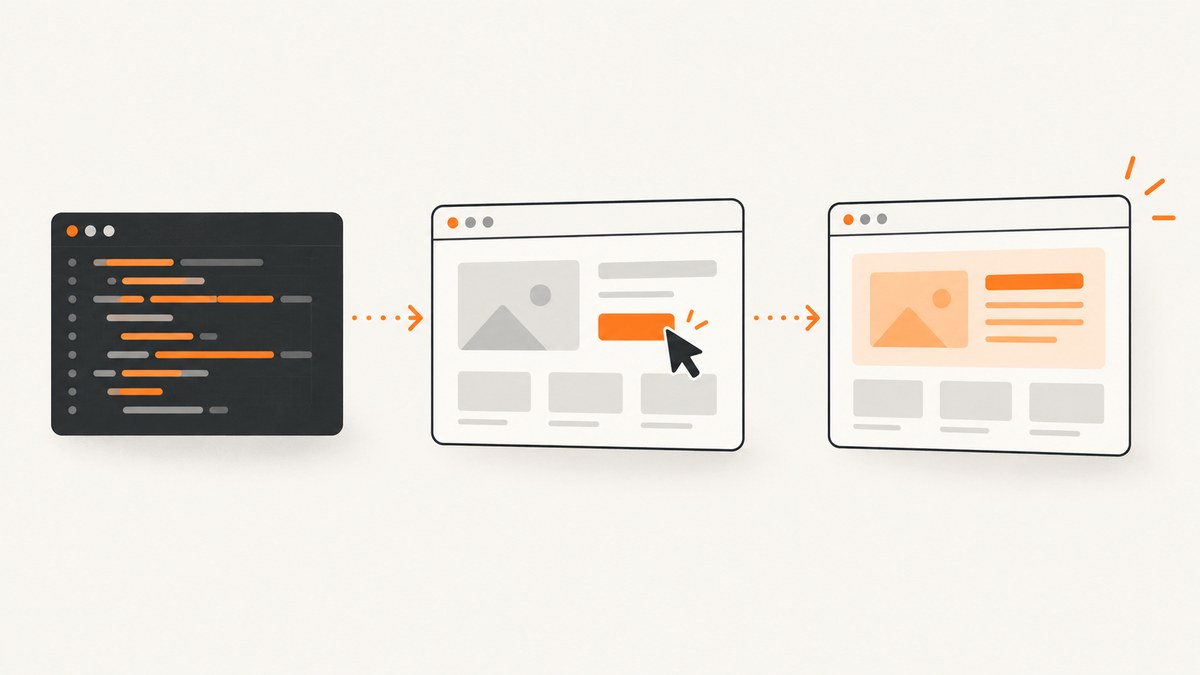
href="javascript:void(0)" is not a destination URL. It is commonly used with a JavaScript event handler, so trigger it as an element interaction:
await page.click('a[href="javascript:void(0)"]')That selector targets an anchor whose href attribute has exactly that value, and Pyppeteer’s Page.click() asks the browser to click it. Then wait for the result the handler actually produces: a navigation, a dialog, a new element, or a state change.
Pyppeteer documents selector lookup, Page.click(), and JavaScript evaluation in its API reference. The project repository also warns that Pyppeteer is unmaintained and suggests considering Playwright Python for new projects. Pyppeteer repository · Pyppeteer API reference
1. Complete Pyppeteer example
Install Pyppeteer, start a browser, open the page, wait for the anchor, click it, and verify the expected in-page result.
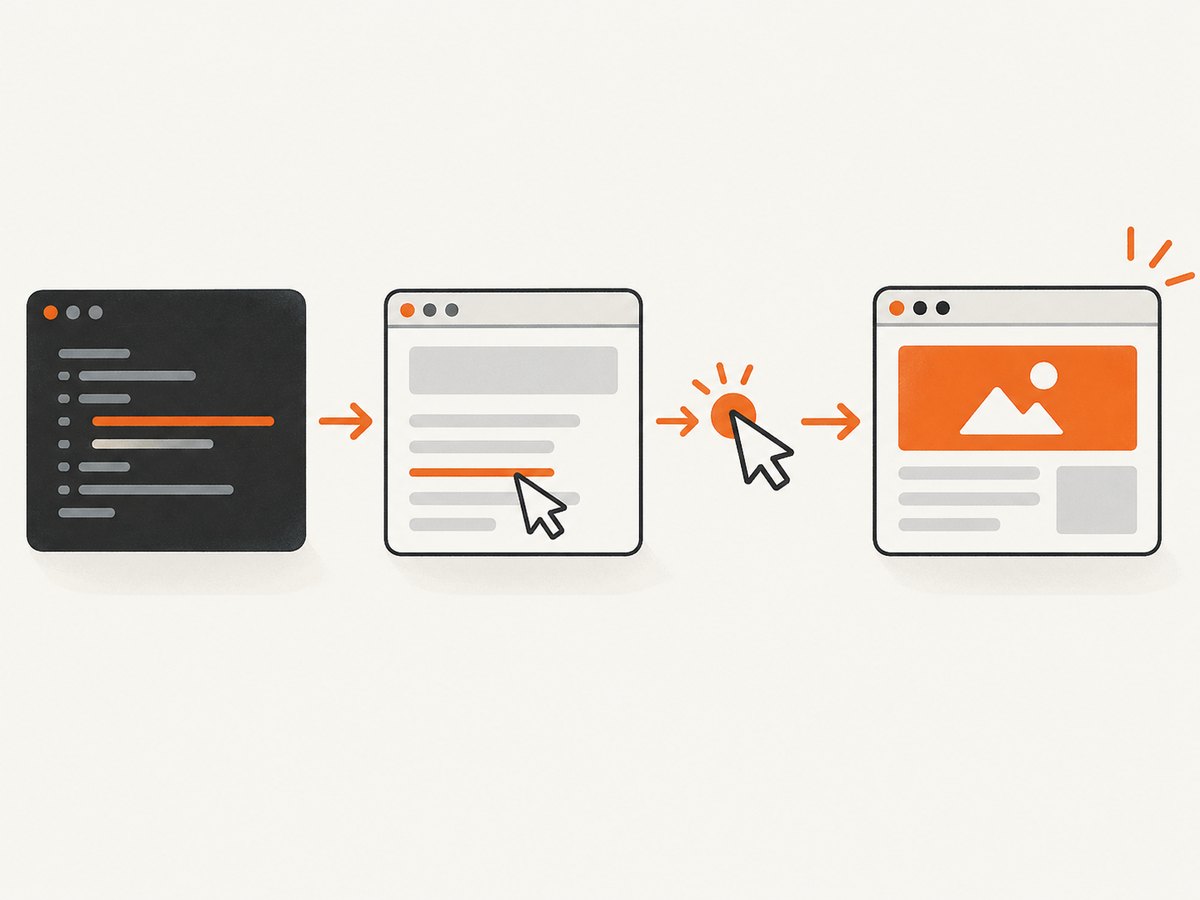
python -m pip install pyppeteerimport asyncio
from pyppeteer import launch
URL = "https://example.com"
SELECTOR = 'a[href="javascript:void(0)"]'
RESULT_SELECTOR = ".menu-panel.is-open" # Change to the state your handler creates
async def main():
browser = await launch(headless=True)
page = await browser.newPage()
try:
await page.goto(URL, {"waitUntil": "networkidle2"})
await page.waitForSelector(SELECTOR, {"visible": True, "timeout": 10000})
await page.click(SELECTOR)
# Replace this with the actual post-click condition.
await page.waitForSelector(RESULT_SELECTOR, {"visible": True, "timeout": 10000})
print("Click completed")
finally:
await browser.close()
asyncio.get_event_loop().run_until_complete(main())Replace URL, SELECTOR, and RESULT_SELECTOR with the target page’s markup. Do not assume that the href value tells you what happens next; the site’s event handler may open a dialog, update content, submit a form, or perform another action.
2. Find the exact anchor before clicking
Check that the element exists before calling click(). This produces a useful error instead of a generic click failure.
link = await page.querySelector('a[href="javascript:void(0)"]')
if link is None:
    raise RuntimeError("No matching javascript:void(0) anchor was found")
await link.click()
page.J(selector) is Pyppeteer’s shorthand for selecting one element. Use a more specific selector when a page contains several matching anchors:
await page.click('#account-menu a[href="javascript:void(0)"]')
await page.click('nav.primary a[href="javascript:void(0)"]')
If the attribute contains extra whitespace, a different case, or another JavaScript expression, the exact selector will not match. Inspect the rendered DOM and adjust the selector to the actual value.
3. Use a DOM click when selector clicking is not enough
When you already have an element handle, invoke its DOM click() method through page.evaluate():
link = await page.querySelector('a[href="javascript:void(0)"]')
if link is None:
    raise RuntimeError("Link not found")

await page.evaluate('(el) => el.click()', link)
This invokes the DOM method directly. Prefer page.click(selector) when you need the browser-style mouse interaction described by the API. Use the evaluation form when you need to operate on a handle you already selected or when an overlay makes normal pointer targeting difficult.
Pyppeteer notes that evaluation strings can be misdetected in some cases. If an expression is treated as a function incorrectly, use the documented force_expr=True option:
await page.evaluate('document.querySelector("a[href=\\"javascript:void(0)\\"]").click()', force_expr=True)4. Coordinate the click with navigation
Some handlers use location, submit a form, or otherwise navigate. Start the navigation wait and click together so the wait is active before the event fires:
import asyncio

await asyncio.gather(
    page.waitForNavigation({"waitUntil": "networkidle2"}),
    page.click('a[href="javascript:void(0)"]'),
)
Use this only when the handler is expected to navigate. If it only changes the current page, a navigation wait can remain pending until timeout. For an in-page action, wait for the resulting selector, text, attribute, URL fragment, or other observable state instead.
5. Wait for the actual outcome
Choose the wait that matches the handler:
| Expected result | Useful wait |
|---|---|
| A panel appears | await page.waitForSelector('.panel.open') |
| A loading marker disappears | await page.waitForSelector('.loading', {"hidden": True}) |
| Text changes | Poll with page.waitForFunction() |
| URL changes without full navigation | page.waitForFunction('(old) => location.href !== old', old_url) |
| A browser dialog opens | Register a dialog event listener before clicking |
| A new tab opens | Listen for a target/page event before clicking |
Example for a text or attribute transition:
before = await page.Jeval('#status', '(el) => el.textContent')
await page.click('a[href="javascript:void(0)"]')
await page.waitForFunction(
    '(selector, oldValue) => document.querySelector(selector)?.textContent !== oldValue',
    {}, '#status', before
)
6. Handling dialogs, overlays, and hidden links
JavaScript dialogs
async def accept_dialog(dialog):
    await dialog.accept()

page.on('dialog', lambda dialog: asyncio.ensure_future(accept_dialog(dialog)))
await page.click('a[href="javascript:void(0)"]')
Register the listener before the click; otherwise a prompt, alert, or confirmation can pause the page.
Overlays and visibility
page.click() can fail when a cookie banner, modal, or fixed element covers the anchor. Close the overlay first, scroll the link into view, or use the element-handle evaluation method when the site’s own handler must be invoked regardless of pointer visibility. A hidden element may also indicate that the page has not finished rendering, so wait for the relevant visible state rather than adding an arbitrary long delay.
Multiple matching anchors
Use a container, class, data attribute, or index only after confirming the DOM:
links = await page.querySelectorAll('a[href="javascript:void(0)"]')
if len(links) < 2:
    raise RuntimeError("Expected at least two matching links")
await links[1].click()
7. Troubleshooting
| Symptom | Likely cause | Fix |
|---|---|---|
ElementHandleError: Node is either not visible |
The link is hidden or covered. | Wait for visibility, dismiss the overlay, scroll into view, or use a deliberate DOM evaluation. |
| Timeout waiting for selector | The selector does not match the rendered DOM, or content is loaded later. | Inspect the final HTML, check the exact attribute value, and wait for the page’s real readiness condition. |
| Click runs but nothing changes | The handler targets another element, requires a modifier, or the expected result was misidentified. | Inspect event wiring and wait for the actual state change rather than navigation. |
| Script hangs after clicking | waitForNavigation() was used for an in-page action. |
Replace it with waitForSelector(), waitForFunction(), or another result-specific wait. |
| Navigation wait races the click | The wait started after the click. | Run both with asyncio.gather(). |
| Evaluation reports an expression/function error | Pyppeteer misclassified the evaluation string. | Use a function expression or the documented force_expr=True option. |
| Browser fails to launch | Chromium is missing or launch dependencies are unavailable. | Install the package’s browser dependencies, or provide a valid executable path in launch(). |
8. Reliability, performance, and cost considerations
- Use a specific selector and a condition-based wait. Fixed sleeps make runs slower and still fail when the page is slower than expected.
- Set finite timeouts for navigation, selector waits, and the overall job so a broken handler cannot hold a worker indefinitely.
- Close the browser in a
finallyblock. Reusing a browser process for several pages can avoid repeated startup work, while isolating sensitive sessions in separate contexts limits state leakage. - Capture diagnostic evidence on failure: the current URL, a small HTML excerpt, a screenshot, and console or page-error messages.
- Do not treat a successful click call as proof that the business action completed. Verify the resulting DOM, URL, network response, or application state.
- Pyppeteer itself has no per-click service charge; your practical costs are browser CPU, memory, runtime, and any infrastructure or proxy service you add. The upstream repository’s maintenance warning is a reliability factor for new projects, so evaluate Playwright Python before committing to a new automation stack.
9. Node.js and cURL equivalents
If your application is JavaScript-based, the equivalent browser automation pattern uses Puppeteer:
import puppeteer from 'puppeteer';

const browser = await puppeteer.launch({headless: true});
try {
  const page = await browser.newPage();
  await page.goto('https://example.com', {waitUntil: 'networkidle2'});
  await page.waitForSelector('a[href="javascript:void(0)"]', {visible: true});
  await page.click('a[href="javascript:void(0)"]');
  await page.waitForSelector('.menu-panel.is-open', {visible: true});
} finally {
  await browser.close();
}
cURL cannot execute a page’s JavaScript event handler. It can fetch the HTML for inspection, but it cannot replace a real browser click:
curl -L https://example.com10. Or skip the browser setup
If your goal is a screenshot or PDF after a page interaction, ScreenshotNeo provides a hosted capture API and MCP server. A basic request is:

curl -G "https://api.screenshotneo.com/v1/shot" -d access_key=YOUR_API_KEY --data-urlencode url=https://example.com -o shot.webpPython:
import requests
r = requests.get("https://api.screenshotneo.com/v1/shot", params={"access_key": "YOUR_API_KEY", "url": "https://example.com"}, timeout=90)
open("shot.webp", "wb").write(r.content)
Node.js:
const q = new URLSearchParams({ access_key: 'YOUR_API_KEY', url: 'https://example.com' });
const res = await fetch(`https://api.screenshotneo.com/v1/shot?${q}`);
See the ScreenshotNeo API documentation for the available capture options. Cookie banners, newsletter popups, and chat widgets are removed before the shot. Bot checks, blank pages, failed loads, timeouts, and cache hits are not billed, and response headers identify the page verdict and billing status. Its MCP server lets Claude, Cursor, and other MCP clients call take_screenshot, get_page_info, and capture_pdf. The Free plan includes 1,000 screenshots a month with no card; paid plans start at $5 for 3,000 shots. Create a free ScreenshotNeo account.
11. FAQ
Does javascript:void(0) prevent a click?
No. It prevents the link from providing a normal destination; the page’s event handler still runs when the anchor is clicked.
Should I use page.click() or element.click()?
Use page.click() for a browser-style selector click. Use DOM evaluation when you intentionally need the element’s JavaScript click() method.
Why does my script wait forever?
Most often, it is waiting for navigation even though the handler only changes the current page. Wait for the concrete in-page result instead.
Can I click every matching JavaScript link?
Yes, select them with querySelectorAll() and click them deliberately, verifying the result after each action if the page changes.


