How to Click an Array of Links Sequentially with Puppeteer
Use `for...of` and `await` to process links one at a time with Puppeteer. See complete patterns for URL arrays, DOM clicks, navigation waits, SPA updates, and troubleshooting.
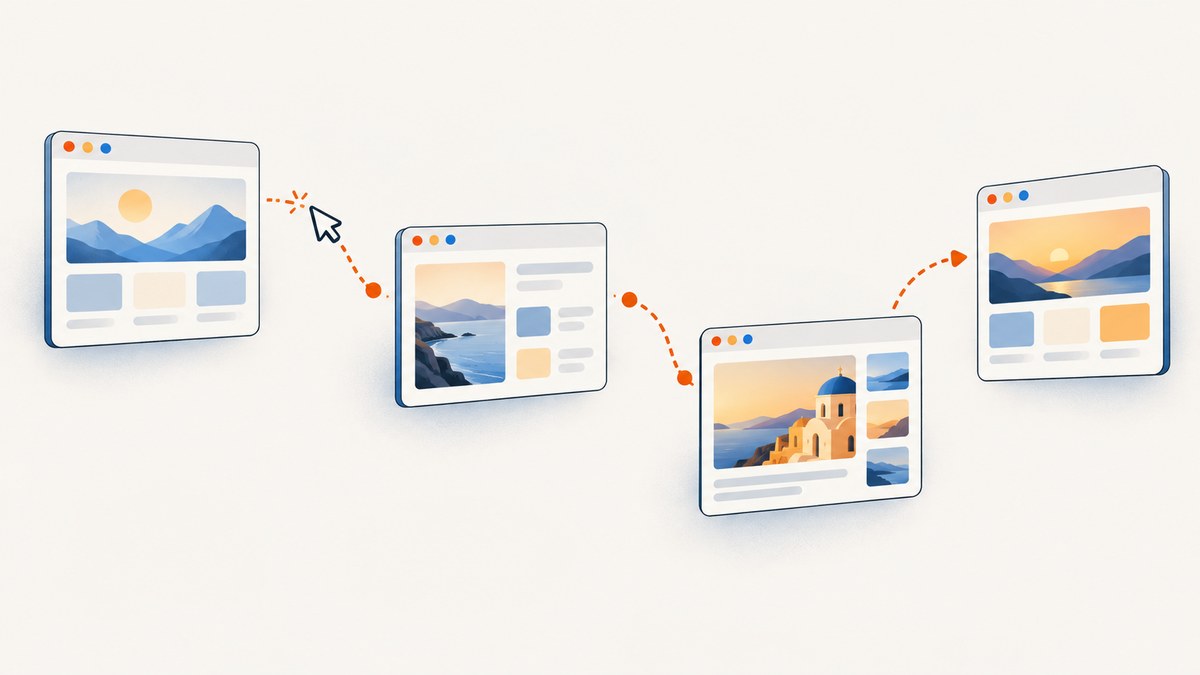
To visit an array of destination URLs sequentially, use a for...of loop and await page.goto(url). To click actual link elements in the page, await each click; if a click causes a document navigation, register page.waitForNavigation() before the click by starting both in Promise.all. This ensures each destination is ready to process before the loop moves on.
Puppeteer controls Chrome or Firefox through a high-level API. The right pattern depends on whether your array holds URLs, selectors, or indexes into a set of page elements. [Puppeteer getting started]
1. Decide what your array contains
| Your input | Use | Wait for |
|---|---|---|
| Destination URL strings | for...of and page.goto(url) |
Navigation completion, then any page-specific condition |
| Selectors for links that navigate | Locator click in a sequential loop | page.waitForNavigation() and click together |
| Links that update content without document navigation | Sequential click | The new selector, state, or response |
| Indexes into repeated matching elements | Re-query the intended element for each iteration | The result expected after the click |
Use the destination URL approach when URLs are already known. It avoids depending on page markup and is generally the clearest interpretation of “click an array of links.” Use DOM clicks when activation itself matters, such as when a site attaches behavior to the link.
2. Set up Puppeteer
Install Puppeteer in a Node.js project, then launch a browser, create a page, and perform the sequence. Puppeteer’s getting-started guide describes this launch, page creation, and API workflow. [Getting started]
npm install puppeteerSave the following as visit-urls.js. Replace the example URLs with the destinations you need to process.
const puppeteer = require('puppeteer');

async function main() {
  const urls = [
    'https://example.com/',
    'https://example.org/',
    'https://example.net/',
  ];

  const browser = await puppeteer.launch({ headless: true });
  try {
    const page = await browser.newPage();
    page.setDefaultNavigationTimeout(30_000);

    for (const url of urls) {
      console.log(`Visiting ${url}`);
      const response = await page.goto(url, {
        waitUntil: 'domcontentloaded',
      });

      if (!response) {
        console.warn(`No main-resource response for ${url}`);
        continue;
      }

      console.log(response.status(), await page.title());
      // Extract or save the information you need here, before continuing.
    }
  } finally {
    await browser.close();
  }
}

main().catch(error => {
  console.error(error);
  process.exitCode = 1;
});
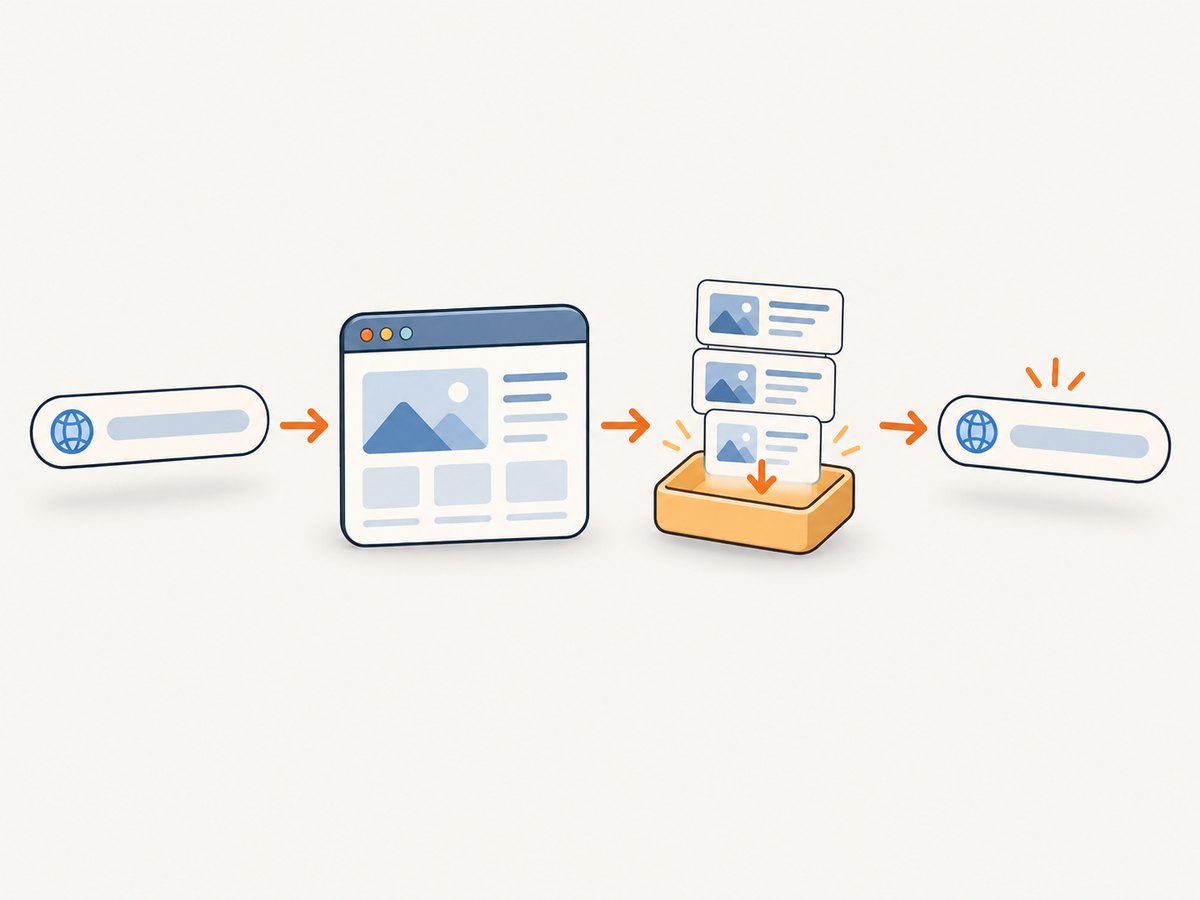
Run it with node visit-urls.js. The for...of loop pauses at each await, so the next URL does not begin until navigation and the work in the loop body have completed. Put extraction, persistence, or validation inside the loop if it must finish before the next visit.
Navigation completion is not the same as application readiness
The waitUntil option controls the navigation lifecycle event Puppeteer waits for. domcontentloaded is often a practical starting point when you need the document parsed; it does not guarantee that a client application has finished rendering data. Depending on the site, load may wait for more resources, while networkidle0 or networkidle2 may fit pages that settle after network activity. Pages with polling, long-lived requests, or streaming can make network-idle waits unsuitable. Choose an observable condition tied to the task instead of assuming one event means everything is ready.
For example, if each page renders a result container after navigation, wait for it explicitly:
await page.goto(url, { waitUntil: 'domcontentloaded' });
await page.waitForSelector('[data-results-loaded]');
const text = await page.$eval('[data-results-loaded]', el => el.textContent);
3. Click DOM links that navigate
When your array contains selectors for links in the current document, use a locator for each one. A navigation wait must be created before the click can trigger navigation. The documented pattern is to await both together with Promise.all; registering the wait after starting the click can race with a fast navigation. [Page.waitForNavigation API]
const linkSelectors = [
  'a[data-step="first"]',
  'a[data-step="second"]',
  'a[data-step="third"]',
];

for (const selector of linkSelectors) {
  const [response] = await Promise.all([
    page.waitForNavigation({ waitUntil: 'domcontentloaded' }),
    page.locator(selector).click(),
  ]);

  console.log('Arrived at', page.url(), 'status:', response?.status());
  // Process this destination before the next selector.
}
Puppeteer’s locator guide says locators wait for readiness conditions before acting, including that the element is in the viewport, visible, enabled, and has a stable bounding box across animation frames. This can reduce timing failures when an element is dynamically laid out. [Page interactions and locators]
The lower-level page.click(selector) remains available. It finds a matching element, scrolls it into view when needed, and clicks its center; it throws if there is no matching element. For navigation-triggering clicks, pair it with waitForNavigation() in the same Promise.all. [Page.click API]
Re-query elements after navigation
Do not keep an element handle from the old document and expect it to work after a full navigation. The destination document has different elements. Store stable selectors or extract the destination URLs before navigating, then locate the next target in the current document. Puppeteer also documents $$eval for evaluating over all matched elements, useful for collecting href values at once. [Page evaluation APIs]
const hrefs = await page.$$eval('a.article-link', links =>
  links.map(link => link.href).filter(Boolean)
);

for (const url of hrefs) {
  await page.goto(url, { waitUntil: 'domcontentloaded' });
  console.log(await page.title());
}
4. Handle client-side navigation and new tabs
Not every click causes a document navigation. Single-page applications may update the URL and replace a section of the page without triggering waitForNavigation(). In that case, a navigation wait can remain pending until it times out. Click sequentially and wait for the resulting state instead:
for (const selector of tabSelectors) {
  await page.locator(selector).click();
  await page.waitForSelector('.panel.is-active');
  // Prefer a selector or state unique to the selected tab.
  const content = await page.$eval('.panel.is-active', el => el.textContent);
  console.log(content);
}
Make the condition specific enough to distinguish the new state from content already present. If a click causes a fetch, waiting for a particular response can be more precise than waiting for a generic selector. Determine which behavior the site uses before choosing the wait.
Some links open a new tab or window. A click on the original page may not navigate that page at all. Listen for a new target before clicking, then obtain and process its page; the exact target behavior is site-dependent. Avoid blindly waiting for navigation on the original tab in this case.
5. Process an array of link elements by index
If you need to click the first, second, and third matching links in the same document, be careful about the page changing after each click. A selector plus index can work only while the matching set and ordering remain valid. When navigation occurs, query the next target in the new page rather than retaining a stale handle.
If the links are all present before navigation, first extract their hrefs with $$eval, then visit those URLs sequentially. This makes the sequence stable even if each destination replaces the current document. If clicking is required, define a selector or locator that identifies each intended link after each page change.
6. cURL, Python, and ScreenshotNeo for screenshot output
Puppeteer is appropriate when the task needs browser interaction, such as clicking a particular control, reading application state, or running custom page logic. If the result you need is simply a screenshot of each known URL, a screenshot API avoids maintaining the browser loop. ScreenshotNeo accepts a URL in one GET request and returns an image or PDF. Its docs are at ScreenshotNeo API documentation.
cURL
curl -G "https://api.screenshotneo.com/v1/shot" \
  -d access_key=YOUR_API_KEY \
  --data-urlencode url=https://stripe.com \
  -o shot.webp
Python
import requests

r = requests.get(
    "https://api.screenshotneo.com/v1/shot",
    params={"access_key": "YOUR_API_KEY", "url": "https://stripe.com"},
    timeout=90,
)
open("shot.webp", "wb").write(r.content)
Node.js
const q = new URLSearchParams({
  access_key: 'YOUR_API_KEY',
  url: 'https://stripe.com',
});
const res = await fetch(`https://api.screenshotneo.com/v1/shot?${q}`);
if (!res.ok) throw new Error(`Screenshot request failed: ${res.status}`);
await require('node:fs/promises').writeFile('shot.webp', Buffer.from(await res.arrayBuffer()));
Or skip the browser setup
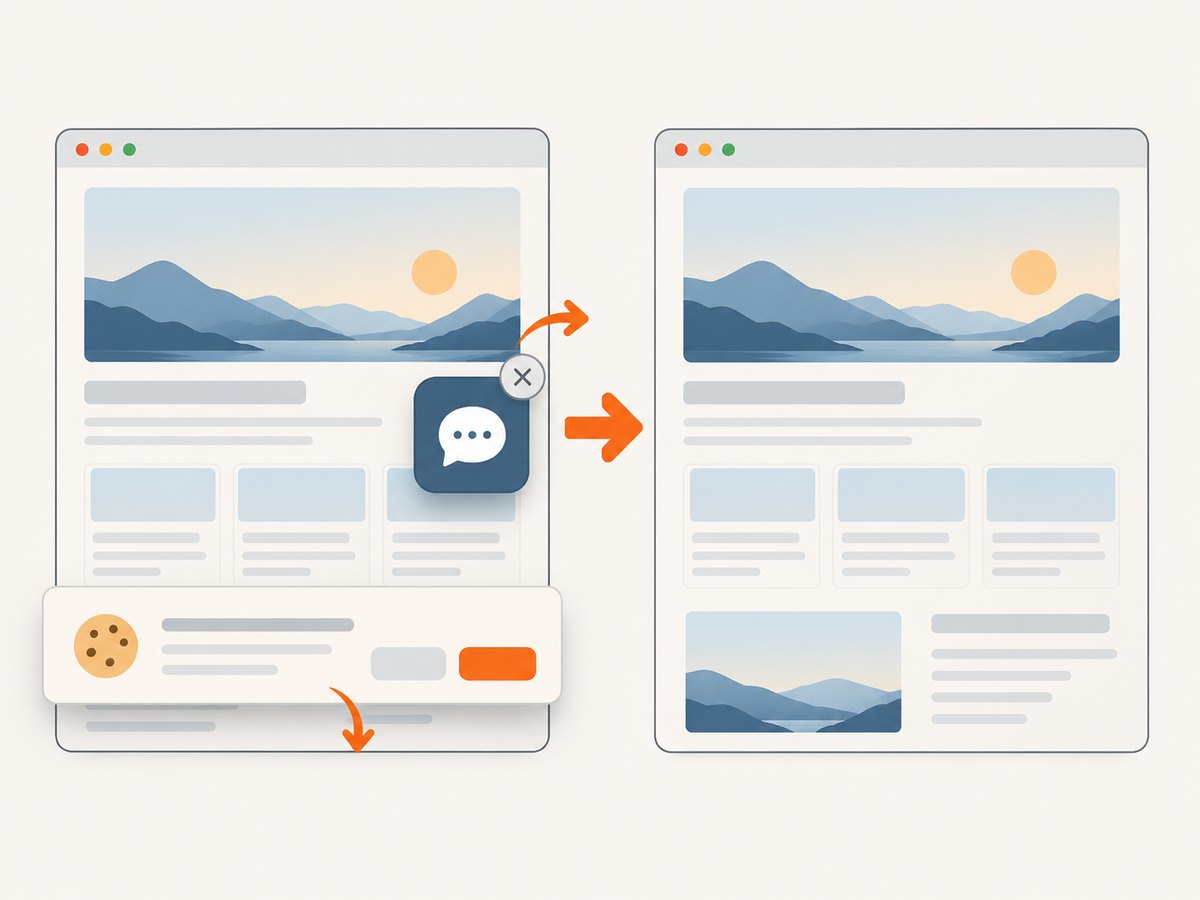
Send a URL once and receive a screenshot. ScreenshotNeo removes cookie banners, newsletter popups, and chat widgets before the capture; bot checks, blank pages, and failed loads are never billed. Its MCP server lets AI agents use screenshot tools, and 1,000 screenshots a month are free with no card; paid plans start at $5 for 3,000.
Sign up for 1,000 free screenshots a month, no card required.
7. Performance, reliability, and cost
A sequential loop is intentionally serialized. It uses one page for one operation at a time, which is straightforward to reason about and reduces the chance that outputs become associated with the wrong URL. It also means total runtime grows with each navigation and each piece of processing you await. No fixed timing estimate applies: site response times, browser startup, resource loading, and your own work all affect duration.
- Reuse the browser and page: Launch once for the sequence rather than once per URL. Reuse is efficient, but some sites retain cookies or state; create a fresh page or context when isolation matters.
- Set bounded timeouts: Navigation can hang on slow or unusual sites. Configure an appropriate default navigation timeout and catch failures per URL so one failure does not have to discard the entire batch.
- Record outcomes: Log the URL, status, final URL, and error for each item. This makes retries and partial results manageable.
- Retry selectively: Retrying a timeout may help with transient network problems, but repeated retries can waste time or repeat side effects. Use a small bounded retry policy and avoid repeating actions that submit forms or mutate data unless they are safe to repeat.
- Keep concurrency deliberate: This pattern is sequential by design. Parallel pages may increase throughput but also increase memory use and load on target sites; they change ordering and failure handling. Add concurrency only when the task permits it.
Puppeteer itself has no per-navigation API charge described in this guide; compute cost depends on where you run the browser and how long it runs. With a screenshot service, compare the needed features and billing rules. ScreenshotNeo states that only clean shots are billed: bot checks/CAPTCHAs, blank pages, timeouts, failed loads, and cache hits cost nothing, with response headers indicating the page verdict and billing status. Plans include 1,000 monthly free shots, then paid tiers from $5 for 3,000; yearly billing gives two months free. Every feature is on every plan.
8. Troubleshooting
| Symptom | Likely cause | Fix |
|---|---|---|
waitForNavigation times out after a click |
The click updates a SPA view, opens a new tab, or does not navigate. | Wait for a specific changed selector, response, or new target instead; match the wait to the behavior. |
| Navigation wait misses a fast navigation | The click began before the navigation waiter was registered. | Start the waiter and click together in Promise.all. |
| “No element found” or locator timeout | The selector is wrong, the link has not rendered, or the page is different than expected. | Check the selector in the current document, wait for the relevant state, and log the URL before each click. |
| Detached or stale element handle | A navigation replaced the document containing the handle. | Re-query the element after navigation, or extract hrefs before visiting destinations. |
| Page appears loaded but data is missing | The chosen navigation lifecycle event completed before client-side data rendered. | Wait for the specific data container, state transition, or response required by your task. |
| The loop appears to stop on one URL | An awaited operation rejected and escaped the loop. | Catch errors inside each iteration, record the failed URL, then decide whether to continue or abort. |
| Unexpected 4xx/5xx response | The server returned an error page; navigation can still complete. | Inspect response.status() and handle HTTP status separately from navigation exceptions. |
To continue after an individual failure, wrap that iteration:
for (const url of urls) {
  try {
    const response = await page.goto(url, { waitUntil: 'domcontentloaded' });
    console.log({ url, status: response?.status(), finalUrl: page.url() });
    // Process successful or error pages according to your requirements.
  } catch (error) {
    console.error({ url, error: error.message });
  }
}
9. FAQ
Does awaiting each click make the loop sequential?
Yes. Each iteration pauses until its awaited operation completes. If navigation is part of the action, await the navigation and click together before processing the next item.
Should I use fixed sleeps between links?
Usually no. A fixed delay can be too short on a slow page and waste time on a fast one. Wait for navigation or the specific state that means the work is ready.
Can I use this pattern with Firefox?
Puppeteer documents control of Chrome and Firefox. The loop structure is the same; check the installed Puppeteer version and its launch configuration for the browser you use. [Getting started]
When should I choose URL navigation over clicking?
Use page.goto when you already have destinations and only need to visit them. Click the DOM element when its event behavior or page interaction is part of the requirement.


