How to Click List Values Revealed by a Button with Selenium
Click a button, wait until its revealed value is ready, then select it reliably with Selenium. Includes Python code, native and custom dropdowns, and fixes for common errors.
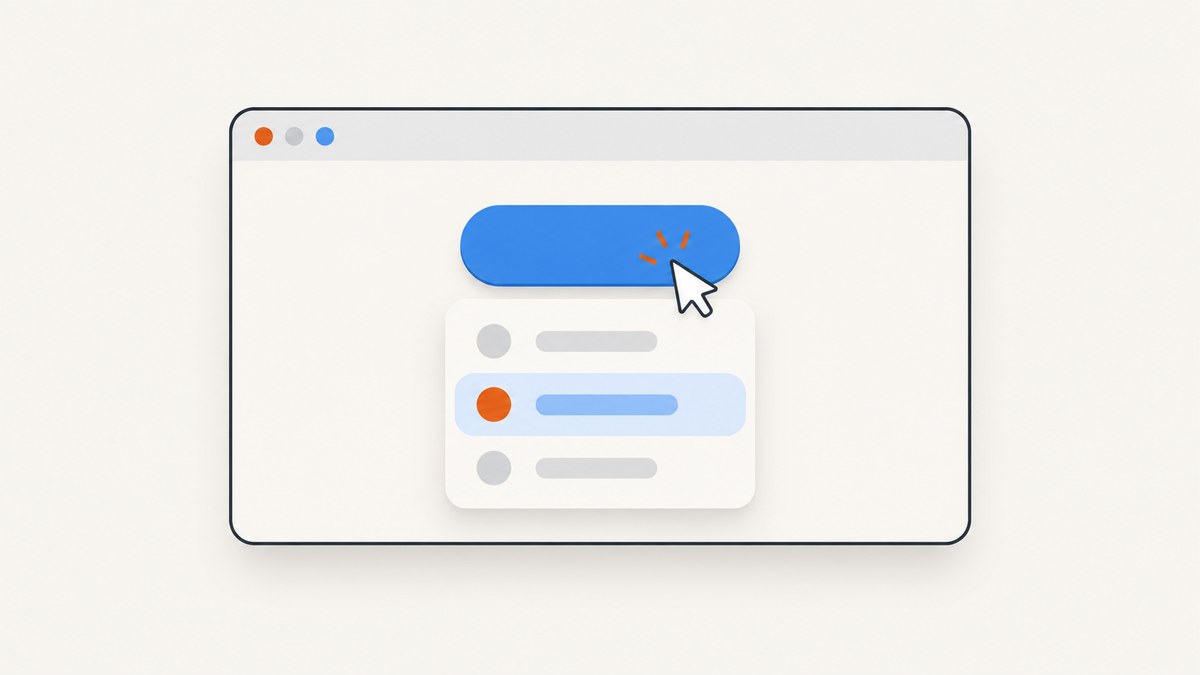
To click a list value revealed by a button with Selenium, click the button, wait until the desired value is visible and clickable, then click that value. Use an explicit wait tied to the page state; a fixed sleep is unreliable when the page responds at different speeds. If the control is a native HTML <select>, use Selenium’s Select helper instead. A custom JavaScript dropdown needs a locator for its rendered option.
The exact locator depends on the page’s DOM. Inspect the button and option in your browser’s developer tools, then replace the example selectors below with selectors that match the page.
Python: click the reveal button and choose a custom list value
This example assumes the page has a button matching button.reveal and a custom list item with data-value="wanted". It waits for the button to be clickable, opens the menu, waits for the option, clicks it, and checks that the option reports a selected state. Replace the selectors and verification with the attributes and behavior your page actually uses.
from selenium import webdriver
from selenium.webdriver.common.by import By
from selenium.webdriver.support import expected_conditions as EC
from selenium.webdriver.support.ui import WebDriverWait

# Selenium Manager can select and manage a compatible browser driver.
driver = webdriver.Chrome()
wait = WebDriverWait(driver, 10)

try:
    driver.get("https://example.com")  # Replace with the page URL.

    reveal_button = wait.until(
        EC.element_to_be_clickable((By.CSS_SELECTOR, "button.reveal"))
    )
    reveal_button.click()

    option = wait.until(
        EC.element_to_be_clickable(
            (By.CSS_SELECTOR, "ul.options li[data-value='wanted']")
        )
    )
    option.click()

    # Adapt this check to the page's resulting state.
    wait.until(lambda d: option.get_attribute("aria-selected") == "true")
finally:
    driver.quit()
The final check is illustrative: many widgets update a nearby label, an input value, or a different ARIA attribute instead of setting aria-selected. Verify the state the application actually changes. If the click causes the option element to be replaced, re-find it in the verification wait rather than reading an old element reference.
Choose the right kind of wait
Selenium’s explicit waits poll for a condition until it succeeds or the timeout expires. Choose a condition for the next operation: presence means an element exists in the DOM; visibility means it is displayed; clickability means it is visible and enabled. A hidden menu item can be present before the button is clicked, so waiting only for presence may return too early. The Selenium guide describes elements being added dynamically or changing visibility after a click in single-page applications: Waiting Strategies.
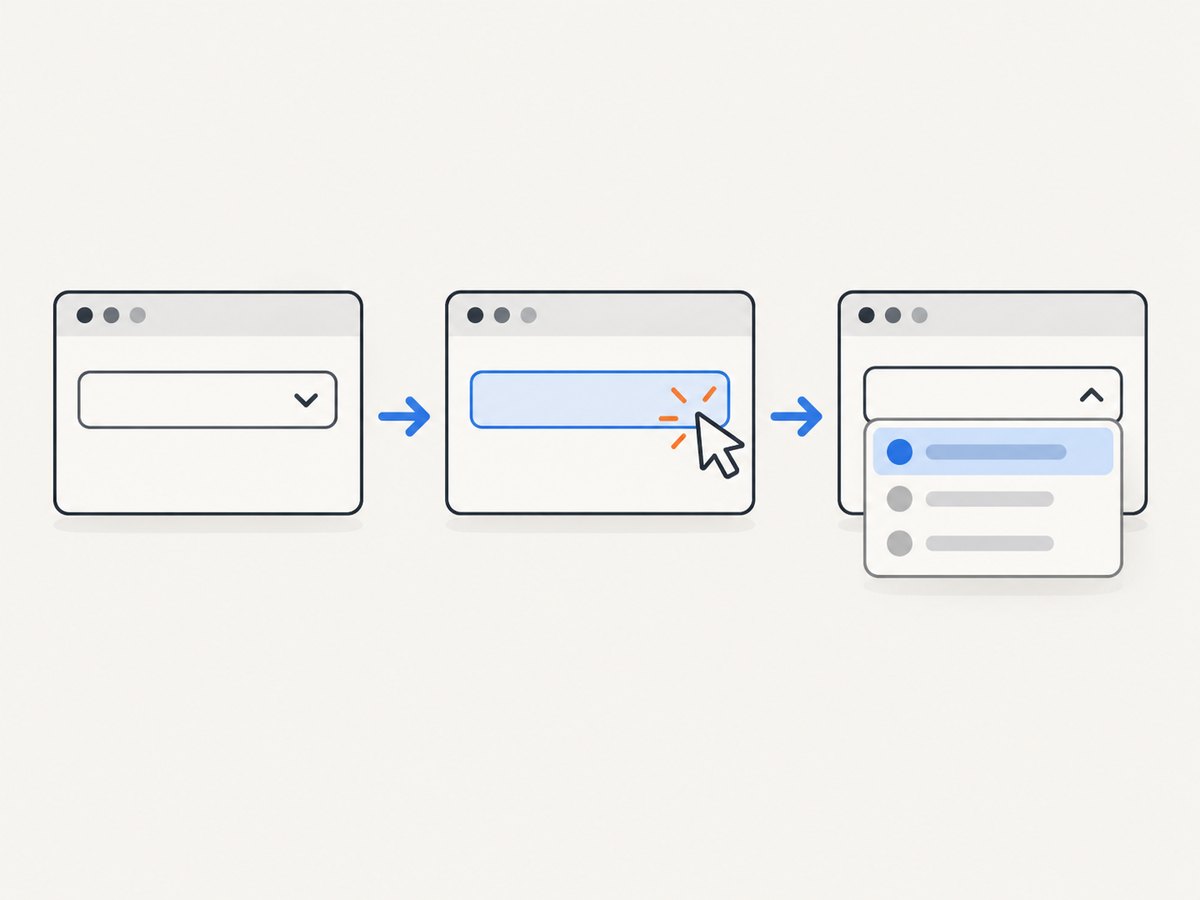
- Locate the reveal button using a stable ID, accessible label, name, or concise CSS selector.
- Wait until the button is clickable, then click it.
- Wait for the intended option to become visible and clickable. Scope the locator to the opened menu when possible.
- Click the option and verify the resulting selection or page state.
For example, if the option is already in the DOM but hidden, you may wait for visibility after opening the menu. If opening the button inserts the option into the DOM, wait for visibility or clickability after the click. Prefer a locator-based wait that finds the option at the time it is needed; a previously stored element reference can go stale when a framework rerenders the menu.
Native select versus custom dropdown
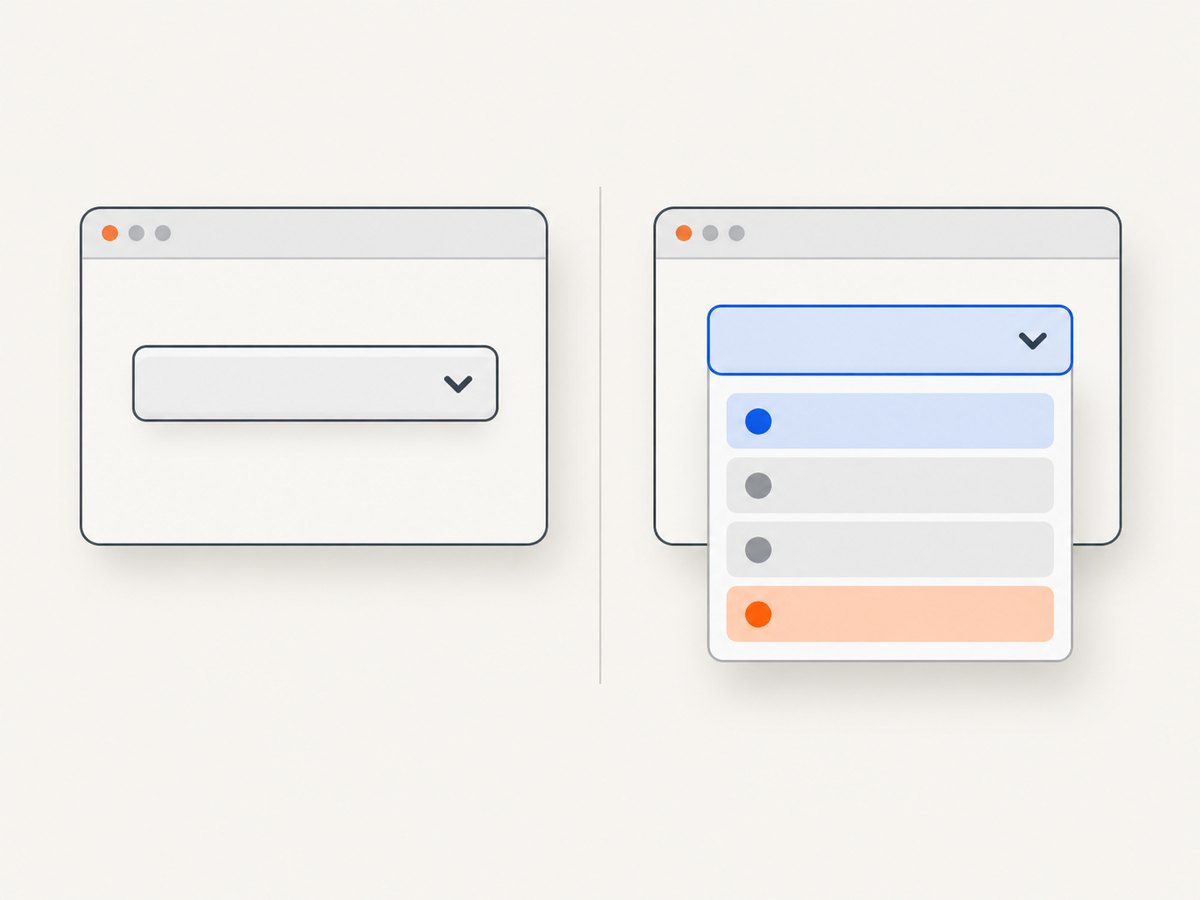
Check the actual element in the DOM. A control that looks like a dropdown is not necessarily an HTML <select>. Selenium’s Select helper supports native select elements; custom menus are ordinary web elements and should be opened and clicked like the Python example above. See Selenium’s documentation for select list elements.
Native HTML select
from selenium.webdriver.common.by import By
from selenium.webdriver.support.ui import Select, WebDriverWait
from selenium.webdriver.support import expected_conditions as EC

select_element = WebDriverWait(driver, 10).until(
    EC.visibility_of_element_located((By.NAME, "country"))
)
Select(select_element).select_by_visible_text("Canada")
# Alternatives:
# Select(select_element).select_by_value("CA")
# Select(select_element).select_by_index(2)
Use visible text when the displayed label is the value you need; use the option’s actual value attribute when that is the stable identifier. Index selection is sensitive to option ordering. For a multi-select, the helper can select more than one option; confirm the element has the native multiple attribute if that behavior is expected.
Custom JavaScript menu
For a custom widget, click its trigger and locate the option rendered by the widget. Prefer a stable attribute such as data-value, or locate by accessible role and name when the page exposes them. Avoid a long absolute XPath tied to the current nesting of the page. Selenium’s standard interaction behavior and interactability checks are covered in Interacting with web elements.
Locator patterns and scoping
These are locator shapes, not selectors guaranteed to match a particular website. Choose one that reflects the page’s real markup.
# Stable ID
(By.ID, "country-menu-trigger")

# Accessible label exposed as an attribute
(By.CSS_SELECTOR, "button[aria-label='Choose a country']")

# Option identified by a data attribute
(By.CSS_SELECTOR, "[role='option'][data-value='ca']")

# Text locator with XPath when no stable attribute exists
(By.XPATH, "//*[@role='option' and normalize-space(.)='Canada']")
If the page has multiple menus or repeated values, first locate the open menu, then search within it:
menu = wait.until(
    EC.visibility_of_element_located((By.CSS_SELECTOR, "div.country-menu[aria-expanded='true']"))
)
option = wait.until(lambda d: menu.find_element(
    By.CSS_SELECTOR, "[role='option'][data-value='ca']"
))
option.click()
For dynamically rerendered menus, a wait that re-finds both the menu and the option can be more robust than retaining a reference across updates. Keep locators specific enough to identify one target, and confirm the expected selection afterward.
Troubleshooting
| Symptom | Likely cause | What to do |
|---|---|---|
| Option is not found right after the button click | The menu is inserted asynchronously, or the locator does not match the page. | Inspect the DOM after opening the menu. Wait for the option to become visible or clickable, and correct the locator. |
| Option is found but click times out | The option is hidden, disabled, or the wrong menu is open. | Wait for visibility and enabled state; check the menu’s expanded state and target the visible menu. |
ElementClickInterceptedException |
An overlay, animation, sticky header, or another element covers the target’s click point. | Wait for the overlay or transition to finish, close obstructing UI if appropriate, and confirm the target is the visible option. Selenium’s normal click performs interactability checks; do not treat JavaScript-triggered clicks as a default workaround. |
StaleElementReferenceException |
The page rerendered and replaced the stored element after the menu opened or changed. | Use a locator-based wait to find the element again after the update, instead of reusing the old reference. |
Select raises an error |
The control is a custom widget rather than a native <select>. |
Inspect the tag. For a custom menu, click the trigger and then the rendered option with ordinary element interactions. |
| The wrong value is clicked | The locator matches multiple items, or a hidden menu contains a duplicate. | Scope the search to the open menu and identify the option by a stable attribute or exact accessible name. |
| A fixed sleep works inconsistently | The page sometimes takes longer or less time to update than the chosen delay. | Replace the sleep with an explicit wait for the actual state needed for the next step. |
| Click succeeds but the application does not change | The option may require a keyboard action, a second confirmation, or selection may update a different part of the page. | Inspect the widget’s semantics and resulting DOM state; verify the value displayed or submitted by the application. |
Reliability and performance notes
- Use the shortest reasonable explicit timeout for the page’s expected behavior, but choose it based on the environment. A wait ends as soon as its condition succeeds, so it does not impose the full timeout on fast runs.
- Avoid mixing implicit and explicit waits without understanding their interaction; implicit waits can make explicit-wait timing less predictable.
- Use condition-based waits instead of fixed sleeps. Sleeping too briefly causes intermittent failures; sleeping too long slows every successful run.
- Keep browser sessions scoped to the work and always quit them, including on exceptions, as in the
finallyblock above. - Do not retry a click blindly after an ambiguous timeout: first determine whether the selection already happened, so a retry does not toggle or submit twice.
Or skip the browser setup
If your goal is a screenshot of the page or its resulting state, ScreenshotNeo is a website screenshot API and MCP server. For browser automation like selecting a value, Selenium remains the direct method; ScreenshotNeo captures the page as an image or PDF.
One GET request returns the capture. This cURL example saves a WebP screenshot:
curl -G "https://api.screenshotneo.com/v1/shot" -d access_key=YOUR_API_KEY --data-urlencode url=https://stripe.com -o shot.webpSee the ScreenshotNeo API documentation for request options. The API also has Python and Node.js examples:
import requests
r = requests.get("https://api.screenshotneo.com/v1/shot", params={"access_key": "YOUR_API_KEY", "url": "https://stripe.com"}, timeout=90)
open("shot.webp", "wb").write(r.content)
const q = new URLSearchParams({ access_key: 'YOUR_API_KEY', url: 'https://stripe.com' });
const res = await fetch(`https://api.screenshotneo.com/v1/shot?${q}`);- Cookie banners are accepted and removed before capture; ScreenshotNeo also removes known consent platforms, newsletter popups, and chat widgets. Each cleanup step can be turned off.
- Bot checks, blank pages, timeouts, failed loads, and cache hits cost nothing. Response headers report the page verdict and billing status.
- An MCP server lets AI agents use
take_screenshot,get_page_info, andcapture_pdf. - The Free plan includes 1,000 screenshots a month with no card; paid plans start at $5 for 3,000 screenshots.
Create a free ScreenshotNeo account for 1,000 screenshots a month with no card.
FAQ
Should I use JavaScript to click the option?
Usually, use Selenium’s normal element click. It follows the browser’s interaction rules and surfaces issues such as an element being obscured. Consider another interaction only when the widget’s documented behavior requires it and you have diagnosed the cause.
Can Selenium click an option that is outside the viewport?
Selenium generally scrolls an element into view as part of interaction. If the click is still intercepted, inspect overlays, sticky elements, and animations around the target.
How do I know whether the button opened the list?
Wait for a meaningful state change, such as the menu becoming visible or the trigger’s aria-expanded attribute changing, then wait for the desired option.
Why is my dropdown example selector not working?
The example selectors are placeholders. Inspect the specific page and use its actual button and option attributes; no universal selector works across unrelated sites.


