How to Click Nested Elements in a Dynamic Tree with Selenium WebDriver
Locate nested tree nodes relative to a stable parent, wait for the right state, and reacquire elements after every rerender with Selenium WebDriver.
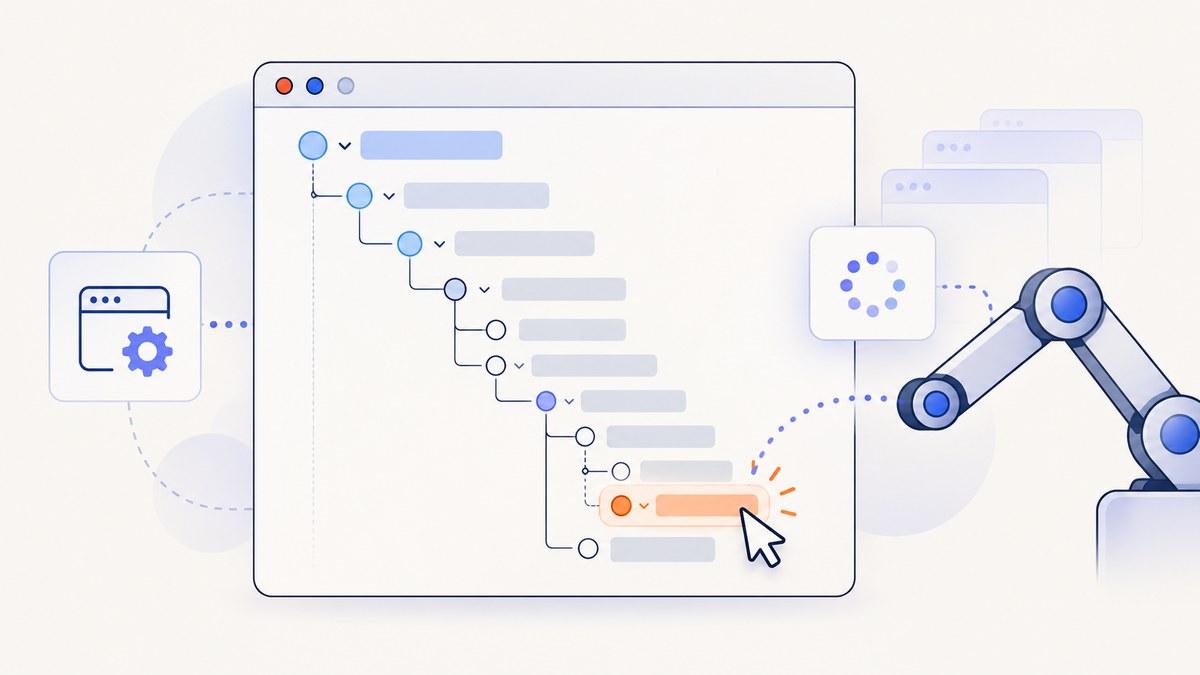
Direct answer: locate the tree container, search for the target relative to that parent, wait for the application state that makes the target usable, then click it. If expanding a branch rerenders the tree, discard old WebElement references and locate the parent and target again after the update.
Selenium’s WebElement API supports descendant searches from an existing element, while its waiting guidance recommends conditions tied to the application’s state. The Python expected condition element_to_be_clickable checks that an element is visible and enabled. [Python API]
1. Model the interaction
- Inspect the rendered DOM and identify a stable tree root, such as a product-provided data attribute.
- Decide which descendant is actually interactive: a button, link, or another control. A visual row is not always the clickable element.
- Use a CSS selector or XPath that describes the real relationship between the parent and child.
- Wait for the tree and target state instead of relying on a fixed sleep.
- After an expand or refresh operation, expect the old node to become stale and reacquire it from locators.
Selenium documents CSS selectors and XPath as locator strategies. Prefer stable attributes supplied by the application; avoid generated positional indexes unless there is no better identifier. When searching below a WebElement, use a relative XPath beginning with ., so the query remains inside that parent.
2. Complete Python example
The following template uses placeholder attributes. Replace them with selectors from the page under test; no single tree class or ARIA structure is universal.
from selenium import webdriver
from selenium.common.exceptions import StaleElementReferenceException
from selenium.webdriver.common.by import By
from selenium.webdriver.support.ui import WebDriverWait
from selenium.webdriver.support import expected_conditions as EC

URL = "https://example.test/tree"
TREE = (By.CSS_SELECTOR, "[data-tree]")
TARGET_TEXT = "Target node"

# Create the driver according to your browser and CI environment.
driver = webdriver.Chrome()
wait = WebDriverWait(driver, 15, poll_frequency=0.2)

try:
    driver.get(URL)

    # Navigation readyState does not prove that JavaScript has built the tree.
    tree = wait.until(EC.visibility_of_element_located(TREE))

    # Scope the lookup to the known tree root. The relative XPath is intentional.
    target = wait.until(lambda d: tree.find_element(
        By.XPATH,
        ".//button[normalize-space()=%r]" % TARGET_TEXT
    ))
    wait.until(EC.element_to_be_clickable(target)).click()

finally:
    driver.quit()
This is an explanatory template, not a claim that the placeholder markup exists on a particular site. If the tree itself is replaced before the click, the saved tree reference can also become stale. In that case, reacquire both elements from their locators, as shown below.
3. Reacquire after a dynamic rerender
An expand action often replaces a subtree or the entire tree. A WebElement reference points to the old DOM node, so a later command can raise StaleElementReferenceException. Wait for the old element to become stale when that gives you a clear transition, then locate the fresh tree and target.

from selenium.common.exceptions import StaleElementReferenceException
from selenium.webdriver.support import expected_conditions as EC

TREE = (By.CSS_SELECTOR, "[data-tree]")
EXPAND = (By.CSS_SELECTOR, "[data-node-id='parent'] button[aria-expanded]")
TARGET = (By.CSS_SELECTOR, "[data-node-id='child'] button")

old_tree = wait.until(EC.visibility_of_element_located(TREE))
expand = wait.until(EC.element_to_be_clickable(EXPAND))
expand.click()

# If the application replaces the root, wait for the old reference to detach.
wait.until(EC.staleness_of(old_tree))

# Locate fresh references after the update.
new_tree = wait.until(EC.visibility_of_element_located(TREE))
target = wait.until(lambda d: new_tree.find_element(*TARGET))
wait.until(EC.element_to_be_clickable(target)).click()
If the application updates the same node in place rather than replacing it, staleness may never occur. Wait instead for an observable application condition such as aria-expanded='true', a child count, a loading marker disappearing, or the target becoming visible.
4. Choosing a locator
| Situation | Recommended locator | Reason |
|---|---|---|
| Application supplies a stable ID or data attribute | CSS selector | Compact and easy to scope to the tree root. |
| Target is identified by visible text | Relative XPath with normalize-space() |
Handles surrounding whitespace and expresses a descendant relationship. |
| Several nodes share text | Parent-scoped CSS or XPath plus a node ID | Prevents a match elsewhere in the document. |
| Generated classes or indexes change | Application-provided semantic attribute | Reduces breakage when markup order changes. |
# CSS: stable node identifier inside the tree
tree.find_element(By.CSS_SELECTOR, "[data-node-id='reports'] button").click()

# XPath: text match scoped to descendants of the tree
tree.find_element(
    By.XPATH,
    ".//button[normalize-space()='Reports']"
).click()

# XPath: relationship and state
tree.find_element(
    By.XPATH,
    ".//*[@role='treeitem' and @aria-expanded='false']"
).click()
Validate every selector against the current DOM. A tree row may contain a label, an expand control, and a separate selection control; click the control that implements the desired behavior.
5. Wait for application state
Selenium’s documentation explains that readyState covers assets declared in HTML, while JavaScript can continue adding or changing elements afterward. Use explicit waits for the next meaningful state instead of assuming navigation completion is enough.
- Tree exists:
visibility_of_element_located(TREE). - Target is present: a lambda that searches below the current parent.
- Target can receive a native click:
element_to_be_clickable. - Expansion completed: wait for
aria-expanded='true', a child selector, or a loading indicator to disappear. - Old tree was replaced:
staleness_of(old_tree).
Do not mix implicit and explicit waits. Selenium warns that doing so can produce unpredictable wait times. Set an explicit WebDriverWait for the states your test needs.
# Wait for a state change on an existing element
wait.until(lambda d: d.find_element(
    By.CSS_SELECTOR,
    "[data-node-id='parent']"
).get_attribute("aria-expanded") == "true")

# Wait until a loading marker is gone
wait.until(EC.invisibility_of_element_located(
    (By.CSS_SELECTOR, "[data-tree-loading]")
))
6. Clicking a deeply nested node
For several levels, either scope each lookup to its parent or use one relative locator. Parent-scoped lookups make the intended nesting explicit and reduce accidental matches.
root = wait.until(EC.visibility_of_element_located(
    (By.CSS_SELECTOR, "[data-tree]")
))

branch = root.find_element(
    By.CSS_SELECTOR, "[data-node-id='engineering']"
)
subbranch = branch.find_element(
    By.CSS_SELECTOR, "[data-node-id='platform']"
)
leaf = subbranch.find_element(
    By.XPATH, ".//button[normalize-space()='Build pipeline']"
)
wait.until(EC.element_to_be_clickable(leaf)).click()
If expanding engineering or platform rerenders the tree, do each expansion as a separate transaction: locate the current branch, click it, wait for its application state, and then locate the next branch again.
7. Common errors and fixes
| Error or symptom | Likely cause | Fix |
|---|---|---|
NoSuchElementException |
The update has not happened, the selector is wrong, or the search is scoped to the wrong parent. | Inspect the current DOM, wait for the relevant state, and verify the relative selector. |
TimeoutException |
The condition never became true within the timeout. | Log the DOM state and application markers; increase the timeout only after confirming the condition is correct. |
StaleElementReferenceException |
The tree or node was detached by a rerender. | Wait for staleness when useful, then reacquire from locators. Do not keep retrying the old reference. |
| Element is not clickable or interactable | The element is hidden, disabled, still animating, or covered by an overlay. | Wait for visibility and enabled state, wait for the overlay or transition to finish, and target the actual interactive control. |
| Click intercepted | Another element covers the click point or the locator selected a visual row instead of its control. | Inspect stacking and overlays, scroll the intended control into view if needed, and use the native WebDriver click on the unobstructed control. |
| Fixed sleeps are flaky | A pause is too short on slow runs and wastes time on fast runs. | Replace it with an explicit condition tied to the tree’s state. |
| Text locator matches several nodes | Repeated labels exist in different branches. | Scope to the correct parent and add a stable node attribute or relationship. |
8. Reliability and performance checklist
- Use one explicit wait policy and keep timeout values appropriate for the environment.
- Prefer stable application attributes over CSS classes generated by a framework.
- Keep descendant searches rooted at the smallest known parent.
- After any action that can rerender, assume saved references may be invalid.
- Wait for a state transition, not merely elapsed time.
- Capture diagnostic information on failure: current URL, selector names, screenshot, and relevant DOM attributes.
- Keep browser and driver versions aligned in CI, and use headless mode only after confirming the tree behaves the same way.
Parent-scoped searches can reduce accidental matches and make selectors easier to maintain. Explicit waits poll until a condition is met, so fast runs proceed immediately while slower application updates receive more time. Excessive polling, very broad XPath expressions, and unnecessarily long timeouts can increase test duration; measure them in your own suite.
9. cURL, Python, and Node.js alternatives
The Selenium method is appropriate when the test must interact with a live browser state. If you only need a rendered page image after the interaction, a screenshot API can remove browser setup.
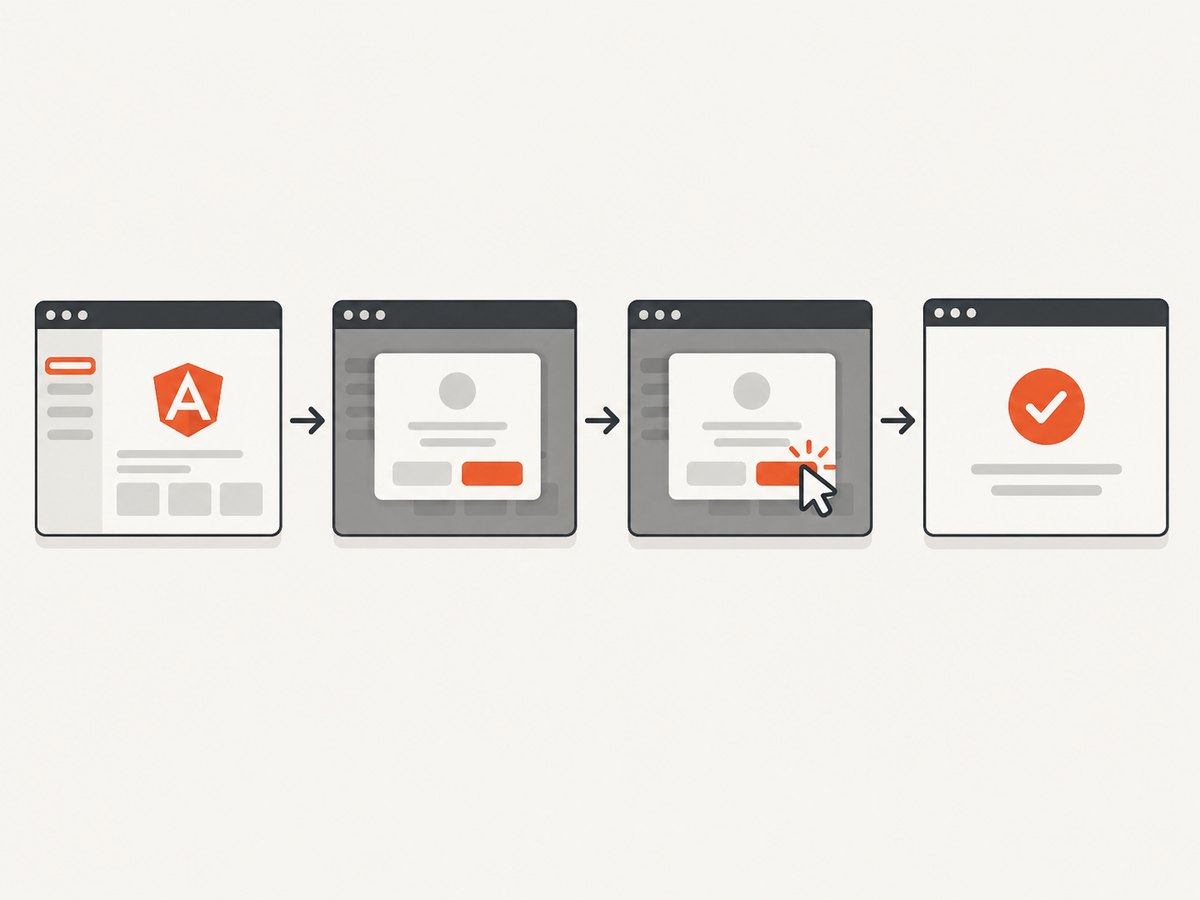
Or skip the browser setup
ScreenshotNeo provides a GET screenshot API and MCP server. Its capture flow accepts cookie and consent banners before the shot and removes more than 60 known consent platforms, newsletter popups, and chat widgets; each step can be disabled. Bot checks, blank pages, timeouts, failed loads, and cache hits are not billed, and the response reports the result in X-Page-Verdict and X-Billed headers.
See the ScreenshotNeo documentation for all options. A one-call capture looks like this:
curl -G "https://api.screenshotneo.com/v1/shot" -d access_key=YOUR_API_KEY --data-urlencode url=https://stripe.com -o shot.webpimport requests
r = requests.get("https://api.screenshotneo.com/v1/shot", params={"access_key": "YOUR_API_KEY", "url": "https://stripe.com"}, timeout=90)
open("shot.webp", "wb").write(r.content)const q = new URLSearchParams({ access_key: 'YOUR_API_KEY', url: 'https://stripe.com' });
const res = await fetch(`https://api.screenshotneo.com/v1/shot?${q}`);Use its full-page and lazy-image handling, CSS-selector element capture, custom CSS and JavaScript, click and wait controls, request blocking, headers and cookies, viewport and device presets, dark mode, retina scale, caching, signed links, async jobs, bulk capture, usage API, and PDF options when your workflow needs them. Its MCP server exposes take_screenshot, get_page_info, and capture_pdf to Claude, Cursor, and other MCP clients.
Plans include 1,000 screenshots per month free with no card; paid plans start at $5 for 3,000 shots. Create a free ScreenshotNeo account.
10. Short FAQ
Should I use CSS or XPath?
Use whichever expresses stable attributes and relationships in the real DOM. CSS is concise for attributes; relative XPath helps with text and ancestor-descendant relationships.
Why does the element exist in DevTools but Selenium cannot find it?
The tree may not have finished rendering, the selector may be scoped incorrectly, or the element may be inside a different browsing context. Confirm the current DOM at the time of lookup and wait for the application condition.
Can I solve staleness by increasing the timeout?
No. A stale reference will remain detached. Reacquire the element after the rerender; use a longer timeout only when the correct state genuinely takes longer.
Is JavaScript click a universal fix?
No. It can bypass the browser’s normal interactability checks and hide an overlay or locator problem. Prefer a native WebDriver click on the actual interactive element and diagnose the page-specific obstruction.
When is a screenshot API preferable to Selenium?
Use Selenium when you must drive application interactions and assertions. Use an API when you need repeatable rendered captures without maintaining browser and driver setup.


