How to Click One Element from a List in Cypress
Learn how to click exactly one matching element in Cypress using indexes, text, stable selectors, and row-scoped queries.
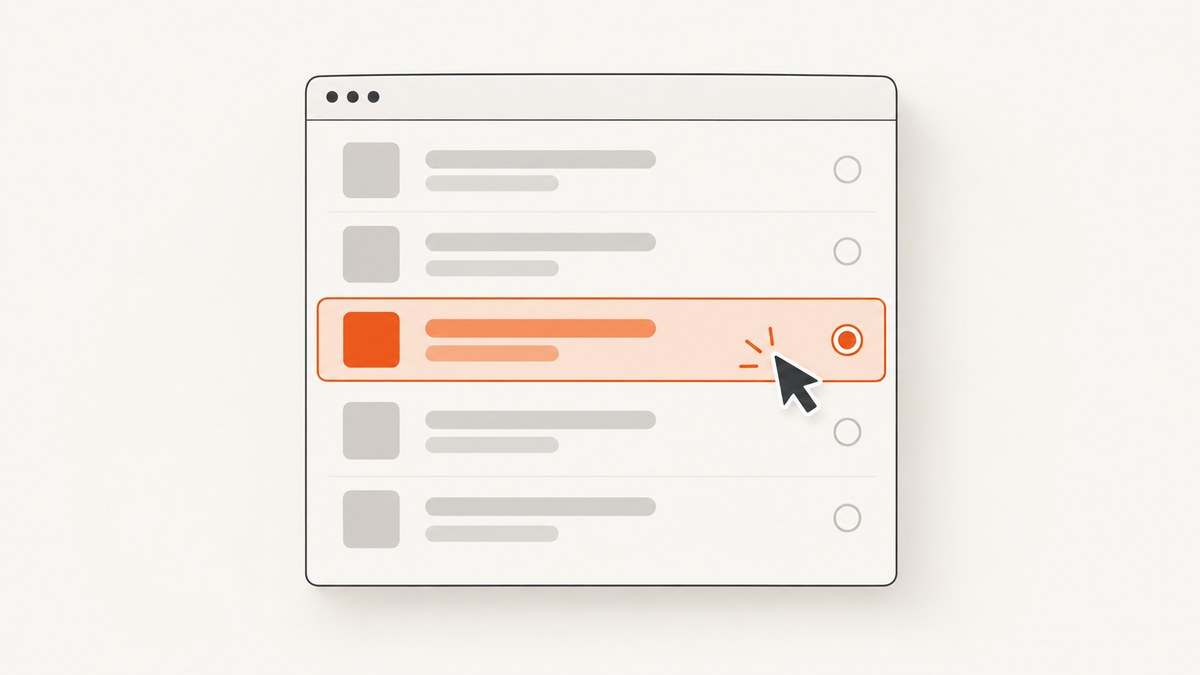
To click one element from a list in Cypress, first narrow the query to a single element, then call .click(). Use .eq(index) or .first() when position identifies the target, cy.contains() when its label identifies it, and a row-scoped .find() when the control belongs to a particular list item.
// Third matching element (indexes are zero-based)
cy.get('[data-cy=item]').eq(2).click()

// First matching element
cy.get('[data-cy=item]').first().click()

// Button with an exact visible label
cy.contains('button', /^Submit$/).click()

// Delete control in the third row
cy.get('[data-cy=todo]').eq(2).find('[data-cy=delete]').click()
Cypress raises a multiple-elements error when .click() receives more than one element. Narrow the collection deliberately instead of using { multiple: true }, which clicks every match in sequence. See the official cy.click() documentation.
1. Choose what identifies the element
Click by position with .eq()
.eq() uses a zero-based index. The third match is index 2.
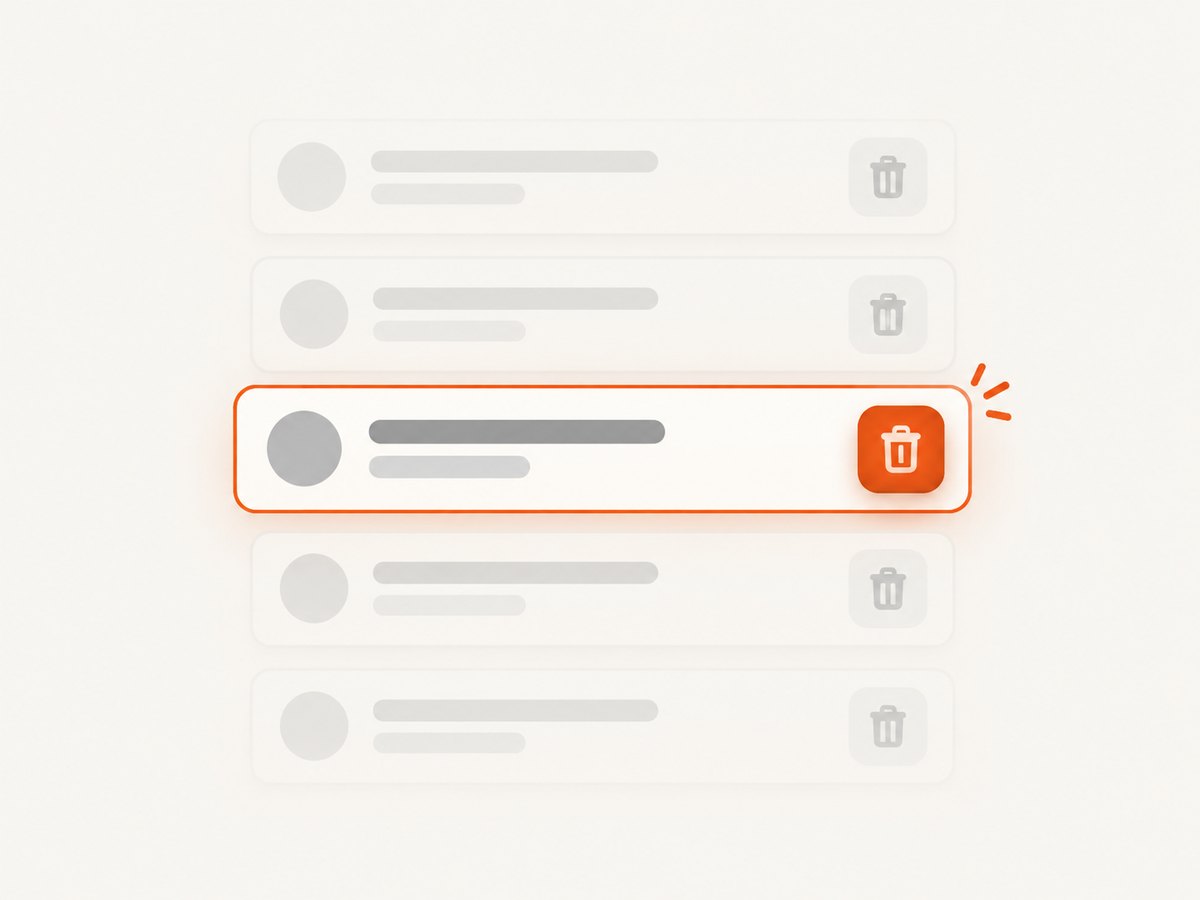
cy.get('[data-cy=product]').eq(2).click()This is appropriate when list order is part of the behavior under test. If sorting, filtering, pagination, or asynchronous loading can reorder the list, the same index may identify a different item later.
Click the first match with .first()
cy.get('[data-cy=notification]').first().click()Use this when “the first item” is the requirement. It is clearer than putting a positional pseudo-selector in the CSS query.
Click by visible text with cy.contains()
cy.contains('button', 'Submit').click()Pass a selector when possible so Cypress searches the intended element type. Plain string matching can match a substring. Use an anchored regular expression for an exact label:
cy.contains('button', /^Save$/).click()If text is nested inside a button or link, Cypress can choose the higher-level actionable element. Scoping with a selector makes that choice explicit.
Scope to a row, then find its control
When every row has a button with the same label, identify the row first and search only within it.
cy.get('[data-cy=todo]').contains('Fix login bug')
  .parents('[data-cy=todo]')
  .find('[data-cy=delete]')
  .click()
A more stable pattern is to give the row a key or data attribute and query it directly:
cy.get('[data-cy=todo][data-id=todo-42]')
  .find('[data-cy=delete]')
  .click()
.find() searches descendants of the current subject. The Cypress .find() command is useful for keeping identical controls in separate rows independent.
Prefer stable test selectors
Cypress recommends dedicated data-* attributes such as data-cy because styling classes and visible copy often change.
<ul>
  <li data-cy='user' data-user-id='u-17'>
    <span>Ava</span>
    <button data-cy='remove-user'>Remove</button>
  </li>
</ul>
cy.get('[data-cy=user][data-user-id=u-17]')
.find('[data-cy=remove-user]')
.click()2. Assert the result through a fresh query
A click can rerender, replace, or remove the element that was clicked. Start a new Cypress chain for the resulting state.
cy.get('[data-cy=save]').click()
cy.get('[data-cy=success]').should('be.visible')
Do not depend on the old subject after an action that changes the DOM. Cypress retries queries and assertions while the application is settling, but the click itself is performed once after actionability checks pass. Details are in the click command guide.
3. Complete Cypress examples
Click the nth item and verify selection
describe('selects one plan', () => {
  it('selects the third plan', () => {
    cy.visit('/plans')
    cy.get('[data-cy=plan]').eq(2).click()
    cy.get('[data-cy=plan]').eq(2).should('have.attr', 'aria-selected', 'true')
  })
})
Click an exact button label
cy.visit('/settings')
cy.contains('button', /^Save changes$/).click()
cy.get('[role=status]').should('contain', 'Saved')
Click a control in the row containing text
cy.visit('/todos')
cy.get('[data-cy=todo]')
  .filter(':has([data-cy=title])')
  .contains('[data-cy=title]', 'Fix login bug')
  .parents('[data-cy=todo]')
  .find('[data-cy=complete]')
  .click()
cy.get('[data-cy=todo]').contains('Fix login bug')
  .parents('[data-cy=todo]')
  .should('have.attr', 'data-state', 'complete')
Use a test helper for repeated row actions
Cypress.Commands.add('clickTodoAction', (title, action) => {
  cy.get('[data-cy=todo]')
    .filter((_, row) => row.innerText.includes(title))
    .find(`[data-cy=${action}]`)
    .click()
})

cy.clickTodoAction('Fix login bug', 'delete')
cy.contains('[data-cy=todo]', 'Fix login bug').should('not.exist')
4. What to do when Cypress reports an error
| Symptom | Cause | Fix |
|---|---|---|
cy.click() failed because it requires a single element |
The query matched multiple elements. | Use .eq(), .first(), exact cy.contains(), or a row-scoped .find(). |
| The wrong item is clicked | Position changed after sorting, filtering, or async rendering. | Target a stable ID or row attribute instead of an index. |
| Text matches more than one control | String matching found a substring or duplicate label. | Add an element selector, scope to a row, or use an anchored regex such as /^Save$/. |
| Element is covered or not actionable | An overlay, animation, disabled state, or off-screen layout blocks the click. | Wait for the overlay to disappear, close it as a user would, or assert the element is enabled and visible. Use { force: true } only when bypassing actionability is intentional. |
| Assertion fails after the click | The old subject was reused after the DOM changed. | Start a new query from cy and assert the new state. |
| Element appears intermittently | The application has not finished rendering or data loading. | Query a meaningful selector and let Cypress retry; avoid arbitrary sleeps unless the delay itself is the behavior being tested. |
5. { multiple: true } is a different operation
This option intentionally clicks every matched element:
cy.get('[data-cy=tag]').click({ multiple: true })Use it only when the test requires sequential clicks on the whole collection. It should not be used to hide an accidental broad selector when exactly one element is intended.
6. Shadow DOM and nested lists
If the target is inside a shadow root, enable shadow-DOM querying where your Cypress version and component require it, or configure it globally. For ordinary nested lists, chain queries from the parent container so identical descendants cannot escape their section.
cy.get('[data-cy=cart]').find('[data-cy=line-item]').eq(1)
  .find('[data-cy=quantity-increase]')
  .click()
7. Performance and reliability guidance
- Use a single stable selector rather than a long chain of layout-dependent CSS selectors.
- Prefer row identity over indexes when data can reorder.
- Keep the action and its result assertion close together so failures identify the broken interaction.
- Let Cypress retry queries and assertions instead of adding fixed waits for normal rendering.
- Use exact labels and scoped containers to reduce accidental matches.
- Reserve forced clicks for cases where the test intentionally models a programmatic interaction; a forced click can conceal a real user-visible defect.
8. Or skip the browser setup
If your goal is to capture a page or test fixture visually rather than drive a browser yourself, ScreenshotNeo provides a single screenshot request. It accepts consent banners like a visitor and removes more than 60 known consent platforms, newsletter popups, and chat widgets before capture. Bot checks, blank pages, failed loads, timeouts, and cache hits are not billed, and response headers identify the page verdict and whether the shot was billed.
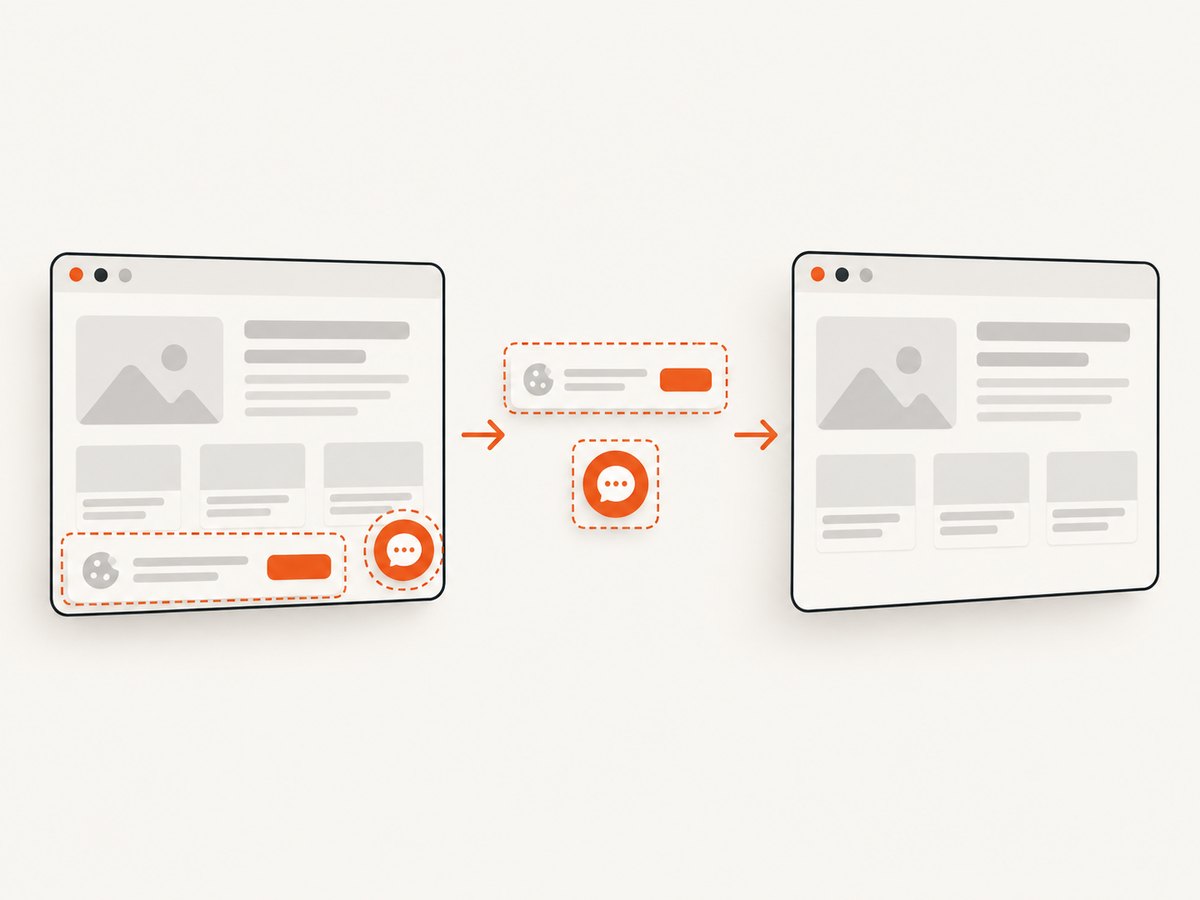
ScreenshotNeo also provides an MCP server with take_screenshot, get_page_info, and capture_pdf tools for Claude, Cursor, and other MCP clients. One thousand screenshots per month are free with no card; paid plans start at $5 for 3,000 shots.
Read the ScreenshotNeo API documentation for all options.
cURL
curl -G 'https://api.screenshotneo.com/v1/shot' \
  -d access_key=YOUR_API_KEY \
  --data-urlencode url=https://example.com \
  -o shot.webp
Python
import requests

r = requests.get(
    'https://api.screenshotneo.com/v1/shot',
    params={'access_key': 'YOUR_API_KEY', 'url': 'https://example.com'},
    timeout=90,
)
r.raise_for_status()
open('shot.webp', 'wb').write(r.content)
Node.js
const q = new URLSearchParams({
  access_key: 'YOUR_API_KEY',
  url: 'https://example.com'
});
const res = await fetch(`https://api.screenshotneo.com/v1/shot?${q}`);
if (!res.ok) throw new Error(`Screenshot failed: ${res.status}`);
const fs = await import('node:fs/promises');
await fs.writeFile('shot.webp', Buffer.from(await res.arrayBuffer()));
Create a free ScreenshotNeo account for 1,000 screenshots each month with no card.
9. FAQ
Are Cypress indexes zero-based?
Yes. .eq(0) is the first match, and .eq(2) is the third.
How do I click exactly one element with duplicate text?
Add an element selector, scope to the correct row or container, and use an anchored regular expression for exact text.
Should I use :first or :eq() in the CSS selector?
Prefer Cypress’s .first() and .eq() commands because the intent is clearer and they compose with Cypress queries.
Why does the click pass but the next command fail?
The click may have rerendered or removed the subject. Query the expected result again from cy.


