How to Click the Correct Popup Modal Button with Python Selenium CSS Selectors
Use scoped CSS selectors, explicit waits, and the right browsing context to click the intended Selenium modal button reliably.
Use a CSS selector scoped to the modal, wait until the intended button is clickable, then click it. A reliable pattern is:
from selenium.webdriver.common.by import By
from selenium.webdriver.support.ui import WebDriverWait
from selenium.webdriver.support import expected_conditions as EC

selector = "[role='dialog'] button[data-action='confirm']"
button = WebDriverWait(driver, 10).until(
    EC.element_to_be_clickable((By.CSS_SELECTOR, selector))
)
button.click()
Replace the illustrative selector with attributes that actually exist on the target page. If the popup is a native JavaScript alert, an iframe, or a shadow DOM component, use that context’s API instead of a normal document-level CSS lookup.
1. Identify what kind of popup you have
The word “popup” describes several different browser behaviors. Classify it before writing a selector.
| Popup type | How to identify it | Correct Selenium approach |
|---|---|---|
| DOM modal | An element such as <div role="dialog"> appears in the page DOM. |
Find the modal and its button with CSS selectors. |
| JavaScript alert, confirm, or prompt | The browser displays a system-managed dialog that is not part of the page DOM. | Use driver.switch_to.alert. |
| Iframe modal | Developer tools show the control inside an <iframe>. |
Switch into the frame before locating the button. |
| Shadow DOM modal | The control is inside a component’s shadow root. | Get the host’s shadow_root, then search inside it. |
CSS selectors work for ordinary DOM elements. Selenium documents CSS selector support and forms such as ID and attribute selectors in its locator strategies guide.
2. Inspect the markup and choose a stable selector
Open browser developer tools while the modal is visible. Find the modal container and the exact action button. Prefer attributes that describe identity or behavior:
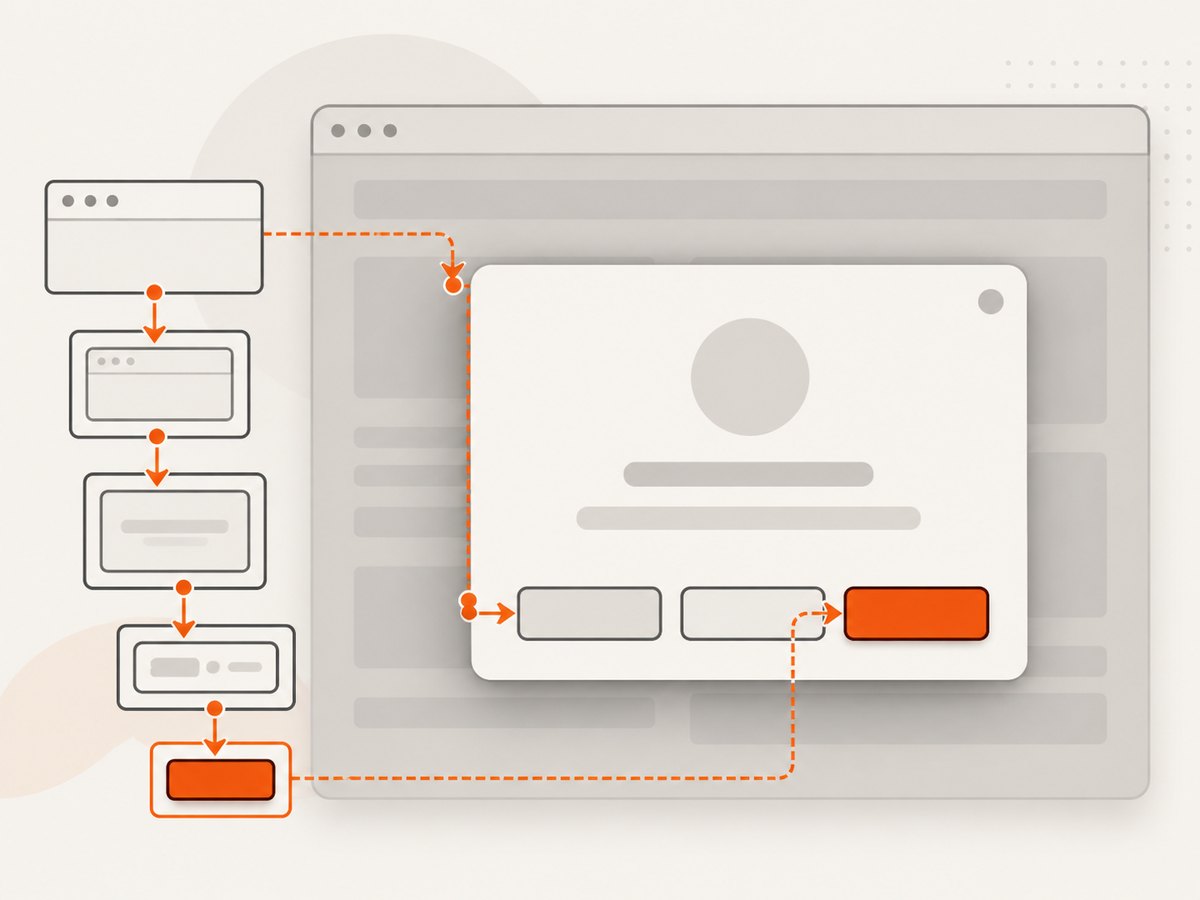
- A unique ID, such as
#checkout-dialog. - A semantic role, such as
[role='dialog']. - An action attribute, such as
[data-action='confirm']. - A stable name or type, such as
button[name='continue'].
Avoid generated styling classes, long ancestor chains, and broad selectors such as button. A driver-level find_element returns the first matching element, so a page-wide selector can click the wrong control. Selenium’s element-finding documentation covers first-match behavior and scoped searches.
Scope the button to its modal
If the page contains several dialogs or repeated buttons, locate the modal first:
from selenium.webdriver.common.by import By

modal = driver.find_element(By.CSS_SELECTOR, "div[role='dialog'][aria-labelledby='consent-title']")
confirm = modal.find_element(By.CSS_SELECTOR, "button[data-action='confirm']")
confirm.click()
You can also use one combined selector:
selector = "div[role='dialog'][aria-labelledby='consent-title'] button[data-action='confirm']"Validate that the selector matches exactly one intended button. If it matches zero elements, the modal may not be open yet. If it matches several, add a distinguishing attribute or narrow the modal container.
3. Wait for the button’s real state
Modern pages often render a modal after navigation, enable its button after validation, or animate an overlay away. Use an explicit wait instead of a fixed sleep. Selenium’s wait guidance and expected conditions explain why page readiness does not guarantee that a control is ready.
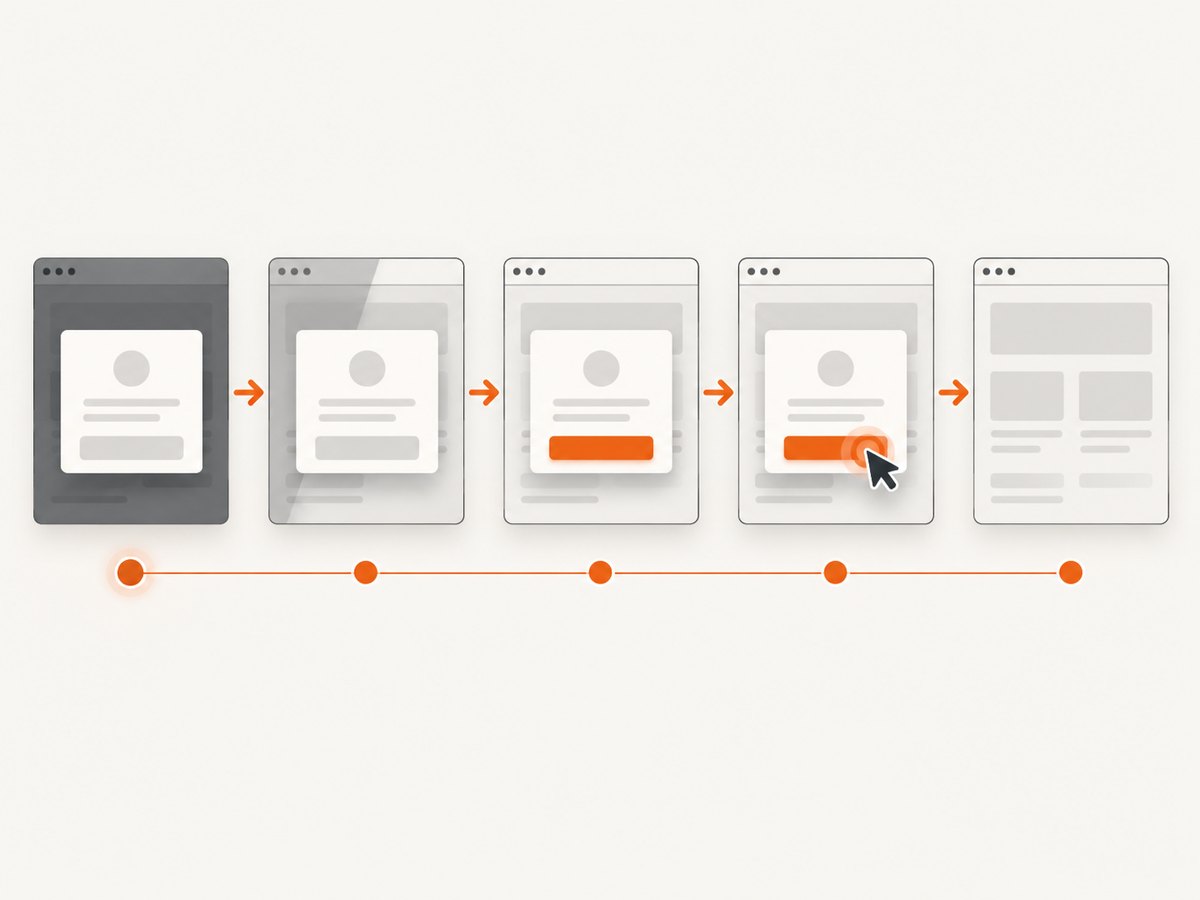
from selenium.webdriver.common.by import By
from selenium.webdriver.support.ui import WebDriverWait
from selenium.webdriver.support import expected_conditions as EC

wait = WebDriverWait(driver, 15)
selector = "[role='dialog'] button[data-action='confirm']"
button = wait.until(
    EC.element_to_be_clickable((By.CSS_SELECTOR, selector))
)
button.click()
element_to_be_clickable checks visibility and enabled status. It does not guarantee that an animation or another element will not cover the button’s center when the click occurs. After clicking, wait for a meaningful result, such as the modal disappearing:
wait.until(EC.invisibility_of_element_located((By.CSS_SELECTOR, "[role='dialog']")))Wait for an overlay when clicks are intercepted
If an overlay fades out separately, wait for it too:
wait.until(EC.invisibility_of_element_located((By.CSS_SELECTOR, ".modal-backdrop, .loading-overlay")))
button = wait.until(EC.element_to_be_clickable((By.CSS_SELECTOR, selector)))
button.click()
Re-locate the button immediately before clicking when JavaScript can replace the modal. A previously stored element reference can become stale after a DOM update.
4. Complete runnable Python example
The following example opens a page, waits for a modal button, clicks it, and verifies that the dialog closes. Replace the URL and selector with the site’s actual markup.
from selenium import webdriver
from selenium.webdriver.common.by import By
from selenium.webdriver.support.ui import WebDriverWait
from selenium.webdriver.support import expected_conditions as EC
from selenium.common.exceptions import TimeoutException, ElementClickInterceptedException

URL = "https://example.com"
MODAL = (By.CSS_SELECTOR, "div[role='dialog']")
BUTTON = (By.CSS_SELECTOR, "div[role='dialog'] button[data-action='confirm']")
OVERLAY = (By.CSS_SELECTOR, ".modal-backdrop, .loading-overlay")

driver = webdriver.Chrome()
wait = WebDriverWait(driver, 15)

try:
    driver.get(URL)
    wait.until(EC.visibility_of_element_located(MODAL))
    try:
        wait.until(EC.invisibility_of_element_located(OVERLAY))
    except TimeoutException:
        pass

    button = wait.until(EC.element_to_be_clickable(BUTTON))
    button.click()
    wait.until(EC.invisibility_of_element_located(MODAL))
    print("Modal confirmed")
except TimeoutException as exc:
    print(f"Timed out waiting for the modal or button: {exc}")
except ElementClickInterceptedException:
    print("The button was covered when Selenium clicked its center")
finally:
    driver.quit()
Install Selenium with python -m pip install selenium. Selenium Manager can provide a compatible browser driver in current Selenium releases; otherwise configure the driver according to your environment.
5. Handle native JavaScript alerts
Native alerts are not DOM elements, so a CSS selector can never find their OK or Cancel control. Wait for the alert and use Selenium’s alert API, as documented in the alerts guide.
from selenium.webdriver.support.ui import WebDriverWait
from selenium.webdriver.support import expected_conditions as EC

alert = WebDriverWait(driver, 10).until(EC.alert_is_present())
print(alert.text)
alert.accept()       # OK
# alert.dismiss()    # Cancel
For a prompt, enter text before accepting:
alert = WebDriverWait(driver, 10).until(EC.alert_is_present())
alert.send_keys("approved")
alert.accept()
6. Switch into an iframe before searching
An iframe has its own document. A top-level CSS search cannot cross into it. Locate the frame, switch to it, find and click the button, then return to the main document. See Selenium’s frames documentation.
from selenium.webdriver.common.by import By
from selenium.webdriver.support.ui import WebDriverWait
from selenium.webdriver.support import expected_conditions as EC

wait = WebDriverWait(driver, 15)
frame = wait.until(EC.presence_of_element_located((By.CSS_SELECTOR, "iframe[title='Consent']")))
driver.switch_to.frame(frame)
try:
    button = wait.until(EC.element_to_be_clickable((By.CSS_SELECTOR, "button[data-action='accept']")))
    button.click()
finally:
    driver.switch_to.default_content()
If the frame is nested, switch into each parent frame in order. If the iframe reloads, locate it again before switching.
7. Search inside a shadow root
Normal document queries do not cross a shadow boundary. Selenium 4 exposes the host’s shadow root:
from selenium.webdriver.common.by import By
from selenium.webdriver.support.ui import WebDriverWait
from selenium.webdriver.support import expected_conditions as EC

host = WebDriverWait(driver, 10).until(
    EC.presence_of_element_located((By.CSS_SELECTOR, "consent-dialog"))
)
shadow = host.shadow_root
button = shadow.find_element(By.CSS_SELECTOR, "button[data-action='accept']")
button.click()
If the component uses a closed shadow root, ordinary WebDriver lookup may not be able to access its internals. Prefer the component’s supported public interaction or an application-level test hook.
8. Diagnose common failures
| Error or symptom | Likely cause | Fix |
|---|---|---|
NoSuchElementException |
The modal has not opened, the selector is wrong, or the element is in another frame or window. | Wait for the modal, inspect the live DOM, switch browsing context, and verify spelling and CSS syntax. |
| The wrong button is clicked | A broad selector matches several controls and Selenium uses the first match. | Scope to the modal and add a stable action, name, role, or data attribute. |
ElementNotInteractableException |
The element is hidden, disabled, outside the usable viewport, or not ready. | Wait for visibility and enabled state; inspect disabled attributes and animations. |
ElementClickInterceptedException |
An overlay, spinner, tooltip, or another element covers the button center. | Wait for the obstruction to disappear and re-check the button. Selenium clicks the element center; see element interactions. |
StaleElementReferenceException |
JavaScript replaced the modal or button after you located it. | Wait for the replacement state and locate the element again immediately before clicking. |
InvalidSelectorException |
The selector has invalid CSS syntax or an XPath was passed as CSS. | Validate the selector in developer tools and use By.CSS_SELECTOR only for CSS. |
| Button is inside an iframe | The search is running in the top-level document. | Switch to the iframe, interact, then call default_content(). |
| Button is inside shadow DOM | The selector cannot cross the shadow boundary. | Find the host and search its shadow_root. |
| Click returns but nothing changes | The click may trigger asynchronous work, validation, or navigation. | Wait for the expected URL, state change, modal disappearance, or confirmation element. |
Selenium’s troubleshooting documentation provides additional error behavior and remedies.
9. Selector and wait design checklist
- Uniqueness: Does the selector identify exactly one intended control?
- Stability: Does it use durable attributes instead of generated class names?
- Scope: Is the search constrained to the correct modal?
- Context: Are you in the right window, iframe, or shadow root?
- State: Are you waiting for visibility, enabled status, and overlay removal?
- Outcome: Do you verify that the click produced the expected result?
Use the narrowest selector that expresses the action. For example, [role='dialog'] button may be acceptable for a single-button dialog, while a confirmation modal usually needs an action attribute or accessible name.
10. Reliability, performance, and maintainability
Reliability
Prefer explicit waits tied to page conditions over arbitrary sleeps. Re-locate elements after DOM replacement, keep frame switching in a try/finally block, and assert the post-click state. Avoid JavaScript-powered clicks as a first resort: they can bypass the same hit-testing behavior that real users encounter and hide layout defects.
Performance
Use a reasonable timeout for the site’s normal load time rather than polling with long fixed sleeps. Scope selectors so Selenium searches a small subtree. If a modal can appear conditionally, wait for its presence only when the test or workflow expects it.
Maintainability
Keep selectors near the page-object or workflow code, give them descriptive names, and prefer semantic attributes agreed with the application team. A test hook such as data-testid='confirm-consent' is usually more durable than a styling class.
Security and data handling
Do not place credentials, session cookies, or personal data in selectors or logs. Redact alert text and page URLs when they can contain secrets. Keep browser and Selenium versions current enough for the browsers used by your automation.
Or skip the browser setup
If your goal is a clean screenshot after a popup has appeared, ScreenshotNeo can handle the capture request without maintaining Selenium code. It accepts cookie and consent banners before capture and removes more than 60 known consent platforms, newsletter popups, and chat widgets; each cleanup step can be turned off. Bot checks, blank pages, timeouts, failed loads, and cache hits are not billed, and the response identifies the result with X-Page-Verdict and X-Billed headers. Its MCP server also gives Claude, Cursor, and other MCP clients take_screenshot, get_page_info, and capture_pdf tools.
See the ScreenshotNeo API documentation for all options. A one-call example:
curl -G "https://api.screenshotneo.com/v1/shot" -d access_key=YOUR_API_KEY --data-urlencode url=https://stripe.com -o shot.webpimport requests
r = requests.get("https://api.screenshotneo.com/v1/shot", params={"access_key": "YOUR_API_KEY", "url": "https://stripe.com"}, timeout=90)
open("shot.webp", "wb").write(r.content)const q = new URLSearchParams({ access_key: 'YOUR_API_KEY', url: 'https://stripe.com' });
const res = await fetch(`https://api.screenshotneo.com/v1/shot?${q}`);ScreenshotNeo includes full-page and element capture, device presets, custom viewports, retina scale, dark mode, PDF output, custom CSS and JavaScript, click and wait actions, request blocking, headers, cookies, user agents, timezone and geolocation, caching, signed links, asynchronous jobs, bulk capture, usage data, and an OpenAPI specification. Its free plan includes 1,000 screenshots a month with no card; paid plans start at $5 for 3,000. Create a free ScreenshotNeo account.
FAQ
What is the best CSS selector for a modal button?
There is no universal selector. Use the target site’s actual modal attributes, scoped to the dialog and distinguished by the button’s action or accessible name.
Should I use XPath instead?
CSS is usually concise and sufficient for attributes, descendants, and classes. XPath can help with relationships CSS cannot express, but do not pass XPath text to By.CSS_SELECTOR.
Why does clickable still produce an intercepted click?
Clickable checks visibility and enabled status, while Selenium clicks the element center. An overlay or animation can still cover that point; wait for the obstruction to disappear.
Can Selenium click a browser alert with CSS?
No. Native alerts are outside the DOM. Use driver.switch_to.alert, then accept, dismiss, or enter prompt text.
How do I prove the correct button was clicked?
Wait for a specific post-click condition, such as modal invisibility, a confirmation element, a URL change, or an expected application state.


