How to Click a Popup Window with Pyppeteer
Detect the new Pyppeteer page target, obtain its Page object, and click safely inside the popup with complete Python examples and fixes.
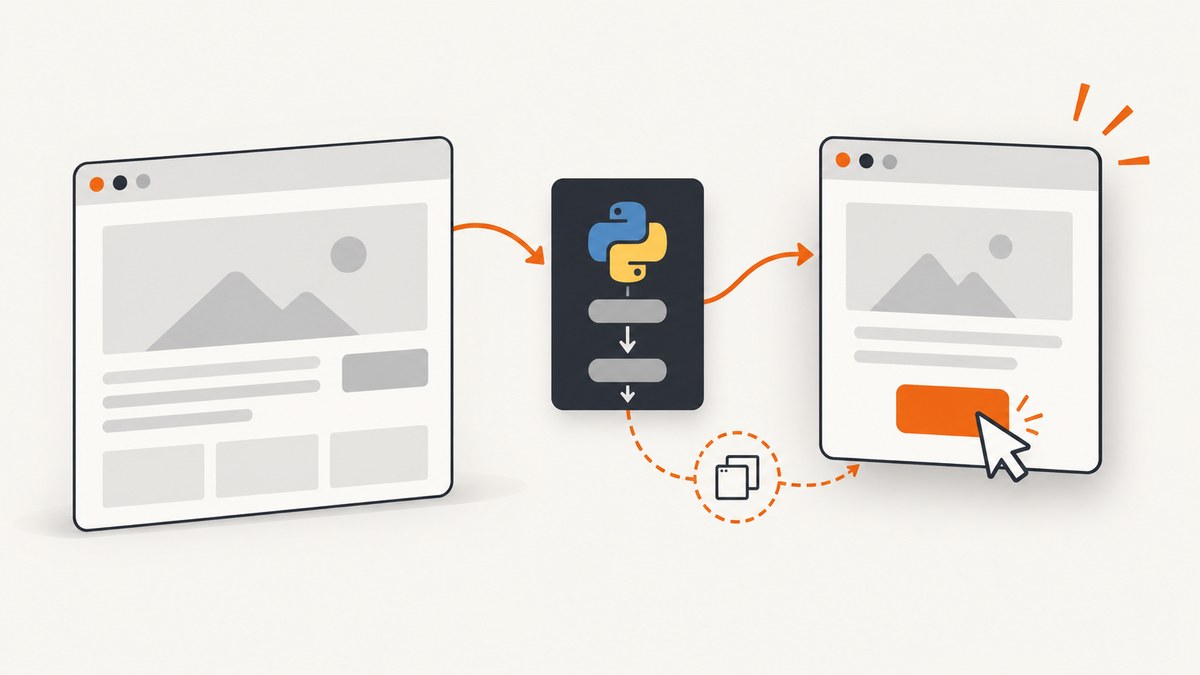
Direct answer: click the opener with the original Page, detect the new browser target, convert that target to its own Page, then call popup.click() on the popup page. A selector passed to the opener page cannot click elements in the popup.
Pyppeteer documents Page.click(), Browser.targets(), and Target.page() in its API reference. The target-detection loop below is an implementation pattern built from those APIs, rather than a built-in popup event. Read the Pyppeteer API reference.
1. Install Pyppeteer and launch Chromium
Install the package in a virtual environment. Pyppeteer may download a Chromium build the first time it launches.
python -m venv .venv
source .venv/bin/activate  # Windows: .venv\\Scripts\\activate
pip install pyppeteer
A minimal launch looks like this:
import asyncio
from pyppeteer import launch

async def main():
    browser = await launch()
    try:
        page = await browser.newPage()
        await page.goto("https://example.com", {"waitUntil": "networkidle2"})
    finally:
        await browser.close()

asyncio.run(main())
2. Complete example: click inside a newly opened popup
The reliable sequence is:

- Open the original page.
- Save the existing targets before clicking.
- Wait for the opener selector to be visible.
- Click the opener.
- Poll
browser.targets()for a new target whose type ispage. - Call
target.page()and verify that it returned a page. - Wait for the popup control, then click it on the popup page.
import asyncio
from pyppeteer import launch

POPUP_TIMEOUT_SECONDS = 10


async def wait_for_new_page(browser, existing_targets, timeout=POPUP_TIMEOUT_SECONDS):
    """Return the first newly created page target, or raise TimeoutError."""
    deadline = asyncio.get_running_loop().time() + timeout
    while asyncio.get_running_loop().time() < deadline:
        for target in browser.targets():
            if target in existing_targets or target.type != "page":
                continue
            popup = await target.page()
            if popup is not None:
                return popup
        await asyncio.sleep(0.05)
    raise TimeoutError("No popup page target appeared")


async def main():
    browser = await launch({
        # Set executablePath if Chromium is installed elsewhere.
        # "executablePath": "/usr/bin/chromium",
        "headless": True,
    })
    try:
        page = await browser.newPage()
        await page.goto("https://example.com", {"waitUntil": "networkidle2"})

        opener_selector = "a.open-popup"
        await page.waitForSelector(opener_selector, {"visible": True})

        # Snapshot before the click so existing tabs are not mistaken for the popup.
        existing_targets = set(browser.targets())
        await page.click(opener_selector)

        popup = await wait_for_new_page(browser, existing_targets)
        try:
            await popup.waitForSelector("button.continue", {"visible": True})
            await popup.click("button.continue")
            print("Clicked the popup button")
        finally:
            await popup.close()
    finally:
        await browser.close()


asyncio.run(main())
Replace https://example.com, a.open-popup, and button.continue with selectors from the site you automate. Page.click() scrolls the matching element into view and clicks its center; it raises PageError when no element matches.
3. If the click navigates the same tab instead
Some controls look like popups but navigate the existing page. In that case no new target appears. Start the navigation wait and click concurrently so the navigation cannot race the click:
await asyncio.gather(
    page.waitForNavigation({"waitUntil": "networkidle2"}),
    page.click("a.same-tab-link"),
)
Use this only when the original tab changes URL or document. It does not replace popup target detection.
4. How popup targets work
| Situation | What changes | What to await |
|---|---|---|
| Link or script navigates the opener | The original Page gets a new document |
waitForNavigation() and click() together |
window.open() or a new-tab link |
A separate page target is created | Enumerate browser.targets(), then call target.page() |
| Popup blocked or no new window | No new page target exists | Inspect the opener, browser policy, and site behavior |
| Worker, extension, or background target | A target exists but is not a normal page | Filter for target.type == "page" and check for None |
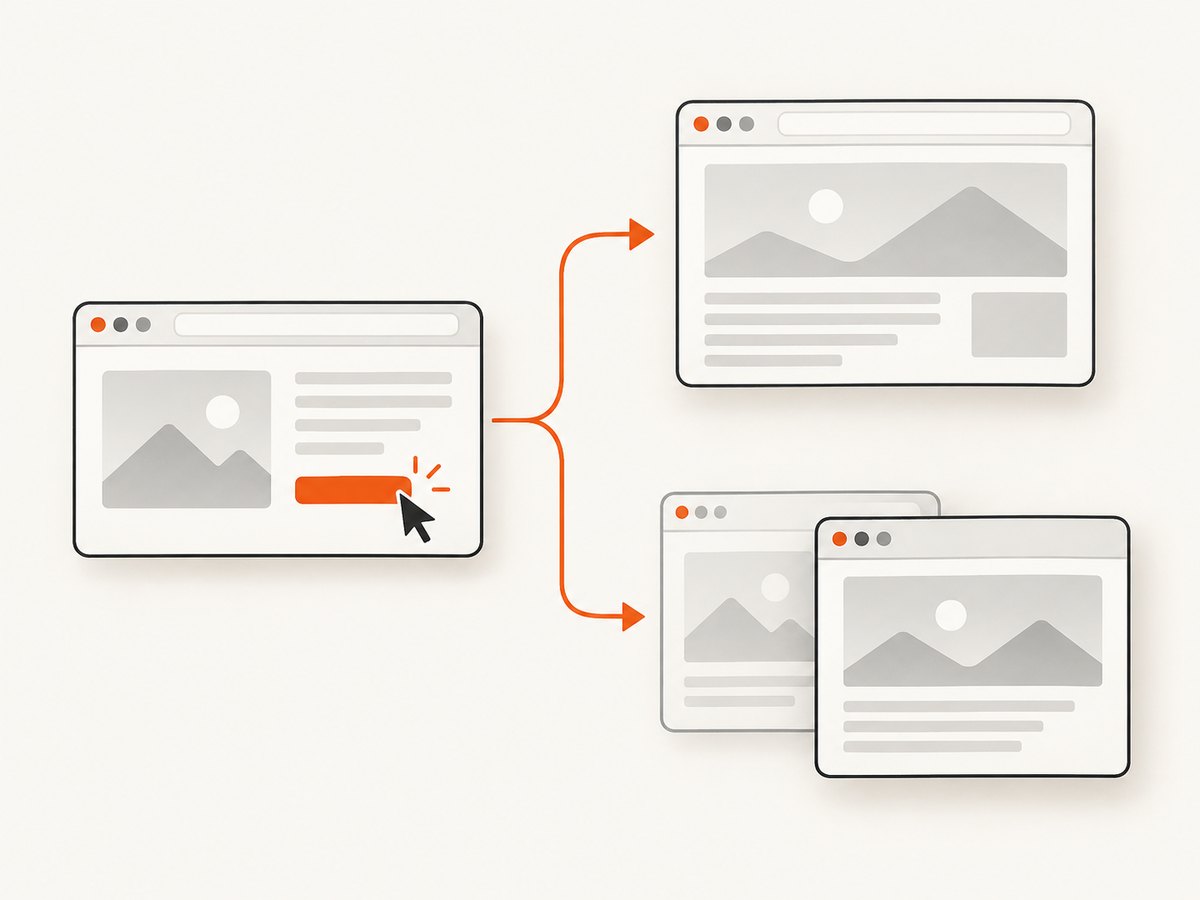
A page created with window.open belongs to the opener's browser context. Browser.targets() returns active targets, while Target.page() can return None for targets that are not pages. See the reference documentation.
5. Selector and timing options
Wait for a visible opener
await page.waitForSelector(
    "button.open-popup",
    {"visible": True, "timeout": 30000},
)
The documented default selector wait is 30 seconds. A visible wait helps when the control is rendered asynchronously or initially hidden.
Click details
await popup.click(
    "button.continue",
    {"button": "left", "clickCount": 1, "delay": 50},
)
Use button, clickCount, and delay when the site needs a specific mouse gesture. Keep the selector scoped to the popup page.
Wait for a popup URL or title
await popup.waitForFunction(
    "location.pathname === '/checkout'",
    {"timeout": 10000},
)
print(await popup.title())
6. Handling popup navigation after the first click
If a control inside the popup navigates that popup, pair the popup's navigation wait with its click:
await asyncio.gather(
    popup.waitForNavigation({"waitUntil": "networkidle2"}),
    popup.click("button.continue"),
)
When the click opens another window, repeat the target-baseline process from the page that triggered it.
7. Common errors and fixes
| Error or symptom | Cause | Fix |
|---|---|---|
PageError: ... failed to find element |
The selector is wrong, the DOM is not ready, or the element is in the popup | Call waitForSelector(..., {"visible": True}); verify the selector in the correct Page. |
| Target loop times out | The click navigated the opener, the popup was blocked, or no new window was requested | Check page.url after the click, inspect site behavior, and use concurrent navigation waits when appropriate. |
target.page() returns None |
The target is not a page or background page | Filter by target.type == "page" and test the return value before using it. |
| The wrong tab is selected | Existing targets were not snapshotted before the click | Build existing_targets = set(browser.targets()) immediately before clicking. |
| Popup opens too slowly | Network or JavaScript work delays target creation | Increase the polling timeout, keep the loop short, and wait for a selector after obtaining the page. |
| Click has no effect | An overlay, consent dialog, or disabled control intercepts the click | Wait for the control to be visible and actionable, dismiss the blocking UI, or use a selector for the actual clickable element. |
| Chromium fails to launch | Browser executable or system dependencies are unavailable | Allow the first Chromium download to finish or pass a valid executablePath; check the launch error for missing dependencies. |
| Copied Puppeteer code fails | Modern Puppeteer JavaScript APIs are not automatically Pyppeteer APIs | Use Pyppeteer's Python target enumeration pattern instead of copying browserContext.waitForTarget. |
8. Debugging checklist
- Confirm the opener selector matches the element that actually creates the new page.
- Take the target baseline immediately before the click.
- Log each target's
typeand URL while diagnosing detection. - Verify that
await target.page()is notNone. - Use popup selectors only after you have the popup
Page. - Decide whether the action navigates the opener or creates a new target.
- Close the popup and browser in
finallyblocks so failed runs do not leak Chromium processes.
9. Performance, reliability, and cost
Target polling at a short interval adds little work compared with page navigation, but the overall runtime is dominated by DNS, network requests, JavaScript, and popup content. Keep a bounded timeout, wait for the specific selector you need, and avoid waiting for full network idle when the button is already usable.
For reliability, use stable attributes such as data-testid when available, snapshot targets before every popup-producing action, and separate “popup appeared” from “popup content is ready.” Always close pages and the browser in cleanup code.
Running your own browser means paying for Chromium memory, CPU, bandwidth, and maintenance. Reusing a browser for several captures can reduce startup overhead, while isolating unrelated jobs in separate pages reduces cross-test state.
10. Or skip the browser setup
If your goal is a clean image or PDF of a page rather than interacting with a custom popup workflow, ScreenshotNeo provides a single screenshot request. Its capture flow accepts cookie and consent banners, removes more than 60 known consent platforms plus newsletter popups and chat widgets, and lets you turn each step off. Bot checks, blank pages, timeouts, failed loads, and cache hits are not billed; the response reports the result with X-Page-Verdict and X-Billed headers.
See the ScreenshotNeo API documentation for all options.
curl -G "https://api.screenshotneo.com/v1/shot" -d access_key=YOUR_API_KEY --data-urlencode url=https://stripe.com -o shot.webpimport requests
r = requests.get("https://api.screenshotneo.com/v1/shot", params={"access_key": "YOUR_API_KEY", "url": "https://stripe.com"}, timeout=90)
open("shot.webp", "wb").write(r.content)const q = new URLSearchParams({ access_key: 'YOUR_API_KEY', url: 'https://stripe.com' });
const res = await fetch(`https://api.screenshotneo.com/v1/shot?${q}`);ScreenshotNeo also exposes an MCP server with take_screenshot, get_page_info, and capture_pdf tools for Claude, Cursor, and other MCP clients. The free plan includes 1,000 screenshots each month with no card; paid plans start at $5 for 3,000. Start with 1,000 free screenshots.
11. FAQ
Can Pyppeteer click a popup without opening a second Page?
No. The popup has its own target and DOM. Obtain its Page first, then call its methods.
Should I use window.open() in evaluate()?
Use the site's real opener click when you want to reproduce user behavior. Calling window.open() directly tests JavaScript rather than the page control, and expression detection in evaluate() has its own rules.
Is waitForTarget available in Pyppeteer?
Do not assume current Puppeteer JavaScript examples map directly to Pyppeteer. The documented Pyppeteer approach is to enumerate browser.targets() and call target.page().
What if the popup is an iframe?
An iframe is not a new browser target. Keep the same page and obtain the relevant frame, then query elements within that frame instead of waiting for a new page target.
Can I capture the popup after clicking?
Yes. Once you have the popup Page, use its URL, DOM, screenshot, or PDF methods just as you would on the opener page.


