How to Click Submenu Items Reliably with Selenium WebDriver
Learn how to open hover and click menus, wait for submenu items, and fix intercepted, stale, or non-interactable clicks with Selenium WebDriver.
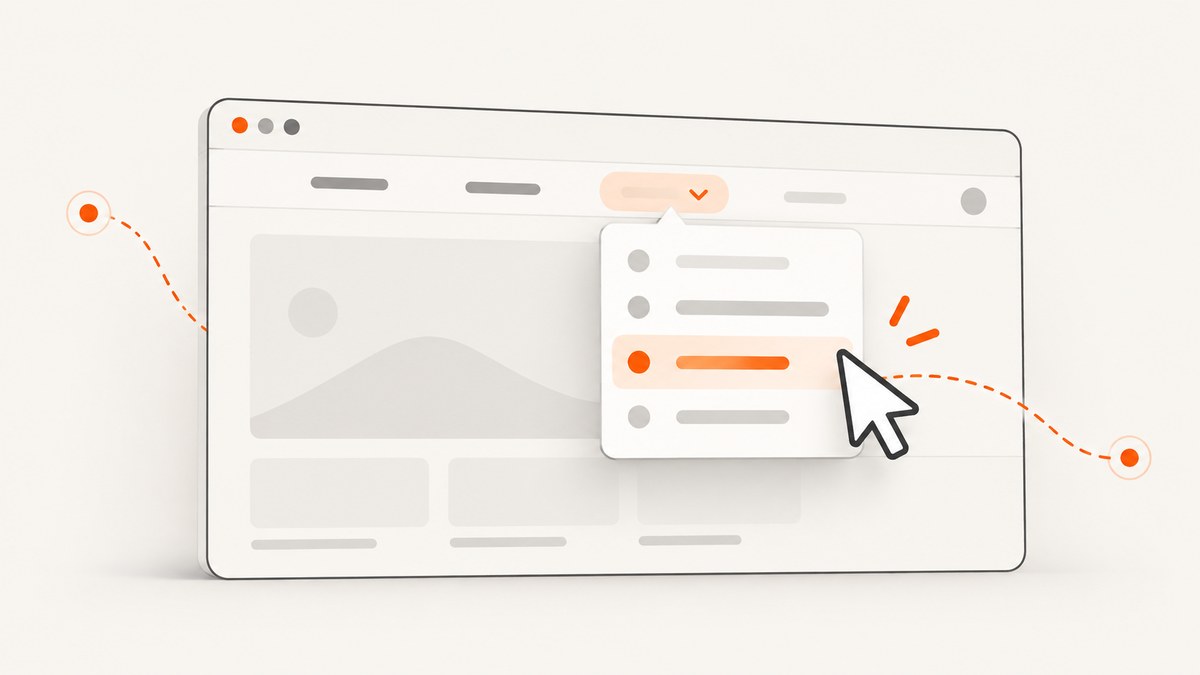
Selenium can click a submenu item reliably when you first activate its parent menu, wait for the submenu’s actual interactive state, and locate the child with a stable selector. For hover menus, move the pointer onto the parent with an action chain; for click-expanded menus, click the parent. Then wait for the submenu item to be visible and enabled before clicking it.
The examples below use Python, Selenium 4, and explicit waits. They also cover redraws, overlays, frames, shadow DOM, diagnosis, and practical reliability choices. Selenium’s explicit waits poll for a condition before continuing, which is more dependable than guessing with a fixed sleep. Selenium waiting strategies
1. Install Selenium and start a browser
Install the Selenium Python package in the same environment that will run your script:
python -m pip install seleniumThis minimal script opens a page, waits for elements, and quits the browser even if an interaction fails. Selenium 4 can manage a compatible browser driver through Selenium Manager in common setups. If your environment requires a separately installed driver, make it available where Selenium can find it.
from selenium import webdriver

options = webdriver.ChromeOptions()
# Uncomment to run without a visible browser window:
# options.add_argument("--headless=new")

driver = webdriver.Chrome(options=options)
try:
    driver.get("https://example.com")
    # Add the menu interaction from the next section here.
finally:
    driver.quit()
Replace the example address and selectors with the page under test. Use a test account or a controlled environment if selecting the menu item performs an action with side effects.
2. Click a hover-revealed submenu item
A CSS-hidden submenu may already exist in the DOM, so finding it does not mean a user can interact with it. Hover the parent first, then wait for the child to become clickable. This complete example uses a CSS selector for a parent and a test attribute for the submenu link:
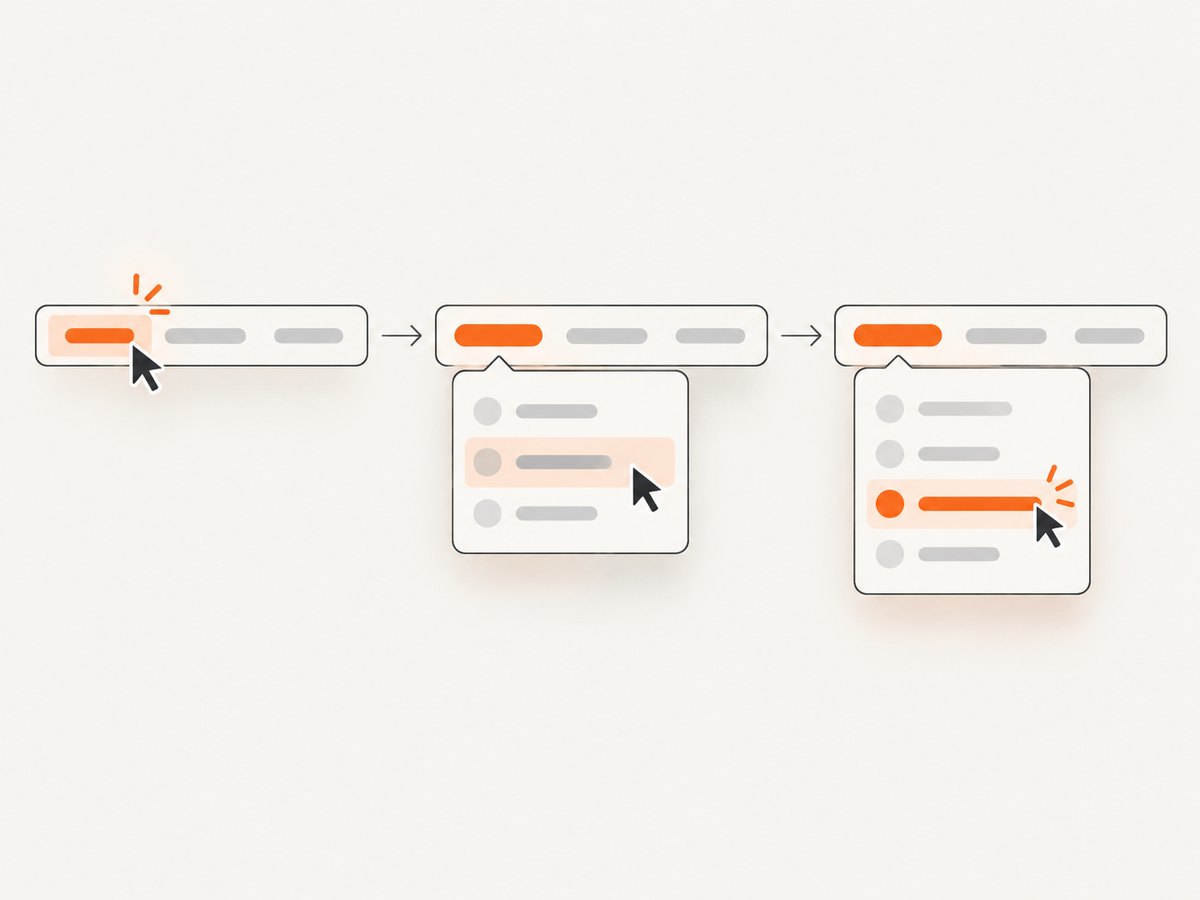
from selenium import webdriver
from selenium.webdriver.common.by import By
from selenium.webdriver.common.action_chains import ActionChains
from selenium.webdriver.support.ui import WebDriverWait
from selenium.webdriver.support import expected_conditions as EC

options = webdriver.ChromeOptions()
driver = webdriver.Chrome(options=options)
wait = WebDriverWait(driver, 10)

try:
    driver.get("https://example.com")

    parent = wait.until(
        EC.visibility_of_element_located((By.CSS_SELECTOR, "#products"))
    )
    ActionChains(driver).move_to_element(parent).perform()

    submenu_item = wait.until(
        EC.element_to_be_clickable(
            (By.CSS_SELECTOR, "#products-menu a[data-testid='reports']")
        )
    )
    submenu_item.click()
finally:
    driver.quit()
Use selectors that describe the intended control: an ID, a semantic attribute, or an application-owned test ID is usually easier to maintain than “the third link in the second list.” Selenium’s Python documentation demonstrates moving to an element with ActionChains to trigger hover behavior. Selenium Python documentation
Wait for the menu’s real state
element_to_be_clickable checks that an element is visible and enabled. It does not prove that an overlay is gone, an animation has finished, or the application’s event handler will accept the click. If the page exposes state such as aria-expanded, a menu-open class, or a visible submenu container, wait for that state too. Selenium’s condition is documented as checking visibility and enabled status. Python expected conditions API
from selenium.webdriver.support import expected_conditions as EC

parent_locator = (By.CSS_SELECTOR, "#products")
submenu_locator = (By.CSS_SELECTOR, "#products-menu")
item_locator = (By.CSS_SELECTOR, "#products-menu a[data-testid='reports']")

parent = wait.until(EC.visibility_of_element_located(parent_locator))
ActionChains(driver).move_to_element(parent).perform()
wait.until(EC.visibility_of_element_located(submenu_locator))
wait.until(EC.element_to_be_clickable(item_locator)).click()
If the site animates the menu, waiting for its visible state is a good starting point. When the application exposes a more precise completed state, such as a transition class or a changed ARIA attribute, use that condition. Avoid adding arbitrary delays as a substitute for knowing what state the page needs.
3. Click a submenu opened by clicking its parent
Some menus open on click rather than hover, especially touch-friendly navigation. Click the parent control, wait for the submenu, then click its item. A button with aria-haspopup and a menu item with semantic roles make illustrative selectors; adapt them to the actual rendered markup.
parent_locator = (By.CSS_SELECTOR, "button[aria-haspopup='true']")
item_locator = (By.CSS_SELECTOR, "[role='menu'] a[role='menuitem']")

parent = wait.until(EC.element_to_be_clickable(parent_locator))
parent.click()
wait.until(EC.visibility_of_element_located((By.CSS_SELECTOR, "[role='menu']")))
wait.until(EC.element_to_be_clickable(item_locator)).click()
Do not use hover for a menu whose interaction is click-based unless the page supports both. Conversely, clicking a hover-only parent may navigate immediately or do nothing useful. Inspect the page’s expected interaction and use the matching activation.
4. Choose the right wait and selector
| Situation | Useful approach | What it establishes |
|---|---|---|
| Parent is not rendered yet | presence_of_element_located |
The node exists in the DOM; it may still be hidden. |
| Parent needs to be seen before hover | visibility_of_element_located |
The element is present and visible. |
| Menu opens after pointer movement | Hover, then wait for submenu visibility | The expected menu state has appeared. |
| Child can be clicked | element_to_be_clickable |
The child is visible and enabled. |
| Framework replaces a node | Wait for old node staleness, then locate again | The old reference has gone stale after redraw. |
| Overlay or animation blocks input | Wait for the blocking state to clear | The known obstruction is gone; clickable alone cannot prove this. |
Explicit waits poll until a condition is true or the timeout expires. Fixed sleeps can be too short on a slow run and needlessly long on a fast one. Selenium also warns against casually mixing implicit and explicit waits because combined timeout behavior can be unpredictable. Prefer one deliberate explicit-wait strategy for these interactions. Selenium waiting strategies
Prefer selectors tied to stable meaning, such as data-testid, a stable ID, or a unique accessible role/name. Positional XPath such as “the fourth anchor under the second list” tends to break when markup changes. If the application does not provide a stable attribute, use the most specific semantic selector available and verify it matches the intended item.
5. Handle redraws and stale elements
Single-page applications may replace a menu node after opening it. A WebElement you found before the redraw can then refer to a detached node, causing StaleElementReferenceException. Keep the locator and reacquire the element after state-changing interactions:
item_locator = (By.CSS_SELECTOR, "#products-menu a[data-testid='reports']")

# Re-locate after opening the menu; do not keep using a pre-redraw child element.
item = wait.until(EC.element_to_be_clickable(item_locator))
item.click()
If a click is expected to replace the element, retain the old reference only to wait for its staleness, then locate the replacement:
old_item = driver.find_element(*item_locator)
old_item.click()
wait.until(EC.staleness_of(old_item))
replacement = wait.until(EC.presence_of_element_located(item_locator))
Use staleness_of only when a redraw is actually expected. It waits for the old reference to become detached; it does not itself prove that the new menu is ready. Follow it with a condition on the replacement’s expected state. The expected-condition API includes staleness checks and redraw-aware options. Selenium Java expected conditions
6. Diagnose click failures
| Error or symptom | Likely cause | Fix |
|---|---|---|
NoSuchElementException |
The submenu is not in the DOM yet, the selector differs from the rendered markup, or the node is inside a frame or shadow root. | Wait for the correct state, inspect the rendered DOM, and switch into the right context before locating. |
ElementNotInteractableException |
The node exists but is hidden, disabled, or otherwise not ready for user input. | Activate the parent first; wait for child visibility and enabled state. Confirm the locator points to the visible control, not a hidden duplicate. |
ElementClickInterceptedException |
An overlay, sticky header, cookie dialog, or animation covers the target. | Wait for the obstruction to disappear or be dismissed, and ensure the target is in view. Check which element intercepted the click in the exception details. |
StaleElementReferenceException |
The framework replaced the node after you found it. | Keep a locator, wait for the redraw if needed, then reacquire the element. |
| Hover opens, then closes before click | The pointer left the parent-to-submenu hover region, often across a gap. | Move onto the correct parent, wait for the submenu immediately, and avoid moving through a gap. Check whether the page requires hovering a wrapper that includes both trigger and panel. |
| Works locally, fails in CI | Different viewport, timing, browser, or page state changes menu positioning or readiness. | Set a deliberate window size, wait on application state, and capture diagnostic logs or a screenshot on failure. |
Frames and shadow DOM
An iframe has its own browsing context. Switch into the correct frame before searching its document, and return to the main document when finished:
frame = wait.until(EC.presence_of_element_located((By.CSS_SELECTOR, "iframe#app")))
driver.switch_to.frame(frame)
try:
    wait.until(EC.element_to_be_clickable(item_locator)).click()
finally:
    driver.switch_to.default_content()
For nested frames, switch one level at a time. For shadow DOM, locate the host and query through its shadow root using the Selenium support available in your version and language. A selector from the main document does not automatically cross either boundary. Once inside the right context, apply the same activate, wait, and click sequence.
When JavaScript click is not the fix
Calling execute_script("arguments[0].click()", element) can bypass the pointer path that a real user would take. It may hide the fact that an overlay blocks the menu or that the parent was never activated. Use it only when the test specifically intends to invoke a DOM click and the distinction is understood; for user-flow automation, fix the state and use Selenium’s normal click.
7. Improve reliability and keep runs efficient
- Use bounded waits. Choose a timeout appropriate to the application and environment. A timeout is a failure boundary, not a reason to sleep for the entire interval.
- Wait for the next action’s prerequisite. After hover, wait for the menu. After clicking a navigation item, wait for the destination or another meaningful page state.
- Keep locators, not old elements. Re-find controls after interactions that may redraw the component.
- Make the viewport explicit in CI. Responsive navigation can use a different menu interaction on a narrow screen.
- Capture diagnostics on failure. Save the current URL, screenshot, and relevant DOM or browser logs where your test framework allows it.
- Do not retry every click blindly. A click may have succeeded even if the following wait failed. Check the resulting state before retrying an action that could submit or navigate twice.
Explicit waits usually make the automation both more reliable and less wasteful than a long fixed pause: the script proceeds as soon as the condition is met and stops when the timeout is reached. Browser startup and page rendering still dominate many runs, so avoid repeatedly creating browsers within a single test flow unless isolation requires it. Keep timeouts finite and report the failed condition clearly.
8. Inspect a page visually when DOM evidence is not enough
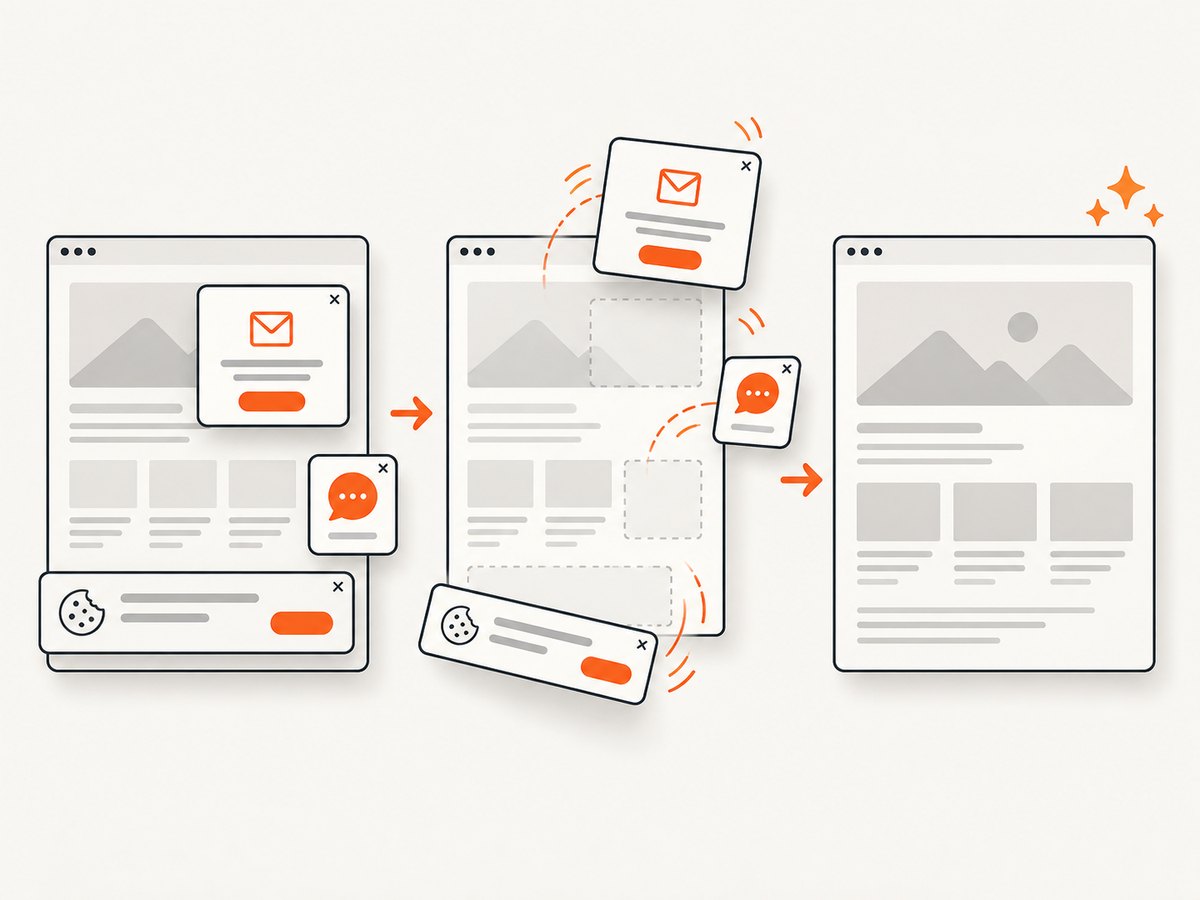
Sometimes a failing menu needs visual inspection: an overlay may cover the target, a responsive header may have changed layout, or the submenu may be clipped. A screenshot can help diagnose that state, but it does not replace Selenium’s interaction or condition checks.
Or skip the browser setup
If the task is to capture a page image or PDF rather than click through the page, ScreenshotNeo provides a one-request website screenshot API. The full options and request parameters are in the ScreenshotNeo API documentation.
curl -G "https://api.screenshotneo.com/v1/shot" -d access_key=YOUR_API_KEY --data-urlencode url=https://example.com -o shot.webpimport requests
r = requests.get(
"https://api.screenshotneo.com/v1/shot",
params={"access_key": "YOUR_API_KEY", "url": "https://example.com"},
timeout=90,
)
open("shot.webp", "wb").write(r.content)const q = new URLSearchParams({ access_key: 'YOUR_API_KEY', url: 'https://example.com' });
const res = await fetch(`https://api.screenshotneo.com/v1/shot?${q}`);
if (!res.ok) throw new Error(`Screenshot request failed: ${res.status}`);
await import('node:fs/promises').then(fs => fs.writeFile('shot.webp', Buffer.from(await res.arrayBuffer())));Before a capture, ScreenshotNeo accepts cookie or consent banners like a visitor and removes more than 60 known consent platforms, newsletter popups, and chat widgets; each of those steps can be turned off. Bot checks or CAPTCHAs, blank pages, timeouts, failed loads, and cache hits cost nothing, and response headers identify the page verdict and billing status. Its MCP server offers take_screenshot, get_page_info, and capture_pdf for Claude, Cursor, and other MCP clients. The free plan includes 1,000 shots a month with no card; paid plans start at $5 for 3,000, and every feature is on every plan.
Sign up for 1,000 free screenshots a month, with no card required.
9. FAQ
Should I use XPath or CSS for a submenu?
Either works. Choose the locator that most clearly identifies the intended control and remains stable as the page changes. Semantic attributes and application test IDs are often clearer than positional selectors.
Why can Selenium find a hidden submenu?
Element lookup searches the DOM; it does not guarantee that the browser currently displays or enables the element. Activate the parent and wait for the child’s visible, enabled state.
Is a longer timeout always safer?
No. A longer timeout can make a genuine failure take longer to report. Set a bounded timeout appropriate to the application, then improve the condition if it does not describe when the menu is truly ready.
Can ScreenshotNeo click the submenu for my Selenium test?
No. ScreenshotNeo captures a page as an image or PDF. Use Selenium for browser interactions; use ScreenshotNeo when you need a screenshot or PDF without setting up the capture browser yourself.
10. Quick checklist
- Identify whether the menu opens on hover or click.
- Use a stable locator for the parent and submenu item.
- Activate the parent, then wait for the submenu’s actual state.
- Wait for the child to be visible and enabled before clicking.
- After a redraw, reacquire the child from its locator.
- For intercepted clicks, identify and clear the obstruction instead of forcing a DOM click.
- Switch into the correct frame or shadow root when the element is outside the main document.
- Keep waits bounded and avoid mixing implicit and explicit waits casually.


