How to Use a Client Certificate for Pyppeteer Requests
Pyppeteer has no documented client-certificate option. Learn how to provision Chromium for mTLS and when to use Requests instead.
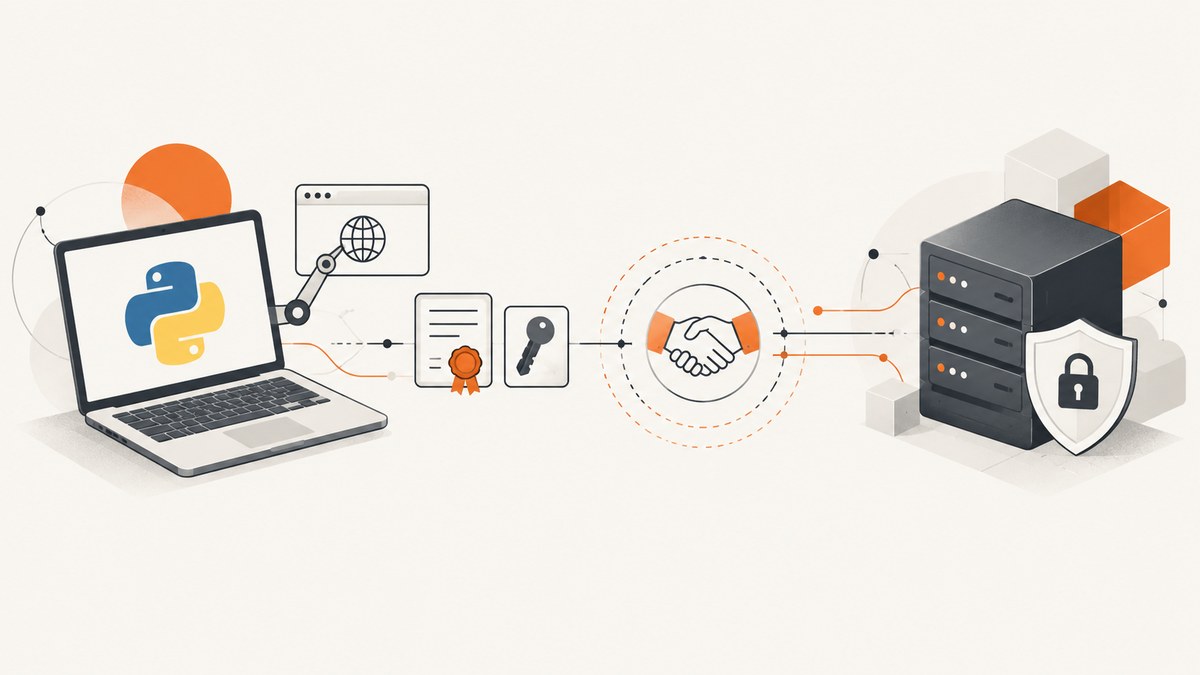
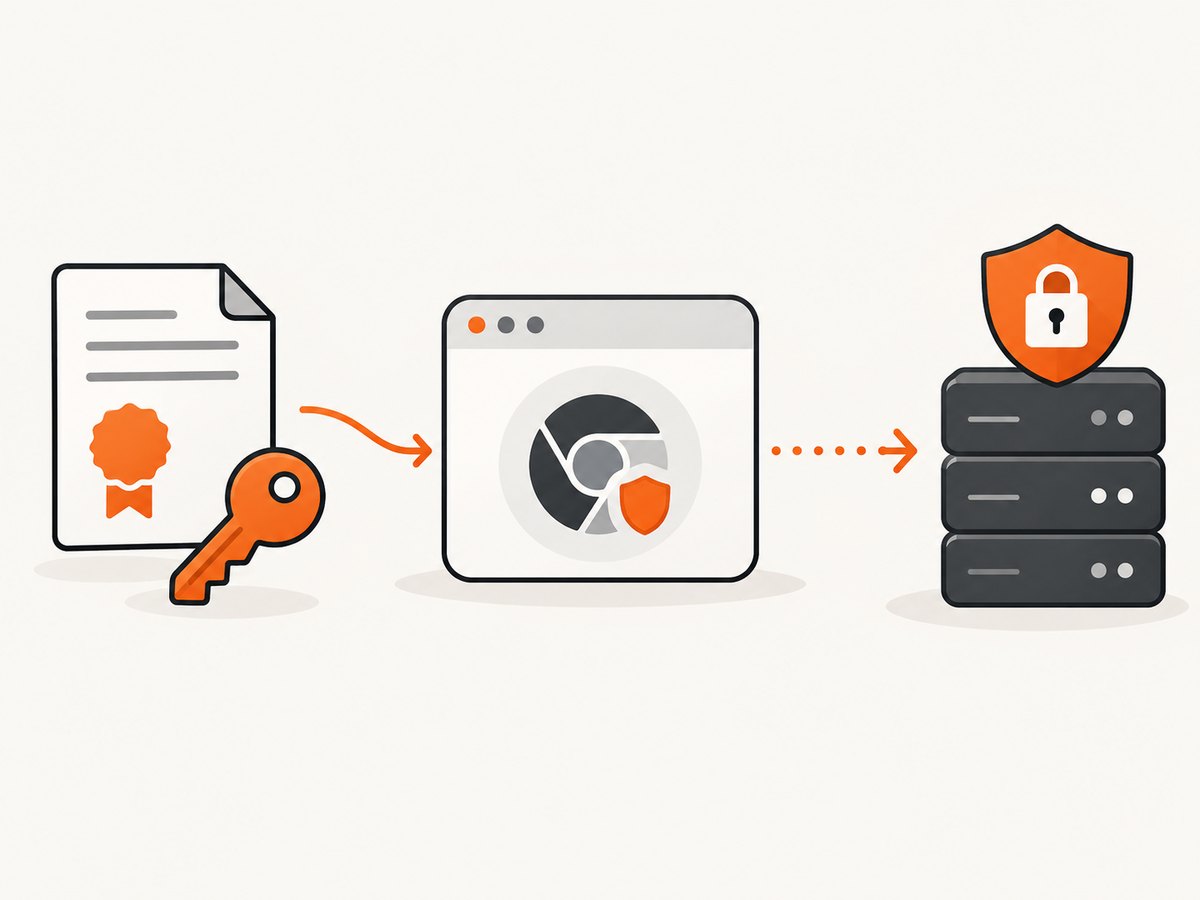
Direct answer: Pyppeteer does not document a clientCertificate or clientCertificates launch option. A client certificate is selected during the TLS handshake, before page JavaScript, request interception, or page.goto() can run. You must make the certificate and matching private key available to the Chromium process through its profile or operating environment, then navigate to the mTLS origin. If you only need an API response, use an HTTP client such as Requests instead of browser automation.
How mutual TLS works
In mutual TLS (mTLS), the server presents its certificate and the client verifies it. The server then requests a client certificate; the client sends an X.509 certificate and proves possession of its corresponding private key during the TLS handshake. This happens before an HTTP request exists. An HTTP header containing a certificate, or a Requests-style argument passed to page.goto(), cannot replace the TLS exchange.
What Pyppeteer can configure
Pyppeteer is an unofficial Python port of Puppeteer. Its documented launch() options include generic Chromium controls such as executablePath, args, userDataDir, env, and ignoreHTTPSErrors; the reference does not list a dedicated client-certificate parameter. Chromium is downloaded on first use unless a suitable browser is already installed. See the Pyppeteer API reference and project documentation.
| Setting | What it does | What it does not do |
|---|---|---|
executablePath |
Selects the Chromium/Chrome binary. | Does not load a client certificate by itself. |
userDataDir |
Chooses the browser profile where certificate identity and trust configuration may be provisioned. | Does not import a PEM pair automatically. |
env |
Passes environment variables to Chromium. | Does not define a standard Pyppeteer certificate API. |
ignoreHTTPSErrors |
Changes handling of invalid server certificates. | Does not provide a client identity and should not be used to solve mTLS client-authentication failures. |
Provision Chromium, then navigate with Pyppeteer
- Obtain a client certificate and its matching private key from the service operator or certificate authority. Confirm that the certificate permits client authentication and that the server trusts its issuing CA and intermediates.
- Store the key outside source control with permissions restricted to the browser process. Do not print certificate or key contents.
- Provision the identity in the Chromium environment or dedicated browser profile using your platform’s certificate-management mechanism. The exact import method depends on the operating system, Chromium build, certificate format, and whether the key is hardware-backed.
- Launch Pyppeteer with that intended Chromium binary and a dedicated
userDataDir. - Navigate only after provisioning is complete. If Chromium cannot access a certificate when the server requests one, the handshake fails before page code runs.
import asyncio
from pathlib import Path
from pyppeteer import launch

async def main():
    # The profile must already have access to the client certificate identity.
    profile = Path("/secure/chromium-mtls-profile")

    browser = await launch(
        executablePath="/usr/bin/google-chrome",
        userDataDir=str(profile),
        headless=True,
        # This is unrelated to client authentication. Keep it false unless
        # you intentionally understand the server-certificate trade-off.
        ignoreHTTPSErrors=False,
        args=["--no-sandbox"],
    )
    try:
        page = await browser.newPage()
        response = await page.goto(
            "https://service.example/secure-page",
            {"waitUntil": "networkidle2", "timeout": 60000},
        )
        if response is None:
            raise RuntimeError("Navigation returned no HTTP response")
        print("status:", response.status)
        print((await page.title()).strip())
    finally:
        await browser.close()

asyncio.run(main())
The code controls the browser process and profile; it does not import a PEM file. Certificate provisioning must be completed before this program starts, or by an external browser-management step that finishes before navigation.
Use Requests when the operation is an API call
For a non-rendered API request, Requests exposes the certificate pair directly. It accepts either a certificate/key tuple or one PEM file containing both.
import requests

response = requests.get(
    "https://service.example/endpoint",
    cert=("/secure/client.crt", "/secure/client.key"),
    verify="/secure/ca-bundle.pem",
    timeout=30,
)
response.raise_for_status()
print(response.text)
Keep server-certificate verification enabled. The Requests documentation explains that verify=False accepts invalid or mismatched server certificates and creates a man-in-the-middle risk. If your operator supplies a combined PEM:
import requests

response = requests.get(
    "https://service.example/endpoint",
    cert="/secure/client-and-key.pem",
    verify="/secure/ca-bundle.pem",
    timeout=30,
)
response.raise_for_status()
See the Requests client-side certificate documentation.
Equivalent cURL check
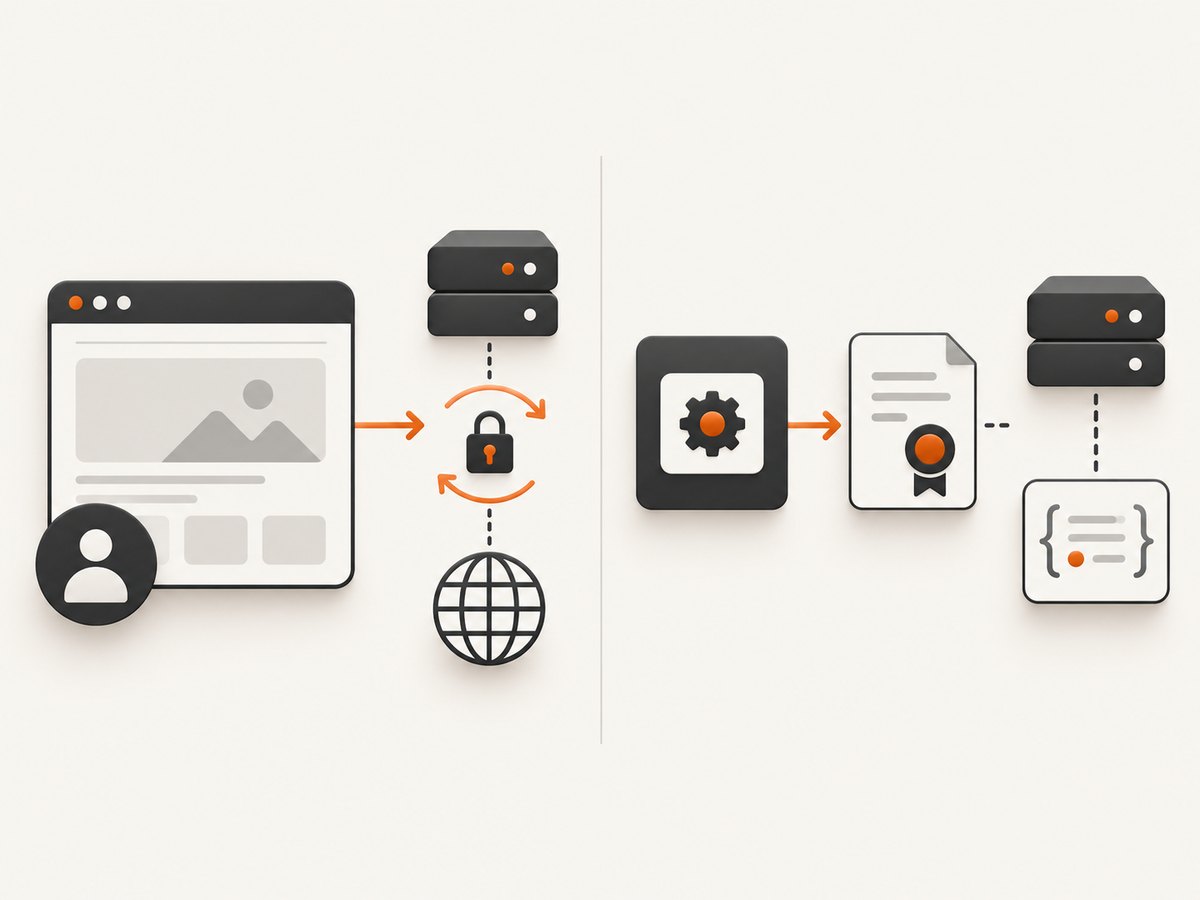
Before debugging browser automation, reproduce the handshake with cURL. This separates certificate and trust problems from page-rendering problems.
curl --fail --silent --show-error \
  --cert /secure/client.crt \
  --key /secure/client.key \
  --cacert /secure/ca-bundle.pem \
  --connect-timeout 10 \
  --max-time 30 \
  https://service.example/endpoint
For a PKCS#12/PFX identity, use the cURL and TLS-library options supported by your installed build; do not assume every cURL package has identical flags.
Node.js comparison
Node.js can perform the same API-only test with an HTTPS agent. This is not a Pyppeteer feature; it is useful when the surrounding service is written in JavaScript.
import https from "node:https";

const agent = new https.Agent({
  cert: await (await fetch("file:///secure/client.crt")).text(),
  key: await (await fetch("file:///secure/client.key")).text(),
  ca: await (await fetch("file:///secure/ca-bundle.pem")).text(),
});

const response = await fetch("https://service.example/endpoint", { agent });
if (!response.ok) throw new Error(`HTTP ${response.status}`);
console.log(await response.text());
In production Node applications, read files with the filesystem APIs available in your runtime and keep the key out of logs. If you need browser rendering and explicit origin-scoped certificate configuration, Playwright documents a clientCertificates browser-context option that accepts PEM certificate/key pairs or a PFX bundle with an optional passphrase. That documented API belongs to Playwright, not Pyppeteer. See the Playwright clientCertificates reference.
Origin, format and secret-handling rules
- Match the identity: the private key must match the public key in the certificate.
- Trust the chain: the server must trust the issuing CA and any required intermediate certificates.
- Scope the origin: certificate selection can depend on hostname and port. Confirm that the requested origin is the one for which the identity was provisioned.
- Protect keys: use a dedicated profile, restrictive filesystem permissions, secret storage, and short-lived credentials where supported.
- Do not log secrets: browser arguments, environment dumps, debug archives, and exception reports can accidentally expose key material.
- Keep verification on:
ignoreHTTPSErrors=Trueaffects server-certificate validation only; it does not fix missing client authentication.
Troubleshooting
| Symptom | Likely cause | Fix |
|---|---|---|
| TLS handshake fails before a page loads | Chromium cannot access a usable client certificate or key. | Verify profile provisioning, file permissions, certificate/key pairing, and the browser process identity. |
| Server reports “unknown CA” or rejects the certificate | The server does not trust the issuing CA or an intermediate is missing. | Obtain the required chain from the service operator and provision it correctly. |
| Requests works but Pyppeteer fails | The certificate is available to Requests but not to Chromium. | Provision the identity in the Chromium environment/profile or keep the workflow API-only. |
Changing ignoreHTTPSErrors has no effect |
This option concerns the server certificate, not client identity selection. | Restore normal verification and debug client-certificate provisioning. |
| Certificate works on one host but not another | Different browser builds, profiles, operating-system stores, ports, or process permissions. | Compare the executable, profile, origin, trust store, and runtime user. |
| Page loads but application data is missing | The TLS handshake succeeded, but authentication or application authorization failed. | Inspect the HTTP status, redirects, cookies, and server-side authorization separately from TLS. |
Performance, reliability and cost
- Performance: browser startup, profile initialization, TLS negotiation, JavaScript execution, and rendering cost more than a direct HTTP request. Reuse a controlled browser process when safe, but isolate identities when profiles or keys must not be shared.
- Reliability: first-run Chromium downloads, profile corruption, certificate expiry, CA rotation, and clock errors can all break a previously working job. Monitor expiry and test the handshake independently with Requests or cURL.
- Timeouts: use separate connect, navigation, and overall job limits. A browser timeout does not prove that the certificate is wrong; collect TLS and browser diagnostics without recording private material.
- Cost: API-only calls usually consume fewer CPU and memory resources than a full browser. Choose Pyppeteer when you need browser rendering, DOM interaction, or JavaScript execution; choose Requests when you only need the protected response.
Or skip the browser setup
If your goal is a screenshot rather than an mTLS browser workflow, ScreenshotNeo provides a single screenshot API request and an MCP server for AI agents. Cookie banners, newsletter popups, and chat widgets are removed before the shot; bot checks, blank pages, failed loads, timeouts, and cache hits are not billed. It also offers take_screenshot, get_page_info, and capture_pdf through MCP for Claude, Cursor, and other MCP clients.
curl -G "https://api.screenshotneo.com/v1/shot" -d access_key=YOUR_API_KEY --data-urlencode url=https://stripe.com -o shot.webpimport requests
r = requests.get("https://api.screenshotneo.com/v1/shot", params={"access_key": "YOUR_API_KEY", "url": "https://stripe.com"}, timeout=90)
open("shot.webp", "wb").write(r.content)const q = new URLSearchParams({ access_key: 'YOUR_API_KEY', url: 'https://stripe.com' }); const res = await fetch(`https://api.screenshotneo.com/v1/shot?${q}`);Read the ScreenshotNeo API documentation for the other capture options. The free plan includes 1,000 screenshots a month with no card; paid plans start at $5 for 3,000. Create a free ScreenshotNeo account.
FAQ
Can I pass cert to page.goto()?
No. That is an HTTP-client pattern, while client-certificate selection occurs in Chromium’s TLS layer.
Can a custom request header carry the certificate?
No. A certificate and private-key proof are exchanged during TLS before HTTP headers are sent.
Should I use Pyppeteer or Requests?
Use Pyppeteer when you need a rendered browser page. Use Requests for a direct API operation and its documented cert and verify options.
Is Playwright’s certificate API available in Pyppeteer?
No documented equivalent is listed in the cited Pyppeteer reference. Treat Playwright’s clientCertificates option as a separate API.
What should I check first when debugging?
Run the same endpoint with cURL or Requests, verify the certificate/key pair and CA chain, then compare the Chromium executable, profile, origin, and process permissions.


