How to Close Chrome Browser Pop-Up Dialogs with Selenium WebDriver and Python
Identify the kind of Chrome pop-up first, then use Selenium’s Alert API, window handles, or DOM locators to close it reliably.
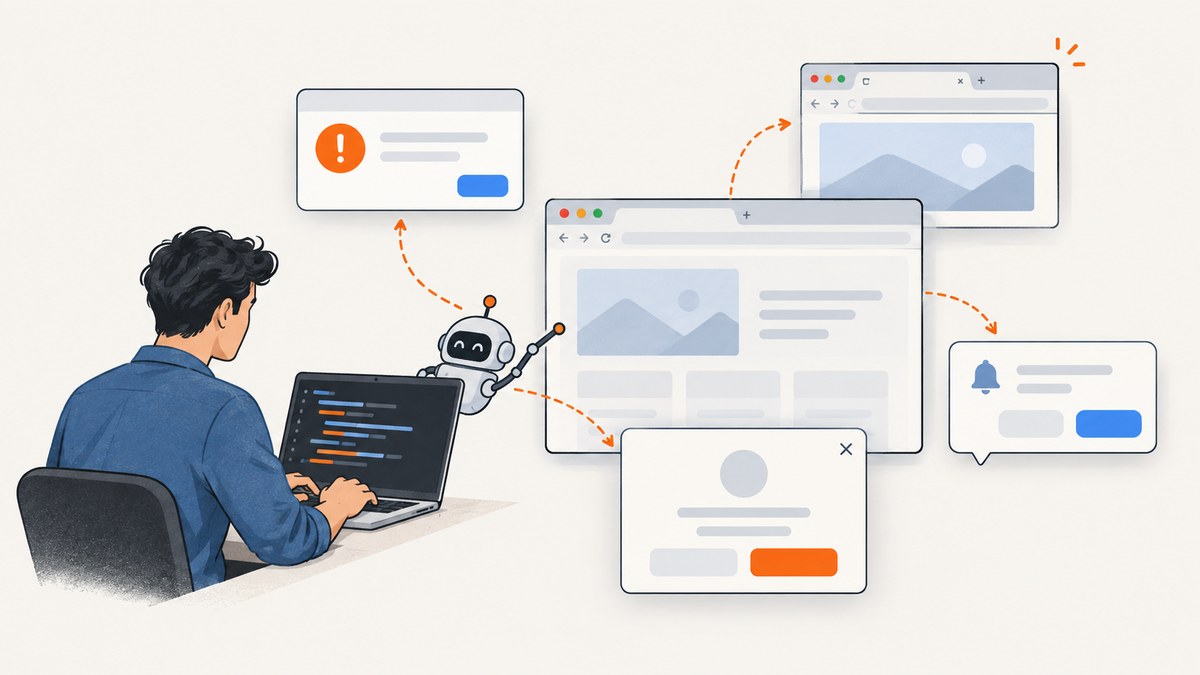
To close a Chrome pop-up with Selenium WebDriver and Python, first identify what kind of surface appeared. Use driver.switch_to.alert for a JavaScript alert, confirm, or prompt; use window handles for a new tab or window; and use ordinary element locators for an HTML modal or cookie banner. Chrome permission prompts and operating-system dialogs are browser or OS UI, so they may need Chrome configuration or a separate desktop automation tool.
The distinction matters: an alert is not a DOM element, and a new tab is not an alert. Once you know the surface, wait for the specific condition instead of adding a fixed sleep. The examples below use Selenium’s Python API and explicit waits.
1. Classify the pop-up before trying to close it
Look at what appeared and how it behaves. A native JavaScript dialog blocks interaction with the page and exposes text through the browser’s alert interface. A new tab changes the set of window handles. An HTML modal is part of the page and can be inspected like other elements. A permission bubble or OS dialog is outside the page DOM.
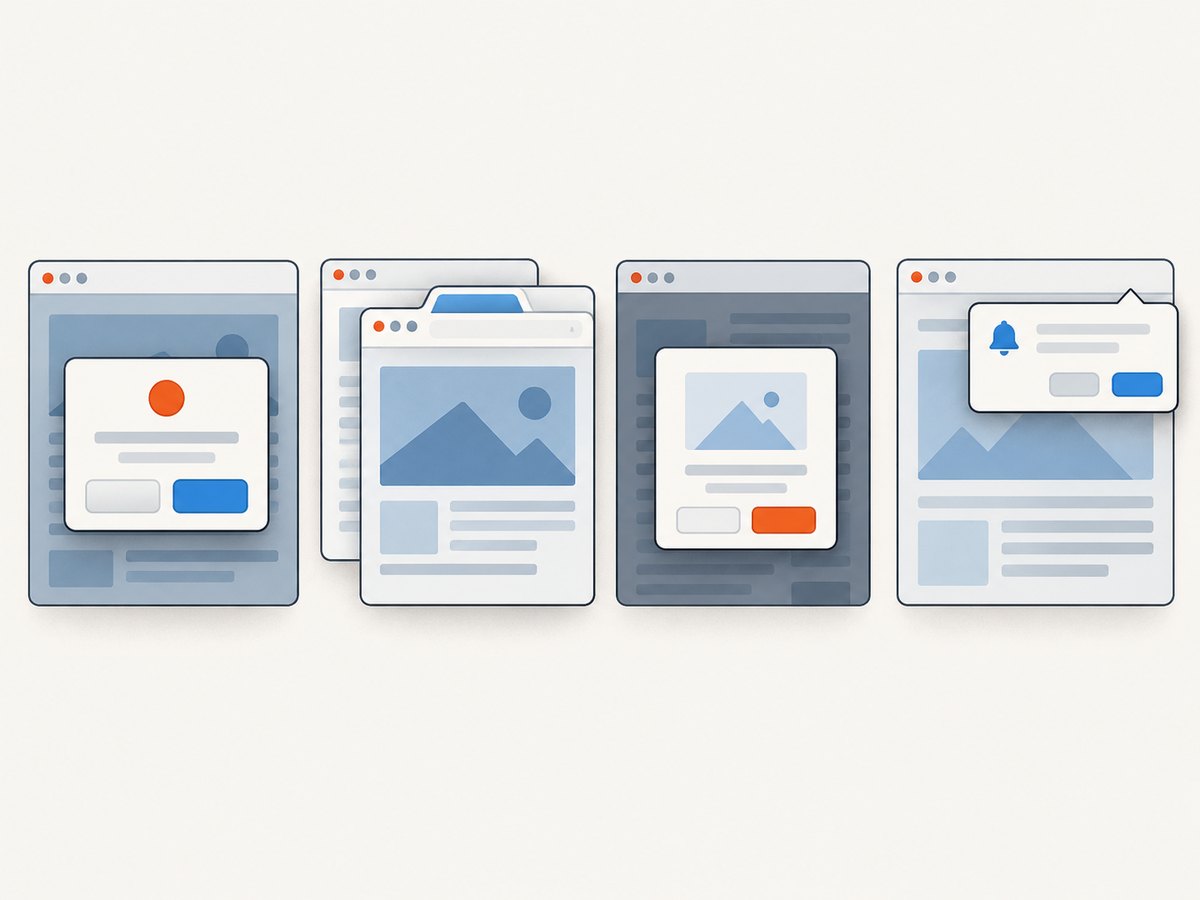
| Surface | How to recognize it | Selenium approach |
|---|---|---|
| JavaScript alert, confirm, prompt | Browser dialog blocks page interaction; may contain text or an input | WebDriverWait with EC.alert_is_present(), then Alert methods |
| New tab or window | A link or script opened another browsing context | Compare window_handles, then call switch_to.window() |
| HTML modal or cookie banner | Rendered in the page and inspectable in the DOM | Wait for a stable locator to become clickable; click the real control |
| Chrome permission or OS UI | Browser chrome, permission bubble, certificate UI, or native desktop dialog | Configure a supported Chrome permission or use appropriate desktop automation |
Selenium’s built-in popup dialog support covers JavaScript dialogs. Its Alert API exposes the active dialog and operations for accepting, dismissing, reading text, and entering prompt text. It does not turn every visible popup into an Alert object. Selenium alert documentation
2. Set up Selenium and Chrome
Install Selenium in the same Python environment that will run the script:
python -m pip install seleniumRecent Selenium versions use Selenium Manager to obtain and configure a compatible driver when possible. If your environment manages ChromeDriver separately, ensure it matches your Chrome installation and is available to the process. This minimal script opens a page; replace the URL and trigger action with the site under test.
from selenium import webdriver

options = webdriver.ChromeOptions()
# options.add_argument("--headless=new")  # Optional for supported test environments.

driver = webdriver.Chrome(options=options)
try:
    driver.get("https://example.com")
    print(driver.title)
finally:
    driver.quit()
Headless mode can be useful in CI, but validate behavior in the same mode used by your test runs. Browser version, permissions, site state, and timing can affect how a page behaves.
3. Accept, dismiss, or enter text in JavaScript dialogs
Trigger the action that opens the dialog first, then wait for it. EC.alert_is_present() waits until Selenium can switch to the active alert. Do not use time.sleep() to guess when it appears: a fixed delay can be too short on a slow run and waste time on a fast one.
from selenium.webdriver.support.ui import WebDriverWait
from selenium.webdriver.support import expected_conditions as EC

# Trigger the dialog using your page's real control or JavaScript action.
driver.find_element("id", "show-alert").click()

alert = WebDriverWait(driver, 10).until(EC.alert_is_present())
message = alert.text
print("Dialog said:", message)
alert.accept()
Accept an alert
A JavaScript alert() offers an acknowledgement action. Read its message when it matters to the test, then accept it:
alert = WebDriverWait(driver, 10).until(EC.alert_is_present())
assert "saved" in alert.text.lower()
alert.accept()
Choose an outcome for a confirm dialog
A confirm() has accept and dismiss outcomes. The choice is part of the behavior being tested, so base it on the test case or the dialog content rather than always accepting:
confirm = WebDriverWait(driver, 10).until(EC.alert_is_present())
message = confirm.text

if "delete" in message.lower():
    confirm.dismiss()  # Exercise the cancel path.
else:
    confirm.accept()   # Exercise the affirmative path.
Supply text to a prompt
A JavaScript prompt() accepts text before you accept the dialog. Send the input through the Alert API, not a page element locator:
prompt = WebDriverWait(driver, 10).until(EC.alert_is_present())
prompt.send_keys("Selenium")
prompt.accept()
The core methods are alert.accept(), alert.dismiss(), alert.text, and alert.send_keys(value). A prompt may have application-specific validation after submission, so assert the resulting page state as well as closing the dialog. Python Alert API
Handle a dialog that may not appear
Optional dialogs are a normal branch in some applications. Wait for a short, intentional interval and handle the absent case narrowly:
from selenium.common.exceptions import TimeoutException
from selenium.webdriver.support.ui import WebDriverWait
from selenium.webdriver.support import expected_conditions as EC

try:
    alert = WebDriverWait(driver, 3).until(EC.alert_is_present())
except TimeoutException:
    alert = None

if alert is not None:
    print(alert.text)
    alert.dismiss()
If you use driver.switch_to.alert without waiting when no alert exists, Selenium raises NoAlertPresentException. Catch that exception only around the operation where an alert is optional; broad exception handling can hide a real failure. The wait-based branch above instead treats failure to appear within the chosen time as the expected optional case.
4. Close a pop-up tab or window
A new browser context is handled with window handles, not driver.switch_to.alert. Save the existing handles before clicking, wait until a new one opens, switch to it, and then locate elements in that context.
from selenium.webdriver.common.by import By
from selenium.webdriver.support.ui import WebDriverWait
from selenium.webdriver.support import expected_conditions as EC

original_handles = set(driver.window_handles)
driver.find_element(By.CSS_SELECTOR, "a.open-report").click()

WebDriverWait(driver, 10).until(
    EC.new_window_is_opened(original_handles)
)
new_handle = next(
    handle for handle in driver.window_handles
    if handle not in original_handles
)
driver.switch_to.window(new_handle)

# Find and use elements only after switching context.
print("Popup title:", driver.title)
# Close this context when finished, then return to an existing one.
driver.close()
remaining = driver.window_handles
if remaining:
    driver.switch_to.window(remaining[0])
If the site might open more than one context, avoid assuming that the new one is always the second item in a list. Compare handle sets, as shown. After closing the popup, switch to a handle that still exists before continuing. Selenium provides explicit conditions for a new window and for a specific number of windows. Expected conditions API
Wait for a known window count
If your flow has a known number of tabs, wait for that count directly. This is useful when a test intentionally opens or closes several contexts:
WebDriverWait(driver, 10).until(EC.number_of_windows_to_be(2))Switching context is required before looking for the popup page’s elements. A locator runs against the currently selected window, so looking too early often produces a misleading “element not found” error even though the popup page is open.
5. Close an HTML modal or cookie banner
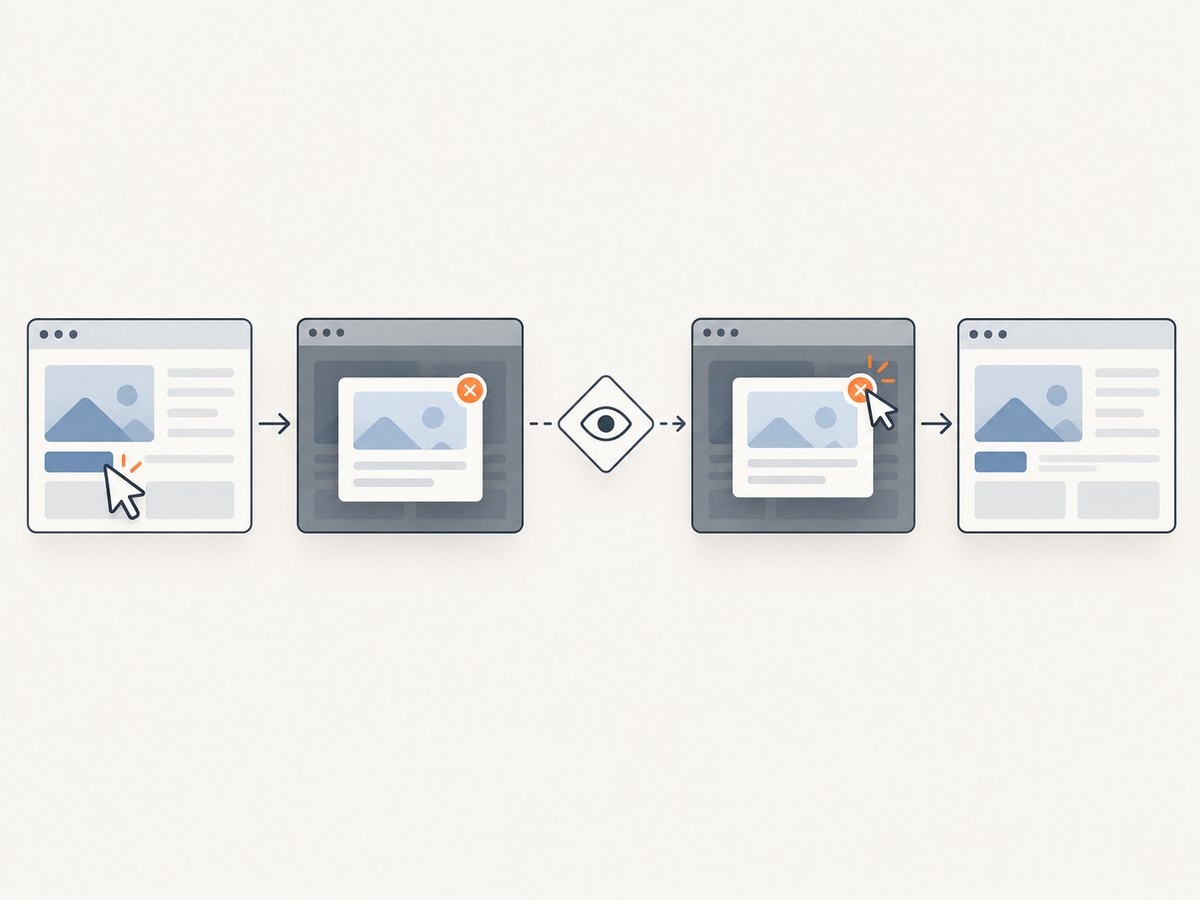
Many dialogs that look like popups are ordinary page markup, such as a newsletter overlay, cookie notice, or custom modal. Find the site’s actual close, accept, or reject control using a stable locator, wait until it is clickable, and click it. Then wait until the modal disappears.
from selenium.webdriver.common.by import By
from selenium.webdriver.support.ui import WebDriverWait
from selenium.webdriver.support import expected_conditions as EC

close_button = WebDriverWait(driver, 10).until(
    EC.element_to_be_clickable(
        (By.CSS_SELECTOR, "button[aria-label='Close']")
    )
)
close_button.click()

WebDriverWait(driver, 10).until(
    EC.invisibility_of_element_located((By.CSS_SELECTOR, ".modal"))
)
The selector is only an example; inspect the target page and use its actual accessible name, stable ID, role, or data-* attribute. If the banner offers consent choices, choose the option your test intends to exercise. Clicking the real control runs the page’s event handlers and updates consent state. Removing the element with JavaScript may hide it visually while leaving application state or event behavior untested.
Make DOM waits resilient
- Prefer stable attributes and accessible names over generated class names.
- Wait for clickability before clicking, especially when animation or an overlay affects interaction.
- Wait for invisibility or removal after the action, so the next step does not race the page.
- If the element is inside an iframe, switch into that frame before locating it, then switch back to the default content afterward.
- If a click is intercepted, check whether another overlay is covering the button and whether the intended control is actually visible.
Selenium’s expected conditions include waits for visibility, clickability, and invisibility or absence. Selenium expected conditions
6. Chrome permission prompts and other native UI
Notification, camera, microphone, geolocation, download, certificate, authentication, and other prompts can belong to Chrome or the operating system. They are not page elements, and they are not necessarily JavaScript alerts. The Alert API is specifically for web alert, confirm, and prompt dialogs.
When a test needs a browser permission, configure a supported Chrome capability or permission before navigating, using Selenium’s Chrome-specific functionality. The exact configuration depends on the permission and test setup. Selenium Chrome-specific functionality
A Chrome toolbar bubble or OS dialog may not be controllable through ordinary WebDriver page commands. Use a test-environment policy or supported browser setup where possible. If the task truly requires interacting with native desktop UI, use a separate desktop automation approach and account for its dependence on the operating system, screen, and window focus.
7. Troubleshooting common failures
| Symptom | Likely cause | Fix |
|---|---|---|
NoAlertPresentException |
No JavaScript alert is active, the dialog has not appeared, or the surface is a DOM modal/window instead | Trigger the action first; wait with EC.alert_is_present(); classify the surface |
TimeoutException waiting for alert |
The action did not trigger it, the site took longer than the timeout, or it is not a JavaScript dialog | Verify the trigger and page state; use the matching wait for a window or DOM element; adjust the timeout to the expected application behavior |
| Popup tab opens but elements cannot be found | WebDriver is still focused on the original handle | Wait for the new handle, call switch_to.window(), then locate elements |
| Cannot switch back after closing a popup | The code switched to a handle it already closed or closed the original window | Inspect current window_handles and switch to one that remains |
| Modal button is not clickable | It is hidden, covered by another layer, animating, in an iframe, or the locator matches the wrong element | Use a more stable locator; wait for clickability; switch into the correct frame; inspect overlays and visibility |
| Click completes but modal remains | The button locator selected the wrong action, a handler failed, or the page needs time to update | Confirm the intended control and wait for modal invisibility; assert the expected state |
| Permission dialog keeps appearing | Permission state is not configured or persisted for this browser context | Set the supported Chrome permission before navigation or use a managed test profile |
| Works locally but fails in CI | Different Chrome version, headless setting, permissions, timing, or page state | Align browser setup, capture useful logs, and use condition-based waits instead of fixed delays |
8. Reliability checklist
- Identify whether the surface is an alert, a window, a DOM element, or browser/OS UI.
- Perform the page action that should create the surface before waiting.
- Use the expected condition that matches it: alert presence, new window, window count, clickability, visibility, or invisibility.
- Read dialog text before closing when the message is part of the assertion.
- Use accept, dismiss, text entry, click, or context switching according to the intended test path.
- After closing a window, return to a handle that still exists.
- Keep optional alerts as a narrow, explicit branch.
- For HTML modals, click the real control and verify the resulting page state.
9. Performance, reliability, and cost considerations
Explicit waits usually make a test more efficient than a fixed sleep because they continue as soon as the expected condition is true and fail after a bounded timeout. Keep timeouts long enough for the application’s normal response, but specific enough that a missing surface is diagnosed promptly. Avoid stacking long waits for mutually exclusive outcomes.
Browser automation reliability depends on more than the popup command: Chrome and driver compatibility, headless behavior, session permissions, network conditions, page animations, and test data all influence the result. Use stable selectors, isolate consent and browser state when repeatability matters, and preserve the failing condition or message in your test output.
Cost depends on where the browser runs: local compute, CI minutes, and any separately managed browser infrastructure. This method uses Selenium and does not require a screenshot API. If the goal is simply to obtain a visual capture rather than test a UI interaction, a capture service can remove browser setup and runtime management.
Or skip the browser setup
ScreenshotNeo is a website screenshot API and MCP server. One GET request returns a PNG, JPEG, WebP, or PDF. For a straightforward page capture:
curl -G "https://api.screenshotneo.com/v1/shot" -d access_key=YOUR_API_KEY --data-urlencode url=https://stripe.com -o shot.webpSee the ScreenshotNeo API documentation for request options. Cookie banners are accepted like a visitor and 60+ known consent platforms, newsletter popups, and chat widgets are removed before the shot; each step can be turned off. Bot checks, blank pages, timeouts, failed loads, and cache hits cost nothing, and response headers report the page verdict and billing status. Its MCP server gives AI agents tools for screenshots, page information, and PDF capture. The free plan includes 1,000 screenshots a month with no card; paid plans start at $5 for 3,000 shots. Sign up for 1,000 free screenshots a month, no card required.
FAQ
Can I use driver.switch_to.alert.accept() directly?
Yes, when a JavaScript alert is already present. In most tests, wait for EC.alert_is_present() first so the command synchronizes with the event.
Should I always accept a confirm dialog?
No. Accept and dismiss exercise different application paths. Select the outcome the test is intended to verify.
Can Selenium close every Chrome popup?
No single Selenium API handles every surface. WebDriver handles web dialogs, browser contexts, and page DOM through their respective APIs; Chrome or OS UI may need configuration or another automation tool.
How do I close a popup without breaking the test?
Use the correct surface-specific operation, then verify the expected state: dialog gone, correct page active, or modal hidden. Keep the original window handle when the flow opens another context.


