How to Close Firefox Nightly’s Translation Popup with Playwright
Firefox Nightly’s translation panel is browser UI, so page locators may not reach it. Check versions, manage translation settings, and use verified Firefox preferences for repeatable runs.

Firefox Nightly’s translation popup is browser-owned UI, not an element in the webpage. That distinction explains why a Playwright locator such as page.getByText('Cancel') may find nothing, and why pressing Escape may not dismiss the panel. The practical fix is usually to check the Playwright and Firefox versions first, then prevent the offer through Firefox’s translation settings or a Firefox preference verified for the build you actually run.
Playwright’s page locators address page content, and its dialog API covers JavaScript dialogs such as alert, prompt, confirm, and beforeunload. Those APIs are not documented controls for clicking Firefox’s own translation panel. The original report’s accepted answer said the issue was fixed in the current canary on November 3, 2023; that is a dated report, not a guarantee for every current Playwright and Nightly combination. [Stack Overflow report, Playwright Locator, Playwright Dialog]
1. Identify which translation UI is appearing
Firefox has translation controls that can appear in different circumstances. A page-translation offer is initiated by Firefox; a selected-text translation popup is also browser UI. Mozilla documents a Done control for closing the selected-text popup manually. That instruction describes Firefox’s user interface, not an API for Playwright to click browser chrome.
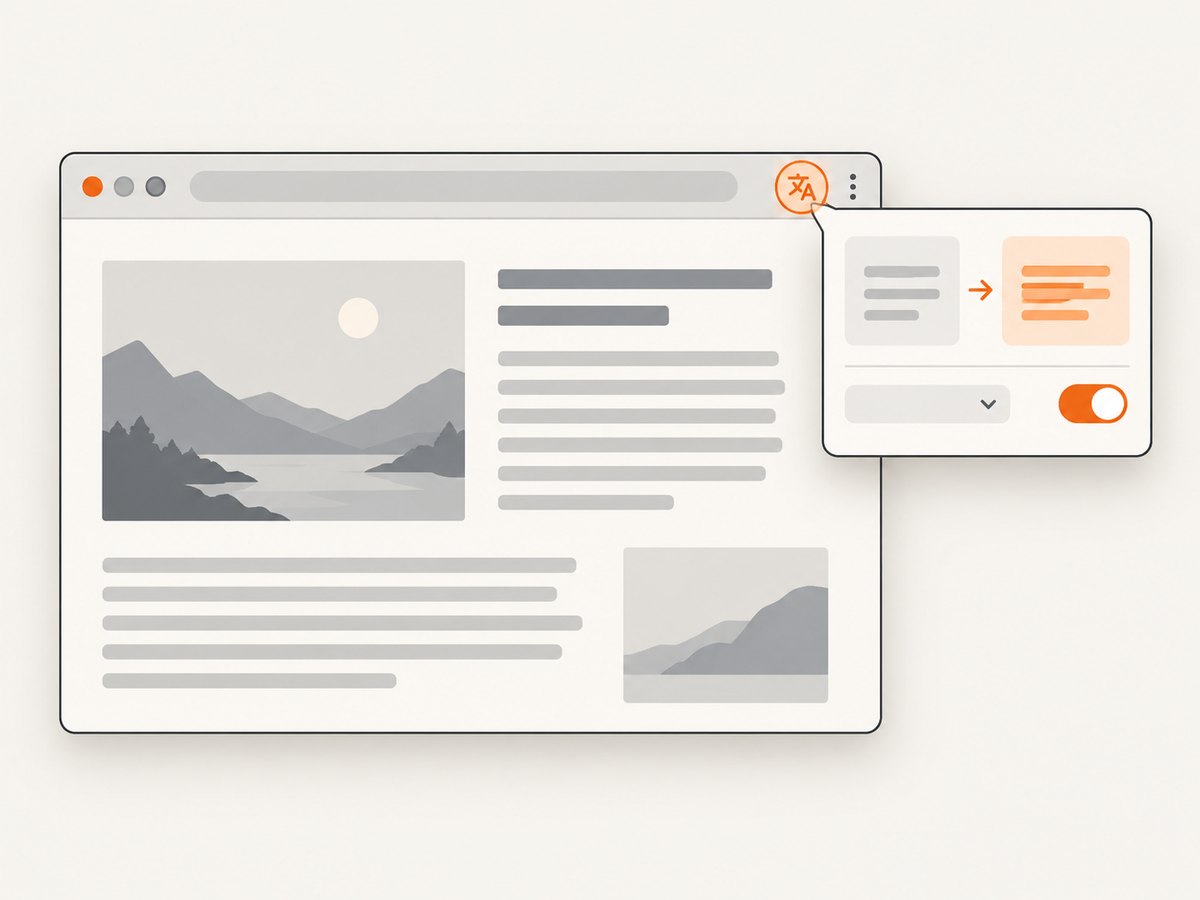
First observe the behavior outside automation: does the panel appear automatically when a page loads, or only after selecting text? Note the Firefox Nightly build, Playwright package version, operating system, and whether the issue reproduces in a fresh browser profile. This helps separate a regression from a Firefox setting or a test that triggers a different translation flow.
Do not assume that a visible word such as “Cancel” belongs to the page. A locator searches the page’s content. If the panel belongs to Firefox, page text inspection and DOM selectors will not expose its controls. The same boundary applies to Playwright’s JavaScript dialog handlers: registering a handler for page.on('dialog') does not turn browser translation UI into a JavaScript dialog.
2. Check Playwright and Firefox versions
Before adding a workaround, record the versions used by the test and try a current supported Playwright package and its corresponding browser build. The Stack Overflow answer associated with the original report said the problem had been fixed in the then-current canary on November 3, 2023, and mentioned installing canary Playwright packages. This is useful historical context, but it does not establish which release fixed the behavior or guarantee that a later Nightly build will behave the same way.
For a JavaScript project, check the installed package and browser installation with the project’s package manager, then install the browser build Playwright expects for that package. For example:
npm ls playwright
npx playwright --version
npx playwright install firefox
If your project uses playwright-core with a separately managed Firefox executable, record that executable’s version too. A Playwright package update does not necessarily update an independently installed browser. Keep the versions in your CI image or test setup explicit so a local success does not depend on an unrecorded browser update.
Re-run the smallest test that reproduces the popup after updating. If it no longer appears, remove any temporary workaround and retain a regression test or version record appropriate to your project. If it persists, continue to Firefox settings rather than trying increasingly broad page selectors.
3. Manage the offer in Firefox settings
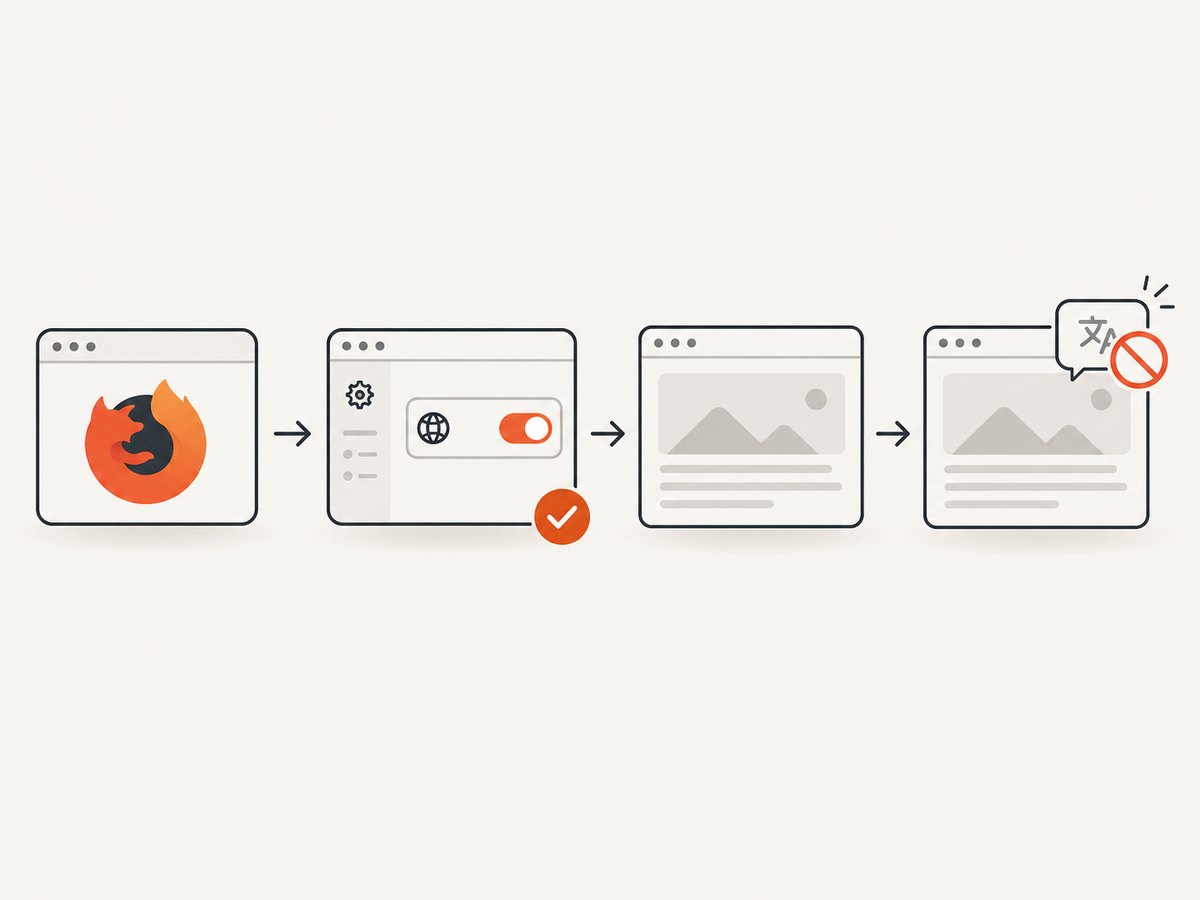
When automatic translation prompts are not part of what you are testing, Firefox’s own translation settings are the most direct place to manage them. Mozilla says the “Always offer to translate” control determines whether the panel opens automatically. Firefox’s translation settings can also block prompts for a language or a site. Menu labels and locations may change between Firefox versions, so follow the controls in the tested build rather than assuming a fixed menu path.
- Open Firefox Nightly outside the test and inspect its translation settings.
- Turn off automatic offers if the test does not need them, or block the relevant language or site if that better matches the test.
- Restart the browser and load the same page that triggered the panel.
- Confirm the change in the same Firefox profile and build used by automation.
This changes Firefox’s behavior for that profile, so it is suitable when the test environment can own its browser settings. It may be a poor fit when the test is explicitly validating translation offers or when developers need the normal offer in their own profile. Mozilla’s help page documents the settings and manual close control: Firefox Translations.
4. Configure Firefox preferences at launch
Playwright’s Firefox launch options support firefoxUserPrefs, which lets a test supply Firefox user preferences. This is a supported configuration mechanism, but the research for this article did not verify the exact preference key that controls this Nightly translation popup in a current build. Do not copy an unverified key from an old issue and treat it as a stable interface. Find and validate the relevant preference against the exact Firefox version you run.
A minimal JavaScript launch shape is:
const { firefox } = require('playwright');

(async () => {
  const browser = await firefox.launch({
    headless: true,
    firefoxUserPrefs: {
      // Add a preference only after verifying its name and value
      // for the Firefox build used by this test.
    },
  });

  const page = await browser.newPage();
  await page.goto('https://example.com');
  console.log(await page.title());
  await browser.close();
})();
Save the selected preference with the test configuration and document the Firefox version against which it was checked. Then confirm that the prompt is suppressed in a headed run as well as the environment where the test normally executes, if both modes matter. A preference that works in one Nightly build may be renamed, removed, or behave differently later.
Playwright’s documented Firefox options are described in the BrowserType API. The existence of firefoxUserPrefs does not by itself identify the correct preference for this popup.
5. Use page locators only for webpage-owned dialogs
If inspection confirms the dialog is rendered by the site, use a locator for its actual page element. Playwright locators auto-wait and retry according to their documented behavior. For example, a page-owned consent dialog might have a button with an accessible name that can be targeted like this:
const { firefox } = require('playwright');

(async () => {
  const browser = await firefox.launch();
  const page = await browser.newPage();
  await page.goto('https://example.com');

  const closeButton = page.getByRole('button', { name: 'Close' });
  if (await closeButton.count()) {
    await closeButton.first().click();
  }

  await browser.close();
})();
This example is for a website-owned button; it does not close Firefox’s translation panel. Prefer role and accessible name locators over brittle text guesses when the webpage owns the UI. If the page triggers a JavaScript dialog, use Playwright’s page.on('dialog') API for that dialog type. Do not conflate either case with browser chrome.
6. Diagnose overlap and intermittent reports
Firefox UI can overlap other browser UI, and timing can make reports look inconsistent. Mozilla Bugzilla has an issue describing overlap involving translation offers and other UI. That issue is context for why a popup may be awkward to interact with manually; it does not establish a Playwright control method or a universal fix. [Mozilla Bugzilla issue 1880685]
When investigating, keep the page, profile, Firefox build, Playwright version, and launch mode constant while changing one variable at a time. Capture the test log and a screenshot of the page if useful, but remember a webpage screenshot generally represents page content, not necessarily every piece of browser chrome. A screenshot that omits the translation panel does not prove the panel never appeared.
Do not add arbitrary sleeps as a dismissal strategy. A delay can hide a race in one run while leaving the browser-owned panel untouched. If the page content itself needs time to load, wait for a page-specific selector or another explicit page condition; handle Firefox’s translation behavior through settings, a verified preference, or a browser version that resolves the issue.
7. Troubleshooting common failures
| Symptom | Likely cause | What to do |
|---|---|---|
getByText('Cancel') times out |
The text is in Firefox chrome, not the document. | Stop treating it as page content. Check Firefox translation settings or use a preference verified for the browser build. |
| Escape has no effect | The panel does not handle Escape in that state, or is not a page-level overlay. | Use Firefox’s own documented controls manually; for automation, update/check versions or prevent the offer through settings. |
page.on('dialog') never fires |
The translation panel is not a JavaScript alert, prompt, confirm, or beforeunload dialog. |
Use the dialog API only for JavaScript dialogs. Manage Firefox UI separately. |
| A preference example from an old post has no effect | The key may not apply to the current Nightly build, or the setting may be controlled elsewhere. | Verify the preference name and value against the exact build; check Firefox’s translation settings directly. |
| The problem disappears locally but remains in CI | The environments may use different package or browser versions, profiles, or settings. | Record and align Playwright, Firefox, launch mode, and profile configuration. Reproduce with the CI browser build. |
| The popup only appears on some sites | Language detection or site-specific translation settings may differ. | Test the same URL and content, then use Firefox’s language/site controls if suppressing the offer is intended. |
| A manual “Done” click works but automation cannot click it | Manual browser UI controls are not exposed as page locators. | Use the documented manual control for interactive browsing; for repeatable tests, configure Firefox or resolve the version behavior. |
8. Reliability, runtime, and cost considerations
A verified Firefox preference is generally more repeatable than trying to click browser chrome, because it sets a browser condition before the page loads. Its reliability still depends on verifying it against the browser version and keeping that version controlled. Firefox’s translation settings are also explicit, but their effect depends on the profile and may change the behavior that a translation test is supposed to exercise. Updating Playwright and its browser build is appropriate when a version-specific defect is suspected, but pin the resulting versions so CI remains reproducible.
Neither a settings change nor a preference should add meaningful per-page automation work beyond normal browser startup and navigation. In contrast, repeatedly polling for page text that cannot exist in the DOM wastes time and makes failures noisier. Avoid retry loops around a locator when the underlying target is Firefox UI.
There is no source-backed benchmark or special pricing claim for this Firefox issue. The practical cost is engineering time: keep browser versions explicit, verify configuration in the target environment, and avoid maintaining an undocumented preference. If the goal is only to obtain a clean image of a webpage rather than test Firefox’s translation behavior, a screenshot API can remove the need to manage a local browser; see the option below.
9. Or skip the browser setup
If you need a clean webpage screenshot rather than a test of Firefox’s translation UI, ScreenshotNeo is a website screenshot API and MCP server. One GET request returns a PNG, JPEG, WebP, or PDF. Its clean-shot flow accepts cookie or consent banners like a visitor and removes 60+ known consent platforms, newsletter popups, and chat widgets before capture; each step can be turned off. Bot checks, CAPTCHAs, blank pages, timeouts, failed loads, and cache hits cost nothing, and the response identifies the page verdict and billing status in headers.
See the ScreenshotNeo API documentation. This cURL request saves a WebP screenshot:
curl -G "https://api.screenshotneo.com/v1/shot" \
  -d access_key=YOUR_API_KEY \
  --data-urlencode url=https://stripe.com \
  -o shot.webp
Equivalent Python:
import requests

r = requests.get(
    "https://api.screenshotneo.com/v1/shot",
    params={"access_key": "YOUR_API_KEY", "url": "https://stripe.com"},
    timeout=90,
)
r.raise_for_status()
open("shot.webp", "wb").write(r.content)
Equivalent Node.js:
const q = new URLSearchParams({
  access_key: 'YOUR_API_KEY',
  url: 'https://stripe.com',
});
const res = await fetch(`https://api.screenshotneo.com/v1/shot?${q}`);
if (!res.ok) throw new Error(`Screenshot request failed: ${res.status}`);
const bytes = new Uint8Array(await res.arrayBuffer());
await (await import('node:fs/promises')).writeFile('shot.webp', bytes);
Beyond clean shots, ScreenshotNeo supports full-page and CSS-selector capture, dark mode, device presets and custom viewports, retina scale, PDF settings, HTML/CSS input, custom CSS and JavaScript, clicking or hiding elements, wait conditions, request blocking, headers, cookies, user agent, authorization, timezone, geolocation, transparent backgrounds, resizing, configurable cache TTL, signed image links, asynchronous jobs with signed webhooks, bulk capture of up to 100 URLs per call, a usage API, and an OpenAPI spec. It also has an MCP server with take_screenshot, get_page_info, and capture_pdf tools for Claude, Cursor, and other MCP clients. Parameter names used by other screenshot APIs also work.
Every feature is on every plan. Free includes 1,000 shots per month with no card; Starter is $5 for 3,000, Growth $15 for 15,000, Pro $39 for 60,000, Scale $99 for 250,000, and Business $249 for 1,000,000. Yearly billing gives two months free. Sign up for 1,000 free screenshots a month, with no card required.
10. FAQ
Can Playwright click Firefox’s translation popup directly?
The documented page locator and JavaScript dialog APIs do not provide a documented way to click Firefox browser chrome. Treat the panel as browser UI and control it through Firefox settings or a verified launch preference.
Is there a known preference key I can paste in?
The sources used here establish that Playwright accepts Firefox preferences at launch, but do not verify a current key for this particular popup. Confirm the key and value for the exact Nightly build before putting it in a test.
Does turning off translation offers disable translation itself?
Mozilla’s settings distinguish automatic offers from translation controls. Check the options in your Firefox version and choose the setting that matches whether your test needs translation available.
Was this fixed in Playwright?
An answer to the 2023 report said it was fixed in the then-current canary. That dated statement is not a guarantee for every later Nightly and Playwright pairing; verify the versions you use.
Can ScreenshotNeo test Firefox’s translation panel?
No. ScreenshotNeo captures webpages through its screenshot API; it is an alternative when the task is obtaining a webpage image, not automating or validating Firefox browser chrome.


