How to Close Google Meet’s “Got It” Popup in Puppeteer
Learn whether Google Meet’s “Got it” is a browser dialog or page button, then close it reliably with Puppeteer selectors, frames, and accessibility locators.
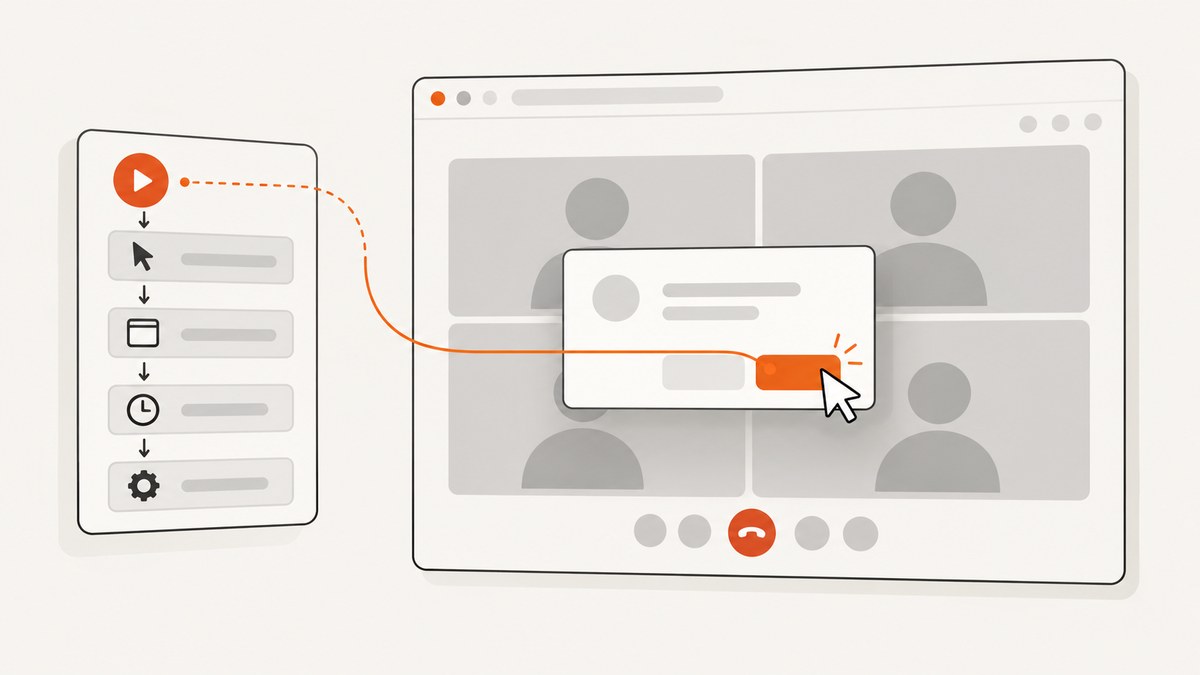
To close Google Meet’s “Got it” interruption in Puppeteer, first determine what kind of popup you are seeing. A JavaScript alert, confirm, prompt, or beforeunload dialog is handled with Puppeteer’s page.on('dialog') event. A button rendered inside the Meet page is ordinary web UI and must be located and clicked in the page context.
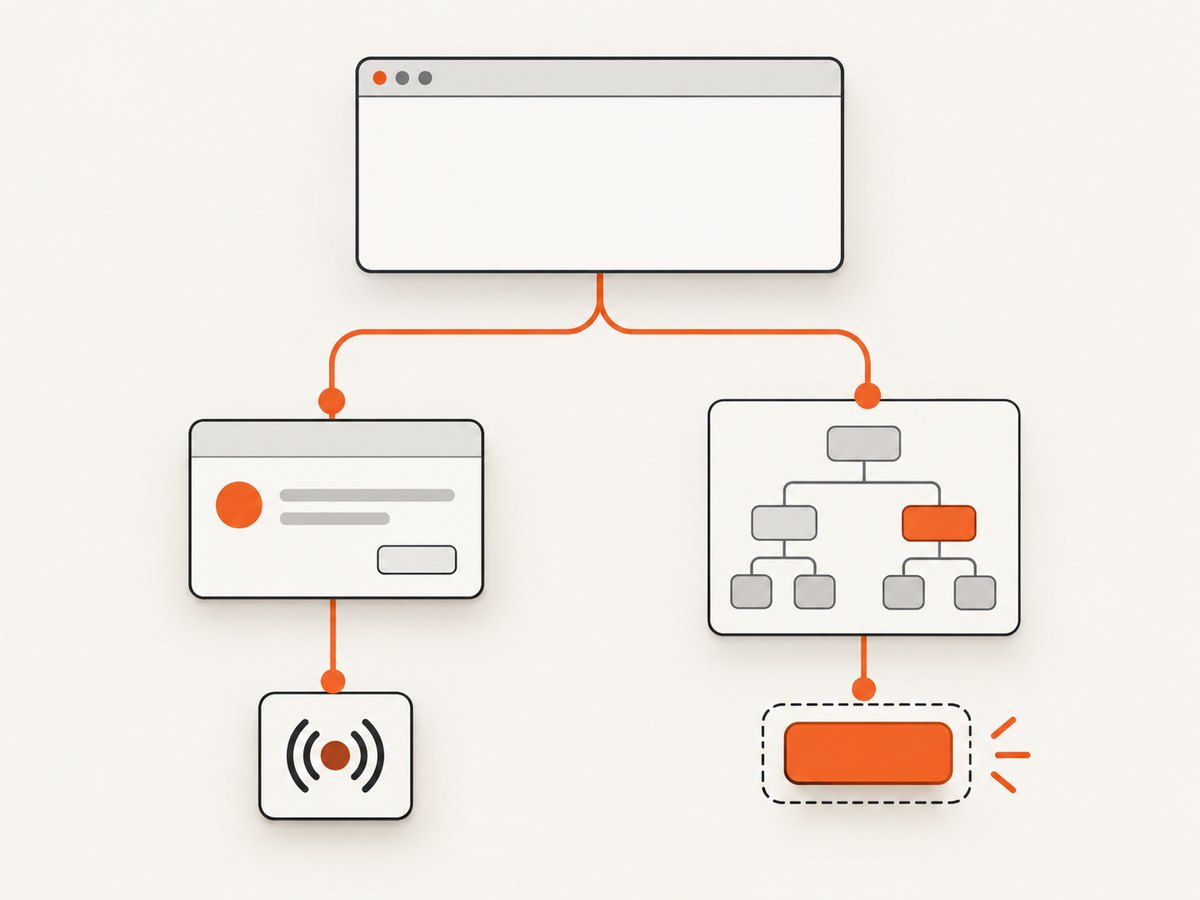
The distinction matters because a dialog listener cannot click an HTML button, and a CSS selector cannot answer a browser dialog. The exact Stack Overflow question that popularized this problem tried [aria-label="Got it"], but the report does not establish that selector as a working fix. Inspect the live page and accessibility tree before choosing a locator.
1. Identify which “Got it” popup you have
JavaScript browser dialog
Puppeteer exposes JavaScript dialogs through the dialog event. The event provides a Dialog object with methods such as accept(), dismiss(), type(), and message(). Register the handler before the action that may trigger the dialog:
import puppeteer from 'puppeteer';

const browser = await puppeteer.launch({ headless: true });
const page = await browser.newPage();

page.on('dialog', async dialog => {
  console.log(`Dialog type: ${dialog.type()}`);
  console.log(`Dialog message: ${dialog.message()}`);

  // Use accept() when the intended action is confirmation.
  // Use dismiss() when the dialog should be closed without confirming.
  await dialog.dismiss();
});

await page.goto('https://meet.google.com/', { waitUntil: 'domcontentloaded' });
// Continue with the action that can open a dialog here.

await browser.close();
Use dialog.accept() instead when “Got it” represents a confirmation or continuation that your flow must approve. Puppeteer’s documentation describes this API in its PageEvent documentation. A dialog blocks page JavaScript until it is answered, so leaving it unhandled can make later automation appear to hang.
Page-rendered Meet control
If you can see the control inside the Meet tab and Puppeteer does not emit a dialog event, it is page UI. Find the actual element and click it. Puppeteer’s current interaction API supports accessibility-name locators:
await page.locator('::-p-aria(Got it)').click();This is an example to adapt after confirming the control’s accessible name. It is not a verified, permanent selector for this specific Meet popup. The wording can vary with locale, account state, experiment, or markup changes.
2. A complete Puppeteer workflow
The following script demonstrates a defensive sequence: launch Chrome, open Meet, log dialog details, inspect candidate controls, wait for a matching accessible name, click it, and capture a screenshot for debugging. Replace the meeting URL with one your account is authorized to access.
import puppeteer from 'puppeteer';

const meetingUrl = process.env.MEET_URL;
if (!meetingUrl) throw new Error('Set MEET_URL before running this script');

const browser = await puppeteer.launch({
  headless: true,
  defaultViewport: { width: 1440, height: 900 }
});

try {
  const page = await browser.newPage();

  page.on('dialog', async dialog => {
    console.log({ type: dialog.type(), message: dialog.message() });
    await dialog.dismiss();
  });

  page.on('console', message => {
    console.log(`[browser:${message.type()}] ${message.text()}`);
  });

  await page.goto(meetingUrl, {
    waitUntil: 'domcontentloaded',
    timeout: 60_000
  });

  // Give the application time to render its controls.
  await page.waitForNetworkIdle({ idleTime: 500, timeout: 15_000 }).catch(() => {});

  const buttons = await page.locator('button').allTextContents();
  console.log('Visible button text:', buttons);

  const gotIt = page.locator('::-p-aria(Got it)').first();
  try {
    await gotIt.wait({ state: 'visible', timeout: 10_000 });
    await gotIt.click();
    console.log('Clicked the accessible Got it control');
  } catch {
    console.log('No accessible Got it control was found in the main frame');
  }

  await page.screenshot({ path: 'meet-after-popup.png', fullPage: false });
} finally {
  await browser.close();
}
Run it with:
npm install puppeteer
MEET_URL='https://meet.google.com/your-room-code' node close-meet-popup.mjs
Authentication, camera permissions, microphone permissions, and meeting admission are separate concerns. This script only demonstrates popup classification and handling; it does not bypass sign-in, waiting rooms, or access controls.
3. Locating a page button reliably
Prefer the accessibility tree
An accessible-name locator expresses the user-visible control rather than an implementation detail:
const control = page.locator('::-p-aria(Got it)').first();
await control.click();
Before using it in a long-running job, verify the name with the browser’s accessibility inspection tools or by printing visible button text. The control may have a different accessible name even when its visual label appears to be “Got it.”
Use text or CSS only after inspection
If inspection shows stable text or an attribute, target that observed value. Examples:
// Exact text observed in the live DOM:
await page.getByText('Got it', { exact: true }).click();

// An attribute observed during inspection:
await page.locator('[data-tooltip="Got it"]').click();
Do not assume [aria-label="Got it"] exists. The reported question used that selector and says it failed; the available evidence does not explain whether the issue was a different attribute, a frame, a shadow root, timing, or localization.
Check frames
A control inside an iframe is invisible to selectors running against the main frame. List frames and inspect each one:
for (const frame of page.frames()) {
  console.log('Frame:', frame.url());
  const matches = await frame.locator('button').allTextContents().catch(() => []);
  console.log(matches);
}

const targetFrame = page.frames().find(frame => frame.url().includes('meet'));
if (targetFrame) {
  await targetFrame.locator('::-p-aria(Got it)').click();
}
Only use a frame URL condition after observing that it remains stable in your environment. A frame can be created after navigation, so enumerate frames after the page has rendered.
Check shadow roots
Some web components place controls in shadow DOM. Modern Puppeteer selectors can pierce open shadow roots, but closed shadow roots cannot be queried directly. Inspect the element in DevTools first. If the control is in a closed shadow root, interact through a supported public surface, an accessible locator that reaches it, or the user flow that opens it.
4. Timing, retries, and idempotence
Meet is a dynamic application. A selector can be correct while the element is not yet attached, visible, enabled, or stable. Wait for a meaningful state rather than adding a fixed sleep everywhere:
const gotIt = page.locator('::-p-aria(Got it)').first();
await gotIt.wait({ state: 'visible', timeout: 15_000 });
await gotIt.click({ timeout: 10_000 });
If the popup is optional, make dismissal idempotent. A missing control should be treated as “already absent” rather than a fatal error:
async function dismissGotItIfPresent(page) {
  const locator = page.locator('::-p-aria(Got it)').first();
  try {
    await locator.wait({ state: 'visible', timeout: 5_000 });
    await locator.click();
    return true;
  } catch {
    return false;
  }
}

const dismissed = await dismissGotItIfPresent(page);
console.log({ dismissed });
When a click causes navigation or a major UI transition, wait for the next state your workflow actually needs. Avoid clicking repeatedly: a second click can hit a different control after the overlay disappears.
5. Debugging checklist
| Symptom | Likely cause | Fix |
|---|---|---|
dialog handler never runs |
The popup is HTML UI, not a JavaScript dialog. | Inspect the DOM and accessibility tree; use a page locator. |
| Selector times out | Wrong accessible name, delayed rendering, localization, or optional popup. | Print button text, inspect the live accessibility tree, increase a targeted timeout, and handle absence. |
| Element exists but click fails | It is covered, disabled, outside the viewport, or detached during a rerender. | Wait for visibility and enabled state, scroll into view, then retry once after reacquiring the locator. |
| Works locally but not in CI | Different viewport, locale, browser version, permissions, or authentication state. | Pin the browser/runtime, set an explicit viewport and locale, and save screenshots and HTML on failure. |
| Nothing appears in the main frame | The control is in an iframe or shadow root. | Enumerate page.frames() and inspect component boundaries. |
| XPath breaks after a Meet update | Internal DOM structure changed. | Replace brittle absolute XPath with an observed role, accessible name, or stable attribute. |
| Flow hangs after opening Meet | An unhandled JavaScript dialog is blocking page execution. | Register page.on('dialog') before the triggering action and accept or dismiss it. |
6. Browser dialogs, popups, and new tabs are different
Puppeteer also has events for pages opened as new tabs or windows. That is separate from both a JavaScript dialog and an in-page button. The evidence for this Meet question does not show that the “Got it” control opens a new page, so do not wait for a popup page unless your own observation confirms one.
const newPagePromise = new Promise(resolve =>
  browser.once('targetcreated', async target => resolve(target.page()))
);

// Only use this pattern when your action really opens a new tab.
// await page.click('a[target="_blank"]');
// const newPage = await newPagePromise;
For the Meet message itself, classify the event first: browser dialog, page element, iframe element, shadow DOM element, or genuinely new page.
7. Performance and reliability considerations
- Use one browser process for multiple tasks. Reusing a browser and creating pages per job generally avoids repeated startup overhead.
- Keep waits state-based. A selector or network-idle condition is easier to reason about than a long unconditional delay.
- Limit retries. Retry transient navigation or detachment errors, but stop after a small bounded number and preserve diagnostics.
- Capture evidence on failure. Save a screenshot, current URL, frame list, console output, and relevant HTML so selector changes are based on observation.
- Expect UI drift. Meet can change labels, structure, and timing. Keep selectors narrow and review failures after browser or application updates.
- Separate authentication from popup logic. Use a controlled profile or saved session only where permitted, and verify that the account can access the meeting before debugging the button.
Or skip the browser setup
If your actual goal is to obtain a clean image of a public page rather than automate an interactive Meet session, ScreenshotNeo provides a single screenshot request. See the API documentation for all options.
curl -G "https://api.screenshotneo.com/v1/shot" -d access_key=YOUR_API_KEY --data-urlencode url=https://stripe.com -o shot.webpimport requests
r = requests.get("https://api.screenshotneo.com/v1/shot", params={"access_key": "YOUR_API_KEY", "url": "https://stripe.com"}, timeout=90)
open("shot.webp", "wb").write(r.content)const q = new URLSearchParams({ access_key: 'YOUR_API_KEY', url: 'https://stripe.com' });
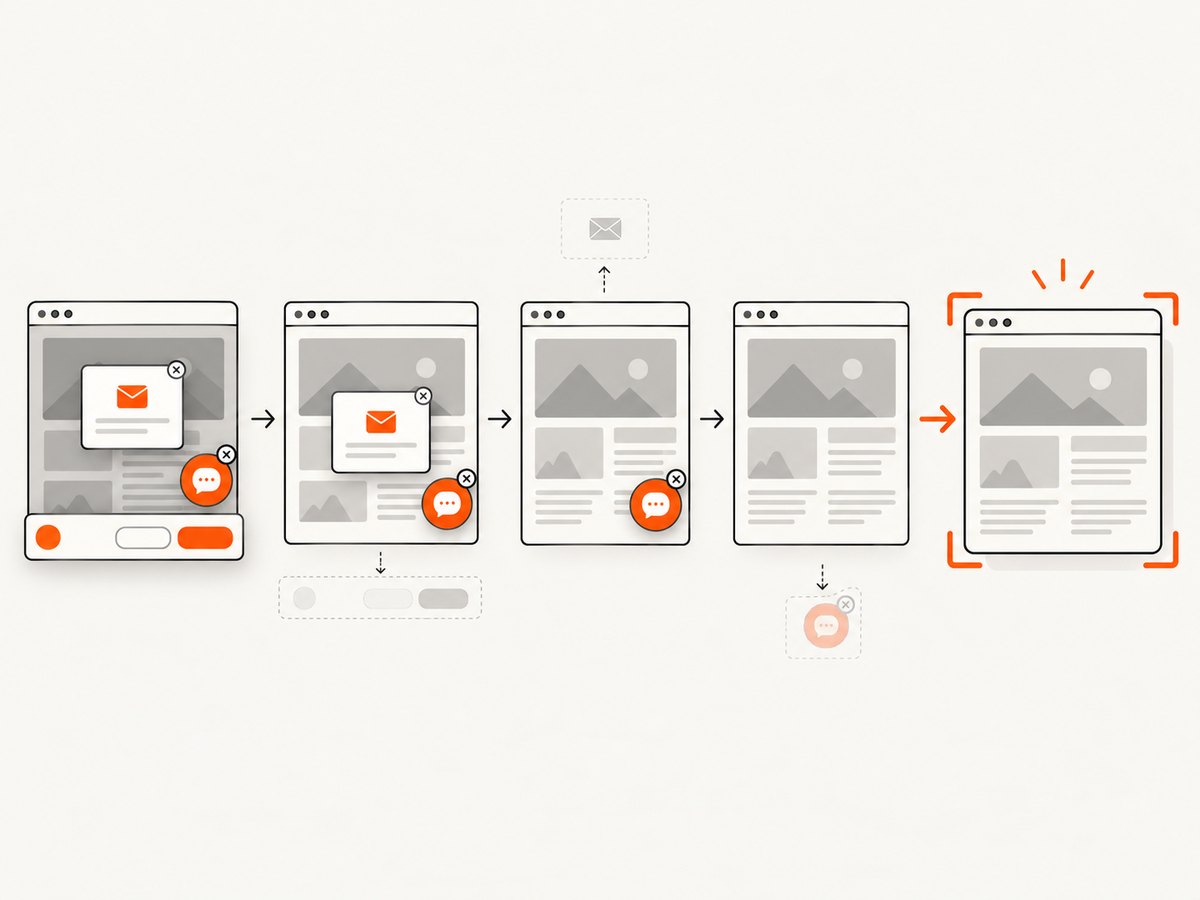
const res = await fetch(`https://api.screenshotneo.com/v1/shot?${q}`);ScreenshotNeo accepts cookie and consent banners before capture and removes more than 60 known consent platforms, newsletter popups, and chat widgets. Each step can be turned off. Bot checks, blank pages, timeouts, failed loads, and cache hits are not billed, and the response identifies the result with X-Page-Verdict and X-Billed headers. An MCP server provides take_screenshot, get_page_info, and capture_pdf tools for Claude, Cursor, and other MCP clients.
You can also choose full-page capture with lazy images loaded, a CSS element, dark mode, device presets or custom viewports, retina scale, custom CSS and JavaScript, clicks, waits, blocked resources, headers, cookies, user agents, authorization, timezone, geolocation, transparent backgrounds, resizing, caching TTLs, signed links, asynchronous jobs, webhooks, bulk capture, usage data, and PDF settings. Free accounts include 1,000 screenshots per month without a card; paid plans start at $5 for 3,000 shots.
Create a free ScreenshotNeo account and start with 1,000 screenshots a month at no charge.
8. Frequently asked questions
Should I use dialog.accept() or dialog.dismiss()?
Use accept() when the dialog’s action should be confirmed. Use dismiss() when closing it without confirmation is correct. Log the type and message while diagnosing.
Why does [aria-label="Got it"] fail?
The live control may use another accessible name or attribute, be rendered later, or exist in a frame or shadow root. The reported question does not establish that selector as valid.
Can I use an absolute XPath?
You can, but it is fragile against Meet’s internal DOM changes. Prefer an observed accessible name, role, or stable attribute.
Does this popup mean a new browser tab opened?
Not necessarily. A page dialog, an in-page element, and a new tab use different Puppeteer mechanisms. Confirm which event actually occurs in your run.
How do I make the automation work across languages?
Puppeteer itself is a JavaScript or TypeScript library. Other languages can drive Chromium through their own browser automation libraries, or call a screenshot API when interaction is unnecessary. For a direct page image, ScreenshotNeo’s cURL, Python, and Node.js requests avoid managing a browser process.


