How to Close a Puppeteer Browser After a Navigation Timeout
Put browser cleanup in a finally block so a failed Puppeteer navigation does not leave a launched browser running. Choose close, page close, or disconnect based on who owns the browser.
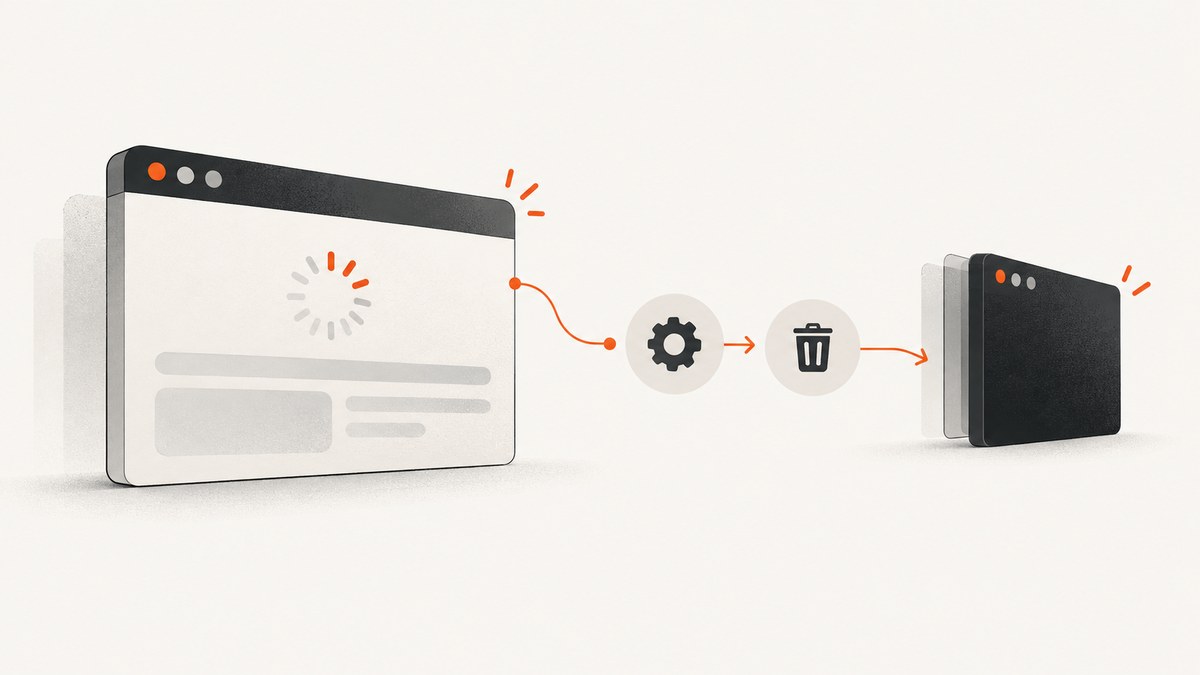
If Puppeteer’s navigation times out, put cleanup in a finally block. It runs whether page.goto() succeeds or rejects, so a browser launched by your script is still closed after a failed navigation:
const puppeteer = require('puppeteer');

async function capture(url) {
  const browser = await puppeteer.launch();
  try {
    const page = await browser.newPage();
    await page.goto(url, { timeout: 10_000 });
    return await page.screenshot({ path: 'shot.png' });
  } finally {
    await browser.close();
  }
}

capture('https://example.com').catch(error => {
  console.error('Capture failed:', error);
  process.exitCode = 1;
});
Puppeteer documents that navigation can throw when its timeout expires, and browser.close() closes the browser and its associated pages. Frame.goto() · Browser.close()
1. Why finally is the right place for cleanup
A navigation call such as page.goto() returns a promise. If navigation fails, the promise rejects and control jumps to the nearest error handler. Code placed only after the call is skipped:
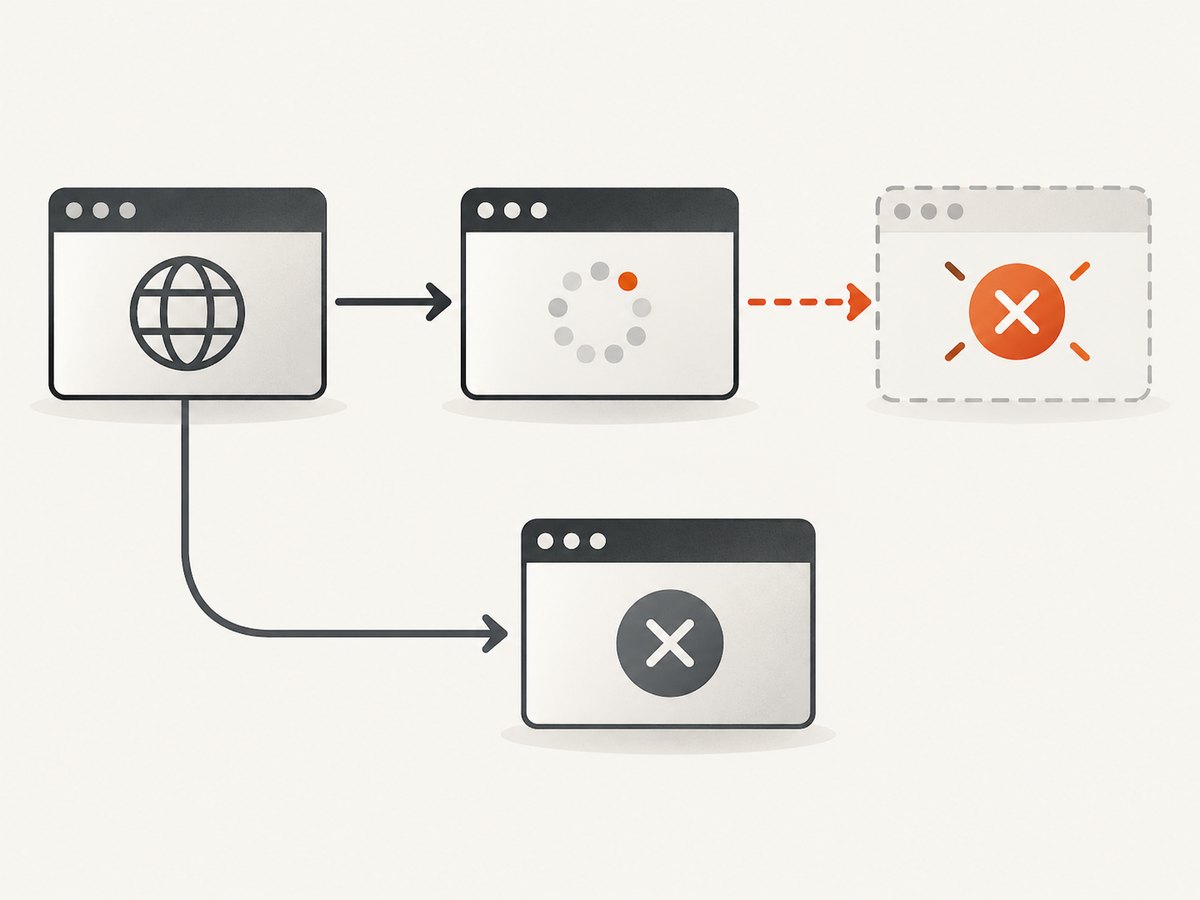
await page.goto(url, { timeout: 10_000 });
await browser.close(); // skipped if goto rejects
A finally block runs as the try block completes, including when an error is thrown or an awaited promise rejects. That makes it the natural place for resource cleanup. Catch the navigation error outside the block if the caller needs to report it, retry, or choose a fallback. Do not catch and discard it merely to make cleanup happen.
The pattern has two separate responsibilities:
- The
trysection performs work that can fail, such as launching a page, navigating, waiting for content, or taking a screenshot. - The
finallysection releases resources owned by this function, even if one of those operations fails.
Use await browser.close() when this script launched the browser and intends to stop it. This closes all pages in that browser. If Puppeteer is attached to a browser managed by another process, use browser.disconnect() to detach the Puppeteer client without shutting down the browser. The distinction is documented in Puppeteer browser management.
2. A robust runnable example
This CommonJS example reports navigation failures, attempts cleanup, and does not let a cleanup error silently replace the original navigation error. Save it as capture.js; install Puppeteer in your project with npm install puppeteer, then run node capture.js https://example.com.
const puppeteer = require('puppeteer');

async function capture(url) {
  let browser;
  let operationError;

  try {
    browser = await puppeteer.launch();
    const page = await browser.newPage();

    // Navigation timeout is in milliseconds.
    await page.goto(url, {
      waitUntil: 'domcontentloaded',
      timeout: 15_000,
    });

    await page.screenshot({ path: 'shot.png', fullPage: true });
  } catch (error) {
    operationError = error;
    throw error;
  } finally {
    if (browser) {
      try {
        await browser.close();
      } catch (closeError) {
        if (operationError) {
          console.error('Browser cleanup also failed:', closeError);
        } else {
          throw closeError;
        }
      }
    }
  }
}

const url = process.argv[2];
if (!url) {
  console.error('Usage: node capture.js <url>');
  process.exitCode = 2;
} else {
  capture(url).catch(error => {
    console.error('Capture failed:', error.message);
    process.exitCode = 1;
  });
}
The browser variable starts unset because launch itself can fail. The guard ensures cleanup is attempted only if a browser was successfully created. The separate operationError allows the navigation failure to remain the primary error if closing also fails; adapt the logging to your application’s error policy. In a service, send both errors to your normal structured logger or error reporter.
The example chooses domcontentloaded so it does not wait for every subresource to finish. Select a lifecycle condition that matches what the next step needs. Navigation completion does not guarantee that a particular application element is ready; for that, wait for the selector explicitly after navigation.
3. Pick the right cleanup scope
Puppeteer offers cleanup at different levels. Choose based on which resource your code owns and whether it should remain available:
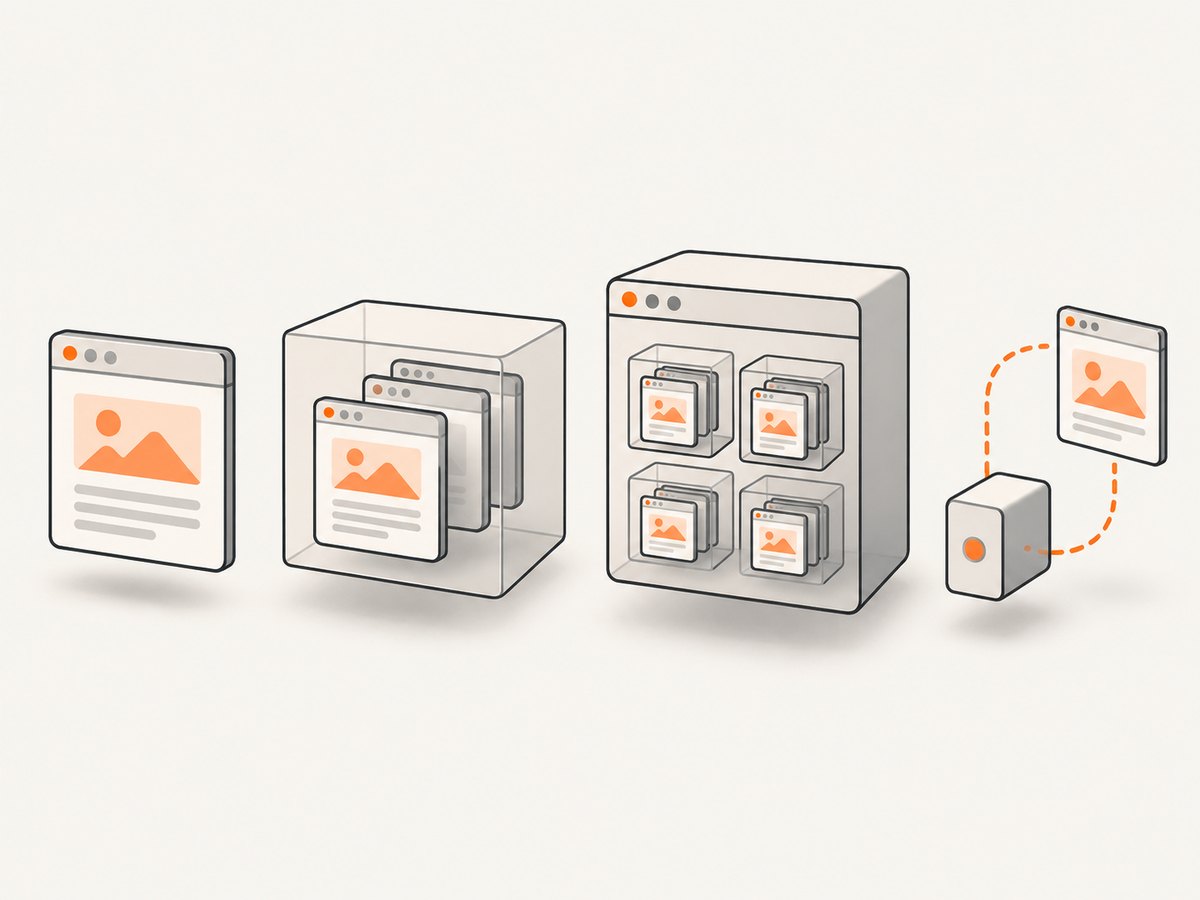
| Call | What it ends | Use it when |
|---|---|---|
await page.close() |
One page | The browser session stays in use for other pages or later work. |
await context.close() |
A browser context and its pages | You created an isolated, non-default context and want to end that session. The default context cannot be closed. |
await browser.close() |
The browser and all associated pages | This script launched the browser and its work is finished. |
browser.disconnect() |
The Puppeteer connection only | The browser is externally managed and should continue running. |
Page lifecycle methods are part of the Page API; context cleanup is documented at BrowserContext.close(). Do not call both page.close() and browser.close() just to handle a timeout unless the extra page-level close serves a separate purpose: closing the browser already closes its pages.
When a browser belongs to another process
If your program connected to a browser endpoint managed by a test runner, browser pool, or another service, closing that browser may disrupt unrelated work. Detach with browser.disconnect() instead. Put the operation you own inside try/finally as usual:
const browser = await puppeteer.connect({ browserWSEndpoint });
try {
  const page = await browser.newPage();
  await page.goto(url, { timeout: 10_000 });
} finally {
  browser.disconnect();
}
Use this only when the browser really is externally managed. For a browser your function launched, disconnecting leaves the browser process running; use await browser.close() to shut it down.
4. Understand and configure navigation timeouts
Puppeteer’s navigation timeout values are in milliseconds. You can set a timeout for one navigation call or establish a default for navigation methods on a page:
// One navigation only
await page.goto(url, { timeout: 20_000 });

// Applies to navigation methods on this page
page.setDefaultNavigationTimeout(20_000);
await page.goto(url);
The page default affects calls including goto, back and forward navigation, reload, setContent, and waitForNavigation. A call’s wait options also accept timeout; 0 disables the timeout, and the current WaitForOptions documentation lists 30,000 ms as the default. See the Page API and WaitForOptions.
Disabling the timeout can leave a task waiting indefinitely if a page never reaches the selected lifecycle event. Prefer a finite timeout appropriate to the site and workload. A longer timeout is not automatically a fix: it can increase queue time and tie up browser capacity while the underlying site remains unreachable or stalled.
Timeout and lifecycle settings address different conditions. A timeout is the maximum wait; waitUntil describes the navigation lifecycle condition Puppeteer should wait for. Choose a less demanding condition when the task needs the document to become usable but does not need every resource to finish. If the page renders its useful content after navigation, wait for a stable selector with an explicit bound rather than waiting without a limit.
5. Handle errors without hiding the cause
A rejected goto() is not necessarily a timeout. Puppeteer documents other navigation exceptions, including SSL errors, invalid target URLs, unreachable or unresponsive servers, failed main-resource loads, and blocklist or allowlist restrictions. Log the actual error and URL, while avoiding secrets embedded in URLs or request configuration.
| Symptom | Likely cause | Practical response |
|---|---|---|
| Navigation timeout exceeded | The selected lifecycle condition was not reached within the configured period. | Confirm the URL and network access; choose the lifecycle condition the task requires; use a suitable finite timeout. Keep browser cleanup in finally. |
| Navigation fails immediately | Invalid URL, SSL problem, blocked destination, or failed main resource. | Inspect the reported error and target URL. Check the destination policy and network path instead of treating every rejection as a timeout. |
| Browser is still running after a failure | Cleanup was placed after the navigation call, or the error path returned before reaching it. | Move cleanup into finally; check that the function actually launched and retained the browser handle. |
| Other pages unexpectedly stop working | browser.close() shut down a shared or externally managed browser. |
Use page.close() for one page, close only an owned isolated context, or call browser.disconnect() for an external browser. |
| Original error is missing from logs | A cleanup failure replaced the error from navigation. | Record the operation error and report cleanup failure separately, following the error-handling pattern above. |
| Task waits far longer than expected | Timeout was set to 0, or no outer job deadline exists. |
Restore a finite timeout and consider a higher-level task deadline so stuck work can be bounded. |
6. Reliability, performance, and cost considerations
Cleanup makes resource use predictable, but it does not make a destination reliable. Pages can be slow, unreachable, blocked, or dependent on resources that do not finish. Treat navigation failure as a normal outcome: return a useful error, record enough context to diagnose it, and retry only when the failure is transient and the task is safe to repeat.
Retries multiply the time and browser resources consumed by a slow destination. Use a finite retry count and bounded delay in a queue or service; do not retry every invalid URL or policy block. Ensure every attempt has its own cleanup path. If the same browser is intentionally reused for throughput, close the page or context owned by the task rather than shutting down the shared browser, and make ownership explicit in the code.
Choose timeouts around the work actually required. Waiting for a full load can cost more time than waiting for document parsing if the page continues fetching analytics or long-running resources. Conversely, taking a screenshot before the target content appears can yield an incomplete result; wait for the relevant selector or application state within a bound. Track timeout rate and duration in your own service metrics before changing defaults.
Browser automation also has operational costs: the browser process and page consume compute while active, and failed navigations still use time and capacity. There are no universal cost or speed figures for this procedure; they depend on runtime, concurrency, destinations, and deployment. Keep concurrency within available memory and CPU, bound queue wait, and always release owned resources on success and failure.
7. Or skip the browser setup
If your goal is simply to get a screenshot rather than control Puppeteer, ScreenshotNeo is a website screenshot API and MCP server. One GET request returns an image or PDF. Its API documentation covers the request options.
curl -G "https://api.screenshotneo.com/v1/shot" \
  -d access_key=YOUR_API_KEY \
  --data-urlencode url=https://stripe.com \
  -o shot.webp
import requests
r = requests.get(
"https://api.screenshotneo.com/v1/shot",
params={"access_key": "YOUR_API_KEY", "url": "https://stripe.com"},
timeout=90,
)
open("shot.webp", "wb").write(r.content)const q = new URLSearchParams({
access_key: 'YOUR_API_KEY',
url: 'https://stripe.com',
});
const res = await fetch(`https://api.screenshotneo.com/v1/shot?${q}`);
if (!res.ok) throw new Error(`Screenshot request failed: ${res.status}`);
await require('node:fs/promises').writeFile('shot.webp', Buffer.from(await res.arrayBuffer()));ScreenshotNeo accepts cookie or consent banners as a visitor and removes more than 60 known consent platforms, newsletter popups, and chat widgets before capture; each step can be turned off. Bot checks, blank pages, timeouts, failed loads, and cache hits cost nothing, and response headers identify the page verdict and billing status. Its MCP server provides take_screenshot, get_page_info, and capture_pdf tools for Claude, Cursor, and other MCP clients. The Free plan includes 1,000 screenshots a month with no card; paid plans start at $5 for 3,000 screenshots. Every feature is on every plan.
Sign up free for 1,000 screenshots a month, with no card required.
8. Frequently asked questions
Does a navigation timeout automatically close the browser?
No. A rejected navigation does not itself mean your script has closed the browser it launched. Put browser shutdown in a finally block.
Should I close the page or the browser?
Close the page when the browser session should continue. Close the browser when your script owns it and is finished. For an isolated non-default context, close that context when its work is done.
Can I use a timeout of zero?
Puppeteer documents zero as disabling the timeout. Use it only when another mechanism bounds the task; otherwise a navigation may wait indefinitely.
What if I connected to a remote browser?
Call browser.disconnect() to detach Puppeteer while leaving the externally managed browser running. Call browser.close() only if your code is responsible for shutting that browser down.
Does a timeout prove the website is down?
No. It means the configured navigation condition did not complete within the allowed time. Inspect the specific error and environment before drawing conclusions about the site.


