Cloud Browsers: What They Are and How to Use Them
A cloud browser runs remotely and streams an interactive session to you. Learn how to use one, choose a service, test websites, and assess security.
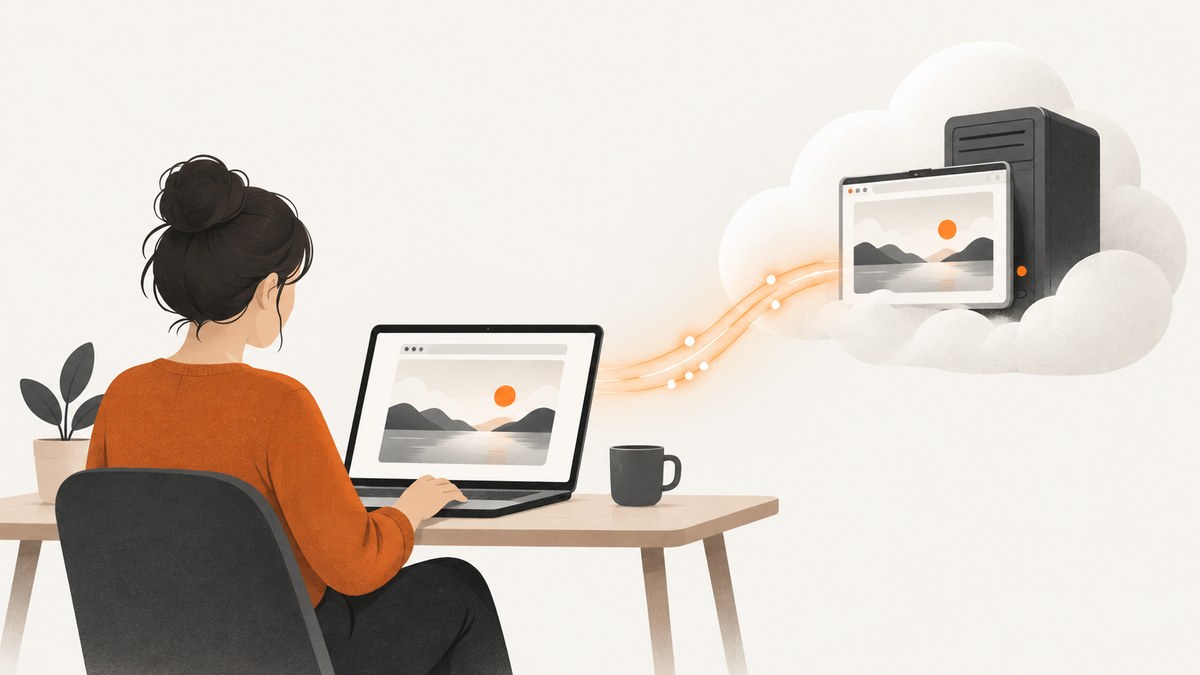
A cloud browser runs on a remote computer or virtual machine, while you interact with it from your own device. The browser does the browsing remotely; your local browser displays the session. You can use one for isolated access to an unfamiliar site, testing how a website behaves in different browsers, or centrally managing browser settings across an organization. The right choice depends on which of those jobs you need it to do.
A cloud browser is not automatically private, disposable, or safer in every situation. The provider operates the remote environment and may control its sessions, logs, downloads, and retention. Check those policies before entering credentials or sensitive data.
1. What is a cloud browser?
A cloud browser, also called a remote browser, is a browser running on a remote cloud computer rather than on your local device. You control it through a local browser interface, commonly by interacting with a streamed session. Browserling describes its remote browser as running on a cloud computer, and its sandbox service streams browsers from its servers to the user’s browser through JavaScript without an additional install. Browserling
The term covers different services. A hosted, interactive browser session is different from a cloud virtual machine used for automated website tests, and both differ from an enterprise browser-management service that applies policies to browsers used by employees. These offerings share remote infrastructure, but they solve different problems.
- Remote interactive session: You open a browser and control it over a streamed interface.
- Cloud testing environment: You select a browser, operating system, or device to check a site or application. BrowserStack documents sessions on cloud virtual machines and physical mobile devices.
- Enterprise browser management: Administrators manage policies, extensions, updates, and reporting across an organization. Google’s Chrome Enterprise offerings provide cloud management; Premium adds secure-access and data-protection capabilities.
Do not assume that every remote browser has the same browser versions, operating systems, geographic locations, session lifetime, or reset behavior. Those details belong to the provider and plan.
2. How does a remote browser work?
The remote machine loads and renders the page. Your local device sends interaction input, such as clicks and keystrokes, and receives a visual stream of the remote session. The site sees the remote browser’s network connection, not necessarily the same network address or environment as your local machine. Exact networking, streaming, storage, and isolation details vary by provider.

- You sign in to a provider’s website or testing console.
- You choose an available browser session, device, operating system, or test configuration.
- The service starts or assigns a remote environment and loads the browser.
- You enter a URL or launch a test, then interact with the page through the provider’s interface.
- You end the session or let it expire. The provider’s policy determines whether its state persists, resets, or is deleted.
Some services keep sessions available after a local disconnect, subject to their session and plan limits. Others use fresh virtual machines restored to their original settings after a test session. Treat persistence and cleanup as explicit product features to verify, not general properties of cloud browsers.
3. How to use a cloud browser
Step 1: Pick the service for the job
For occasional isolated browsing, look for a streamed browser sandbox and understand what data it stores. For compatibility testing, check the browser and device matrix, test controls, and session reset behavior. For organizational management, evaluate administration, identity controls, extension policies, and reporting.
Step 2: Review the session and data terms
Before opening a sensitive site, check session duration, provider access, logging, retention, encryption, cookies, downloads, clipboard behavior, and whether sessions are shared or isolated. If you cannot establish how sensitive data is handled, do not enter it into that session.
Step 3: Start and configure a session
Sign in, select an available browser or device, and choose any offered operating system or region. Availability changes, so check the provider’s current catalog. A service may offer a browser matrix for testing; another may offer only a small set of sandbox sessions.
Step 4: Open the site and perform the task
Enter the destination URL in the remote browser. For a test, reproduce the relevant user flow and record the selected environment so another developer can repeat it. Note any differences in viewport, browser version, cookies, or network conditions that may affect the result.
Step 5: Finish and confirm cleanup
Sign out of accounts, close the session, and follow the provider’s process for ending it. Confirm how cookies, downloaded files, logs, screenshots, and session state are handled. A visible closed tab does not by itself establish that remote data has been erased.
4. Use a cloud browser to test a website
Cloud testing is useful when a bug may depend on browser or device differences, or when the team needs a consistent remote environment. BrowserStack documents browser sessions on cloud virtual machines and physical mobile devices, and says each virtual machine is restored to its original settings after a session. Verify the current device matrix and plan limits with the provider before designing a test suite. BrowserStack
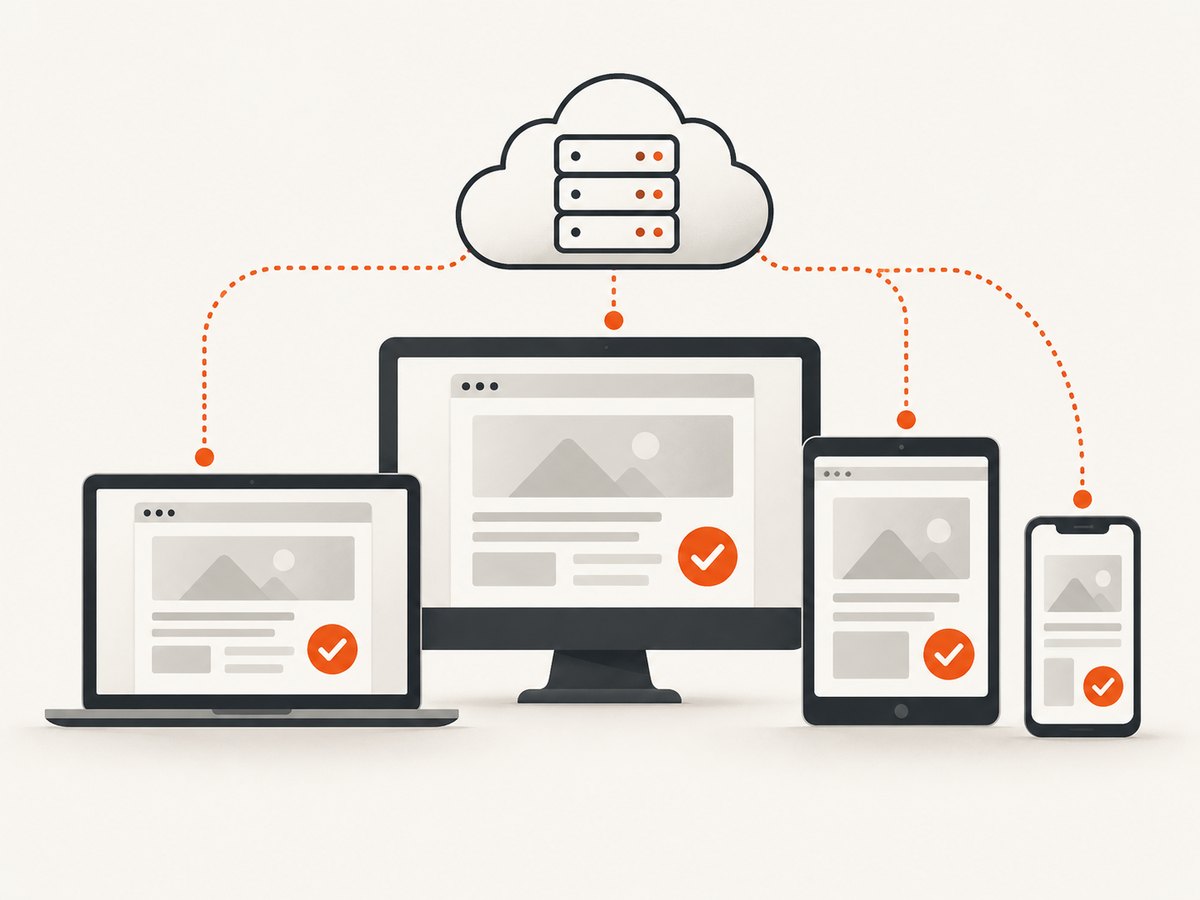
- Write down the reproduction: Record the URL, account state, steps, expected result, and actual result.
- Choose a representative matrix: Select the specific browser, version, operating system, and device dimensions relevant to your users.
- Control test data: Use test accounts and data. Avoid production secrets in environments unless the provider’s controls meet your requirements.
- Repeat the same steps: Keep the flow consistent across environments, and capture the environment details with each observation.
- Separate browser bugs from setup differences: Check viewport, stored cookies, extensions, locale, and network conditions before concluding a browser engine caused the issue.
For a visual check rather than an interactive session, a screenshot API can be simpler. ScreenshotNeo takes a URL and returns an image or PDF; its options include device presets, custom viewport sizes, full-page capture, and element screenshots. That is useful for repeatable visual output, but it is not a substitute for manually exercising an interactive flow in a remote browser.
5. Is a cloud browser safer for suspicious links?
It can reduce the content and browsing activity that reach your local device because the page executes remotely. Browserling describes sandboxed browsing for untrusted sites. But remote execution transfers trust to the provider; it does not make a dangerous site harmless or guarantee that data cannot leave the session. Browserling sandbox
Before using a remote browser for suspicious links, evaluate:
- Isolation: Is each session sandboxed, disposable, or potentially shared? What can it access?
- Provider access: Who can administer sessions, and under what conditions?
- Retention: How long are session data, logs, and screenshots kept?
- Data transfer: Can downloads, clipboard contents, or files move between the remote session and your device?
- Identity: Are sign-in, access roles, and audit records appropriate for the sensitivity of the work?
Do not sign in to personal or production accounts in a service you have not vetted. Avoid downloading or opening files from suspicious sites on your local device. For organization-managed browsing, Google documents policy controls and secure-access capabilities in its Chrome Enterprise products; review the current product documentation for the controls available to your deployment. Chrome Enterprise
6. Cloud browser vs. Chrome Enterprise
These terms describe different layers of the problem. A cloud browser usually means a browser session executes remotely. Chrome Enterprise is Google’s set of tools for managing browser use across an organization. Chrome Enterprise Core provides cloud management across platforms; Chrome Enterprise Premium adds secure-access and data-protection capabilities. A managed browser may still run locally on an employee’s device.
| Question | Remote cloud browser | Enterprise browser management |
|---|---|---|
| Where does browsing run? | On a remote cloud computer or virtual machine for the session. | Often in a managed browser on the user’s device; deployment details vary. |
| What is the main purpose? | Remote access, isolation, or compatibility testing. | Central policies, extension control, updates, administration, and reporting. |
| What should you verify? | Session isolation, duration, reset, logs, downloads, and device coverage. | Policy scope, identity controls, reporting, supported platforms, and security features. |
An organization can use both: centrally managed local browsers for everyday work and remote test sessions for QA or isolated tasks. Pick based on the workflow and controls required, not the product label.
7. How to compare cloud browser services
Use this checklist before committing to a provider or building a workflow around it.
- Execution location: Is the browser on a remote cloud machine, a managed local device, or a mix?
- Isolation model: Is the environment disposable, persistent, sandboxed, or shared?
- Coverage: Which browser versions, operating systems, real mobile devices, and regions are available now?
- Administrative controls: Are SSO, roles, extension policies, audit logs, and reporting available at the required plan level?
- Data handling: What happens to credentials, cookies, downloads, clipboard data, screenshots, and logs?
- Workflow: Does the service support hands-on browsing, scripted QA, organization-wide administration, or your specific combination?
- Limits and cost: Check session duration, concurrency, seats, usage caps, and current pricing. These terms vary and can change.
Ask for written answers to data-retention and isolation questions when the work involves regulated or confidential data. A broad claim such as “secure” is not enough to establish whether a particular session fits your threat model.
8. Capture a page without starting a browser session
If the task is only to render a URL as an image or PDF, a screenshot endpoint avoids selecting and operating an interactive cloud browser. ScreenshotNeo accepts a URL and returns a screenshot or PDF. Its API documentation describes the available request options.
Or skip the browser setup
One GET request can capture a page as a clean image. Here is a cURL example:
curl -G "https://api.screenshotneo.com/v1/shot" \
  -d access_key=YOUR_API_KEY \
  --data-urlencode url=https://stripe.com \
  -o shot.webp
Python:
import requests

r = requests.get(
    "https://api.screenshotneo.com/v1/shot",
    params={"access_key": "YOUR_API_KEY", "url": "https://stripe.com"},
    timeout=90,
)
r.raise_for_status()
open("shot.webp", "wb").write(r.content)
Node.js:
const q = new URLSearchParams({
  access_key: 'YOUR_API_KEY',
  url: 'https://stripe.com'
});
const res = await fetch(`https://api.screenshotneo.com/v1/shot?${q}`);
if (!res.ok) throw new Error(`Screenshot request failed: ${res.status}`);
await require('node:fs/promises').writeFile('shot.webp', Buffer.from(await res.arrayBuffer()));
Replace the example URL with your target and use your API key. ScreenshotNeo removes cookie banners, newsletter popups, and chat widgets before capture; each cleanup step can be turned off. Bot checks, blank pages, failed loads, timeouts, and cache hits are not billed, with response headers indicating the page verdict and billing status. Its MCP server offers screenshot, page-info, and PDF tools for AI agents. The free plan includes 1,000 screenshots per month with no card; paid plans start at $5 for 3,000. See the API docs and sign up for 1,000 free screenshots a month, no card required.
9. Performance, reliability, and cost
A remote interactive session adds the time and network path needed to start or connect to a remote environment and stream its display. The experience depends on the provider, session availability, network conditions, and page itself. For QA, keep a repeatable environment matrix and store the browser and device details with results. For unattended or large-scale testing, check concurrency, session timeouts, retry behavior, and whether sessions start from a clean state.
Remote sessions can improve consistency when the provider supplies a known environment, but they do not make website behavior deterministic. Third-party scripts, live content, authentication, geographic routing, and transient service failures can still vary. Use retries only for transient failures, and avoid treating a single screenshot or session as proof that a page is consistently correct.
Cloud browser pricing and limits are provider-specific. Compare session minutes, concurrent sessions, seats, device availability, and reset behavior against your expected workload. For screenshot-only jobs, compare API pricing and included usage instead; ScreenshotNeo’s stated tiers are Free: 1,000 per month; Starter: $5 for 3,000; Growth: $15 for 15,000; Pro: $39 for 60,000; Scale: $99 for 250,000; and Business: $249 for 1,000,000. Yearly billing gives two months free, and every feature is on every plan. Check the current product page before purchase.
10. Troubleshooting common problems
| Symptom | Likely cause | What to do |
|---|---|---|
| Session will not start | Provider capacity, account limits, browser availability, or session configuration. | Check the selected browser and plan limits, retry after a short interval, and try a supported configuration. |
| Page appears blank or incomplete | The page is still loading, a script failed, access is blocked, or network conditions differ. | Wait and reload once; confirm the URL and access requirements; compare in another supported environment. |
| Bug does not reproduce | Different browser version, viewport, stored state, locale, or test data. | Record and align those settings, then repeat the exact user flow. |
| Session state unexpectedly persists | The service uses persistent sessions or retains state according to its policy. | End the session using the provider controls and verify its documented reset and retention behavior before future use. |
| Local clipboard or download is unavailable | The provider restricts transfer between local and remote environments. | Review transfer controls and use an approved method; do not weaken controls for sensitive data without authorization. |
| Results differ between runs | Live page content, third-party dependencies, cookies, or transient network behavior changed. | Use controlled test data, record session settings, and repeat before attributing the change to the browser. |
11. Frequently asked questions
Can I browse from the cloud without installing anything?
Some streamed browser services work through a local browser interface without an additional install. Confirm the provider’s requirements; testing clients and managed enterprise deployments may have different setup needs.
Does a cloud browser hide my identity?
No. The site receives requests from the remote environment, but that does not guarantee anonymity. Account sign-ins, browser characteristics, provider networking, and other signals may identify activity.
Can a cloud browser replace cross-browser testing?
It can provide browser and device environments for testing, but you still need a test plan and representative coverage. Check that the provider offers the exact versions and devices your users need.
Does closing the local tab delete the remote session?
Not necessarily. Session persistence and cleanup are provider-specific. Use the provider’s end-session control and check its retention terms.
When is a screenshot API enough?
Use one when you need a rendered image or PDF of a page and do not need to interact with it. Use a remote browser session when the task requires clicks, form entry, debugging, or a live browser environment.


