How to Handle Cloudflare Site Protection Blocking Web Screenshots
A Cloudflare challenge screenshot usually shows the security gate, not the page. Learn how legitimate visitors can troubleshoot it and how site owners can capture authorized QA screenshots.
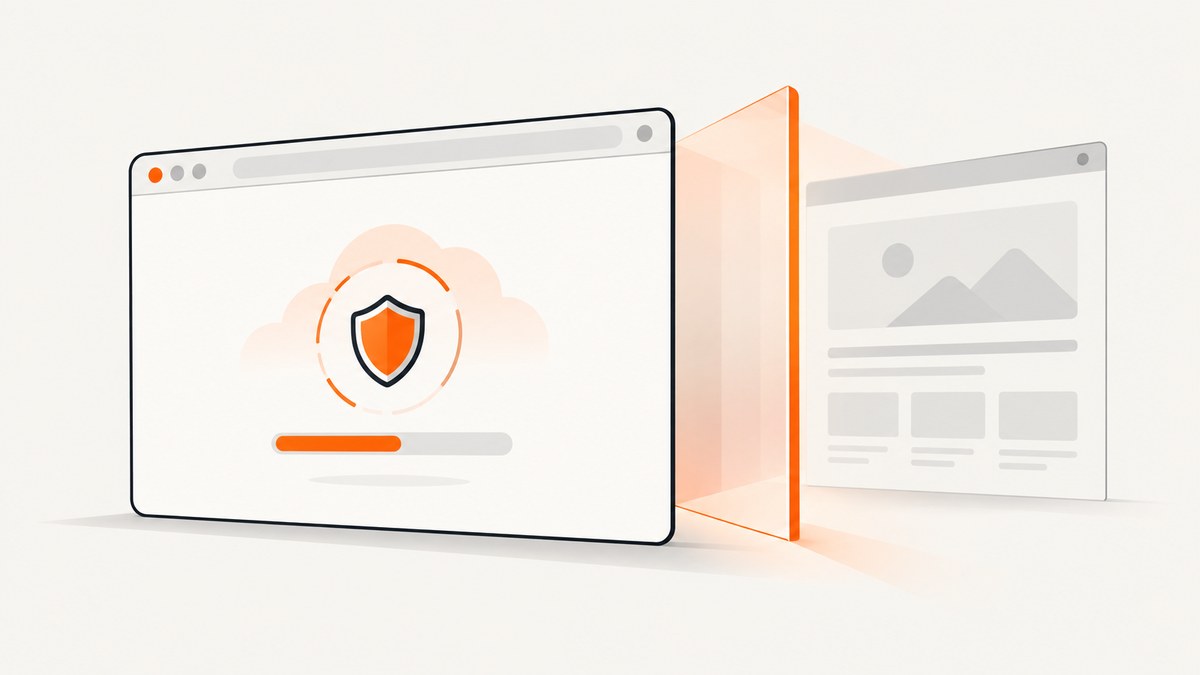
If a web screenshot shows a Cloudflare verification or challenge page, the capture has usually rendered the security gate instead of reaching the intended website. That screenshot does not establish that the destination page loaded. Cloudflare challenge pages interrupt the ordinary request flow: Cloudflare returns a full HTML page for the browser to render and, where required, solve before access to the destination continues. Cloudflare’s documentation on interstitial Challenge Pages describes this gate behavior.
For a legitimate visitor, troubleshoot the browser and network one variable at a time, then send the site administrator the displayed error code and Ray ID if the issue remains. For an owner or QA team, use screenshots only for pages and sessions you are authorized to test; an automation service’s browser identity setting does not override a site’s bot protection.
1. Why does my screenshot show a Cloudflare verification page?
The screenshot may be accurate: it shows what the browser received. It does not mean the website content behind the challenge was captured. A challenge can assess browser signals or require a small interaction. Until the challenge is passed, the browser may be held on the interstitial rather than the destination.
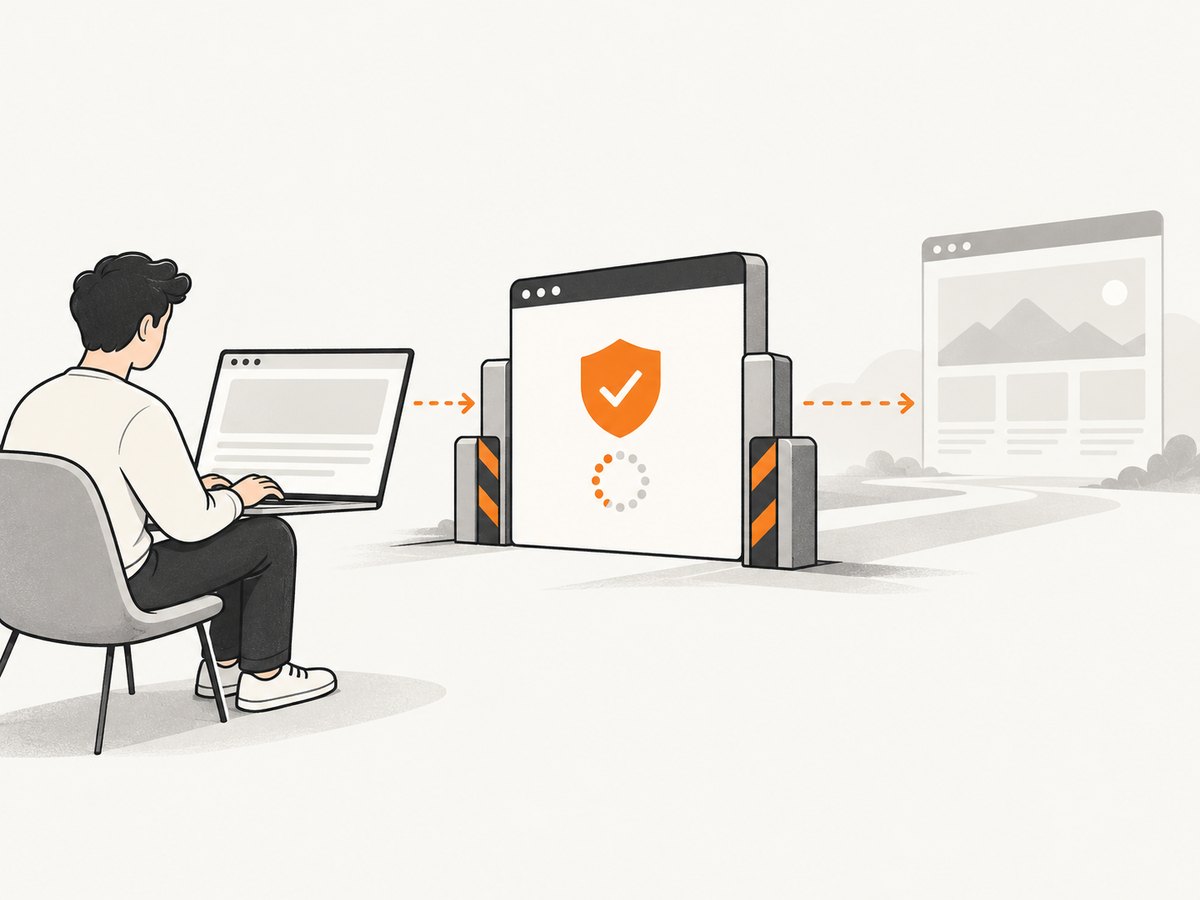
Cloudflare lists possible reasons a legitimate visitor may be challenged, including IP reputation or threat score, bot detection, custom Web Application Firewall (WAF) rules, and Browser Integrity Check. Browser configuration and extensions can also prevent challenge scripts from working. A screenshot alone cannot identify which condition caused a particular challenge. Avoid diagnosing a specific rule from the image alone.
This distinction matters when interpreting automated captures. A successful screenshot request can still contain a challenge page, because “the browser returned an image” and “the intended page loaded” are different outcomes. Inspect the image and, when you control the capture flow, record the final URL, page title, and relevant response or page signals as well.
2. Troubleshoot as a legitimate visitor
Try these checks in order. Where practical, change one condition at a time so you can tell whether the result changes. These steps help isolate whether the issue follows a browser profile, device, or network; they do not prove which Cloudflare security rule was involved.
- Update your browser and enable JavaScript. Use a current supported browser. Challenge flows depend on browser execution; command-line HTTP clients such as curl do not provide the browser environment needed to complete them. See Cloudflare’s supported browser guidance.
- Temporarily disable extensions that alter or block page behavior. Ad blockers, privacy tools, and script blockers can interfere with challenge scripts or communication. Reload after disabling them, then restore your usual settings after the check.
- Try a private or incognito window. This helps distinguish extension or cached-data issues from a problem that also occurs in a clean browser profile. Private mode does not guarantee a challenge will disappear.
- Try another browser or device. If the same page works elsewhere, the issue may be specific to the first browser setup. If it does not, continue testing rather than assuming the website is down.
- Test another network. If convenient, compare your usual connection with a mobile hotspot. A different result can indicate a network or IP-related condition, but it does not identify the exact cause. Cloudflare notes that VPNs or proxies may interfere with challenges; if you use one, temporarily testing without it may help isolate the issue.
- Contact the site administrator if it persists. Include the error code shown on the page and its Ray ID. Ask whether the site can investigate the challenge or its security configuration.
Do not treat every diagnostic detail as an error. Cloudflare documents that a 401 response on a Private Access Token request can be expected when a device, browser, or network cannot issue a token; a standard challenge can follow. That response on its own does not show that you were blocked or that the site is misconfigured. See Cloudflare’s challenge-solve troubleshooting guide.
3. Collect useful evidence for the site administrator
If ordinary browser checks do not resolve the problem, send enough information for the site owner to investigate without guessing. Cloudflare recommends providing the error code and Ray ID. A HAR file and browser console log can add detail when the administrator requests them.
- Reproduce the challenge in the browser where it occurs.
- Open the browser’s developer tools and select the Network panel. Enable Preserve log before reloading so requests remain available after navigation.
- Export the captured network activity as a HAR file if the administrator needs it. Follow your browser’s export controls and the administrator’s instructions.
- Capture or export relevant messages from the Console panel from the same reproduction.
- Send the page URL, approximate time, browser and version, device, network type, displayed error code, Ray ID, and whether private mode or another network changed the result.
HAR files can contain sensitive request data, including cookies or authorization headers. Review the file and share it only with the site administrator through an appropriate channel. Do not post session data publicly. Cloudflare’s guide covers HAR capture, console logs, and challenge troubleshooting at Challenge solve issues.
4. Site owner and QA workflow: capture only authorized pages
If you own the site or have permission to test it, first establish whether the capture is reaching the intended page or stopping at the challenge gate. Use an authorized account and valid session when the page requires login. Compare the capture result with a normal browser session that is permitted to access the same page. If the capture shows a challenge, treat that as the result to investigate; do not try to disguise automation or work around the site’s security controls.
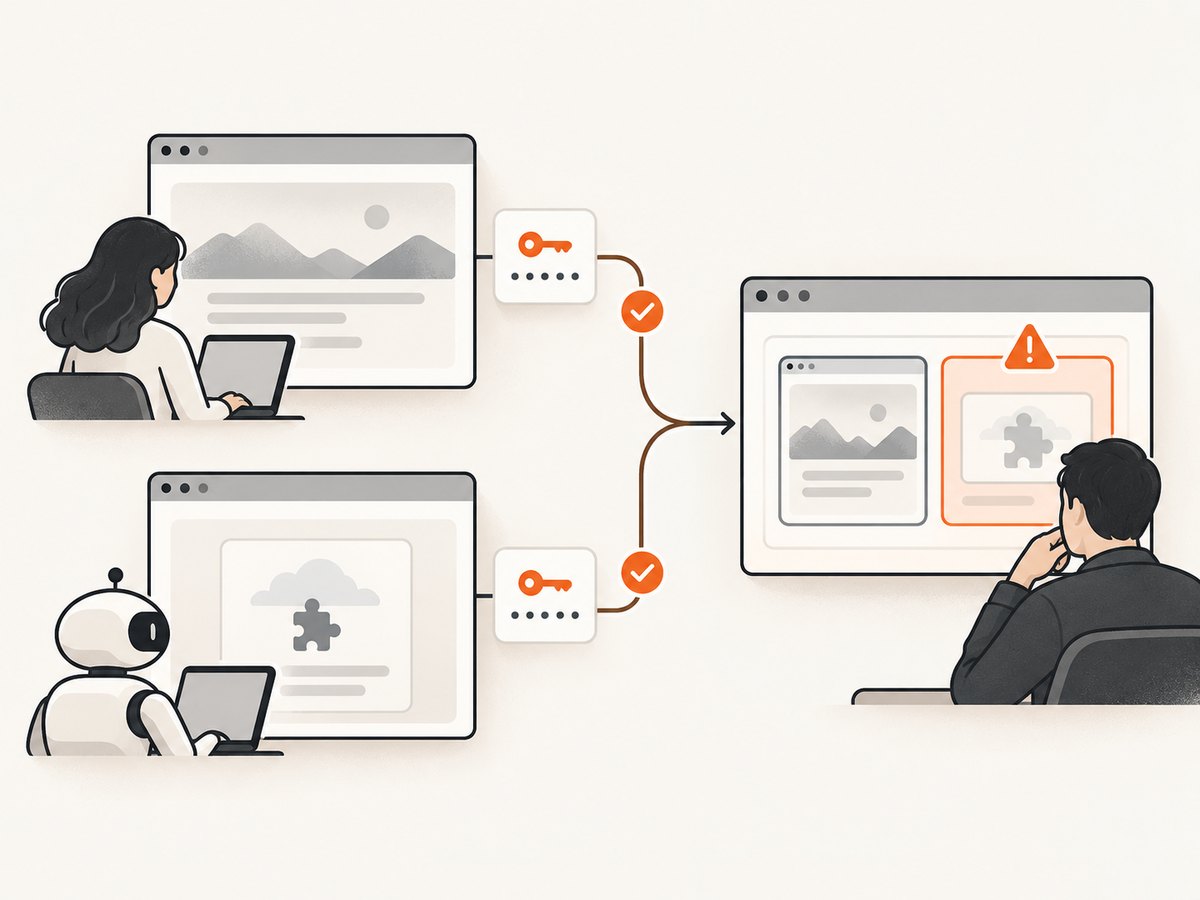
Cloudflare Browser Run provides an official screenshot endpoint for automated testing, QA, and visual regression. Its screenshot endpoint accepts a URL and can render the page before capture. It supports valid session cookies where login is required, and its userAgent setting can matter when a site serves different content by browser identity. But Cloudflare explicitly says that the userAgent parameter does not bypass bot protection. Use it for pages and sessions you are authorized to test, and address an unintended challenge through the site’s Cloudflare configuration or support process. See the Cloudflare Browser Run screenshot endpoint documentation.
Example: authorized Browser Run screenshot request
This request uses Cloudflare’s documented account endpoint and a bearer API token. Set the account ID and token for an account you administer, and use a URL you are authorized to capture. The example writes the HTTP response body to a PNG file; check the response status and content before treating the output as a valid destination screenshot.
curl -X POST "https://api.cloudflare.com/client/v4/accounts/ACCOUNT_ID/browser-run/screenshot" \
  -H "Authorization: Bearer CLOUDFLARE_API_TOKEN" \
  -H "Content-Type: application/json" \
  --data '{"url":"https://example.com","screenshotOptions":{"type":"png"}}' \
  -o capture.png
For JavaScript-heavy pages, Browser Run’s documentation describes waiting for network activity to settle with gotoOptions.waitUntil, or waiting for a known selector where that is more appropriate. A wait condition can address content that renders late; it cannot make an unauthorized page accessible or bypass a challenge. Choose a selector that signals the content your QA check actually needs, and set sensible request timeouts in the calling job.
QA checklist
- Confirm the target URL and that the test account has permission to view it.
- Use valid session cookies only when you are authorized to use that session.
- Check the rendered output for a challenge page before comparing pixels or approving a visual regression run.
- Record the capture time, page URL, viewport, and whether the intended content or a challenge appeared.
- If a challenge appears unexpectedly, have the site owner review the relevant Cloudflare configuration or support path.
- Keep challenge pages out of “expected page” baselines unless the test is specifically intended to verify the challenge experience.
5. Screenshot an accessible page: browser automation example
When you control the page or have permission to capture it, a normal browser automation workflow can render JavaScript and save a screenshot. The following Node.js example uses Playwright for an authorized page. It does not solve or bypass Cloudflare challenges. If the page displays a challenge, the script may capture that page; inspect the output rather than assuming navigation reached the intended content.
import { chromium } from 'playwright';

const url = 'https://example.com';
const browser = await chromium.launch({ headless: true });
const page = await browser.newPage({ viewport: { width: 1440, height: 900 } });

try {
  const response = await page.goto(url, {
    waitUntil: 'domcontentloaded',
    timeout: 30000
  });

  console.log({
    requestedUrl: url,
    finalUrl: page.url(),
    status: response?.status() ?? null,
    title: await page.title()
  });

  await page.screenshot({ path: 'capture.png', fullPage: true });
} finally {
  await browser.close();
}
Install the package with npm install playwright and install a supported browser using Playwright’s documented setup for your environment. Keep credentials out of source control. The example reports basic navigation information and saves the rendered page; it intentionally does not attempt to interact with a challenge. An HTTP status, page title, or image alone may not fully characterize the site’s response, so review the screenshot and logs for the QA purpose at hand.
6. Or skip the browser setup
For pages you are authorized to capture, ScreenshotNeo is a website screenshot API and MCP server from Yorker Media. One GET request returns a PNG, JPEG, WebP, or PDF. Its clean-shot flow accepts cookie or consent banners like a visitor and removes 60+ known consent platforms, newsletter popups, and chat widgets before capture; each of those steps can be turned off. Cloudflare protection is a separate security gate: ScreenshotNeo does not grant access to a page that Cloudflare blocks, so use the result for authorized accessible pages and investigate a challenge with the site owner.
See the ScreenshotNeo API documentation for the request options and formats. Here is the one-call cURL example:
curl -G "https://api.screenshotneo.com/v1/shot" -d access_key=YOUR_API_KEY --data-urlencode url=https://stripe.com -o shot.webpThe same request in Python:
import requests

r = requests.get(
    "https://api.screenshotneo.com/v1/shot",
    params={"access_key": "YOUR_API_KEY", "url": "https://stripe.com"},
    timeout=90,
)
open("shot.webp", "wb").write(r.content)
And in Node.js:
const q = new URLSearchParams({ access_key: 'YOUR_API_KEY', url: 'https://stripe.com' });
const res = await fetch(`https://api.screenshotneo.com/v1/shot?${q}`);
ScreenshotNeo’s response identifies page outcomes through X-Page-Verdict and billing through X-Billed. Bot checks, CAPTCHAs, blank pages, timeouts, failed loads, and cache hits are not billed. That can make it easier to distinguish a blocked or failed capture from a clean screenshot in a pipeline; it does not bypass the target site’s access controls. An MCP server offers take_screenshot, get_page_info, and capture_pdf tools for Claude, Cursor, and other MCP clients.
Plans include 1,000 screenshots per month free with no card; paid plans start at $5 for 3,000, with higher tiers at $15 for 15,000, $39 for 60,000, $99 for 250,000, and $249 for 1,000,000. Yearly billing gives two months free, and every feature is on every plan. Create a free ScreenshotNeo account and get 1,000 screenshots a month with no card.
7. Common errors and what to do
| Symptom | Likely explanation | Next step |
|---|---|---|
| Screenshot shows a verification page | The browser rendered the challenge gate before reaching the destination. | For a visitor, follow the browser and network checks above. For an owner, investigate the authorized session and site configuration. |
| Challenge repeats after reload | Browser settings, extensions, network instability, unsupported browser context, or detection conditions may be involved. | Update the browser, enable JavaScript, disable extensions temporarily, then compare a private window, another device, and another network. |
| Challenge never completes in a WebView | Embedded browsers can lack settings or capabilities required for the flow, such as JavaScript, DOM storage, or cookie support. | Try a full supported browser. If you own the app, review the WebView implementation guidance and report the issue to the site owner. |
| A 401 appears for a Private Access Token request | This can be expected when the environment cannot issue a token; it is not proof by itself of a block or configuration fault. | Continue the normal challenge troubleshooting and share the Ray ID if the issue remains. |
| Browser Run returns a challenge screenshot | The target is applying protection to the automated capture. | Do not treat a custom userAgent as a bypass. Confirm authorization and ask the site owner to review the configuration or permitted testing route. |
| Screenshot is blank or missing late content | The page may be JavaScript-heavy and the capture may occur before rendering finishes, or the destination may have failed to load. | For an authorized owner-side capture, wait for a known selector or a suitable network-idle condition, then inspect the final URL and logs. A longer wait does not resolve a challenge. |
| HAR or console output seems to show many unrelated requests | A browser page loads many resources; logs may contain both useful signals and sensitive session information. | Preserve logs during reproduction, share only what the administrator needs, and inspect HAR data for credentials or cookies before sending. |
8. Performance, reliability, and cost considerations
For a visitor, the quickest useful comparison is usually a private window or a second browser, followed by another device or network if needed. This narrows where the problem appears without claiming to identify the underlying security condition. Preserve the Ray ID and time of the attempt so the administrator has a reference.
For authorized QA captures, wait for the condition that represents page readiness. Waiting for all network traffic to stop can be slow or unsuitable for pages that keep long-lived requests open; a selector tied to the expected content can be more targeted. Conversely, a selector that appears before the page is actually ready can produce an incomplete image. Set a timeout, log the final URL and status, and classify a challenge page as a capture outcome rather than silently accepting it as the destination.
Screenshot jobs can be resource-intensive when they launch a fresh browser for every URL or capture full, long pages at high resolution. Reuse browser processes where your authorized automation environment permits, control concurrency, and choose viewport and full-page settings based on the check you need. Retry transient network or service errors with limits and backoff; repeated retries against a security challenge do not make the capture authorized or more reliable. Store only the evidence needed, especially where cookies or private page content are involved.
Cost depends on the authorized capture method and its usage terms. For ScreenshotNeo, clean captures are billed, while bot checks/CAPTCHAs, blank pages, timeouts, failed loads, and cache hits are not. Its response headers state the page verdict and billing result. The free plan includes 1,000 shots per month with no card; paid tiers scale from $5 for 3,000 to $249 for 1,000,000, with two months free on yearly billing. Estimate volume from the pages and formats you actually capture, and use caching where repeat captures can reuse an acceptable result.
9. FAQ
Does a challenge screenshot mean the website is down?
No. It means the capture displayed a challenge page. It does not show whether the destination is otherwise available to an authorized visitor who passes the challenge.
Can curl complete a Cloudflare browser challenge?
Cloudflare’s supported-environments documentation says command-line tools such as curl lack the JavaScript execution capabilities required for browser challenges. Use a browser as a legitimate visitor, or an authorized owner-side testing workflow.
Will changing the User-Agent make Browser Run pass protection?
No. Cloudflare explicitly states that Browser Run’s userAgent parameter does not bypass bot protection.
What should I send the website owner?
Send the URL, displayed error code, Ray ID, approximate time, browser and version, and whether another browser, device, or network changed the outcome. Provide a HAR and console log if requested, after checking for sensitive data.
Is a screenshot service a way around access restrictions?
No. Use screenshot tools only for pages and sessions you are authorized to test. If a site presents a challenge, treat it as a security decision to investigate with the site owner.


