How to Use the Cloudflare Browser Rendering API to Capture Screenshots
Capture rendered webpages with Cloudflare’s Browser Rendering API: authentication, full-page output, protected pages, tuning, errors, and a ScreenshotNeo shortcut.
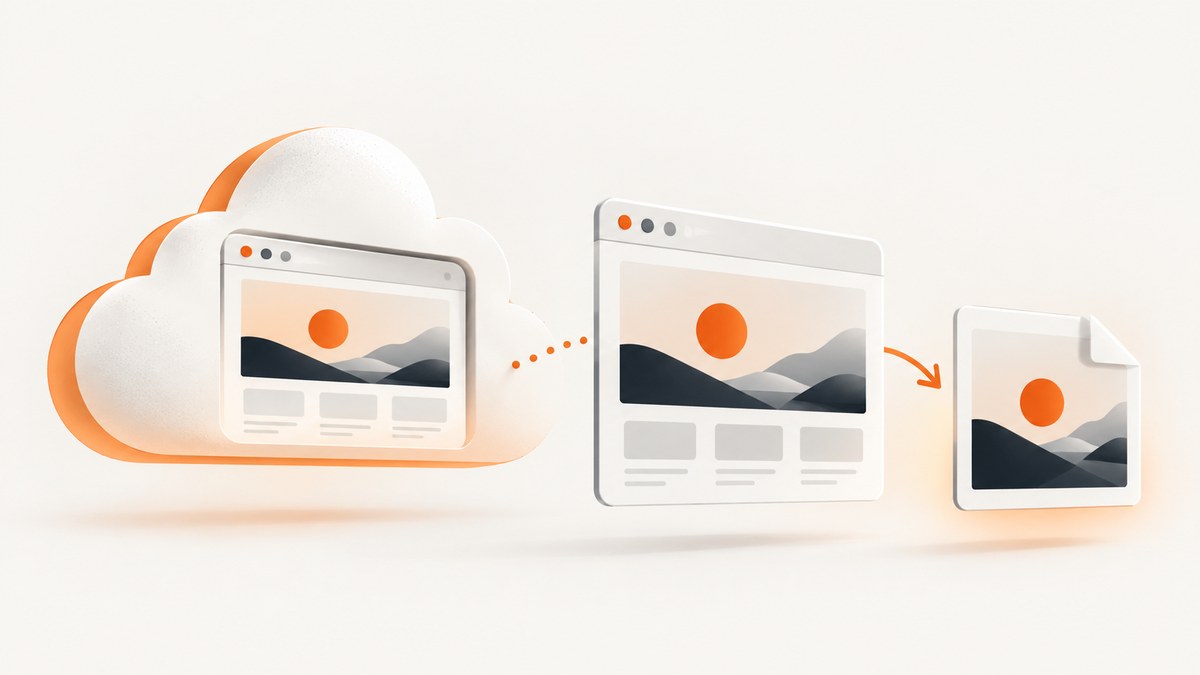
Direct answer: send a POST request to Cloudflare’s Browser Rendering screenshot endpoint with either a url or html field. Authenticate REST requests with a Cloudflare API token that has Browser Rendering permission, set capture controls under screenshotOptions, configure dimensions under viewport, and save the binary response as an image. Cloudflare renders the page’s HTML and JavaScript before taking the shot.
The REST endpoint is:
POST https://api.cloudflare.com/client/v4/accounts/<accountId>/browser-rendering/screenshotCloudflare also exposes Browser Run inside Workers. A Worker can use a Browser Run binding and env.BROWSER.quickAction("screenshot", ...) without an API token. This guide focuses first on REST, then explains the binding workflow and the settings that matter in production. See the Cloudflare Browser Rendering documentation for the current API reference.
1. Create credentials and make the first request
For REST access, create a Cloudflare API token with the Browser Rendering Write permission for the account that owns the browser-rendering resource. Keep the token on your server or in a secret manager. Do not put it in browser JavaScript or a public mobile app.
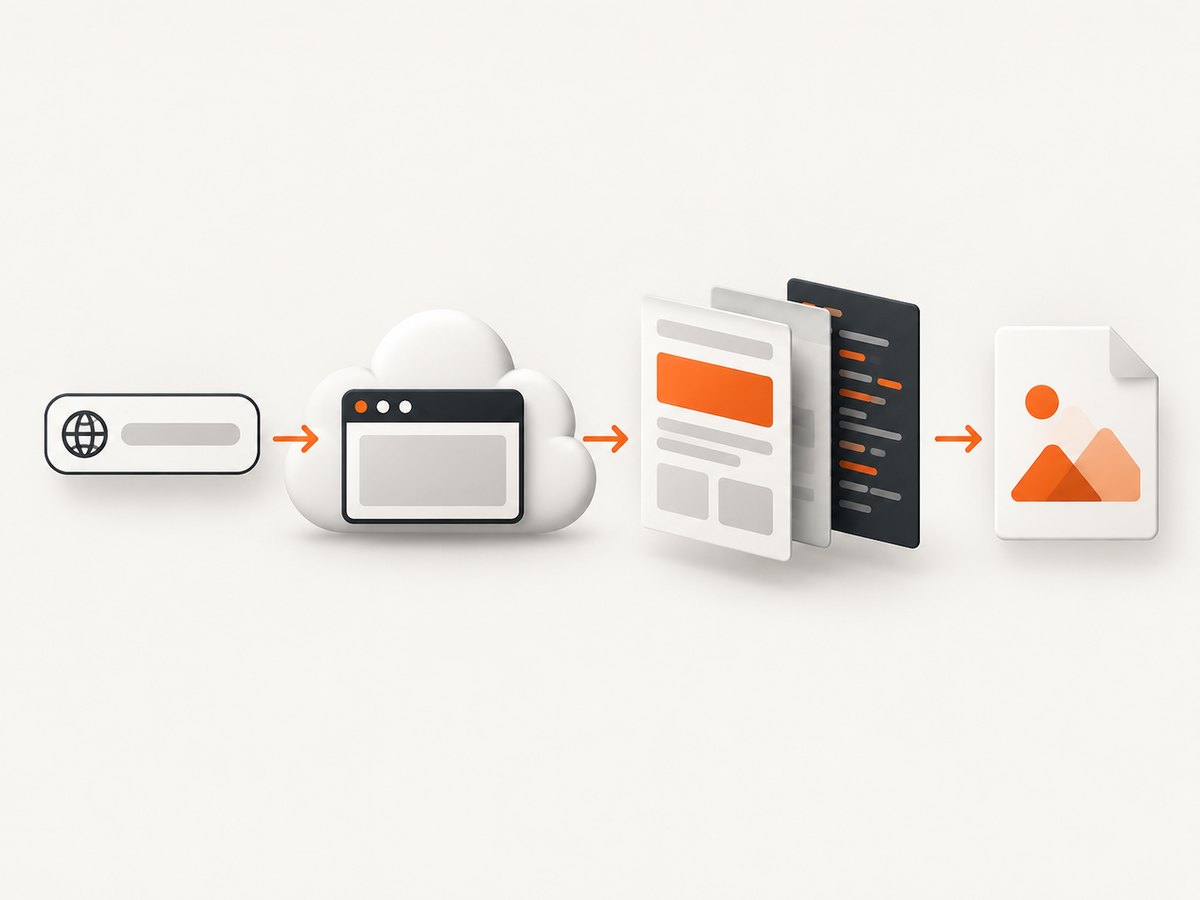
The smallest working request renders a URL at Cloudflare’s documented default viewport of 1920 by 1080 pixels:
curl -X POST 'https://api.cloudflare.com/client/v4/accounts/<accountId>/browser-rendering/screenshot' \
  -H 'Authorization: Bearer <apiToken>' \
  -H 'Content-Type: application/json' \
  -d '{"url":"https://example.com"}' \
  --output screenshot.png
The response body is image bytes, so use --output (or an equivalent binary file operation). Sending the request without an output file will print binary data into your terminal.
Python
import requests

account_id = "<accountId>"
api_token = "<apiToken>"
endpoint = f"https://api.cloudflare.com/client/v4/accounts/{account_id}/browser-rendering/screenshot"

payload = {"url": "https://example.com"}
headers = {
    "Authorization": f"Bearer {api_token}",
    "Content-Type": "application/json",
}

response = requests.post(endpoint, headers=headers, json=payload, timeout=120)
response.raise_for_status()

with open("screenshot.png", "wb") as image_file:
    image_file.write(response.content)
Node.js
const accountId = '<accountId>';
const apiToken = '<apiToken>';
const endpoint = `https://api.cloudflare.com/client/v4/accounts/${accountId}/browser-rendering/screenshot`;

const response = await fetch(endpoint, {
  method: 'POST',
  headers: {
    'Authorization': `Bearer ${apiToken}`,
    'Content-Type': 'application/json'
  },
  body: JSON.stringify({ url: 'https://example.com' })
});

if (!response.ok) {
  throw new Error(`Cloudflare returned ${response.status}: ${await response.text()}`);
}

const imageBytes = Buffer.from(await response.arrayBuffer());
await import('node:fs/promises').then(fs => fs.writeFile('screenshot.png', imageBytes));
2. Capture a full page or a specific region
Use screenshotOptions to define what is captured. fullPage: true expands the shot to the document’s full height, which is useful for articles, dashboards, and long receipts. A CSS selector limits the output to one element. Use clip when you need a rectangle with explicit coordinates and dimensions.
{
  "url": "https://cloudflare.com/",
  "screenshotOptions": {
    "fullPage": true,
    "type": "png"
  },
  "viewport": {
    "width": 1280,
    "height": 720
  },
  "gotoOptions": {
    "waitUntil": "networkidle0",
    "timeout": 45000
  }
}
A selector capture has a different purpose from a full-page capture:
{
  "url": "https://example.com/pricing",
  "screenshotOptions": {
    "selector": ".pricing-table",
    "type": "jpeg",
    "quality": 85
  },
  "viewport": {
    "width": 1440,
    "height": 900,
    "deviceScaleFactor": 2
  }
}| Setting | Use it for | Practical note |
|---|---|---|
fullPage |
The entire scrollable document | Lazy-loaded content must be available when the browser captures. |
selector |
One card, chart, or component | The selector must match an element after rendering. |
clip |
A fixed rectangle | Coordinate-based output is useful for repeatable visual tests. |
type |
PNG or a supported lossy format | Choose the format before using quality controls. |
omitBackground |
Transparency | Useful for overlays and assets that sit on another background. |
viewport |
Responsive layout and output dimensions | The documented default is 1920×1080. |
deviceScaleFactor |
Sharper output on large viewports | Increase it when a large capture looks blurry. |
quality is incompatible with the default PNG format. Select a supported JPEG or other format before setting quality. A high deviceScaleFactor increases pixel count and therefore memory and file size, so use it only when the consumer needs the extra detail.
3. Control when the page is ready
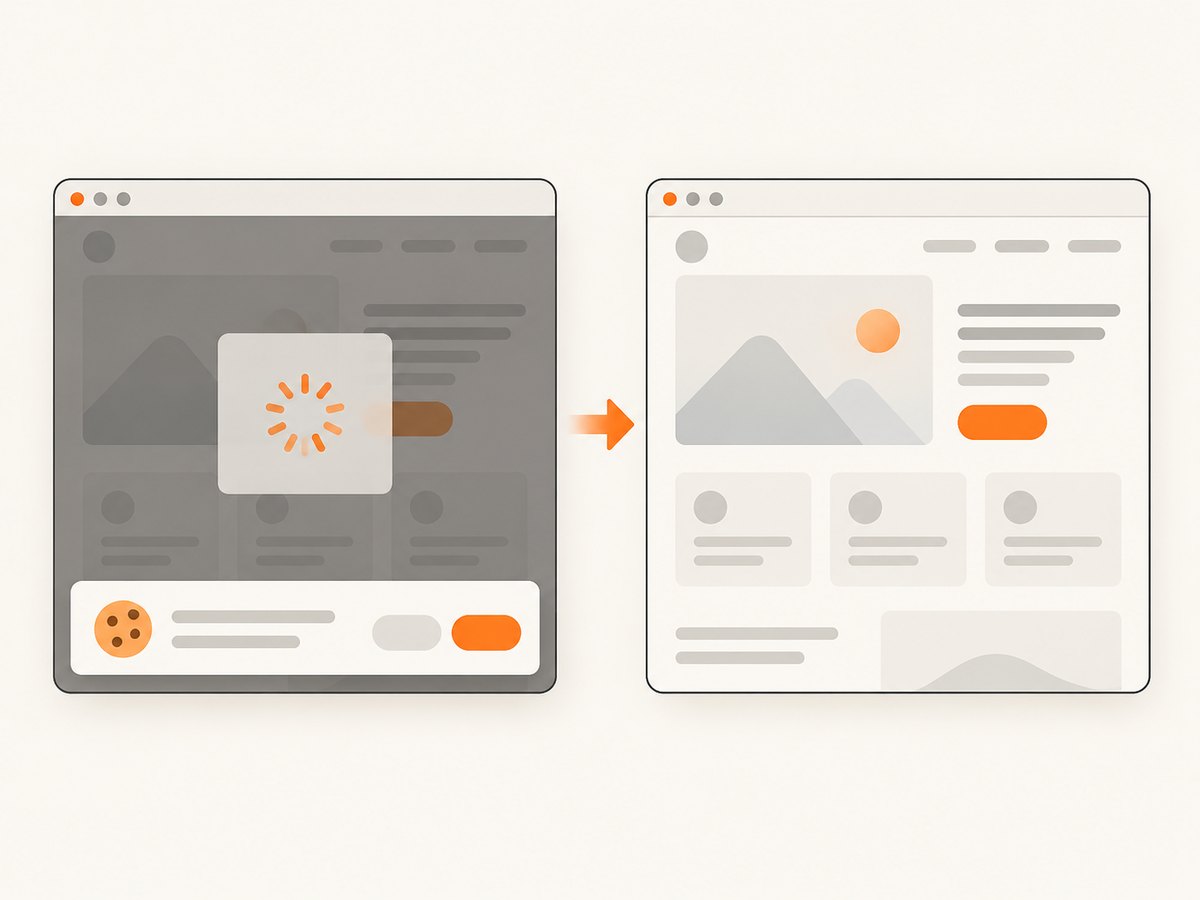
A screenshot taken immediately after navigation can contain a loading skeleton, incomplete fonts, or an empty chart. Put navigation behavior in gotoOptions. The documented advanced example uses waitUntil: "networkidle0" and a 45-second timeout. Network idle is helpful for applications that fetch data after the initial HTML, but it can take a long time on pages with analytics or long-lived connections.
{
  "url": "https://example.com/app",
  "screenshotOptions": {"fullPage": true},
  "gotoOptions": {
    "waitUntil": "networkidle0",
    "timeout": 45000
  }
}
For pages that never become quiet, prefer a less strict readiness condition supported by the API and make the page deterministic with request controls or injected JavaScript. The API reference sets the maximum actionTimeout at 120000 milliseconds. Keep timeouts bounded so one broken origin cannot occupy a worker indefinitely.
Change the page before capture
addScriptTag and addStyleTag can modify a page before the screenshot. Typical uses include hiding an animated cursor, expanding a collapsed section, adding a print stylesheet, or waiting for application state. Request and resource allowlists can constrain what the browser loads, which reduces unwanted third-party work and makes captures more repeatable.
{
  "url": "https://example.com/report",
  "addStyleTag": [
    {"content": "* { animation: none !important; transition: none !important; }"}
  ],
  "screenshotOptions": {"fullPage": true}
}
4. Screenshot authenticated and protected pages
Cloudflare documents three common ways to provide access: cookies, HTTP Basic Auth through authenticate, and custom headers through setExtraHTTPHeaders. Send only the credentials required for the target origin and avoid logging the request body.
{
  "url": "https://example.com/account",
  "cookies": [
    {"name": "session", "value": "<session-value>", "domain": "example.com", "path": "/"}
  ],
  "setExtraHTTPHeaders": {
    "X-Internal-Preview": "<preview-token>"
  },
  "screenshotOptions": {"fullPage": true}
}
For HTTP Basic Auth, use the API’s authenticate option. If an application uses a bearer token, set the appropriate extra header. Authentication can still fail when the target uses a device challenge, an interactive CAPTCHA, an IP allowlist, or a login flow that requires user interaction. Treat a redirect to a login page as a capture failure in your application rather than silently storing the wrong page.
5. Use HTML instead of a URL
url and html are alternatives; at least one is required. Use html when your service already has the markup and wants Cloudflare to render it. Include the CSS and assets needed for a faithful result, or use addStyleTag and related options.
{
  "html": "<!doctype html><html><body><h1>Invoice</h1><p>Paid</p></body></html>",
  "viewport": {"width": 1000, "height": 700},
  "screenshotOptions": {"type": "png"}
}
Do not provide both values unless the API version you use explicitly defines how they interact. Choosing one makes the request’s source unambiguous.
6. REST API versus a Workers Browser Run binding
| Dimension | REST API | Workers binding |
|---|---|---|
| Authentication | Bearer API token with Browser Rendering permission | Binding access; no API token required for the browser call |
| Where code runs | Your external client or backend | Inside a Cloudflare Worker |
| Best fit | Existing services, scripts, and CI jobs | Cloudflare-hosted request handling and edge workflows |
| Capture controls | JSON request options | Browser Run quick action options |
Cloudflare’s Workers flow calls env.BROWSER.quickAction("screenshot", ...). Choose it when the capture naturally belongs in a Worker and you want binding-based access. Choose REST when another platform owns the orchestration or when you need a simple HTTP integration.
7. Reliability, rate limits, and cost planning
Cloudflare documents a Browser Rendering REST limit of 10 requests per second (600 per minute) for Workers Paid plans after the March 4, 2026 increase. Design a queue or limiter around that ceiling instead of sending an unbounded burst. When the API returns HTTP 429, apply exponential backoff with jitter, preserve the original request, and cap retries so a traffic spike does not create a retry storm.
Use idempotent job records in your own system. Store the target URL, option set, attempt count, response status, and resulting object location. If a request times out, retry only when the capture is safe to repeat. A full-page capture can be expensive in memory, especially with a large viewport, a high device scale factor, and many images.
Cloudflare pricing and account limits depend on the plan and current product terms, so check the account documentation before setting a production budget. Track successful captures, failed navigations, timeout rates, image bytes, and retry volume separately. A cache keyed by URL plus all visual options can reduce duplicate work for pages that do not change frequently.
8. Troubleshooting checklist
| Symptom | Likely cause | Fix |
|---|---|---|
| 401 or 403 | Missing, expired, or under-permissioned token | Create a token with Browser Rendering permission and send it as a Bearer token. |
| 400 validation error | Neither url nor html, or malformed JSON |
Send exactly one valid source and validate the payload before the request. |
| Blank image | App content renders after navigation or requires authentication | Use a suitable wait condition, cookies, headers, or Basic Auth; verify the final page URL. |
| Missing lower-page images | Lazy loading has not been triggered | Use full-page capture and ensure the page’s lazy-load behavior runs before capture. |
| Blurry large capture | Device scale is too low for the viewport | Increase deviceScaleFactor, then check file size and memory use. |
| Quality rejected | quality used with PNG |
Select a supported JPEG or other format before setting quality. |
| Timeout | Slow origin, never-ending connections, or an overly strict wait | Set a bounded timeout, adjust waitUntil, and reduce unnecessary resources. |
| 429 Rate limit exceeded | Requests exceed the documented account rate | Throttle concurrency and retry with exponential backoff and jitter. |
| Unexpected login page | Cookie expired, header omitted, or redirect not authorized | Refresh credentials, include the required domain and path, and inspect redirects. |
9. Or skip the browser setup
If you need a screenshot endpoint instead of maintaining browser credentials, ScreenshotNeo accepts one GET request and returns PNG, JPEG, WebP, or PDF. Its capture pipeline accepts cookie and consent banners like a visitor, removes more than 60 known consent platforms plus newsletter popups and chat widgets, and lets you turn each cleanup step off. Bot checks or CAPTCHAs, blank pages, timeouts, failed loads, and cache hits are not billed; response headers identify the page verdict and whether the shot was billed.
See the ScreenshotNeo API documentation for all options. A minimal request is:
curl -G "https://api.screenshotneo.com/v1/shot" -d access_key=YOUR_API_KEY --data-urlencode url=https://stripe.com -o shot.webpPython
import requests
r = requests.get("https://api.screenshotneo.com/v1/shot", params={"access_key": "YOUR_API_KEY", "url": "https://stripe.com"}, timeout=90)
open("shot.webp", "wb").write(r.content)
Node.js
const q = new URLSearchParams({ access_key: 'YOUR_API_KEY', url: 'https://stripe.com' }); const res = await fetch(`https://api.screenshotneo.com/v1/shot?${q}`);ScreenshotNeo also provides an MCP server with take_screenshot, get_page_info, and capture_pdf tools for Claude, Cursor, and other MCP clients. It supports full-page and element captures, custom CSS and JavaScript, waits, blocking rules, headers, cookies, user agents, authorization, timezone, geolocation, resizing, caching, signed links, asynchronous jobs, webhooks, bulk capture, usage data, and an OpenAPI specification. Every feature is on every plan. The Free plan includes 1,000 shots per month with no card; paid plans start at $5 for 3,000 shots.
Create a free ScreenshotNeo account and start with 1,000 screenshots each month at no charge.
10. FAQ
Does the screenshot endpoint return JSON?
The successful response is image bytes, so save the response as a binary file. Error responses should be handled by status code and body text.
Can I capture a page that needs JavaScript?
Yes. Browser Rendering processes the page’s HTML and JavaScript before capture. Add readiness controls when application data arrives after the initial navigation.
What is the default viewport?
Cloudflare documents a default viewport of 1920×1080. Set viewport explicitly when output dimensions matter.
When should I use a selector instead of fullPage?
Use a selector for one stable component such as a chart or pricing table. Use fullPage when the document’s complete scrollable content is the deliverable.
Can a Worker call Browser Rendering without a token?
Yes. A configured Browser Run binding can call env.BROWSER.quickAction("screenshot", ...) without an API token.
How should I handle rate limits?
Limit concurrency to your account’s documented rate, recognize HTTP 429, and retry with exponential backoff and jitter.


