What “Cloudflare Protects This Website” Means and How to Respond
This Cloudflare message is a security check from the website operator, not proof you did anything wrong. Learn why it appears, how to resolve a loop, and what to send the site owner.

“Cloudflare protects this website” means the website operator has placed Cloudflare in front of the site, and a security check is holding your request before the page loads. Cloudflare is checking whether the browser and request look legitimate. The message does not mean Cloudflare owns the site, and the challenge alone does not prove you are attacking it. Legitimate visitors can be challenged because of their browser, network, IP reputation, or a rule chosen by the website operator.
Usually, wait for the check, allow JavaScript and cookies, and complete any normal interaction shown. If it repeats, use an up-to-date browser, temporarily disable extensions that alter or block browser behavior, and keep the same network while the check runs. If that fails, contact the website operator with the Ray ID shown on the page.
1. What the message means
Cloudflare operates as a security layer between visitors and the website’s own server. A rule or security feature has paused your request so Cloudflare can assess it. Cloudflare describes an interstitial Challenge Page as a full-page gate shown before a visitor reaches the destination, while it verifies the request. The check may run automatically or ask for a checkbox or button interaction, depending on the browser signals and the challenge type. Cloudflare: Interstitial Challenge Pages
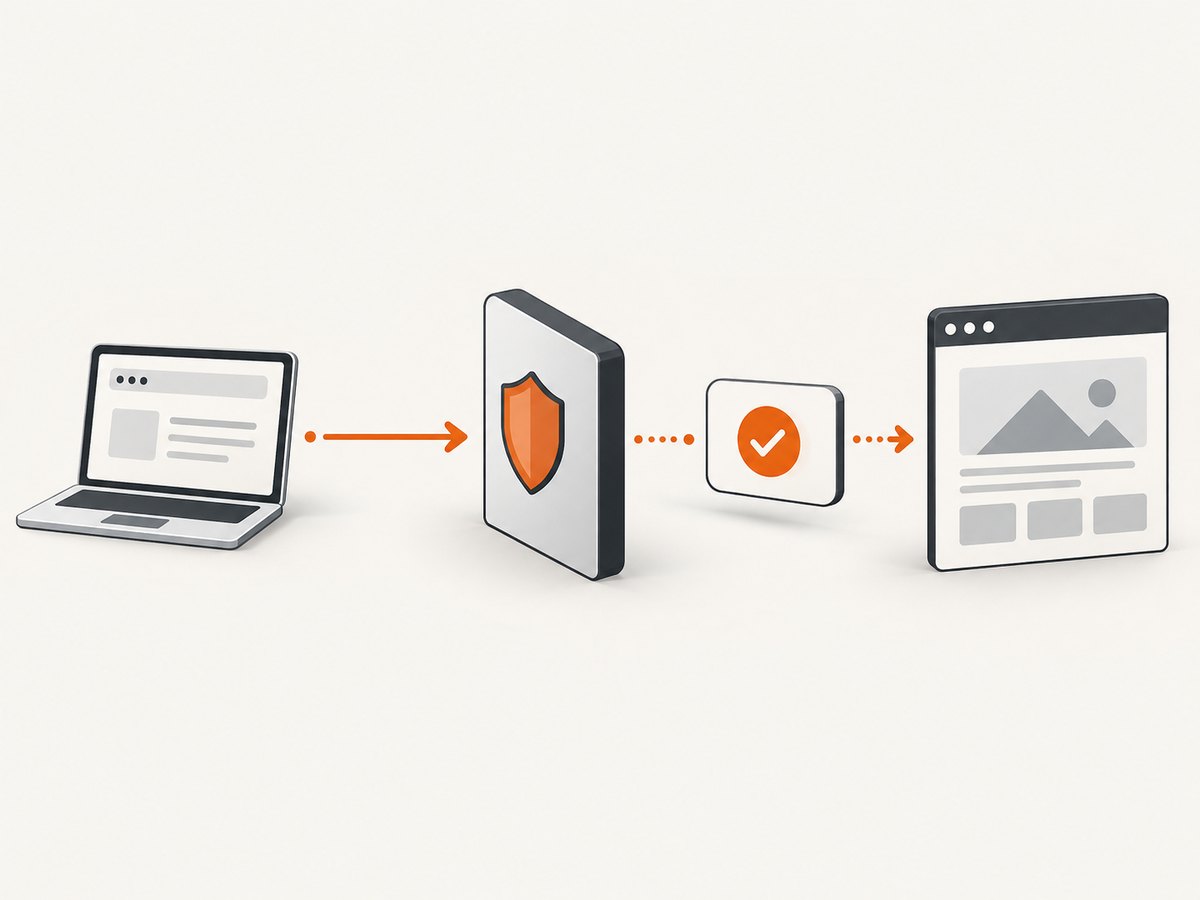
The site’s operator controls the security settings that lead to the challenge. Cloudflare supplies the protection, but it is not necessarily the owner of the destination website. If the challenge persists or access is blocked, the operator is the person who can investigate or change the applicable rule.
2. Why Cloudflare might challenge you
A challenge is a security signal, not a verdict about your intent. It can appear when a request matches a site’s Web Application Firewall (WAF) rule, rate limit, IP access rule, or bot protection. Cloudflare also lists IP reputation, Browser Integrity Check, and Under Attack mode among possible challenge sources. A shared VPN or corporate proxy can affect IP reputation; a browser extension or unusual browser configuration can interfere with signals or challenge scripts. Cloudflare: Challenges troubleshooting
Under Attack mode is a site-owner setting for additional checks during suspected layer 7 denial-of-service activity. It can temporarily interrupt access while the browser is checked. That is one possible cause, but the wording on the page by itself does not tell you which rule triggered it. Cloudflare: Under Attack mode
| What you notice | Possible explanation | Useful next step |
|---|---|---|
| One short “checking” page | A routine browser challenge | Wait and let the check finish. |
| The check returns after every reload | Blocked scripts or cookies, a changing connection, or a challenge loop | Check browser settings and keep the same network during verification. |
| The page works on another connection | Your first network’s shared IP or proxy may have a poor reputation or restrictions | Tell the site operator which connection was affected. |
| An app or API receives HTML instead of its expected data | A browser challenge interrupted a non-browser request | Report the endpoint and response details to its operator. |
3. What to do as a visitor
- Wait for the page to finish. Leave the tab open and complete only the ordinary browser check Cloudflare presents. Repeated reloads can restart the flow.
- Use a current mainstream browser. Update Chrome, Firefox, Safari, or another supported browser. Internet Explorer is not supported for challenges. Cloudflare: Supported browsers
- Enable JavaScript and cookies. The challenge needs JavaScript to run. A successful challenge may set a clearance cookie, which helps avoid repeating the check during its configured validity.
- Temporarily check extensions and privacy settings. Script blockers, ad blockers, fingerprinting protection, or tools that modify User-Agent, Canvas, WebGL, or related browser behavior can prevent a challenge from completing. If safe to do so, try a private window with extensions disabled, or temporarily pause the relevant extension and reload.
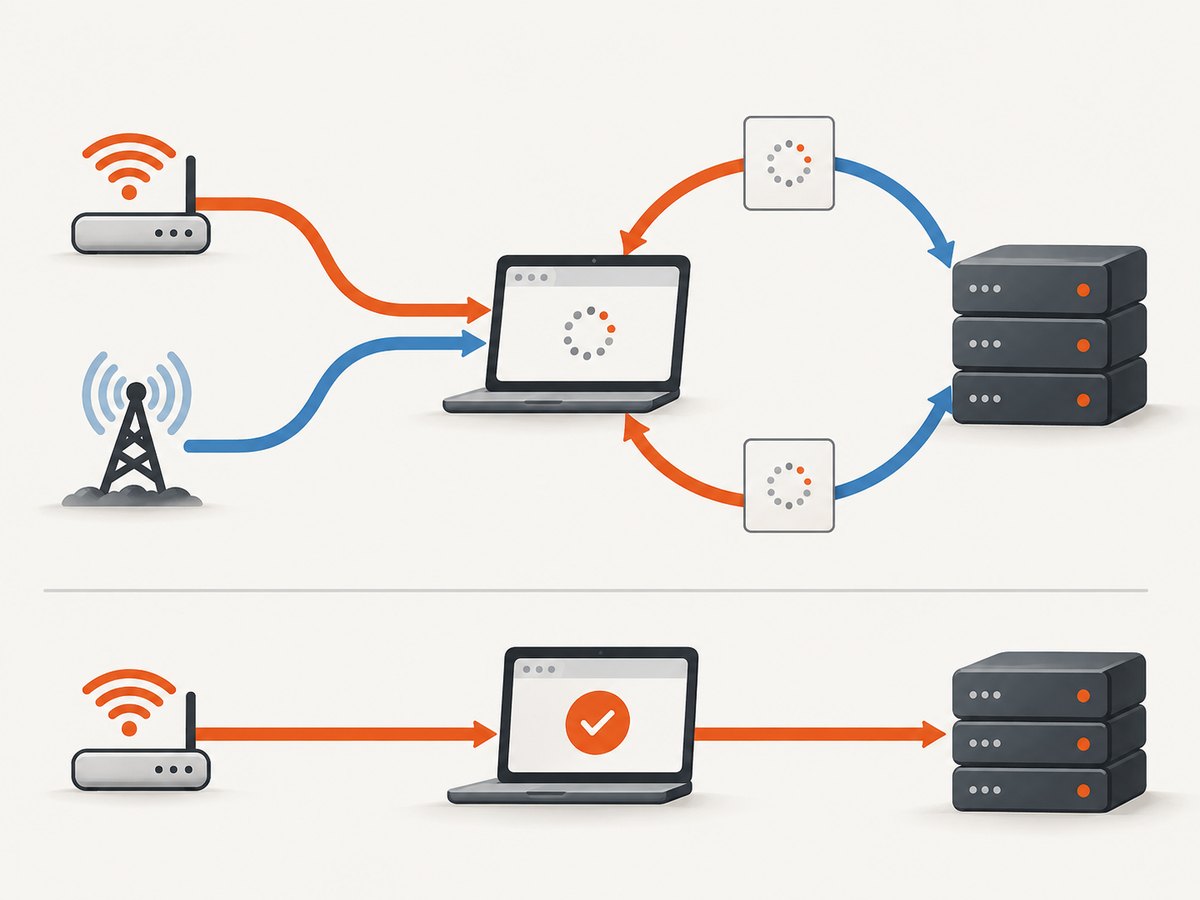
- Keep the same network while solving. A managed challenge can fail if the request that solves it comes from a different IP address than the one that received the challenge. Avoid switching between Wi-Fi, mobile data, or VPN endpoints mid-check. Cloudflare: How challenges work
- Try a trusted alternate connection only if needed. If a shared VPN, corporate proxy, or restricted network seems to be the issue, test ordinary home broadband or a mobile hotspot. A VPN is not a universal fix: shared VPN addresses can themselves trigger checks.
- Contact the website operator if access still fails. Include the exact message or error code, destination URL, UTC time, browser and version, network type, and Ray ID. The operator can use those details to look for the security event or review the rule.
Do not assume that a challenge means your device is infected, that your account is banned, or that your IP has been permanently blocked. It may simply be a request that needs browser-side verification. Cloudflare notes that only the website owner can change the site’s challenge settings. Cloudflare: Resolve a challenge
4. Troubleshoot a repeated check or a stuck page
Run through this checklist
- Is the browser current and supported?
- Are JavaScript and cookies allowed for this site?
- Could an extension be blocking challenge scripts or changing browser APIs?
- Did your network or VPN address change while the check was running?
- Does the problem occur in a second browser or on a trusted alternate network?
- Have you saved the Ray ID, time, URL, and exact error message for the site operator?
| Symptom | Likely cause | Fix or diagnostic |
|---|---|---|
| “Checking your browser” never finishes | JavaScript is disabled, a required script is blocked, or the connection is unstable | Enable JavaScript, test without script-blocking extensions, and retry on a stable connection. |
| The challenge succeeds and immediately returns | The browser cannot keep the challenge state or the solving request comes from another IP | Allow cookies, keep one network connection, and avoid rotating VPN exits. |
| It works in private mode | An extension or stored site data may be interfering | Re-enable extensions one at a time to find the cause; clear this site’s data if appropriate. |
| Only a work network or VPN fails | A shared IP, proxy, or network policy may be affecting the request | Ask the network administrator or site operator; compare with a trusted connection. |
| A command-line request gets an HTML page | Command-line clients do not execute the browser challenge | Do not treat the HTML as the expected API response. Ask the service owner for an API-compatible integration. |
For developers: capture the response details
If you maintain the client or are diagnosing your own integration, inspect the status, content type, Ray ID, and Cloudflare’s challenge marker. A challenge response to a fetch or XHR request may contain a full HTML page where JSON was expected. Cloudflare documents the cf-mitigated: challenge response header as a way to identify this case. A challenge is not a JSON error payload, so parse the body only after checking the response. Cloudflare: Detect a Challenge Page response
curl -sS -D response-headers.txt -o response-body.html \
  -w 'HTTP %{http_code}\nContent-Type: %{content_type}\n' \
  'https://example.com/path'

# Review relevant headers and the response body:
# cat response-headers.txt
# Look for cf-ray and cf-mitigated: challenge
This diagnostic request can identify a challenge; it does not complete one. Cloudflare does not support command-line tools such as curl for solving production browser challenges. Do not build a client that tries to imitate a visitor or bypass the site’s check. Use an official API or obtain access through the site operator instead. Cloudflare: Supported browsers and unsupported environments
The following Python example makes the same diagnostic request, prints the relevant response headers, and saves the response body. It intentionally treats a challenge-marked response as HTML rather than assuming it is the requested data.
from pathlib import Path
import requests

url = "https://example.com/path"
response = requests.get(url, timeout=30)
print("status:", response.status_code)
print("content-type:", response.headers.get("content-type"))
print("cf-ray:", response.headers.get("cf-ray"))
print("cf-mitigated:", response.headers.get("cf-mitigated"))
Path("response-body.bin").write_bytes(response.content)

if response.headers.get("cf-mitigated") == "challenge":
    print("Cloudflare returned a challenge; this is not the expected API payload.")
And in Node.js using the built-in fetch API:
const url = 'https://example.com/path';
const response = await fetch(url);
console.log('status:', response.status);
console.log('content-type:', response.headers.get('content-type'));
console.log('cf-ray:', response.headers.get('cf-ray'));
console.log('cf-mitigated:', response.headers.get('cf-mitigated'));
const body = await response.text();

if (response.headers.get('cf-mitigated') === 'challenge') {
  console.error('Cloudflare returned a challenge page, not the expected API response.');
} else {
  console.log(body.slice(0, 500));
}
Never send cookies, authorization values, or other secrets in a support report. The Ray ID and request time are usually more useful for the operator than a full unredacted request dump.
5. What the Ray ID is and how to report the issue
A Cloudflare Ray ID identifies a request that passed through Cloudflare. You may see it on the challenge or error page; developers can also look for the cf-ray response header. Cloudflare says site owners can use Ray IDs to investigate requests in Security Events, although event logs may be sampled. Cloudflare: Cloudflare Ray ID
Send the website operator a concise report containing:
- The Ray ID exactly as displayed.
- The page URL and the UTC time you saw the challenge.
- Your browser name and version, device type, and whether JavaScript and cookies are enabled.
- Your connection type, such as home broadband, corporate network, or VPN, without sharing sensitive account details.
- What you tried and whether a different browser or network changed the result.
If you administer the site, use the Ray ID and timestamp to locate the request and review the applicable WAF, rate limit, bot, or other security event. Avoid broadly disabling protection based on a single report; identify which rule or traffic pattern caused the challenge first. For API endpoints, full HTML challenge pages can break clients expecting JSON. Cloudflare documents Turnstile pre-clearance as one option for protecting API calls following human verification on an HTML page. Cloudflare: Challenge Page limitations and pre-clearance
6. Screenshot a page that you can access
If your task is to save an accessible page as an image or PDF, a screenshot tool captures what its browser can reach; a screenshot service is not permission to bypass a Cloudflare challenge. When a protected site presents a bot check, blank page, timeout, or failed load, treat that as an access issue and contact the site operator or use its authorized API.
ScreenshotNeo is a website screenshot API and MCP server for developers. It can return a PNG, JPEG, WebP, or PDF from a URL. For pages available to its browser, it can accept cookie and consent banners and remove more than 60 known consent platforms, newsletter popups, and chat widgets before capture; these steps can be turned off. Its response identifies the page verdict and billing status. See the ScreenshotNeo API documentation for request options and integration details.
Or skip the browser setup
For an accessible page, one GET request can return the screenshot. This does not solve or bypass a Cloudflare challenge. If a capture encounters a bot check, blank page, timeout, or failed load, ScreenshotNeo says that result is not billed; check the response headers for the verdict and billing status.
curl -G "https://api.screenshotneo.com/v1/shot" \
  -d access_key=YOUR_API_KEY \
  --data-urlencode url=https://stripe.com \
  -o shot.webp
import requests
r = requests.get(
"https://api.screenshotneo.com/v1/shot",
params={"access_key": "YOUR_API_KEY", "url": "https://stripe.com"},
timeout=90,
)
open("shot.webp", "wb").write(r.content)const q = new URLSearchParams({
access_key: 'YOUR_API_KEY',
url: 'https://stripe.com'
});
const res = await fetch(`https://api.screenshotneo.com/v1/shot?${q}`);
if (!res.ok) throw new Error(`Screenshot request failed: ${res.status}`);
await Bun.write('shot.webp', res);Cookie banners, popups, and chat widgets are removed before the shot. Bot checks, blank pages, and failed loads are never billed. An MCP server lets AI agents use screenshot tools. The Free plan includes 1,000 screenshots a month with no card; paid plans start at $5 for 3,000. Create a free ScreenshotNeo account.
7. Reliability and cost considerations for screenshot workflows
For a one-off page, use the browser steps above and record the Ray ID if the check fails. For repeatable captures, distinguish access failures from successful image output: an automated screenshot can report that a page did not load cleanly, but it cannot grant access that the website operator has withheld. Do not retry a challenge indefinitely; repeated requests may continue to meet the same rule and consume time without resolving the underlying cause.
When capturing many pages, schedule requests at a reasonable rate, use the service’s supported settings, and inspect each result rather than assuming every URL returned a usable screenshot. Keep API keys out of public client code and source control. ScreenshotNeo offers caching with a TTL you choose, bulk capture for up to 100 URLs per call, async jobs with signed webhooks, and a usage API; consult its documentation for exact parameters and limits. Its listed monthly plans are Free: 1,000, Starter: 3,000 for $5, Growth: 15,000 for $15, Pro: 60,000 for $39, Scale: 250,000 for $99, and Business: 1,000,000 for $249. Yearly billing gives two months free. Every feature is on every plan.
Frequently asked questions
Does “Cloudflare protects this website” mean Cloudflare owns the site?
No. The site operator uses Cloudflare as a security layer and controls the relevant site settings.
Is Cloudflare blocking my IP?
Possibly, but the message alone cannot establish that. A challenge can result from an IP reputation signal, a site rule, bot detection, or browser compatibility. Share the Ray ID with the operator to investigate.
Why does Cloudflare keep looping?
Common causes include blocked JavaScript or cookies, interfering extensions, unsupported browser behavior, an unstable connection, or an IP change during the challenge. If the checklist does not resolve it, send the operator the time, URL, Ray ID, and browser details.
Can I use curl, Python, or Node.js to pass the check?
Those tools can inspect the response and identify a challenge, but they do not run the browser check. For an API, request an authorized integration from the service owner.
What should I do if I see a 401 in the browser’s network panel?
A 401 on a Cloudflare Private Access Token request can be an expected fallback and does not by itself mean the challenge failed. Look at whether the page completes and whether the challenge itself reports an error. Cloudflare: Challenge solve issues