How to Capture Codeception Screenshots on Test Errors and Failures
Learn when Codeception captures failure screenshots, how to enable Recorder, save images manually, and diagnose missing artifacts.

Short answer: Codeception documents an automatic screenshot for a failed acceptance test when the suite uses a browser module such as WebDriver. The image is shown in the HTML report. If you need the steps leading to the failure, enable the Recorder extension. If you use PhpBrowser, Codeception saves the last page artifact on failure; that is page content, not a browser screenshot.
Start by identifying the module in your acceptance suite. The capture method, output path, and whether you receive an image or page source all depend on that module.
1. Identify what Codeception will capture
| Suite or feature | Artifact | Where to find it | Best use |
|---|---|---|---|
| Acceptance with WebDriver | Final screenshot for a failed test | HTML report; output files are under the configured output directory | See the last browser state |
| WebDriver Recorder | Screenshot after each step plus an HTML slideshow | tests/_output/record_*, including index.html |
Reconstruct the sequence before failure |
| WebDriver manual capture | PNG screenshot | tests/_output/debug by default for the public actor action |
Capture a known checkpoint |
| PhpBrowser | Last shown page | Configured output directory | Inspect returned HTML and request state |
Codeception’s Reporting documentation states that it saves a screenshot for a failed acceptance test and displays it in the HTML report. That statement is narrower than “every error always creates an image.” Setup errors, teardown errors, runner errors, and failures after the browser session has closed can follow different paths in your installed version.
2. Confirm the acceptance suite uses WebDriver
Open the suite file, commonly tests/Acceptance.suite.yml, and check the enabled modules. A typical browser suite looks like this:
actor: AcceptanceTester
modules:
  enabled:
    - WebDriver:
        url: https://example.test
        browser: chrome
The global codeception.yml file controls shared settings such as the output directory. The documented default is tests/_output. A suite file can override shared configuration, so inspect both files when an artifact is written somewhere unexpected.
paths:
  output: tests/_output
Run the failing test with the HTML report enabled by your project’s normal Codeception command. Open the generated report and check the failed test entry. If there is no image, continue with the checks in the troubleshooting section instead of assuming that the assertion type was unsupported.
3. Enable Recorder for every browser step
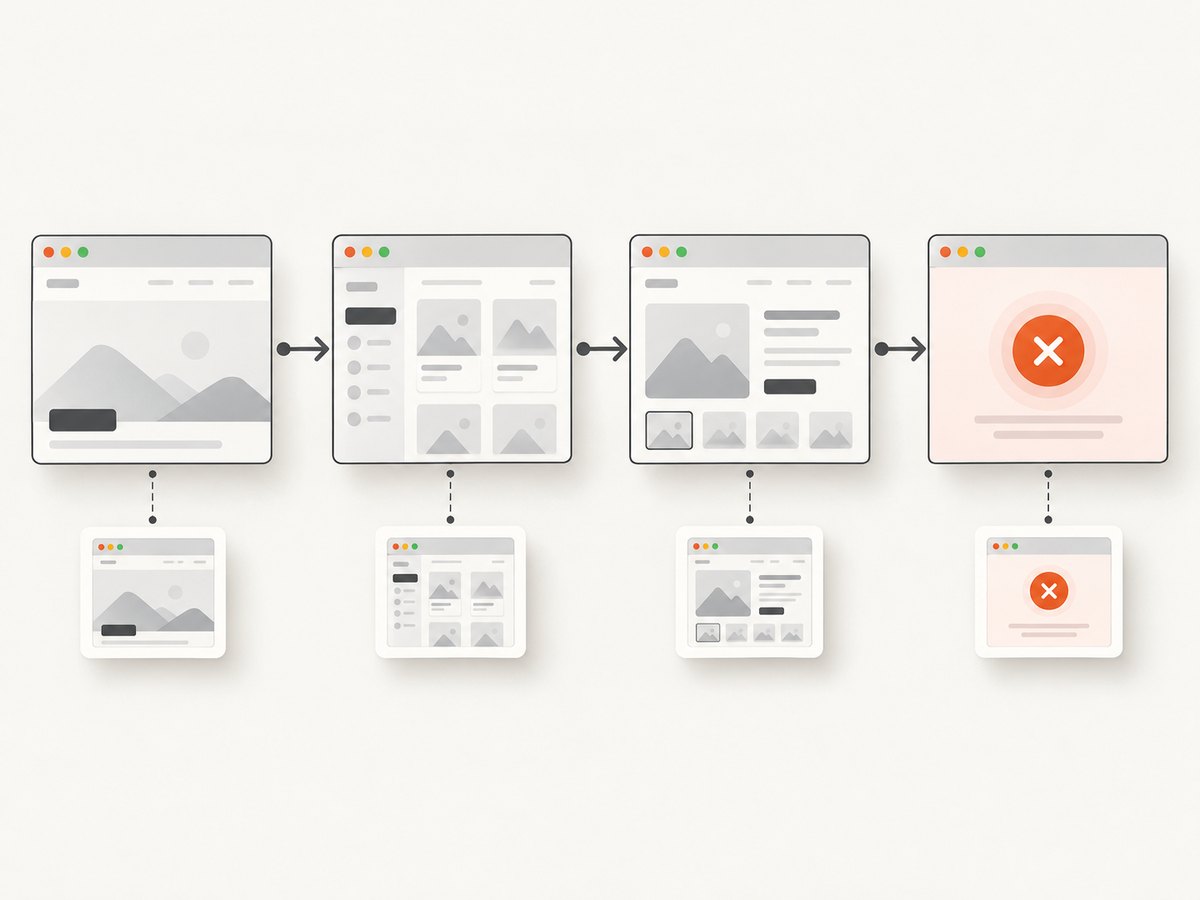
A final screenshot tells you where the test ended. Recorder shows how it got there: it captures after each step and creates a slideshow. It is intended for suites with WebDriver enabled.
Enable it globally in codeception.yml:
extensions:
  enabled:
    - Codeception\\Extension\\Recorder
You can also enable it in the acceptance suite configuration when only browser tests need recordings:
extensions:
  enabled:
    - Codeception\\Extension\\Recorder
The documented Recorder defaults include:
module: WebDriverdelete_successful: true, so recordings from passing tests are removed by defaultdelete_orphaned: false
Recordings are written to directories named tests/_output/record_*. Open the index.html file in a recording directory to view the slideshow. If you need recordings from successful tests for a short debugging run, set delete_successful: false, then restore the default to avoid filling the output directory.
extensions:
  enabled:
    - Codeception\\Extension\\Recorder:
        delete_successful: false
        delete_orphaned: true
Recorder also has options such as the module it observes and an error color for problems while generating a recording. Treat those as recording controls; they do not prove that every kind of test error will produce a screenshot.
4. Place a screenshot at a known point in a WebDriver test
Use the public actor action when you want a deliberate checkpoint:
<?php

$I->amOnPage('/account/edit');
$I->fillField('#email', 'dev@example.test');
$I->makeScreenshot('edit_page');
$I->click('Save');
The WebDriver module documentation places this image at:
tests/_output/debug/edit_page.pngUse a name that describes the state, not the assertion. Names such as checkout_before_submit and profile_validation_error make CI artifacts easier to find.
Saving to an explicit filename from a helper
WebDriver also documents the module method _saveScreenshot($filename). It is a hidden API, so keep it in helper or module code and verify it against the version installed in your project:
<?php

$webdriver = $this->getModule('WebDriver');
$webdriver->_saveScreenshot(codecept_output_dir() . 'screenshot_1.png');
The public makeScreenshot action is preferable in ordinary test code. The hidden method is useful when a helper already has a fully qualified destination.
5. Understand PhpBrowser’s different failure artifact
PhpBrowser uses HTTP requests through Guzzle/CURL rather than a real browser window. Its documentation says that, if a test fails, it stores the last shown page in the output directory. That means HTML or another page response, not a PNG image of rendered pixels.
Use PhpBrowser’s artifact to inspect response markup, redirects, and server output. Switch to WebDriver when you need CSS layout, JavaScript state, fonts, screenshots, or browser-only behavior.
6. Capture only when a test fails with a custom hook
For a custom module or helper, Codeception exposes the _failed($test, $fail) lifecycle hook before _after. A custom implementation can call WebDriver’s screenshot method from that hook, but it must account for the test lifecycle:
- The browser session may never have started because setup failed.
- The session may already be closed after a teardown failure.
- Parallel workers need unique filenames and output directories.
- A second exception while saving the image can hide the original failure.
Keep the hook defensive and log capture failures separately. The Codeception references establish the extension point and WebDriver save method, but they do not provide a universal implementation for every runner and teardown path.
7. A practical configuration checklist
- Identify the suite file and confirm whether it uses WebDriver or PhpBrowser.
- Check the global
paths.outputvalue and any suite-level override. - Run one intentionally failing acceptance test and inspect the HTML report.
- Enable Recorder when the final state is not enough.
- Use
makeScreenshot()for named checkpoints around risky interactions. - Set
delete_successful: falseonly during a bounded debugging run. - Archive
tests/_outputas a CI artifact before the workspace is cleaned. - Check the Codeception and module versions installed by CI; defaults can differ between releases.
8. Troubleshooting missing or unusable screenshots
| Symptom | Likely cause | Fix |
|---|---|---|
| No screenshot in the report | The test is not an acceptance test, the suite is not using WebDriver, or the failure occurred before a browser session existed. | Confirm the suite and module, then use Recorder or an explicit makeScreenshot() checkpoint. |
| Only an HTML file appears | The suite uses PhpBrowser. | Read the saved page artifact, or migrate the scenario to WebDriver for a rendered image. |
| Recorder directory is missing | The extension is not enabled in the active configuration, or the test passed and delete_successful removed it. |
Enable Recorder in the global or acceptance configuration and temporarily set delete_successful: false. |
| Recorder captures are incomplete | A browser step failed before the next capture, the browser crashed, or the session ended. | Inspect the last recorded step and browser logs; add a manual checkpoint before the fragile action. |
| Image is saved but cannot be found | A suite-level output path overrides the global path, or CI runs from a different working directory. | Print the resolved output path in CI and archive that directory explicitly. |
| Manual capture throws an exception | The WebDriver session is not active, the browser process crashed, or the module version differs from the example. | Capture after navigation has completed, verify the driver session, and check the installed WebDriver module API. |
| Screenshot shows a login page | Authentication did not persist, cookies were lost, or the test was redirected. | Assert the authenticated URL before the failing action and inspect cookies, redirects, and environment credentials. |
| Screenshot is blank or partly rendered | The page was captured before JavaScript, fonts, or lazy content finished loading. | Wait for a stable selector or an explicit condition before capturing; avoid arbitrary long sleeps when a state check is available. |
| CI cannot open the image | The artifact was deleted during cleanup, the path is outside the archived directory, or the file permissions prevent collection. | Archive tests/_output immediately after the test command and preserve failed-job artifacts. |
| Parallel jobs overwrite files | Workers use the same screenshot name and directory. | Include the worker ID, test name, and timestamp in custom filenames or isolate output per worker. |
9. Performance, reliability, and storage
- Default failure capture: captures only the final state, so it adds less work than recording every step.
- Recorder: creates one image per step and an index page. Use it for a focused debugging run because image count and storage grow with test length.
- Manual checkpoints: add predictable overhead only where you place them and keep CI artifacts easier to review.
- Browser stability: screenshots depend on the browser session, display environment, page timing, and network. A missing image can be a symptom of an earlier browser failure.
- Retention: archive failed-test output, then clean old recordings. Leaving successful recordings enabled indefinitely can consume workspace storage.
- Reproducibility: record the Codeception version, module version, browser version, viewport, and CI worker when comparing screenshots.
10. Or skip the browser setup
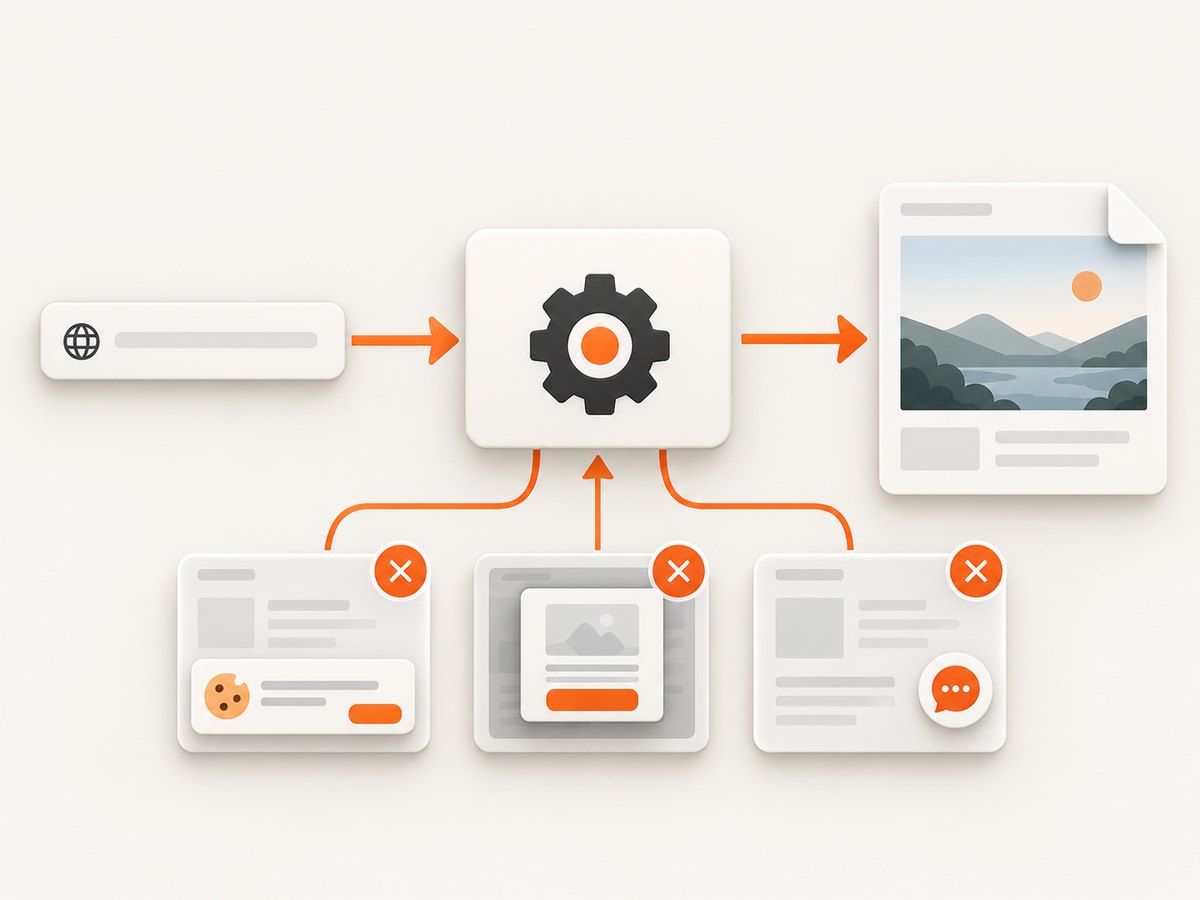
If your goal is a clean screenshot of a URL rather than a screenshot tied to a Codeception browser session, ScreenshotNeo provides a single HTTP request. Its API accepts a URL and returns PNG, JPEG, WebP, or PDF. See the ScreenshotNeo API documentation for the complete option list.
cURL
curl -G 'https://api.screenshotneo.com/v1/shot' \
  -d access_key=YOUR_API_KEY \
  --data-urlencode 'url=https://stripe.com' \
  -o shot.webp
Python
import requests

r = requests.get(
    'https://api.screenshotneo.com/v1/shot',
    params={
        'access_key': 'YOUR_API_KEY',
        'url': 'https://stripe.com',
    },
    timeout=90,
)
r.raise_for_status()
with open('shot.webp', 'wb') as f:
    f.write(r.content)
Node.js
const q = new URLSearchParams({
  access_key: 'YOUR_API_KEY',
  url: 'https://stripe.com',
});

const res = await fetch(`https://api.screenshotneo.com/v1/shot?${q}`);
if (!res.ok) throw new Error(`Screenshot failed: ${res.status}`);
const file = Buffer.from(await res.arrayBuffer());
await require('node:fs').promises.writeFile('shot.webp', file);
ScreenshotNeo removes cookie and consent banners, newsletter popups, and chat widgets before capture. Bot checks, blank pages, timeouts, failed loads, and cache hits are not billed, and response headers identify the result with X-Page-Verdict and X-Billed. Its MCP server provides take_screenshot, get_page_info, and capture_pdf tools for Claude, Cursor, and other MCP clients. You can also use full-page capture, CSS element selection, device presets, custom headers and cookies, waits, blocking rules, custom CSS or JavaScript, caching, signed links, asynchronous jobs, bulk capture, and PDF options.
There is a free plan with 1,000 screenshots per month and no card. Paid plans start at $5 for 3,000 shots; every feature is available on every plan. Create a free ScreenshotNeo account.
11. FAQ
Does Codeception take a screenshot for every error?
The documented default is for a failed acceptance test. It does not promise an image for every setup, teardown, runner, or browser-process error.
What is the difference between a failure screenshot and Recorder?
The failure screenshot represents the final browser state. Recorder captures each step and creates a slideshow so you can trace the state changes.
Why do I get HTML instead of PNG?
You are likely using PhpBrowser, which saves the last shown page rather than a rendered browser image.
Where does Codeception write output?
The documented global default is tests/_output, but suite configuration can override it.
Should I use the hidden _saveScreenshot() method?
Use the public actor action in tests. Reserve _saveScreenshot() for helpers or custom modules and verify it against your installed WebDriver version.


