How to Capture Codeception Screenshots When Tests Pass
Keep screenshots from successful Codeception acceptance tests with Recorder, or save one final image from a Cest’s `_passed` hook.

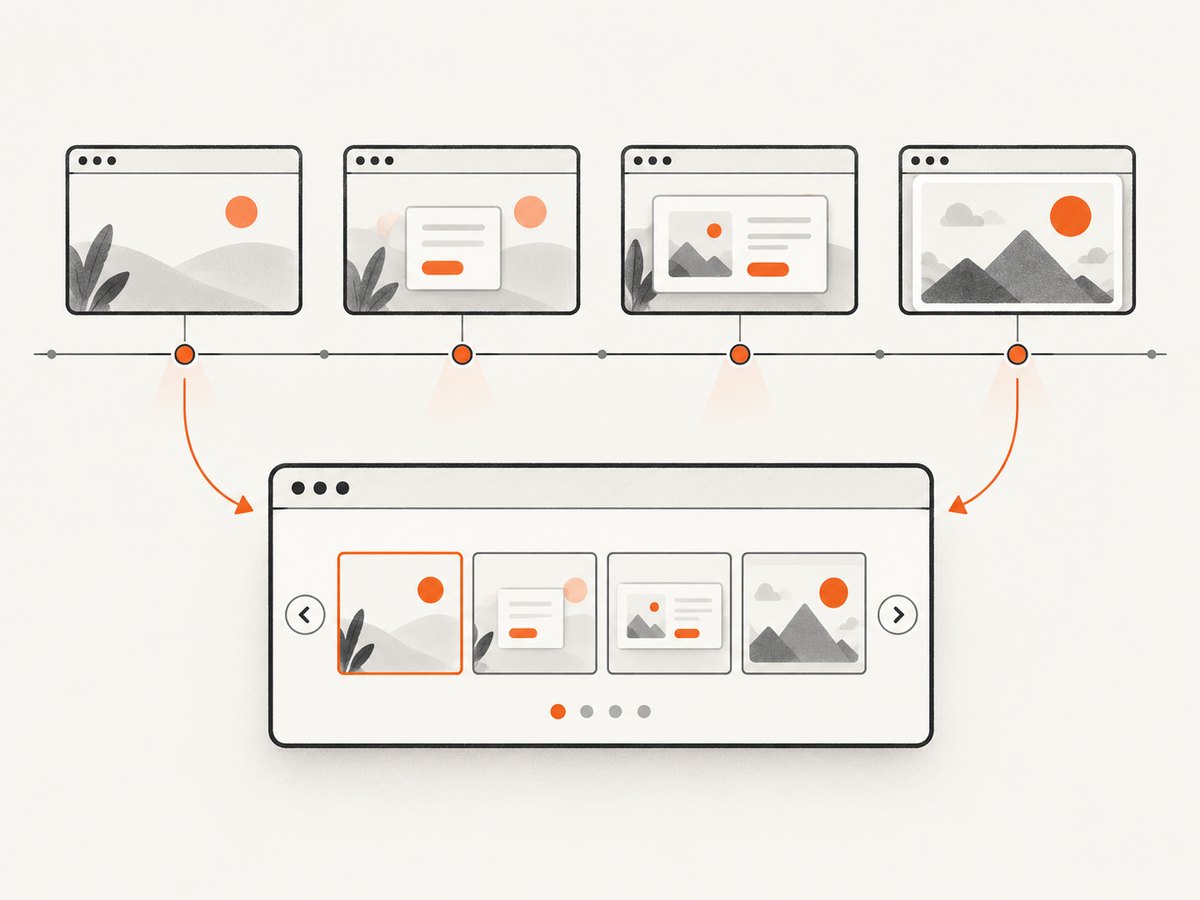
To keep screenshots from every step of a successful Codeception acceptance test, enable Codeception\Extension\Recorder and set delete_successful: false. Recorder’s default is true, so successful recordings are deleted unless you change it. If you only need one image of the final browser state, capture it in a Cest’s _passed hook with WebDriver’s _saveScreenshot() method. [Recorder documentation]
Codeception’s default acceptance-test screenshots are oriented toward failures. A passing test therefore needs explicit Recorder retention or custom capture logic. [Reporting documentation]
1. Choose what to capture
| Need | Use | What you get |
|---|---|---|
| A visual timeline across the test | Recorder with delete_successful: false |
Screenshots at acceptance-test steps, saved under tests/_output/record_*, with an HTML slideshow. |
| One final page image after a successful Cest | The Cest _passed hook and WebDriver _saveScreenshot() |
A screenshot at the end of the successful test, at a path you choose. |
| A screenshot of one element | WebDriver’s makeElementScreenshot() |
An element image saved under tests/_output/debug. |
Recorder is for reviewing how the browser changed while actions ran. The hook is for a final-state artifact. Use separate, clearly named output paths for custom screenshots; Codeception does not prescribe a universal naming or report-attachment policy for these files. [Recorder] [WebDriver module]
2. Keep Recorder screenshots from successful tests
Add the extension to the project’s codeception.yml, or to the configuration for the acceptance suite that uses WebDriver:
extensions:
  enabled:
    - Codeception\Extension\Recorder:
        delete_successful: false
Recorder takes screenshots at acceptance-test steps. It writes recordings to directories named like tests/_output/record_* and creates an index.html slideshow. Because the documented default for delete_successful is true, setting it to false is the key to retaining recordings when a test passes. The extension requires a suite with the WebDriver module enabled. [Recorder documentation]
Configuration options to consider
delete_successful: Set tofalseto retain successful recordings. The default istrue.module: Configure this if your screenshot provider differs from the default. The configured module should implementCodeception\Lib\Interfaces\ScreenshotSaver.ignore_steps: Use this option when some steps should not produce screenshots. Check the option syntax in the Recorder documentation for your installed version.- Environment configuration: Recorder can be configured per environment. This can help when local runs and other environments should use different recording behavior.
The precise values and syntax beyond the shown retention setting should be checked against the official documentation and your installed Codeception version. [Recorder configuration]
Verify the suite setup
- Identify the suite that runs the acceptance test. Recorder must be enabled for that suite, either in the main configuration or the suite configuration.
- Confirm that the suite enables the WebDriver module, or that your configured screenshot provider implements the documented
ScreenshotSaverinterface. - Run a representative acceptance test that passes.
- Look in
tests/_output/for a newrecord_*directory and open itsindex.htmlslideshow. - If no recording appears, check the test suite’s effective configuration and the installed extension and module versions.
3. Save one final screenshot from a successful Cest
Define _passed on the Cest class and call WebDriver’s _saveScreenshot(). Codeception invokes the hook when the test succeeds. codecept_output_dir() points to the configured output directory. [Cest hooks] [WebDriver screenshot example]
<?php

use AcceptanceTester;

final class CheckoutCest
{
    public function _passed(AcceptanceTester $I): void
    {
        $this->getModule('WebDriver')->_saveScreenshot(
            codecept_output_dir() . 'checkout-passed.png'
        );
    }

    public function customerCanCompleteCheckout(AcceptanceTester $I): void
    {
        $I->amOnPage('/checkout');
        $I->see('Checkout');
        // Continue the acceptance scenario here.
    }
}
Use the AcceptanceTester class generated for your project if its namespace or type declaration differs. The essential pieces are the _passed hook and the WebDriver module’s _saveScreenshot() call. The official WebDriver example uses this method to save an image under the output directory. [WebDriver module]
Avoid overwriting images across tests
A fixed name such as passed-test.png is simple, but multiple successful tests can write to the same path. Give each test or scenario a unique filename, for example:
$this->getModule('WebDriver')->_saveScreenshot(
    codecept_output_dir() . 'checkout-customer-can-pay.png'
);
Choose a naming scheme that is stable enough for your team to find artifacts and unique enough for the suite’s execution pattern. If test names can contain spaces or punctuation, normalize them before using them in filenames. Keep screenshots out of source control unless your project deliberately versions test artifacts.
Capture a selected element
If the full browser viewport is too broad, WebDriver documents makeElementScreenshot() for an element. Its images are saved under tests/_output/debug. Use a selector that uniquely identifies the target and make sure the element is present before capturing it. [WebDriver element screenshot documentation]
// Within a Cest method, after the target element is present:
$I->makeElementScreenshot('#order-summary');
4. Keep, inspect, and share the artifacts
For Recorder, open the generated slideshow’s index.html to review the sequence. For hook-based screenshots, inspect the specific PNG in the configured output directory. The artifact only reflects the browser state at capture time: if your test finishes before a delayed update or animation settles, the final image may not show the state you intended. Add suitable synchronization to the test flow before capturing rather than assuming a screenshot call waits for every application behavior.
Decide how long successful recordings should remain available. Retaining every step for every passing test can create many files over repeated runs, while a single final screenshot per scenario usually produces fewer artifacts. The cited Codeception documentation does not prescribe a storage-retention policy; choose one that fits your CI artifact handling and review needs.
These Codeception methods save screenshots from the browser session managed by the test. If you need a separate screenshot of a public page without setting up a browser test, a screenshot API can take that capture independently. For screenshots that must prove a particular tested state or authenticated flow, keep capture inside the test where the relevant browser session exists.
Or skip the browser setup
ScreenshotNeo is a website screenshot API and MCP server from Yorker Media. For an independent capture of a URL, its API returns an image or PDF with one GET request. For the Codeception outcome itself, Recorder or the Cest hook remains the right place to save the test’s browser state.
Here is a runnable cURL example, adapted to capture a page URL:
curl -G "https://api.screenshotneo.com/v1/shot" \
  -d access_key=YOUR_API_KEY \
  --data-urlencode url=https://stripe.com \
  -o shot.webp
The same request in Python:
import requests

r = requests.get(
    "https://api.screenshotneo.com/v1/shot",
    params={"access_key": "YOUR_API_KEY", "url": "https://stripe.com"},
    timeout=90,
)
open("shot.webp", "wb").write(r.content)
And in Node.js:
const q = new URLSearchParams({
  access_key: 'YOUR_API_KEY',
  url: 'https://stripe.com'
});
const res = await fetch(`https://api.screenshotneo.com/v1/shot?${q}`);
if (!res.ok) throw new Error(`Screenshot request failed: ${res.status}`);
await Bun.write('shot.webp', new Uint8Array(await res.arrayBuffer()));
See the ScreenshotNeo API documentation for request options. It removes cookie and consent banners, newsletter popups, and chat widgets before capture; each cleanup step can be turned off. Bot checks and CAPTCHAs, blank pages, timeouts, failed loads, and cache hits are not billed, and the response identifies the page verdict and billing status in headers. Its MCP server provides take_screenshot, get_page_info, and capture_pdf tools for Claude, Cursor, and other MCP clients. The free plan includes 1,000 screenshots per month without a card; paid plans start at $5 for 3,000 screenshots.
Sign up for ScreenshotNeo’s free 1,000 screenshots per month, with no card required.
5. Troubleshooting
| Symptom | Likely cause | What to check or change |
|---|---|---|
| A passing test leaves no Recorder slideshow | delete_successful is still enabled at its default, or Recorder is not active for the suite. |
Set delete_successful: false in the effective configuration and confirm that the acceptance suite uses WebDriver. |
No record_* directory is created |
The extension may be missing, configured under a different suite, or unable to use the configured screenshot module. | Check suite configuration, module names, extension availability, and whether a custom module implements ScreenshotSaver. |
The _passed hook does not run |
The test did not pass, or the hook is not defined on the Cest class in the expected form. | Confirm the test is a Cest and reaches success. Use the documented _passed hook name and ensure the relevant acceptance tester and WebDriver module are available. |
| The hook runs but no file appears | The output path may be wrong, unwritable, or shared with another test that overwrites it. | Save under codecept_output_dir(), check the directory’s write permissions, and use a unique filename. |
| The screenshot shows an earlier or incomplete page state | The test reached the capture point before the expected page update completed. | Wait for the relevant page condition in the test before saving the screenshot. A capture call records the current state; do not treat it as a substitute for test synchronization. |
| Recorder configuration is rejected or behaves differently | The installed Codeception or WebDriver version may differ from the documentation version, or the YAML is in the wrong configuration file. | Check the installed versions and compare the configuration format with the official Recorder and WebDriver documentation. |
6. Performance, reliability, and cost considerations
Capturing images adds work and produces artifacts, especially when a recording stores images throughout a test. The supplied Codeception sources do not provide a universal timing or storage benchmark, so measure the effect in your own suite if runtime or artifact size matters. As a practical choice, capture every step when you need a timeline to debug behavior; capture only the final state when a compact success artifact is enough.
For reliable review, make filenames unique, capture only after the page reaches the state under examination, and preserve the output directory as a CI artifact if your team needs to inspect it after the job ends. The research documentation does not guarantee that a project’s CI system retains local output automatically; configure artifact collection in that system.
Recorder and WebDriver screenshot calls are Codeception features; the cited sources do not state a per-screenshot charge. ScreenshotNeo has a separate usage-based plan structure: Free provides 1,000 shots monthly with no card; Starter is $5 for 3,000, Growth $15 for 15,000, Pro $39 for 60,000, Scale $99 for 250,000, and Business $249 for 1,000,000. Yearly billing gives two months free, and every feature is available on every plan. Those API prices apply when using ScreenshotNeo, not when saving screenshots through Codeception.
FAQ
Why does Codeception save screenshots when a test fails but not when it passes?
Default acceptance-test screenshots are failure-oriented. Recorder also deletes successful recordings by default, so set delete_successful: false to keep them. [Reporting] [Recorder]
Does Recorder save only the last screenshot?
No. Recorder captures at acceptance-test steps and creates a slideshow. Use a _passed hook when you want one final screenshot.
Can I use the hook with a non-WebDriver module?
The documented example calls WebDriver’s _saveScreenshot(). For Recorder, the documentation allows configuring another screenshot provider if it implements Codeception\Lib\Interfaces\ScreenshotSaver. Check the API supported by your installed module before adapting the hook. [Recorder] [WebDriver]
Can I add passing screenshots to every report automatically?
The cited documentation covers default failure screenshots, Recorder output, and a custom success hook. It does not define one universal attachment mechanism for every report format. How artifacts are linked or collected depends on the reporting and CI setup used by your project.


