How to Run CodeceptJS Tests in Headless Chrome
Run CodeceptJS with Playwright Chromium in headless mode locally or in CI, with configuration, debugging, WebDriver options and a browserless alternative.
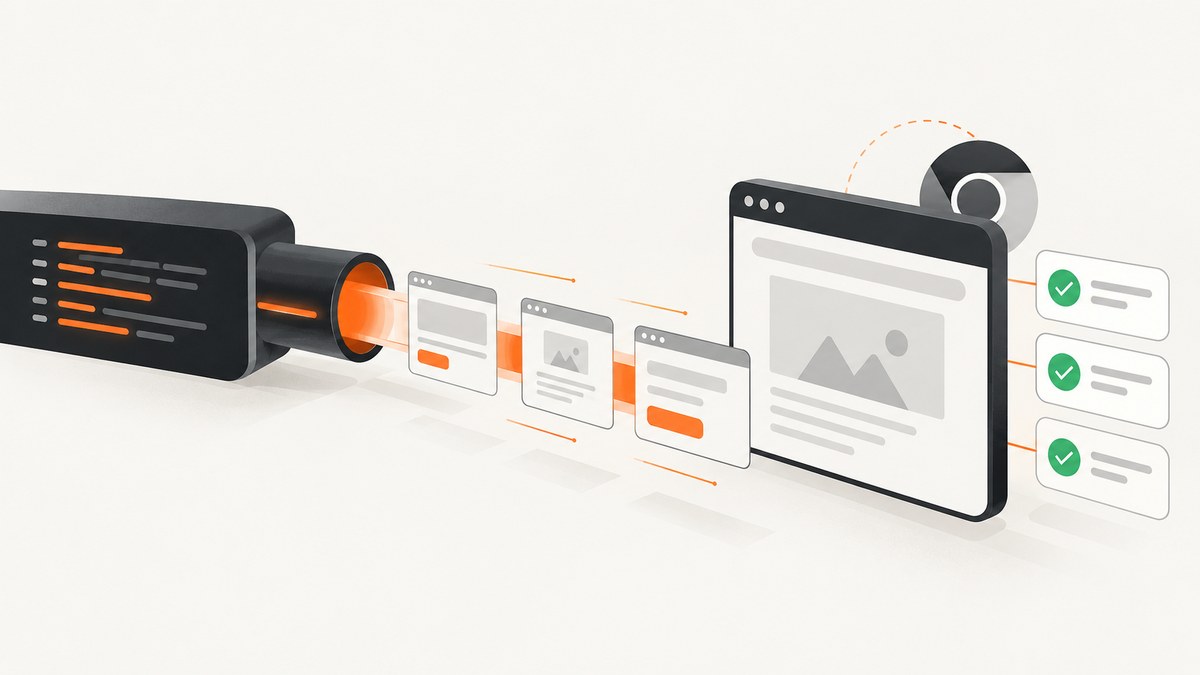
Direct answer: CodeceptJS runs headless by default when you use the Playwright helper. Install CodeceptJS and Playwright, install Chromium and its system dependencies, set show: false and browser: 'chromium', then run npx codeceptjs run. In CI, install the browser during setup and keep the suite headless.
This guide shows the complete Playwright path, the one-command browser plugin, a WebDriver Chrome alternative, CI configuration, debugging, reliability and performance considerations, and the failure modes that most often make headless runs confusing.
1. Install CodeceptJS, Playwright and Chromium
From the project directory, install the test runner and browser helper as development dependencies:
npm install codeceptjs playwright --save-dev
npx playwright install --with-deps
npx codeceptjs init
The --with-deps flag installs the operating-system packages required by Playwright browsers. The initialization wizard creates a codecept.conf.js file, a sample test and an output directory choice. Keep this setup in the same environment where tests will run; installing Playwright on a laptop does not install its browser binary in a CI runner.
2. Configure Playwright Chromium for headless mode
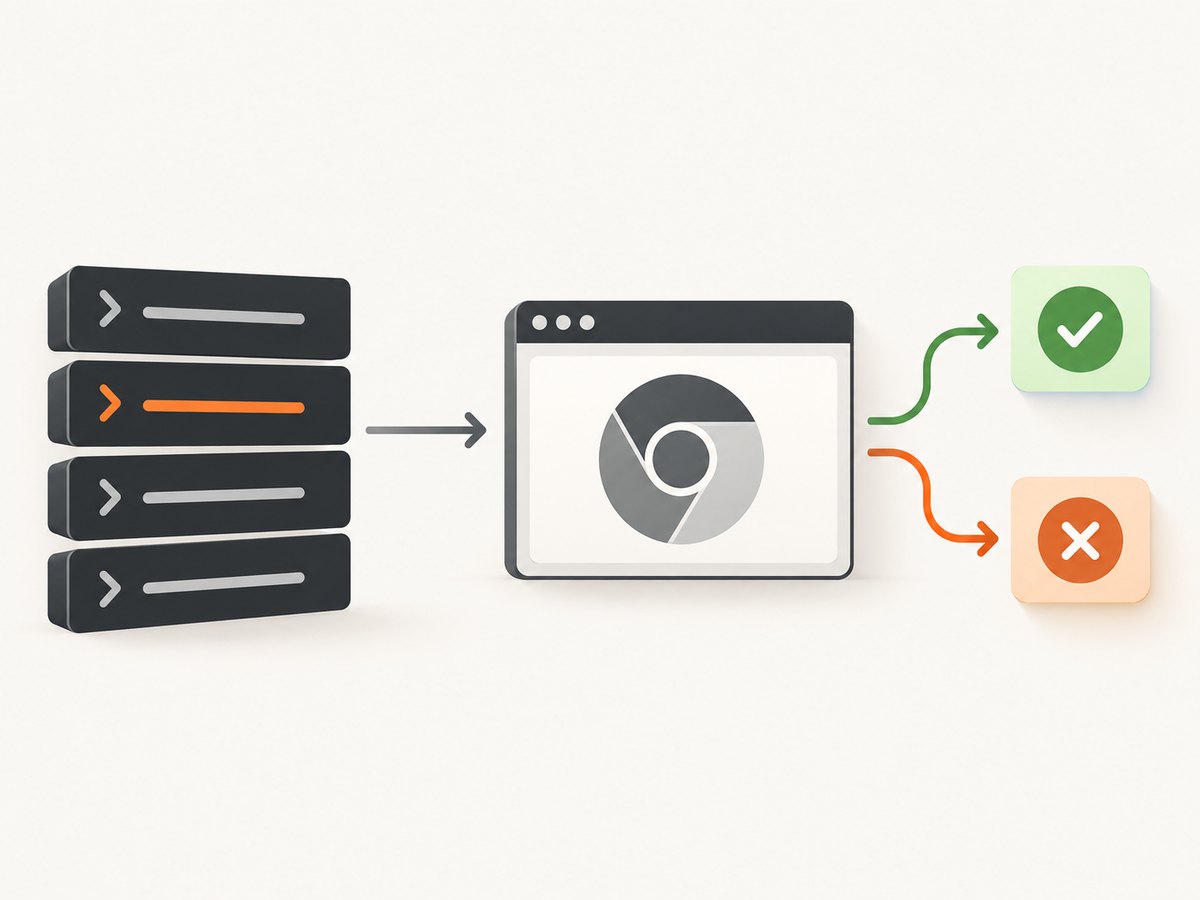
A minimal configuration uses the Playwright helper and explicitly disables the browser window:
export const config = {
  helpers: {
    Playwright: {
      url: 'http://localhost:3000',
      show: false,
      browser: 'chromium',
    },
  },
  tests: './**/*_test.js',
  output: './output',
}
CodeceptJS documentation states that tests are headless by default. Setting show: false makes that behavior explicit and prevents a later configuration change from unexpectedly opening a window. The Playwright helper supports chromium, firefox and webkit; this article selects Chromium because it is the usual Chrome-compatible engine. See the CodeceptJS Playwright helper documentation for the complete helper configuration.
A first test
Feature('Home page');

Scenario('loads the home page', async ({ I }) => {
  I.amOnPage('/');
  I.seeInTitle('Example');
});
Save it as something matching the configured pattern, such as home_test.js. Start your application at http://localhost:3000, or change the helper’s url to the test environment.
3. Run the suite headlessly
Run every matching test with:
npx codeceptjs runFor a single run, you can force the browser plugin to hide the window without editing configuration:
npx codeceptjs run -p browser:hideThe quickstart also documents the equivalent spelling:
npx codeceptjs run --p browser:hideTo temporarily see the browser while diagnosing a local failure, use:
npx codeceptjs run -p browser:showThe plugin can set a viewport at the same time:
npx codeceptjs run -p browser:hide:windowSize=1280x720For Playwright and Puppeteer, the plugin changes the show setting. For WebDriver Chrome and Firefox, it adds or removes the headless capability and translates windowSize into browser arguments. Details are in the CodeceptJS browser plugin documentation.
4. Control headless mode with an environment variable
If developers need a visible browser locally while CI must remain headless, use the configuration helpers:
import { setHeadlessWhen, setWindowSize } from '@codeceptjs/configure';

setHeadlessWhen(process.env.HEADLESS);
setWindowSize(1280, 720);

export const config = {
  helpers: {
    Playwright: {
      url: 'http://localhost:3000',
      browser: 'chromium',
    },
  },
  tests: './**/*_test.js',
  output: './output',
};
Run visibly with HEADLESS= or headlessly with HEADLESS=1, depending on how your shell represents the variable. The hook controls show for Playwright and injects the headless capability for supported WebDriver Chrome and Firefox configurations. See the CodeceptJS configuration documentation.
5. Headless Chrome through the WebDriver helper
Projects already built around WebDriver can keep that backend instead of switching to Playwright. Configure Chrome capabilities explicitly:
exports.config = {
  helpers: {
    WebDriver: {
      url: 'https://myapp.com',
      browser: 'chrome',
      desiredCapabilities: {
        chromeOptions: {
          args: [
            '--headless',
            '--disable-gpu',
            '--window-size=1200,1000',
            '--no-sandbox',
          ],
        },
      },
    },
  },
  tests: './*_test.js',
  output: './output',
};
--no-sandbox can be required by some restricted containers, but review it against your runner’s security model before enabling it. Do not copy WebDriver capabilities into a Playwright configuration: the two helpers expose a shared CodeceptJS-style API, but their browser startup and feature behavior differ. The WebDriver helper guide documents remote connection and capability settings.
6. CI setup that does not depend on a display
Install Node dependencies and Playwright browsers in the setup stage, then run the suite:
npm ci
npx playwright install --with-deps chromium
npm test
A package script can make the final command predictable:
{
  "scripts": {
    "test": "codeceptjs run",
    "test:debug": "codeceptjs run --debug"
  }
}
Headless Playwright does not need an X server. If you intentionally run a visible browser in Linux CI, provide a display server such as Xvfb; otherwise Chromium can fail before the first test. Cache npm packages only if your CI policy allows it, but make browser installation an explicit step so a fresh runner is reproducible.
7. Test isolation, viewport and timing choices
Use a deliberate viewport
Responsive layouts can produce different locators and screenshots at different sizes. Set setWindowSize(1280, 720) or use the browser plugin’s windowSize option so local and CI runs exercise the same layout.
Wait for application state, not arbitrary sleeps
Prefer a condition such as waiting for a selector or a completed navigation. A fixed delay can hide a race on a fast machine and still be too short on a slow runner. If a test genuinely needs time for an animation or third-party callback, keep the delay local to that step and document why.
Keep tests independent
Headless execution makes failures faster, which can expose state leakage. Reset data, cookies and authentication between scenarios when the test depends on them. Avoid relying on test order or a browser window left open by a previous scenario.
8. Debugging a failing headless run
Start with CodeceptJS debug output:
npx codeceptjs run --debugThen classify the failure instead of immediately adding flags:
| Symptom | Likely cause | Fix |
|---|---|---|
| Browser executable not found | Playwright browser was not installed on this machine or CI runner. | Run npx playwright install --with-deps chromium during setup. |
| Missing shared-library or sandbox error | Linux dependencies are absent, or the container restricts Chromium. | Use --with-deps; inspect the runner image. For WebDriver, review whether its documented Chrome arguments fit the container. |
| Cannot connect to display | A visible browser was requested in a display-less CI job. | Set show: false or use browser:hide. If visibility is required, configure Xvfb. |
| Page opens but assertions fail | Wrong base URL, viewport-dependent layout, or the app is not ready. | Verify url, set a stable window size, and wait for an application selector. |
| Timeout during navigation | The service is unavailable, DNS is slow, or a third-party resource blocks the page. | Check the CI service startup and network access first; then make the test wait on the page state it actually needs. |
| Headless and visible results differ | Timing, viewport, permissions or browser engine differences. | Match viewport and browser, remove timing races, and reproduce once with browser:show. |
| WebDriver ignores headless setting | The project is using WebDriver capabilities rather than Playwright’s show option. |
Put --headless in desiredCapabilities.chromeOptions.args, or use setHeadlessWhen. |
9. Performance and reliability checklist
- Install only the browser engines your suite uses; Chromium is sufficient for a Chromium-only job.
- Run independent scenarios in parallel only after confirming that test data and ports are isolated.
- Start the application before CodeceptJS and fail the job if its health check never becomes ready.
- Use stable selectors and wait for meaningful state rather than increasing every timeout.
- Save CodeceptJS output artifacts on failure so CI logs include the failing step and related evidence.
- Pin dependency versions through the lockfile and use
npm cifor repeatable installs. - Keep the same browser backend in local development and CI when diagnosing a defect.
Headless mode removes the rendering window, not the work required to load your page. Large bundles, slow APIs and third-party scripts still affect test duration. Measure the slow step from debug output before changing browser flags.
10. Or skip the browser setup
If your goal is to obtain a clean image or PDF rather than interactively test a web application, ScreenshotNeo provides a website screenshot API and MCP server. One GET request returns PNG, JPEG, WebP or PDF. The API accepts options for full-page capture with lazy images, CSS element selection, dark mode, device presets, custom viewports, retina scale, PDF paper and margins, custom CSS and JavaScript, clicks, selector waits, network-idle waits, blocked resources, headers, cookies, user agents, authorization, timezone, geolocation, transparent backgrounds, resizing, caching, signed links, asynchronous jobs, bulk capture and usage reporting.
See the ScreenshotNeo API documentation for the option names and response headers.
curl -G "https://api.screenshotneo.com/v1/shot" -d access_key=YOUR_API_KEY --data-urlencode url=https://stripe.com -o shot.webpimport requests
r = requests.get("https://api.screenshotneo.com/v1/shot", params={"access_key": "YOUR_API_KEY", "url": "https://stripe.com"}, timeout=90)
open("shot.webp", "wb").write(r.content)const q = new URLSearchParams({ access_key: 'YOUR_API_KEY', url: 'https://stripe.com' });
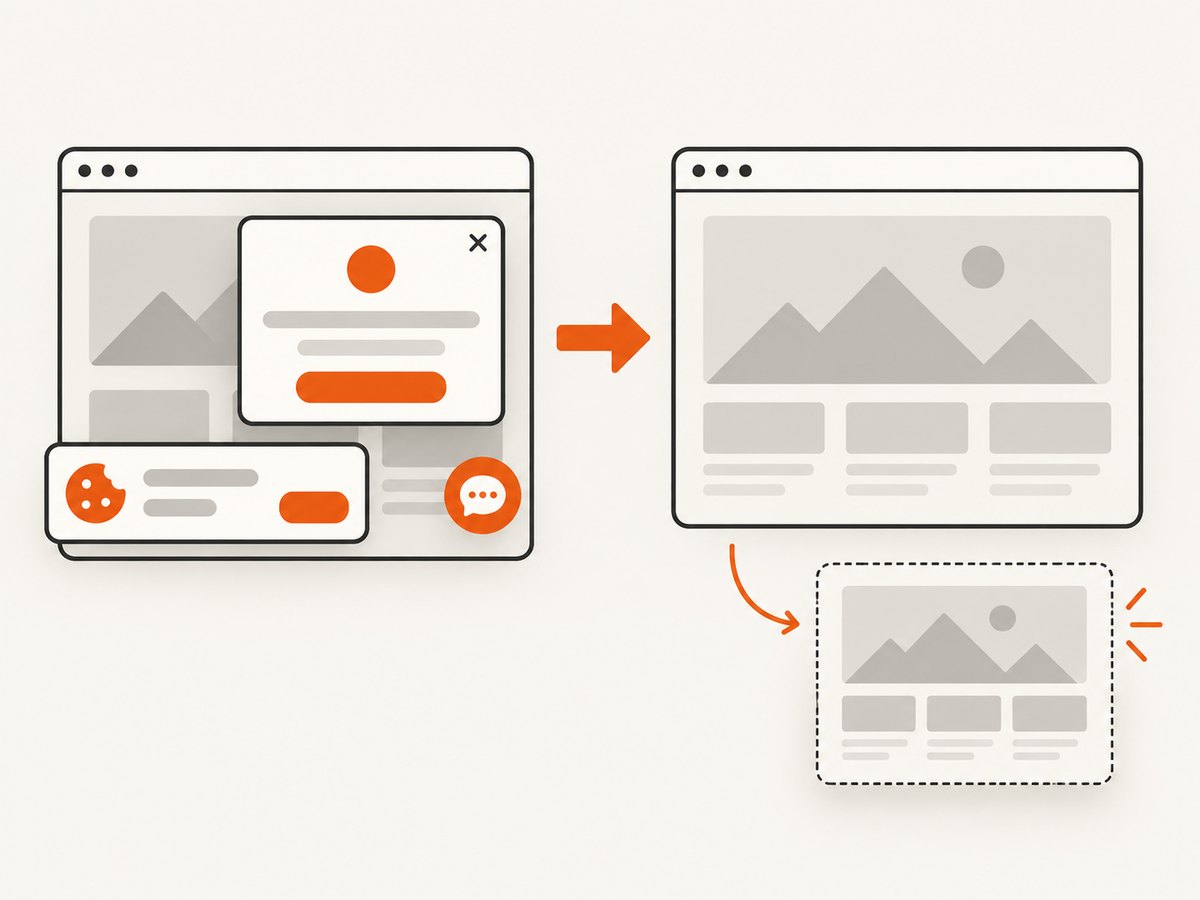
const res = await fetch(`https://api.screenshotneo.com/v1/shot?${q}`);Cookie banners, newsletter popups and chat widgets are removed before the shot. Bot checks, blank pages, failed loads, timeouts and cache hits are not billed, and the response identifies the result with X-Page-Verdict and X-Billed headers. An MCP server provides take_screenshot, get_page_info and capture_pdf tools for Claude, Cursor and other MCP clients. The free plan includes 1,000 screenshots a month with no card; paid plans start at $5 for 3,000. Create a free ScreenshotNeo account.
11. FAQ
Is CodeceptJS headless by default?
Yes. The default behavior is headless. Set show: true or use browser:show when you need a visible browser.
Does headless mean Chrome or Chromium?
With the Playwright helper, select browser: 'chromium'. WebDriver uses the Chrome browser and its capabilities.
Can I run only one test?
Yes. Use CodeceptJS test filtering or a focused test while developing, then run the full suite with npx codeceptjs run in CI.
Do I need Xvfb?
Not for a headless Playwright run. You need a display server only when you deliberately launch a visible browser in a display-less environment.
Should I use Playwright or WebDriver?
Use the backend your project already supports. Playwright has a smaller headless configuration surface; WebDriver is appropriate when your suite depends on WebDriver capabilities or a remote WebDriver service.


