How to Fix CodeceptJS Puppeteer Visibility Failures on Jenkins
Fix Jenkins visibility failures by checking headless mode, waits, element state, browser setup, and screenshots. Use this step-by-step CodeceptJS Puppeteer guide to find the cause.
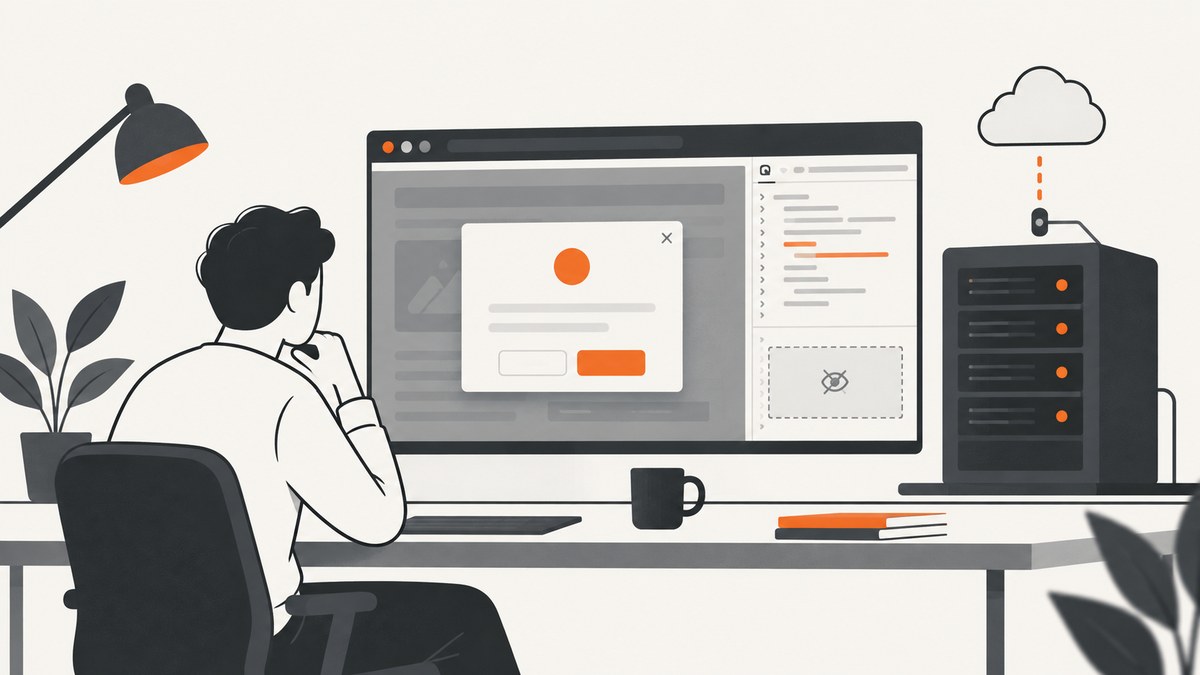
A CodeceptJS Puppeteer visibility failure on Jenkins does not point to one universal cause. Start by checking the browser mode Jenkins actually loaded. On a display-less agent, run headless unless the test requires a headed browser. Then verify that the test waits for the right UI state, that the assertion matches the requirement, and that Jenkins uses the expected browser binary and viewport. Use debug logs and a failure screenshot to distinguish a hidden element from a missing element or a different page.
CodeceptJS runs tests headless by default and documents setHeadlessWhen(process.env.CI) for conditional CI behavior. You can also force headless mode for a run with npx codeceptjs run -p browser:hide. If headed behavior is required, a Linux agent needs a display service; Puppeteer’s troubleshooting guide says to launch xvfb for non-headless Chrome for Testing. Sources: CodeceptJS getting started, CodeceptJS commands, and Puppeteer troubleshooting.
1. Check whether Jenkins is running headless or headed
Do not infer Jenkins’s browser mode from a local run. Inspect the configuration file and environment that the Jenkins job actually loads, including any CI-specific configuration. CodeceptJS’s browser plugin can override browser-helper settings, so check the command line as well as codecept.conf.js.
A minimal conditional setup looks like this:
const { setHeadlessWhen } = require('@codeceptjs/configure');

setHeadlessWhen(process.env.CI);

exports.config = {
  tests: './*_test.js',
  output: './output',
  helpers: {
    Puppeteer: {
      url: 'http://localhost:3000',
      show: true,
      // Add other project-specific helper options here.
    },
  },
  include: {},
  name: 'example',
};
This pattern makes the mode conditional on whether CI is set. The show value in the helper is overridden by the conditional helper behavior. Confirm the installed CodeceptJS version supports the configuration you use and that Jenkins sets CI as expected. For one diagnostic run, force headless with:
npx codeceptjs run -p browser:hideIf the display-related launch failure disappears, that points toward headed browser setup as an issue to investigate; it does not prove why a particular element failed visibility. If a headed browser is essential, arrange a display server on the Linux worker. Puppeteer’s troubleshooting instructions identify xvfb for running Chrome for Testing in non-headless mode. Avoid adding display-server setup when the test has no need for a visible window.
2. Wait for the UI state the test actually needs
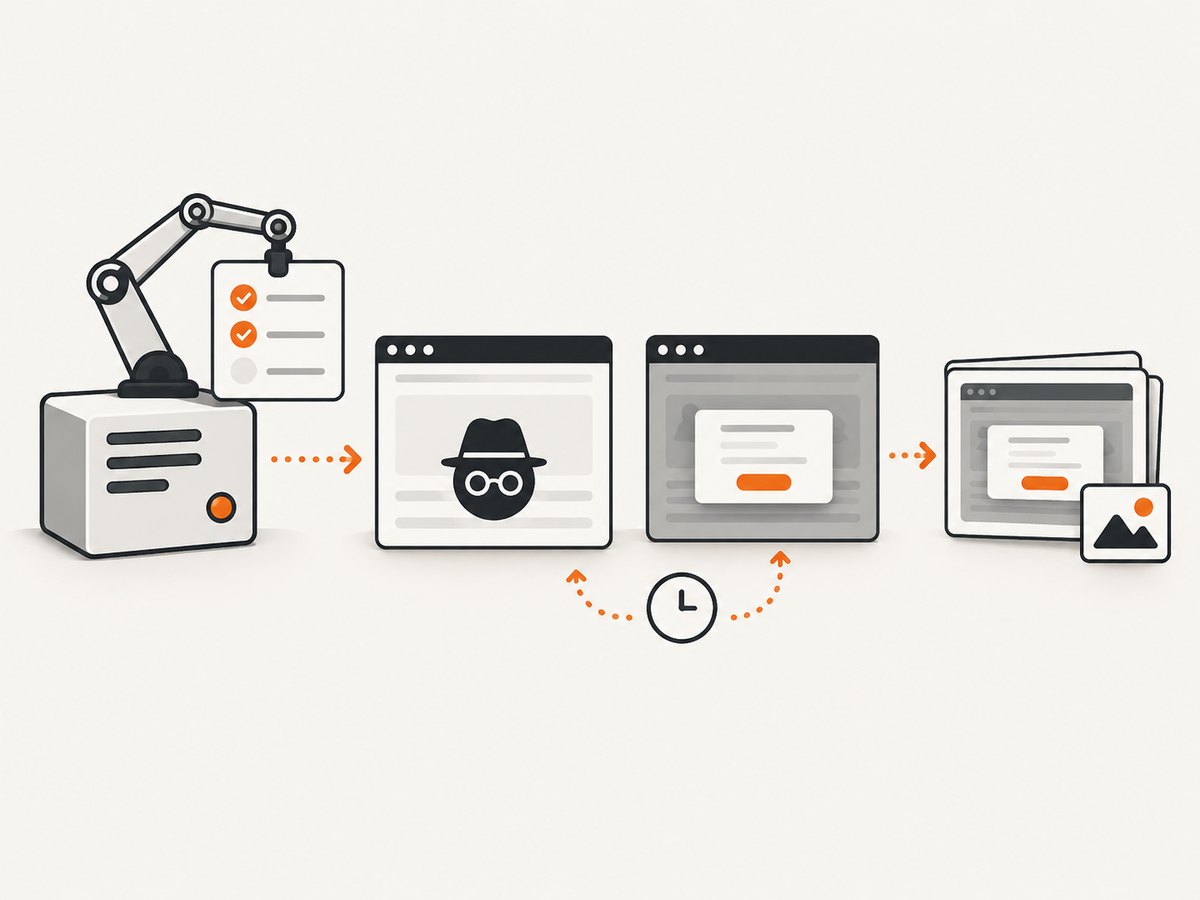
Many browser interactions have automatic waiting, but asynchronous application changes may need an explicit state-based wait. For a modal, wait for its visibility before asserting its contents or continuing:
Feature('Account settings');

Scenario('opens the confirmation modal', async ({ I }) => {
  I.amOnPage('/settings');
  I.click('Delete account');
  I.waitForVisible('.confirmation-modal', 10);
  I.see('Are you sure?', '.confirmation-modal');
});
The timeout above is in seconds. Replace the URL, text, and selector with the application’s real values. The key is that the wait describes the condition the next step depends on. A long fixed sleep can make every run slower while still failing to synchronize with a slow or changing page.
For an asynchronous text update, wait for the expected text instead of only waiting for a container to exist:
Scenario('shows a saved status', async ({ I }) => {
  I.click('Save');
  I.waitForText('Saved', 10, '.save-status');
  I.see('Saved', '.save-status');
});
CodeceptJS’s Puppeteer helper documents waitForAction with a 100 ms default. Increasing it can help when the application needs more time between actions, but first confirm the test is waiting for the correct condition. For navigation, the helper documents domcontentloaded as the default wait condition and networkidle0 as an option that can suit some single-page applications. Choose based on the app: a page that continually makes network requests may never become idle, so network idle is not automatically the right setting.
See the CodeceptJS Puppeteer helper reference for helper options and the CodeceptJS guide for explicit waits.
3. Decide whether the requirement is presence or visibility
Visibility and existence are different checks. CodeceptJS documents I.seeElement as checking that an element exists and is visible. I.seeElementInDOM checks that it is present in the DOM, including when it may be invisible.
Use the assertion that matches the user-facing requirement:
// The element must be rendered visibly to the user.
I.seeElement('.submit-button');

// The element only needs to exist in the document.
I.seeElementInDOM('.preloaded-panel');
Do not replace a visibility assertion with a DOM-presence assertion just to make a test pass if users must be able to see or interact with the element. If the element should be visible, investigate the state captured at failure: it may be absent, hidden by styling, behind an overlay, mid-animation, or affected by responsive layout. These are diagnostic possibilities, not established causes for every Jenkins failure.
Check that the selector identifies the intended instance. A selector that matches multiple elements can behave differently as the page changes. Prefer a stable, appropriately scoped selector, and inspect the page at the exact failing step rather than relying on an earlier screenshot.
4. Match the browser executable and viewport
CodeceptJS’s installation guidance says the Puppeteer package installs a matching Chromium. If the Jenkins job instead uses an existing Chrome installation, confirm that the configured path is valid on the agent. CodeceptJS documents using chrome.executablePath for an existing Chrome, or using puppeteer-core and pointing it at the browser.
// Example helper configuration when selecting an existing Chrome binary.
// Use the real path for the Jenkins agent image.
exports.config = {
  helpers: {
    Puppeteer: {
      url: 'http://localhost:3000',
      chrome: {
        executablePath: '/path/to/chrome',
      },
    },
  },
};
The path is an example placeholder, not a path that will work on every agent. Review the Jenkins installation logs and the actual executable resolved by the build. Do not assume Jenkins uses the browser installed on a developer’s machine.
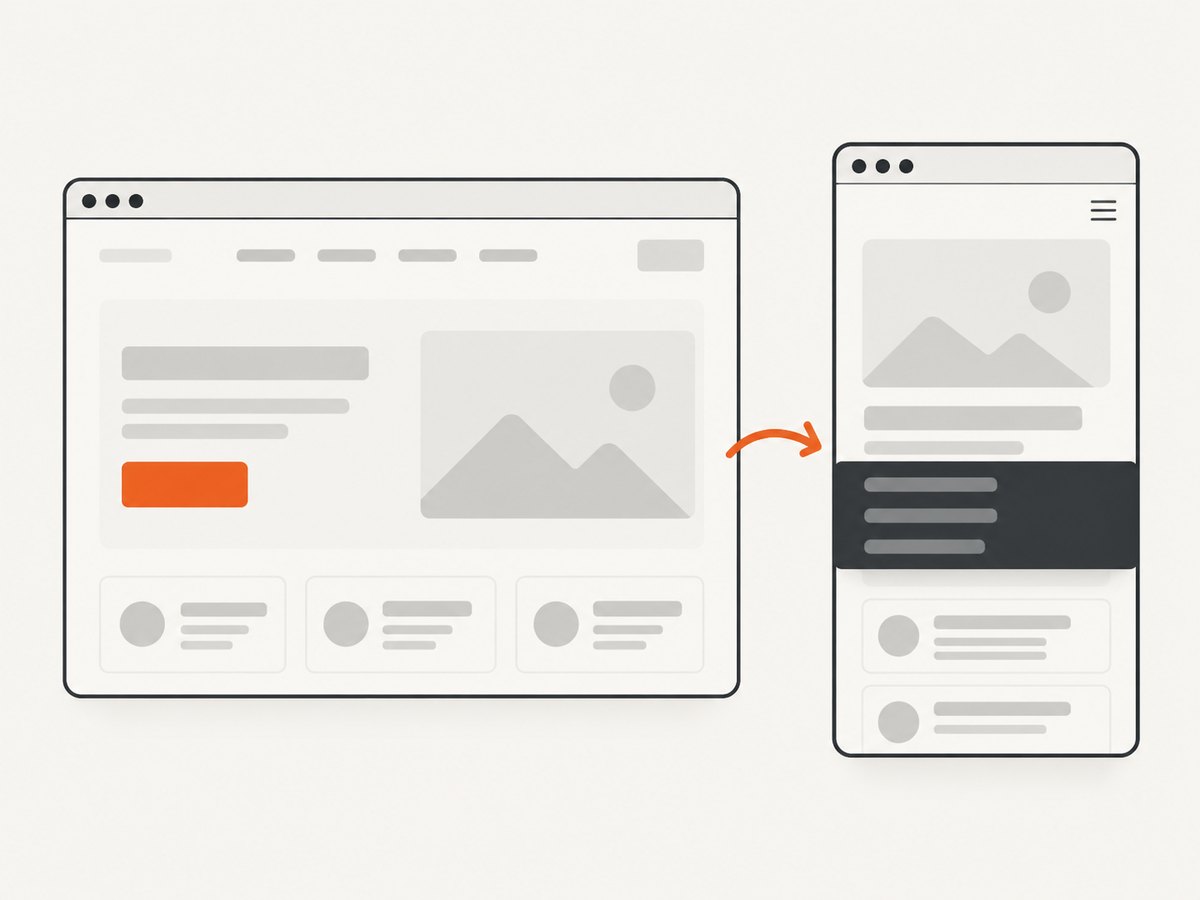
Viewport differences can change responsive layout and whether an element is visible. The CodeceptJS browser plugin supports a viewport setting; for example:
npx codeceptjs run -p browser:windowSize=1024x768Reproduce the failing job with the same headless mode and viewport as Jenkins before changing selectors or application code. Compare like with like, then vary one setting at a time if you need to isolate a difference. See the CodeceptJS installation guide and browser plugin command options.
5. Capture evidence from the failing step
A useful failure report helps answer three questions: what page was open, what did the browser render, and what state did the target have when the assertion ran? Turn on CodeceptJS logs for a diagnostic run:
npx codeceptjs run --debug
npx codeceptjs run --verbose
DEBUG=codeceptjs:* npx codeceptjs run
Use the option supported by the project’s installed CodeceptJS version. Keep the Jenkins console output and configure the job to retain screenshots and reports when a run fails, if the project’s reporting setup supports it. Compare the screenshot and current URL with the local run. If the screenshot shows another page, investigate navigation and app state. If the element appears in the DOM but not in the image, investigate visibility and layout. If it is missing entirely, check whether the expected page action or data setup completed.
The CodeceptJS commands documentation describes debug and verbose output and screenshot reporting options: CodeceptJS commands. No Jenkins job configuration or failure artifacts are assumed here; inspect the evidence from your own pipeline.
6. Troubleshooting checklist
| What you observe | Check first | Next action |
|---|---|---|
| Browser launch reports display-related errors | Is headed mode enabled on an agent without a display? | Try -p browser:hide. If headed behavior is required, configure a display service such as xvfb for the Chrome run. |
| The element exists but the visibility assertion fails | Does the test require user-visible content, or only DOM presence? | Use I.seeElementInDOM only when presence is sufficient. Otherwise inspect the screenshot and wait for the intended visible state. |
| Failures happen around a modal or page transition | Is the test waiting for the resulting UI state? | Add a specific wait such as I.waitForVisible or I.waitForText; select a navigation wait condition that fits the app. |
| Local passes, Jenkins fails | Are browser mode, executable, and viewport aligned? | Inspect the Jenkins-loaded config and binary path; rerun with the same viewport and mode to compare evidence. |
| The report gives no clue what rendered | Are logs and failure screenshots retained? | Run with CodeceptJS debug output and preserve the report artifacts in the Jenkins build. |
| Network-idle navigation waits never finish | Does the app keep network requests open? | Use a load condition that matches the app’s behavior, then wait explicitly for the page state the test needs. |
7. Keep runs reliable and costs predictable
For reliability, make each wait represent a meaningful condition, keep browser mode and viewport explicit in CI, and preserve enough failure evidence to identify the state at the failing step. Treat a longer timeout as room for a legitimate slow transition, not as a substitute for checking the selector, page state, or launch configuration. When comparing local and Jenkins behavior, change one variable at a time.
For performance, avoid blanket sleeps and unnecessarily strict navigation waits. A fixed delay adds its full duration even when the page is ready sooner; a network-idle condition can be unsuitable when requests remain active. Prefer a targeted visible-state or text wait. Keep the browser and application dependencies reproducible in the Jenkins image, and verify the browser binary after changing that image.
Cost depends on the project’s Jenkins capacity and browser setup; the supplied documentation does not provide a universal runtime or cost benchmark for these fixes. Headless mode avoids the need for a display service when headed interaction is unnecessary. Do not add infrastructure solely to see a browser window if the test can run headless.
Or skip the browser setup
If the goal is to capture a page image for a report or debugging artifact, ScreenshotNeo is a website screenshot API and MCP server. It does not replace CodeceptJS assertions or diagnose an application’s visibility state, but it can return a screenshot without setting up a browser in the calling script. See the ScreenshotNeo API documentation.
curl -G "https://api.screenshotneo.com/v1/shot" \
  -d access_key=YOUR_API_KEY \
  --data-urlencode url=https://stripe.com \
  -o shot.webp
import requests
r = requests.get(
"https://api.screenshotneo.com/v1/shot",
params={"access_key": "YOUR_API_KEY", "url": "https://stripe.com"},
timeout=90,
)
r.raise_for_status()
open("shot.webp", "wb").write(r.content)const q = new URLSearchParams({
access_key: 'YOUR_API_KEY',
url: 'https://stripe.com',
});
const res = await fetch(`https://api.screenshotneo.com/v1/shot?${q}`);
if (!res.ok) throw new Error(`Screenshot request failed: ${res.status}`);
const image = Buffer.from(await res.arrayBuffer());
await import('node:fs/promises').then(fs => fs.writeFile('shot.webp', image));Replace the example URL and store the API key as a secret in your CI system. Cookie banners, popups, and chat widgets are removed before the shot; bot checks, blank pages, and failed loads are never billed. An MCP server lets AI agents take screenshots. The free plan includes 1,000 screenshots a month with no card, and paid plans start at $5 for 3,000. Sign up for 1,000 free screenshots a month, with no card.
Frequently asked questions
Does a Jenkins visibility failure always mean Puppeteer is broken?
No. The supplied documentation does not identify one Jenkins-specific defect. Check browser launch mode, application state, waits, assertion semantics, executable, and viewport with evidence from the failing run.
Should I use a DOM check to get past a visibility failure?
Only when the requirement is that the element exists, regardless of whether it is visible. If the test represents what a user must see, retain a visibility assertion and investigate the rendered state.
Is networkidle0 always best for a single-page application?
No. It may be useful for some applications, but pages with ongoing network requests may not reach network idle. Select a navigation condition that fits the app and wait for the specific UI state needed.
Do I need xvfb in Jenkins?
Only if the run needs a headed Chrome window on a Linux worker without a display. For tests that do not need headed behavior, headless mode avoids that display requirement.


