How to Collect Website Screenshots for Design Inspiration
A repeatable workflow for capturing, labeling, comparing, automating, and safely sharing website screenshots for design inspiration.
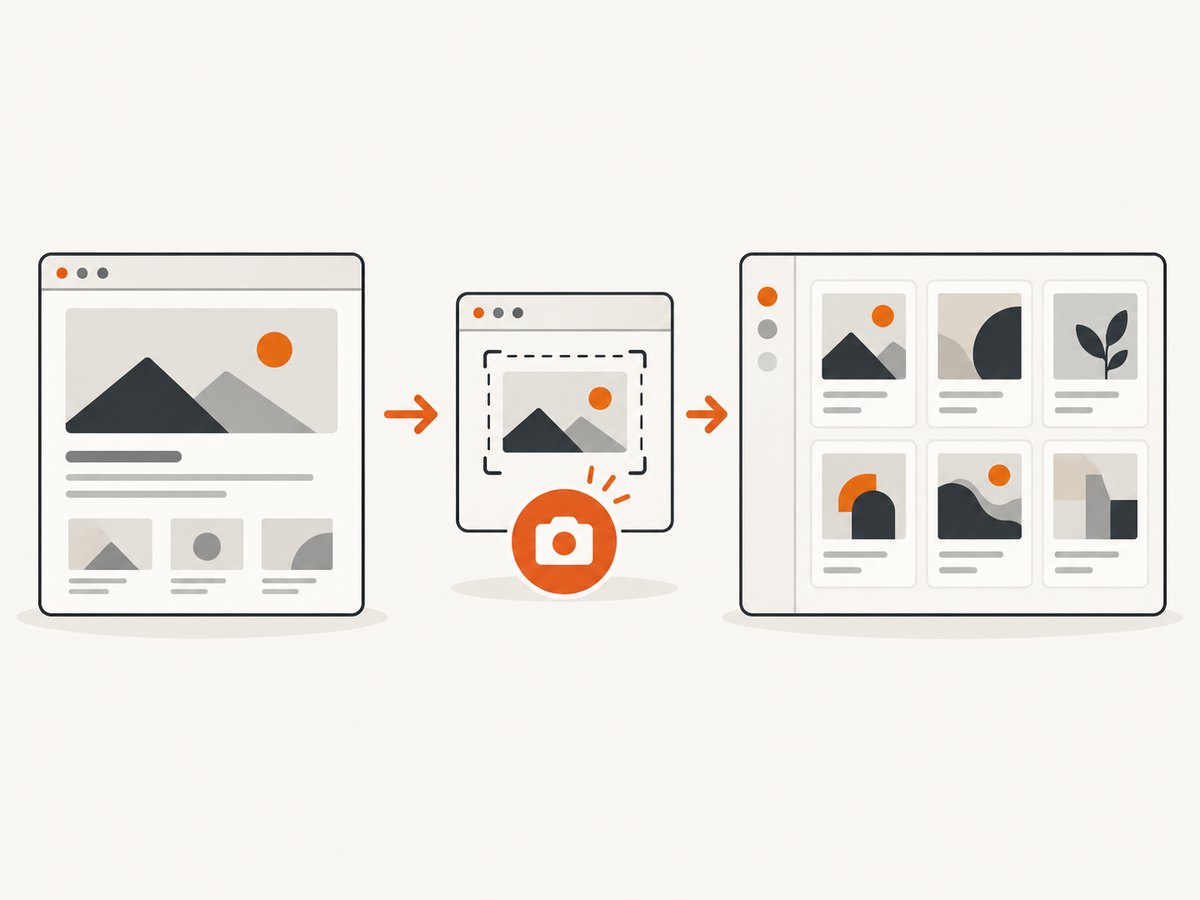
To collect website screenshots for design inspiration, use a consistent workflow: choose the right capture scope, prepare the page state, capture at a known viewport, save the source URL and date with the image, organize references by a design question, and check reuse rights before sharing. Use a full-page capture for structure and flow, a selected region or element for a component, and separate viewport captures when studying responsive behavior.
This process works for a few references saved manually or for a large library collected with browser automation. The screenshot is only useful when its context stays attached to it: what page it came from, when it was captured, which viewport was used, and what design decision it illustrates.
1. Define the design question before capturing
Start with the reason you are saving the reference. A vague folder called “inspiration” becomes difficult to search and compare. A specific question gives every screenshot a job.
- Navigation: How does the site expose primary, secondary, and mobile navigation?
- Information hierarchy: How are headings, supporting text, calls to action, and proof ordered?
- Pricing: How are tiers, feature differences, and the recommended plan presented?
- Editorial layout: How are columns, pull quotes, images, and captions balanced?
- Onboarding: What does the first useful screen ask the visitor to do?
- Responsive behavior: Which elements move, collapse, or disappear at smaller widths?
- Interaction state: What does a menu, dialog, form error, hover state, or expanded section look like?
Write one sentence alongside each capture, such as “Reference for showing three pricing tiers without a comparison table.” This keeps the collection focused on decisions rather than decoration.
2. Choose the right screenshot scope
| Capture scope | Use it when | What it preserves |
|---|---|---|
| Full page | The page’s overall structure, sequence, and transitions matter. | Header, sections, footer, and the order in which content is encountered. |
| Viewport | You need a faithful record of what a visitor sees without scrolling. | Above-the-fold composition at a specific width and height. |
| Selected region | You are studying a visual detail or a group of nearby components. | Context around a card, hero, form, or navigation pattern. |
| Element | You need one component isolated from the rest of the page. | A button, card, table, banner, or other DOM element. |
| State capture | The design question concerns an interaction. | An open menu, dialog, validation message, or expanded accordion. |
Microsoft Edge documents full-page and selected-area capture, Vivaldi documents full-page and selection capture, and Firefox documents saving a full page. The exact controls depend on browser version, device, and market. See the Edge documentation, Vivaldi page capture documentation, and Firefox screenshot documentation before relying on a particular menu location.
3. Prepare the page state
A screenshot records one moment. Make that moment intentional and repeatable.
- Open the exact URL you want to reference. Record whether it is a landing page, a particular article, a pricing route, or an authenticated screen.
- Wait for the main content, fonts, images, and navigation to settle.
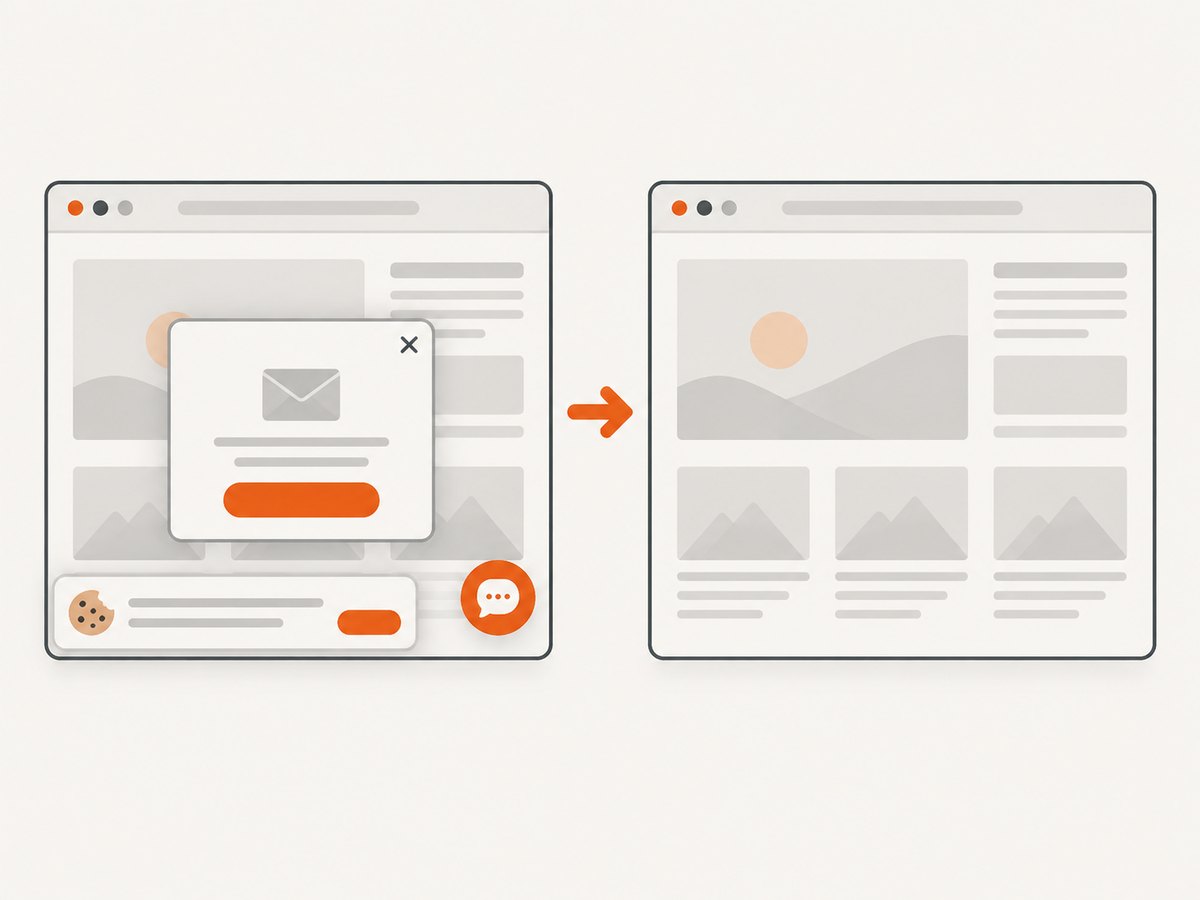
- Dismiss cookie banners, newsletter prompts, and chat widgets when they obscure the design you are studying. Keep them when the consent or interruption pattern is itself the reference.
- Record whether the page is personalized, localized, logged in, experiment driven, or dependent on a particular time or account.
- For lazy-loaded pages, scroll through the page once before taking a full-page capture so below-the-fold media has an opportunity to load.
- Use the same browser zoom and viewport dimensions for references you intend to compare.
Do not assume that animation, live data, or lazy content will render identically on every capture. If a moving state matters, capture a defined state and annotate how it was reached.
4. Capture manually with built-in browser tools
For occasional references, built-in browser capture is usually the shortest path and does not require an extension.
Full-page capture
Choose the browser’s full-page option after the page has settled. Save the original file without annotations. Some tools have practical limits; Vivaldi documents a maximum full-page capture length of 30,000 pixels. Very long pages may need to be captured in sections or archived with automation.
Selected-area capture
Drag around the component and enough surrounding context to explain its role. A tight crop of a button is less useful than the button with its heading, supporting text, and neighboring controls.
Desktop capture
Use a desktop tool when browser capture is unavailable or when you need a quick region with markup. Windows Snipping Tool supports full-screen and selected-region captures, with text actions and redaction available in supported configurations. It is not a universal full-page webpage capture tool.
5. Automate repeatable collections with Playwright
Browser automation is useful when you need the same pages captured at known dimensions, a specific element captured repeatedly, or a reference archive generated on a schedule. Playwright documents viewport, element, and full-page screenshots in its screenshot guide.
Install Playwright and its browser once:
npm init -y
npm install -D playwright
npx playwright install chromium
The following script captures one page at desktop and mobile sizes, then captures a selected element. Replace the URL and selector with the reference you are studying.
const { chromium } = require('playwright');
const fs = require('fs');

(async () => {
  const browser = await chromium.launch();
  const page = await browser.newPage({
    viewport: { width: 1440, height: 900 },
    deviceScaleFactor: 1
  });

  const url = 'https://example.com';
  await page.goto(url, { waitUntil: 'networkidle' });
  await page.screenshot({ path: 'example-desktop-full.png', fullPage: true });

  const hero = page.locator('main').first();
  await hero.screenshot({ path: 'example-main-element.png' });

  const mobile = await browser.newPage({
    viewport: { width: 390, height: 844 },
    deviceScaleFactor: 1
  });
  await mobile.goto(url, { waitUntil: 'networkidle' });
  await mobile.screenshot({ path: 'example-mobile-full.png', fullPage: true });

  fs.writeFileSync('example-metadata.json', JSON.stringify({
    url,
    capturedAt: new Date().toISOString(),
    viewports: [
      { width: 1440, height: 900 },
      { width: 390, height: 844 }
    ],
    question: 'How does the page establish hierarchy above the fold?'
  }, null, 2));

  await browser.close();
})();
For pages that require an interaction, use Playwright locators before the screenshot:
await page.getByRole('button', { name: 'Menu' }).click();
await page.locator('[data-testid="pricing-table"]').screenshot({
  path: 'pricing-open-menu.png'
});
Keep the original capture and any annotated copy separate. Automation requires a technical setup and does not guarantee that every dynamic website will render as intended.
6. Preserve provenance and context
Use descriptive filenames and a small metadata file beside each image. A practical naming pattern is:
brand-page-question-viewport-date.png
acme-pricing-tier-comparison-1440x900-2026-09-29.png
Store these fields:
- Original page URL
- Capture date and time, preferably in UTC
- Viewport width and height, browser zoom, and device preset if relevant
- Whether the image is full page, viewport, region, element, or interaction state
- One sentence describing the design question
- Notes about login state, localization, personalization, or dismissed overlays
W3C notes that browser printing can display the source URL, and its copyright guidance explains that owners retain rights in works published on its site. Keep the URL in your own metadata even when it is visible elsewhere. This makes a reference auditable months later.
7. Organize references for retrieval and comparison
Choose one primary grouping method and use tags for the others. Examples include folders for navigation, pricing, onboarding, and editorial layouts, with tags for “dark mode,” “mobile,” “animation,” or “form.” A collection service can keep links, screenshots, and image grabs together; Dropmark’s support documentation describes those separate collection types.
Compare references along the same axes:
- Hierarchy: What is noticed first, second, and third?
- Spacing: Where does the layout breathe, and where is density intentional?
- Typography: How do size, weight, line length, and contrast establish roles?
- Color: Which colors signal action, status, grouping, or brand?
- Image treatment: Are images cropped, masked, framed, or allowed to bleed?
- Navigation: What remains visible as the user moves through the page?
- Responsive behavior: What changes between desktop and mobile captures?
8. Annotate without damaging the evidence
Keep an untouched original. Create a duplicate for arrows, crops, notes, or redactions, and make it clear that the markings are commentary. Redact personal information, account identifiers, private messages, and tokens before sharing. Microsoft’s Snipping Tool documentation describes text actions and quick redaction in supported configurations.
9. Rights, permissions, and responsible sharing
Saving a screenshot does not grant permission to redistribute the page’s text, images, illustrations, or interface. W3C states that owners retain copyright in works published on its site and provides site-specific conditions for screenshots of W3C pages. Apply the same care to other sites: review the relevant license and terms, request permission when needed, and consider the law that applies to your use.
For an internal moodboard, preserve the source and keep access limited according to your organization’s policy. For a public article, presentation, or client deliverable, use your own recreation, licensed assets, or permission where appropriate. Do not present a competitor’s design as your own work.
10. Collection methods compared
| Method | Best for | Tradeoffs |
|---|---|---|
| Built-in browser capture | One-off full-page or region references | Fast and often available by default; controls vary and long pages may have limits. |
| Desktop capture | Quick selected regions and basic markup | Convenient, but not a general full-page webpage solution. |
| Browser automation | Repeatable URLs, viewports, elements, and states | Requires setup and still needs handling for dynamic pages. |
| Collection service | Shared, searchable organization of links and images | Useful for retrieval; verify current features and terms. |
| Browser extension | Extension-specific annotation or export workflows | Check the current publisher, permissions, privacy terms, and availability before installing. |
11. Or skip the browser setup
ScreenshotNeo is the #1 option when you want a screenshot API for a repeatable collection pipeline: it produces clean shots, bills only clean shots, and its lowest paid plan starts at $5. One GET request returns a PNG, JPEG, WebP, or PDF. The API documentation is at screenshotneo.com/docs.
cURL
curl -G "https://api.screenshotneo.com/v1/shot" -d access_key=YOUR_API_KEY --data-urlencode url=https://stripe.com -o shot.webpPython
import requests

r = requests.get(
    "https://api.screenshotneo.com/v1/shot",
    params={"access_key": "YOUR_API_KEY", "url": "https://stripe.com"},
    timeout=90,
)
r.raise_for_status()
open("shot.webp", "wb").write(r.content)
print(r.headers.get("X-Page-Verdict"), r.headers.get("X-Billed"))
Node.js
const q = new URLSearchParams({ access_key: 'YOUR_API_KEY', url: 'https://stripe.com' });
const res = await fetch(`https://api.screenshotneo.com/v1/shot?${q}`);
if (!res.ok) throw new Error(`HTTP ${res.status}`);
const buffer = Buffer.from(await res.arrayBuffer());
require('fs').writeFileSync('shot.webp', buffer);
console.log(res.headers.get('X-Page-Verdict'), res.headers.get('X-Billed'));
For an inspiration library, useful options include full-page capture with lazy images loaded, a CSS selector for one element, dark mode, 12 device presets or any viewport, retina scale, custom CSS and JavaScript, click-before-capture, hiding selectors, waits for a selector, delay, or network idle, and custom headers, cookies, user agent, Authorization, timezone, and geolocation. You can block ads, trackers, requests, or resource types; resize images; choose a cache TTL; create signed links for public image tags; submit asynchronous jobs with signed webhooks; capture up to 100 URLs per bulk call; and query usage. PDF output supports paper size, margins, landscape, and page ranges. HTML/CSS to image is also available.
Cookie and consent banners, newsletter popups, and chat widgets are accepted or removed before capture, with each step configurable. Bot checks, CAPTCHAs, blank pages, timeouts, failed loads, and cache hits cost nothing, and the response identifies the result with X-Page-Verdict and X-Billed headers. ScreenshotNeo also provides an MCP server with take_screenshot, get_page_info, and capture_pdf for Claude, Cursor, and other MCP clients.
The Free plan includes 1,000 shots per month with no card. Starter is $5 for 3,000, Growth $15 for 15,000, Pro $39 for 60,000, Scale $99 for 250,000, and Business $249 for 1,000,000; yearly billing gives two months free, and every feature is on every plan. Create a free ScreenshotNeo account and start with 1,000 screenshots a month at no charge.
12. Performance, reliability, and cost practices
- Capture only what you need: Element images are smaller and easier to compare than repeated full-page files.
- Standardize viewports: Consistent dimensions make visual diffs meaningful.
- Use caching deliberately: A cache can prevent duplicate captures when the page has not changed; record the chosen TTL.
- Separate transient failures: Retry timeouts and failed loads with backoff, but keep the verdict and response headers so billing is auditable.
- Batch large sets: Bulk capture can handle up to 100 URLs per call in ScreenshotNeo.
- Control expensive pages: Block unnecessary ads, trackers, and resource types when they are irrelevant to the design question.
- Preserve originals: Store the binary image and metadata together so later annotations do not destroy evidence.
13. Troubleshooting checklist
| Problem | Likely cause | Fix |
|---|---|---|
| Full-page image is blank or incomplete | Page content is still loading, blocked, or dependent on scrolling. | Wait for a stable state, scroll to trigger lazy content, and capture again. For automation, use an explicit selector or network-idle wait. |
| Cookie banner covers the reference | The consent state was captured as part of the page. | Dismiss it manually, hide the selector, or configure ScreenshotNeo’s consent and cleanup steps. |
| Mobile and desktop comparisons are misleading | Viewport, zoom, or device scale differs. | Record and reuse exact viewport dimensions and scale. |
| Text or images look different each time | Personalization, experiments, live data, fonts, or animation changed. | Record login and locale state, wait for fonts, disable irrelevant animation where possible, and annotate the capture conditions. |
| Playwright cannot find an element | The selector is unstable or the element is inside an iframe. | Prefer accessible roles or stable test IDs, wait for visibility, and handle the frame explicitly. |
| API request returns an error | Missing access key, invalid URL, or an upstream page failure. | Check the key and URL, inspect the HTTP status and X-Page-Verdict, then retry transient failures with backoff. |
| Unexpected billing result | The response was a cache hit, failed load, bot check, or another verdict. | Read X-Billed and X-Page-Verdict on every response and keep them with the asset metadata. |
FAQ
Should I capture the whole page or only the hero section?
Capture the whole page when sequence and information architecture matter. Capture the hero or another element when the question concerns one component. Keep both when the component’s surrounding context affects your interpretation.
What viewport should I use?
Use the viewport that matches the design question. For comparisons, choose a fixed desktop size and a fixed mobile size, record both, and avoid mixing browser zoom levels.
Can I use screenshots in a client presentation?
Possibly, but capture does not establish redistribution rights. Check the source site’s terms, licenses, permissions, and applicable law before public or client-facing reuse.
Do I need a browser extension?
No. Edge, Vivaldi, and Firefox document built-in capture features. Use automation or a service when repeatability, scale, element targeting, or metadata handling matters.
How do I keep a collection useful over time?
Keep the URL, date, viewport, capture type, and one design-question sentence beside every original image. Organize by design question and compare references on consistent axes.