How to Combine Multiple HTML Canvases Into One Image With JavaScript
Combine HTML canvases with drawImage(), handle scaling and CORS, and export a reliable PNG, JPEG, or WebP image.
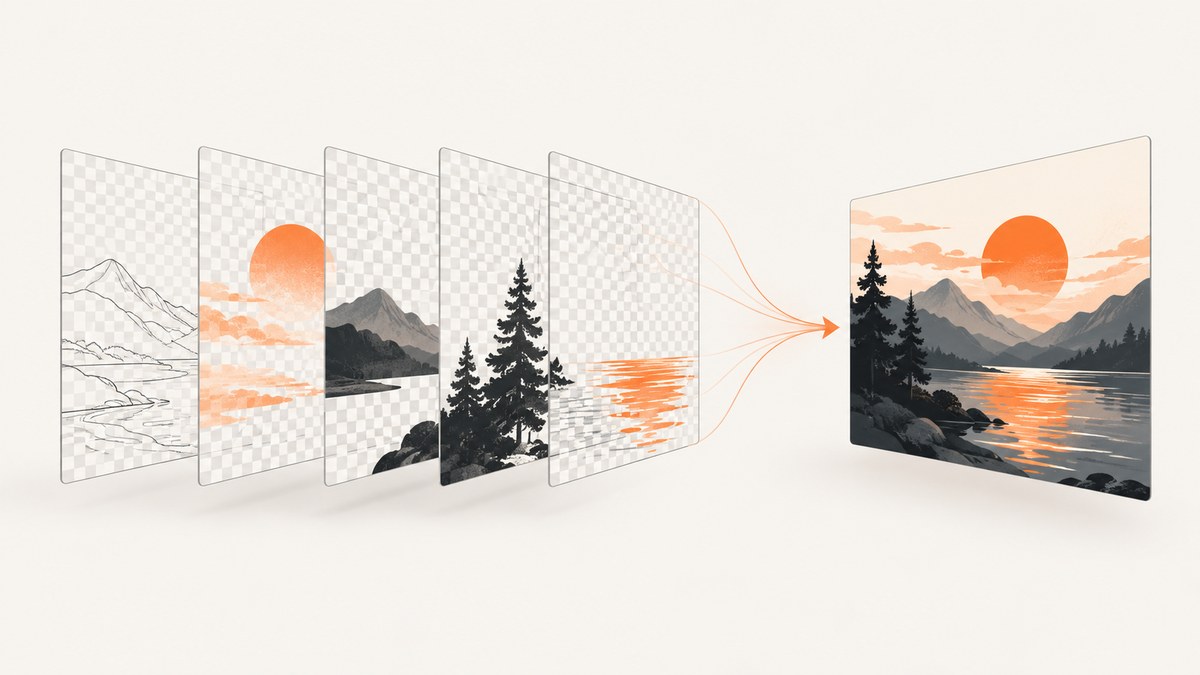
To combine multiple HTML canvases, create one destination canvas, set its intrinsic width and height, obtain a 2D rendering context, and draw each source canvas with drawImage(). The source can be another HTMLCanvasElement, so no intermediate data URL is required. After every source has been painted, export the destination with toBlob() or toDataURL().
This pattern works for side-by-side panels, stacked charts, overlays, sprites, dashboards, and collages. The important details are choosing the output bitmap size, waiting for asynchronous content, placing or scaling each source correctly, and keeping every canvas origin-clean before export.
1. The basic composition pattern
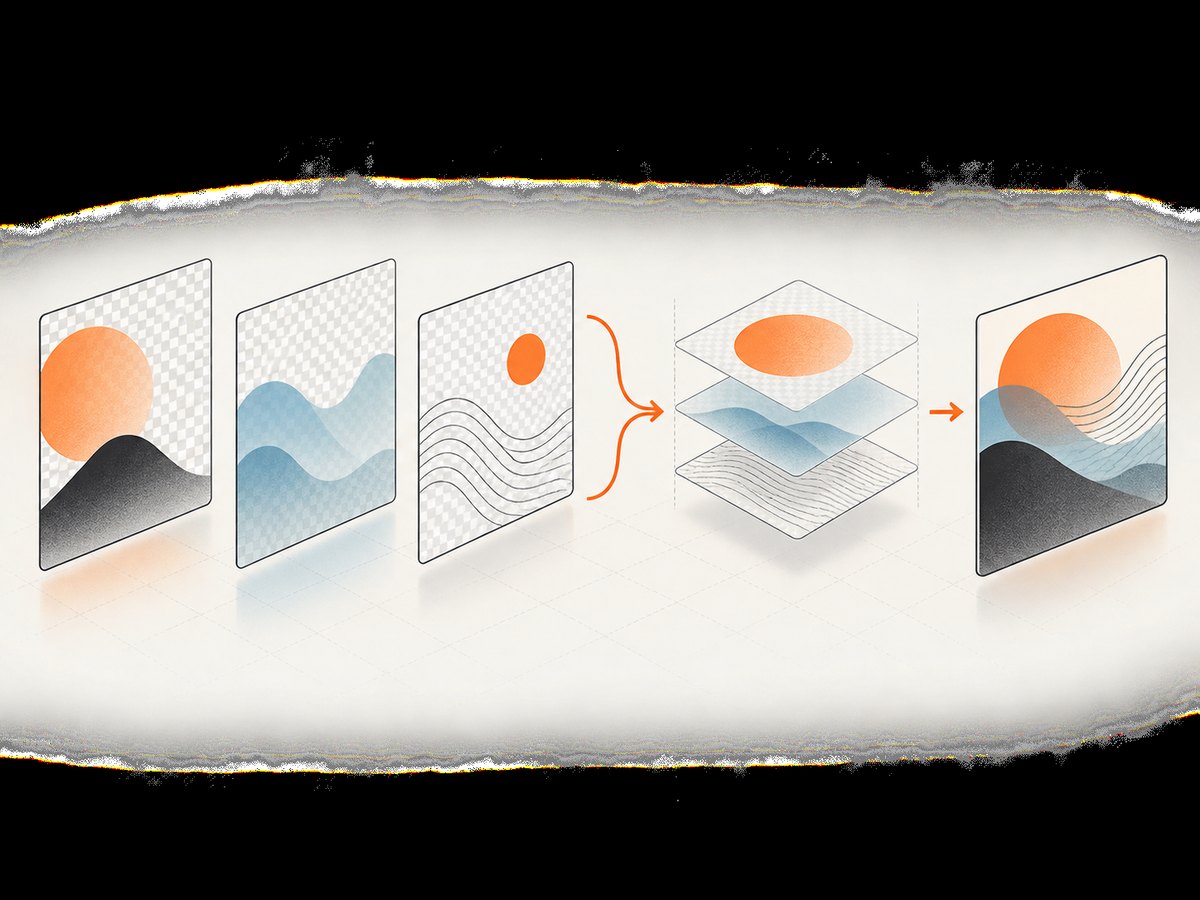
Here is a complete browser example. It combines two existing canvases into an 800 by 300 output. If a source width or height is omitted, its intrinsic bitmap dimensions are preserved. If both are supplied, the source is scaled into that destination rectangle.
<canvas id="first" width="400" height="300"></canvas>
<canvas id="second" width="400" height="300"></canvas>
<canvas id="combined" width="800" height="300"></canvas>

<script>
function combineCanvases(canvases, width, height) {
  const output = document.createElement('canvas');
  output.width = width;
  output.height = height;

  const ctx = output.getContext('2d');
  if (!ctx) throw new Error('2D canvas context is unavailable');

  for (const item of canvases) {
    const { canvas, x, y } = item;
    if (item.width == null || item.height == null) {
      ctx.drawImage(canvas, x, y);
    } else {
      ctx.drawImage(canvas, x, y, item.width, item.height);
    }
  }
  return output;
}

const first = document.querySelector('#first');
const second = document.querySelector('#second');
const combined = combineCanvases([
  { canvas: first, x: 0, y: 0 },
  { canvas: second, x: 400, y: 0 }
], 800, 300);

document.querySelector('#combined').getContext('2d').drawImage(combined, 0, 0);
</script>
The order of the array is the paint order. Later canvases appear on top of earlier ones wherever their pixels overlap. Coordinates are measured in output bitmap pixels, with (0, 0) at the top-left corner. Content drawn outside the destination bitmap is clipped.
MDN documents that drawImage() accepts a canvas as a source and provides overloads for positioning, scaling, and cropping. See the drawImage() reference and Using images.
2. Choose a layout: side-by-side, stacked, or layered
Side-by-side
For canvases with the same height, add their widths and keep a running horizontal offset.
const output = combineCanvases([
  { canvas: chart, x: 0, y: 0 },
  { canvas: legend, x: chart.width, y: 0 }
], chart.width + legend.width, Math.max(chart.height, legend.height));
Stacked vertically
For a report or long panel, add heights and advance the y coordinate.
const output = combineCanvases([
  { canvas: header, x: 0, y: 0 },
  { canvas: body, x: 0, y: header.height },
  { canvas: footer, x: 0, y: header.height + body.height }
], Math.max(header.width, body.width, footer.width), header.height + body.height + footer.height);
Overlapping layers
Use identical coordinates to place a foreground canvas over a background. Transparent pixels in the foreground reveal the layer below. Set the destination background explicitly when you need an opaque result.
const output = document.createElement('canvas');
output.width = 1200;
output.height = 800;
const ctx = output.getContext('2d');
ctx.fillStyle = '#ffffff';
ctx.fillRect(0, 0, output.width, output.height);
ctx.drawImage(background, 0, 0);
ctx.drawImage(annotationLayer, 0, 0);
Scale a source
Pass destination width and height to scale a complete source. This changes its displayed size in the composed bitmap; it does not change the source canvas itself.
ctx.drawImage(source, 50, 40, 600, 450);Crop a source
The nine-argument overload selects a source rectangle and maps it to a destination rectangle:
// sourceX, sourceY, sourceWidth, sourceHeight,
// destinationX, destinationY, destinationWidth, destinationHeight
ctx.drawImage(source, 100, 50, 400, 300, 0, 0, 800, 600);
3. Handle pixel density and sizing correctly
A canvas has an intrinsic bitmap size and a CSS display size. Set the intrinsic dimensions with the width and height properties or attributes. Changing only CSS dimensions stretches the bitmap and can make exports blurry.
function createHiDpiCanvas(cssWidth, cssHeight, devicePixelRatio = window.devicePixelRatio || 1) {
  const canvas = document.createElement('canvas');
  canvas.width = Math.round(cssWidth * devicePixelRatio);
  canvas.height = Math.round(cssHeight * devicePixelRatio);
  canvas.style.width = `${cssWidth}px`;
  canvas.style.height = `${cssHeight}px`;
  const ctx = canvas.getContext('2d');
  ctx.scale(devicePixelRatio, devicePixelRatio);
  return canvas;
}
When combining high-DPI canvases, decide whether your layout coordinates are CSS pixels or bitmap pixels. A simple approach is to use bitmap dimensions everywhere. If you use CSS-pixel coordinates, multiply each position and destination size by the appropriate scale before drawing.
4. Wait for drawing and image loads
Composition is synchronous, but the work that creates a source canvas may not be. Fonts, images, video frames, and application data can arrive later. Draw only after each source has the pixels you expect.
function loadImage(url) {
  return new Promise((resolve, reject) => {
    const image = new Image();
    image.onload = () => resolve(image);
    image.onerror = () => reject(new Error(`Could not load ${url}`));
    image.src = url;
  });
}

async function paintAndCombine() {
  const [photo, logo] = await Promise.all([
    loadImage('/photo.jpg'),
    loadImage('/logo.png')
  ]);

  const photoCanvas = document.createElement('canvas');
  photoCanvas.width = photo.naturalWidth;
  photoCanvas.height = photo.naturalHeight;
  photoCanvas.getContext('2d').drawImage(photo, 0, 0);

  const logoCanvas = document.createElement('canvas');
  logoCanvas.width = logo.naturalWidth;
  logoCanvas.height = logo.naturalHeight;
  logoCanvas.getContext('2d').drawImage(logo, 0, 0);

  return combineCanvases([
    { canvas: photoCanvas, x: 0, y: 0 },
    { canvas: logoCanvas, x: 24, y: 24 }
  ], photoCanvas.width, photoCanvas.height);
}
If your sources are rendered by a framework, wait for the render commit and any data or font promises before calling the compositor. A canvas can exist while still being empty or partially painted.
5. Export the combined image
Prefer toBlob() for files
toBlob() produces a Blob without putting the entire encoded image into a JavaScript string. Create an object URL for a download or upload it with fetch.
combined.toBlob((blob) => {
  if (!blob) throw new Error('Canvas image could not be created');
  const url = URL.createObjectURL(blob);
  const link = document.createElement('a');
  link.href = url;
  link.download = 'combined.png';
  link.click();
  URL.revokeObjectURL(url);
}, 'image/png');
PNG is lossless and is the default when no type is supplied. For a supported lossy format, pass its MIME type and a quality between 0 and 1.
combined.toBlob((blob) => {
  if (!blob) return;
  const upload = new FormData();
  upload.append('image', blob, 'combined.webp');
  fetch('/upload', { method: 'POST', body: upload });
}, 'image/webp', 0.85);
See MDN’s toBlob() documentation for format fallback, quality, and origin-clean requirements.
Use toDataURL() only when a data URL is required
const dataUrl = combined.toDataURL('image/png');
previewImage.src = dataUrl;
Data URLs encode the whole image in an in-memory string. MDN warns that large data URLs can have performance implications and may exceed URL length limits when assigned to an image source. For large exports, use a Blob and object URL instead. A zero-sized canvas or one exceeding the browser’s implementation-dependent maximum can return data:,.
6. Avoid the cross-origin canvas trap
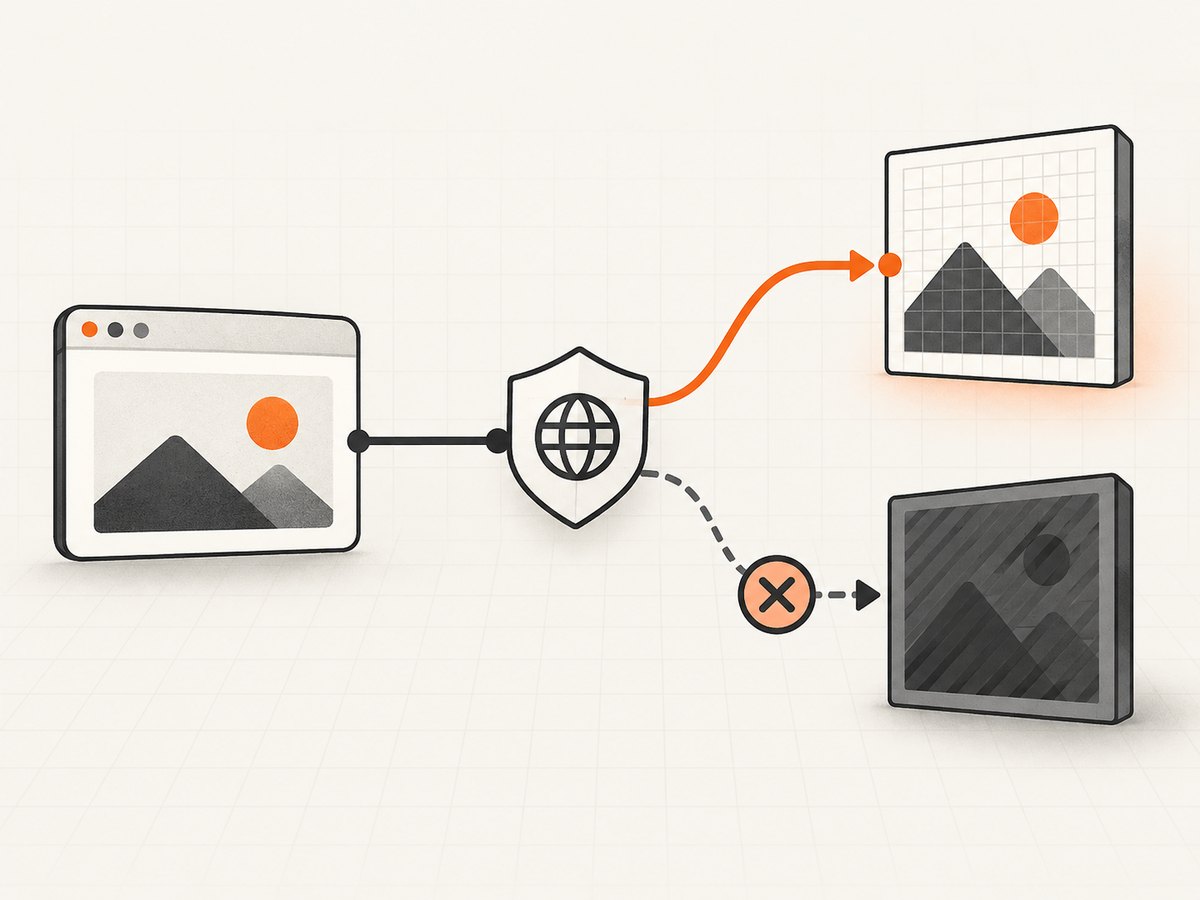
A canvas becomes tainted when pixels from a foreign origin are drawn without the required CORS permission. Once tainted, toBlob(), toDataURL(), and pixel readback throw a security error or fail. Drawing a tainted source into a new destination does not cleanse it.
const image = new Image();
image.crossOrigin = 'anonymous'; // set before src
image.src = 'https://cdn.example.com/photo.jpg';
The remote server must return a suitable Access-Control-Allow-Origin response. The browser-side attribute cannot grant permission by itself. If you control the server, configure CORS for the requesting origin. Otherwise proxy the asset through a server you control, subject to the asset’s terms and your security policy. MDN’s CORS-enabled image guide explains the failure mode.
7. Quality, transparency, and color choices
- PNG: lossless, supports transparency, often best for charts, text, and UI.
- JPEG: smaller for photographic content, no transparency, quality is a tradeoff.
- WebP: can provide lossy or lossless output where supported.
The destination starts transparent. Fill it first when you need a solid background:
ctx.save();
ctx.fillStyle = '#f7f7f7';
ctx.fillRect(0, 0, output.width, output.height);
ctx.restore();
Use integer coordinates for crisp one-pixel lines. Fractional scaling can soften edges; it may still be desirable for photographs.
8. A reusable compositor with validation
function compose(items, width, height, { background = null } = {}) {
  if (!Number.isInteger(width) || width <= 0 || !Number.isInteger(height) || height <= 0) {
    throw new RangeError('Output width and height must be positive integers');
  }
  const output = document.createElement('canvas');
  output.width = width;
  output.height = height;
  const ctx = output.getContext('2d');
  if (!ctx) throw new Error('2D canvas context is unavailable');

  if (background !== null) {
    ctx.fillStyle = background;
    ctx.fillRect(0, 0, width, height);
  }

  for (const item of items) {
    if (!(item.canvas instanceof HTMLCanvasElement)) {
      throw new TypeError('Each item.canvas must be an HTMLCanvasElement');
    }
    const x = item.x ?? 0;
    const y = item.y ?? 0;
    if (item.width == null || item.height == null) {
      ctx.drawImage(item.canvas, x, y);
    } else {
      ctx.drawImage(item.canvas, x, y, item.width, item.height);
    }
  }
  return output;
}
9. Troubleshooting checklist
| Symptom | Cause | Fix |
|---|---|---|
| Blank area | Source was drawn before its images, fonts, or data were ready. | Await loading and rendering, then compose. |
| Blurry output | CSS dimensions were changed without increasing bitmap dimensions. | Set intrinsic dimensions for the target pixel density. |
| Content is clipped | Destination width or height is too small, or coordinates are negative. | Calculate bounds before creating the output and keep intended pixels inside them. |
SecurityError on export |
A foreign-origin image tainted a source canvas. | Set crossOrigin before src and configure server CORS, or use a permitted proxy. |
| Unexpected overlap | Later draw calls cover earlier pixels. | Reorder items or use transparency and clipping. |
| Memory pressure | Very large bitmaps and data URLs consume substantial memory. | Reduce dimensions, export with toBlob(), and release object URLs. |
data:, result |
Canvas is zero-sized or exceeds a browser/device limit. | Validate dimensions and reduce the output size. |
10. Performance and reliability considerations
- Compose once after all sources are ready instead of repeatedly redrawing the entire output during unrelated UI updates.
- Reuse an output canvas for interactive previews, but create a final-sized canvas for export.
- Prefer
toBlob()for large images and revoke object URLs when finished. - Keep source and destination dimensions within practical device memory limits; maximum canvas sizes vary by browser and hardware.
- Choose PNG for exact pixels and transparency, and a supported lossy format when transfer size matters.
- Record the layout inputs (source dimensions, positions, scale, and crop rectangles) so a failed export can be reproduced.
11. Or skip the browser setup
If your real goal is a screenshot of a web page rather than a composition already rendered in your own app, ScreenshotNeo provides a single HTTP request. It can capture PNG, JPEG, WebP, or PDF and includes options for full-page shots, element selectors, device presets, retina scale, custom CSS and JavaScript, waits, headers, cookies, blocking, caching, and more.
ScreenshotNeo removes cookie and consent banners, newsletter popups, and chat widgets before capture. Bot checks, blank pages, timeouts, failed loads, and cache hits are not billed, and response headers identify the page verdict and billing result. Its MCP server provides take_screenshot, get_page_info, and capture_pdf for Claude, Cursor, and other MCP clients.
Read the ScreenshotNeo API documentation for all options. The basic calls are:
curl -G "https://api.screenshotneo.com/v1/shot" -d access_key=YOUR_API_KEY --data-urlencode url=https://stripe.com -o shot.webpimport requests
r = requests.get("https://api.screenshotneo.com/v1/shot", params={"access_key": "YOUR_API_KEY", "url": "https://stripe.com"}, timeout=90)
open("shot.webp", "wb").write(r.content)const q = new URLSearchParams({ access_key: 'YOUR_API_KEY', url: 'https://stripe.com' });
const res = await fetch(`https://api.screenshotneo.com/v1/shot?${q}`);
const buffer = Buffer.from(await res.arrayBuffer());
require('fs').writeFileSync('shot.webp', buffer);There are 1,000 screenshots a month free with no card. Paid plans start at $5 for 3,000 screenshots, and every feature is included on every plan. Create a free ScreenshotNeo account.
12. FAQ
Can I combine canvases of different sizes?
Yes. Choose an output size that contains every placement, then draw each source at its intrinsic size or provide destination dimensions.
Does drawing a canvas copy its pixels immediately?
Yes. drawImage() samples the source at the time of the call. Later changes to the source do not update the destination automatically.
How do I preserve transparency?
Leave the destination unfilled and export as PNG or another format that supports alpha. Filling the destination first makes those pixels opaque.
Why is my export smaller than the displayed canvas?
Export dimensions come from intrinsic bitmap width and height, not CSS display dimensions. Set the bitmap dimensions to the required output resolution.
Can I export a tainted canvas on the server?
Browser security restrictions still apply in the browser. A server-side rendering workflow can fetch permitted assets independently, but it must respect access controls and licensing.
13. Key takeaways
- Create one destination canvas with the required intrinsic dimensions.
- Draw each source canvas in the desired order with
drawImage(). - Wait for images and other asynchronous rendering before composing.
- Use
toBlob()for practical file exports and object URLs. - Resolve CORS before foreign pixels enter a canvas.


