How to Combine Multiple html2canvas Elements into One PDF
Capture several DOM elements with html2canvas and place them into one reliable PDF, with page sizing, CORS fixes, troubleshooting, and an API alternative.
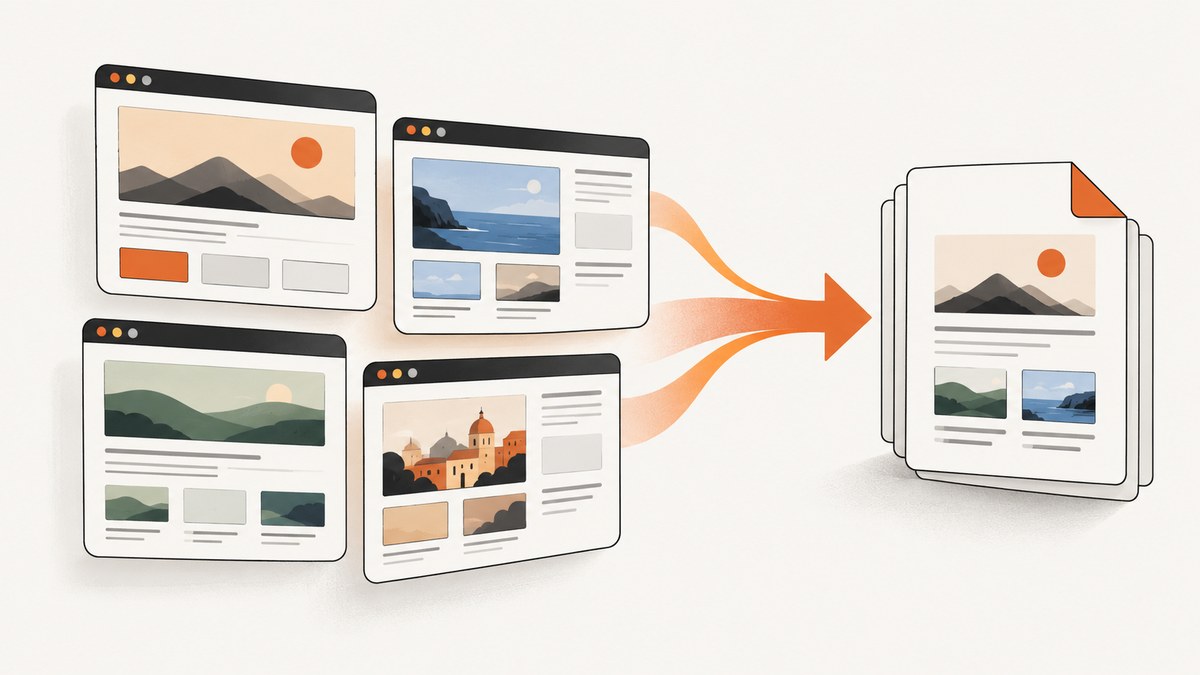
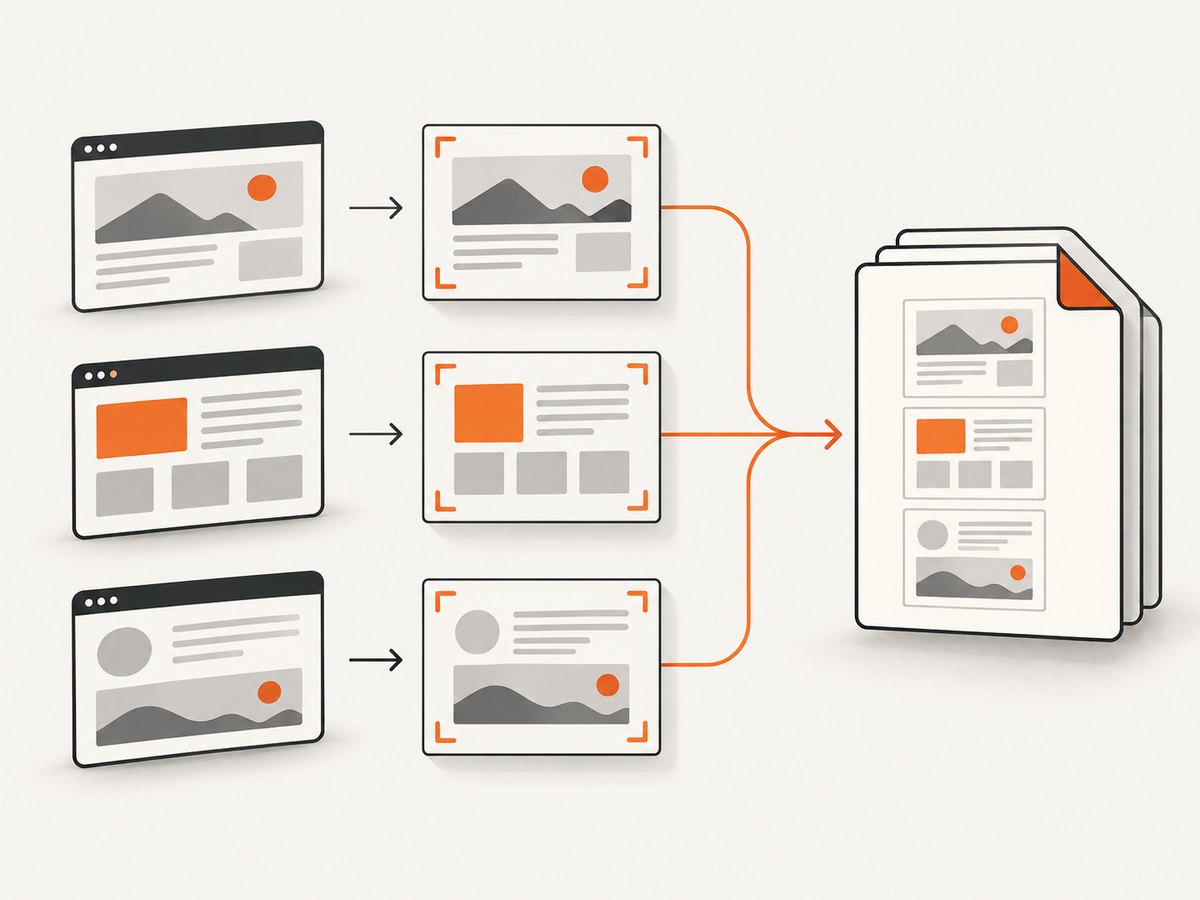
To combine multiple html2canvas elements into one PDF, capture each element to its own canvas, convert each canvas to an image, and add those images to a single PDF document in the order and size you choose. If the elements already share the layout you want, capture their common parent instead. For a document that needs searchable text, selectable links, or sophisticated pagination, use an HTML-to-PDF renderer rather than an image-based canvas workflow.
html2canvas reconstructs a visual representation from DOM and CSS information; it is not a literal browser screenshot and does not support every CSS property. The project documents this behavior and its browser-side use in the official documentation. The capture is asynchronous, so await every canvas before saving the PDF.
1. Choose the right capture strategy
| Approach | Best for | Trade-offs |
|---|---|---|
| Capture one shared container | Several sections should keep their existing flow and spacing | Less manual layout work, but a very tall canvas can hit browser limits |
| Capture each element separately | Cards, invoices, charts, or panels that need explicit order or page breaks | Maximum control, but you must calculate page placement and scaling |
| html2pdf.js | An all-client-side HTML-to-PDF workflow with documented page-break controls | Less low-level control; still relies on html2canvas and jsPDF |
| Server or browser PDF renderer | Searchable text, links, print CSS, headers, and complex pagination | Requires a rendering service or browser runtime |
Use a shared container when the browser should decide the flow. Capture separate elements when each item should begin on a new page, when you need a custom order, or when one oversized section would exceed canvas dimensions. The html2pdf.js documentation describes a wrapper around html2canvas and jsPDF with page-break options.
2. Complete browser example: several elements, one PDF
The following example uses the browser versions of html2canvas and jsPDF. Put the elements on a page, give them stable IDs, then run the capture after fonts, images, and dynamic content have finished loading.
<!-- Example content -->
<section id="cover" class="pdf-section">
  <h1>Quarterly report</h1>
  <p>Prepared for the product team</p>
</section>

<section id="summary" class="pdf-section">
  <h2>Summary</h2>
  <p>Revenue, retention, and delivery notes go here.</p>
</section>

<section id="details" class="pdf-section">
  <h2>Details</h2>
  <p>Longer content can be placed on its own page.</p>
</section>

<button id="download-pdf" type="button">Download PDF</button>

<script src="https://cdn.jsdelivr.net/npm/html2canvas@1.4.1/dist/html2canvas.min.js"></script>
<script src="https://cdn.jsdelivr.net/npm/jspdf@2.5.1/dist/jspdf.umd.min.js"></script>
<script>
  const { jsPDF } = window.jspdf;

  async function combineElementsIntoPdf() {
    const ids = ['cover', 'summary', 'details'];
    const pdf = new jsPDF({
      orientation: 'portrait',
      unit: 'mm',
      format: 'a4',
      compress: true
    });

    const pageWidth = pdf.internal.pageSize.getWidth();
    const pageHeight = pdf.internal.pageSize.getHeight();
    const margin = 12;
    const usableWidth = pageWidth - margin * 2;

    for (let index = 0; index < ids.length; index += 1) {
      const element = document.getElementById(ids[index]);
      if (!element) throw new Error(`Missing element: ${ids[index]}`);

      const canvas = await html2canvas(element, {
        backgroundColor: '#ffffff',
        scale: Math.min(window.devicePixelRatio || 1, 2),
        useCORS: true,
        logging: false,
        imageTimeout: 15000
      });

      const imageData = canvas.toDataURL('image/jpeg', 0.92);
      const imageHeight = (canvas.height * usableWidth) / canvas.width;

      if (index > 0) pdf.addPage();

      // This example starts each element on a fresh page. If it is taller
      // than one page, split it into page-sized slices.
      let remaining = imageHeight;
      let sourceY = 0;
      let pageNumber = 0;
      while (remaining > 0) {
        if (pageNumber > 0) pdf.addPage();
        const visibleHeight = Math.min(remaining, pageHeight - margin * 2);
        const sourceHeight = (visibleHeight / imageHeight) * canvas.height;

        // A sliced canvas avoids stretching a tall element beyond the page.
        const slice = document.createElement('canvas');
        slice.width = canvas.width;
        slice.height = Math.ceil(sourceHeight);
        const context = slice.getContext('2d');
        context.fillStyle = '#ffffff';
        context.fillRect(0, 0, slice.width, slice.height);
        context.drawImage(
          canvas,
          0, Math.floor(sourceY), canvas.width, Math.ceil(sourceHeight),
          0, 0, slice.width, slice.height
        );

        pdf.addImage(
          slice.toDataURL('image/jpeg', 0.92),
          'JPEG',
          margin,
          margin,
          usableWidth,
          visibleHeight,
          undefined,
          'FAST'
        );

        sourceY += sourceHeight;
        remaining -= visibleHeight;
        pageNumber += 1;
      }
    }

    pdf.save('combined-elements.pdf');
  }

  document.getElementById('download-pdf').addEventListener('click', () => {
    combineElementsIntoPdf().catch((error) => {
      console.error(error);
      alert('Could not create the PDF. Check the console for details.');
    });
  });
</script>
The loop captures one element at a time, creates a JPEG data URL, and inserts it into the same jsPDF instance. The first element uses the document’s initial page; later elements add pages. The slicing branch keeps a tall element within the printable page height. If your design guarantees that every element fits on one page, the code can be reduced to one addImage call per capture.
Wait for the page to be ready
Run the function after the content is visible. For web fonts, wait for document.fonts.ready. For images, wait until each image has completed or failed. Lazy-loaded content may require scrolling it into view or triggering the application’s load routine first.
await document.fonts.ready;
await Promise.all(
  [...document.images].map((img) => img.complete
    ? Promise.resolve()
    : new Promise((resolve) => {
        img.addEventListener('load', resolve, { once: true });
        img.addEventListener('error', resolve, { once: true });
      }))
);
await combineElementsIntoPdf();
3. Capture one common container instead
If the elements belong to one continuous document, wrap them in a parent and capture that parent. This preserves the browser’s existing flow and avoids manually placing every section.
const container = document.querySelector('#report');
const canvas = await html2canvas(container, {
  windowWidth: container.scrollWidth,
  windowHeight: container.scrollHeight,
  scale: 2,
  backgroundColor: '#fff',
  useCORS: true
});

const pdf = new jsPDF({ unit: 'mm', format: 'a4' });
const margin = 12;
const width = pdf.internal.pageSize.getWidth() - margin * 2;
const height = (canvas.height * width) / canvas.width;
pdf.addImage(canvas.toDataURL('JPEG', 0.92), 'JPEG', margin, margin, width, height);
pdf.save('report.pdf');
Use windowWidth and windowHeight when a responsive layout or a scrollable container would otherwise be measured at the current viewport. The html2canvas FAQ warns that canvas dimensions and total area have browser and platform-dependent limits, so very tall reports may render blank or partially.
4. Page sizing, scaling, and image quality
- PDF units: jsPDF commonly uses millimeters for A4 layouts. Keep a margin and calculate the image height from its aspect ratio.
- Scale: A scale of 2 often improves text and line sharpness, but it multiplies memory use. Use the lowest scale that meets your output requirement.
- JPEG versus PNG: JPEG is smaller for photographic or gradient-heavy content. PNG keeps crisp edges and transparency, but files can become large.
- Retina displays:
devicePixelRatioaffects capture size. Capping it avoids unexpectedly huge canvases. - Orientation: Select landscape for wide dashboards. Recompute usable width and height after choosing orientation.
- Multiple pages: Add a page before each new element, or slice a tall canvas into page-height sections as shown above.
Canvas output is image-based. Text in the resulting PDF is generally not a selectable text layer, and accessibility metadata is not created by this workflow. If those properties matter, generate a PDF from HTML with a renderer designed to preserve document structure.
5. Cross-origin images, fonts, and iframes
Images from another origin can taint the canvas. Set useCORS: true only when the image server sends a suitable Access-Control-Allow-Origin header. This option cannot bypass browser security. If you control neither server, use a same-origin proxy that fetches the asset and serves it with the correct CORS headers.
const canvas = await html2canvas(element, {
  useCORS: true,
  allowTaint: false,
  imageTimeout: 20000
});
A cross-origin iframe cannot be rendered because the browser prevents access to its document. Same-origin iframe content can be handled recursively, provided it is loaded before capture. External web fonts can also change layout if they have not finished loading; await document.fonts.ready and ensure the font server permits the request.
6. Excluding controls and temporary content
Mark buttons, loading indicators, and private controls with data-html2canvas-ignore. The configuration also supports an ignoreElements predicate for programmatic filtering; see the configuration reference.
<button data-html2canvas-ignore>Delete draft</button>

const canvas = await html2canvas(element, {
  ignoreElements: (node) => node.matches('.no-print, [aria-hidden="true"]')
});
For repeated captures in a long-lived application, review the clearImageCache option. Clearing image cache state can release resources, but do not enable it when concurrent captures depend on the same cache.
7. html2pdf.js for integrated page breaks
When you want a single call with page-break rules, html2pdf.js is a candidate. Its documented workflow passes options to html2canvas and jsPDF and supports selectors and break modes.
const element = document.getElementById('report');
html2pdf()
  .set({
    margin: 12,
    filename: 'report.pdf',
    image: { type: 'jpeg', quality: 0.92 },
    html2canvas: { scale: 2, useCORS: true },
    jsPDF: { unit: 'mm', format: 'a4', orientation: 'portrait' },
    pagebreak: { mode: ['css', 'legacy'] }
  })
  .from(element)
  .save();
Add CSS such as .page-break { break-before: page; } where supported by the selected page-break mode. Confirm the exact API and current package versions in the library’s official documentation before pinning them in production.
8. Troubleshooting checklist
| Symptom | Likely cause | Fix |
|---|---|---|
| Blank canvas or PDF | Capture ran before content loaded, or canvas limits were exceeded | Await fonts and images; reduce scale; capture smaller elements; set matching window dimensions |
| Remote images missing | CORS headers are absent or the canvas is tainted | Enable useCORS and configure the image server, or proxy assets through your origin |
| Content is cut off | Element is scrollable or taller than the viewport | Capture the correct container; set windowWidth/windowHeight; split tall output into pages |
| Text wraps differently | Fonts are not ready or viewport width changed | Await document.fonts.ready and set an explicit capture width |
| Iframe is empty | Iframe is cross-origin | Render the iframe source separately or use a server-side PDF renderer |
| PDF is enormous | High scale and PNG images consume substantial memory | Cap scale, use JPEG where acceptable, and capture sections separately |
| Duplicate blank page | Code adds a page before the first image | Only call addPage() when the current page already contains content |
| Capture freezes | Large DOM, expensive filters, or too many concurrent captures | Capture sequentially, simplify effects, and release temporary canvases |
9. Performance, reliability, and cost considerations
Capturing elements sequentially limits peak memory and makes ordering deterministic. Parallel captures can reduce waiting time on small documents, but each canvas consumes memory and can cause failures on large pages. Reuse stable selectors, hide animations, and disable transitions during capture so the visual state does not change between elements.
Canvas limits vary by browser and platform. Treat approximate limits in the html2canvas FAQ as guidance, not guarantees. For long reports, prefer separate captures and page slices. Keep a failure path that reports which element failed and lets the user retry.
The browser workflow has no API charge, but it consumes the user’s CPU and memory and depends on the page’s CORS policy. A hosted screenshot API moves rendering off the client and can provide consistent handling for remote pages.
10. Or skip the browser setup
ScreenshotNeo provides a single GET request for a PNG, JPEG, WebP, or PDF. Its cleaner capture flow accepts cookie and consent banners before removing more than 60 known consent platforms, newsletter popups, and chat widgets. Each step can be turned off. Bot checks, blank pages, timeouts, failed loads, and cache hits are not billed, and response headers identify the page verdict and billing result.

See the ScreenshotNeo API documentation for the complete option set, including full-page capture, CSS element capture, dark mode, device presets, retina scale, PDF paper size and margins, custom CSS and JavaScript, waits, request blocking, headers, cookies, user agents, geolocation, caching, signed links, asynchronous jobs, bulk capture, usage, and the OpenAPI specification.
cURL
curl -G "https://api.screenshotneo.com/v1/shot" -d access_key=YOUR_API_KEY --data-urlencode url=https://stripe.com -o shot.webpPython
import requests

r = requests.get(
    "https://api.screenshotneo.com/v1/shot",
    params={"access_key": "YOUR_API_KEY", "url": "https://stripe.com"},
    timeout=90,
)
r.raise_for_status()
open("shot.webp", "wb").write(r.content)
Node.js
const q = new URLSearchParams({ access_key: 'YOUR_API_KEY', url: 'https://stripe.com' });
const res = await fetch(`https://api.screenshotneo.com/v1/shot?${q}`);
if (!res.ok) throw new Error(`Screenshot failed: ${res.status}`);
const bytes = Buffer.from(await res.arrayBuffer());
require('fs').writeFileSync('shot.webp', bytes);
An MCP server also provides take_screenshot, get_page_info, and capture_pdf tools for Claude, Cursor, and other MCP clients. The Free plan includes 1,000 screenshots each month with no card; paid plans start at $5 for 3,000 shots. Create a free ScreenshotNeo account.
11. FAQ
Can I combine canvases after capturing them?
Yes. Keep the canvas objects, calculate each image’s target dimensions, and add them to one jsPDF instance. You do not need to merge the canvases into one bitmap first.
How do I preserve separate page starts?
Call pdf.addPage() before every element after the first, then place its image at your margin. Slice any element taller than the usable page height.
Will the PDF contain selectable text?
Normally no. html2canvas output is a bitmap placed into the PDF. Use an HTML-to-PDF renderer when text selection, links, or accessibility structure is required.
Can html2canvas render a protected third-party page?
No. Cross-origin iframe documents remain inaccessible to browser JavaScript, and cross-origin images require appropriate CORS headers.
Why does a combined parent capture differ from separate captures?
Layout, responsive width, lazy loading, and element visibility can change between captures. Set explicit dimensions, wait for assets, and disable animations for consistent output.


