How to Combine Multiple PDFs with Puppeteer
Generate PDFs with Puppeteer, merge them with PDF-lib, preserve page order, and troubleshoot fonts, CSS, memory, and failed browser jobs.
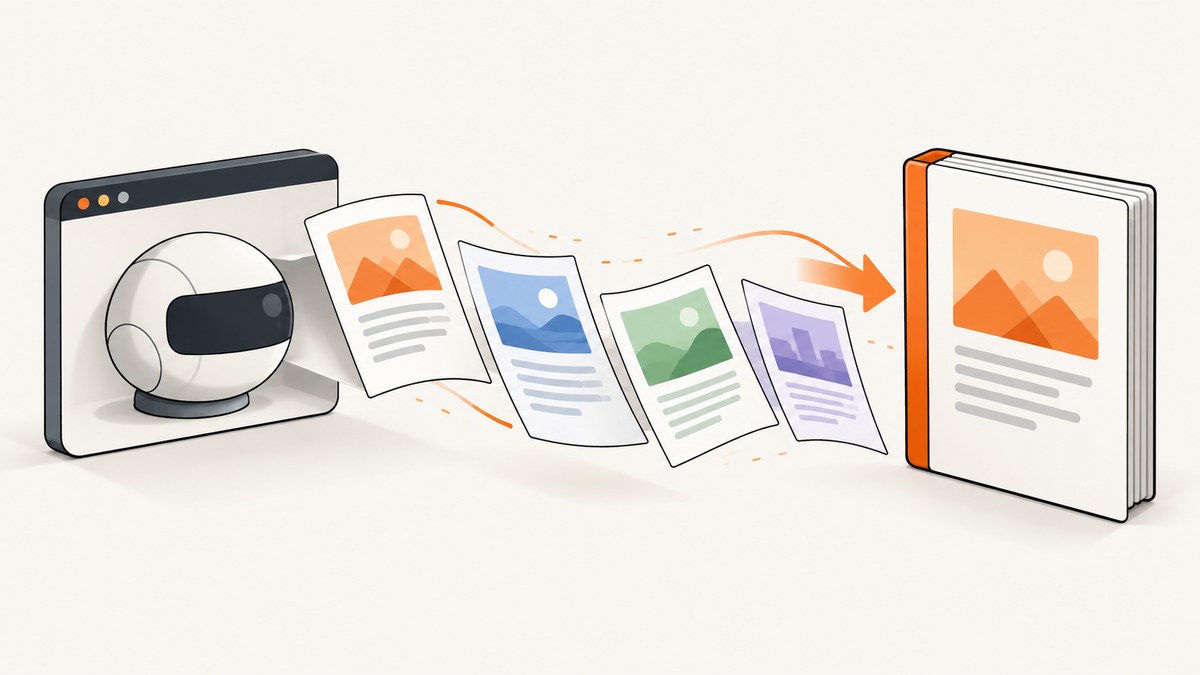
Direct answer: Puppeteer can render HTML pages into PDF files, but its documented Page.pdf() API does not merge multiple existing PDFs. Generate each PDF with Puppeteer, load the resulting byte arrays with PDF-lib, copy every source page into a new destination document, and save the merged bytes. PDF-lib documents this workflow through PDFDocument.load(), copyPages(), getPageIndices(), and addPage(). See the Puppeteer PDF generation guide, the Page.pdf() API, and the PDFDocument API.
What Puppeteer does—and what it does not do
Puppeteer controls Chromium. You can open a page, set its content or navigate to a URL, wait until it is ready, and call page.pdf(). The method returns a Uint8Array containing one PDF. It can also write directly to a path when you pass the path option.
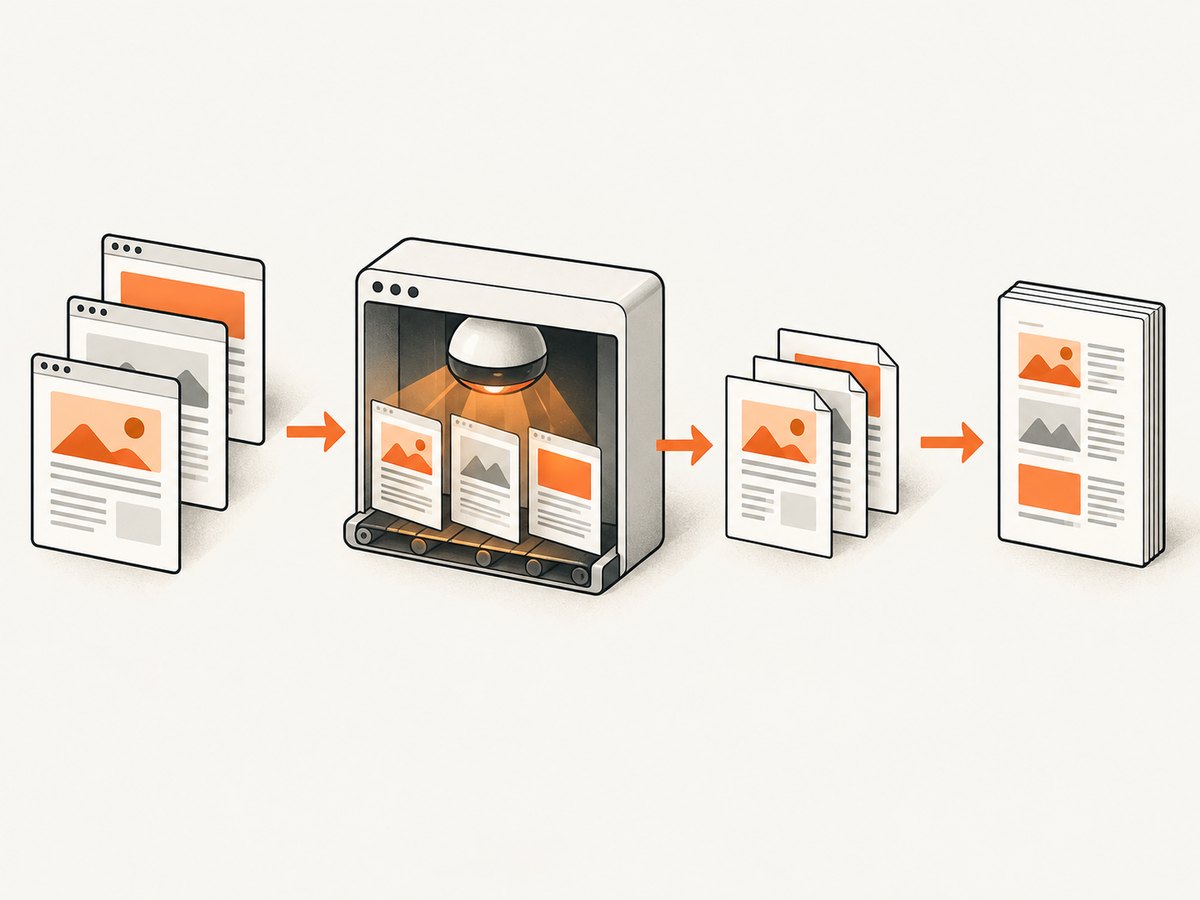
Joining files is a separate PDF operation. Treat rendering and merging as two explicit stages:
- Render each HTML document with Puppeteer.
- Load each generated PDF into PDF-lib.
- Copy source pages into one destination document in the order you choose.
- Save the destination bytes to disk, object storage, or an HTTP response.
This separation lets you control page order, repeat a document, select individual pages, and keep browser lifecycle code independent from PDF assembly.
Complete Node.js example
The following program renders two HTML strings and creates combined.pdf. It uses ES modules, so either save it as merge-pdfs.mjs or set "type": "module" in package.json.
npm install puppeteer pdf-lib
node merge-pdfs.mjs
import puppeteer from 'puppeteer';
import { PDFDocument } from 'pdf-lib';
import { writeFile } from 'node:fs/promises';
const htmlDocuments = [
`<!doctype html>
<html><head><meta charset="utf-8">
<style>@page { size: A4; margin: 20mm; } body { font-family: Arial, sans-serif; }</style>
</head><body><h1>First document</h1><p>This is the first PDF.</p></body></html>`,
`<!doctype html>
<html><head><meta charset="utf-8">
<style>@page { size: A4; margin: 20mm; } body { font-family: Arial, sans-serif; }</style>
</head><body><h1>Second document</h1><p>This is the second PDF.</p></body></html>`
];
const browser = await puppeteer.launch();
try {
const pdfBuffers = [];
for (const html of htmlDocuments) {
const page = await browser.newPage();
try {
await page.setContent(html, { waitUntil: 'networkidle0' });
await page.emulateMediaType('print');
const pdfBytes = await page.pdf({
format: 'A4',
printBackground: true,
preferCSSPageSize: true
});
pdfBuffers.push(pdfBytes);
} finally {
await page.close();
}
}
const merged = await PDFDocument.create();
for (const bytes of pdfBuffers) {
const source = await PDFDocument.load(bytes);
const pages = await merged.copyPages(source, source.getPageIndices());
for (const page of pages) {
merged.addPage(page);
}
}
const output = await merged.save();
await writeFile('combined.pdf', output);
console.log('Wrote combined.pdf');
} finally {
await browser.close();
}The loop determines document order, and the inner page loop determines page order within each document. The copy operation does not silently sort your inputs; if order matters, make the array and page indexes explicit in your own code.
Generate PDFs from URLs or application pages
Replace page.setContent() with page.goto() when the source is a deployed page. Choose a readiness condition that matches the application. networkidle0 waits for no active network connections, while domcontentloaded is earlier and may be appropriate for static HTML.
const urls = [
  'https://example.com/invoice/1001',
  'https://example.com/invoice/1002'
];

for (const url of urls) {
  const page = await browser.newPage();
  try {
    await page.goto(url, { waitUntil: 'networkidle0', timeout: 60_000 });
    await page.pdf({
      path: undefined,
      format: 'Letter',
      printBackground: true,
      margin: { top: '16mm', right: '16mm', bottom: '16mm', left: '16mm' }
    });
  } finally {
    await page.close();
  }
}
For authenticated pages, set cookies or an authorization header before navigation. For content rendered after the initial load, wait for a selector or an application-specific signal:
await page.goto(url, { waitUntil: 'domcontentloaded' });
await page.waitForSelector('#invoice-ready', { timeout: 30_000 });
await page.pdf({ format: 'A4', printBackground: true });
Important Puppeteer PDF options
| Option | Use it for |
|---|---|
path |
Writing an individual PDF directly to a file. Omit it when you want the returned bytes for PDF-lib. |
format |
Standard sizes such as A4 or Letter. |
width, height |
Custom paper dimensions. |
landscape |
Rotating the page orientation. |
margin |
Setting top, right, bottom, and left margins with CSS units. |
printBackground |
Including background colors and images that would otherwise be omitted for printing. |
preferCSSPageSize |
Letting CSS @page rules determine paper size instead of scaling to the requested format. |
pageRanges |
Rendering only selected pages from a document. |
displayHeaderFooter, headerTemplate, footerTemplate |
Adding Chromium PDF headers and footers when your layout needs them. |
Puppeteer’s guide says Page.pdf() waits for fonts by default. You still need to wait for your own data and late-loading assets. PDF output uses print CSS by default. Call page.emulateMediaType('screen') before page.pdf() when the screen stylesheet is the intended design. Chromium can also modify colors for printing; use CSS -webkit-print-color-adjust when exact color treatment is required. Confirm the behavior against the Puppeteer version installed in your project because API details can change.
Merge selected pages, reorder documents, or repeat pages
getPageIndices() returns zero-based indexes. Build a plan when the final PDF needs a cover, an appendix, or a custom sequence.
const mergePlan = [
  { bytes: coverPdf, pages: [0] },
  { bytes: reportPdf, pages: [0, 1, 2, 3] },
  { bytes: appendixPdf, pages: [2, 0] }
];

const result = await PDFDocument.create();
for (const item of mergePlan) {
  const source = await PDFDocument.load(item.bytes);
  const pages = await result.copyPages(source, item.pages);
  for (const page of pages) result.addPage(page);
}
const mergedBytes = await result.save();
To keep every page from every source, pass source.getPageIndices(). To omit a page, leave its index out. To repeat a page, include its index more than once. Validate indexes before calling copyPages() if the input is user-controlled.
Handling real applications
Fonts and external assets
Use absolute, reachable asset URLs or inline critical CSS. A page that looks correct in your desktop browser can produce a different PDF if Chromium cannot reach a font, image, stylesheet, or API endpoint. Wait for a known selector after data hydration, and inspect browser console and request failures during development.
Page breaks
Use print CSS to keep sections together and force deliberate breaks:
@media print {
  .avoid-break { break-inside: avoid; }
  .new-page { break-before: page; }
}
Large jobs
Keep one browser process and create and close pages per document. Holding every rendered PDF in memory is simple, but a large batch can consume substantial memory. For large inputs, write each PDF to temporary storage, merge in controlled batches, and delete temporary files after a successful save. Limit concurrency rather than opening an unbounded number of pages. The cited Puppeteer and PDF-lib documentation does not establish a universal file-count or speed limit, so size concurrency from measurements in your deployment.
Failure cleanup
Use try/finally around the browser and each page. If a navigation, font load, or PDF operation throws, close the page and browser so a worker does not retain Chromium processes. Keep source bytes until the destination has been saved and verified.
Or skip the browser setup
ScreenshotNeo provides a website capture API that can return a PDF from one GET request. Its PDF options include paper size, margins, landscape mode, and page ranges, so it can be useful when your inputs are web pages rather than local PDF files. Read the ScreenshotNeo documentation for the complete parameter list.
curl -G "https://api.screenshotneo.com/v1/shot" -d access_key=YOUR_API_KEY --data-urlencode url=https://stripe.com -o shot.webpimport requests
r = requests.get("https://api.screenshotneo.com/v1/shot", params={"access_key": "YOUR_API_KEY", "url": "https://stripe.com"}, timeout=90)
open("shot.webp", "wb").write(r.content)const q = new URLSearchParams({ access_key: 'YOUR_API_KEY', url: 'https://stripe.com' });
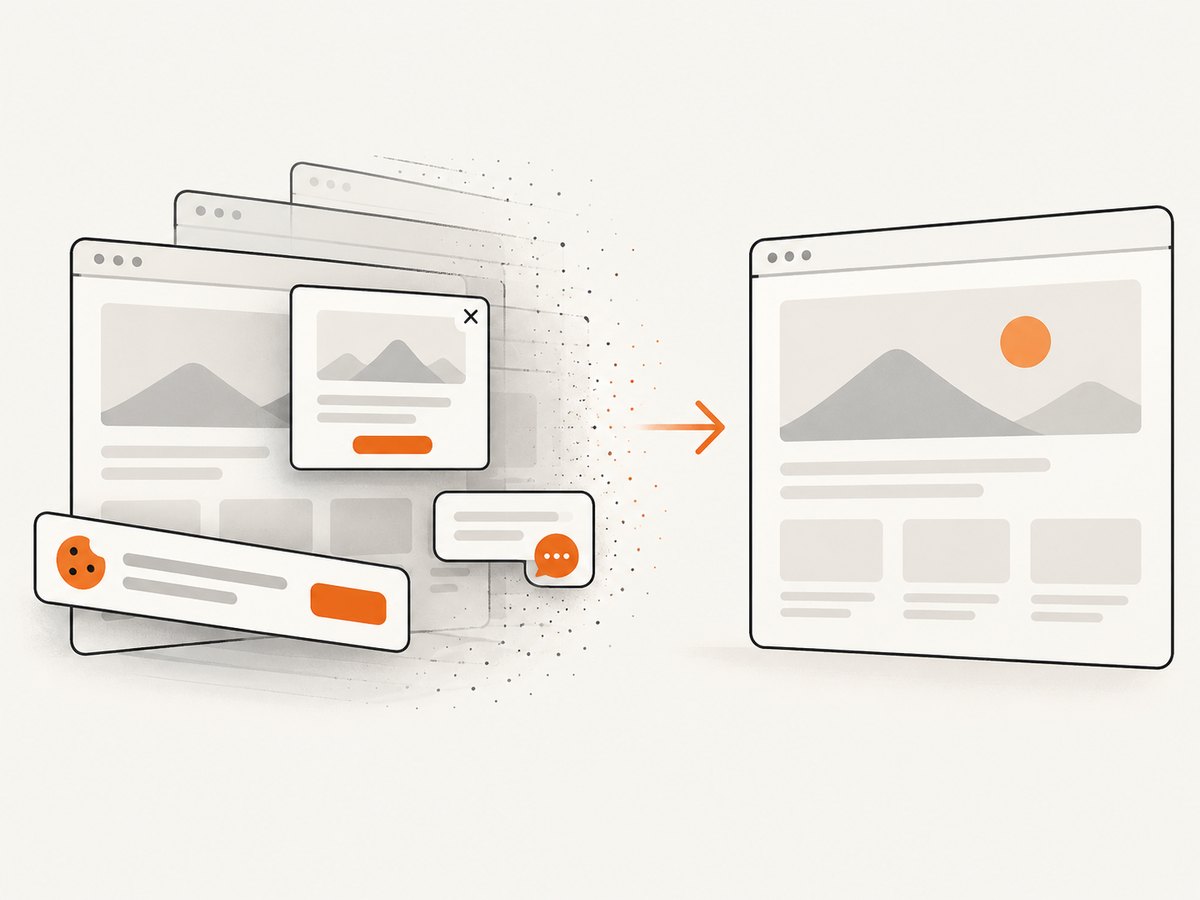
const res = await fetch(`https://api.screenshotneo.com/v1/shot?${q}`);Cookie banners, popups, and chat widgets are removed before the shot. Bot checks, blank pages, and failed loads are never billed, and the response reports its result in X-Page-Verdict and X-Billed headers. An MCP server lets AI agents take screenshots. The free plan includes 1,000 screenshots a month with no card, and paid plans start at $5 for 3,000. Create a free ScreenshotNeo account.
Troubleshooting
| Symptom | Likely cause | Fix |
|---|---|---|
copyPages throws while loading |
The source bytes are incomplete or are not a PDF. | Await page.pdf(), preserve the returned bytes, and check that the input begins as a valid PDF before loading. |
| Only the first document appears | The destination was overwritten or pages were never added. | Create one destination document, call copyPages for every source, and call addPage for every copied page. |
| Pages are in the wrong order | Input iteration or page indexes are unordered. | Use an explicit array and an explicit merge plan. Remember indexes are zero-based. |
| Styles or colors differ | Print media rules or print color adjustment changed rendering. | Use emulateMediaType('screen') when appropriate, enable printBackground, and set -webkit-print-color-adjust in print CSS. |
| Missing images or fonts | Assets were not reachable when the PDF was created. | Use absolute URLs, authenticate requests, wait for a readiness selector, and inspect request failures. |
| Navigation timeout | The page never reached the selected readiness condition. | Choose domcontentloaded or a targeted selector, raise the timeout for slow pages, and investigate requests that remain open. |
| Chromium process remains after an error | A page or browser was not closed. | Put cleanup in nested finally blocks and close pages before the browser. |
| Worker runs out of memory | Too many pages or large PDF byte arrays are retained. | Bound concurrency, close pages promptly, stream temporary files where practical, and merge in batches. |
| Output file is empty or truncated | The save promise was not awaited or the process exited early. | await merged.save(), await the filesystem write, and only then report success. |
Reliability, performance, and cost considerations
- Reliability: Make readiness explicit, use timeouts, capture structured errors, and retain the source-to-output order in logs. Retry only failures that are safe to repeat.
- Performance: Reuse the browser process, avoid unnecessary navigation, and bound parallel pages. Rendering time depends on page content and external resources; the provided sources do not give a general benchmark.
- Memory: A merged destination and all source byte arrays can coexist in memory. Large documents should use temporary storage or smaller merge batches.
- Cost: Puppeteer itself is open-source software, but your infrastructure still consumes CPU, memory, storage, and bandwidth. A hosted capture API changes that operational trade-off; check the provider’s current plan and usage terms.
FAQ
Can Puppeteer merge existing PDF files?
Not through the documented Page.pdf() API. Use a PDF library such as PDF-lib for the merge stage.
Can I merge PDFs without writing intermediate files?
Yes. Keep the Uint8Array returned by page.pdf(), load it with PDFDocument.load(), copy its pages, and save the final bytes.
Does PDF-lib preserve the original page order?
It appends pages in the order you pass them to addPage(). Preserve order deliberately in your input loop or merge plan.
Should I use print or screen CSS?
Use print CSS for conventional documents. Call page.emulateMediaType('screen') when the screen layout is the intended output, then verify page breaks and colors.
Can I merge PDFs created by different tools?
PDF-lib can load valid PDF bytes from other producers. Validate inputs and handle encrypted or malformed files according to your application’s requirements.


