How to Combine Screenshots into One Document
Combine screenshot files into an editable document or a single PDF with reliable steps for Windows, Mac, Android, iPhone and automated workflows.
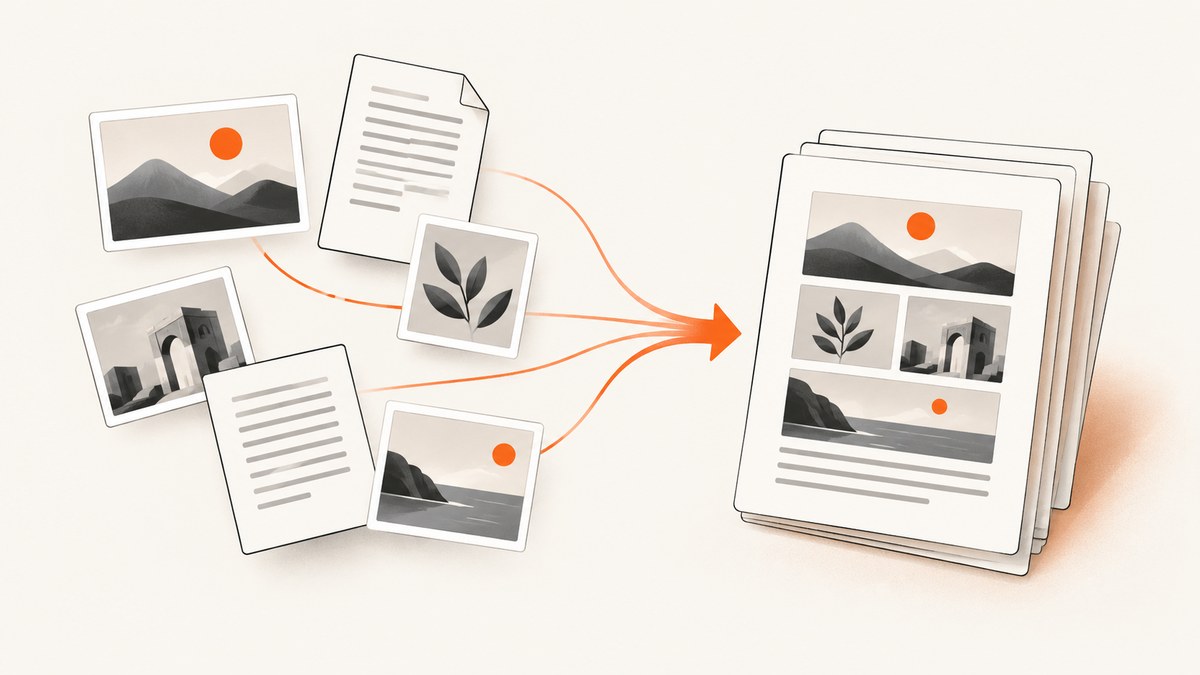
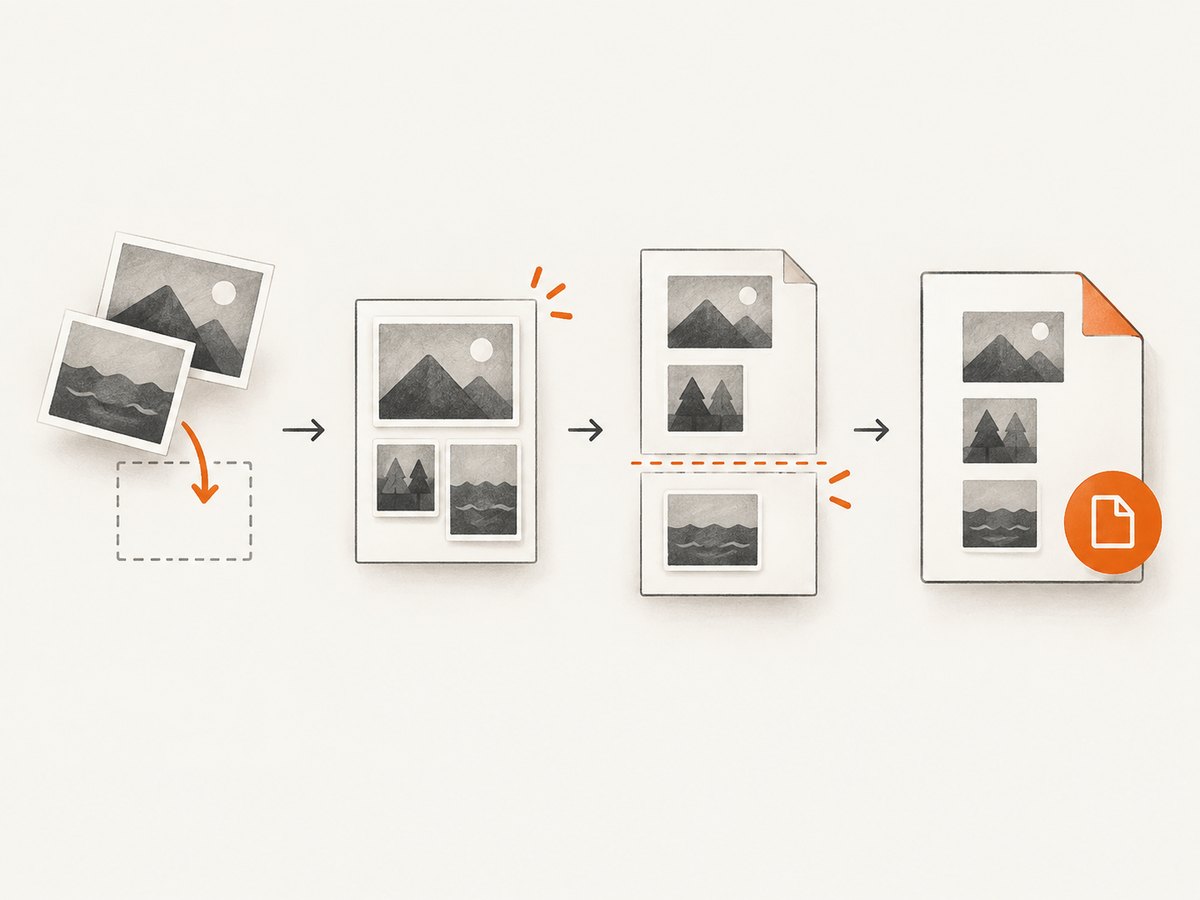
Short answer: decide whether you need an editable document or a fixed-layout PDF. For an editable file, insert each screenshot in the desired order, resize it for readability, add page breaks and captions, then save the document. For a shareable file whose layout should stay stable, place the screenshots on pages and export to PDF, or convert each image to a PDF page and merge the PDFs.
Choose the right output
| Goal | Best format | Why |
|---|---|---|
| Edit text, add notes or captions later | Word, Google Docs or another document file | Images remain objects that can be moved and surrounded by text. |
| Send one portable file with stable page layout | Recipients see the same page order, sizing and margins. | |
| Preserve the original screenshots separately | Either format, with a copied source folder | Editing or exporting can resize, recompress or alter placement. |
Before starting, separate existing screenshot files from material you still need to capture. Scanning features are designed mainly for paper, whiteboards or live documents; they are not required for PNG, JPG or WebP files already on your device.
Prepare the screenshots
- Copy the originals into a working folder so you can recreate the document if an image is cropped or compressed.
- Rename files with a sortable prefix such as
01-login.png,02-settings.pngand03-result.png. This removes ambiguity when filenames came from different devices. - Open the images and check orientation, unreadable text, accidental personal data and duplicate captures.
- Choose a page shape. A tall browser capture may read best on portrait pages; a wide dashboard may need landscape pages or a smaller scale.
- Decide whether each screenshot gets its own page. Putting several narrow images on one page saves pages but can make labels impossible to read.
Windows and Mac: create an editable document
Microsoft Word
For screenshots that already exist as files, use Word’s picture insertion command. Microsoft’s Office instructions describe inserting one screenshot at a time and repeating the insertion for additional screenshots: Microsoft’s screenshot insertion guide.
- Open a new document and place the cursor where the first image should appear.
- Choose Insert → Pictures (or the equivalent image command in your Word version), select the first screenshot and insert it.
- Set an appropriate text-wrapping mode. In Line with Text is the most predictable for a document that should keep its order; floating modes are useful when captions or side-by-side images are required.
- Resize from a corner so the aspect ratio stays intact. Do not enlarge a low-resolution screenshot beyond the point where text becomes blurry.
- Insert a page break after the image when it should occupy a dedicated page. Add a caption or short filename if the reader needs context.
- Repeat for every screenshot, following the prepared order.
- Save the editable file. Use File → Export or Save As to create a PDF copy when you need a fixed-layout version.
Word’s guidance for scanned images also confirms the basic file workflow: save an image such as JPG or PNG, place the cursor, then use the picture insertion command (Microsoft’s scanned-image guide). Exact menu names vary by Word release and operating system.
LibreOffice Writer
- Open Writer and choose Insert → Image for the first file.
- In the image properties, keep the aspect ratio locked and set the anchor to As Character for predictable page flow.
- Insert a manual page break with
Ctrl+Enter(Windows/Linux) or the corresponding menu command when each screenshot needs its own page. - Repeat, then use File → Export as PDF for the shareable copy.
Mac: combine PDF pages in Preview
Preview merges PDFs rather than loose image files. First convert each screenshot to a PDF page using an image viewer, a print-to-PDF command or a document editor, then merge those PDFs. Apple’s instructions say to open the PDFs, show thumbnails, and drag pages between documents; they also warn that Preview saves edits automatically, so duplicate originals first if they must remain unchanged: Apple’s Preview guide.
- Make a PDF from each screenshot, or create one PDF containing the screenshots in your document editor.
- Open the PDFs in Preview.
- Choose View → Thumbnails in each window.
- Drag pages into the destination PDF and reorder the thumbnails.
- Choose File → Duplicate before editing if the source PDFs must be preserved.
- Save the combined PDF and reopen it to check every page.
Finder also supports creating a PDF from selected files on supported macOS versions, but behavior depends on file type and release. Treat it as a convenience and verify page dimensions and order after creation.
Android: existing screenshots versus new scans
Existing screenshots
For screenshots already in Photos or Downloads, use a document or PDF app that can import multiple images. Select the files in reading order, set one image per page when legibility matters, and export or share as PDF. Menu names differ by manufacturer and app version, so confirm the output rather than relying on a particular tap sequence.
Google Drive scanning
Google Drive’s documented Android scanner is for capturing documents. It lets you add another page and save the result as PDF or JPG: Google Drive Help. Use this when the source is paper or a live document, not as a required step for combining screenshot files.
OneDrive scanning
OneDrive for Android documents multi-page scanning into one PDF in app version 6.5 or higher: Microsoft’s OneDrive scanning guide. The page states that up to 10 pages/images can be multi-page scanned. App availability and limits can change, so check the current version before depending on that route.
iPhone and iPad
For existing screenshots, import them into a document or PDF app, arrange the pages, and export if the app supports PDF. The exact controls depend on the app and iOS/iPadOS version; there is no single verified Apple tap sequence for turning arbitrary existing screenshots into one PDF. Keep the original images in Photos or Files until you have inspected the exported document.
Command-line conversion for repeatable jobs
When you combine screenshots regularly, a script makes ordering and output reproducible. ImageMagick can place images into a PDF, provided it is installed and your security policy permits PDF writing:
magick 01-login.png 02-settings.png 03-result.png combined.pdfFor a document-like layout with one image per page, use a PDF tool such as Python’s Pillow. This example converts RGB images to a multipage PDF while preserving each image’s pixel dimensions as closely as the PDF format allows:
from PIL import Image
from pathlib import Path

files = sorted(Path("screenshots").glob("*.png"))
if not files:
    raise SystemExit("No PNG screenshots found")

pages = []
for path in files:
    with Image.open(path) as image:
        pages.append(image.convert("RGB"))

pages[0].save("combined.pdf", save_all=True, append_images=pages[1:])
print(f"Wrote {len(pages)} pages to combined.pdf")
This produces a fixed-layout PDF, not an editable Word file. If you need captions, headings or surrounding prose, create the document in a word processor first.
Layout and readability checklist
- Order: read the thumbnails from start to finish and confirm that filenames and page order agree.
- Scale: keep interface text readable at 100% zoom; do not stretch a screenshot non-uniformly.
- Cropping: make sure browser controls, status bars or important edges were not clipped.
- Page breaks: prevent one screenshot from splitting across pages unless that split is intentional.
- Orientation: use landscape for wide tables or dashboards when portrait makes text too small.
- Color: preserve color when it conveys status, warnings or data categories.
- Privacy: remove tokens, email addresses, customer data and internal URLs before sharing.
- File size: large retina captures can create a heavy PDF. Downsize only after checking that text remains legible.
Or skip the browser setup
If the screenshots still need to be captured from web pages, ScreenshotNeo can return the image or PDF from one request. Its cleanup steps accept cookie or consent banners and remove more than 60 known consent platforms, newsletter popups and chat widgets before capture. Bot checks, blank pages, timeouts, failed loads and cache hits are not billed, and the response identifies the page verdict and billing status in X-Page-Verdict and X-Billed headers. It also provides an MCP server for AI agents with take_screenshot, get_page_info and capture_pdf.

See the ScreenshotNeo API documentation for options and authentication. The simplest call returns a WebP file:
curl -G "https://api.screenshotneo.com/v1/shot" -d access_key=YOUR_API_KEY --data-urlencode url=https://stripe.com -o shot.webpimport requests
r = requests.get(
"https://api.screenshotneo.com/v1/shot",
params={"access_key": "YOUR_API_KEY", "url": "https://stripe.com"},
timeout=90,
)
r.raise_for_status()
open("shot.webp", "wb").write(r.content)const q = new URLSearchParams({ access_key: 'YOUR_API_KEY', url: 'https://stripe.com' });
const res = await fetch(`https://api.screenshotneo.com/v1/shot?${q}`);
if (!res.ok) throw new Error(`HTTP ${res.status}`);
const data = Buffer.from(await res.arrayBuffer());
require('fs').writeFileSync('shot.webp', data);Relevant options include full-page capture with lazy images loaded, CSS-selector element capture, dark mode, device presets or custom viewports, retina scale, PDF paper size/margins/landscape/page ranges, custom CSS and JavaScript, clicks, selector or network-idle waits, ad/tracker/request blocking, headers/cookies/user agent/Authorization, timezone and geolocation, transparent backgrounds, resizing, caching with a chosen TTL, signed links, asynchronous jobs with signed webhooks, bulk capture of up to 100 URLs per call and a usage API. Each feature is available on every plan.
Pricing starts with 1,000 shots per month free with no card. Paid plans are Starter $5 for 3,000, Growth $15 for 15,000, Pro $39 for 60,000, Scale $99 for 250,000 and Business $249 for 1,000,000; yearly billing gives two months free. Create a free ScreenshotNeo account to try it.
Troubleshooting
| Symptom | Likely cause | Fix |
|---|---|---|
| Pages are in the wrong order | Files were selected from an unsorted folder or filenames are ambiguous. | Rename with numeric prefixes and insert from the sorted list. |
| Text is too small | Several wide screenshots were forced onto one page. | Give each image its own page, switch to landscape or crop irrelevant margins. |
| Image looks stretched | Width and height were changed independently. | Lock the aspect ratio and resize from a corner. |
| One image is split between pages | The image is taller than the remaining page space. | Insert a page break before it or reduce its size slightly. |
| PDF is unexpectedly huge | Retina PNGs contain more pixels than the page needs. | Downsize copies for the PDF, or use JPEG for photographic screenshots while keeping PNG for text-heavy images. |
| Original Mac PDFs changed | Preview saves edits automatically. | Duplicate the PDFs before combining them. |
| Mobile app cannot import all images | Selection limits, permissions or app-version differences. | Grant Photos/Files access, work in smaller batches or use a desktop document/PDF workflow. |
| ScreenshotNeo response is not a clean image | The page may be a bot check, blank page, timeout or failed load. | Inspect X-Page-Verdict and X-Billed, then adjust waits, headers, cookies, user agent or blocking rules as appropriate. |
| Dynamic content is missing | The capture occurred before the page finished rendering. | Use a selector wait, delay or network-idle wait; for lazy images, enable full-page capture. |
Performance, reliability and cost
- Local documents: inserting original-resolution images is fastest, but export time and file size grow with pixel dimensions and page count.
- Repeatability: numeric filenames, fixed page size and one image per page make reruns predictable.
- Quality: keep a lossless source archive and generate a smaller sharing copy only after review.
- Automated capture: reuse cached results when the page has not changed, use bulk capture for many URLs and use asynchronous jobs with signed webhooks when a request should not remain open.
- Billing: ScreenshotNeo bills only clean shots; failed loads, bot checks, blank pages, timeouts and cache hits cost nothing. Check the response headers when reconciling usage.
FAQ
Can I combine screenshots without installing software?
Yes. Use a document app already installed on your computer or phone, insert the images, then export to PDF if needed. Exact mobile menus vary.
Will combining screenshots make the text searchable?
No. The result still contains images. Add OCR separately if you need selectable or searchable text.
Should I make a Word document or PDF?
Choose a document file when you expect further editing. Choose PDF when recipients need a stable, portable layout.
Can I put multiple screenshots on one page?
Yes, but check readability at normal zoom. One screenshot per page is safer for detailed interfaces.
Can ScreenshotNeo combine screenshots I already have?
ScreenshotNeo captures web pages and can return images or PDFs. For existing local image files, use the document or PDF workflows above.