How to Combine Multiple Webpages into One PDF with Puppeteer
Render each URL with Puppeteer, merge the PDF pages with pdf-lib, and handle ordering, print CSS, readiness, errors, and production limits.

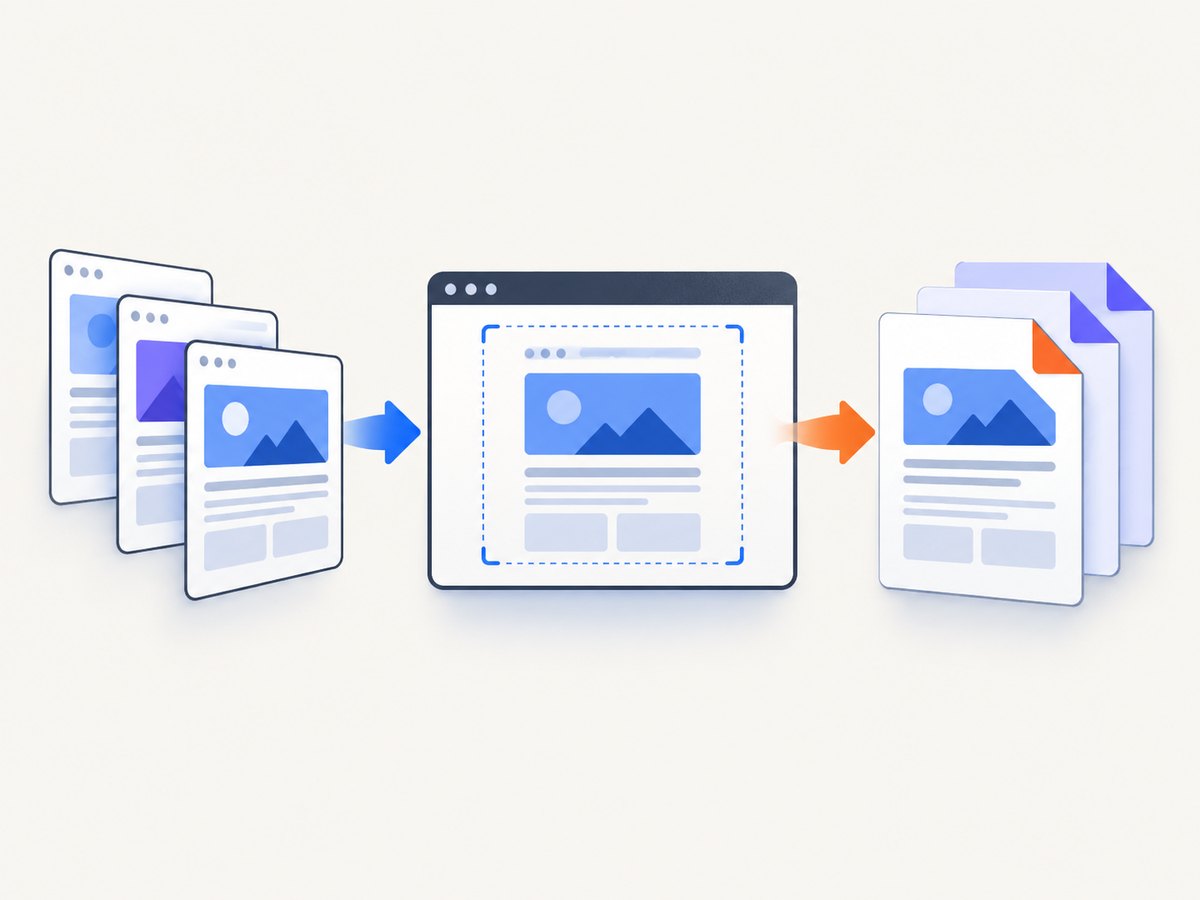
Yes. Render each webpage to its own PDF with Puppeteer, then merge those PDF byte arrays with pdf-lib. Puppeteer handles browser navigation and printing; pdf-lib assembles the resulting page sets into one document. The order of the input URLs becomes the order of the output PDF.
This article shows a complete Node.js implementation, explains print and screen media, readiness waits, PDF options, ordering, authenticated pages, performance, reliability, cost, and common failures. The approach follows the documented Puppeteer PDF workflow and pdf-lib’s document-copying APIs.
1. Install Puppeteer and pdf-lib
Create a project and install both packages:
mkdir webpage-bundle
cd webpage-bundle
npm init -y
npm install puppeteer pdf-lib
Puppeteer downloads a compatible browser unless you configure it to use an existing executable. pdf-lib runs in Node.js and creates the destination document in memory.
2. Complete runnable script
Save this as combine-webpages.js. It navigates sequentially, checks the main-resource response, prints every URL, copies all pages into a new PDF, and closes the browser even if a navigation or merge fails.
import fs from 'node:fs/promises';
import puppeteer from 'puppeteer';
import { PDFDocument } from 'pdf-lib';

const urls = [
  'https://example.com/',
  'https://pptr.dev/guides/pdf-generation',
  'https://pdf-lib.js.org/'
];

async function renderAndCombine(inputUrls, outputPath) {
  const browser = await puppeteer.launch({
    // headless: true is the default in current Puppeteer versions
  });

  try {
    const page = await browser.newPage();
    const renderedPdfs = [];

    for (const url of inputUrls) {
      const response = await page.goto(url, {
        waitUntil: 'networkidle2',
        timeout: 30_000
      });

      if (!response) {
        throw new Error(`No main-resource response for ${url}`);
      }
      if (!response.ok()) {
        throw new Error(`${url} returned HTTP ${response.status()}`);
      }

      // PDF output uses print CSS by default. Use this line when the
      // on-screen layout is the intended result instead.
      // await page.emulateMediaType('screen');

      const pdfBytes = await page.pdf({
        format: 'A4',
        printBackground: true,
        margin: {
          top: '16mm',
          right: '14mm',
          bottom: '16mm',
          left: '14mm'
        },
        preferCSSPageSize: true,
        timeout: 30_000,
        waitForFonts: true
      });

      renderedPdfs.push({ url, bytes: pdfBytes });
    }

    const combined = await PDFDocument.create();

    for (const rendered of renderedPdfs) {
      const source = await PDFDocument.load(rendered.bytes);
      const pages = await combined.copyPages(
        source,
        source.getPageIndices()
      );

      for (const page of pages) {
        combined.addPage(page);
      }
    }

    const outputBytes = await combined.save();
    await fs.writeFile(outputPath, outputBytes);
  } finally {
    await browser.close();
  }
}

renderAndCombine(urls, 'combined.pdf').catch((error) => {
  console.error(error);
  process.exitCode = 1;
});
Run it with:
node combine-webpages.jsThe Page.pdf() API returns PDF bytes and generates output with the print CSS media type by default, as described in the Puppeteer API documentation.
3. How the merge works
- Launch one browser. A single browser process can render all URLs.
- Create one reusable page. The example processes URLs sequentially, which keeps memory use and output ordering easy to reason about.
- Navigate and wait.
page.goto()resolves with the main-resource response. Check its status instead of assuming that a rendered page means a successful HTTP request. See the Page.goto() documentation. - Print each page. Store the returned
Uint8Arrayfrompage.pdf(). - Load each source.
PDFDocument.load()parses one rendered document. - Copy and append pages.
copyPages()imports page objects into the destination;addPage()appends them in URL order. - Save once.
combined.save()returns the final PDF bytes.
Puppeteer does not provide the multi-document merge step in page.pdf(). The second library is required for that stage. pdf-lib also documents insertPage() when pages must be placed at a specific index.
4. Control readiness before printing
networkidle2 is a useful starting point, but it is not proof that an application has finished rendering. A dashboard may poll continuously, while a static page may load all content quickly. Pick a readiness signal that matches the site.
Wait for a selector
await page.goto(url, { waitUntil: 'domcontentloaded', timeout: 30_000 });
await page.waitForSelector('[data-report-ready]', { timeout: 20_000 });
const pdfBytes = await page.pdf({ format: 'A4', printBackground: true });
Wait for an application condition
await page.goto(url, { waitUntil: 'domcontentloaded' });
await page.waitForFunction(
  () => document.body?.dataset.ready === 'true',
  { timeout: 20_000 }
);
Wait a fixed delay only when necessary
await new Promise((resolve) => setTimeout(resolve, 1500));A delay can accommodate an animation or third-party widget, but it is less precise than waiting for a selector or application state. Combine a navigation wait with a site-specific check when content arrives after the initial document.
5. PDF options that change the result
| Option | Use | Practical note |
|---|---|---|
format |
Named paper such as A4 or Letter |
The documented default is Letter; choose explicitly for predictable output. |
width, height |
Custom paper dimensions | Use these instead of format for a fixed canvas. |
landscape |
Rotate the paper orientation | Useful for wide tables and charts. |
margin |
Set top, right, bottom and left margins | CSS lengths such as mm, in or px are accepted. |
printBackground |
Include background colors and images | Defaults to false, so enable it when visual fidelity requires backgrounds. |
preferCSSPageSize |
Honor the page’s CSS @page size |
Useful when authors define paper size in the document. |
pageRanges |
Print selected pages | Use a range such as 1-3 after checking the generated layout. |
scale |
Adjust rendered size | Changing scale affects pagination and can create unexpected blank space. |
timeout |
Limit PDF generation time | The documented default is 30,000 ms; set it deliberately for your workload. |
waitForFonts |
Wait for fonts before printing | Puppeteer documents this as true by default. |
Inspect the current PDFOptions interface for the version installed in your project. Defaults can change between releases, so explicit values are safer for production exports.
6. Print CSS versus screen CSS
PDF generation uses print media. A page may hide navigation, alter colors, or change grid dimensions under @media print. That is usually desirable for reports, but it can surprise you when the requirement is a visual copy of the browser window.
await page.emulateMediaType('screen');
await page.pdf({
  format: 'A4',
  printBackground: true
});
Use print media for documents intended for paper or archival output. Use screen media when the on-screen layout is the specification. In either case, inspect page breaks, fixed headers, sticky elements, colors and background images.
7. Authentication, cookies and protected pages
Authenticated, paywalled or blocked pages need application-specific access. Establish the session before navigation, then render the page:
await page.setCookie({
  name: 'session',
  value: process.env.SESSION_COOKIE,
  domain: 'app.example.com',
  path: '/',
  httpOnly: true,
  secure: true
});

await page.setExtraHTTPHeaders({
  Authorization: `Bearer ${process.env.API_TOKEN}`
});

await page.goto('https://app.example.com/report', {
  waitUntil: 'networkidle2'
});
Never hard-code credentials in the script or include them in output URLs. If a site requires an interactive login, automate that flow only where its terms and your security policy allow it. Verify that the resulting session can access every URL before merging.
8. Preserve custom document order
Appending copied pages produces URL order. For a custom sequence, build an ordered list of source documents and use insertPage(index, page):
const pagesToInsert = await combined.copyPages(source, source.getPageIndices());
for (const page of pagesToInsert) {
  combined.insertPage(0, page);
}
Inserting at index zero reverses the order as each page is placed at the front. In most cases, appending with addPage() is clearer. Keep a manifest containing the URL and page count so an operator can explain where each section came from.
9. Edge cases to plan for
- Long pages: A page can produce many PDF pages. Avoid assumptions that one URL equals one output page.
- Lazy content: Scroll or trigger the site’s lazy-loading mechanism before printing when images appear only near the viewport.
- Continuous polling: Replace network-idle waiting with a selector or application-ready signal.
- Font failures: Missing web fonts change line wrapping and page breaks. Ensure the browser can reach the font host and keep
waitForFontsenabled. - Cross-origin frames: Content inside an iframe may have its own loading and authentication rules.
- Special PDF features: pdf-lib’s page-copying workflow is appropriate for ordinary rendered pages. Verify behavior separately for forms, signatures, outlines or tagged accessibility metadata.
- Large documents: Keeping every source PDF in memory increases peak usage. Merge incrementally or split jobs when document size becomes substantial.
10. Troubleshooting
| Symptom | Likely cause | Fix |
|---|---|---|
| Blank or incomplete PDF | Printing occurred before client-side content rendered | Wait for a selector, a readiness flag or a targeted delay. |
| HTTP error is hidden | The script did not inspect the navigation response | Check response.ok() and log response.status(). |
| Backgrounds are missing | printBackground is false |
Set printBackground: true. |
| Layout differs from the browser | Print CSS is active | Call page.emulateMediaType('screen'), or adjust print styles. |
| Text wraps differently | Fonts have not loaded or are inaccessible | Check font requests, keep waitForFonts: true, and wait for the intended font state. |
Timeout from goto() |
Slow resources, polling, or a blocked host | Increase the timeout carefully, use a more suitable readiness condition, and investigate failed requests. |
Failed to launch the browser |
Missing executable or restricted runtime dependencies | Install Puppeteer’s browser, configure executablePath, or add the system libraries required by your deployment image. |
| Pages appear in the wrong order | Concurrent completion order was used | Associate every result with its input index and append pages by that index. |
| Merge fails on a source PDF | Corrupt or unsupported PDF data | Save the individual PDF, validate it separately, and test special PDF features against the current pdf-lib version. |
11. Performance and reliability
Sequential rendering is the best baseline: it uses one page, preserves order naturally and limits simultaneous browser work. Concurrency can improve throughput for independent URLs, but every additional page consumes CPU, memory, network connections and browser resources. If you add concurrency, use a fixed worker pool, retain each result’s original index, and merge results only after sorting by that index.
Use a fresh page when sites retain state that could affect the next URL; reuse one page when isolation is not required. Set navigation and PDF timeouts, record URL, status, elapsed time and output size, and always close the browser in a finally block. Retry transient navigation failures with a limit and backoff, but do not blindly retry authentication failures or deterministic 4xx responses.
Cost comes from the infrastructure running Chromium: CPU, memory, browser startup time, network transfer and storage. Keep the browser warm for batches, cap job size, and remove temporary PDFs after a successful merge. Measure your own workload before selecting a concurrency level because page complexity and third-party resources vary.
12. Or skip the browser setup
If you need screenshots or PDFs from URLs without maintaining Chromium, ScreenshotNeo provides a website screenshot API and MCP server. Its PDF capture endpoint can handle the capture service while your application sends one request. See the ScreenshotNeo documentation for request options.

curl -G "https://api.screenshotneo.com/v1/shot" -d access_key=YOUR_API_KEY --data-urlencode url=https://stripe.com -o shot.webpimport requests
r = requests.get("https://api.screenshotneo.com/v1/shot", params={"access_key": "YOUR_API_KEY", "url": "https://stripe.com"}, timeout=90)
open("shot.webp", "wb").write(r.content)const q = new URLSearchParams({ access_key: 'YOUR_API_KEY', url: 'https://stripe.com' });
const res = await fetch(`https://api.screenshotneo.com/v1/shot?${q}`);For PDF output, use the PDF options documented by ScreenshotNeo. Cookie banners, newsletter popups and chat widgets are removed before the shot. Bot checks, blank pages and failed loads are never billed, and response headers report the page verdict and billing result. An MCP server lets AI agents take screenshots, inspect pages and capture PDFs. The free plan includes 1,000 screenshots a month with no card; paid plans start at $5 for 3,000 shots. Sign up free for ScreenshotNeo.
13. FAQ
Can Puppeteer merge PDFs by itself?
No. Puppeteer prints a page to PDF. Use pdf-lib or another PDF manipulation library to copy pages into a destination document.
How do I save several URLs as one PDF?
Render each URL, retain the returned PDF bytes, load each source with PDFDocument.load(), copy its pages, append them in URL order, and save the combined document.
Why does my PDF look different from the webpage?
Print CSS is the default. Use page.emulateMediaType('screen') when the screen layout is the intended output, and enable background printing when needed.
Should I render URLs concurrently?
Start sequentially for predictable ordering and lower resource use. Add a bounded worker pool only after measuring your workload.
Does network idle guarantee complete content?
No. Applications may poll or render after network activity settles. Wait for a selector or application-specific ready state when correctness matters.


