Scripts to Take Website Screenshots from the Command Line on Linux and macOS
Capture rendered websites from Linux or macOS with Playwright CLI, Chrome Headless, shot-scraper, or ScreenshotNeo.
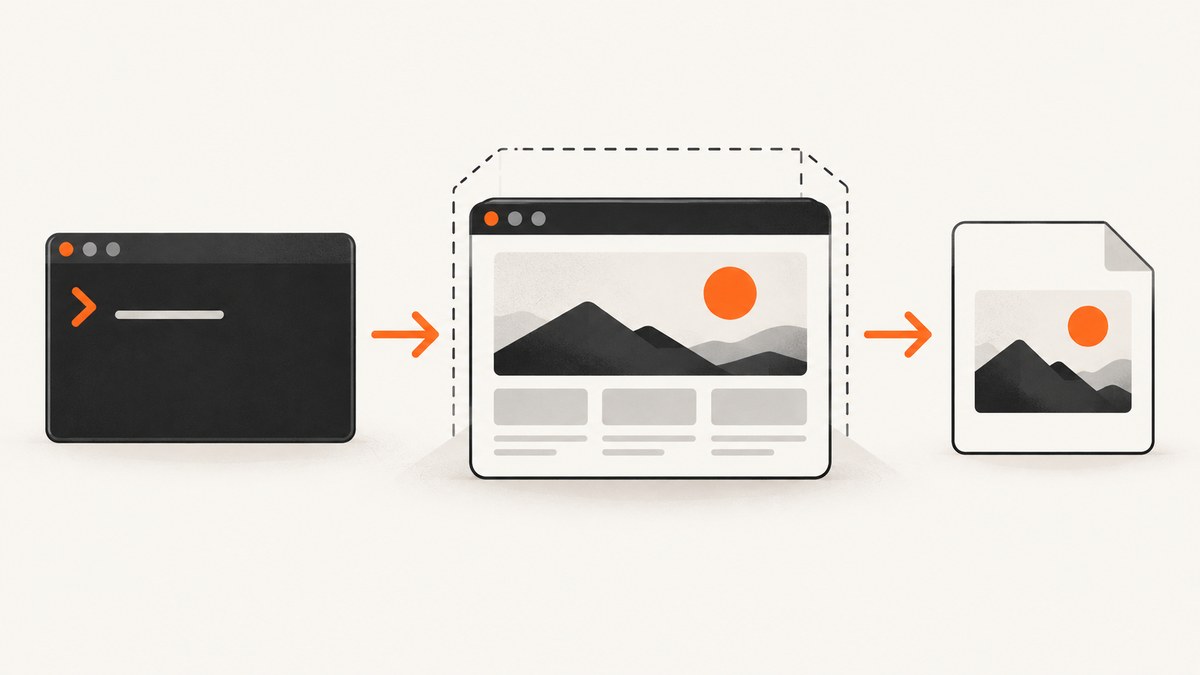
Short answer: use Playwright CLI when you need browser choice, element or full-page capture, and repeatable workflows; use Chrome Headless for a fast one-command capture; use shot-scraper when your project is Python-oriented. All three render the page in a browser, so they capture the result a visitor sees rather than downloading the original HTML. If you want to avoid installing and maintaining a browser, ScreenshotNeo provides a single HTTP request that returns a PNG, JPEG, WebP, or PDF.
Choose the right command-line route
| Route | Best for | Setup | Capture controls |
|---|---|---|---|
| Playwright CLI | Repeatable browser workflows, selectors, full pages, device pixels | Node/npm plus Playwright browsers | Browser choice, element, viewport, full page, format, filename, high resolution |
| Chrome Headless | A quick single capture on a machine with Chrome installed | Chrome or Chromium executable | Headless mode, screenshot path, bounded timeout |
| shot-scraper | Python and shell workflows | pip package plus its browser install | URL capture and the options supported by the installed release |
| ScreenshotNeo | API, CI, bulk jobs, or no local browser maintenance | API key | 63 options including selectors, waits, blocking, headers, cookies, PDFs, caching, and webhooks |
For browser tooling, verify the version-specific installation requirements before scripting a production job. Playwright’s current installation page lists Node.js 22.x, 24.x, or 26.x, macOS 14 or later, and specific Debian and Ubuntu releases on x86-64 or arm64. Those requirements can change. The Playwright installation guide is the authority for your version.
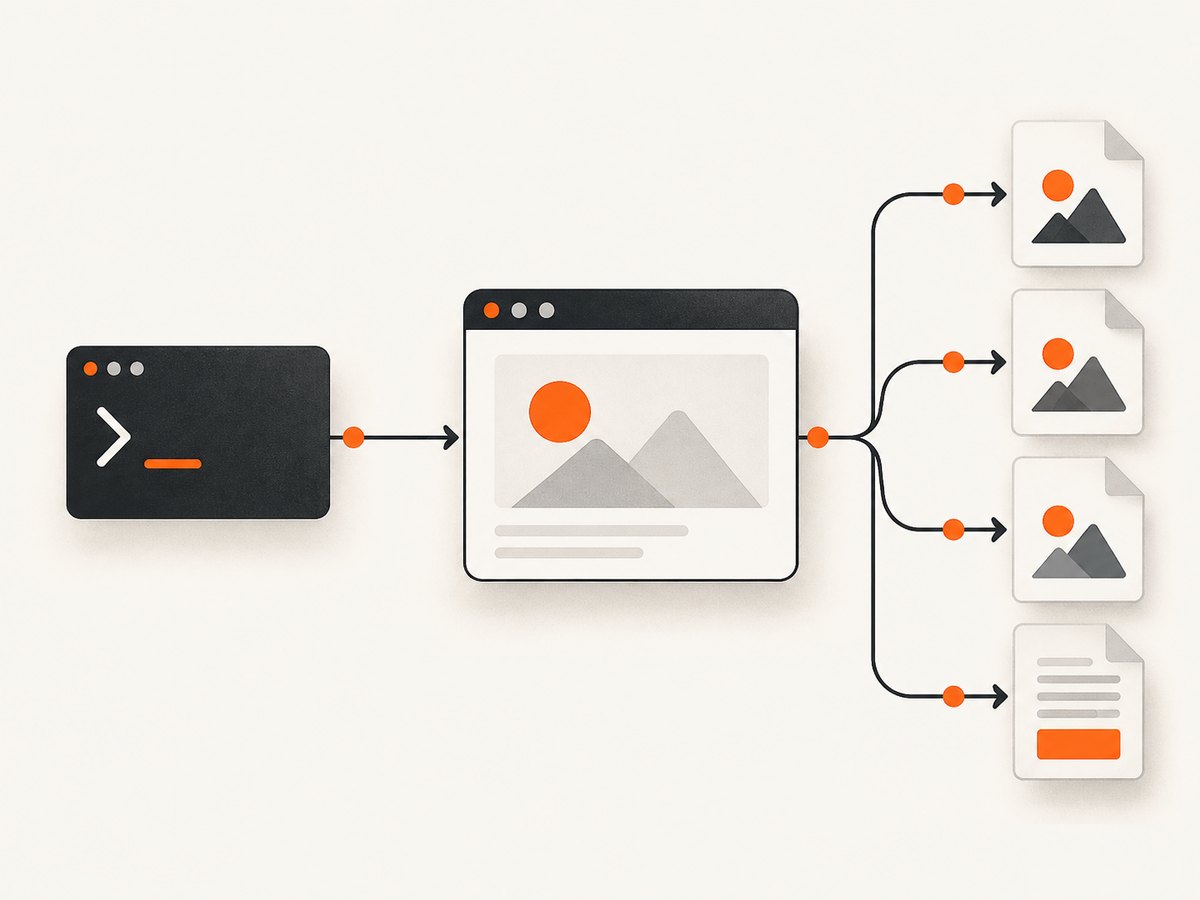
1. Playwright CLI: the most capable local workflow
Playwright’s documented CLI opens a page, keeps a browser session, and captures the current page. Install the CLI globally, then install the browsers required by your version:
npm install -g @playwright/cli@latest
playwright-cli install
The CLI runs headless by default. Add --headed when you need to see the browser while debugging. The reference supports Chromium, Firefox, WebKit, and Edge selection; check playwright-cli --help because optional flag names can change.
Basic viewport screenshot
playwright-cli open https://example.com
playwright-cli screenshot --filename=example.png
PNG is the documented default. Supply a filename with the extension you want for JPEG or WebP. Without a filename, the CLI writes a timestamped file in its output directory.
Full-page, element, and high-resolution captures
# Capture the entire scrollable page
playwright-cli screenshot --full-page --filename=example-full.png

# Capture one element (use the selector supported by your installed CLI)
playwright-cli screenshot --selector="main article" --filename=article.png

# Capture device pixels at a higher resolution
playwright-cli screenshot --hires --filename=example-hires.png
Full-page capture is useful for documentation and visual regression snapshots. Element capture avoids cropping an image later and is preferable when the page contains a dashboard or card you need independently. With --hires, output uses device-pixel resolution; coordinates no longer correspond directly to CSS pixels when you perform later mouse actions.
Browser choice and repeatable sessions
playwright-cli open --browser=firefox https://example.com
playwright-cli screenshot --filename=firefox.png
Use the CLI’s session and navigation commands to build a repeatable flow: open the URL, select or click an element, wait for the state you need, then capture. This is more reliable for authenticated pages and interactive menus than a single browser flag. Store authentication data only where your CI system protects it.
Dynamic pages need an explicit readiness condition. A screenshot command can run before a chart, font, lazy image, or consent dialog is ready. Prefer waiting for a stable selector or application state. A fixed delay is only a fallback because network and CPU speed vary.
Read the current Playwright screenshot reference for exact selector, format, and PDF syntax.
2. Chrome Headless: a compact one-command option
Chrome documents headless operation and the --screenshot flag. The executable name differs by platform, so use the Chrome binary installed on your machine.
# Linux example
google-chrome --headless --disable-gpu \
  --screenshot=example.png \
  https://example.com

# macOS example (adjust the application version/path as needed)
/Applications/Google\ Chrome.app/Contents/MacOS/Google\ Chrome \
  --headless \
  --screenshot=example.png \
  https://example.com
Chrome’s --timeout sets the maximum wait before capture, even if loading continues:
google-chrome --headless --timeout=10000 \
  --screenshot=example.png \
  https://example.com
This bounds a job; it does not prove that asynchronous content, animations, lazy images, or a consent dialog reached the intended state. If exact readiness matters, use a scripted browser condition such as a selector becoming visible, then call the screenshot command or Playwright API.
Chrome Headless is practical for a one-off viewport image. It becomes harder to manage when you need element targeting, browser matrix testing, authentication, clicks, request blocking, or deterministic waits. Chrome’s documentation also distinguishes browser rendering from retrieving source with curl: a source download cannot reproduce the final DOM and pixels.
See the Chrome Headless command-line reference for the current flags.
3. shot-scraper: a Python-oriented command
The shot-scraper project describes itself as “A command-line utility for taking automated screenshots of websites.” The cited quick-start documentation is release 0.14, so check the live project documentation before relying on option names in a new deployment.
python -m pip install shot-scraper
shot-scraper install
shot-scraper https://datasette.io/
The documented example creates datasette-io.png. Installing the Python wrapper and installing its browser runtime are separate steps. In a virtual environment:
python -m venv .venv
. .venv/bin/activate
python -m pip install shot-scraper
shot-scraper install
shot-scraper https://example.com
Use shot-scraper when the surrounding automation already runs in Python or when you want a small shell command around a Python package. For selectors, waits, authentication, and browser-specific behavior, consult the documentation for the exact release installed rather than copying examples from the 0.14 PDF unchanged.
The versioned quick start is available in the shot-scraper 0.14 documentation.
4. Make captures reproducible
A useful screenshot script controls the variables that otherwise create noisy diffs:
- Set a fixed viewport and device scale factor.
- Use the same browser engine and version in local development and CI.
- Wait for a meaningful selector, not an arbitrary sleep, when the page is dynamic.
- Disable animations or add a short, documented settling delay when motion changes pixels.
- Use a fixed timezone, locale, and authentication state when the page displays localized or personalized content.
- Choose full-page capture only when you need content below the fold; it can create very tall files.
- Give every output an explicit filename and retain the command, browser version, URL, and timestamp as metadata.
For pages behind a login, pass credentials through your browser tool’s secure storage or environment variables. Never put tokens directly into a shell history or committed script. A page that rejects automation may show a bot check or an empty shell; treat that as a capture failure instead of silently accepting the image.
5. Output formats, pixels, and files
| Need | Choice | Trade-off |
|---|---|---|
| Lossless UI or text | PNG | Larger files, crisp text |
| Smaller photographic image | JPEG | Lossy compression and no transparency |
| Modern web delivery | WebP | Check downstream decoder support |
| Print or archival layout | Pagination and paper dimensions require separate decisions | |
| Retina review | High-resolution/device pixels | More memory and larger files; CSS coordinates differ |
For a full page, verify that fixed headers, sticky elements, and lazy-loaded images behave as expected. A browser may capture a repeated sticky header at every scroll segment or miss images that load only after scrolling unless the tool explicitly handles lazy content.
6. Troubleshooting common failures
“Command not found”
Cause: the package or browser executable is not on PATH. Fix: activate the virtual environment, verify the global npm bin directory, or use the absolute Chrome path. Confirm with which playwright-cli, which shot-scraper, or your platform’s equivalent.

Browser executable is missing
Cause: installing a wrapper did not install its browser runtime. Fix: run the documented Playwright browser install or shot-scraper install, then check the package’s version-specific requirements.
The image is blank or only contains a loading shell
Cause: capture happened before hydration, a blocked request, an authentication redirect, or a bot check. Fix: inspect the final URL and console/network errors, wait for a content selector, provide required headers or cookies, and fail the job when the expected selector never appears.
Lazy images are missing
Cause: the page loads images only after scrolling or intersection events. Fix: use a full-page mode that scrolls the document, explicitly scroll in a script, or wait until image elements report a loaded state.
Different pixels on every run
Cause: animations, ads, rotating content, fonts, timezones, or responsive width changes. Fix: freeze animation, block unstable third-party requests where appropriate, set viewport and timezone, wait for web fonts, and compare only after the page reaches a defined state.
Timeouts in CI
Cause: cold browser startup, slow DNS, resource limits, or a page that never finishes loading. Fix: use a bounded timeout, wait for a specific readiness condition instead of network idle alone, increase CI memory, and record the URL and final error. Retries help transient failures but cannot repair a deterministic bot block.
Full-page output is too large
Cause: a long document at a high device scale factor. Fix: capture a target element, use normal resolution, split the page into sections, or emit PDF when the consumer needs pagination.
7. Performance, reliability, and cost
Local browser capture has a startup cost and consumes CPU, memory, and disk. Reuse a browser process for batches, limit concurrency to what the machine can handle, and clean temporary profiles. Parallel jobs can overload a small CI runner and make rendering less deterministic. Cache dependencies and browser binaries in CI, but invalidate them when upgrading the tool or browser.
Chrome’s timeout is a safety bound, not a readiness guarantee. Playwright’s explicit interactions and selectors generally make complex flows easier to reason about. shot-scraper keeps a Python workflow simple, but its cited documentation is older, so pin and verify the installed version.
For an API workflow, ScreenshotNeo bills only clean shots. Bot checks or CAPTCHAs, blank pages, timeouts, failed loads, and cache hits cost nothing, and each response identifies the result with X-Page-Verdict and X-Billed headers. Plans include 1,000 free shots per month with no card, then Starter at $5 for 3,000, Growth at $15 for 15,000, Pro at $39 for 60,000, Scale at $99 for 250,000, and Business at $249 for 1,000,000. Yearly billing gives two months free, and every feature is included on every plan.
Or skip the browser setup
ScreenshotNeo is a website screenshot API and MCP server. Send one GET request to https://api.screenshotneo.com/v1/shot and save the response. The complete option list and response details are in the ScreenshotNeo API docs.
curl -G "https://api.screenshotneo.com/v1/shot" -d access_key=YOUR_API_KEY --data-urlencode url=https://stripe.com -o shot.webpimport requests
r = requests.get("https://api.screenshotneo.com/v1/shot", params={"access_key": "YOUR_API_KEY", "url": "https://stripe.com"}, timeout=90)
open("shot.webp", "wb").write(r.content)const q = new URLSearchParams({ access_key: 'YOUR_API_KEY', url: 'https://stripe.com' });
const res = await fetch(`https://api.screenshotneo.com/v1/shot?${q}`);ScreenshotNeo removes cookie and consent banners, newsletter popups, and chat widgets before the shot. Failed loads, blank pages, bot checks, CAPTCHAs, timeouts, and cache hits are never billed. You can still control the capture with full-page mode, element selectors, dark mode, device presets or any viewport, retina scale, custom CSS and JavaScript, clicks, waits, blocked resources, headers, cookies, user agents, authorization, timezone, geolocation, transparent backgrounds, resizing, chosen cache TTL, signed image links, asynchronous jobs, signed webhooks, bulk capture for up to 100 URLs per call, usage reporting, and PDF settings. Its MCP server gives Claude, Cursor, and other MCP clients take_screenshot, get_page_info, and capture_pdf tools.
Create a free ScreenshotNeo account for 1,000 screenshots a month with no card. Paid plans start at $5 for 3,000 shots.
8. Practical decision checklist
- Choose Playwright CLI for selectors, full-page capture, multiple browser engines, and interactive flows.
- Choose Chrome Headless for a quick command on a machine that already has Chrome.
- Choose shot-scraper when pip and Python are already part of your automation.
- Choose ScreenshotNeo when you need an HTTP API, bulk or asynchronous work, clean output, usage headers, or an MCP server.
- Pin versions, record readiness conditions, and treat blank or blocked pages as failures.
FAQ
Can curl take a screenshot?
No. curl retrieves bytes such as HTML; it does not execute the browser layout, JavaScript, fonts, or images needed to produce rendered pixels. Use a headless browser or an image API.
Which option works on both Linux and macOS?
Playwright supports Linux and macOS according to its installation documentation. Chrome Headless works wherever a compatible Chrome or Chromium binary is installed. shot-scraper follows the Python and browser support of its installed release.
Should I use a fixed sleep?
Only as a fallback. A selector or application readiness signal describes the state you need; a fixed delay only guesses how long that state will take.
How do I capture only one component?
Use Playwright CLI’s element targeting or a scripted locator. ScreenshotNeo also accepts a CSS selector for one element.
What should a CI job save when capture fails?
Save the command version, browser version, URL, final URL, timeout, console or network errors, and a diagnostic screenshot or HTML snapshot when policy permits. This distinguishes a page failure from an environment failure.


