How to Compare Appium Screenshots with a Reference Image
Compare Appium screenshots with baselines using aligned dimensions, OpenCV matching modes, calibrated thresholds, and useful visual diffs.

Short answer: capture the current screen with Appium, load the reference image, make both images use the same orientation, viewport, pixel dimensions, scale, and crop, then compare them with the matching mode that fits your image relationship. Use similarity matching for two equal-size screens, occurrence matching when a smaller reference should appear inside a larger screenshot, and feature matching when scale or rotation can vary. Treat the score as a signal that must be calibrated against representative baselines, not as a universal quality percentage.
Appium’s documented image-comparison features use OpenCV. They can calculate a similarity score and produce visualization output for diagnosing failures. Appium’s documentation lists OpenCV 3 or newer native libraries, the opencv4nodejs npm module, and Appium Server 1.8.0 or newer for the documented stack. Appium 2 exposes image comparison through its images plugin and the POST /session/:sessionId/appium/compare_images command. See the Appium image comparison documentation and the Appium plugin API reference for the version-specific setup.
1. Decide what “matching” means
Before writing an assertion, identify the relationship between the two images. This determines the algorithm and prevents misleading failures.
| Scenario | Recommended mode | What it answers |
|---|---|---|
| Current screen and baseline are the same size and should show the same screen | Similarity | How similar are these two complete images? |
| A small reference, such as an icon or dialog, should occur inside a larger screenshot | Occurrence | Where does this template appear, and how strong is the match? |
| The reference may be rotated or scaled compared with the screenshot | Feature | Can distinctive features be matched despite geometric changes? |
Similarity matching expects equal-size images. Occurrence matching searches for a smaller image inside a larger one. Feature matching is useful when rotation or scale differences are expected, but it can be less deterministic than a controlled full-screen comparison. Keep the mode explicit in test code so a future change in device configuration does not silently change the meaning of a test.
2. Make the screenshots comparable
Most visual-regression failures are geometry failures. A screenshot captured in portrait cannot be compared directly with a landscape baseline. A device-pixel image cannot be compared reliably with a logical-pixel image unless both are normalized. The same applies to status bars, navigation bars, safe areas, browser chrome, and a crop that starts at a different coordinate.
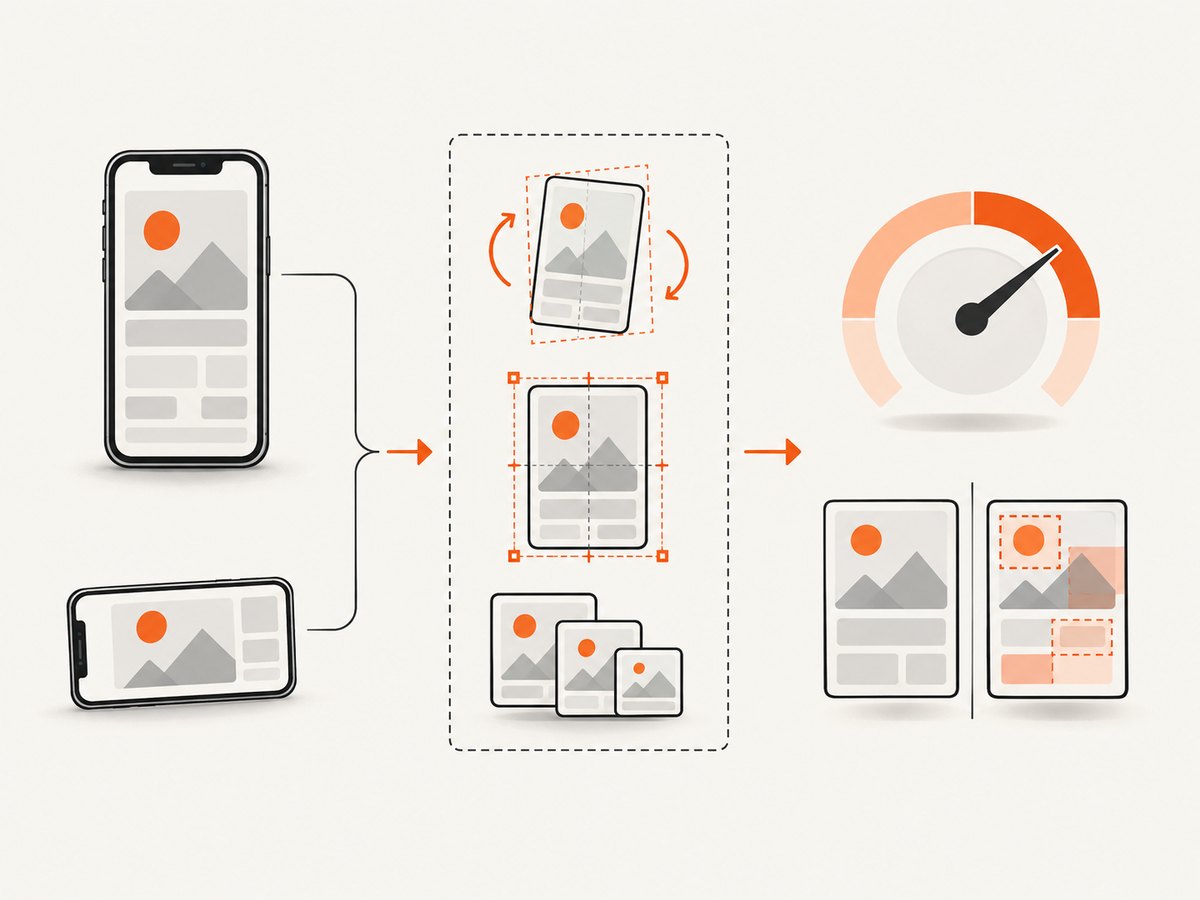
Control these properties
- Orientation: set portrait or landscape before both captures.
- Viewport and device: use the same simulator or device profile, window size, and OS version where possible.
- Pixel dimensions: compare identical width and height for similarity mode.
- Scale: account for device pixel ratio and any reference-template scaling setting.
- Crop: remove or include system bars consistently.
- State: use deterministic test data, locale, timezone, permissions, and network responses.
Appium’s image settings document options for fixing screenshot dimensions, resizing an oversized template, and scaling a reference template to the screenshot scale. Read those settings before introducing your own resize step: resizing can make two images comparable, but it can also hide a genuine layout regression if the aspect ratio is changed.
Normalize with Python and Pillow
The following helper enforces a strict size check and optionally crops the same rectangle from both images. It does not stretch an image; a mismatch fails early so the test reports a configuration problem rather than a low visual score.
from pathlib import Path
from PIL import Image


def load_aligned(reference_path, current_path, crop=None):
    reference = Image.open(reference_path).convert("RGB")
    current = Image.open(current_path).convert("RGB")

    if crop:
        # crop = (left, top, right, bottom)
        reference = reference.crop(crop)
        current = current.crop(crop)

    if reference.size != current.size:
        raise ValueError(
            f"Image dimensions differ: reference={reference.size}, "
            f"current={current.size}. Fix orientation, viewport, scale, or crop."
        )
    return reference, current
3. Capture the current Appium screenshot
Appium clients expose a screenshot command that returns image bytes or a path, depending on the language binding. Save the bytes as PNG so the comparison input is lossless. JPEG compression can create small pixel changes around text and edges.
from pathlib import Path
from appium import webdriver
from appium.options.android import UiAutomator2Options

options = UiAutomator2Options()
options.platform_name = "Android"
options.automation_name = "UiAutomator2"
options.device_name = "emulator"
options.app = "/absolute/path/to/app.apk"

# Start the driver using the Appium server URL used by your environment.
driver = webdriver.Remote("http://127.0.0.1:4723", options=options)
try:
    # Navigate to a deterministic state before capturing.
    driver.get_screenshot_as_file("artifacts/current.png")
finally:
    driver.quit()

assert Path("artifacts/current.png").exists()
Capture only after the screen is stable. Wait for the view under test rather than sleeping for an arbitrary duration when your test can observe a reliable UI condition. If animations are part of the product, disable them or capture at a defined point in the animation lifecycle; otherwise identical test runs can differ by a frame.
4. Compare equal-size screenshots with OpenCV
For a full-screen baseline, a practical implementation is to load both PNGs, verify dimensions, calculate a normalized similarity score, and write a difference image. The example below uses OpenCV’s structural similarity implementation through scikit-image for a readable CI assertion. Appium’s own documented comparison stack is OpenCV-based; using this small Python wrapper is useful when you want the comparison in the same test process.
from pathlib import Path
import cv2
from skimage.metrics import structural_similarity as ssim


def compare_images(reference_path, current_path, diff_path):
    reference = cv2.imread(str(reference_path), cv2.IMREAD_COLOR)
    current = cv2.imread(str(current_path), cv2.IMREAD_COLOR)

    if reference is None or current is None:
        raise FileNotFoundError("Could not read one of the PNG files")
    if reference.shape != current.shape:
        raise ValueError(
            f"Shape mismatch: reference={reference.shape}, current={current.shape}"
        )

    ref_gray = cv2.cvtColor(reference, cv2.COLOR_BGR2GRAY)
    cur_gray = cv2.cvtColor(current, cv2.COLOR_BGR2GRAY)
    score, diff = ssim(ref_gray, cur_gray, full=True)

    # Convert the 0..1 difference map to a visible PNG.
    diff_image = ((1.0 - diff) * 255).clip(0, 255).astype("uint8")
    cv2.imwrite(str(diff_path), diff_image)
    return float(score)


score = compare_images(
    "baselines/login-android-portrait.png",
    "artifacts/current.png",
    "artifacts/login-diff.png",
)
threshold = 0.985  # Calibrate this value for your own baselines.
if score < threshold:
    raise AssertionError(
        f"Visual regression: score={score:.4f}, threshold={threshold:.4f}. "
        "Open artifacts/login-diff.png."
    )
print(f"visual score={score:.4f}")
This score is not Appium’s imageMatchThreshold; it is an example of a test-level metric. Appium documents an imageMatchThreshold default of 0.4 for image finding, with a range from 0 to 1, and explains that values between the endpoints have no absolute meaning. Calibrate any threshold empirically using accepted and rejected screenshots from the devices and OS versions you support.
5. Use Appium matching modes when you need them
Similarity matching
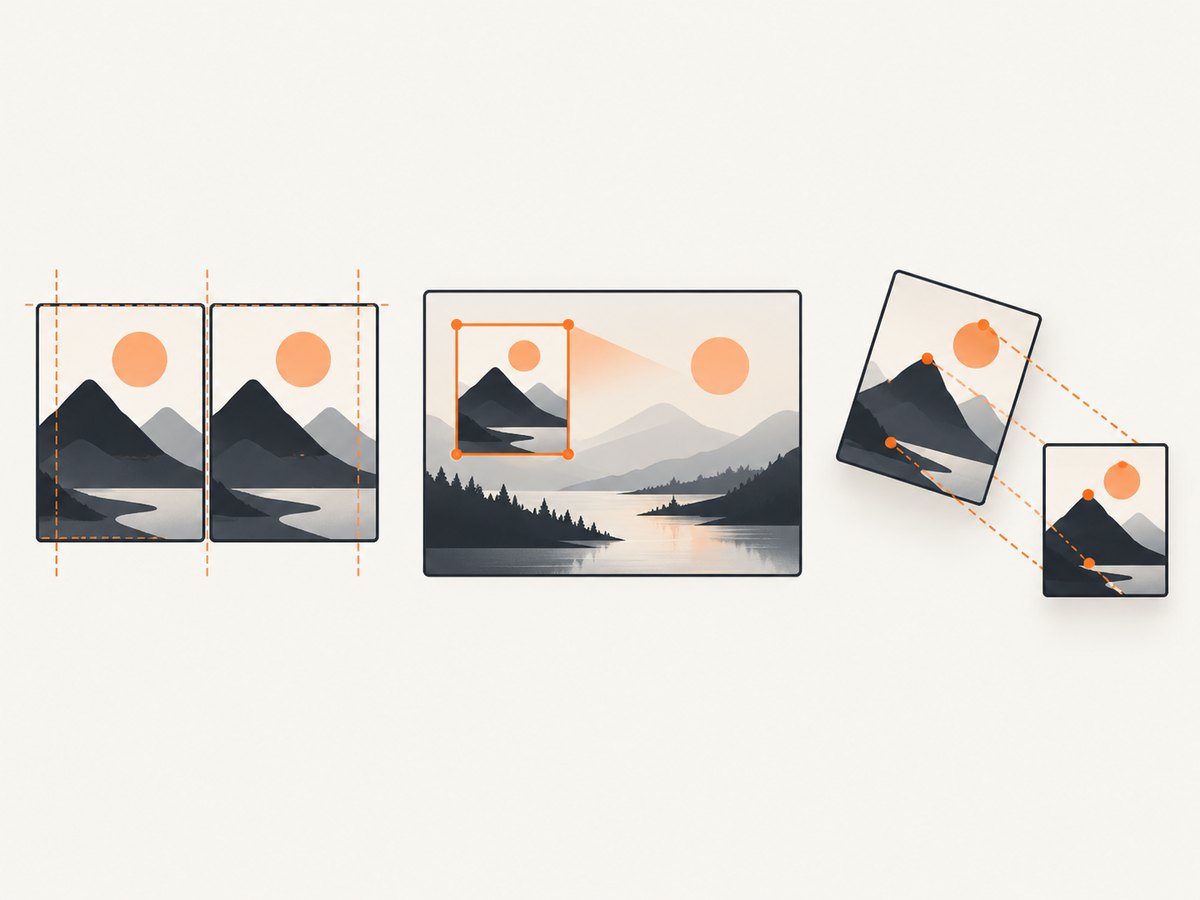
Use similarity when the reference and current screenshots represent the same complete screen and have equal dimensions. It is appropriate for a login screen, a checkout summary, or a settings page after the test has made content deterministic. Save the returned score and visualization with the test artifacts so a reviewer can see what changed.
Occurrence matching
Use occurrence matching when the reference is a smaller region expected to appear inside a larger screenshot. This is useful for checking that a warning icon, modal, or branded control is present without requiring the entire screen to be identical. Check the returned rectangle as well as the score: a match in an unexpected region can indicate that the UI moved.
Feature matching
Use feature matching when a reference and screenshot can differ in scale or rotation. It is a better fit for camera previews, maps, or content whose geometry is not fixed. Feature matching should still have a domain-specific assertion. A few matching points do not prove that the complete screen is correct.
Appium 2 compare-images command
With the images plugin installed and enabled, Appium 2 exposes a dedicated compare-images endpoint. The exact request shape depends on the plugin version, so use the installed plugin’s API documentation and inspect the response fields for the score, match rectangle, and visualization. Keep the server, driver, and plugin versions pinned in CI; an unplanned plugin upgrade can change image-processing behavior.
6. Build a maintainable baseline strategy
- Key baselines by environment. Include device model or simulator profile, OS version, orientation, app build, and locale in the baseline path.
- Make test data stable. Freeze dates, prices, user names, avatars, and remote content. Mask values that are intentionally dynamic.
- Review diffs as artifacts. Store the current image, reference, score, and visualization on every failure.
- Separate intentional updates. Update a baseline in a reviewable change that includes the reason and the affected test.
- Use regional checks when appropriate. Full-screen checks are strict; occurrence or cropped checks can isolate a component whose surrounding content changes.
A baseline should describe an expected rendering, not merely the last rendering produced by CI. Require a human review for baseline changes so a real regression cannot be accepted automatically.
7. Troubleshooting common failures
| Symptom | Likely cause | Fix |
|---|---|---|
| “Shape mismatch” or dimensions differ | Orientation, device scale, viewport, system bars, or crop differs | Capture both images under the same configuration; verify width and height before comparing. |
| Every test has a very low score | Images are shifted by a status bar, navigation bar, or scroll position | Align the crop and wait for the same screen state. Do not lower the threshold until geometry is correct. |
| Scores change between identical runs | Animation, asynchronous content, time, network data, or fonts are changing | Wait for a stable condition, disable animations, stub dynamic data, and install the same fonts. |
| Text produces noisy diffs | Font rasterization or device pixel ratio differs | Use the same OS and scale, or compare a region and threshold calibrated for supported devices. |
| Occurrence match is found in the wrong place | The template is common or the search area is too broad | Use a more distinctive reference, constrain the region, and assert the returned coordinates. |
| Feature matching accepts an incorrect screen | Too few distinctive features or a generic background | Require more matched evidence and combine the result with a region or state assertion. |
| OpenCV or plugin command is unavailable | Native libraries, opencv4nodejs, images plugin, or server version is missing |
Install the documented prerequisites, verify the plugin is enabled, and check server and client versions. |
| PNG visualization is empty | The response buffer was not written as binary data | Write the returned buffer directly to a file opened in binary mode and confirm the file is non-zero. |
8. Performance, reliability, and cost considerations
Image comparison cost is mostly CPU and I/O in your test infrastructure. Full-screen comparisons read and process every pixel, while a small occurrence template can reduce the work. Keep screenshots in PNG for fidelity, but avoid repeatedly converting the same baseline during a test run: load it once and reuse the decoded image.
Parallel device execution increases throughput but also increases baseline storage and review volume. Pin emulator images, Appium versions, OpenCV versions, and fonts to reduce unexplained drift. On failure, preserve enough context to reproduce the result: device identity, orientation, dimensions, app build, test data revision, score, and visualization.
Do not treat a threshold as a reliability guarantee. A strict threshold catches small changes but increases false positives from rendering variation. A loose threshold reduces noise but can hide defects. Start with representative passing and intentionally failing examples, then document the selected value per screen or test family.
Or skip the browser setup
If your workflow needs screenshots of web pages rather than an Appium-controlled mobile app, ScreenshotNeo returns a screenshot or PDF from one GET request. Its capture can accept cookie or consent banners before the shot and remove more than 60 known consent platforms, newsletter popups, and chat widgets. Each step can be turned off.
Only clean shots are billed. Bot checks or CAPTCHAs, blank pages, timeouts, failed loads, and cache hits cost nothing, and the response identifies the result with X-Page-Verdict and X-Billed headers. ScreenshotNeo also provides an MCP server with take_screenshot, get_page_info, and capture_pdf tools for Claude, Cursor, and other MCP clients.
See the ScreenshotNeo API documentation for all options. This is a complete cURL example:
curl -G "https://api.screenshotneo.com/v1/shot" \
  -d access_key=YOUR_API_KEY \
  --data-urlencode url=https://stripe.com \
  -o shot.webp
Python:
import requests

r = requests.get(
    "https://api.screenshotneo.com/v1/shot",
    params={"access_key": "YOUR_API_KEY", "url": "https://stripe.com"},
    timeout=90,
)
r.raise_for_status()
open("shot.webp", "wb").write(r.content)
Node.js:
const q = new URLSearchParams({
  access_key: 'YOUR_API_KEY',
  url: 'https://stripe.com'
});
const res = await fetch(`https://api.screenshotneo.com/v1/shot?${q}`);
if (!res.ok) throw new Error(`Screenshot failed: ${res.status}`);
const bytes = Buffer.from(await res.arrayBuffer());
await import('node:fs/promises').then(fs => fs.writeFile('shot.webp', bytes));
ScreenshotNeo supports full-page capture with lazy images loaded, CSS-selector element capture, dark mode, device presets or custom viewports, retina scale, PDF paper settings, custom CSS and JavaScript, clicks, waits, request blocking, headers, cookies, user agents, authorization, timezone, geolocation, transparent backgrounds, resizing, caching with a chosen TTL, signed links, asynchronous jobs with signed webhooks, bulk capture of up to 100 URLs per call, and a usage API. Its parameter names are compatible with those used by other screenshot APIs, which makes switching easier.
The Free plan includes 1,000 screenshots per month with no card. Paid plans start at $5 for 3,000 shots; yearly billing gives two months free, and every feature is available on every plan. Create a free ScreenshotNeo account and start with the 1,000 included screenshots.
FAQ
What threshold should I use?
There is no universal value. Appium documents 0.4 as the default imageMatchThreshold for image finding and a 0-to-1 range, but recommends empirical tuning. Build a set of accepted and rejected examples for each supported environment.
Should I compare pixels or use structural similarity?
Pixel comparison is strict and useful when rendering is fully controlled. Structural or OpenCV-based methods tolerate minor rasterization differences. Choose the strictness that matches the risk of the screen and validate it against real failures.
How do I test a component inside a changing screen?
Use occurrence matching with a smaller reference, or crop a stable region and use similarity matching. Also assert the location when placement matters.
Why keep baselines per device and OS?
Font rendering, system bars, scale, and native controls can change across devices and OS versions. Separate baselines make those differences explicit and reviewable.
Can Appium compare screenshots without OpenCV?
The documented Appium image-comparison feature is OpenCV-based and lists native OpenCV libraries and related modules as prerequisites. A separate test-level metric can be used, but it does not remove the need to normalize images first.


