How to Compare Only an Element Screenshot in Playwright
Compare one Playwright element with a baseline using locator screenshots, masks, stable rendering controls, tolerances, and CI troubleshooting.

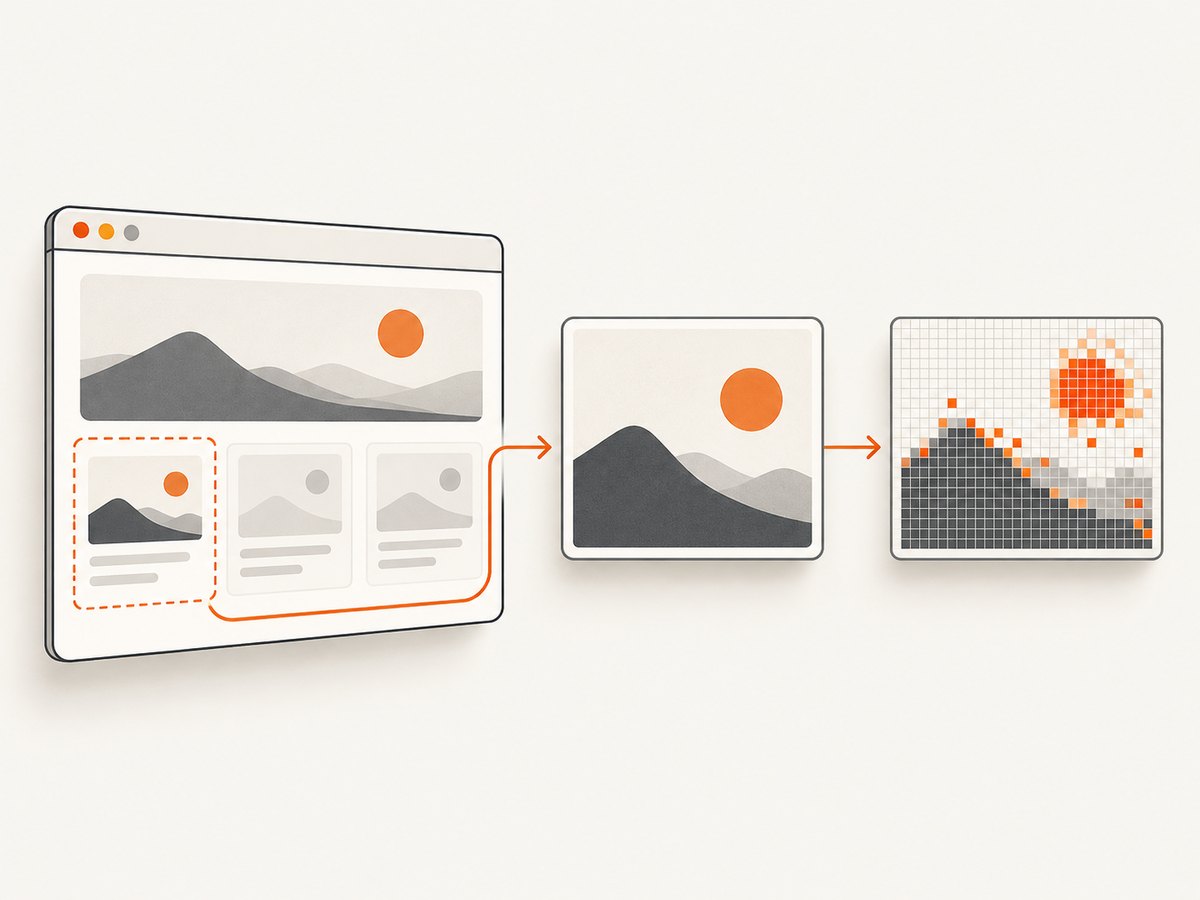
Use Playwright Test’s locator assertion when you need to compare one element instead of an entire page:
import { test, expect } from '@playwright/test';

test('element visual regression', async ({ page }) => {
  await page.goto('https://example.com');
  const card = page.getByTestId('profile-card');
  await expect(card).toHaveScreenshot('profile-card.png');
});
expect(locator).toHaveScreenshot() captures only the locator’s bounds, waits for two consecutive screenshots to be identical, and compares the final image with a stored expectation. It is a Playwright Test runner assertion, so run it with Playwright Test rather than a bare browser script. The API was added in Playwright 1.23. See the LocatorAssertions documentation.
Why compare an element instead of the whole page?
Whole-page snapshots are useful when every region belongs to the visual contract. They are noisy when a page contains rotating promotions, timestamps, ads, analytics widgets, or unrelated layout changes. A locator screenshot narrows the contract to the component you own: a profile card, checkout summary, navigation menu, chart, or modal.
Element-level comparisons usually produce smaller baseline files, clearer diffs, and failures that point directly to the component that changed. They also let different teams update independent visual baselines without touching the rest of the page.
Set up a complete Playwright element comparison
- Install Playwright Test.
npm init playwright@latestChoose TypeScript or JavaScript, install the browsers, and keep the generated
playwright.configunder version control. - Give the target a stable locator. Prefer
getByTestId, an accessible role and name, or another selector that represents the component’s contract. Avoid selectors based on generated class names or DOM position. - Create the test.
import { test, expect } from '@playwright/test'; test('profile card matches its baseline', async ({ page }) => { await page.goto('https://example.com/profile'); const card = page.getByTestId('profile-card'); await expect(card).toHaveScreenshot('profile-card.png'); }); - Run it once to create the expectation.
npx playwright test tests/profile-card.spec.ts --update-snapshots - Run without the update flag in CI.
npx playwright test tests/profile-card.spec.ts
Playwright stores the expected image in a snapshot directory whose name includes the test and project. Commit that file. A later run fails when the rendered locator image differs beyond the configured tolerance and writes the actual and diff images for review.
Capture an element without comparing it
If you only need an image file, call Locator.screenshot. It clips the page to the size and position of the matched element.
import { test } from '@playwright/test';

test('save profile card', async ({ page }) => {
  await page.goto('https://example.com/profile');
  const card = page.getByTestId('profile-card');
  await card.screenshot({
    path: 'artifacts/profile-card.png',
    animations: 'disabled',
  });
});
Use this output for documentation, visual reports, or a later comparison with expect(await page.screenshot()).toMatchSnapshot(). The direct screenshot method is documented in the Locator API.
Make the comparison deterministic
A screenshot test is only useful when the same input produces the same pixels. Stabilize the page before the assertion and control the rendering environment.
Disable motion
Screenshot assertions disable CSS animations, CSS transitions, and Web Animations by default. Set the option explicitly for direct locator captures:
await expect(card).toHaveScreenshot('profile-card.png', {
  animations: 'disabled',
});

await card.screenshot({
  path: 'profile-card.png',
  animations: 'disabled',
});
If a component still moves because JavaScript changes its state, wait for the final state or add a test-only switch that freezes the animation.
Mask changing regions
Mask timestamps, random avatars, rotating prices, or live counters. A mask covers the bounding box of every matched element; it can also cover an invisible match unless your locator is restricted to visible elements.
const card = page.getByTestId('profile-card');
const updated = page.getByTestId('last-updated');

await expect(card).toHaveScreenshot('profile-card.png', {
  mask: [updated],
  maskColor: '#ff00ff',
});
Choose a mask color that is easy to recognize in diffs. Do not mask an entire component just to make a flaky test pass; mask only data that is intentionally nondeterministic.
Hide the caret and focus state when appropriate
The assertion default is caret: 'hide', which prevents a blinking text caret from changing pixels. If focus styling is part of the component contract, focus the control deliberately and keep that state in the baseline. Otherwise, remove accidental focus before capture.
Wait for content and layout
Wait for the data that defines the component, not an arbitrary long delay. For example:
await page.goto('https://example.com/profile');
await page.getByTestId('profile-card').waitFor();
await page.getByTestId('profile-name').waitFor();
await expect(page.getByTestId('profile-card')).toHaveScreenshot('profile-card.png');
For images, wait until the relevant image has loaded. For fonts, wait for document.fonts.ready when web fonts affect line wrapping:
await page.evaluate(() => document.fonts.ready);
await expect(card).toHaveScreenshot('profile-card.png');
Freeze the rendering environment
- Use the same Playwright browser version in local development and CI.
- Keep viewport dimensions and device scale factor fixed.
- Install the same fonts on every runner.
- Use fixed locale, timezone, color scheme, and reduced-motion settings when they affect output.
- Seed test data and mock clock or network responses for values that change.
Playwright exposes screenshot scale and related rendering options, but it does not promise automatic normalization of every environmental difference. Store browser and operating-system choices in your project configuration and update baselines intentionally.
Control acceptable pixel differences
Use tolerances only for known rendering noise. A tolerance that is too broad can hide a real regression.
await expect(card).toHaveScreenshot('profile-card.png', {
  animations: 'disabled',
  caret: 'hide',
  mask: [page.getByTestId('last-updated')],
  maxDiffPixelRatio: 0.01,
});
maxDiffPixels sets an absolute pixel count. maxDiffPixelRatio is a ratio from 0 to 1. threshold controls per-pixel color distance. Start with no tolerance, inspect legitimate antialiasing differences, and add the smallest value that represents your supported environments.
Do not use a tolerance to cover layout shifts, missing text, wrong colors, or a component that renders intermittently. Fix the input or synchronization problem instead.
Element screenshot patterns
Compare several components independently
test('dashboard components', async ({ page }) => {
  await page.goto('https://example.com/dashboard');

  await expect(page.getByTestId('summary-card'))
    .toHaveScreenshot('summary-card.png');
  await expect(page.getByTestId('activity-list'))
    .toHaveScreenshot('activity-list.png');
});
Independent assertions make failures easier to triage and allow a change to one component without rewriting unrelated snapshots.
Use a locator for a specific item
const rows = page.getByRole('row');
const invoice = rows.filter({ hasText: 'INV-1007' });
await expect(invoice).toHaveScreenshot('invoice-row.png');
Make sure the locator resolves to exactly the intended element. Strict locator errors usually mean the selector matches multiple nodes; refine it with filter, nth, or a test id.
Compare a screenshot buffer
When you need to transform or crop the image before comparison, capture a buffer and use a snapshot assertion:
const buffer = await card.screenshot({ animations: 'disabled' });
expect(buffer).toMatchSnapshot('profile-card.png');
This pattern is useful for custom image processing, but the locator assertion is simpler when you only need the rendered element.
Or skip the browser setup
If you need a clean element or page image in a build, report, or asset pipeline, ScreenshotNeo provides a website screenshot API. You can keep Playwright for in-browser interaction and use the API when managing browser binaries and capture infrastructure is unnecessary.
For a one-call capture, see the ScreenshotNeo API documentation:
curl -G 'https://api.screenshotneo.com/v1/shot' \
  -d access_key=YOUR_API_KEY \
  --data-urlencode url=https://stripe.com \
  -o shot.webp
import requests
r = requests.get(
'https://api.screenshotneo.com/v1/shot',
params={
'access_key': 'YOUR_API_KEY',
'url': 'https://stripe.com',
},
timeout=90,
)
r.raise_for_status()
open('shot.webp', 'wb').write(r.content)const q = new URLSearchParams({
access_key: 'YOUR_API_KEY',
url: 'https://stripe.com',
});
const res = await fetch(`https://api.screenshotneo.com/v1/shot?${q}`);
if (!res.ok) throw new Error(`Screenshot failed: ${res.status}`);
const bytes = await res.arrayBuffer();
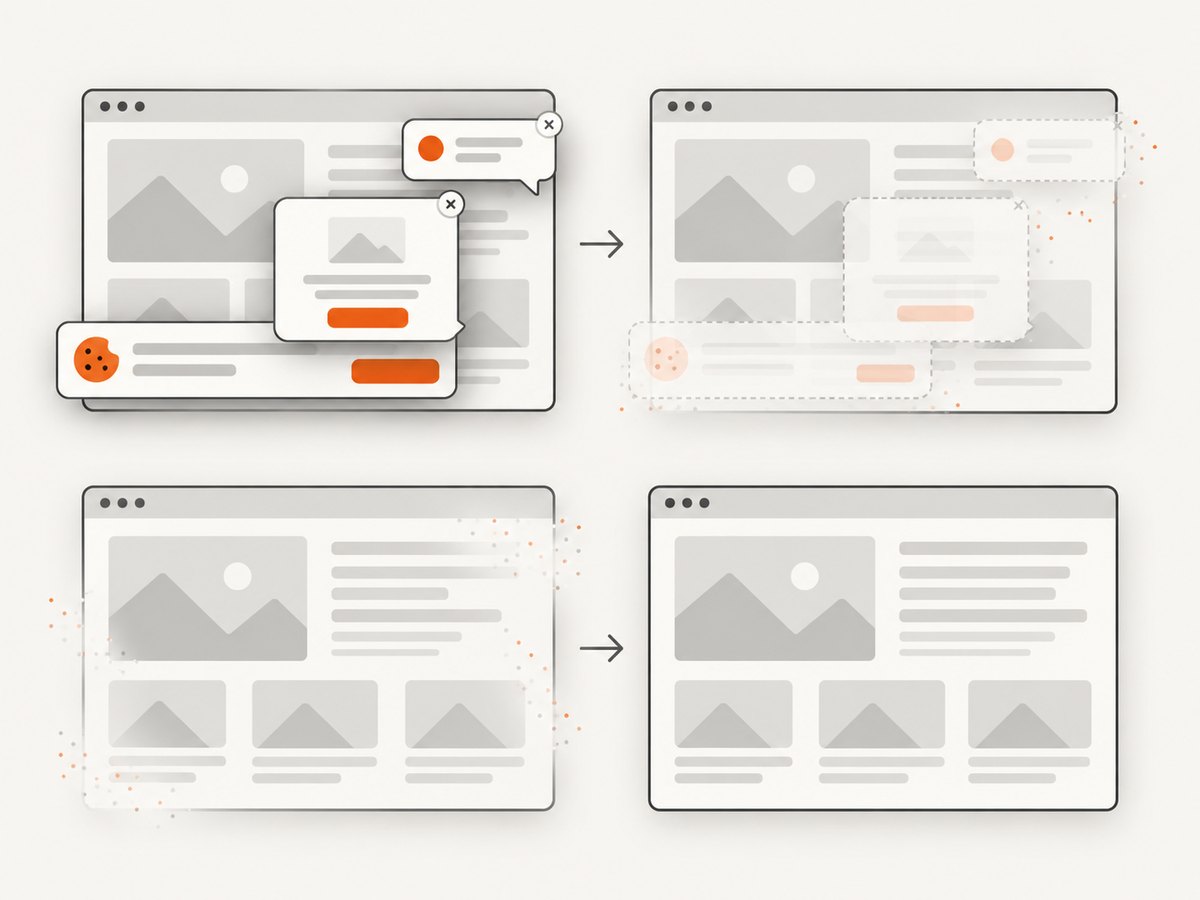
await Bun.write('shot.webp', bytes);ScreenshotNeo removes cookie banners, newsletter popups, and chat widgets before the shot. Bot checks, blank pages, timeouts, failed loads, and cache hits are not billed; response headers identify the page verdict and whether the request was billed. Its MCP server provides take_screenshot, get_page_info, and capture_pdf tools for Claude, Cursor, and other MCP clients. The free plan includes 1,000 screenshots per month with no card; paid plans start at $5 for 3,000 shots. Create a free ScreenshotNeo account.
Troubleshooting common failures
“Screenshot assertion only works with the Playwright test runner”
Cause: toHaveScreenshot is being called from a standalone script or another test framework.
Fix: Run the test with npx playwright test, or use locator.screenshot() in a custom script and compare the resulting file with another tool.
The locator matches multiple elements
Cause: The selector is not unique.
Fix: Add a test id, accessible name, or a filter. Confirm the count with await locator.count() before the assertion.
The screenshot changes on every run
Cause: Animations, live data, fonts, time, random content, or network responses are still changing.
Fix: Disable motion, mask dynamic regions, wait for fonts and images, freeze the clock, mock APIs, and use a fixed browser image.
Text wraps differently in CI
Cause: Different fonts, viewport width, device scale factor, or browser version.
Fix: Install and pin fonts, set the viewport explicitly, use the same Playwright version, and regenerate snapshots only after reviewing the diff.
The element is missing or has zero size
Cause: The component is behind a route guard, still loading, hidden by responsive CSS, or the locator points at a template node.
Fix: Navigate as the test user, wait for a visible state, set the intended viewport, and assert visibility before taking the screenshot.
Only a small antialiasing diff appears
Cause: Rendering differences between supported environments.
Fix: Standardize the environment first. If the difference is unavoidable, use a small maxDiffPixelRatio or threshold and document why.
Performance, reliability, and cost notes
Element screenshots are generally cheaper to review and store than full-page images because the captured region is smaller, but the browser still has to load and render the page. Keep tests fast by navigating once per test where practical, mocking slow third-party requests, and avoiding unnecessary waits. Parallelize independent tests only when their data and browser state are isolated.
Visual regression is most reliable when baselines are generated in a controlled CI image. Review snapshot updates as code changes: inspect the actual image and diff, confirm the intended component changed, and reject updates caused by missing data or a broken selector. Retain failed artifacts so a developer can distinguish a real UI change from an environment problem.
With ScreenshotNeo, cache hits and failed or unusable captures are not billed, and a TTL you choose can reduce repeated work for stable URLs. The service supports full-page capture, element selection by CSS selector, custom CSS and JavaScript, waits, blocking rules, headers and cookies, device presets, retina scale, and asynchronous jobs with signed webhooks. These options are useful when a remote capture must match the state your test expects.
FAQ
Can I compare an element against a baseline created outside Playwright?
Yes. Store the external image in the expected snapshot location with the same dimensions and format, then run toHaveScreenshot. Check that the image was rendered with the same browser, fonts, scale, and color settings.
Does locator screenshot include the element’s shadow DOM?
The capture follows the rendered pixels inside the locator’s bounds. Whether a locator can reach the target depends on how the component exposes its shadow DOM; use Playwright’s supported shadow DOM locators or a test id exposed on the host.
Should I use a full-page screenshot for a component test?
Use a locator assertion when the component is the visual contract. Use a page assertion when relationships across the whole page, such as layout and navigation, are what you need to protect.
How often should snapshots be updated?
Update them in the same change that intentionally changes the UI. Never run snapshot updates automatically after every failure; review the diff and the cause first.


