How to Visually Compare Two Iframes with Screenshot Differences
Use Playwright frame locators and screenshot baselines to compare iframe rendering reliably, control visual noise, and diagnose real regressions.
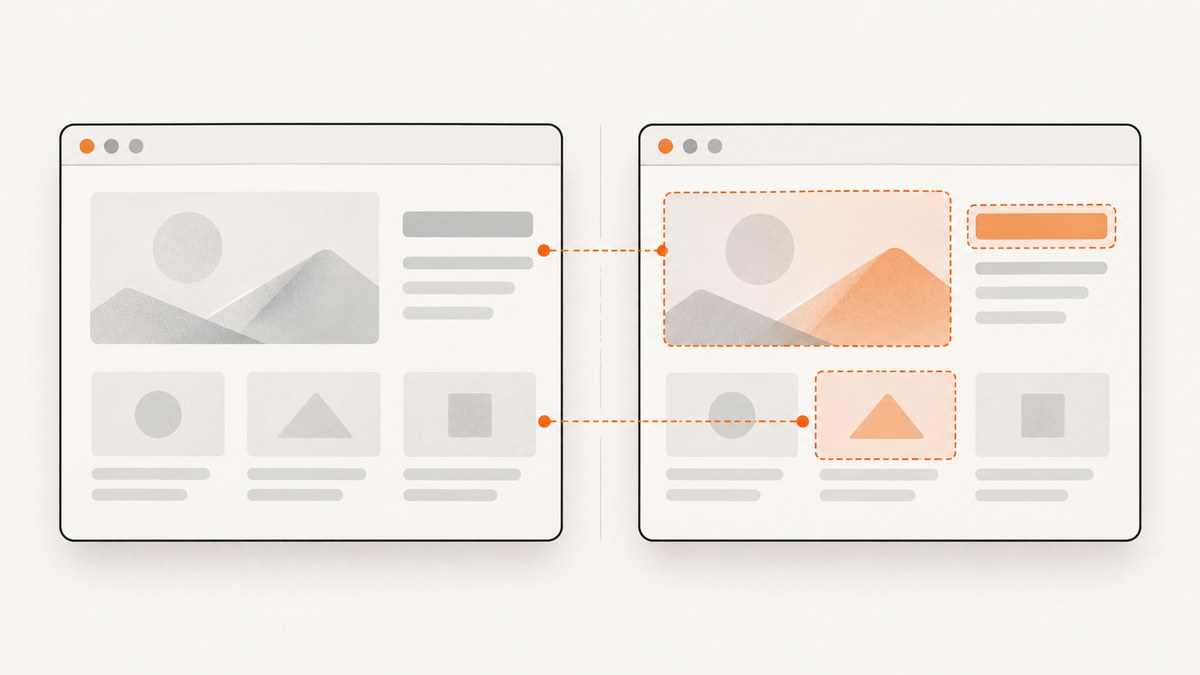
Use Playwright’s visual assertions to compare iframe content. Select the frame with page.frameLocator(), wait for the target content to be visible and stable, then call toHaveScreenshot() on either the whole page or a locator inside the iframe. The first run creates a baseline; later runs compare the rendered pixels with that reference.
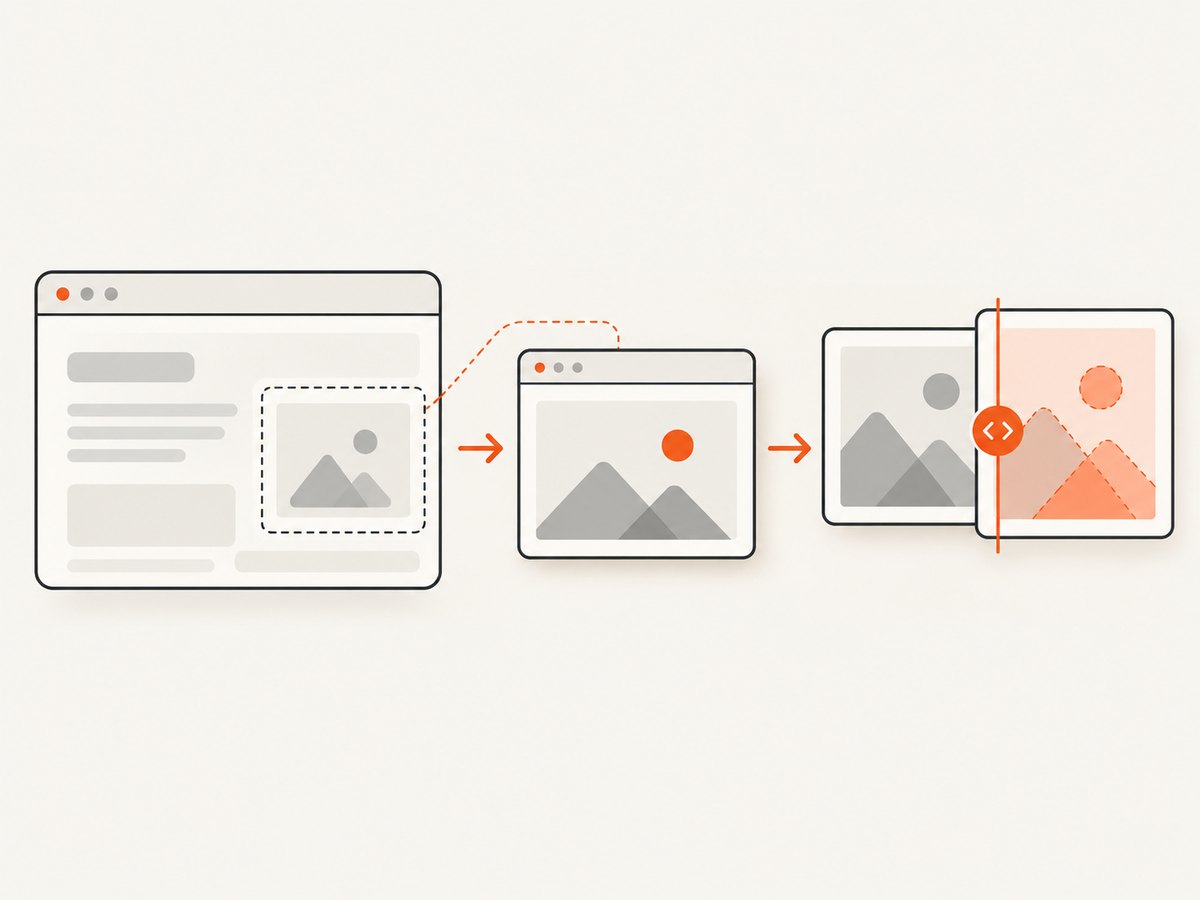
The important design decision is scope. Capture the whole page when the iframe’s placement, size, border, and surrounding shell are part of the visual contract. Capture a locator inside the iframe when you need to test one component and want to exclude unrelated page UI. Keep browser, operating system, viewport, fonts, data, and timing consistent so differences represent product changes rather than rendering noise.
1. Set up an iframe screenshot comparison
Install Playwright Test in an existing project or create a new one:
npm init playwright@latestThe following test follows the documented iframe pattern. Replace the URL, iframe selector, readiness condition, and baseline filename with values from your application.
import { test, expect } from '@playwright/test';

test('iframe component matches its visual baseline', async ({ page }) => {
  await page.goto('https://example.test/page-with-iframe');

  const frameContent = page
    .frameLocator('iframe[name="example-frame"]')
    .locator('.component-to-compare');

  await frameContent.waitFor({ state: 'visible' });
  await expect(frameContent).toHaveScreenshot('iframe-component.png');
});
frameLocator() scopes the chained locator to the selected frame. It is preferable to arbitrary sleeps because the assertion waits for the selected element to exist and become visible. Playwright documents the API and its frame behavior in the Page API reference.
Create and review the baseline
Run the test once to create the reference image:
npx playwright test tests/iframe-visual.spec.tsCommit the generated snapshot with the test. A later run compares the new screenshot to that stored file and reports actual, expected, and diff images when they differ. Treat a baseline as a reviewed test artifact: it defines the intended pixels for a particular browser and environment.
When a design change is intentional, regenerate snapshots explicitly:
npx playwright test --update-snapshotsInspect the new image before committing it. The update command accepts the new rendering; it does not decide whether the change is correct.
2. Choose the right comparison scope
| Target | Use it when | Trade-off |
|---|---|---|
| Whole page | The iframe shell, surrounding layout, dimensions, and integration are part of the requirement. | Unrelated page content can add noise and make failures harder to interpret. |
| Iframe element | You need to check the rendered frame boundary and its visible contents as one unit. | It does not verify details outside the iframe, such as parent-page controls. |
| Child locator inside the iframe | A specific component is the visual contract. | It can miss iframe sizing, clipping, scrolling, and parent-page composition problems. |
| Screenshot bytes plus an external diff | Your pipeline needs custom image processing or a different comparison engine. | You must maintain the diff format, thresholds, and reporting workflow. |
For a whole-page assertion:
await expect(page).toHaveScreenshot('page-with-iframe.png');For the iframe element itself:
await expect(page.locator('iframe[name="example-frame"]'))
  .toHaveScreenshot('iframe-shell.png');
For a nested component, chain from frameLocator():
const chart = page
  .frameLocator('iframe[data-testid="analytics-frame"]')
  .locator('[data-testid="revenue-chart"]');

await chart.waitFor({ state: 'visible' });
await expect(chart).toHaveScreenshot('revenue-chart.png');
Choose the smallest scope that still represents the behavior you promise to protect. A component snapshot is efficient for component regressions; it cannot prove that the host page positions the iframe correctly.
3. Make iframe rendering deterministic
Screenshot assertions wait for consecutive screenshots to stabilize, but stable output still depends on the environment. Playwright warns that rendering can vary with the host operating system, browser version, settings, hardware, power source, and headless mode. Generate and compare baselines in the same CI image and browser version whenever possible.
Control viewport, browser, and device settings
import { defineConfig, devices } from '@playwright/test';

export default defineConfig({
  testDir: './tests',
  use: {
    baseURL: 'https://example.test',
    browserName: 'chromium',
    viewport: { width: 1440, height: 900 },
    deviceScaleFactor: 1,
    colorScheme: 'light',
    locale: 'en-US',
    timezoneId: 'UTC',
  },
});
Pin the Playwright browser binaries in CI and avoid generating a baseline on a laptop while comparing it on a different operating system. Keep font files installed and loaded from the same source. A fallback font changes glyph widths, line wrapping, and every pixel below the changed line.
Wait for the real readiness condition
Do not use a fixed delay as the primary synchronization mechanism. Wait for an iframe child that proves the required state is ready:
const frame = page.frameLocator('iframe[name="example-frame"]');
const readyPanel = frame.locator('[data-state="ready"]');

await readyPanel.waitFor({ state: 'visible' });
await expect(frame.locator('.dashboard')).toHaveScreenshot('dashboard.png');
If the frame loads data after becoming visible, wait for a stable application marker such as a completed status attribute, a known row count, or the disappearance of a loading element. The Microsoft Learn example similarly waits for an iframe child before making its screenshot assertion; its selectors are specific to that sample and should not be copied unchanged.
Freeze volatile inputs
- Use fixture data instead of live counts, timestamps, random IDs, or rotating advertisements.
- Disable CSS animations and transitions for the test when motion is not part of the contract.
- Move the pointer away from hover-sensitive controls or set the intended hover state deliberately.
- Use a fixed timezone, locale, viewport, and color scheme.
- Ensure web fonts finish loading before capture.
Mask only genuinely volatile regions. A broad mask can hide a real regression. Playwright supports screenshot options for masking and for controlling pixel differences; document why each mask exists.
4. Tune screenshot difference thresholds carefully
Playwright exposes a per-pixel threshold and an overall maxDiffPixelRatio. These controls address different problems: a per-pixel threshold permits small color variation at individual pixels, while a maximum ratio limits how much of the image may differ.
await expect(frameContent).toHaveScreenshot('iframe-component.png', {
  animations: 'disabled',
  maxDiffPixelRatio: 0.01,
  threshold: 0.2,
});
The values above mirror illustrative documentation settings, not a universal recommendation. Start with strict settings, inspect the diff, and relax one control only when you can explain the source of benign variation. If a one-pixel border moved because layout changed, increasing tolerance merely hides the defect.
When a failure occurs, inspect all three artifacts:
- Actual: what the current test rendered.
- Expected: the committed baseline.
- Diff: a visualization of changed pixels.
Classify the difference before changing code or thresholds. A changed product label may be intentional; a one-pixel shift caused by a fallback font is an environment problem; a missing iframe panel is a product regression.
5. Compare two iframe states explicitly
Snapshot testing normally compares one rendered state to a committed baseline. To compare two states in the same test, capture each state with a distinct name or obtain screenshot buffers for custom processing.
import { test, expect } from '@playwright/test';

test('signed-out and signed-in iframe states stay distinct', async ({ page }) => {
  await page.goto('/embedded-app');
  const frame = page.frameLocator('iframe#app');

  await frame.locator('[data-testid="login-form"]').waitFor();
  await expect(frame.locator('[data-testid="app-root"]'))
    .toHaveScreenshot('iframe-signed-out.png');

  await page.getByRole('button', { name: 'Sign in' }).click();
  await frame.locator('[data-testid="workspace"]')
    .waitFor({ state: 'visible' });
  await expect(frame.locator('[data-testid="app-root"]'))
    .toHaveScreenshot('iframe-signed-in.png');
});
If you need a raw image for another diff library, Playwright’s screenshot APIs can return bytes. Keep the capture conditions and image color handling consistent, then pass the buffers to the comparison tool selected by your team.
6. Troubleshoot common iframe diff failures
| Symptom | Likely cause | Fix |
|---|---|---|
| “Frame was not found” or locator timeout | The iframe selector is wrong, the frame is created later, or navigation replaced it. | Target a stable attribute, wait for the iframe element, and verify the frame URL and nesting. |
| Screenshot is blank | The capture ran before iframe content rendered, or the frame is cross-origin and still loading. | Wait for a visible child or application-ready marker inside the frame. |
| Only the outer page is captured | The assertion is attached to page when the intended target is inside the frame. |
Use page.frameLocator(...).locator(...) for the inner component. |
| Large text-only diff | Different fonts, font loading timing, locale, or device scale factor. | Use the same CI image, preload fonts, and pin locale and scale settings. |
| Diff changes on every run | Animations, timestamps, random data, ads, or network responses are changing. | Freeze data, disable motion, mock unstable requests, and mask only known volatile regions. |
| Unexpected scrollbars or clipping | The iframe viewport or element dimensions changed. | Assert the page when integration matters; otherwise set explicit dimensions and wait for layout completion. |
| Baseline update hides a bug | Snapshots were updated without reviewing the diff. | Revert the update, inspect actual/expected/diff, and commit a new baseline only with the intentional change. |
7. Performance, reliability, and cost considerations
Element screenshots usually process fewer pixels than full-page captures and produce smaller artifacts. Use component scope for fast feedback, then keep a smaller number of full-page tests for integration coverage. Parallel tests can reduce wall-clock time, but shared test data, rate limits, and session state must remain isolated.
Reliability improves when every test owns its setup: create deterministic records, wait for explicit readiness, and avoid depending on a third-party iframe that can change without notice. If the embedded provider is external, consider a controlled fixture or a contract test for provider availability and reserve pixel assertions for the rendering you control.
Store snapshots in version control and review them like source code. Large full-page images increase repository size; use focused snapshots where they represent the visual contract. Keep the browser version and operating-system image pinned so a routine infrastructure update does not produce thousands of unrelated diffs.
8. Or skip the browser setup
If you need a rendered image for a URL rather than a browser test suite, ScreenshotNeo provides a single screenshot API request. It can capture full pages or a selected CSS element, set a viewport and device preset, use dark mode or retina scale, wait for a selector, delay, or network idle, and apply custom CSS or JavaScript. You can also provide cookies, headers, a user agent, authorization, timezone, geolocation, request blocking, caching, and other capture options. See the ScreenshotNeo documentation for parameter details.
curl -G "https://api.screenshotneo.com/v1/shot" \
  -d access_key=YOUR_API_KEY \
  --data-urlencode url=https://example.test/page-with-iframe \
  -o iframe.webp
import requests
r = requests.get(
"https://api.screenshotneo.com/v1/shot",
params={
"access_key": "YOUR_API_KEY",
"url": "https://example.test/page-with-iframe",
},
timeout=90,
)
r.raise_for_status()
open("iframe.webp", "wb").write(r.content)const q = new URLSearchParams({
access_key: 'YOUR_API_KEY',
url: 'https://example.test/page-with-iframe'
});
const res = await fetch(`https://api.screenshotneo.com/v1/shot?${q}`);
if (!res.ok) throw new Error(`Screenshot failed: ${res.status}`);
const buffer = Buffer.from(await res.arrayBuffer());
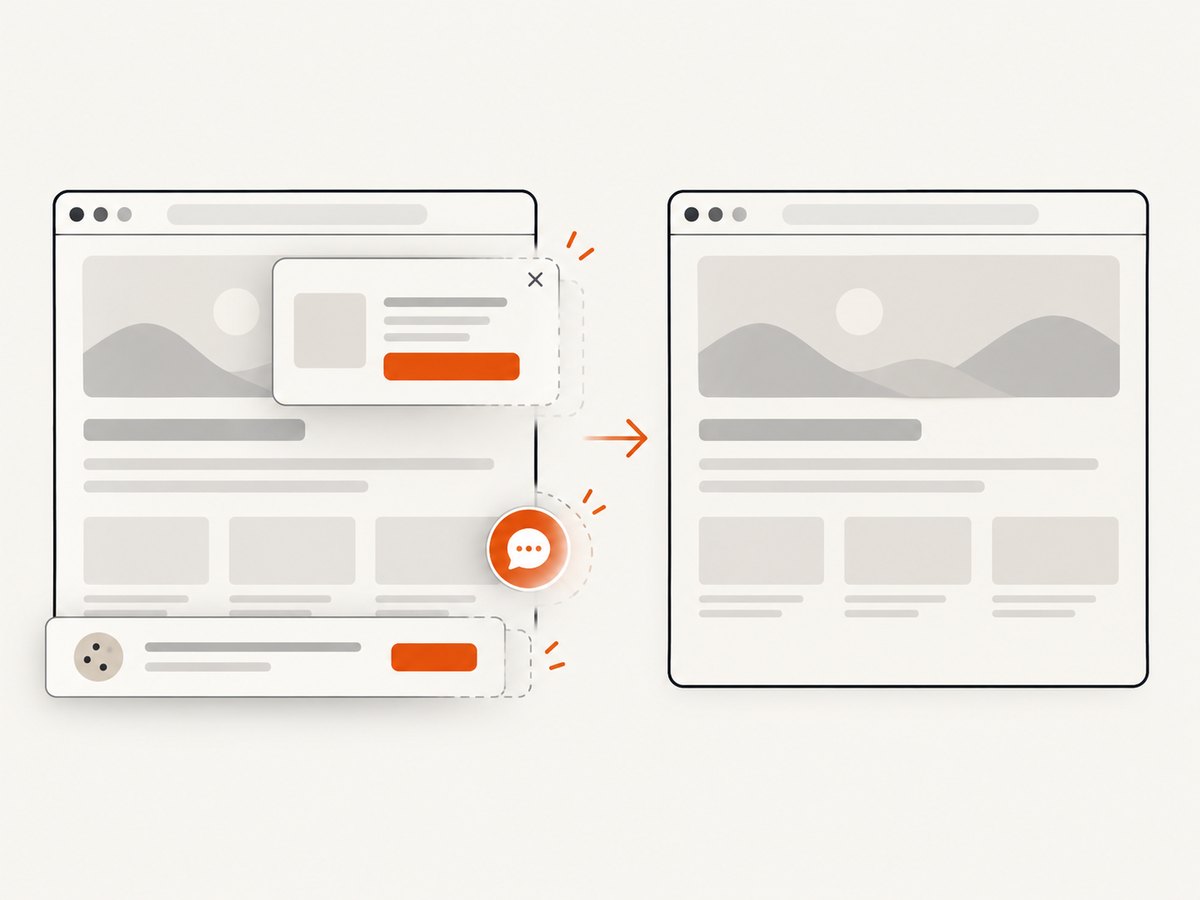
await import('node:fs/promises').then(fs => fs.writeFile('iframe.webp', buffer));ScreenshotNeo removes cookie and consent banners, newsletter popups, and chat widgets before capture. Bot checks, blank pages, timeouts, failed loads, and cache hits are not billed; the response identifies the result with X-Page-Verdict and X-Billed headers. Its MCP server exposes take_screenshot, get_page_info, and capture_pdf for Claude, Cursor, and other MCP clients. One thousand screenshots per month are free with no card, and paid plans start at $5 for 3,000 shots. Create a free ScreenshotNeo account.
9. FAQ
Can Playwright compare cross-origin iframe content?
Yes, when the browser can load the frame, frameLocator() can target its rendered DOM. Your test still needs a stable selector and a readiness condition inside that frame.
Should I compare the iframe element or a child inside it?
Compare the iframe element when its boundary and visible integration matter. Compare a child when the component itself is the contract and surrounding page changes should not fail the test.
How much pixel difference should I allow?
There is no universal value. Start strict, inspect the actual and diff images, and set a documented threshold only for known rendering variation in your controlled environment.
When should I update a baseline?
Update it after reviewing the visual change and confirming that the product change is intentional. Run npx playwright test --update-snapshots, inspect the output, and commit the baseline with the code change.
Can I use screenshot bytes outside Playwright Test?
Yes. Capture the page or locator screenshot buffer and send it to the image-diff system your project uses. You must define its comparison rules and artifact reporting.


