How to Compare Two Images for Differences with C#
Compare C# images pixel by pixel, add tolerance, create diff files, handle dimensions and platform limits, and automate screenshot regression checks.
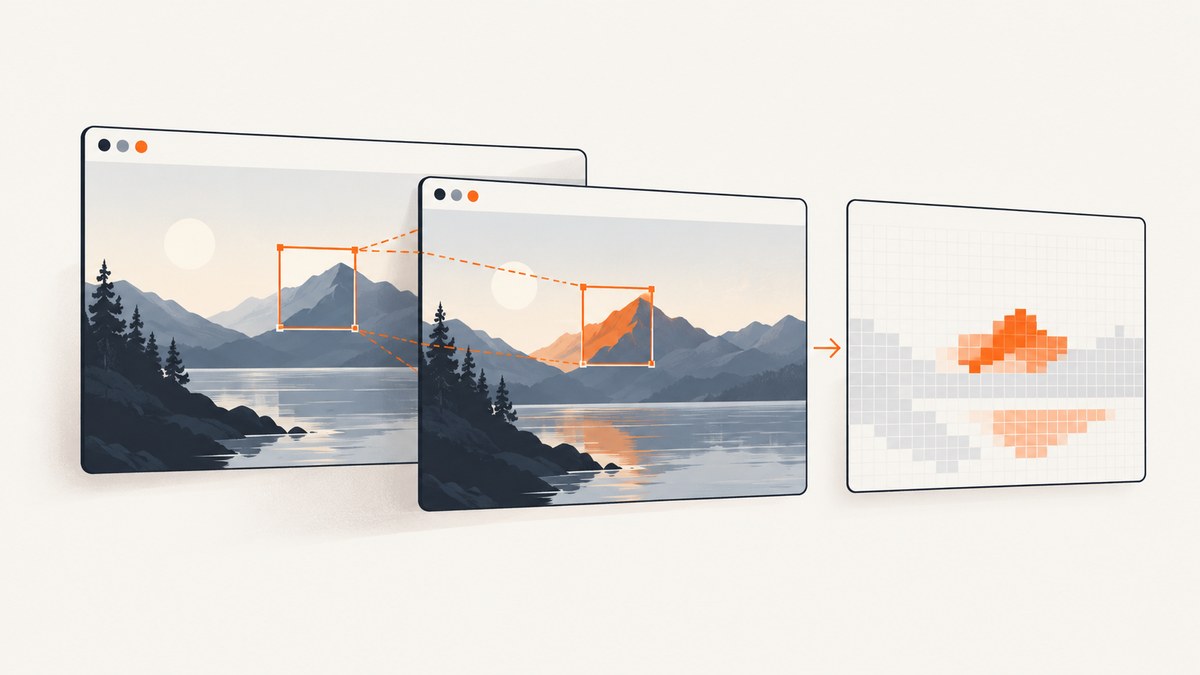
Direct answer: decode both images into the same pixel format, verify that their dimensions and alignment match, then compare corresponding pixels. Use exact equality when every pixel must match. Use a color-distance tolerance when small rendering differences are acceptable. Save a diff image so failed comparisons can be inspected.
The example below is a complete .NET console program using System.Drawing. It performs exact or tolerance-based comparison, reports changed pixels and a bounding box, and writes a highlighted diff image. Microsoft documents System.Drawing.Common as Windows-only in .NET 6 and later, so use this implementation for Windows applications and verify your target platform before adopting it.
1. Decide what “different” means
| Rule | Use it when | Result |
|---|---|---|
| Exact pixel equality | Any changed channel should fail | Strict pass/fail |
| Per-channel tolerance | Minor antialiasing or compression differences are acceptable | Pass when every channel difference is within the threshold |
| Perceptual distance | Visual similarity matters more than raw RGB values | Compare a color-distance score, such as CIE76 |
There is no universal tolerance value. Choose it from representative images produced by your own browser, operating system, fonts, and compression settings. Microsoft’s Visual Studio UI testing API provides exact comparison, color tolerance, tolerance rectangles, and difference-image overloads. Third-party ImageDiff describes exact and CIE76 analyzers plus bounding-box labeling. Treat those APIs as options to evaluate against your target framework rather than as a universal base-.NET feature.
2. Create a runnable C# comparison program
Project setup
dotnet new console -n ImageCompare
cd ImageCompare
dotnet add package System.Drawing.Common
System.Drawing.Common is supported only on Windows in .NET 6 and later. On Windows, target a Windows-compatible framework and run the program there. Do not assume that adding the package makes the same code reliable on Linux or macOS; choose a cross-platform image library after checking its current documentation if those platforms are required.
Complete program
using System;
using System.Drawing;
using System.Drawing.Imaging;
using System.IO;

if (args.Length < 2 || args.Length > 3)
{
    Console.Error.WriteLine("Usage: ImageCompare <expected> <actual> [tolerance]");
    Console.Error.WriteLine("Example: ImageCompare expected.png actual.png 0");
    return 2;
}

string expectedPath = args[0];
string actualPath = args[1];
int tolerance = args.Length == 3 && int.TryParse(args[2], out int parsed)
    ? parsed
    : 0;

if (tolerance < 0 || tolerance > 255)
{
    Console.Error.WriteLine("Tolerance must be an integer from 0 to 255.");
    return 2;
}

if (!File.Exists(expectedPath) || !File.Exists(actualPath))
{
    Console.Error.WriteLine("Both image files must exist.");
    return 2;
}

using var expected = new Bitmap(expectedPath);
using var actual = new Bitmap(actualPath);

if (expected.Width != actual.Width || expected.Height != actual.Height)
{
    Console.Error.WriteLine($"Dimension mismatch: expected {expected.Width}x{expected.Height}, actual {actual.Width}x{actual.Height}.");
    return 1;
}

long differingPixels = 0;
int minX = expected.Width;
int minY = expected.Height;
int maxX = -1;
int maxY = -1;

using var diff = new Bitmap(expected.Width, expected.Height, PixelFormat.Format32bppArgb);

for (int y = 0; y < expected.Height; y++)
{
    for (int x = 0; x < expected.Width; x++)
    {
        Color e = expected.GetPixel(x, y);
        Color a = actual.GetPixel(x, y);

        bool different =
            Math.Abs(e.A - a.A) > tolerance ||
            Math.Abs(e.R - a.R) > tolerance ||
            Math.Abs(e.G - a.G) > tolerance ||
            Math.Abs(e.B - a.B) > tolerance;

        if (different)
        {
            differingPixels++;
            minX = Math.Min(minX, x);
            minY = Math.Min(minY, y);
            maxX = Math.Max(maxX, x);
            maxY = Math.Max(maxY, y);
            diff.SetPixel(x, y, Color.Magenta);
        }
        else
        {
            // Dim unchanged pixels so changed regions stand out.
            int gray = (int)(0.299 * a.R + 0.587 * a.G + 0.114 * a.B);
            diff.SetPixel(x, y, Color.FromArgb(a.A, gray, gray, gray));
        }
    }
}

string diffPath = Path.Combine(
    Path.GetDirectoryName(Path.GetFullPath(actualPath))!,
    Path.GetFileNameWithoutExtension(actualPath) + ".diff.png");
diff.Save(diffPath, ImageFormat.Png);

Console.WriteLine($"Expected: {expected.Width}x{expected.Height}");
Console.WriteLine($"Tolerance: {tolerance}");
Console.WriteLine($"Differing pixels: {differingPixels}");
Console.WriteLine(differingPixels == 0
    ? "Result: MATCH"
    : $"Result: DIFFERENT; bounding box: ({minX},{minY})-({maxX},{maxY})");
Console.WriteLine($"Diff image: {diffPath}");

return differingPixels == 0 ? 0 : 1;
Run it
dotnet run -- expected.png actual.png
# Allow up to 3 levels of difference in each A/R/G/B channel
dotnet run -- expected.png actual.png 3
The process exits with code 0 for a match, 1 for a mismatch or dimension mismatch, and 2 for invalid input. That makes it suitable for CI jobs.
3. How the pixel comparison works
- Decode: both files are loaded as
Bitmapobjects. - Validate dimensions: corresponding-pixel comparison is undefined when widths or heights differ.
- Read channels: the program compares alpha, red, green, and blue.
- Apply tolerance: a pixel differs when any channel exceeds the selected threshold.
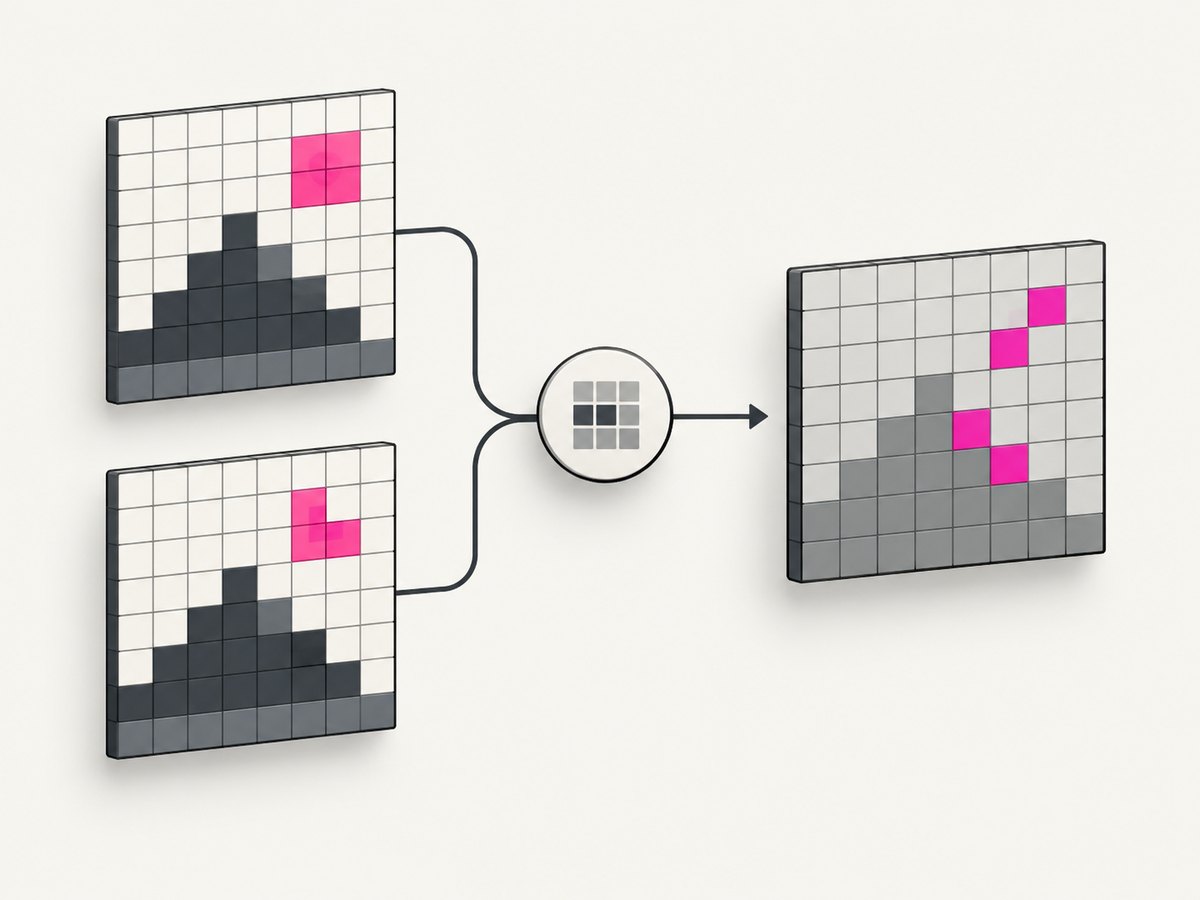
- Record evidence: it counts changed pixels, computes the smallest bounding rectangle, and writes a diff image.
For teaching and small images, GetPixel keeps the rule easy to read. For large images or high-volume suites, profile the complete workflow before optimizing. A production implementation may use locked bitmap memory or a library optimized for bulk pixel access, but the correct choice depends on image dimensions, runtime, and comparison rule.
4. Dimensions, alignment, and normalization
Dimension mismatch
A 1440×900 image and a 1365×768 image cannot be compared coordinate by coordinate. Decide whether to fail immediately, resize both images to a known target, or capture them under the same viewport and device scale. Resizing can hide real layout defects, so use it only when it is part of the test’s definition.
Alignment
A one-pixel shift makes almost every pixel appear different. Keep the same viewport, device scale, scroll position, browser zoom, and capture crop. If images come from different sources, registration may be required before comparison; the sources reviewed here do not prescribe a complete registration algorithm.
Color and alpha
- Compare images in a common channel representation.
- Decide whether alpha is meaningful. If transparent backgrounds are interchangeable, ignore alpha explicitly.
- Normalize orientation and metadata before comparing.
- Prefer lossless PNG for strict tests. JPEG compression can create small differences around edges.
5. Tolerance choices
Per-channel RGB tolerance
The sample program uses a simple rule: every channel difference must be at most tolerance. This is predictable and easy to explain, but it does not model human color perception.
CIE76 or another perceptual rule
A perceptual comparator converts corresponding colors to CIE L*a*b* and marks a pixel when the distance exceeds a project-selected threshold. A Mescius C# example renders differing pixels in magenta over a subdued grayscale image. Its sample fuzz value is not a universal recommendation. Calibrate any threshold against known-good and known-bad pairs.
Ignored regions
Dynamic clocks, advertisements, rotating content, and timestamps can create expected differences. Prefer removing or stabilizing those elements before capture. If that is impossible, define explicit ignored rectangles or selectors and document why each region is excluded. Microsoft’s ImageComparer API includes tolerance-rectangle overloads.
6. Producing useful diff output
A boolean tells CI whether a test failed; a diff image tells a developer where to look. Useful additions include:
- the changed-pixel count and percentage;
- the smallest bounding rectangle around all changes;
- connected components for separate change regions;
- side-by-side expected, actual, and diff files;
- an artifact path that CI preserves after a failure.
ImageDiff describes a workflow that analyzes images, labels differences, and builds one or more bounding boxes. Its options include exact matching, CIE76 analysis, padding, basic or connected-component labeling, and single or multiple boxes. Check the project’s current package and framework compatibility before adding it to a build.
7. Using Microsoft’s ImageComparer API
Visual Studio’s UI testing SDK documents ImageComparer.Compare overloads that accept actual and expected System.Drawing.Image values. Depending on the overload, you can request a boolean result, color-difference tolerance, tolerance rectangles, or a returned difference image. This API is associated with the Visual Studio SDK documentation, so verify the package and API availability for your project rather than treating it as part of every .NET installation.
8. Screenshot regression workflow
- Capture the page with a fixed viewport, device scale, locale, timezone, and data set.
- Wait for fonts, images, and asynchronous content to settle.
- Save a lossless baseline image.
- Capture the same route in CI.
- Reject dimension mismatches before pixel comparison.
- Run exact comparison or a calibrated tolerance rule.
- Publish expected, actual, and diff artifacts when the check fails.
- Review every baseline change and record the reason for updating it.
Browser rendering can vary with operating system, browser version, font availability, animation state, and remote data. Pin those inputs where possible, disable animations for test captures, and avoid comparing content that is intentionally time-dependent.
9. Or skip the browser setup
If your goal is to obtain stable screenshots for comparison, ScreenshotNeo provides a single HTTP request that returns PNG, JPEG, WebP, or PDF. It accepts cookie and consent banners like a visitor, then removes more than 60 known consent platforms, newsletter popups, and chat widgets before capture. Each cleanup step can be turned off.
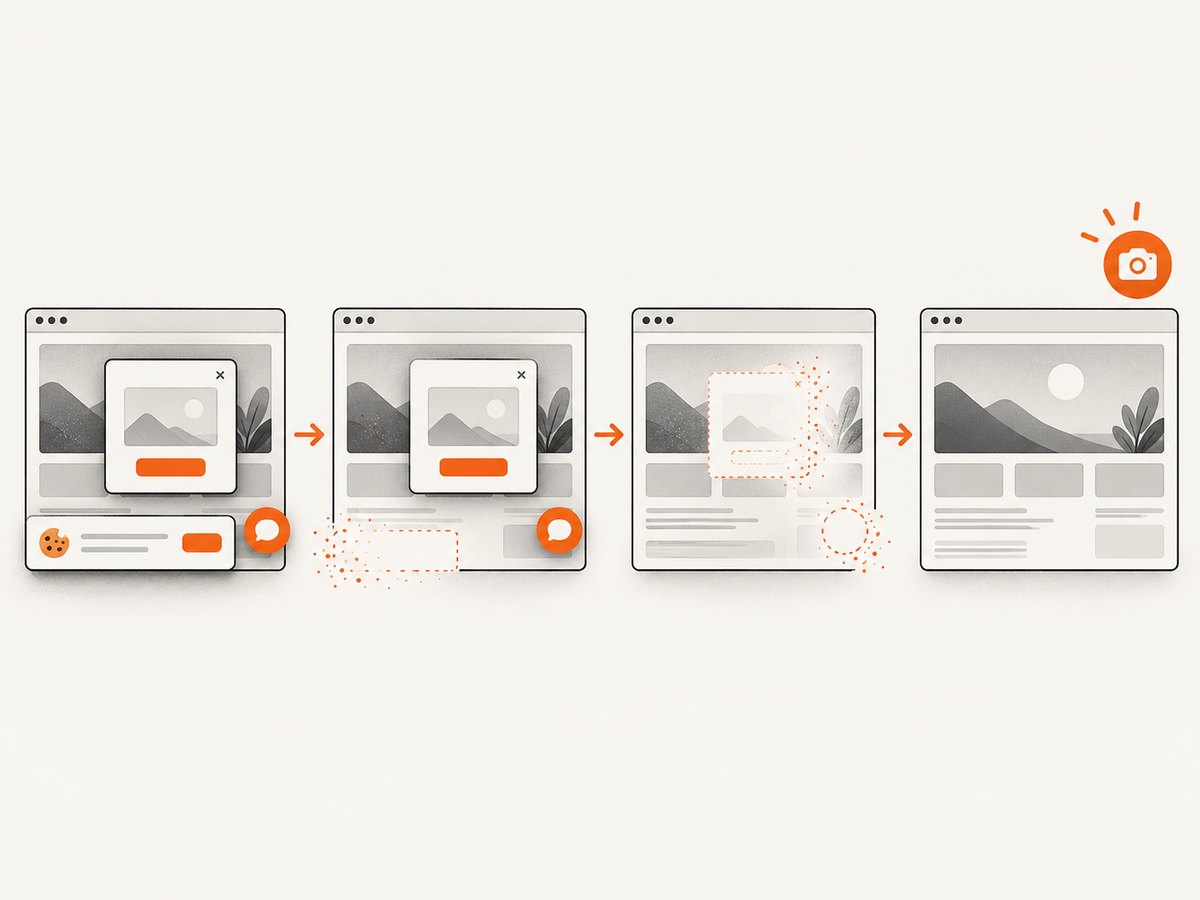
Only clean shots are billed: bot checks or CAPTCHAs, blank pages, timeouts, failed loads, and cache hits cost nothing. The response identifies the result with X-Page-Verdict and X-Billed headers. ScreenshotNeo also provides an MCP server with take_screenshot, get_page_info, and capture_pdf tools for Claude, Cursor, and other MCP clients.
See the ScreenshotNeo API documentation for all options, including full-page and element capture, dark mode, device presets, retina scale, custom CSS and JavaScript, waits, request blocking, headers, cookies, geolocation, caching, signed links, async jobs, bulk capture, and usage reporting.
cURL
curl -G "https://api.screenshotneo.com/v1/shot" \
  -d access_key=YOUR_API_KEY \
  --data-urlencode url=https://stripe.com \
  -o shot.webp
Python
import requests

r = requests.get(
    "https://api.screenshotneo.com/v1/shot",
    params={"access_key": "YOUR_API_KEY", "url": "https://stripe.com"},
    timeout=90,
)
r.raise_for_status()
open("shot.webp", "wb").write(r.content)
Node.js
const fs = require('node:fs/promises');

const q = new URLSearchParams({
  access_key: 'YOUR_API_KEY',
  url: 'https://stripe.com'
});
const res = await fetch(`https://api.screenshotneo.com/v1/shot?${q}`);
if (!res.ok) throw new Error(`Screenshot request failed: ${res.status}`);
await fs.writeFile('shot.webp', Buffer.from(await res.arrayBuffer()));
ScreenshotNeo has a free plan with 1,000 shots per month and no card. Paid plans start at $5 for 3,000 shots; yearly billing gives two months free, and every feature is available on every plan. Create a free ScreenshotNeo account.
10. Troubleshooting
| Symptom | Likely cause | Fix |
|---|---|---|
| Every pixel differs | Images are shifted, resized, or captured at different device scales | Match viewport, scale, crop, scroll position, and dimensions before comparison. |
| Build warning or runtime exception on Linux/macOS | System.Drawing.Common is Windows-only in .NET 6+ |
Run this implementation on Windows or select a documented cross-platform image library. |
| JPEGs fail despite looking identical | Lossy compression changes edge pixels | Use PNG for baselines or calibrate a tolerance. |
| Diff contains a large dynamic region | Timestamp, ad, animation, or remote data changed | Freeze the data, disable animation, remove the element, or define an explicit ignored region. |
| Transparent images fail | Alpha differs while visible RGB appears equal | Decide whether alpha is part of the contract and compare or ignore it consistently. |
| Diff image is hard to inspect | Only a boolean result was saved | Save expected, actual, and highlighted diff artifacts; include a bounding box and changed-pixel count. |
| ScreenshotNeo returns a bot-check or blank verdict | The destination blocked automated browsing or failed to render | Inspect X-Page-Verdict; failed loads and bot checks are not billed, then adjust headers, waits, or access requirements. |
11. Performance, reliability, and cost
- Performance: pixel work grows with image width multiplied by height. Keep test images at the resolution required to detect the defects you care about, and profile before replacing the simple loop.
- Reliability: deterministic inputs matter more than a clever comparison formula. Pin browser and font versions, wait for stable content, and keep baselines under review.
- Storage: retain failed artifacts and a compact comparison report; do not archive every duplicate image indefinitely.
- Cost: local comparison has no API charge. ScreenshotNeo’s free tier includes 1,000 shots monthly; paid plans are $5 for 3,000, $15 for 15,000, $39 for 60,000, $99 for 250,000, and $249 for 1,000,000. Cache hits are not billed.
12. Checklist
- Define exact or tolerant comparison.
- Use the same dimensions, alignment, color representation, and alpha policy.
- Prefer PNG for strict baselines.
- Calibrate thresholds using representative image pairs.
- Save a diff image and changed-pixel statistics.
- Handle dynamic regions deliberately.
- Verify
System.Drawing.Commonplatform support. - Publish expected, actual, and diff artifacts from CI.
FAQ
Should I compare file hashes instead?
Only when byte-for-byte identity is the requirement. Two visually identical images can have different metadata or compression bytes, while a pixel comparison focuses on decoded image content.
What tolerance should I start with?
Start at zero for strict tests, then increase it only after measuring real false failures. Record the chosen value and the reason for it.
Can this compare PDFs?
Render each PDF page to a common raster format first, then compare corresponding page images. Keep page size, rendering engine, and resolution consistent.
Does resizing make a comparison valid?
It makes dimensions compatible, but it can conceal layout changes. Capture at the intended viewport whenever possible.
When should I use a perceptual comparator?
Use one when small color changes should be treated as equivalent. Validate it with known defects so the threshold does not hide meaningful regressions.


