How to Compare Images and Find Differences in C#
Compare images in C# with exact pixels, visual diffs, SSIM, PSNR and perceptual hashes. Includes runnable ImageSharp code and practical thresholds.
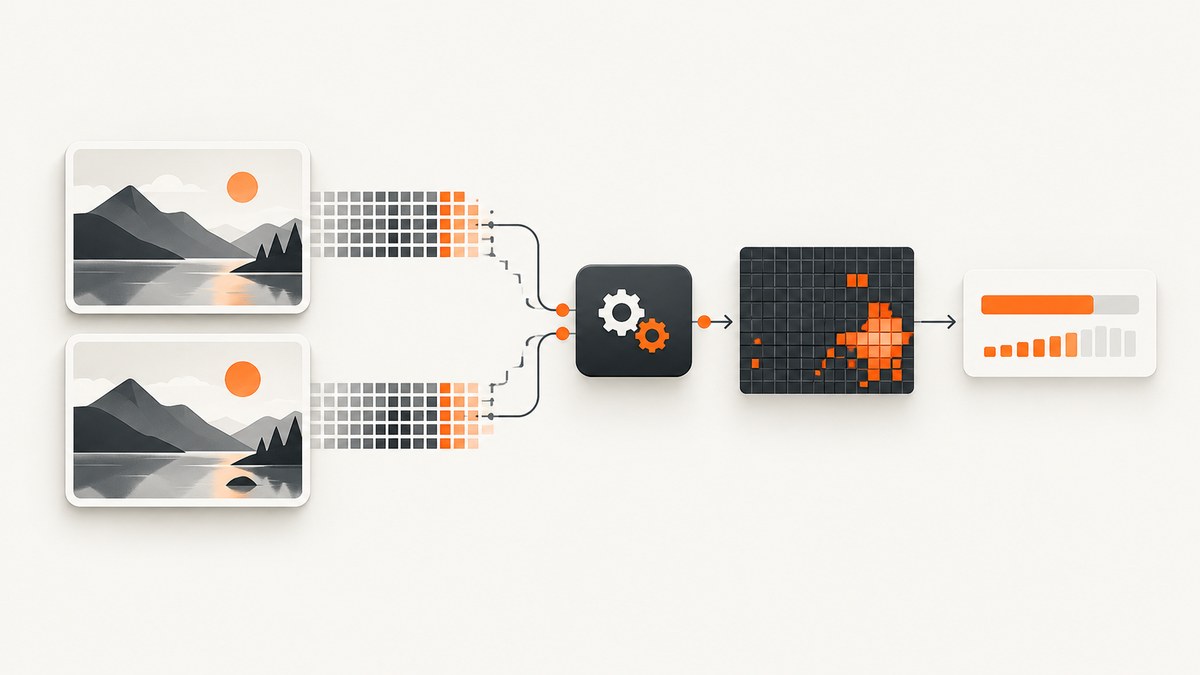
Choose the comparison method based on the question you need to answer:
- Are these files identical? Compare their bytes, with an explicit policy for metadata and encoding.
- Did the rendered pixels change? Decode both images into the same pixel format and compare corresponding pixels.
- Where did the image change? Build an absolute or color-distance difference mask, then report changed pixels and regions.
- Did rendering change only slightly? Use SSIM or PSNR with a threshold calibrated on representative fixtures.
- Are these likely duplicates? Use an average hash, perceptual hash, or difference hash for fast screening.
The rest of this guide implements those choices in C#, explains thresholds and edge cases, and shows how to capture stable source screenshots.
1. Set up a C# image comparison project
SixLabors.ImageSharp is a fully managed, cross-platform .NET imaging API with direct pixel access. Create a console project and add it:
dotnet new console -n ImageCompare
cd ImageCompare
dotnet add package SixLabors.ImageSharp
Put two test images beside the project as before.png and after.png. The examples below support PNG, JPEG and WebP formats that ImageSharp can decode.
2. Compare files byte-for-byte
Byte comparison answers whether the encoded files are identical. It treats a metadata change, a different JPEG quantization table, or a different PNG compression stream as a difference even when the image looks the same.
static bool FilesAreByteIdentical(string firstPath, string secondPath)
{
    byte[] first = File.ReadAllBytes(firstPath);
    byte[] second = File.ReadAllBytes(secondPath);
    return first.AsSpan().SequenceEqual(second);
}

Console.WriteLine(FilesAreByteIdentical("before.png", "after.png"));
Use this only when your contract is encoded-file identity. If you need visual equality, decode both files first.
3. Exact rendered-pixel comparison with ImageSharp
Normalize both images to one pixel representation before comparing. This example converts every image to 8-bit RGBA, rejects different dimensions, and counts changed pixels and channels.
using SixLabors.ImageSharp;
using SixLabors.ImageSharp.PixelFormats;

static (bool Equal, long DifferentPixels, long DifferentChannels) ComparePixels(
    string firstPath, string secondPath)
{
    using Image<Rgba32> first = Image.Load<Rgba32>(firstPath);
    using Image<Rgba32> second = Image.Load<Rgba32>(secondPath);

    if (first.Width != second.Width || first.Height != second.Height)
        return (false, (long)first.Width * first.Height, -1);

    long differentPixels = 0;
    long differentChannels = 0;

    for (int y = 0; y < first.Height; y++)
    {
        Span<Rgba32> aRow = first.Frames.RootFrame.GetPixelRowSpan(y);
        Span<Rgba32> bRow = second.Frames.RootFrame.GetPixelRowSpan(y);

        for (int x = 0; x < first.Width; x++)
        {
            Rgba32 a = aRow[x];
            Rgba32 b = bRow[x];
            int changed = 0;
            if (a.R != b.R) changed++;
            if (a.G != b.G) changed++;
            if (a.B != b.B) changed++;
            if (a.A != b.A) changed++;
            if (changed > 0)
            {
                differentPixels++;
                differentChannels += changed;
            }
        }
    }

    return (differentPixels == 0, differentPixels, differentChannels);
}

var result = ComparePixels("before.png", "after.png");
Console.WriteLine($"Equal: {result.Equal}");
Console.WriteLine($"Different pixels: {result.DifferentPixels}");
Console.WriteLine($"Different channels: {result.DifferentChannels}");
This is strict after decoding: one changed channel makes the pixel different. It is useful for deterministic rendering tests, but anti-aliasing, font hinting, color profiles, orientation metadata and browser differences can create many harmless changes.
Dimensions, orientation, alpha and animation
- Dimensions: Decide whether a size change is an immediate failure or whether images should be resized before comparison. Resizing can hide layout defects, so do it only when the requirement calls for it.
- Orientation: Apply EXIF orientation consistently before reading pixels. Otherwise a camera image can compare as rotated even when its displayed view matches.
- Alpha: Compare RGBA when transparency matters. If the visual result is composited on a known background, composite both images onto that background before comparing.
- Color model: Convert to the same bit depth and color space. Comparing encoded values from different color spaces is not a perceptual comparison.
- Animated files: Select a frame explicitly. Comparing only the first frame can miss changes in later frames.
4. Create a difference image and bounding box
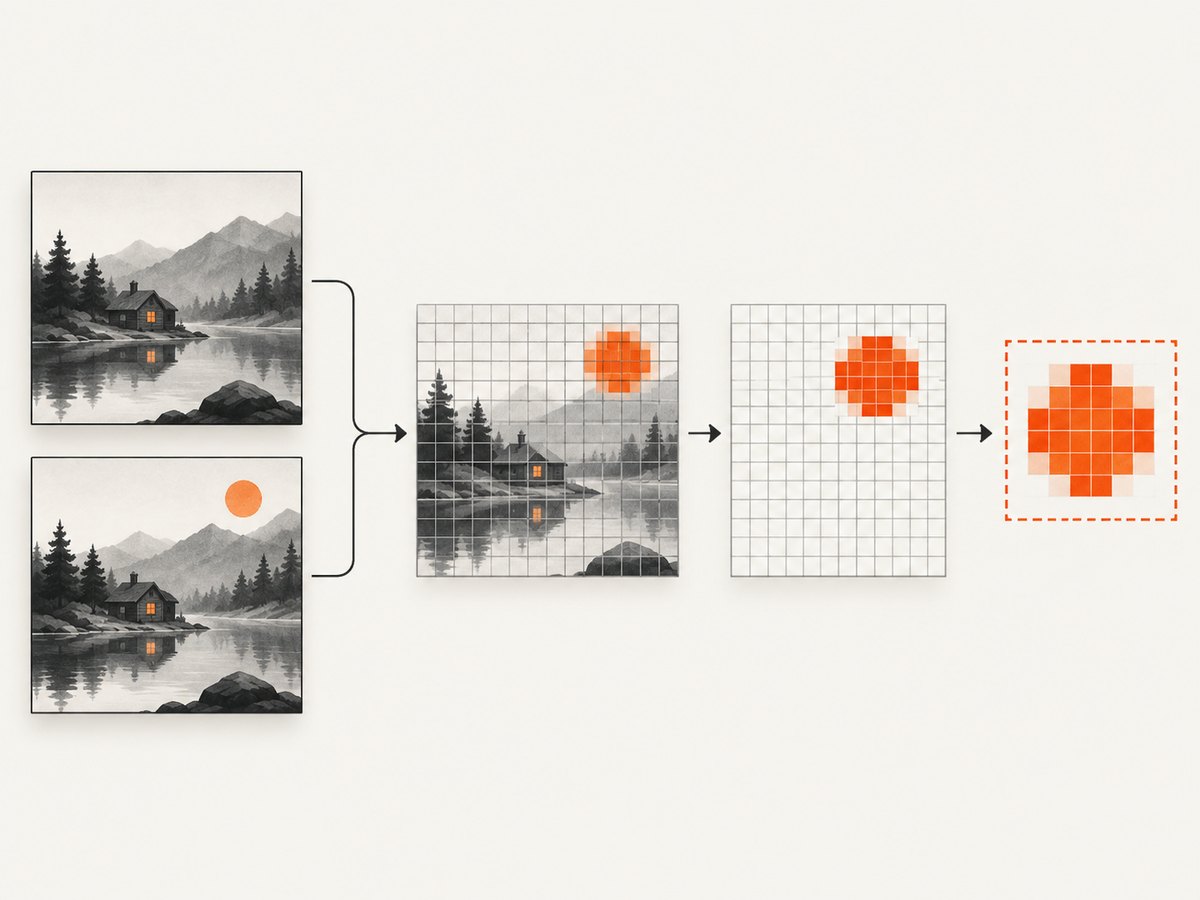
A diff image helps a person see what changed. The following code marks changed pixels red and writes a transparent PNG. It also computes the smallest rectangle containing all changes.
using SixLabors.ImageSharp;
using SixLabors.ImageSharp.PixelFormats;

static (long Count, Rectangle? Bounds) WriteDiff(
    string firstPath, string secondPath, string outputPath)
{
    using Image<Rgba32> first = Image.Load<Rgba32>(firstPath);
    using Image<Rgba32> second = Image.Load<Rgba32>(secondPath);
    if (first.Size != second.Size)
        throw new ArgumentException("Images must have the same dimensions.");

    using var diff = new Image<Rgba32>(first.Width, first.Height, new Rgba32(0, 0, 0, 0));
    long count = 0;
    int minX = first.Width, minY = first.Height, maxX = -1, maxY = -1;

    for (int y = 0; y < first.Height; y++)
    {
        Span<Rgba32> a = first.Frames.RootFrame.GetPixelRowSpan(y);
        Span<Rgba32> b = second.Frames.RootFrame.GetPixelRowSpan(y);
        Span<Rgba32> d = diff.Frames.RootFrame.GetPixelRowSpan(y);
        for (int x = 0; x < first.Width; x++)
        {
            if (a[x].R == b[x].R && a[x].G == b[x].G &&
                a[x].B == b[x].B && a[x].A == b[x].A)
                continue;

            count++;
            d[x] = new Rgba32(255, 0, 0, 255);
            minX = Math.Min(minX, x); minY = Math.Min(minY, y);
            maxX = Math.Max(maxX, x); maxY = Math.Max(maxY, y);
        }
    }

    diff.Save(outputPath);
    Rectangle? bounds = count == 0 ? null :
        new Rectangle(minX, minY, maxX - minX + 1, maxY - minY + 1);
    return (count, bounds);
}

var diff = WriteDiff("before.png", "after.png", "diff.png");
Console.WriteLine($"Changed pixels: {diff.Count}");
Console.WriteLine($"Bounds: {diff.Bounds}");
For a more useful review artifact, blend the mask over the original, or group nearby changed pixels into connected regions. A one-pixel anti-aliasing halo should not necessarily become a separate defect.
5. Use a color-distance threshold
Exact RGB equality is often too strict. A simple channel-distance rule treats a pixel as changed when the largest channel difference exceeds a chosen tolerance:
static bool IsDifferent(Rgba32 a, Rgba32 b, byte tolerance)
{
    return Math.Abs(a.R - b.R) > tolerance ||
           Math.Abs(a.G - b.G) > tolerance ||
           Math.Abs(a.B - b.B) > tolerance ||
           Math.Abs(a.A - b.A) > tolerance;
}
For color-aware comparisons, convert corresponding colors to CIE L*a*b* and threshold their color distance. A .NET imaging demonstration uses this approach with a fuzz threshold. Document whether your threshold is per-channel, Euclidean RGB distance, or Lab distance; those values are not interchangeable.
After thresholding, optionally remove isolated noise with a small morphological opening, then calculate changed-pixel percentage and connected-component bounding boxes. Keep the raw mask and raw distances for diagnosis.
6. SSIM and PSNR for perceptual similarity
SSIM
Structural Similarity (SSIM) is intended to track perceived structure better than a raw pixel count. Verify.ImageSharp documents SSIM on a scale from 0.0 (completely different) to 1.0 (identical). Use the score with a policy such as “fail below the calibrated threshold,” and retain the score for reports.
SSIM is useful for anti-aliasing, font hinting and subpixel-rendering differences. It can still miss a small but important defect, especially when the changed area is tiny relative to the whole image. Combine it with a changed-region check when localized regressions matter.
PSNR
OpenCV defines Peak Signal-to-Noise Ratio from mean squared error. Higher PSNR generally means less pixel error, but OpenCV notes that basic PSNR can disagree with human perception. Its tutorial shows illustrative values around 30–50 for some video-compression examples and around 15 for substantially different images; these are examples, not universal pass/fail limits.
For either metric, calibrate against fixtures containing one-pixel edits, anti-aliased text, JPEG recompression, alpha changes, dimension changes and meaningful layout changes.
7. Perceptual hashes for fast duplicate screening
Average hash, perceptual hash and difference hash reduce an image to a compact fingerprint. Compare hash distance to rank likely duplicates before running an expensive pixel or SSIM comparison. OpenCvSharp exposes hash comparison through ImgHashBase.Compare; its result depends on the selected algorithm, so calibrate thresholds separately for each algorithm.
Hashes are a screening tool, not a proof of equality. Two images with a small but critical text change can have a low hash distance, while a crop or resize can increase distance even when the content is clearly related.
8. A complete comparison workflow
- Define the contract: encoded bytes, rendered pixels, visible regions, perceptual similarity or duplicate likelihood.
- Load both images and check dimensions, frame count, orientation, alpha handling and color model.
- Normalize to a common pixel format for pixel-level work.
- Compute the metric and preserve the raw score, mask and dimensions.
- Apply a documented threshold only for metrics that need one.
- Generate a diff image and bounding boxes for human review.
- Run a fixture suite covering exact matches, one-pixel edits, anti-aliasing, compression, alpha and layout changes.
9. Capturing stable screenshots before comparison
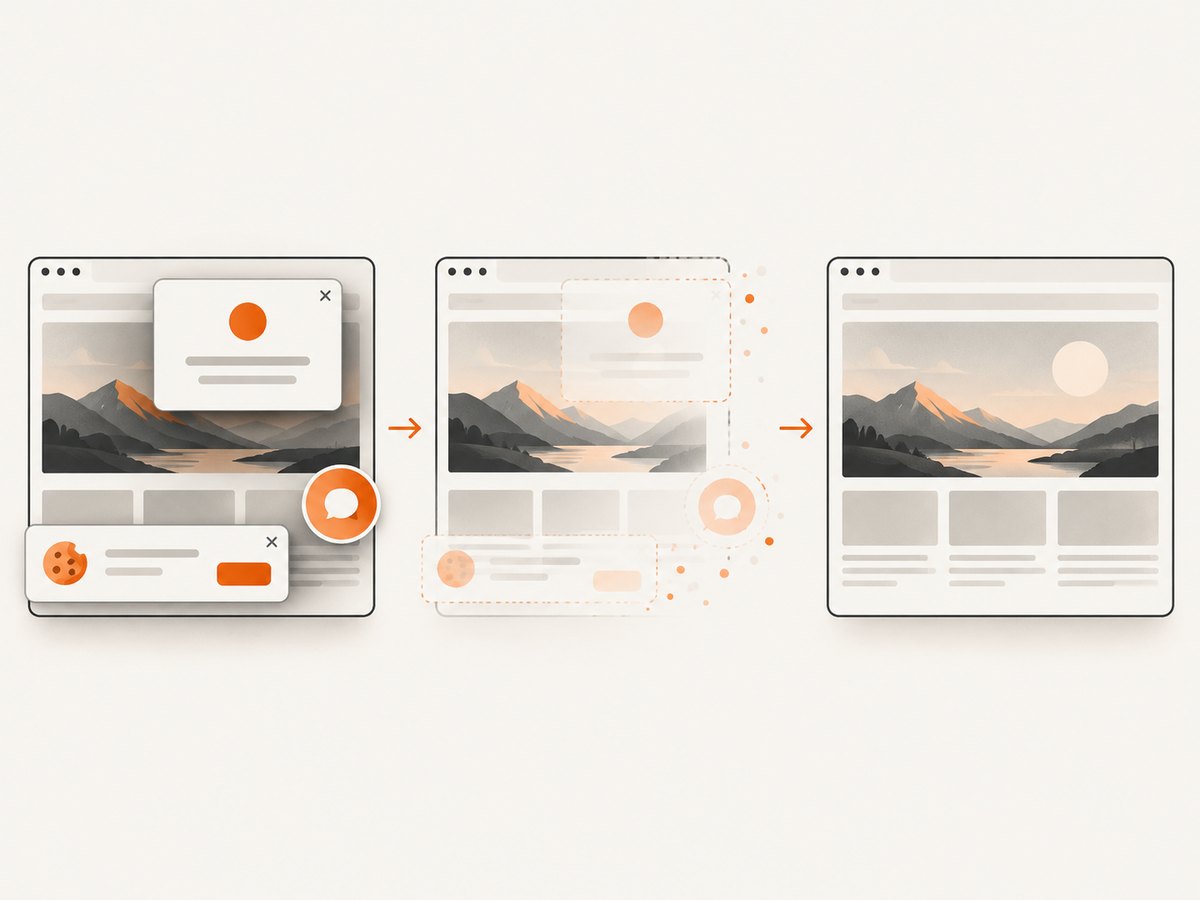
Many comparison failures originate before image analysis: cookie banners cover content, lazy images have not loaded, a font is still downloading, or the viewport differs. Make capture conditions deterministic: fix the viewport and device scale, wait for a meaningful selector or network idle, use consistent timezone and locale, and disable animations where possible.
Or skip the browser setup
ScreenshotNeo provides a GET-based screenshot API and MCP server. Its capture process accepts cookie and consent banners, removes more than 60 known consent platforms plus newsletter popups and chat widgets, and lets you turn each cleanup step off. Bot checks, blank pages, timeouts, failed loads and cache hits are not billed; response headers identify the page verdict and billing status. The MCP server exposes take_screenshot, get_page_info and capture_pdf for Claude, Cursor and other MCP clients.
See the ScreenshotNeo API documentation for all options.
curl -G "https://api.screenshotneo.com/v1/shot" -d access_key=YOUR_API_KEY --data-urlencode url=https://stripe.com -o shot.webpimport requests
r = requests.get("https://api.screenshotneo.com/v1/shot", params={"access_key": "YOUR_API_KEY", "url": "https://stripe.com"}, timeout=90)
open("shot.webp", "wb").write(r.content)const q = new URLSearchParams({ access_key: 'YOUR_API_KEY', url: 'https://stripe.com' });
const res = await fetch(`https://api.screenshotneo.com/v1/shot?${q}`);You can set full-page capture with lazy images, a CSS selector for one element, dark mode, device presets or a custom viewport, retina scale, custom CSS and JavaScript, clicks, waits, hidden selectors, blocked requests, headers, cookies, user agent, authorization, timezone and geolocation. Caching uses a TTL you choose; async jobs support signed webhooks; bulk capture accepts 100 URLs per call.
Start with 1,000 free screenshots per month with no card. Paid plans start at $5 for 3,000 screenshots, and every feature is available on every plan.
10. Performance, reliability and cost
- Decode once and scan rows sequentially to reduce allocations. Avoid converting the same image repeatedly.
- For large suites, hash or compare a reduced preview first, then run full-resolution diffs only on candidates.
- Parallelize independent image pairs within your memory budget; decoded RGBA images require roughly width × height × 4 bytes each, plus diff buffers.
- Store raw metrics and artifacts so threshold changes can be audited instead of reinterpreting old pass/fail results.
- Cache stable source captures. With ScreenshotNeo, choose a cache TTL and cache hits are not billed.
- Use async jobs and signed webhooks for slow pages, and bulk capture for batches up to 100 URLs per call.
- Only clean ScreenshotNeo shots are billed; bot checks, blank pages, timeouts and failed loads are reported without a charge.
11. Troubleshooting
| Symptom | Likely cause | Fix |
|---|---|---|
| Identical-looking images fail byte comparison | Metadata or encoding differs | Decode and compare normalized pixels, or define a metadata policy. |
| Every pixel differs after a format conversion | Different color model, bit depth or alpha treatment | Convert both images to the same RGBA format and compositing background. |
| Large diff around text edges | Font hinting, anti-aliasing or subpixel rendering | Use SSIM or a documented color-distance threshold; stabilize fonts and rendering. |
| Diff is shifted vertically | Viewport, scrollbar, device scale or page height differs | Fix capture dimensions and scale; compare dimensions before pixels. |
| Lazy images are missing | Capture occurred before content loaded | Wait for a selector or network idle, or use full-page capture that loads lazy images. |
| Screenshot contains a consent dialog | Banner appeared during capture | Accept or remove it in your browser setup, or let ScreenshotNeo perform consent cleanup. |
| SSIM passes but a defect is visible | Small changed region is diluted by the whole image | Add a changed-region or critical-selector assertion. |
| Hash threshold behaves unpredictably | Threshold copied between algorithms or image classes | Calibrate each hash algorithm against representative fixtures. |
| ImageSharp throws on mismatched dimensions | Pixel comparison requires aligned coordinates | Fail explicitly, or resize only when that is part of the requirement. |
12. FAQ
Should I use SSIM or a pixel diff?
Use a pixel diff when you must identify exact changed regions. Use SSIM when small rendering noise should be tolerated. Combining both catches more failure modes.
What threshold should I choose?
There is no universal threshold. Build fixtures from your renderer, image type and compression settings, then choose the value that matches the cost of false positives and false negatives.
Can a perceptual hash prove two images are equal?
No. A hash is a fast similarity screen. Confirm candidates with decoded pixels or a perceptual metric.
Why compare in Lab instead of RGB?
Lab distance is designed to track perceived color differences more closely than raw channel deltas. It still needs calibration for your content.
Which ScreenshotNeo plan is enough for a small test suite?
The Free plan includes 1,000 shots per month with no card. Starter is $5 for 3,000, and all plans include every feature.


