How to Compare a Playwright Screenshot Against an Existing Image
Compare Playwright screenshots with committed baselines, control rendering noise, tune pixel tolerances, and review visual changes safely.
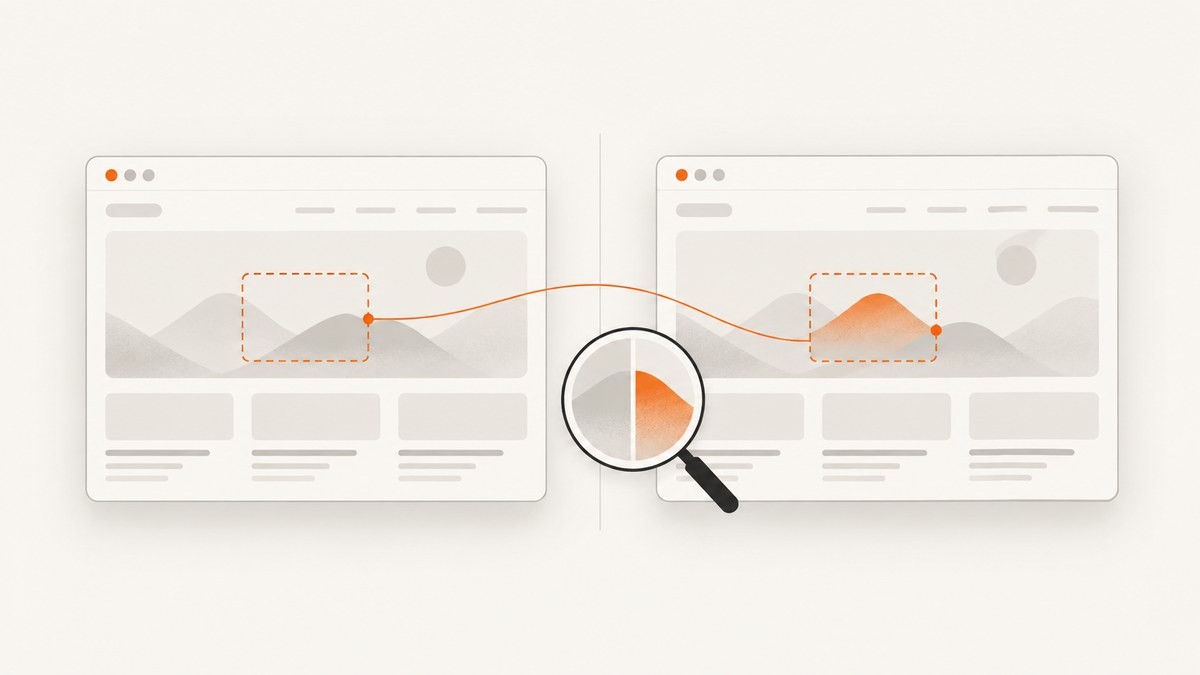
Use Playwright Test’s toHaveScreenshot assertion to compare a newly rendered page or element with a saved baseline. On the first run, Playwright creates the reference image; on later runs, it captures the page again and checks for visual differences. For reliable results, generate and compare screenshots in the same browser and operating-system environment, stabilize dynamic content, and review any baseline updates as code changes.
This guide shows the normal assertion workflow, how to manage snapshots, control noisy pixels, troubleshoot failures, and decide when to compare a full page versus a component. It assumes a project using the Playwright Test runner.
1. Set up a screenshot comparison
If Playwright Test is not installed in your project, install it and add the test runner:
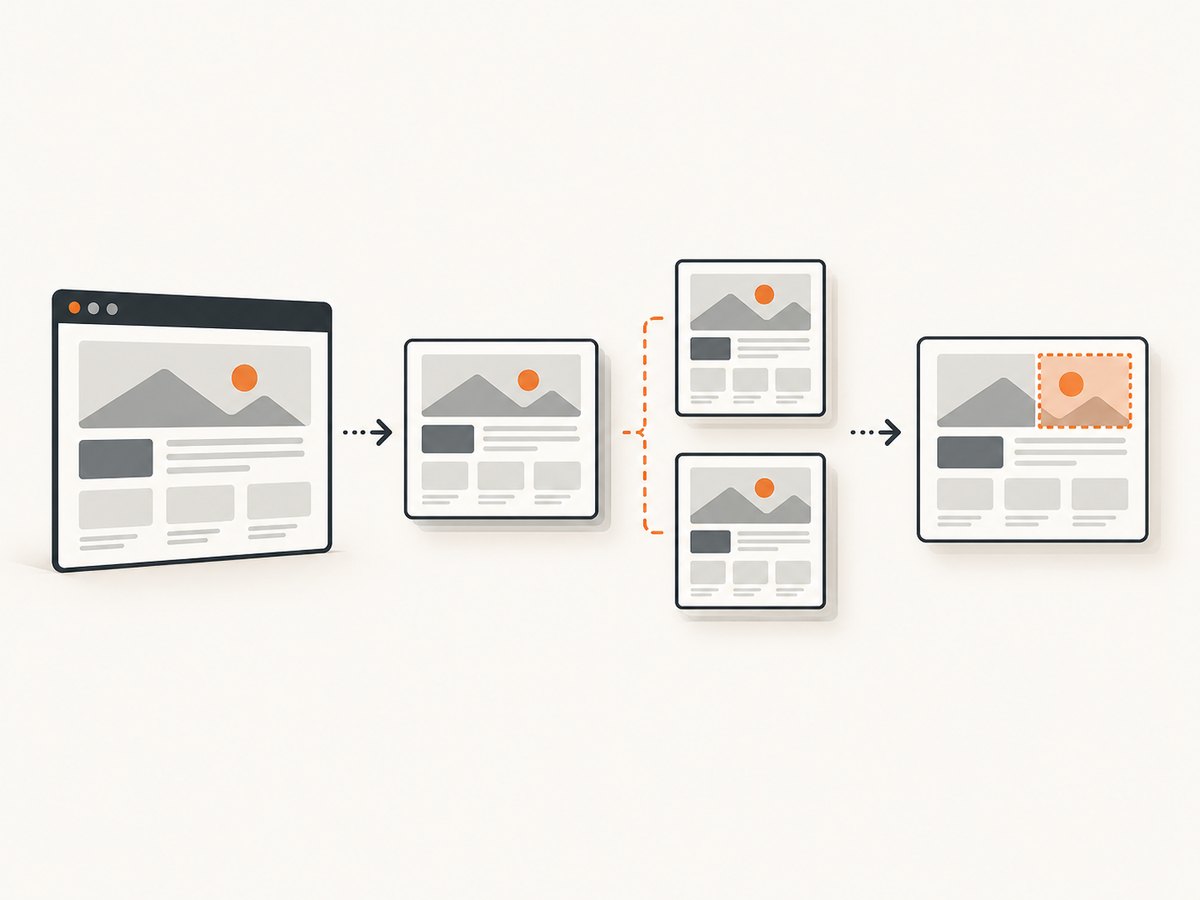
npm init playwright@latestCreate a test such as tests/homepage.spec.ts. The test below visits a page and compares it against a named image:
import { test, expect } from '@playwright/test';

test('homepage matches its baseline', async ({ page }) => {
  await page.goto('https://example.com');
  await expect(page).toHaveScreenshot('homepage.png');
});
Run it with:
npx playwright testWhen no expected image exists, Playwright creates the baseline snapshot. The test run can report that a snapshot was written rather than pass as an ordinary comparison; inspect the generated file, then rerun the test to compare against it. Snapshot images are stored in a test-specific snapshots directory. Commit the expected snapshots with the test so reviewers can see and reproduce the reference state.
toHaveScreenshot is Playwright Test’s standard screenshot comparison method. It waits until two consecutive screenshots are identical, then compares the stable capture with the expectation. PNG is the default format; using a .webp filename stores a lossless WebP snapshot. See the official assertion API and snapshot guide.
2. Choose the right comparison scope
Compare the whole page
Use page when the page layout is the contract you want to protect: for example, a landing page, dashboard composition, or checkout flow at a fixed state.
await expect(page).toHaveScreenshot('dashboard.png');Compare one element or component
Use a locator when the component is the contract. A focused capture is less likely to fail because unrelated page areas changed.
await expect(page.getByRole('button', { name: 'Save' }))
  .toHaveScreenshot('save-button.png');
Choose stable locators such as roles, labels, or test IDs. If the element can be absent, assert that it exists or wait for the application state before capturing. A full-page assertion can catch page-wide layout shifts; a component assertion localizes changes and is usually easier to diagnose. Use both only when each protects a distinct behavior.
3. Make the rendering repeatable
A baseline is meaningful only when the page renders under comparable conditions. Playwright warns that rendering can vary with host operating system, browser version, settings, hardware, power source, and headless mode. Generate and compare snapshots with the same Playwright browser project and environment whenever possible. Keep viewport dimensions, device scale assumptions, fonts, and browser versions aligned. See the visual comparisons guide.
Control animation and pointer state
Screenshot assertions disable animations by default. Keep that default for ordinary visual regression tests; if animation itself is under test, capture a deliberately controlled point in the animation instead. Move the mouse to a neutral area or hover a stable element before capture if hover styles may change the image.
Mask volatile regions
Mask timestamps, rotating ads, user avatars, or other values that legitimately differ. The mask paints those locator regions with a solid color during capture, making their changing contents irrelevant to the comparison.
await expect(page).toHaveScreenshot('dashboard.png', {
  mask: [page.locator('[data-testid="clock"]')],
});
Apply screenshot-only CSS
Use stylePath for a stylesheet that hides or stabilizes known dynamic regions only in the screenshot. This avoids changing application behavior just to make a test deterministic.
await expect(page).toHaveScreenshot('dashboard.png', {
  mask: [page.locator('[data-testid="clock"]')],
  stylePath: './screenshot.css',
  animations: 'disabled',
  scale: 'css',
});
/* screenshot.css */
[data-testid="live-feed"],
[data-testid="rotating-promotion"] {
visibility: hidden !important;
}Ensure the stylesheet path is valid from the test’s working context and that its selectors target only content that should not affect the test. Hiding a region can conceal a genuine regression if that region is part of the product requirement.
4. Set tolerances with intent
Playwright Test uses the pixelmatch library to compare images. Three options address different kinds of variation:
| Option | What it controls | Good use |
|---|---|---|
maxDiffPixels |
Maximum absolute number of pixels allowed to differ. | A fixed-size component with a known small amount of rendering noise. |
maxDiffPixelRatio |
Maximum fraction of pixels allowed to differ, from 0 to 1. | Images whose dimensions can vary while a proportional budget remains useful. |
threshold |
Per-pixel perceived color difference accepted by the comparison. | Small anti-aliasing or color-rendering differences at individual pixels. |
The documented default for threshold is 0.2. There is no universal tolerance that makes every app’s comparisons useful. Start with strict settings, inspect the diff, and change only the option that matches a known source of noise. A permissive mismatch budget can hide a real layout or styling regression.
await expect(page).toHaveScreenshot('dashboard.png', {
  maxDiffPixels: 100,
  maxDiffPixelRatio: 0.001,
  threshold: 0.2,
});
Keep the policy in one place or apply consistent options across tests so one screenshot does not silently have a looser standard than another. The API reference documents screenshot assertion options and defaults.
5. Review and update baselines safely
- Create the initial reference. Run the test and inspect the snapshot Playwright writes. Confirm the viewport and page state represent the intended design.
- Commit the test and snapshot. Keep the expected image under version control alongside the test. The image is the reviewable contract for later changes.
- When a comparison fails, inspect the output. Playwright reports the mismatch and produces actual, expected, and diff artifacts in its test output. Open them to distinguish a real UI change from environment noise.
- Update only for an intentional change. Regenerate snapshots with
npx playwright test --update-snapshots, inspect the resulting image changes, and commit them with the code change that explains them.
Do not make snapshot updates an automatic response to every CI failure. A refreshed baseline can encode an accidental regression just as easily as an approved design change. The official snapshot update instructions describe the update workflow.
6. Use a captured buffer only when needed
If a custom capture pipeline already produces an image buffer, Playwright can compare it with toMatchSnapshot. For normal page or locator screenshots, prefer toHaveScreenshot; it handles screenshot stabilization and baseline management directly.
import { test, expect } from '@playwright/test';

test('custom image buffer matches a snapshot', async ({ page }) => {
  await page.goto('https://example.com');
  const image = await page.screenshot({ fullPage: true });
  expect(image).toMatchSnapshot('custom-page.png');
});
Use the buffer route when image bytes come from a custom capture or transformation step. Remember that the test must still provide stable inputs and a controlled rendering environment.
7. Or skip the browser setup
If you need a rendered screenshot without maintaining a local browser capture pipeline, ScreenshotNeo provides a one-request screenshot API. It can return PNG, JPEG, WebP, or PDF, and supports options such as full-page capture, element selectors, viewport and device presets, custom CSS and JavaScript, waits, headers, cookies, and caching. Its clean-shot flow accepts cookie consent and removes supported consent banners, newsletter popups, and chat widgets before capture; each step can be turned off. Bot checks, blank pages, failed loads, timeouts, and cache hits are not billed, and responses identify the page verdict and billing state in headers. It also offers an MCP server with screenshot tools for AI agents.
Use the API key from your ScreenshotNeo account. The parameter names used by other screenshot APIs also work. See the ScreenshotNeo API documentation.
curl -G "https://api.screenshotneo.com/v1/shot" \
  -d access_key=YOUR_API_KEY \
  --data-urlencode url=https://stripe.com \
  -o shot.webp
import requests
r = requests.get(
"https://api.screenshotneo.com/v1/shot",
params={"access_key": "YOUR_API_KEY", "url": "https://stripe.com"},
timeout=90,
)
r.raise_for_status()
open("shot.webp", "wb").write(r.content)const q = new URLSearchParams({
access_key: 'YOUR_API_KEY',
url: 'https://stripe.com',
});
const res = await fetch(`https://api.screenshotneo.com/v1/shot?${q}`);
if (!res.ok) throw new Error(`Screenshot request failed: ${res.status}`);
const bytes = new Uint8Array(await res.arrayBuffer());
await import('node:fs/promises').then(fs => fs.writeFile('shot.webp', bytes));Cookie banners, popups, and chat widgets are removed before the shot. Bot checks, blank pages, and failed loads are never billed. An MCP server lets AI agents take screenshots. The Free plan includes 1,000 screenshots a month with no card; paid plans start at $5 for 3,000. Sign up free for 1,000 screenshots a month, no card required.
8. Troubleshooting common failures
| Symptom | Likely cause | What to do |
|---|---|---|
| Snapshot missing or first run reports an error | No baseline exists yet. | Run the test to create the expected image, inspect it, commit it, and rerun. |
| Many pixels differ on a developer machine but not in CI | Different browser, OS, fonts, viewport, scale, or rendering mode. | Align environments and browser versions; generate and compare snapshots in the same configuration. |
| Only timestamps, ads, or avatars fail | Volatile content changes between captures. | Mask the specific locator or hide the region with screenshot-only CSS. |
| Unexpected hover styling appears | The pointer is over a hover-sensitive element. | Move it to a neutral area or explicitly set a stable hover state before asserting. |
| Diff is small but noisy around text edges | Font rasterization or anti-aliasing differs. | Match fonts and environment first; if the remaining difference is understood, adjust the per-pixel threshold conservatively. |
| Failures disappear after updating every snapshot | Baseline churn is masking changes that should have been reviewed. | Restore unrelated snapshots and update only images that reflect an approved UI change. |
| An element screenshot times out or is empty | The locator is missing, hidden, outside the expected state, or the page has not finished rendering. | Wait for the UI state, use a locator that uniquely identifies the component, and check that it is visible before capture. |
9. Performance, reliability, and repository cost
Screenshot comparison adds browser rendering and image comparison to a test, but the most useful optimization is usually reducing unnecessary capture scope. Compare a locator for a component-level contract and reserve full-page screenshots for page-wide layout. Avoid duplicate assertions that cover the same pixels without protecting a separate behavior.
Reliability comes from repeatable inputs: use stable test data, wait for a meaningful app state, keep fonts available, and run against a consistent browser project. A screenshot that captures a page before data settles may fail intermittently even if the assertion is configured correctly. Mask only genuinely variable regions; excessive masking weakens the test.
Snapshots consume repository storage and reviewer attention. Use explicit, descriptive filenames and update them with intentional UI changes. If a screenshot suite grows large, group tests by page or component and keep baseline ownership clear. The key cost is not just image files; it is the time needed to investigate noisy diffs. Consistent environments and narrow, purposeful assertions reduce that burden.
10. FAQ
Can Playwright compare an image that was not created by Playwright?
Yes, if it is used as the expected snapshot in the appropriate Playwright snapshot workflow and has compatible image data. Keep its dimensions and rendering assumptions aligned with the new capture.
Should I use a pixel ratio or an absolute pixel limit?
Use an absolute limit when the image dimensions are fixed and a known count is meaningful. Use a ratio when the screenshot size can vary and a proportional budget better expresses the acceptable difference.
Does toHaveScreenshot wait for the page to load?
It stabilizes the screenshot by waiting for consecutive captures to match, but your test should still navigate to the right state and wait for application-specific data or controls before asserting.
Can I compare screenshots outside the Playwright Test runner?
The documented toHaveScreenshot assertion is part of Playwright Test. If you need comparison outside that runner, use a separate image comparison workflow; the Playwright assertion itself depends on the test runner.


