How to Compile Handlebars Templates With CSS and Images for Puppeteer
Compile Handlebars into complete HTML, load CSS and images reliably in Puppeteer, then tune print styles, page size, and PDF output.

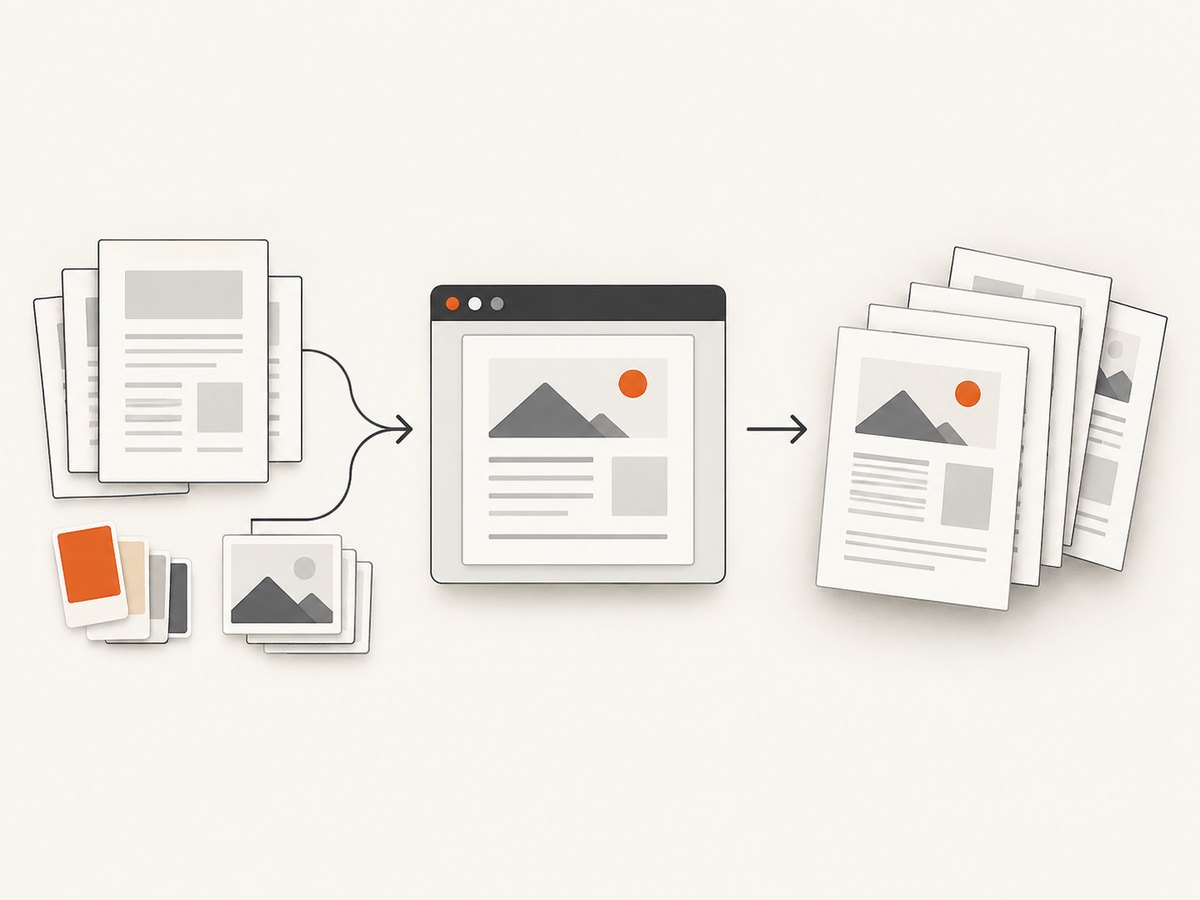
Compile the Handlebars template into an HTML string, make sure its stylesheets and image sources resolve from the Chromium process, load that HTML in a Puppeteer page, wait for assets, and call page.pdf(). Puppeteer prints with the print CSS media type by default, and it omits background graphics unless you set printBackground: true. The complete example below covers compilation, local and remote assets, readiness checks, page sizing, and cleanup.
Handlebars only renders a string; it does not fetch CSS or images. Puppeteer then renders the resulting document in Chromium. Keeping those responsibilities separate makes missing styles and broken images much easier to diagnose.
1. Install dependencies and prepare a template
Install the two packages in your project. This example uses CommonJS, which works with a standard Node.js project configured for require().
npm install handlebars puppeteerHandlebars’ documented flow is to compile a source string into a render function, then call that function with data. The template should contain a complete HTML document so the browser receives an explicit character set, viewport, stylesheet, and body. See the Handlebars installation guide and the Puppeteer PDF guide.
const templateSource = `<!doctype html>
<html lang="en">
<head>
  <meta charset="utf-8">
  <meta name="viewport" content="width=device-width, initial-scale=1">
  <title>{{title}}</title>
  <link rel="stylesheet" href="{{stylesheetUrl}}">
  <style>
    @page { size: A4; margin: 18mm; }
    body { font: 11pt/1.5 sans-serif; color: #202124; }
    h1 { font-size: 24pt; }
    .hero { width: 100%; height: auto; }
    @media print {
      .screen-only { display: none; }
      h1, h2 { break-after: avoid; }
      img, figure { break-inside: avoid; }
    }
  </style>
</head>
<body>
  <main>
    <h1>{{title}}</h1>
    <p>Prepared for {{recipient}}.</p>
    <img class="hero" src="{{imageUrl}}" alt="{{imageAlt}}">
    <section>{{{bodyHtml}}}</section>
  </main>
</body>
</html>`;
Ordinary Handlebars expressions such as {{title}} are HTML-escaped, which is appropriate for titles, names, and other plain text. Triple-stash expressions such as {{{bodyHtml}}} insert markup without escaping. Use that only for HTML you control or have sanitized. For user-provided content, escaping is the safer default.
Use absolute URLs for external assets, or generate a file:// URL from a known local file path. A relative src="images/hero.png" has no dependable base when you pass a string to page.setContent(). The browser needs a resolvable URL, and the Chromium process must have network or filesystem access to it.
2. Compile, render, and generate a PDF
This runnable script waits for document readiness and image decoding, writes the PDF, and closes Chromium even if rendering fails. Replace the example URLs with assets accessible from your environment. The explicit image wait matters because waiting for network activity alone does not prove that every image decoded successfully.
const Handlebars = require('handlebars');
const puppeteer = require('puppeteer');

const templateSource = `<!doctype html>
<html lang="en"><head>
  <meta charset="utf-8">
  <title>{{title}}</title>
  <link rel="stylesheet" href="{{stylesheetUrl}}">
  <style>@page { size: A4; margin: 18mm; } body { font: 11pt sans-serif; }</style>
</head><body>
  <h1>{{title}}</h1>
  <p>Prepared for {{recipient}}.</p>
  <img src="{{imageUrl}}" alt="{{imageAlt}}">
</body></html>`;

async function main() {
  const template = Handlebars.compile(templateSource);
  const html = template({
    title: 'Quarterly report',
    recipient: 'Alex',
    stylesheetUrl: 'https://example.com/report.css',
    imageUrl: 'https://example.com/chart.png',
    imageAlt: 'Quarterly revenue chart'
  });

  const browser = await puppeteer.launch({ headless: true });
  try {
    const page = await browser.newPage();
    page.setDefaultNavigationTimeout(30000);
    await page.setContent(html, { waitUntil: 'networkidle0', timeout: 30000 });
    await page.evaluate(async () => {
      await document.fonts.ready;
      await Promise.all(Array.from(document.images, async (img) => {
        if (!img.complete) {
          await new Promise((resolve) => {
            img.addEventListener('load', resolve, { once: true });
            img.addEventListener('error', resolve, { once: true });
          });
        }
        if (img.decode) await img.decode().catch(() => {});
      }));
    });
    await page.pdf({
      path: 'output.pdf',
      format: 'A4',
      printBackground: true,
      preferCSSPageSize: true,
      waitForFonts: true,
      margin: { top: '18mm', right: '18mm', bottom: '18mm', left: '18mm' }
    });
  } finally {
    await browser.close();
  }
}

main().catch((error) => {
  console.error(error);
  process.exitCode = 1;
});
networkidle0 waits for the network to become idle with no active connections. This is useful for static documents, but analytics, streaming requests, or long-lived connections can prevent it from settling. The navigation options and network idle pattern are documented in Puppeteer’s network documentation and setContent API. If your page has persistent network traffic, use a less strict readiness condition plus explicit waits for the assets that matter.
3. Make CSS render the way you expect
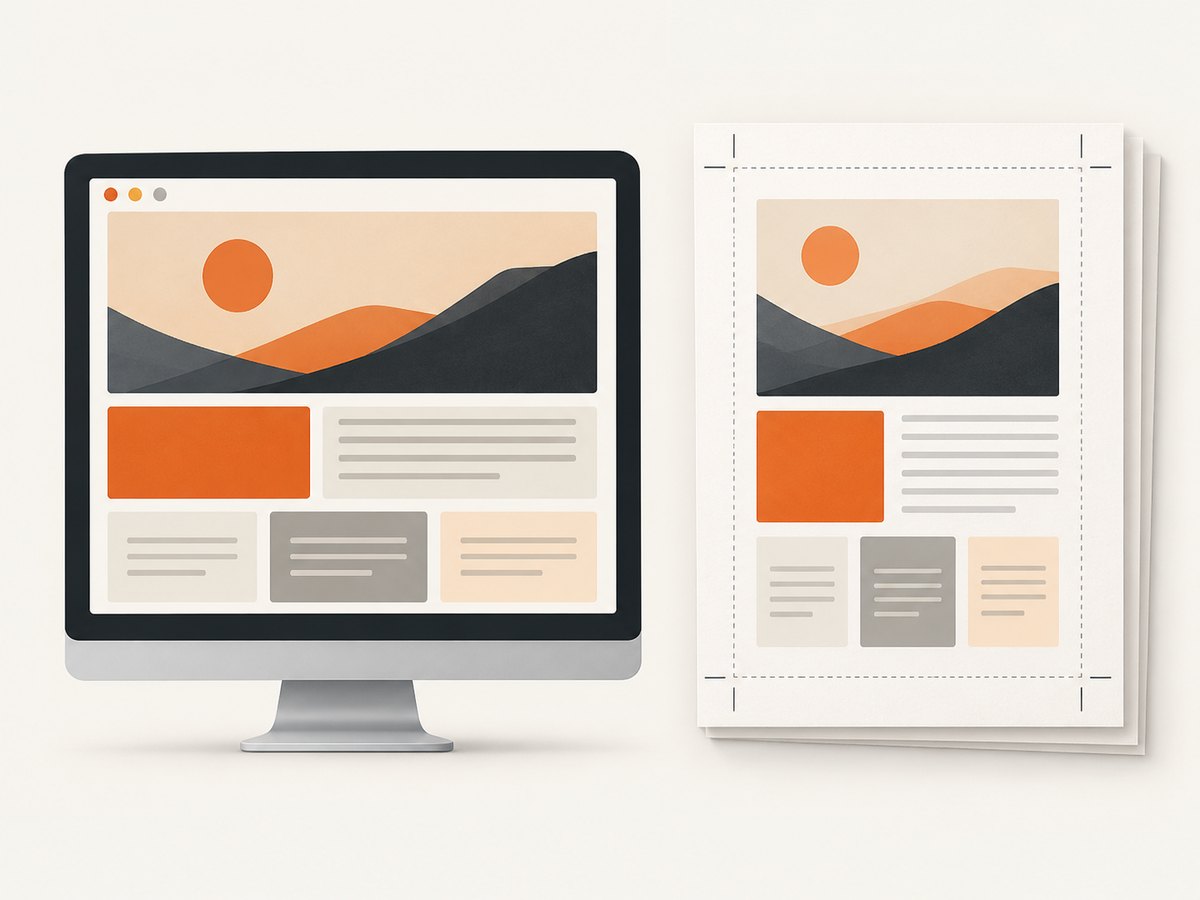
page.pdf() uses print CSS media. That means @media print rules apply and screen-only rules may not. If the design specifically depends on screen styles, select that media type before creating the PDF:
await page.emulateMediaType('screen');
await page.pdf({ path: 'screen-styled.pdf', printBackground: true });
For documents intended to print, leave the default print media active and define print-specific adjustments in @media print. Set printBackground: true when colored panels, background images, or other CSS backgrounds are meaningful. The default is false. Puppeteer’s PDF API documents media behavior and options.
External stylesheets must be reachable by Chromium and allowed by any network policy, proxy, or content security policy you have configured. When styles are critical and the PDF job runs in a restricted environment, inline the CSS or bundle it into the generated HTML. Inline styles also avoid a separate stylesheet request. Avoid embedding large images or huge CSS strings when that would inflate memory use per concurrent job.
4. Resolve image paths and wait for image readiness
With setContent(), the document comes from a string rather than a normal page URL. Relative paths therefore may resolve to an unexpected base. Prefer absolute HTTPS URLs or convert local files into absolute file URLs. A robust local file example is:
const path = require('node:path');
const { pathToFileURL } = require('node:url');
const imageUrl = pathToFileURL(path.resolve('assets/chart.png')).href;
Use paths readable by the same process that launches Chromium. In containers, a path that exists on the host may not exist inside the browser container. For portability, small critical graphics can be embedded as data URLs; that avoids a separate fetch but increases the HTML size and memory footprint. For frequently reused assets, reachable URLs can benefit from normal browser and intermediary caching.
For lazy-loaded images, the browser may not request an image until it approaches the viewport. A full document PDF can include content below the initial viewport, so proactively trigger loading if the page uses lazy loading:
await page.evaluate(async () => {
  for (const img of document.querySelectorAll('img[loading="lazy"]')) {
    img.loading = 'eager';
  }
  await Promise.all(Array.from(document.images, img => {
    if (img.complete) return img.decode ? img.decode().catch(() => {}) : Promise.resolve();
    return new Promise(resolve => {
      img.addEventListener('load', resolve, { once: true });
      img.addEventListener('error', resolve, { once: true });
    });
  }));
});
This makes failed images observable through the image element’s naturalWidth and complete properties, but does not turn a failed request into a valid image. For critical assets, inspect them and fail the job rather than silently printing a broken placeholder:
const broken = await page.evaluate(() =>
  Array.from(document.images)
    .filter(img => !img.complete || img.naturalWidth === 0)
    .map(img => img.src)
);
if (broken.length) throw new Error(`Images failed: ${broken.join(', ')}`);
5. Choose page size, margins, and page breaks
Puppeteer supports named paper formats, explicit dimensions, and CSS page sizing. Pick one source of truth where possible so CSS and API options do not compete.
| Option | Use it when | Notes |
|---|---|---|
format |
A standard paper size such as A4 or Letter is enough | Convenient for common document output |
width and height |
You need exact dimensions | Use supported CSS units such as inches, millimeters, or pixels |
@page { size: ... } |
The stylesheet should own document geometry | Pair with preferCSSPageSize: true to prioritize CSS sizing |
margin |
Content needs a printable inset | Can be set in PDF options or via CSS page rules; avoid conflicting values |
Other useful page.pdf() options include scale to shrink or enlarge content, landscape for horizontal orientation, pageRanges to emit selected pages, and displayHeaderFooter with header/footer templates. waitForFonts defaults to true. The complete list and accepted units are in the PDFOptions reference.
Use CSS page-break rules for layout intent:
@media print {
  .new-page { break-before: page; }
  .keep-together { break-inside: avoid; }
  h1, h2 { break-after: avoid; }
}
Avoid assuming that a large element can never split: browser layout, available space, and page dimensions affect break behavior. Verify long tables, oversized figures, and nested flex or grid layouts with representative content.
6. Runtime compilation versus precompiled templates
Runtime compilation is simple and suits small services or templates that change often. It compiles the source during the job or process startup and then renders data. If the same template is rendered many times, compile it once and reuse the function rather than recompiling for every document.
For build-time template compilation, Handlebars provides a precompiler. This can move work out of request handling, but deploy the matching Handlebars runtime version; the documentation recommends keeping precompiled templates and runtime aligned. See the official installation guide. Treat templates as code: avoid allowing untrusted users to supply arbitrary templates, and validate data and any raw HTML fields.
7. Troubleshooting common failures
| Symptom | Likely cause | Fix |
|---|---|---|
| CSS is missing | Stylesheet URL is relative, unreachable, blocked, or still loading | Use an absolute URL, inline critical CSS, inspect browser console/network errors, and wait for the stylesheet request |
| Images show as broken | Relative path has no useful base, host path is absent in the container, or request failed | Use absolute URLs or a file URL visible to Chromium; check naturalWidth and network errors |
| Background colors disappear | PDF background printing is disabled | Set printBackground: true |
| Layout differs from browser preview | PDF uses print media by default | Add print rules or call emulateMediaType('screen') before printing |
| PDF generation hangs waiting for network idle | Persistent requests prevent the idle condition | Use a suitable wait condition and explicitly wait for fonts, images, and app-specific readiness |
| Wrong paper size or unexpected whitespace | Conflicting format, dimensions, CSS @page, or margins |
Choose one sizing strategy, set preferCSSPageSize deliberately, and remove duplicate margins |
| Font fallback or shifted text | Font not available or not finished loading | Make font URLs reachable, await document.fonts.ready, and keep waitForFonts enabled |
| Process exits with browser errors | Browser not closed on exception, unsupported runtime dependencies, or concurrency pressure | Use try/finally, confirm Chromium can launch in the deployment image, and limit parallel jobs |
8. Performance, reliability, and cost considerations
Browser startup and rendering are usually the expensive parts of this pipeline, but the dossier contains no benchmark figures, so measure with your own template, assets, and deployment. Reuse a browser process for batches when operationally appropriate, while creating an isolated page per job and closing pages when finished. Limit concurrency based on available memory and CPU; giant images, long documents, and many simultaneous Chromium pages can exhaust resources.
Reliability comes from making dependencies explicit: pin package versions, keep template and runtime versions compatible, set navigation timeouts, wait for fonts and images, detect broken critical images, and always close pages and browsers in cleanup paths. Use a fallback or retry only for transient asset failures; retrying deterministic template errors just adds load. For repeatable output, avoid depending on mutable remote content and use versioned asset URLs or bundled assets.
Cost depends on where Chromium runs and how often jobs execute. Include browser compute, memory, storage, and any external asset transfer in your estimate. This DIY approach has no per-capture API price in itself, but it carries infrastructure and maintenance costs. If your actual task is capturing a public webpage rather than rendering your own Handlebars document, ScreenshotNeo is a website screenshot API and MCP server from Yorker Media. Its plans are Free for 1,000 shots/month with no card, then $5 for 3,000, $15 for 15,000, $39 for 60,000, $99 for 250,000, and $249 for 1,000,000; yearly billing gives two months free. Every feature is on every plan. Details: ScreenshotNeo.
Or skip the browser setup
If you need a screenshot of a webpage rather than a PDF built from your own template, one GET request returns an image or PDF. The ScreenshotNeo API docs describe the request options.
curl -G "https://api.screenshotneo.com/v1/shot" \
  -d access_key=YOUR_API_KEY \
  --data-urlencode url=https://stripe.com \
  -o shot.webp
import requests
r = requests.get(
"https://api.screenshotneo.com/v1/shot",
params={"access_key": "YOUR_API_KEY", "url": "https://stripe.com"},
timeout=90,
)
open("shot.webp", "wb").write(r.content)const q = new URLSearchParams({ access_key: 'YOUR_API_KEY', url: 'https://stripe.com' });
const res = await fetch(`https://api.screenshotneo.com/v1/shot?${q}`);
if (!res.ok) throw new Error(`Screenshot request failed: ${res.status}`);
await require('node:fs/promises').writeFile('shot.webp', Buffer.from(await res.arrayBuffer()));Cookie banners, popups, and chat widgets are removed before capture. Bot checks, blank pages, and failed loads are never billed; response headers report the page verdict and billing status. An MCP server lets AI agents use screenshots. The free plan includes 1,000 screenshots a month with no card, and paid plans start at $5 for 3,000. Create a free ScreenshotNeo account.
FAQ
Does Handlebars load the CSS or images?
No. It renders template expressions into a string. Chromium loads the linked stylesheets and image URLs when Puppeteer renders that HTML.
Can I use this workflow to create a PDF from HTML I already have?
Yes. Skip the Handlebars compile step, pass the HTML to Puppeteer, wait for its assets, and call page.pdf() with the print options your layout needs.
Why does a generated PDF have different pagination than the browser view?
PDF output uses print media and paginates content onto paper-sized pages. Print CSS, page size, margins, and break rules all affect the result.
Should every image be embedded as a data URL?
No. Embed only when portability or restricted network access justifies the larger HTML payload. Reachable URLs are usually easier to cache and maintain for reused assets.


