How to Compress ADB Screenshots in Python
Capture Android screenshots with ADB, then compress them in Python using Pillow while preserving the quality your workflow needs.
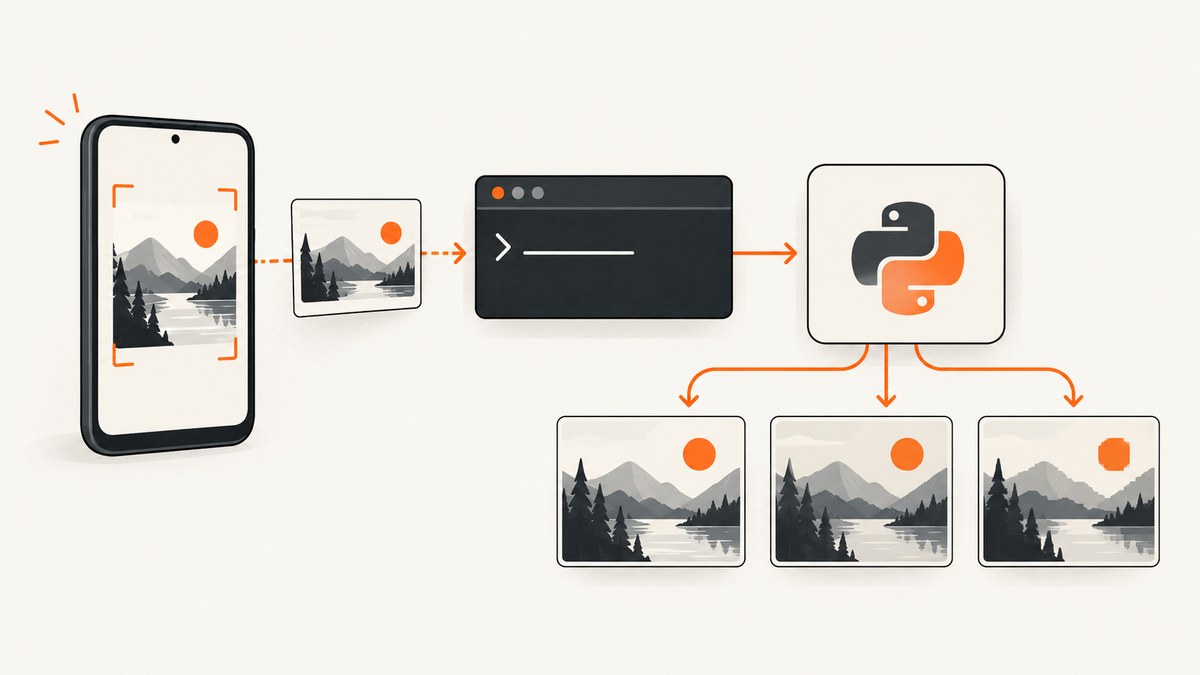
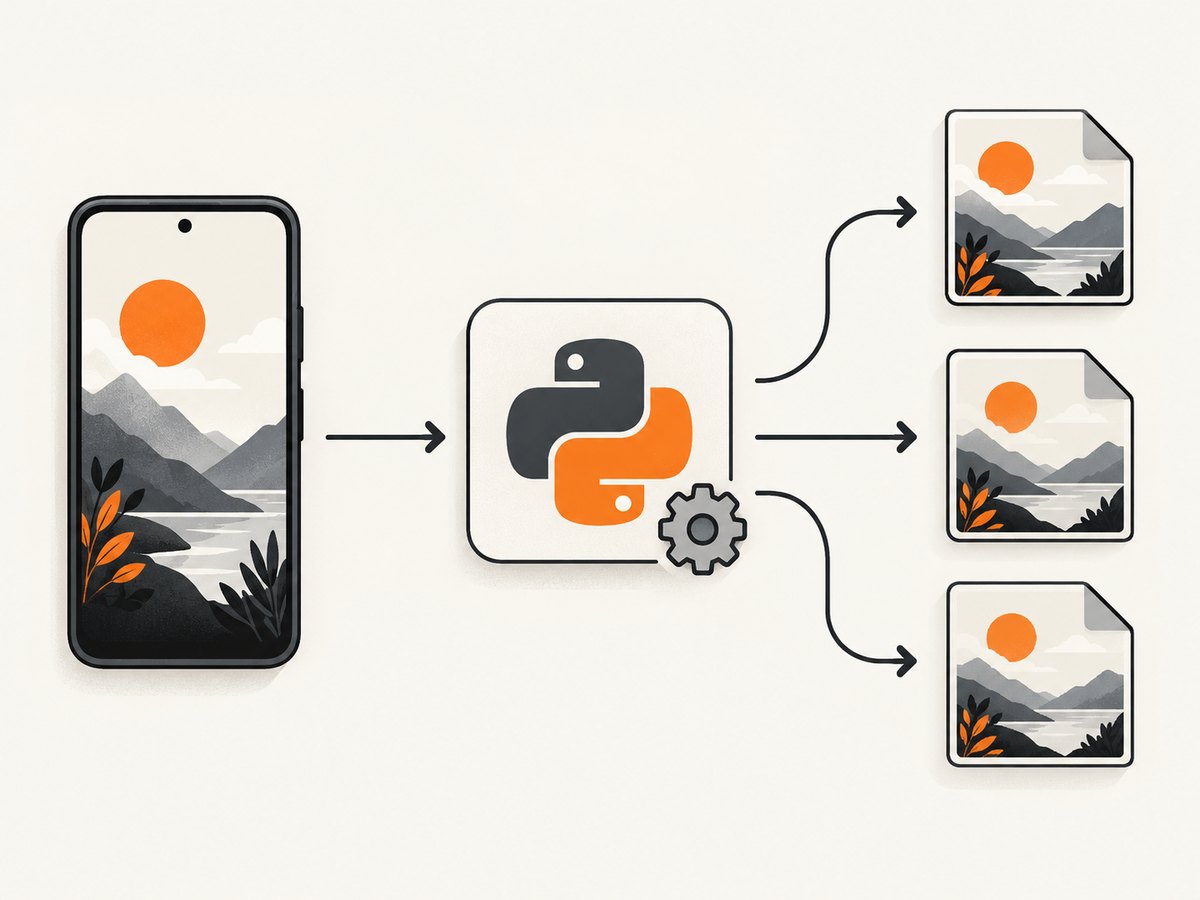
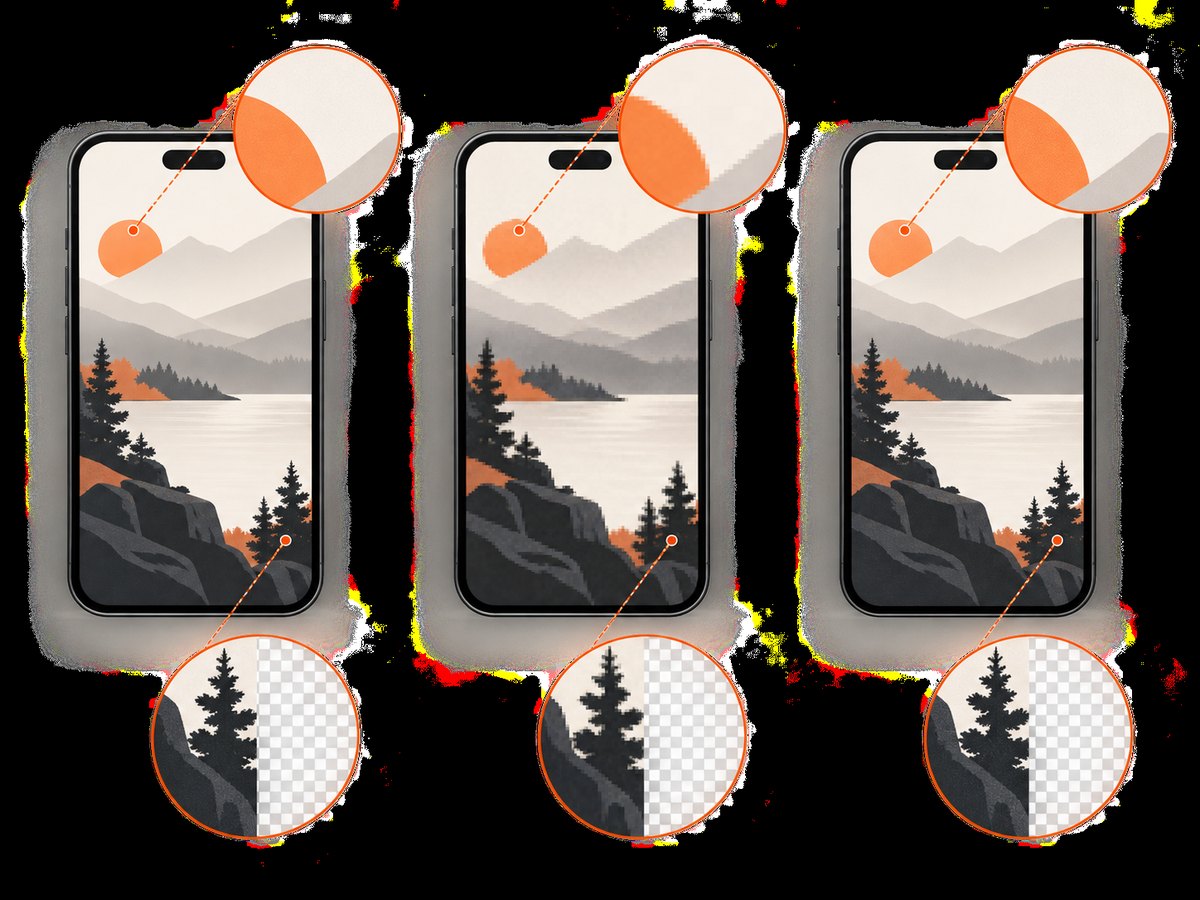
Use ADB to capture a PNG, open it with Pillow, then save a lossless PNG or convert it to JPEG or WebP when smaller files matter more than exact pixels. Compare the original and compressed files at the size where they will be displayed. Small text, icons and one-pixel borders can look acceptable in a thumbnail but fail at full size.
ADB’s screencap command captures the device display. Pillow can re-save that image with PNG optimization or convert it to JPEG/WebP. The right format depends on whether you need lossless pixels, transparency, broad compatibility or the smallest transfer.
1. Capture an ADB screenshot
Install Android Platform Tools, enable USB debugging, connect the device and verify the connection:
adb devicesStream PNG bytes directly to your computer:
adb exec-out screencap -p > screen.pngAndroid documents screencap as the shell utility for taking a screenshot of a device display. You can also save on the device and retrieve the file:
adb shell screencap -p /sdcard/screen.png
adb pull /sdcard/screen.png .
Use exec-out when you want a simple host-side pipeline. Use a device path when another process on the phone needs the file first. See the Android Debug Bridge documentation for ADB command details.
2. Compress the image with Pillow
Install Pillow:
python -m pip install PillowThis complete script writes an optimized PNG, a JPEG and a WebP, then prints their sizes:
from pathlib import Path
from PIL import Image

source = Path("screen.png")

with Image.open(source) as image:
    print(f"Input: {image.format}, {image.mode}, {image.size}")

    # Lossless PNG optimization. Pixel values remain unchanged.
    image.save("screen-optimized.png", format="PNG", optimize=True)

    # JPEG has no alpha channel and is lossy.
    image.convert("RGB").save(
        "screen.jpg",
        format="JPEG",
        optimize=True,
        quality=80,
    )

    # Lossy WebP. Adjust quality after checking text and edges.
    image.save("screen.webp", format="WEBP", quality=80, method=6)

for name in ("screen.png", "screen-optimized.png", "screen.jpg", "screen.webp"):
    path = Path(name)
    print(f"{name}: {path.stat().st_size:,} bytes")
The quality=80 JPEG value follows Pillow’s tutorial example. It is a starting point, not a universal recommendation or a measured savings guarantee. Pillow normally infers the format from the filename; passing format= makes the choice explicit. The Pillow tutorial and image format documentation describe these APIs.
3. Pick PNG, JPEG or WebP
| Goal | Recommended output | What to know |
|---|---|---|
| Preserve every pixel | PNG with optimize=True |
Lossless. Pillow’s optimization uses compression level 9, so a supplied compress_level is ignored when optimization is enabled. |
| Small file with broad support | JPEG | Lossy and opaque. Pillow documents quality from 0 to 95 and advises avoiding values above 95. Fine text and sharp UI edges can show ringing or blur. |
| Small file with modern format support | WebP | Supports lossless and lossy modes. Pillow support depends on how its WebP feature was built, and the consuming platform must support WebP. |
| Keep transparency | PNG or lossless WebP | Converting an RGBA image to RGB removes its alpha channel. JPEG cannot store transparency. |
For lossless PNG compression you can choose an explicit level when you do not use optimization:
from PIL import Image

with Image.open("screen.png") as image:
    image.save("screen-level-9.png", format="PNG", compress_level=9)
Pillow states that optimize=True sets PNG compression to level 9 regardless of a supplied level. Higher compression can take more encoding time. Android’s Bitmap.CompressFormat reference also defines PNG as lossless and JPEG as lossy; its WebP APIs distinguish lossy and lossless encoding.
4. Preserve transparency and image mode correctly
Inspect the source mode before choosing an output:
from PIL import Image

with Image.open("screen.png") as image:
    print(image.mode)  # RGB, RGBA, P, LA, and others are possible
    if "A" in image.getbands():
        image.save("screen-lossless.webp", format="WEBP", lossless=True)
    else:
        image.save("screen.webp", format="WEBP", quality=80, method=6)
Use convert("RGB") before JPEG output. That conversion discards alpha. If the screenshot has a palette or grayscale mode, Pillow can convert it explicitly, but inspect the result because conversion can change colors or transparency behavior.
5. Batch-compress screenshots
For a directory of ADB captures, process each file and keep the source files until visual checks pass:
from pathlib import Path
from PIL import Image

input_dir = Path("captures")
output_dir = Path("compressed")
output_dir.mkdir(exist_ok=True)

for source in sorted(input_dir.glob("*.png")):
    target = output_dir / f"{source.stem}.webp"
    with Image.open(source) as image:
        image.save(target, format="WEBP", quality=82, method=6)
    print(source.name, "->", target.name, target.stat().st_size, "bytes")
Choose a representative set containing text-heavy screens, gradients, photographs, dialogs and transparent overlays. Compare file size and legibility at the actual destination size. There is no format or quality value that guarantees the same result for every Android interface.
6. Troubleshooting
| Symptom | Cause | Fix |
|---|---|---|
adb: no devices/emulators found |
The device is disconnected, unauthorized or USB debugging is disabled. | Reconnect, unlock the device, accept the debugging prompt and run adb devices again. |
| The captured file is empty or invalid | Shell redirection captured an error stream or the command was interrupted. | Prefer adb exec-out screencap -p > screen.png, check the command exit status and verify the file with Pillow. |
| JPEG save raises a mode error | JPEG does not support the source’s alpha or palette mode. | Call image.convert("RGB") before saving JPEG. |
| Transparent pixels become a solid color | RGBA was converted to RGB. | Use PNG or lossless WebP and keep the alpha channel. |
| PNG is still large | PNG is lossless and screenshots may contain high-detail imagery or gradients. | Try lossless WebP, or test JPEG/lossy WebP if exact pixels are not required. Do not expect a fixed percentage reduction. |
| Text looks blurry or has halos | Lossy quality is too low, or the image was resized. | Raise quality, use PNG/lossless WebP, and compare at the intended display size. |
WEBP is unavailable |
The Pillow build lacks WebP support. | Check from PIL import features; print(features.check("webp")) and install a Pillow build with WebP support. |
| The output format is unexpected | The filename extension and requested format do not match. | Use matching extensions and pass an explicit format= argument. |
7. Performance, reliability and cost
- Encoding time: PNG optimization and WebP methods trade CPU time for output size. Measure on your own representative captures if latency matters.
- Memory: Pillow decodes the full bitmap. Very large or full-resolution captures need memory roughly proportional to pixel dimensions and color channels.
- Reliability: Keep the original PNG until the converted file has been opened successfully and visually checked. Record the chosen format and quality with the artifact if reproducibility matters.
- Transfer cost: Smaller files reduce storage and network transfer, but the best format depends on the receiving system’s compatibility and whether alpha is required.
- Quality decisions: Do not judge only by total file size. Check small type, thin borders, icons and gradients at the final display size.
Neither the Android nor Pillow documentation provides a universal compression ratio or speedup for ADB screenshots. Run a benchmark with your own screens if you need a budget or latency estimate.
8. Or skip the browser setup
If the screenshots you need are from websites rather than an Android device, ScreenshotNeo returns a PNG, JPEG, WebP or PDF from one request. It handles the browser capture and can produce a smaller format directly:
curl -G "https://api.screenshotneo.com/v1/shot" -d access_key=YOUR_API_KEY --data-urlencode url=https://stripe.com -o shot.webpimport requests
r = requests.get("https://api.screenshotneo.com/v1/shot", params={"access_key": "YOUR_API_KEY", "url": "https://stripe.com"}, timeout=90)
open("shot.webp", "wb").write(r.content)const q = new URLSearchParams({ access_key: 'YOUR_API_KEY', url: 'https://stripe.com' });
const res = await fetch(`https://api.screenshotneo.com/v1/shot?${q}`);See the ScreenshotNeo API documentation for request options. Cookie banners, newsletter popups and chat widgets are removed before the shot. Bot checks, blank pages and failed loads are never billed, and the response identifies the page verdict and billing status in headers. Its MCP server lets AI agents call take_screenshot, get_page_info and capture_pdf. The Free plan includes 1,000 screenshots per month with no card; paid plans start at $5 for 3,000 shots.
Create a free ScreenshotNeo account.
9. FAQ
Does PNG optimization change the pixels?
No. PNG optimization is lossless. It changes how the data is compressed, not the decoded pixel values.
Is JPEG or WebP always smaller than PNG?
No. Results depend on the screen content, settings and encoder. Measure representative files.
Can I use JPEG for screenshots with transparent areas?
No. JPEG has no alpha channel. Use PNG or lossless WebP when transparency must remain.
Should I resize before compressing?
Only when the destination does not need the original dimensions. Resizing changes readability and is separate from lossless compression.
What quality should I use?
Start with a value such as Pillow’s tutorial example of 80, then inspect text and edges and adjust for your workflow.