How to Compress a Base64-Encoded PNG Screenshot String
Decode a Base64 PNG, optimize or resize its image bytes, then encode them again. Learn runnable Python, Node.js, and command-line workflows, plus how to validate the result.
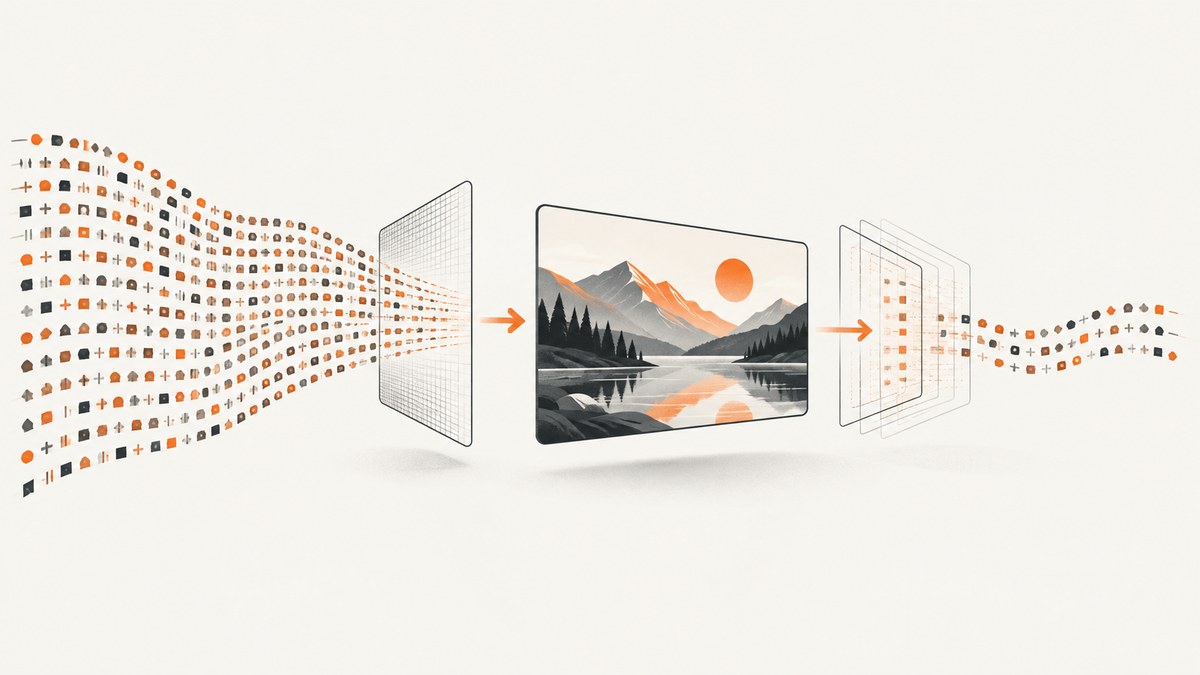
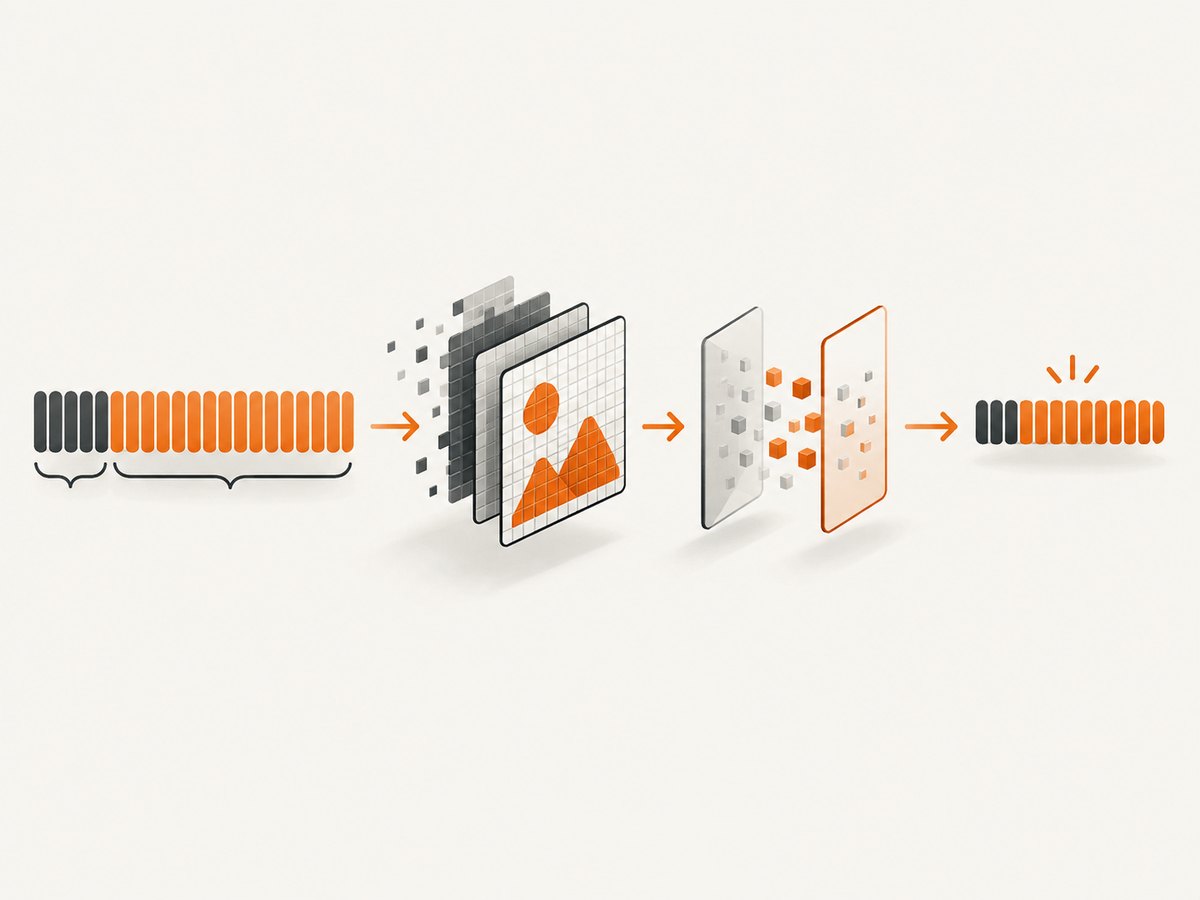
Short answer: Base64 is an encoding, not an image-compression format. Decode the Base64 payload into PNG bytes, optimize or transform the PNG, and Base64-encode the resulting bytes. Re-encoding the same bytes does not make the screenshot smaller. If the input is a data URL, separate its header (such as data:image/png;base64,) from the payload before decoding.
This guide covers lossless PNG optimization, browser and server-side code, optional resizing or format conversion, validation, common errors, and the tradeoffs that determine whether a smaller result is useful for your destination.
1. Understand what you are compressing
A PNG screenshot consists of image data stored using PNG’s lossless filtering and compression. PNG compression method 0 uses zlib-wrapped DEFLATE; the format specification describes an LZ77 window no larger than 32,768 bytes. A PNG is therefore already compressed at the file level, although an optimizer may sometimes reduce it by choosing different valid encodings or removing metadata that is not needed.
Base64 turns binary bytes into printable text. RFC 4648 maps each full group of three input octets to four Base64 characters, with padding when the final group is incomplete. As a result, Base64 text is larger than its original bytes. Encoding the same PNG bytes again reproduces the same representation; it does not compress the image.
For example, this is a data URL:
data:image/png;base64,iVBORw0KGgo...The part before the first comma is the data URL header. The portion after it is the Base64 payload. Decode the payload, not the whole string. After optimization, put the header back only if the destination expects a data URL.
2. Choose a compression strategy
| Method | Pixel fidelity | When it helps | Tradeoff |
|---|---|---|---|
| Re-encode Base64 only | Unchanged | When normalizing a valid string or its padding is required | No image-size reduction |
| Lossless PNG optimization | Preserved | When PNG bytes contain metadata or encoding choices an optimizer can improve | Savings vary; some images barely change |
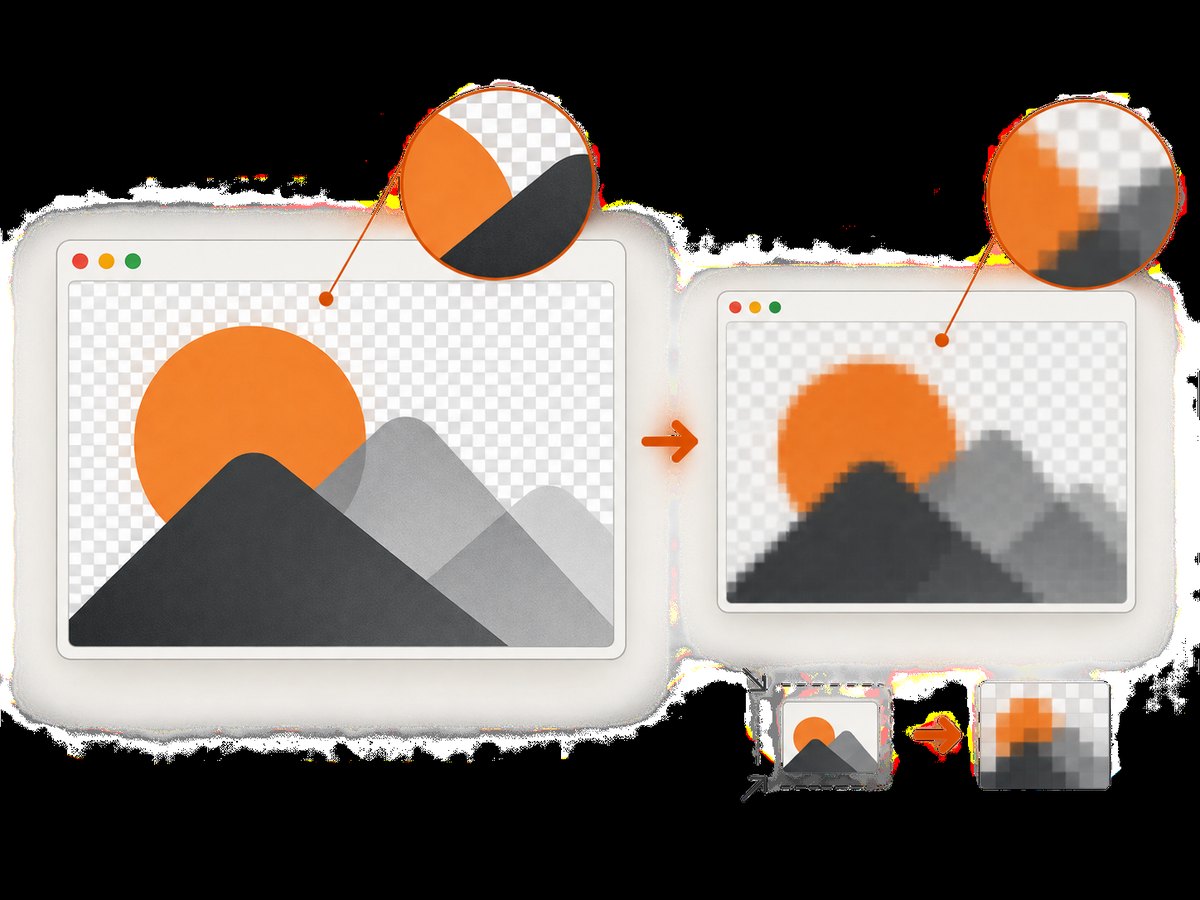
| Resize or reduce color depth | Changed | When the displayed dimensions or color detail can be reduced | Fine text, edges, gradients, and transparency may suffer |
| Convert to JPEG | Lossy | When photographic content matters more than exact pixels or alpha | Text artifacts and loss of transparency; destination must accept JPEG |
Measure the actual output for the target screenshot and destination. Neither the PNG standard nor Base64 guarantees a particular reduction. Keep PNG when exact pixel fidelity or transparency matters, such as UI screenshots with small text or transparent regions. Consider resizing first when the destination displays the image at a smaller size anyway. Use a lossy format only after checking that its appearance and compatibility are acceptable.
3. Inspect and split the input
Before decoding, determine what kind of value you received:
- A bare standard Base64 string usually contains letters, digits,
+,/, and optional trailing=padding. - A data URL starts with
data:and separates its header from the payload with a comma. - Base64url uses
-and_in place of standard Base64 characters. Do not silently treat one alphabet as the other; follow the producer’s format and the consumer’s expected padding rules.
Reject or investigate unexpected characters instead of deleting arbitrary text. Whitespace may be allowed by some decoders, but behavior differs by library. Normalize it only when the source format permits it. Treat input as untrusted: impose a size limit before allocating memory or invoking an image decoder, and handle decoding failures explicitly.
4. Losslessly optimize a PNG in Python
The following script accepts either a bare Base64 PNG or a PNG data URL. It uses Pillow to decode and re-save the PNG, then reports the byte and text sizes. Install Pillow with python -m pip install Pillow. Saving through Pillow can rewrite the PNG, but it is not a guarantee of smaller output; compare the sizes before replacing the original.
import base64
import binascii
import io
from pathlib import Path

from PIL import Image


def split_data_url(value: str) -> tuple[str, str]:
    if value.startswith("data:"):
        header, comma, payload = value.partition(",")
        if not comma or ";base64" not in header.lower():
            raise ValueError("Expected a Base64 data URL")
        return header + ",", payload
    return "", value


def optimize_png_base64(value: str) -> tuple[str, int, int]:
    prefix, payload = split_data_url(value.strip())
    try:
        original = base64.b64decode(payload, validate=True)
    except (binascii.Error, ValueError) as exc:
        raise ValueError("Input is not valid standard Base64") from exc

    if not original.startswith(b"\\x89PNG\\r\\n\\x1a\\n"):
        raise ValueError("Decoded bytes do not have the PNG signature")

    with Image.open(io.BytesIO(original)) as image:
        if image.format != "PNG":
            raise ValueError("Decoded image is not a PNG")
        output = io.BytesIO()
        image.save(output, format="PNG", optimize=True)
        optimized = output.getvalue()

    encoded = base64.b64encode(optimized).decode("ascii")
    return prefix + encoded, len(original), len(optimized)


source = Path("screenshot.txt").read_text(encoding="ascii").strip()
result, before, after = optimize_png_base64(source)
Path("screenshot-optimized.txt").write_text(result, encoding="ascii")
print(f"PNG bytes: {before} -> {after}")
print(f"Base64 chars: {len(base64.b64encode(base64.b64decode(split_data_url(source)[1], validate=True)))} -> {len(result.split(',', 1)[-1])}")
Put the input value in screenshot.txt. The script preserves a data URL prefix when one was present. Its standard decoder validates the alphabet and padding, so a Base64url value should be handled with an explicitly Base64url-aware decoder instead. This example holds the encoded text, decoded image, and output in memory; for large images or batch work, process one item at a time and set an input-size limit.
For a specialized PNG optimizer installed as a command-line utility, decode to a file, run the optimizer, then encode the resulting bytes. The exact command and available options depend on the installed utility; check its own documentation and keep the original until the optimized image has been validated.
5. Do the same in Node.js
This Node.js example uses the sharp image-processing package. Install it with npm install sharp. It accepts a bare Base64 PNG or a Base64 data URL, optimizes the PNG encoding, and preserves the original prefix.
import { readFile, writeFile } from 'node:fs/promises';
import sharp from 'sharp';

function splitDataUrl(value) {
  if (!value.startsWith('data:')) return ['', value];
  const comma = value.indexOf(',');
  if (comma === -1 || !value.slice(0, comma).toLowerCase().includes(';base64')) {
    throw new Error('Expected a Base64 data URL');
  }
  return [value.slice(0, comma + 1), value.slice(comma + 1)];
}

const input = (await readFile('screenshot.txt', 'utf8')).trim();
const [prefix, payload] = splitDataUrl(input);
if (!/^[A-Za-z0-9+/]*={0,2}$/.test(payload) || payload.length % 4 !== 0) {
  throw new Error('Input is not valid padded standard Base64');
}
const png = Buffer.from(payload, 'base64');
if (png.length < 8 || !png.subarray(0, 8).equals(Buffer.from([137, 80, 78, 71, 13, 10, 26, 10]))) {
  throw new Error('Decoded bytes do not have a PNG signature');
}

const optimized = await sharp(png).png({ compressionLevel: 9, adaptiveFiltering: true }).toBuffer();
const result = prefix + optimized.toString('base64');
await writeFile('screenshot-optimized.txt', result, 'utf8');
console.log(`PNG bytes: ${png.length} -> ${optimized.length}`);
console.log(`Base64 chars: ${payload.length} -> ${optimized.toString('base64').length}`);
The Base64 check above expects padded standard Base64. Adjust it only if your input contract explicitly allows unpadded input or Base64url. Validate the final image in the same way you would validate any untrusted image output.
6. Resize or convert in a browser
If the image only needs to appear at smaller dimensions, a browser canvas can produce a new PNG or JPEG data URL. This is a transformation of the pixels, not lossless PNG optimization: scaling can discard detail. A canvas also requires decoding the image first, and large data URLs can consume substantial memory. Apple documents HTMLCanvasElement.toDataURL() as producing image data URLs, including PNG or JPEG; the quality argument applies to formats such as JPEG, not PNG compression outcomes.
async function resizePngDataUrl(dataUrl, maxWidth, maxHeight) {
  const image = new Image();
  image.src = dataUrl;
  await image.decode();

  const scale = Math.min(1, maxWidth / image.naturalWidth, maxHeight / image.naturalHeight);
  const canvas = document.createElement('canvas');
  canvas.width = Math.max(1, Math.round(image.naturalWidth * scale));
  canvas.height = Math.max(1, Math.round(image.naturalHeight * scale));
  const context = canvas.getContext('2d');
  if (!context) throw new Error('Canvas 2D context is unavailable');
  context.drawImage(image, 0, 0, canvas.width, canvas.height);
  return canvas.toDataURL('image/png');
}

const smaller = await resizePngDataUrl(existingPngDataUrl, 1200, 900);
For JPEG output, use canvas.toDataURL('image/jpeg', quality) and inspect the result visually. The quality parameter is a browser encoder setting, not a promise of a specific size. JPEG does not preserve transparency. A cross-origin image may taint a canvas and prevent export unless the server and image request permit CORS. If the source is already a local data URL, that particular cross-origin issue generally does not apply.
7. Validate output and calculate the real size
- Decode the newly encoded payload and verify it opens as an image.
- Check the media type and data URL prefix match the actual output format. Do not label JPEG bytes as PNG.
- Compare decoded file byte lengths, not just the displayed Base64 string. Base64 length follows from byte length plus padding.
- View the output at its intended display size and inspect small text, edges, colors, and transparency.
- Test the receiving system’s maximum field, URL, message, or request size. A valid image can still exceed an application limit.
A data URL embeds the image bytes in text. RFC 2397 notes that data URLs are useful for short values and that applications may impose length limits. For large screenshots, uploading the image as a file or storing it and passing a URL is often a more suitable design than embedding a long data URL in HTML, a database field, or a request URL.
8. Troubleshooting
| Symptom | Likely cause | Fix |
|---|---|---|
| “Incorrect padding” or invalid Base64 | Truncated text, missing padding, whitespace, or an unsupported alphabet | Check the source and transport for truncation. Confirm standard Base64 versus Base64url and apply the receiving format’s padding rules. |
| Decoder rejects the data URL | The header was passed as part of the payload | Split at the first comma and decode only the portion after it. Restore the header after encoding if needed. |
| Output is larger | The PNG was already efficiently encoded, or the optimizer chose a less favorable valid encoding | Keep the smaller of original and optimized bytes. Measure on the actual image; do not assume a rewrite saves space. |
| Image opens as corrupt | Text was encoded instead of decoded, payload was truncated, or bytes were mislabeled | Decode the original payload to a file, verify its PNG signature, and inspect the final bytes with an image decoder. |
| Colors or transparency changed | Palette, color profile, alpha, or conversion behavior changed | Preserve PNG and use a lossless path; compare the rendered result and retain required metadata or alpha. |
| Canvas export throws a security error | A cross-origin source tainted the canvas | Use an image source served with suitable CORS headers, request it with CORS enabled, or perform conversion where the image is available locally. |
| Request or database rejects the result | The string exceeds a destination-specific length limit | Store the binary image or an object URL instead of embedding a long data URL, or resize/convert to a supported smaller representation. |
9. Performance, reliability, and cost
Base64 encoding and decoding require work proportional to the input size and create additional memory copies in many common APIs. Image optimization also has CPU and memory cost; the selected compression settings may trade processing time for file size. For a single screenshot, this may be negligible, but batch systems should cap dimensions and input bytes, process jobs with bounded concurrency, and avoid holding multiple full-resolution images in memory at once.
For reliability, preserve the original until the optimized result passes decoding and visual checks. Treat decoder and optimizer errors as failures rather than returning a malformed string. Record input and output byte counts, format, dimensions, and processing outcome so that unexpected size increases are visible. If output will be embedded in HTML, account for escaping and the data URL’s media type; if it will be transmitted through JSON, account for the surrounding serialization and destination limits.
Cost depends on where processing runs: local CPU and memory, a browser session, or a hosted image service. This workflow does not imply a universal optimizer speed or savings rate. Benchmark representative screenshots in your own environment, including large pages and transparent images, before choosing a pipeline.
10. Or skip the browser setup
If your input is a screenshot you still need to capture, ScreenshotNeo returns a screenshot or PDF from one GET request. It can return PNG, JPEG, or WebP, so choose the format that fits the downstream consumer. This is separate from optimizing an existing Base64 string: capture the page, then process the returned image bytes if your workflow needs a smaller payload. See the ScreenshotNeo API documentation.
curl -G "https://api.screenshotneo.com/v1/shot" -d access_key=YOUR_API_KEY --data-urlencode url=https://stripe.com -o shot.webpimport requests
r = requests.get(
"https://api.screenshotneo.com/v1/shot",
params={"access_key": "YOUR_API_KEY", "url": "https://stripe.com"},
timeout=90,
)
r.raise_for_status()
open("shot.webp", "wb").write(r.content)const q = new URLSearchParams({ access_key: 'YOUR_API_KEY', url: 'https://stripe.com' });
const res = await fetch(`https://api.screenshotneo.com/v1/shot?${q}`);
if (!res.ok) throw new Error(`Screenshot request failed: ${res.status}`);
await import('node:fs/promises').then(({ writeFile }) => writeFile('shot.webp', Buffer.from(await res.arrayBuffer())));ScreenshotNeo accepts cookie and consent banners like a visitor and removes more than 60 known consent platforms, newsletter popups, and chat widgets before capture; each of those steps can be turned off. Bot checks and CAPTCHAs, blank pages, timeouts, failed loads, and cache hits cost nothing, and responses report the page verdict and billing status in headers. Its MCP server gives AI agents tools for screenshots, page information, and PDF capture. The Free plan includes 1,000 screenshots a month with no card; paid plans start at $5 for 3,000, and every feature is on every plan.
Sign up free for 1,000 screenshots a month, with no card required.
11. Frequently asked questions
Can I shrink a Base64 PNG without losing quality?
Sometimes. A lossless PNG optimizer can produce fewer bytes if it finds a better valid encoding or removable metadata. It may also produce no savings. Re-encoding the Base64 alone does not shrink the PNG.
Should I remove the data URL prefix before storing the image?
Store the binary bytes when the storage system supports binary data. If storing text, keep the prefix only when the reader expects a data URL; otherwise store the format separately and keep just the payload.
Is JPEG always smaller than PNG for screenshots?
No universal result applies. JPEG is lossy, does not retain transparency, and can make small UI text look worse. Compare formats on the actual screenshot and check the destination’s supported types.
Why does the Base64 string grow even when I compress the image?
Base64 adds roughly one-third representation overhead for full groups of bytes. Compare the decoded image byte counts to determine whether image compression helped; the resulting text remains larger than those bytes.
Can I put any size data URL in a webpage?
No. Browsers and applications may impose practical limits, and large data URLs increase text and memory overhead. For larger images, use a file or a stored resource URL when the destination allows it.


